MedicMeter
Expiry Control of Medicines
Entwickelt für iPhone, iPad, iPod touch
Kostenlos
- Altersfreigabe4+
- KategorieDienstprogramme
- EntwicklerFrancisco Lara Ruiz
- SprachenSpanisch+ 1 weitere
- Größe13,8 MB
Verlinkt auf die offizielle App Store-Seite
Download.org hostet keine Datei von MedicMeter. Die Schaltfläche öffnet die App-Seite bei App Store, wo Francisco Lara Ruiz die App veröffentlicht. Eintrag zuletzt geprüft am 12.11.2026.
Screenshots


Info
Der Entwickler hat diesen Text nicht in Ihrer Sprache bereitgestellt.
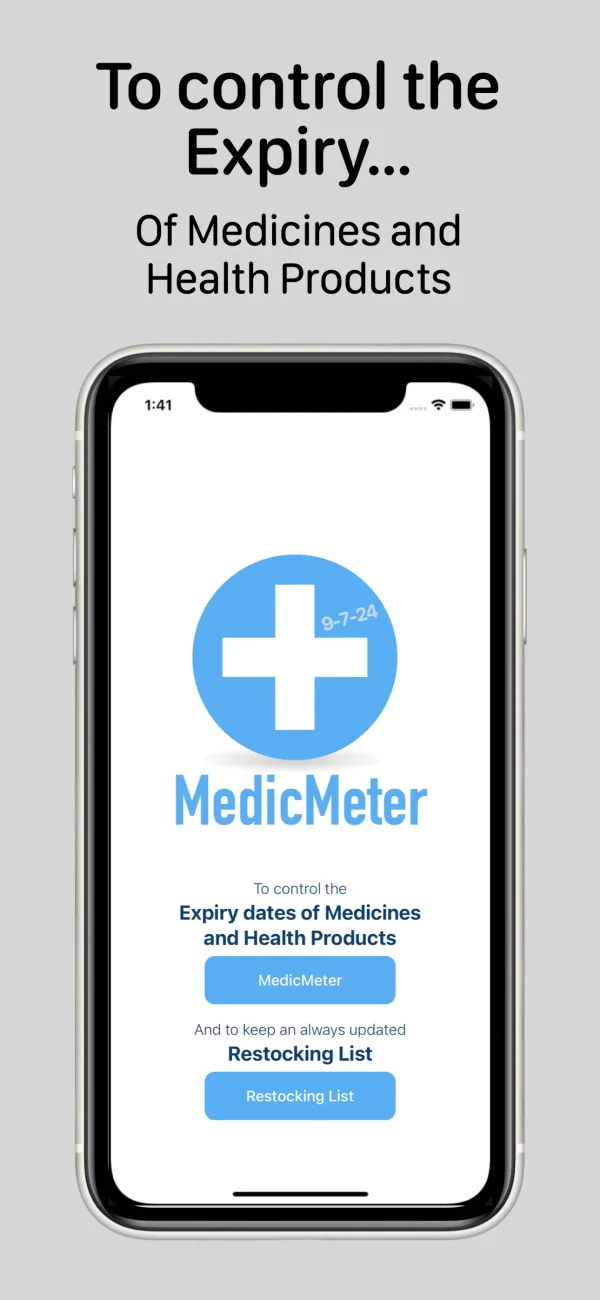
MedicMeter (Sanitometro) is a free app for iPhone and iPad, available in Spanish and English, simple and intuitive, and packing two functions: MedicMeter and Restocking List. Although it has been designed as a resource to support Emergency Health Technicians, it is useful for anyone.
The app integrates two environments:
• MEDICMETER: To keep under control the Expiry dates of Medicines and Health Products.
• RESTOCKING LIST: To keep updated the products Restocking List, prioritized and always at hand.
MEDICMETER
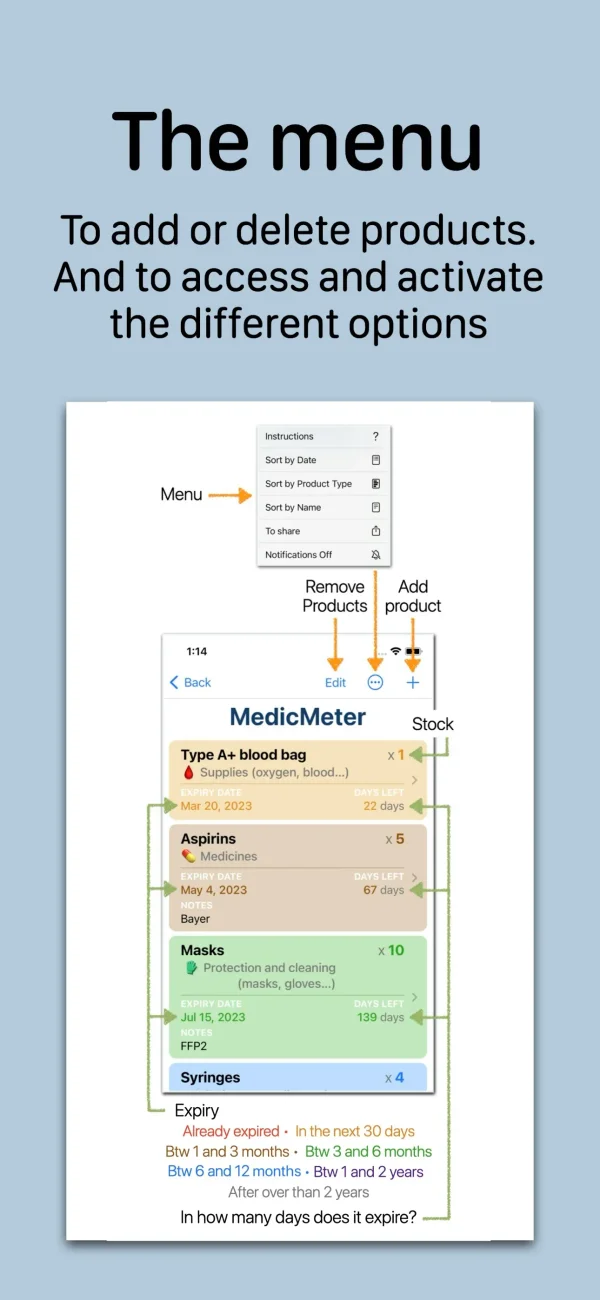
Organizes the list of Medicines and Health Products according to their expiry date, and showing the number of days remaining until that date. A color code allows you to see, at a glance, if the expiry date has already been exceeded or how close is that date. Allows you to share the list of products and to activate notification alerts if there are products about to expire.
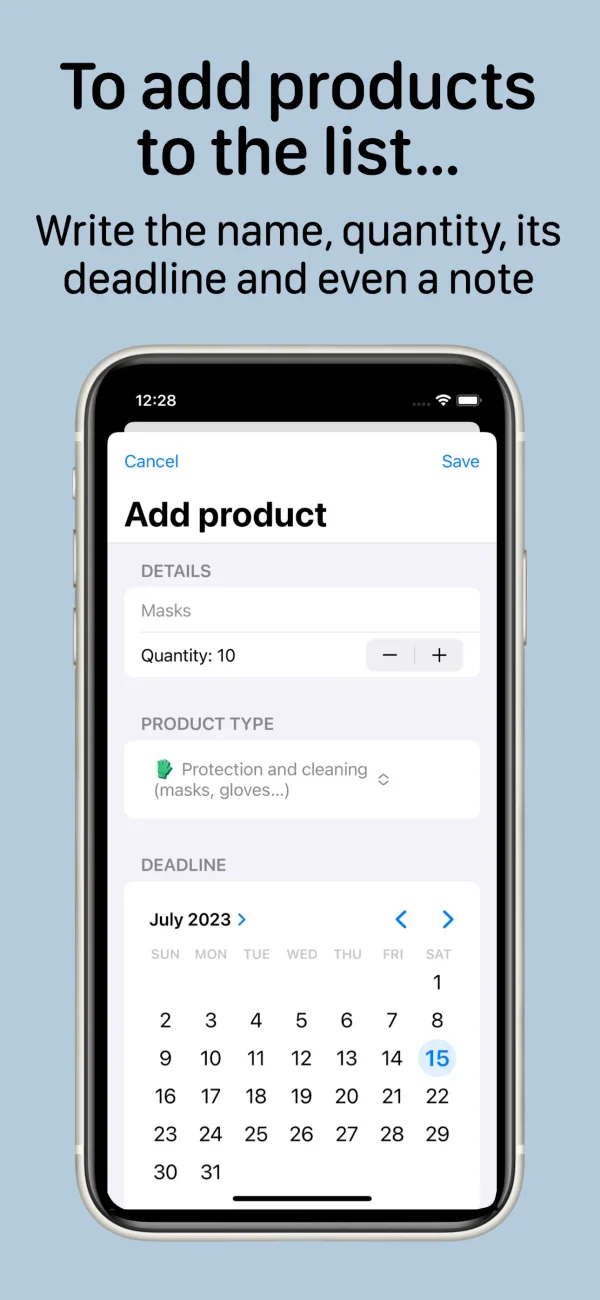
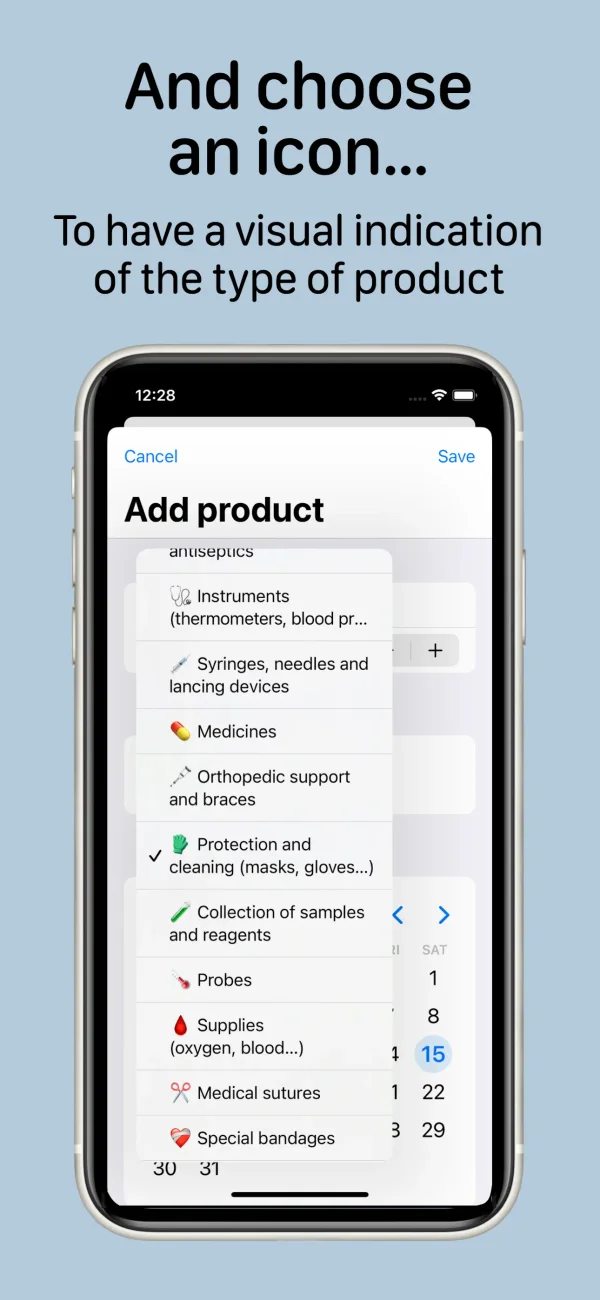
— To add a product: Tap + and write its name, the Expiry date and the quantity in stock. Select the type of product, and add a note if you wish.
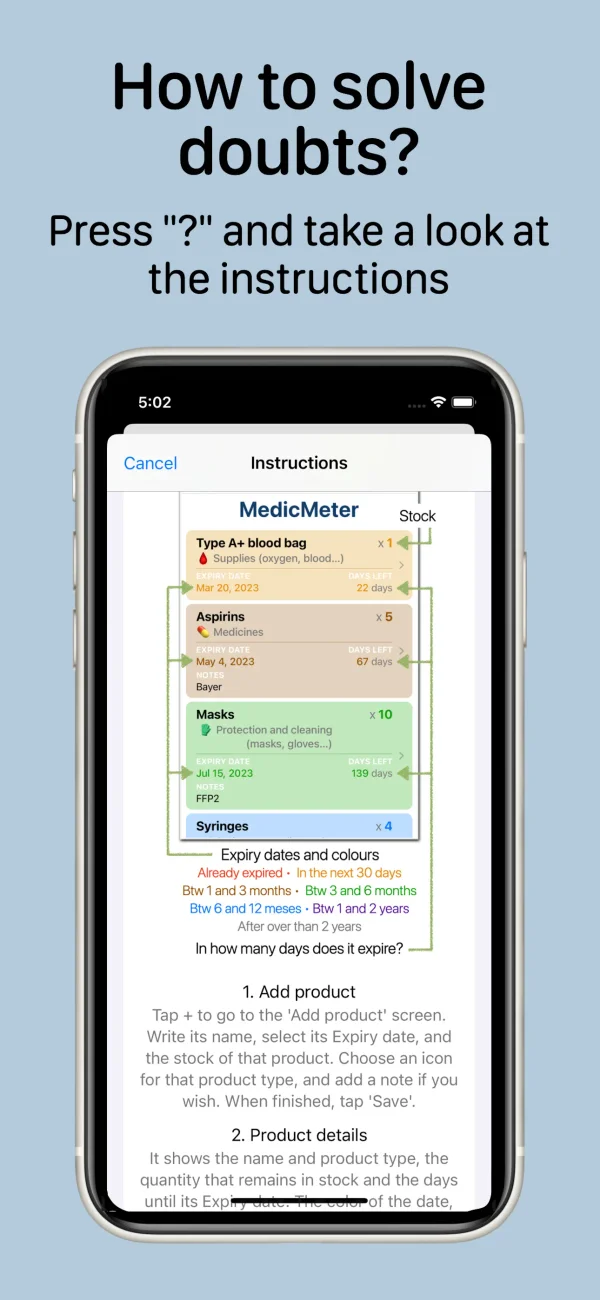
— Product details: It shows the name, product type, stock and days left until its Expiry date. Date, days left and background color points out if the product has already expired (red). Or if it will expire in the next 30 days (orange), between 1 and 3 months (brown), between 3 and 6 months (green), between 6 and 12 months (blue), between 1 and 2 years (purple) or after more than 2 years (grey).
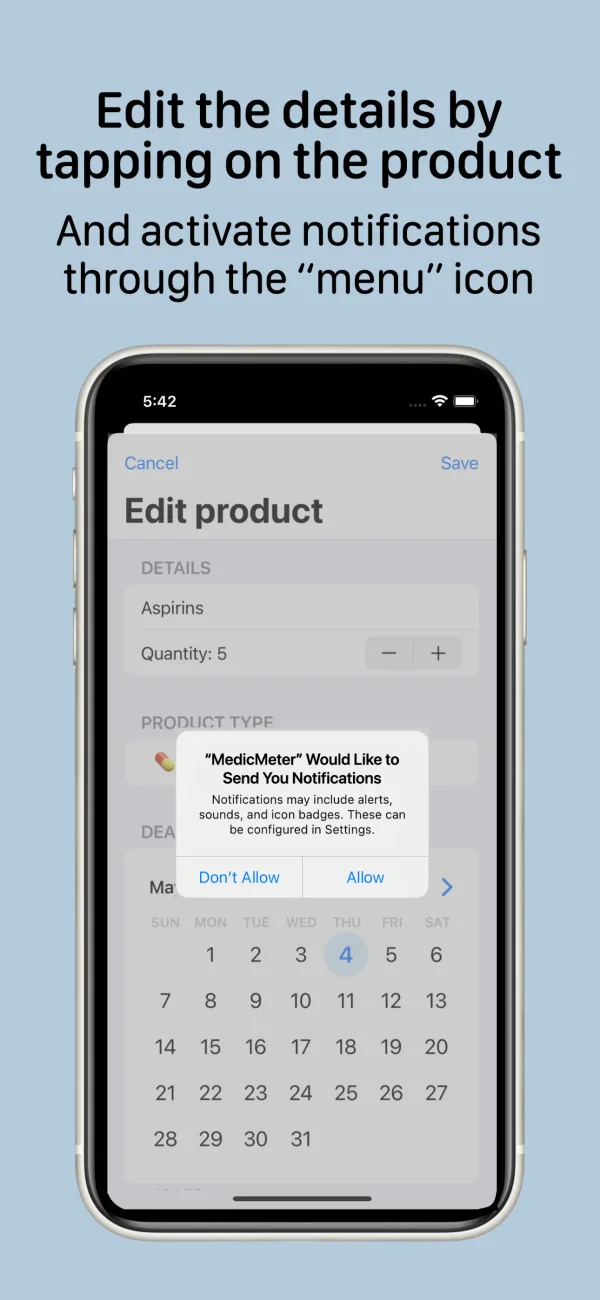
— To edit the details of a product: Tap on the product.
— To remove a product from the list: Tap 'Edit' or swipe the product card to the left, and press 'Delete'.
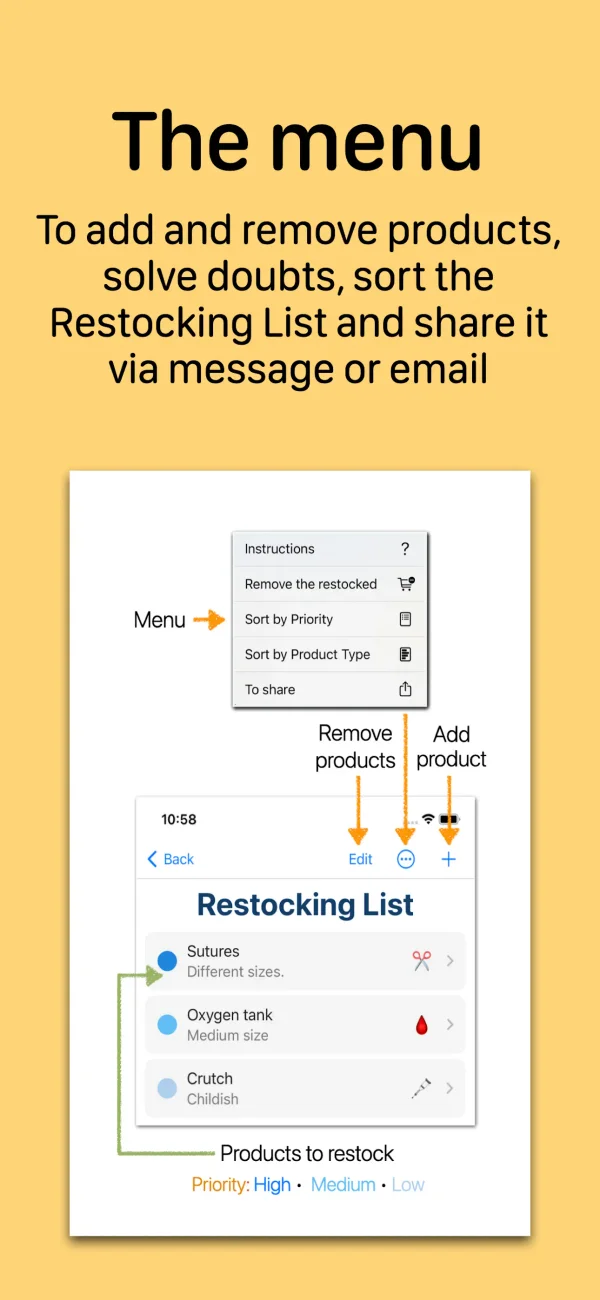
— To sort the list by 'Date', 'Product type' or 'Name': Tap on the 'Menu' and choose one of the options. By default, the list is sorted by Expiry 'Date'.
— To add a product to the Restocking List, from the MedicMeter: Swipe that product card to the right, touch 'Restock', and that product will be automatically added to the Restocking List.
— To duplicate a product that you already have in the MedicMeter: Just swipe the card of that product to the right, touch 'Duplicate' and its card will be duplicated. Touch the duplicated card and edit the details of that new product.
— To activate Notifications: Tap the 'Menu' and choose whether you want to activate or deactivate notifications. With 'Notifications on', at 8:00 in the morning a 'Products near expiry' alert will appear in the event that there are less than 4 days left before the Expiry date of any on them.
— To share the list: Tap on the 'Menu' icon and select 'To share'. And choose to do it by email or by message.
RESTOCKING LIST
This second function allows you to keep the list of products to be restocked always updated, prioritized and at hand. And to share it by email or message.
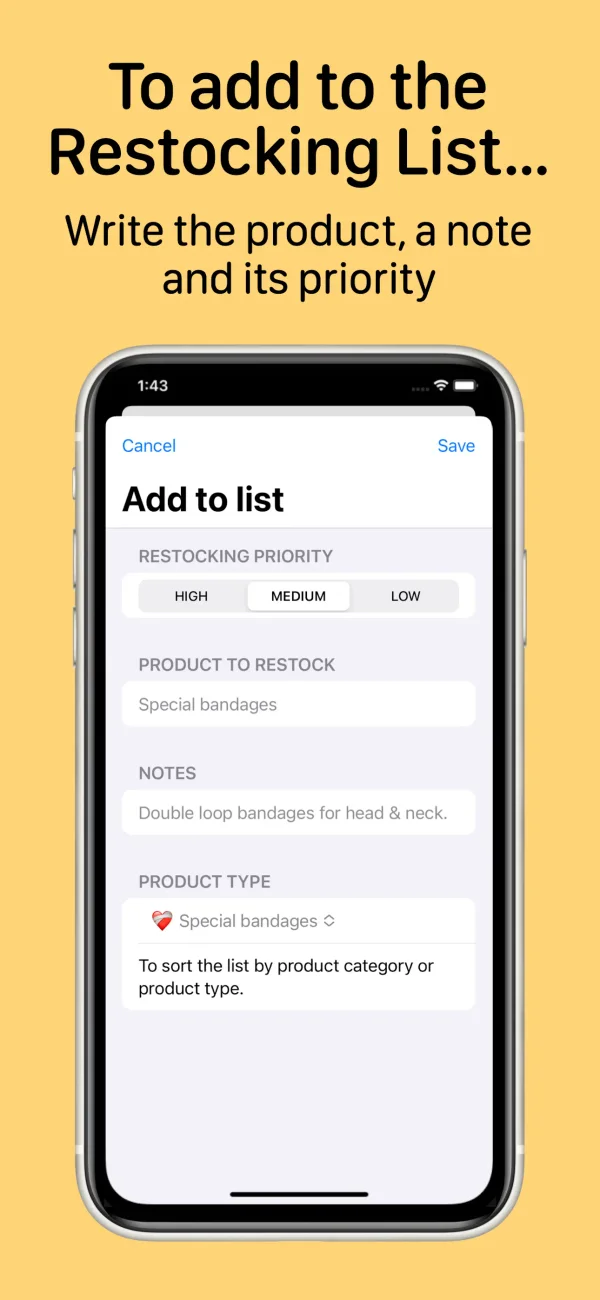
— To add to the list: Tap + and write the product name. Add a note, if you wish. And choose an icon for the product type, which will be used to sort the list by 'Product type'.
— Do I need it right away?: Tap on one of the three buttons, depending on the restocking priority: High priority (dark blue), medium (blue), low (light blue).
— To edit the details of any product: Just tap on the product.
— To remove a product from the list: Tap 'Edit' or swipe the product card to the left, and press 'Delete’.
— To mark the products already 'restocked': Swipe with your finger the product card in the Restocking List to the right, and a blue validation icon will appear with a question mark; touch it and the 'Already restocked' mark will appear in the blue circle of that product.
— To remove from the list the products marked as 'Already restocked’: Just tap on the 'Menu' icon and choose 'Remove the already restocked'.
— To sort the list by 'Priority' or by ‘Product type': Tap on the 'Menu' icon and choose one option. Initially, the list is sorted by 'Priority'. By ‘Product type', the list is sorted by product category.
— To share the list: Tap on the 'Menu' icon and select 'To share'. And choose the way to do it, by email or message.
Neue Funktionen
Version 1.1 · 04.01.2024
This new version adds the following new features to speed up some common tasks:
What's new in MEDICMETER:
— In addition to sorting the MedicMeter list by 'Date' or by 'Product type', you can now also sort it alphabetically by 'Name'.
— You can add medicines or health products to the Restocking List, right from the MedicMeter.
If at any time you decide to add again any of the medicines or health products that you have in MedicMeter, you just have to swipe that medicine or health product card to the right, touch 'Restock', and that medicine or health product will be automatically added to the Restocking List.
— You can easily duplicate a medicine or health product that you already have in the MedicMeter.
If you have restocked any of products that you already have in the MedicMeter, you can add it very quickly to the list. Just swipe the card of that medicine or health product to the right with your finger, touch 'Duplicate' and its card will be duplicated. Touch the duplicated card and edit the details of that new product, such as the quantity and its Expiry date.
What's new in the RESTOCKING LIST:
— You can mark on the list the medicines and health products as you are restocking them.
Swipe with your finger the product card in the Restocking List to the right, and a blue validation icon will appear with a question mark; touch it and the 'Already restocked' mark will appear in the blue circle of that product.
— And to remove from the list the products marked as 'Already restocked’, just tap on the 'Menu' icon and choose the option 'Remove the already restocked'.
App-Datenschutz
Was Francisco Lara Ruiz im App Store zum Umgang dieser App mit Daten angibt.
-
Keine Daten erfasst
Der Entwickler erfasst keine Daten von dieser App.
Die Datenschutzpraktiken können variieren, zum Beispiel je nach den von Ihnen verwendeten Funktionen oder Ihrem Alter.
Informationen
- Anbieter
- Francisco Lara Ruiz
- Kategorie
- Dienstprogramme
- Version
- 1.1
- Aktualisiert
- 04.01.2024
- Veröffentlicht
- 01.03.2023
- Größe
- 13,8 MB
- Erfordert
- iOS 15.5 oder neuer
- Altersfreigabe
- 4+
- Preis
- Kostenlos
- Sprachen
- Spanisch, Englisch
- Copyright
- © 2023 Paco Lara
Das könnte Ihnen auch gefallen
-
 Pharma Stock: HausapothekeMedikamente-Erinnerung, Ablauf
-
 ADURIZ RECARGADienstprogramme
-
 BoxymiDienstprogramme
-
 ImportEspanaDienstprogramme
-
 IMEM Life®Dienstprogramme
-
 Fotos bereinigen LimpiaPixDubletten löschen, GB frei
-
 Sant GregoriDienstprogramme
-
 Fm CatalogueDienstprogramme
-
 Zero BarrerasDienstprogramme
-
 Valle de MenaDienstprogramme