Time Lapse Plus
Create Amazing Timelapse Video
Diseñada para iPhone, iPad, iPod touch
5,99 €
- Clasificación por edad4+
- CategoríaFoto y vídeo
- DesarrolladorHeng Jia Liang
- IdiomasInglés
- Tamaño2,4 MB
Enlaza a la página oficial de App Store
Download.org no aloja ningún archivo de Time Lapse Plus. El botón abre la página de la aplicación en App Store, donde la publica Heng Jia Liang. Ficha comprobada por última vez el 12/11/2026.
Capturas de pantalla
Acerca de
El desarrollador no ha proporcionado este texto en tu idioma.
Time Lapse Plus. Simple and robust time-lapse app. Create amazing time-lapse videos with ease. Perfect for casual users with an easy-to-use control panel.
Create advanced time-lapse videos with control over color and motion.
Once a time-lapse project is finished capturing, you can edit it and apply different effects to your time-lapse project.
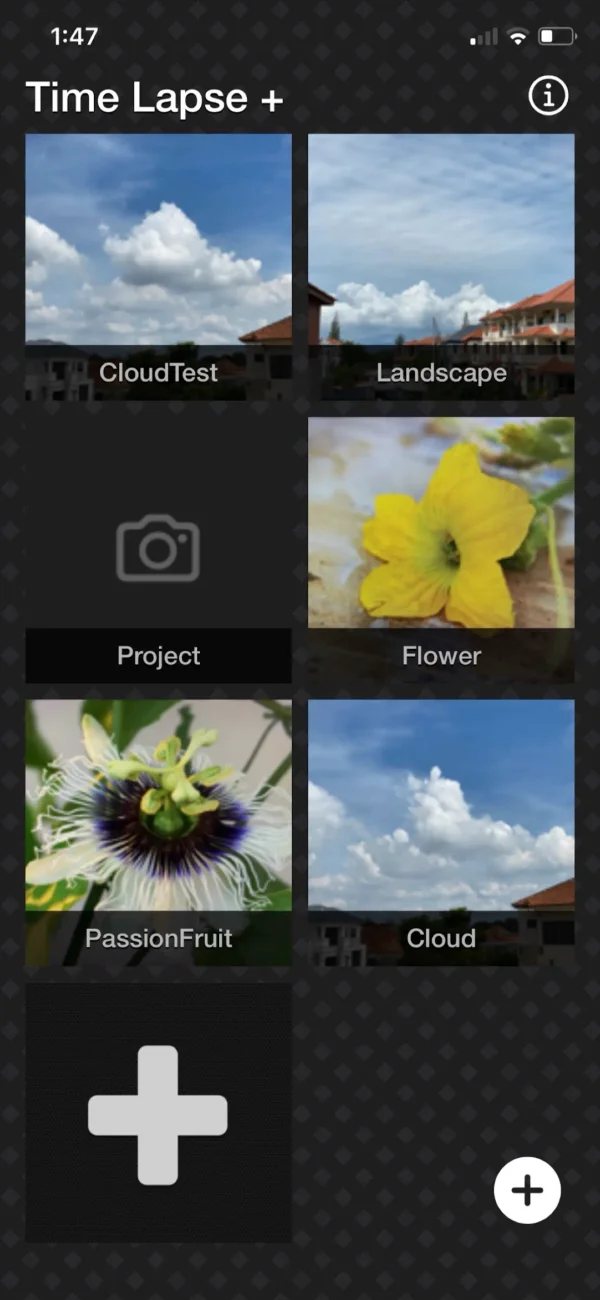
Project Management:
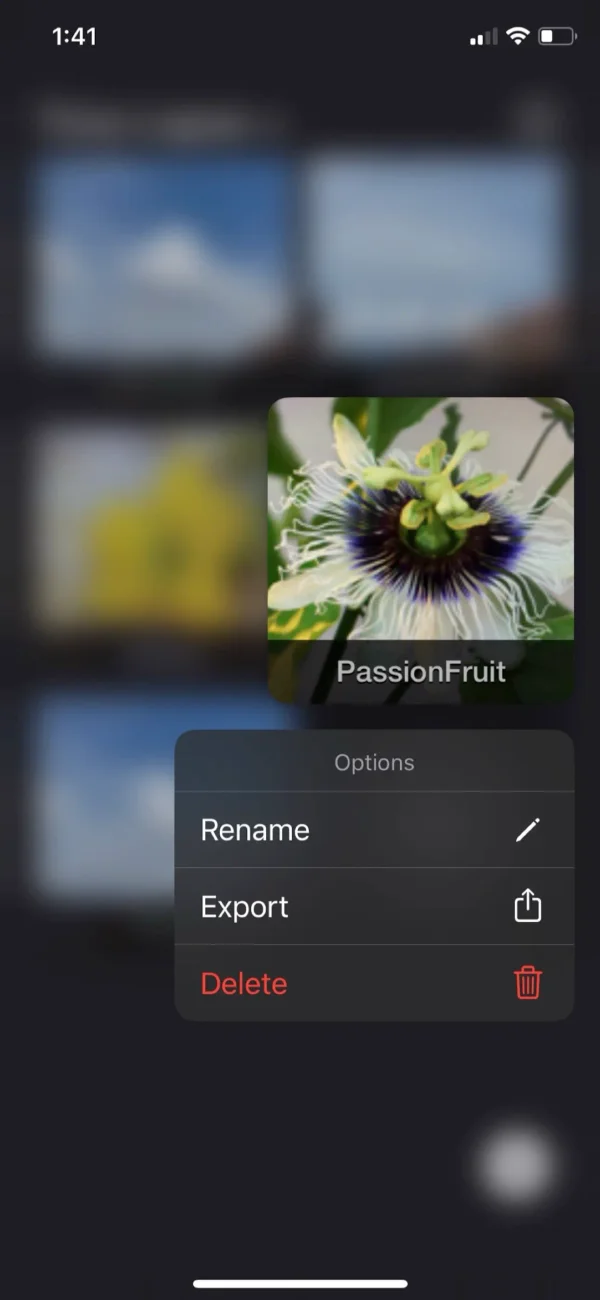
• Rename, delete project, or export movie option available via long press.
• Projects can be copied to other devices using the Files App. Go to Time Lapse and copy the project folder.
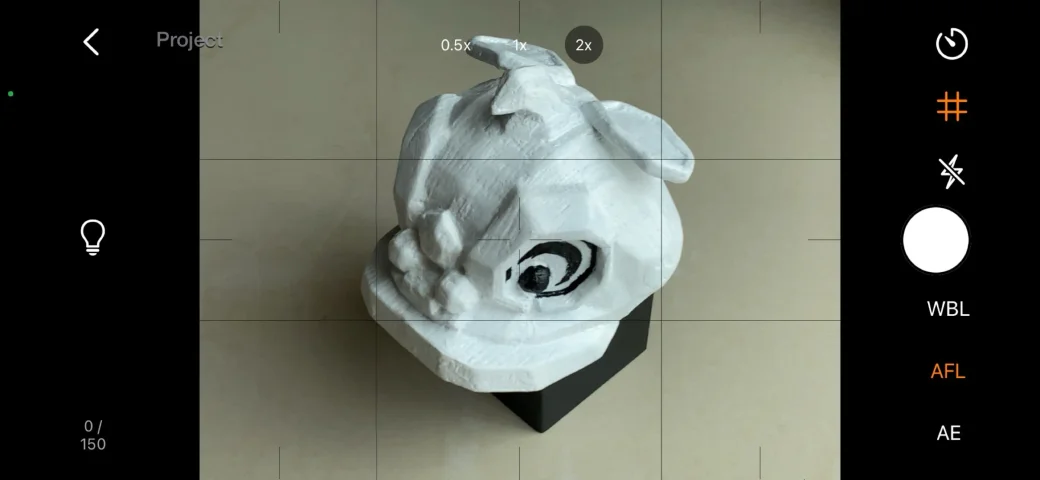
Time Lapse Plus Camera Features:
• Default highest photo quality output depends on device.
• Supports dual-lens or triple-lens devices.
• Auto/lock white balance.
• Auto/touch focus.
• Auto/touch exposure control.
• Enable/disable flash.
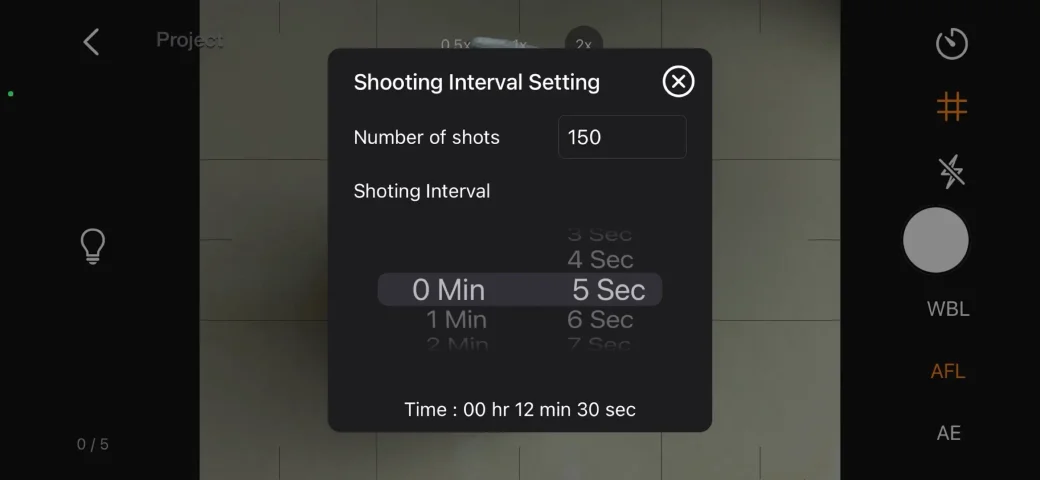
• Timer adjustment range from 1 second to 29 minutes.
• Show/hide grid option.
• Delay on startup so the capture session does not begin immediately, helping prevent camera shake.
• Remaining shot countdown info shown on capture view.
• Option to dim screen for battery saving.
• Camera turns off if timer delay is more than 20 seconds to save battery.
• Photos are saved immediately to prevent accidental data loss.
• Photos are saved to internal storage and available for external editing [access files via iTunes or Files App].
• Simple UI and easy to use.
Time Lapse Plus Edit Panel Features:
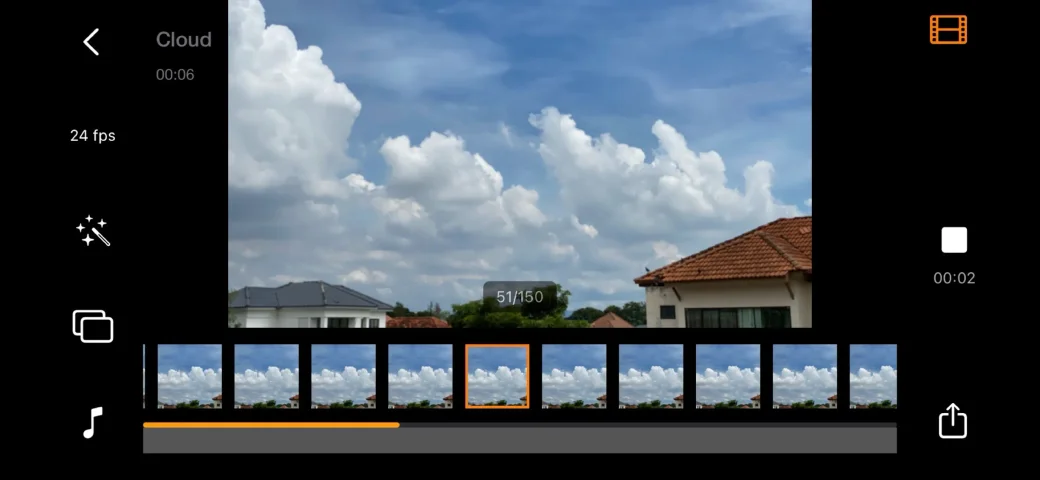
• Set movie frame rate (FPS) from 1–60 fps.
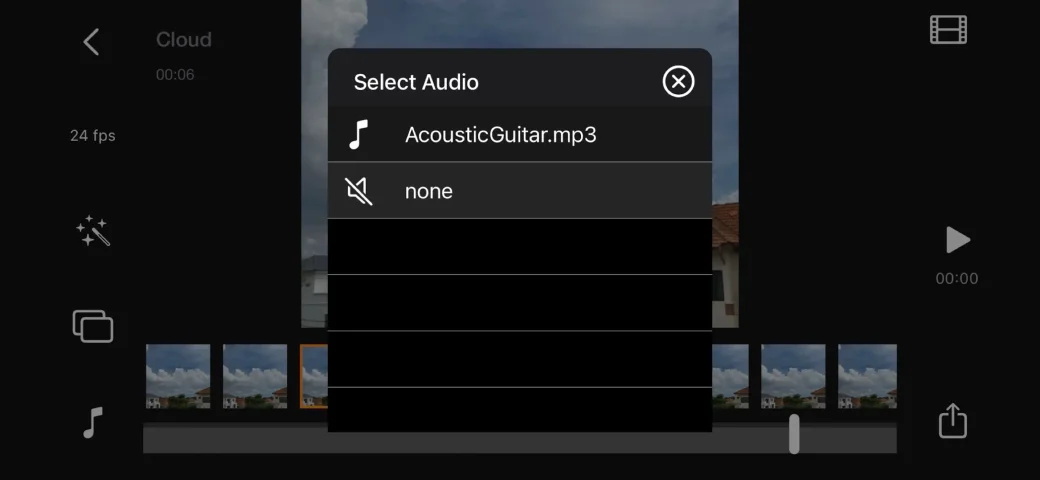
• Add sound to your project—place audio files into Files App > Time Lapse > Project Name > Audio folder.
• Preview time-lapse clip.
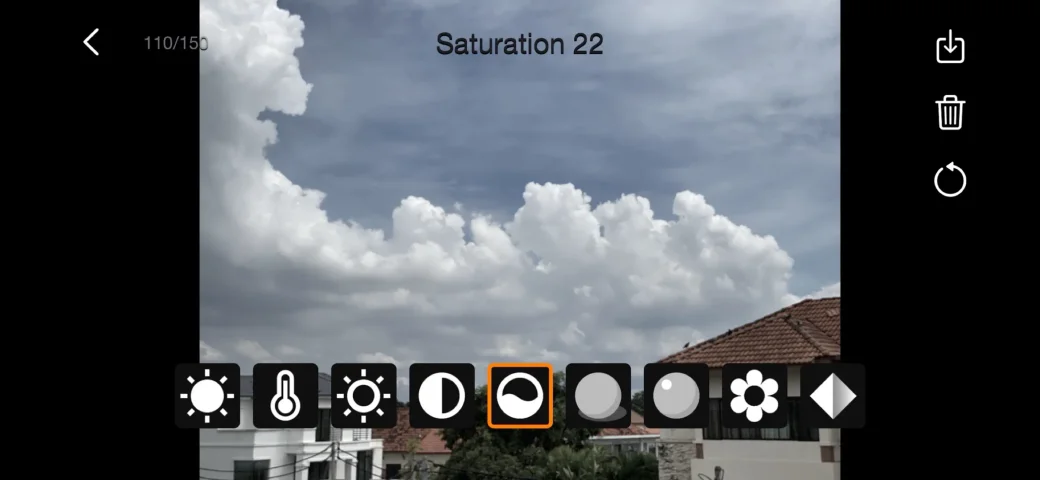
• Add style to frames using the style editor.
• Add motion position to frames using the motion editor.
• Movie info available for better understanding of video length.
Style Editor:
• Edit frame style and movie clip plays with style changes.
• Edit exposure, temperature, brightness, contrast, saturation, shadow, highlight, vibrance, sharpness, and blur level by touch and slide.
• e.g., You can create a clip that starts in black and white and ends in color by setting saturation to 0 on the first frame and 60 on the last frame.
• You can combine all available parameters to create any desired color effect.
Motion Editor:
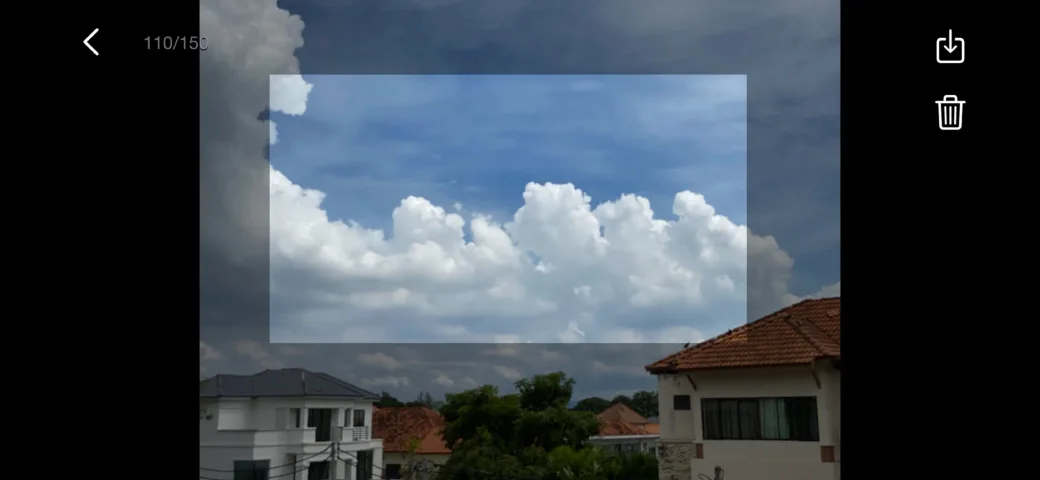
• Set frame size and position for selected frames so the clip will have camera panning/zooming effects.
• Frames are set within allowed margins to avoid quality drop in the rendered clip.
• Drag to set position and pinch to set frame size.
• e.g., For zooming effect: Set a large frame for the first frame and a small frame for the last frame. The rendered clip will zoom into the target point.
• e.g., For a panning effect (left to right): Set the frame position to the left for the first frame and to the right for the last frame. The rendered clip will pan across the scene.
• You can combine both zooming and panning to create any desired effect.
Render Panel:
• Video name is the same as the project title. e.g., Sunset.mp4
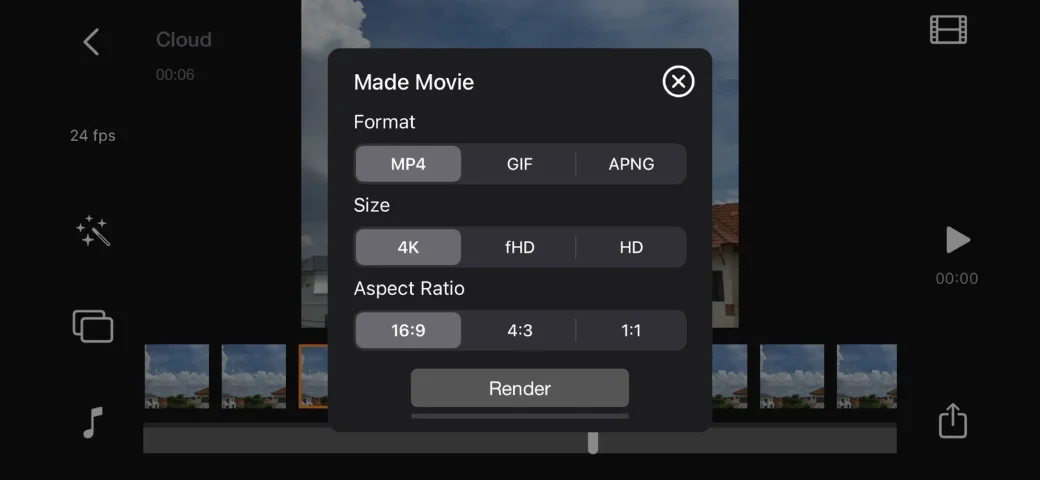
• Set video size from HD, Full HD, to 4K.
• Set video aspect ratio: 16:9, 4:3, or 1:1.
• Render output as animated GIF or APNG.
• Output size for GIF/APNG: 1280x720, 640x360, or 320x180.
• Videos and animated GIFs are saved to the camera roll.
• Animated APNGs are saved to the project folder.
Quick Start Guide:
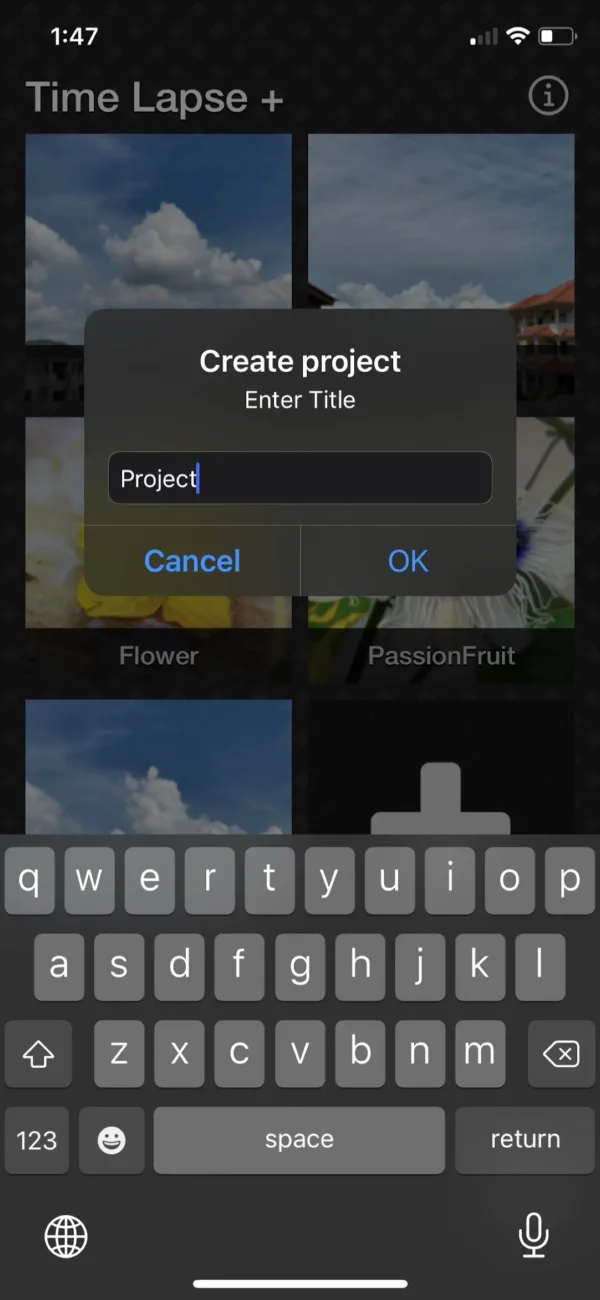
1. Tap the Create button and give your project a name.
2. Tap on the project name to load the project.
3. Position the camera and start capturing.
4. After finishing capture, it will redirect to the Edit Panel.
5. Set your desired FPS and preview the result.
6. Hit Render, and the video will be saved to the camera roll.
Tips:
• Use the grid for better object positioning.
• Use white balance lock if scene lighting changes over time.
• Use focus lock to maintain focus on your subject.
Time-lapse photography is a technique in which the frequency at which film frames are captured is much lower than the frequency at which they are played back.
Thanks for your support, and do visit nitrio.com for more apps for your iOS devices.
Novedades
Versión 1.9 · 8/7/2025
- Updated for the newest devices.
- Minor bugs fixed.
Privacidad de la aplicación
Lo que Heng Jia Liang declara en App Store sobre cómo esta aplicación gestiona los datos.
-
No se recopilan datos
El desarrollador no recopila ningún dato de esta aplicación.
Las prácticas de privacidad pueden variar, por ejemplo, según las funciones que uses o tu edad.
Información
- Vendedor
- Heng Jia Liang
- Categoría
- Foto y vídeo
- Versión
- 1.9
- Actualizado
- 8/7/2025
- Publicado
- 11/2/2014
- Tamaño
- 2,4 MB
- Requiere
- iOS 13.0 o posterior
- Clasificación por edad
- 4+
- Precio
- 5,99 €
- Idiomas
- Inglés
- Copyright
- © Heng Jia Liang
Quizá también te guste
-
 Burst SelfieFoto y vídeo
-
 Guerrilla Filmmaker: CameraFoto y vídeo
-
 Super long time-lapseFoto y vídeo
-
 Time Lapse video converterFoto y vídeo
-
 Keepers - Magic Video CaptureFoto y vídeo
-
 Alpha Focus BracketingRemote Focus Bracketing
-
 Burst HD - Super Burst CameraFoto y vídeo
-
 Video Sound EditorVolumen, Reverb y Ecualizador
-
 Spark Camera ControlFoto y vídeo
-
 Lapse: Timelapse facialAños de una vida en segundos.