- Clasificación por edad4+
- CategoríaProductividad
- DesarrolladorUnitronics
- Tamaño56,0 MB
Enlaza a la página oficial de App Store
Download.org no aloja ningún archivo de Unitronics' Remote Operator. El botón abre la página de la aplicación en App Store, donde la publica Unitronics. Ficha comprobada por última vez el 15/11/2026.
Capturas de pantalla

Acerca de
El desarrollador no ha proporcionado este texto en tu idioma.
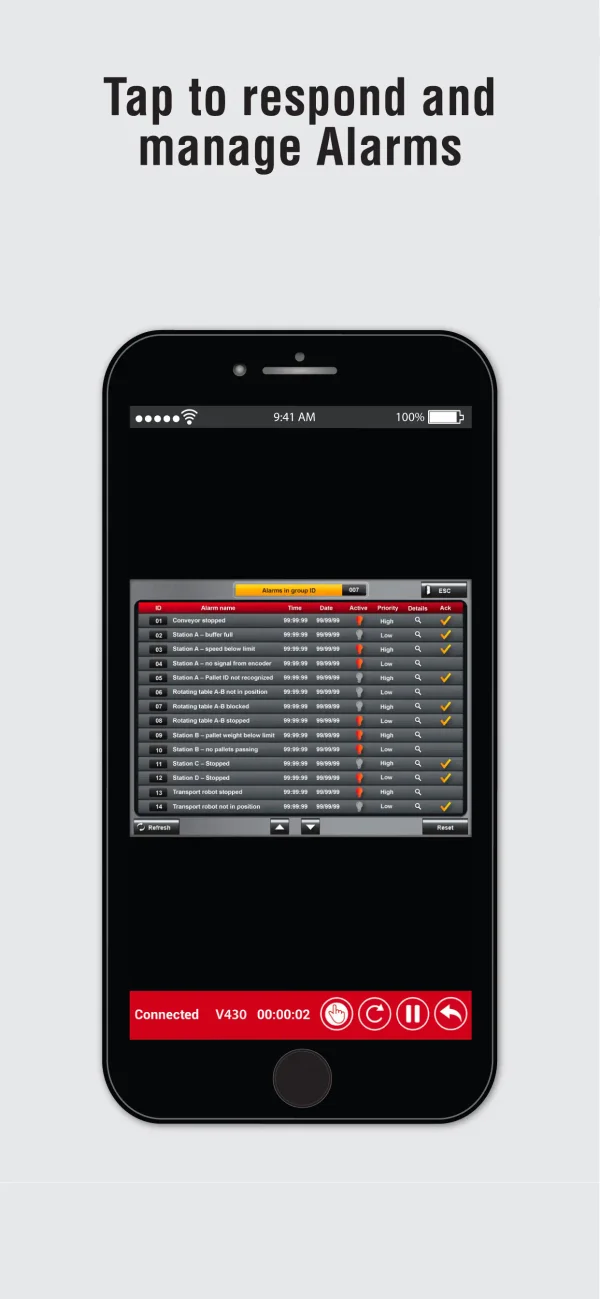
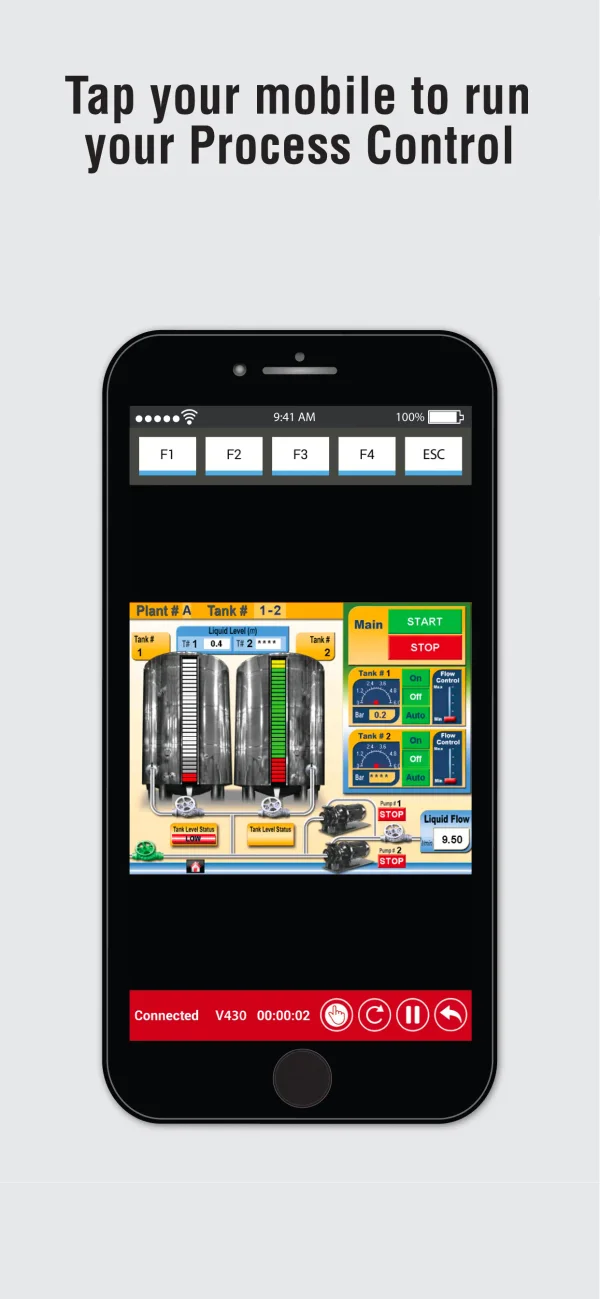
The Remote Operator application enables you to remotely access your Unitronics controllers using your smartphone and tablet. Via the application, you can view and operate the controller’s HMI —as if you are physically touching the controller. Using Remote Operator you monitor automation processes, press keys and touch HMI objects, change parameter values, view Alarms and process value Trends. You can define and access multiple controllers from a single device.
Main Features
- Remotely access Vision and Samba controllers via Internet or wireless LAN
- Remotely control/monitor automation processes and machines
- Control many controllers from a single mobile device.
- View operational conditions, Alarms, data, and Trends in real time
- Configure communication channels for multiple controllers
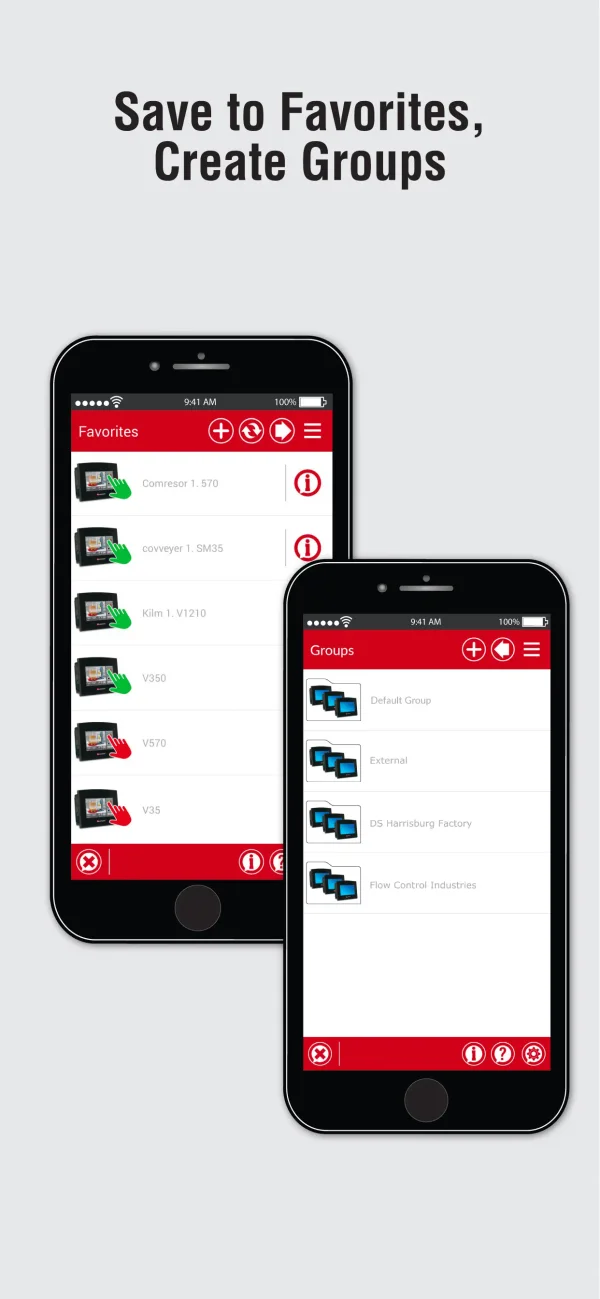
- Organize controllers in Favorites and Groups
- Shareable Configurations – send/share your list of controllers to another device
- Security via Password: prevent unauthorized entry
- Pinch to zoom
*Supported Controllers
Minimum OS version: iOS 7+
Supported Controllers: V350, V430, V700, V570, V1040, V1210, SM35, SM43, SM70
View and Download the QuickStart Guide:
http://www.unitronics.com/Unitronics_Apps/Unitronics_Remote_Operator_AppQuickStart.pdf
*First-time Use
1. Open Remote Operator.
2. Create a Password, set up password recovery.
3. Tap OK, the app opens an empty Favorites screen.
**Adding PLCs to Favorites/Groups
Tap + to add PLCS, configure controllers and communication channels.
Enter:
- PLC Nickname
Optional. Must be unique.
- PLC Name
Must exactly match the actual PLC Name, including capitals.
- IP Address/Host, TCP and Port
Defines communication channel
NOTE:
1. IP Address & Port MUST be a unique combination.
2. Format: Incorrect 10.000.000.037 Correct 10.0.0.37.
- Group Name
Tap to open the Group list.
Add to Favorites: When checked, the PLC is added to the Favorites list as well as a Group.
When finished, if desired, tap Check PLC Connection.
Tap OK to save the PLC and return to Favorites.
To delete a PLC, swipe left.
*Adding Groups
1. In the Favorites screen, tap the right facing arrow to open Groups.
2. Tap + to add a Group.
3. Enter Group Name and Comment.
4. Tap OK to add the Group.
5. Tap left facing arrow to return to Favorites.
6. Tap More (three bars, upper right side of the screen) to Hide/Show the Application Bar.
*Using Remote Operator
In Favorites or Groups, a PLC marked with a green hand is active. Access it remotely by tapping it.
During a session, your mobile screen displays the PLC's HMI panel, along with a red Application Bar.
This Bar shows (from left to right):
- Connected PLC name
- Connection duration
- Buttons:
> Switch modes: View Only /Full Control. Disable/enable buttons and touch properties on the HMI panel displayed on your mobile
> Set Refresh rate (seconds)
> Pause Remote session
> Exit Remote session
**PLC Information
To view /edit, tap i:
PLC Communication
- To edit details, tap fields; set View mode: View Only/Full Control.
- Check the PLC Connection.
PLC System Info
- When connected:
Tap Get PLC Information to view PLC OS data.
- When not connected:
Shows details of last session.
PLC Location Info
- Tap to enter data: location, contact details, comments, edit the PLC’s group.
- Delete PLC from Favorites: uncheck Add to Favorites.
*Application Settings
Tap More to show Application Bar if hidden, then tap Settings button.
Startup Page: Remote Operator automatically loads/checks communications for all PLCs on Startup page
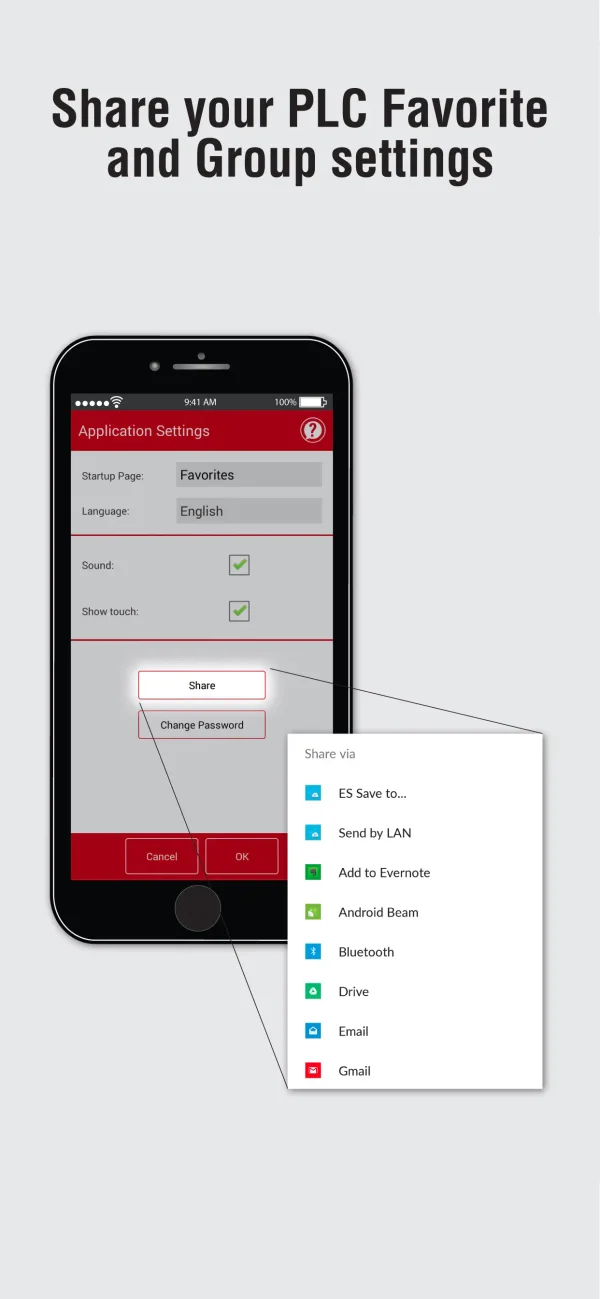
Sharing Settings:
1. Tap Share, follow instructions to send the file Share.unitronics.
2. When Share.unitronics is received on the second device, tap to open it. Remote Operator opens the Share file.
Remote Operator MUST be installed on the receiving device.
Novedades
Versión 2.1.10 · 14/12/2023
The Remote Operator application now supports the enhanced cybersecurity features introduced in VisiLogic version 9.9.00, such as complex password protection.
You must upgrade the Remote Operator application in order to remotely connect to Unitronics PLCs running applications created in VisiLogic 9.9.00 and up.
Privacidad de la aplicación
Lo que Unitronics declara en App Store sobre cómo esta aplicación gestiona los datos.
-
No se recopilan datos
El desarrollador no recopila ningún dato de esta aplicación.
Las prácticas de privacidad pueden variar, por ejemplo, según las funciones que uses o tu edad.
Información
- Vendedor
- Unitronics (1989) (R"G) Ltd
- Categoría
- Productividad
- Versión
- 2.1.10
- Actualizado
- 14/12/2023
- Publicado
- 1/3/2016
- Tamaño
- 56,0 MB
- Requiere
- iOS 7.0 o posterior
- Clasificación por edad
- 4+
- Precio
- Gratis
- Copyright
- © 2015 Unitronics (1989) (R"G) Ltd