Wingboard: One-Handed Keyboard
Split, foldable & iPad layouts
Designed for iPhone, iPad
$1.99
- Age rating4+
- CategoryUtilities
- DeveloperKanana Studio
- LanguagesJapanese
- Size131.0 MB
Links to the official App Store page
Download.org hosts no file of Wingboard: One-Handed Keyboard. The button opens its official App Store page, published by Kanana Studio. Listing last checked on Nov 27, 2026.
Screenshots


About
Move it aside, shrink it, split it: the keyboard fits the way you hold your phone.
A Japanese flick and romaji keyboard for thumb reach on iPhone Duo's cover and inner screens, any iPhone, and iPad.
Conversion feels like the built-in keyboard, and nothing you type leaves your device.
■ Size and position, adjusted on the spot
Tap the adjust button: drag up/down for height, swipe left/right to move it to one side, pinch for size.
Cancelling restores the previous shape. Presets match the key size of iPhone 13 mini or iPhone 18 Pro, and up to five shapes can be saved as favorites.
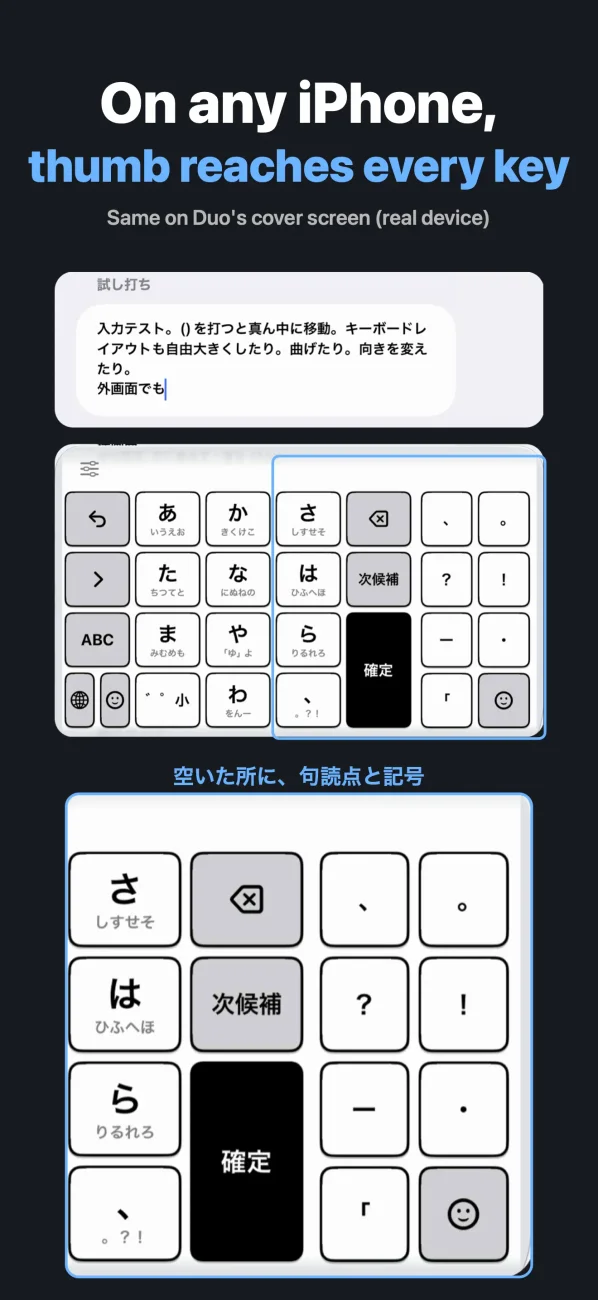
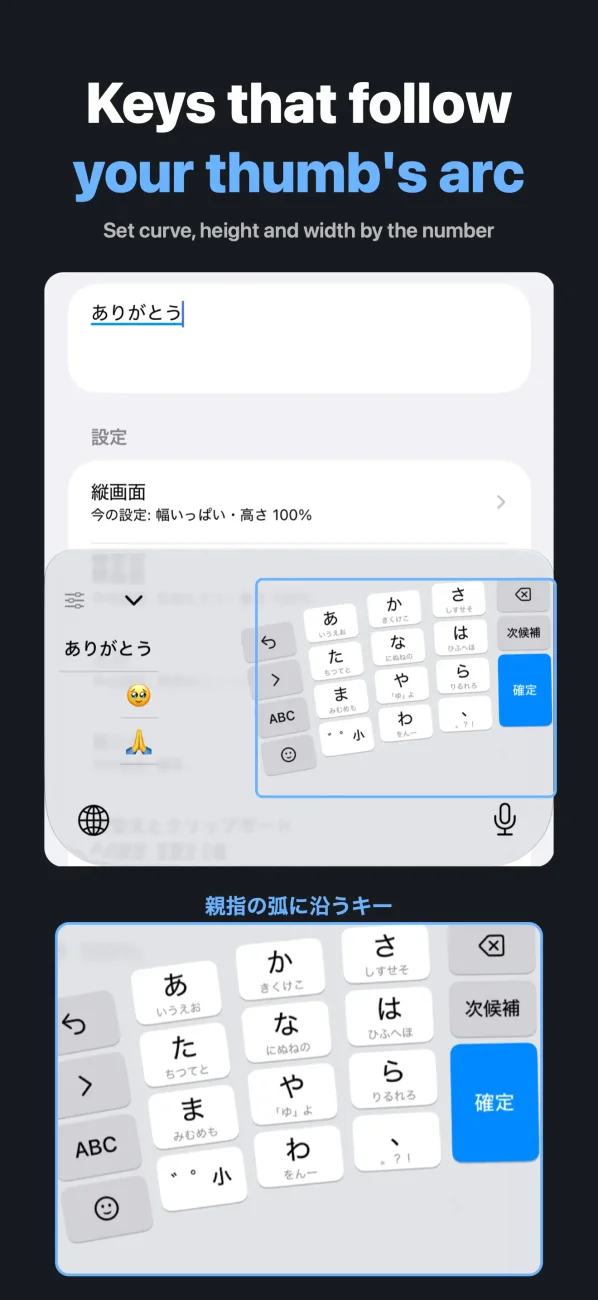
Lift the keyboard off the home bar, and let keys follow the arc of your thumb. Portrait and landscape are remembered separately. A button on the bar switches left / full width / right in one tap.
■ Moves to the hand holding the phone
When the keyboard appears, it moves toward the hand holding the iPhone, based on tilt. Works when set to one side; turn it off under 縦画面 in the app.
■ Move it aside and see more of the screen
Moved to the left or right, predictions line up in the free space and the keyboard gets one row lower. With predictions on top, the free space holds symbols or emoji you tap once.
■ Japanese and English without switching
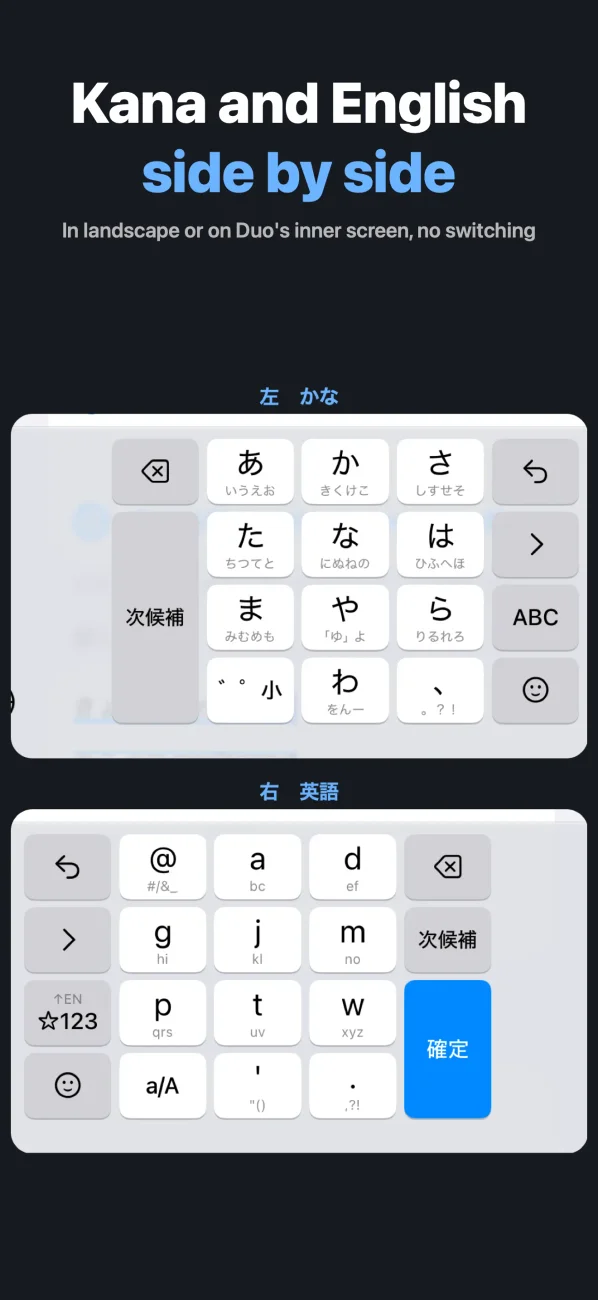
In landscape or on the inner screen, show two keyboards at once, such as kana on the left and English on the right. You can also split one keyboard for typing with both thumbs.
■ Works like the built-in keyboard
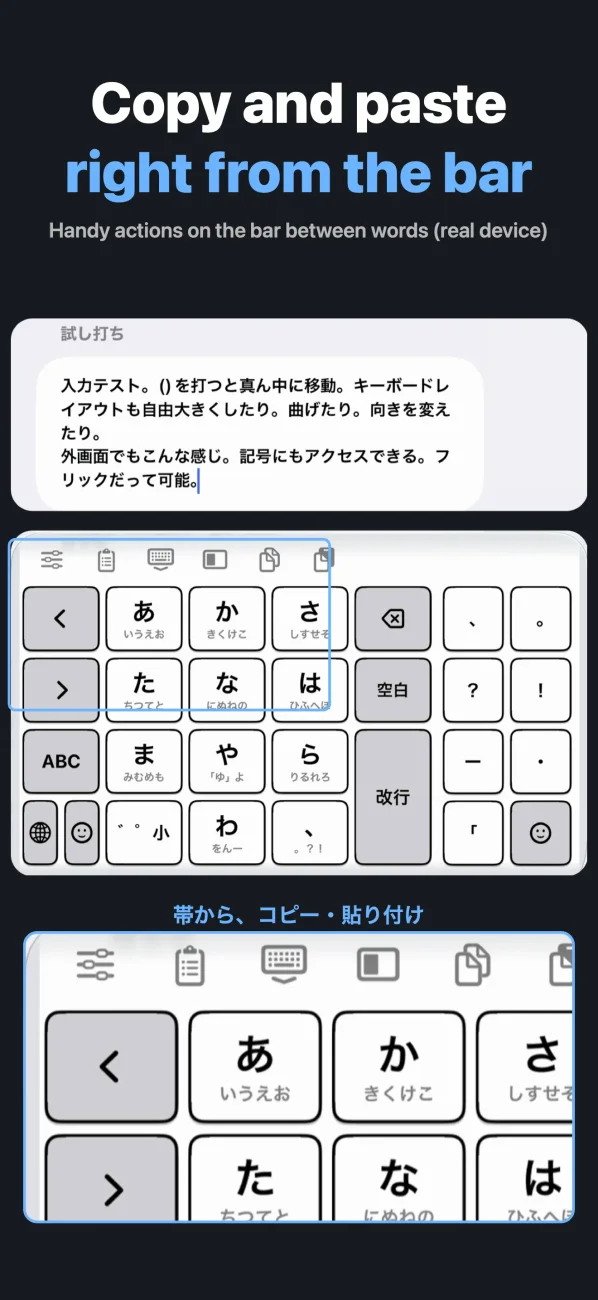
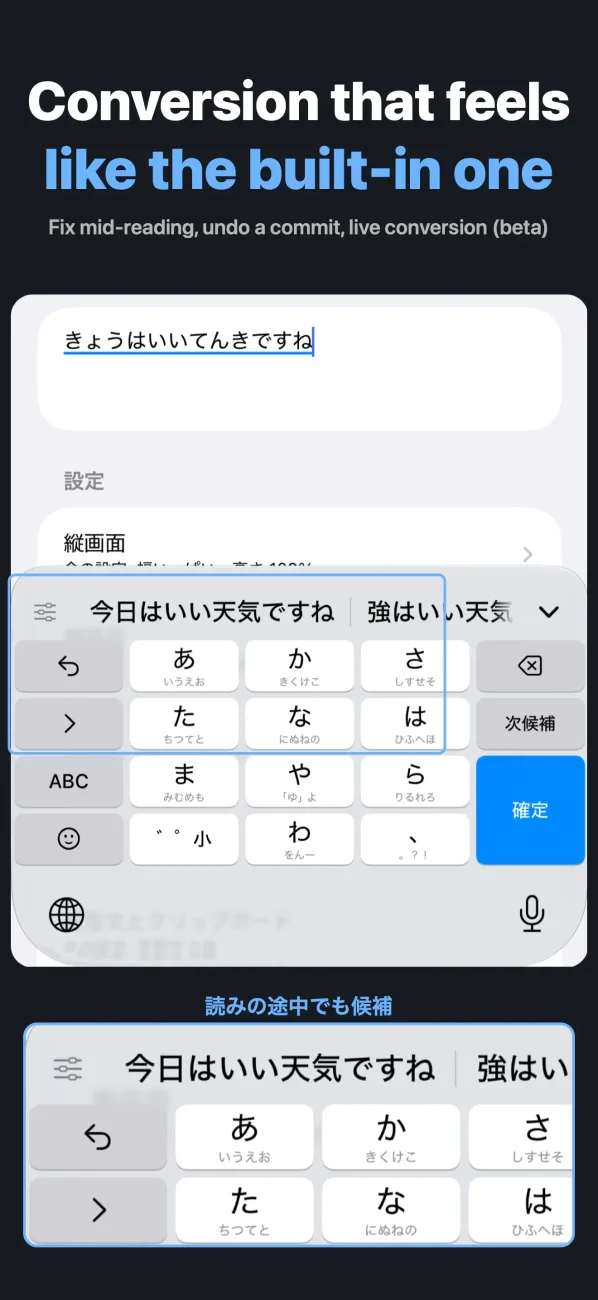
Switching between あいう, ABC and 123 while typing keeps what you typed and its candidates. While converting, the < key becomes ↺ and steps back one character or candidate. Numbers come in half-width and full-width, and "1225" also offers 12:25 and 12月25日. Brackets put the cursor inside. Hold the space key and slide in any direction to move the cursor, up and down across lines; while converting, it moves inside the reading so you can convert only the part before it or fix a character mid-way. Right after a commit, ↺ undoes it and brings back the reading.
Touch points are corrected for where thumbs actually land (adjustable).
■ Conversion done carefully
Words that match what you typed and common words come first, and a candidate you pick comes first for that reading next time. Compounds and verbs such as 貼り付け come before typo corrections. Live conversion (kanji as you type) and on-device AI candidate selection are experimental options, off at first. After a word is committed, next-word predictions appear. "きょう" gives today's date and "まるいち" gives ①. Words from the iOS text replacement dictionary appear too.
■ Easier typing
Swipe left on delete to remove a whole word. Flick sensitivity has five levels and haptics has weak, medium and strong (off at first).
■ Colors and photos your way
Twelve skins, your own key, background and text colors, or a photo as the background (photos need Full Access). Save up to five favorite sets of layout, size and skin.
■ What you type stays on your device
Wingboard has no networking features at all. Nothing you type and no setting leaves the device. The dictionary is built in, so it works offline.
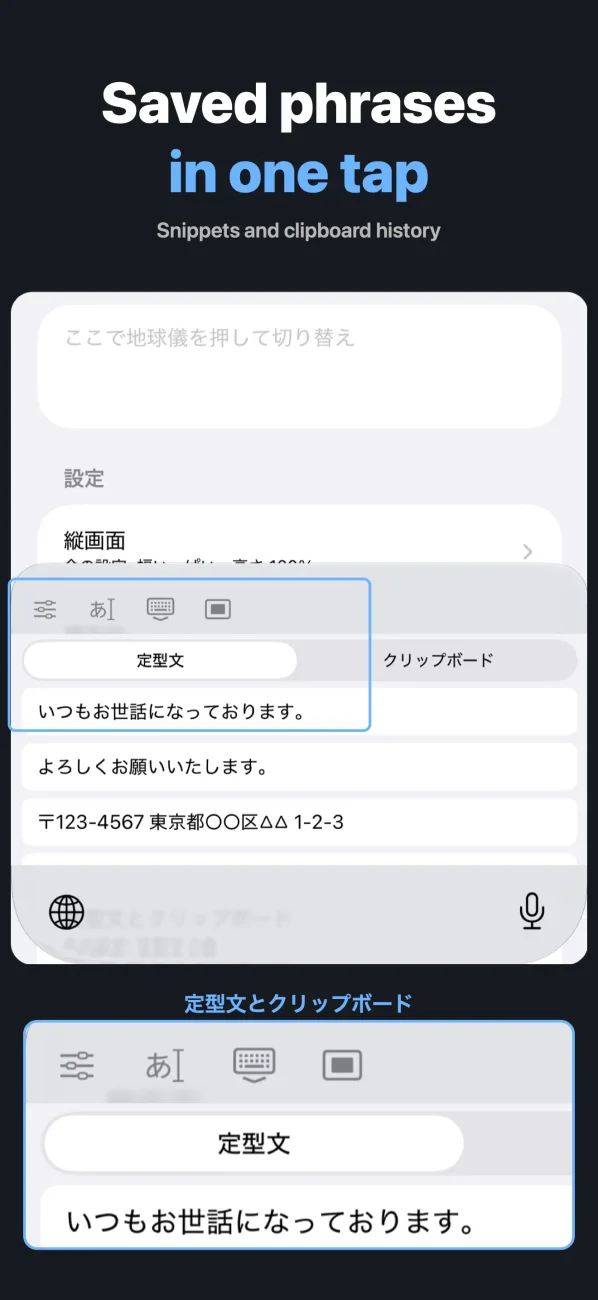
Full Access is optional. With it, the app's settings and snippets reach the keyboard, and haptics and clipboard history work. Typing and conversion work without it.
Data kept on the device can be reviewed and deleted in the app under "保存しているデータ" (Stored data).
■ Getting started
Settings > General > Keyboard > Keyboards > Add New Keyboard > Wingboard. To send the app's settings to the keyboard, also turn on "Allow Full Access".
■ Notes
・On iPhone Duo's cover screen, iOS doesn't show the microphone button below the keyboard; switch to the standard keyboard for dictation.
・Password fields and phone number entry switch to the standard keyboard, as iOS requires.
・iPhone and iPad (iOS 17 or later). While a hardware keyboard is connected, iOS hides the on-screen keyboard.
・Kana-kanji conversion uses AzooKeyKanaKanjiConverter (MIT License) and the azooKey dictionary (Apache License 2.0).
What’s new
Version 1.4.4 · Nov 26, 2026
- The rating prompt now appears only after you have used the keyboard on an earlier day, never on the day you set it up.
App privacy
What Kanana Studio declares on the App Store about how this app handles data.
-
Data not collected
The developer does not collect any data from this app.
Privacy practices may vary, for example with the features you use or your age.
Information
- Seller
- KANANA STUDIO
- Category
- Utilities
- Version
- 1.4.4
- Updated
- Nov 26, 2026
- Released
- Oct 31, 2026
- Size
- 131.0 MB
- Requires
- iOS 17.0 or later
- Age rating
- 4+
- Price
- $1.99
- Languages
- Japanese
- Copyright
- © 2026 Kanana Studio