Brink — Stop Doomscrolling
Doomscroll Timer, Block Reels
Designed for iPhone
Free · In-app purchases
- Age rating4+
- CategoryProductivity
- DeveloperEvatech Innovations,TOO
- LanguagesEnglish+ 19 more
- Size13.0 MB
Links to the official App Store page
Download.org hosts no file of Brink — Stop Doomscrolling. The button opens its official App Store page, published by Evatech Innovations,TOO. Listing last checked on Nov 23, 2026.
Screenshots
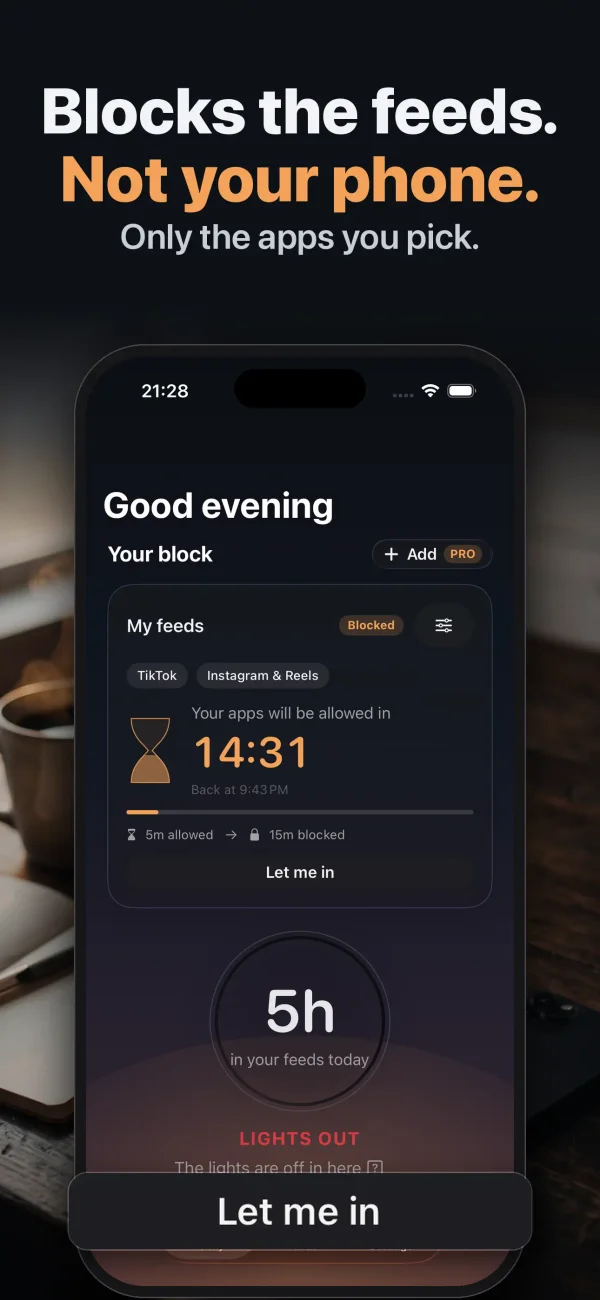
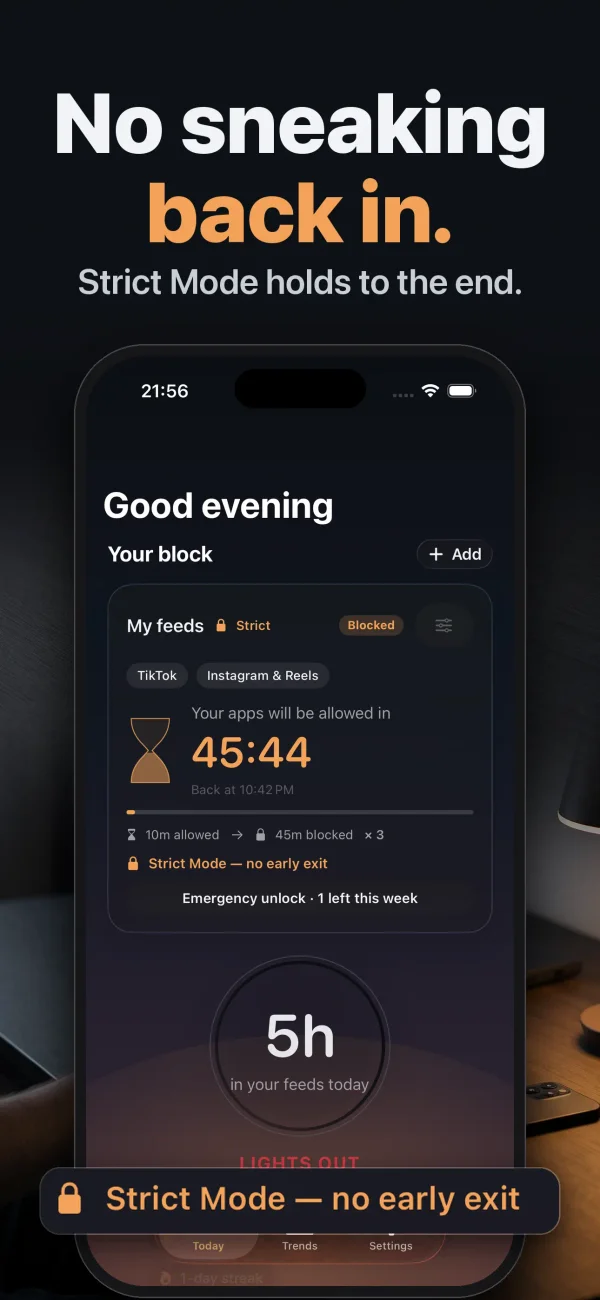
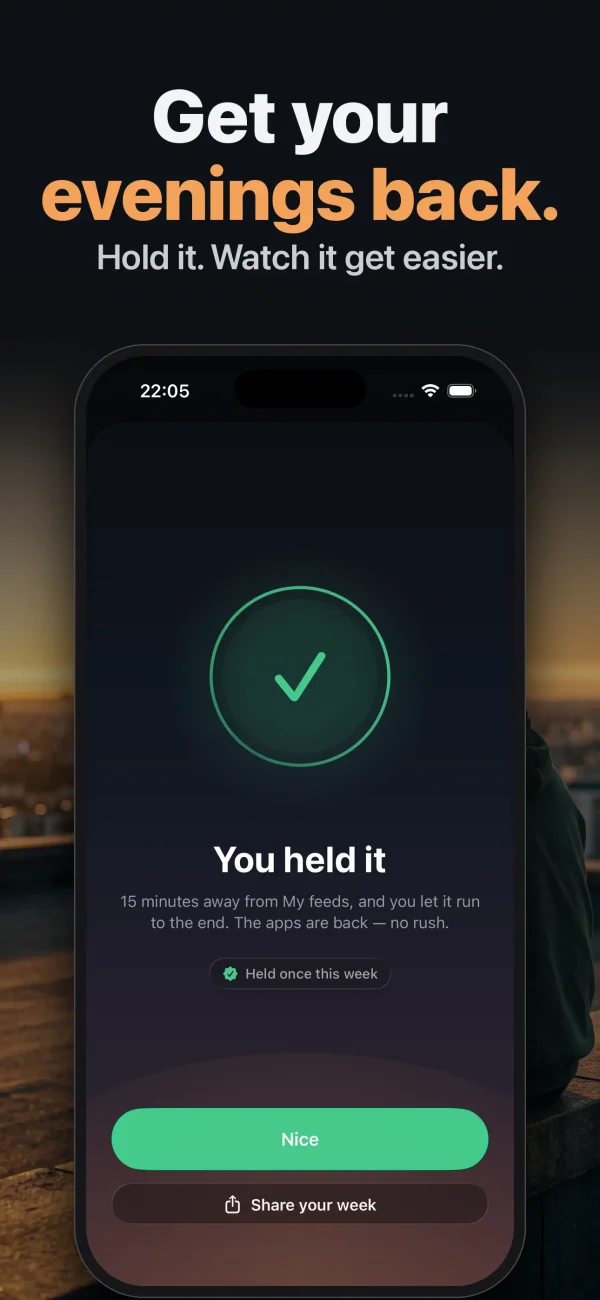
About
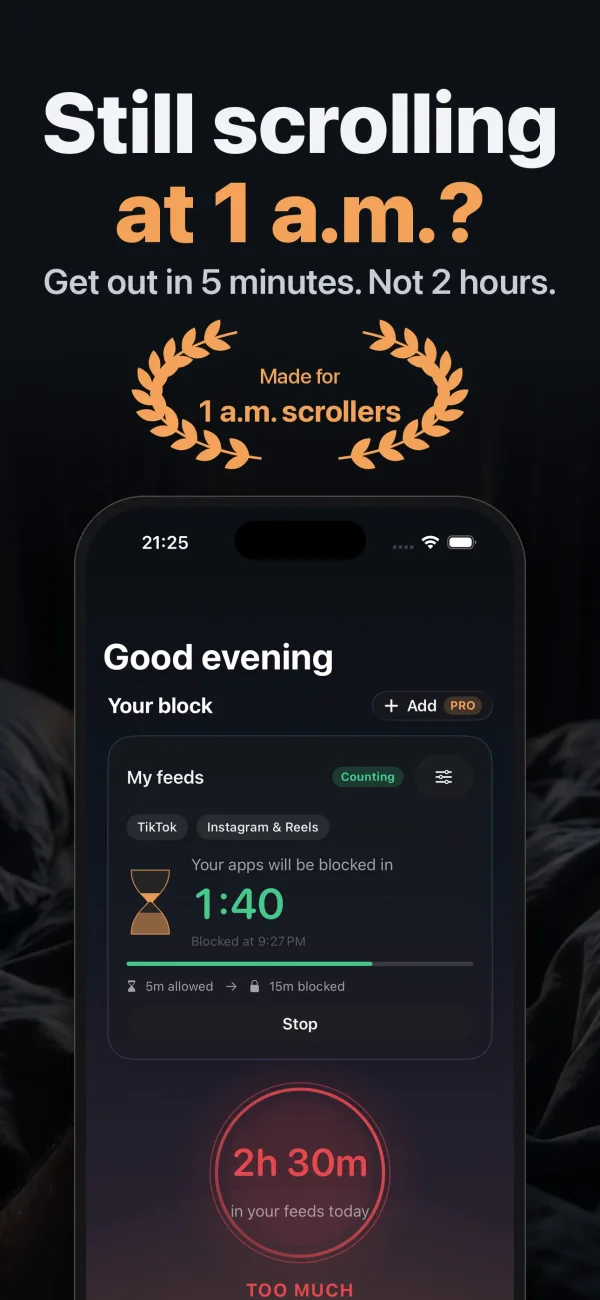
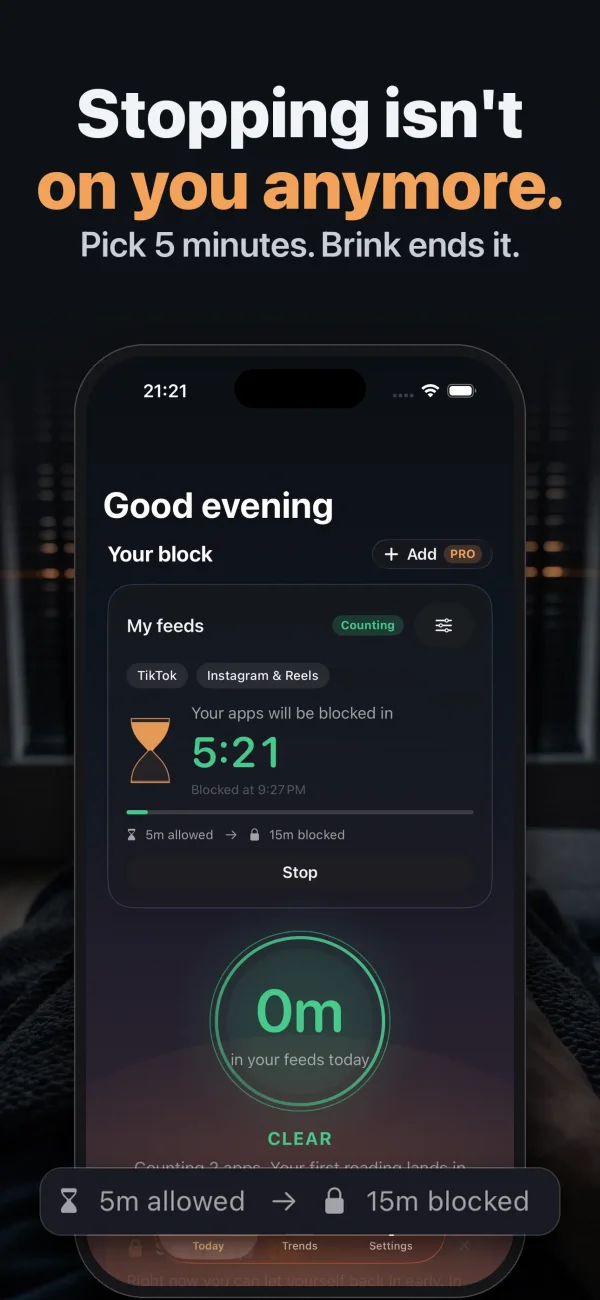
Brink is an app blocker for iPhone that puts a timer on the apps you doomscroll. Choose the apps (TikTok, Instagram, YouTube, X, Reddit, whatever eats your evenings), set how long you're allowed in, and press Start. When time's up, an alarm goes off and those apps lock for a cooldown you picked. Then they come back on their own.
It's for people who open a feed "for five minutes" and look up an hour later, and for anyone who finds Screen Time's app limits too easy to wave away.
HOW IT WORKS
1. Pick the apps and websites to limit. Only those are blocked: never your whole phone, a whole category, or your messages.
2. Set your allowance, say 20 minutes, and your cooldown, say 30.
3. Press Start, in the app or from the widget, Control Center or Shortcuts. The countdown runs on the Lock Screen and in the Dynamic Island. Want them gone now? Tap Lock now.
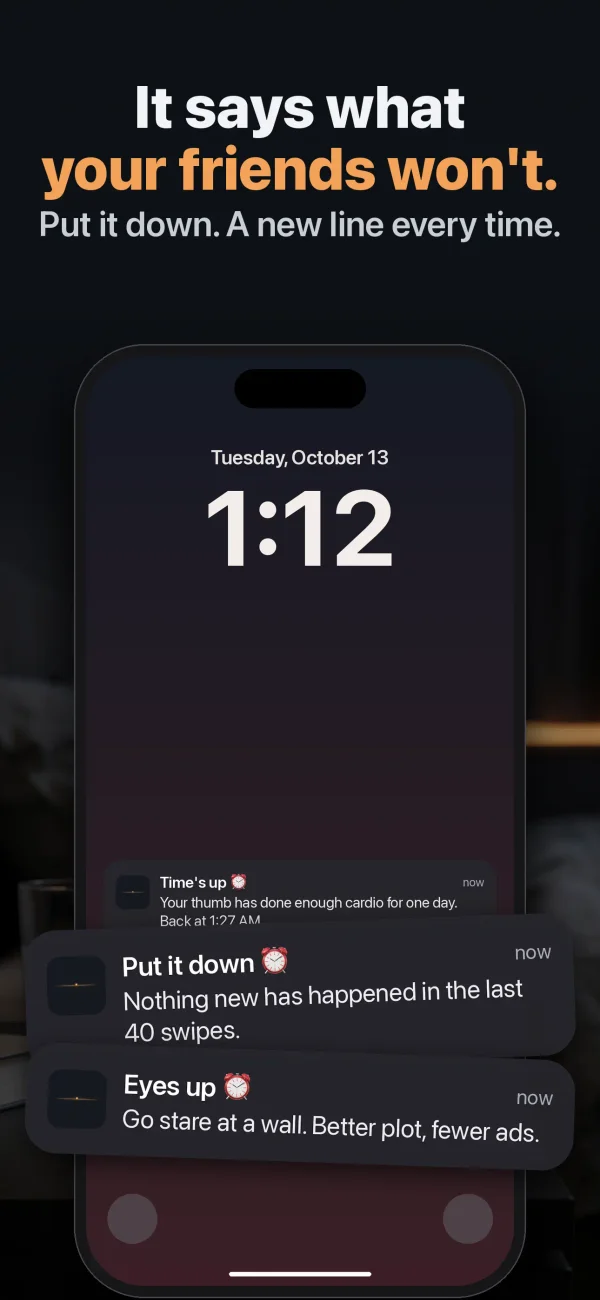
4. At zero an alarm goes off, with a different line every time, and the apps lock.
5. When the cooldown ends, they unlock by themselves.
WHAT PEOPLE USE IT FOR
• Evening and bedtime scrolling: one round of Reels, then the phone goes quiet
• Short-video loops: TikTok, Reels and Shorts with a hard stop
• Work and study: a block that starts itself when Work Focus turns on
• Breaking the reflex: the apps ask first each time you open one, so every visit is a decision
FREE, FOR REAL
One block with up to three apps, both timers, the alarm, daily open limits, the widget and today's screen time counter. No time limit, no trial clock, no account. Trends is free for your first week.
BRINK PRO
• Strict Mode: no early exit from anywhere, and no deleting apps to get around it
• Schedules: a block starts itself every day, or when Sleep or Work Focus turns on
• No app limit, and more than one block, for evenings, mornings and work
• Trends, streaks and a Sunday recap
• One emergency unlock a week, for the night it really matters
Yearly with a 7-day free trial, or pay once for lifetime. No weekly subscription.
PRIVATE BY DESIGN
No account, no sign-up. You choose apps in Apple's own Screen Time picker, so Brink never learns which apps you picked or what you do in them. Your screen time is drawn by Apple and never leaves your phone.
QUESTIONS
How is Brink different from Screen Time's app limits?
When a Screen Time limit runs out, "Ignore Limit" is usually one tap away. Brink starts when you press Start, sounds an alarm when time is up, and keeps the apps locked for the whole cooldown. On a free block you can still leave early with "Let me in"; Strict Mode in Brink Pro takes that away.
Does Brink block my whole phone?
No. Only the apps and websites you picked. Calls, messages and everything else keep working.
Is Brink free?
Yes. One block with up to three apps and both timers is free, with no time limit. Brink Pro adds Strict Mode, schedules, more apps and blocks, and Trends.
Can I get around it?
A determined you can get around any blocker, this one included. Brink is built to break the autopilot reach for your phone, not to be a jail. If you want no way out, turn on Strict Mode.
Can Brink ask before I open an app?
Yes. Set a block to start "Each time I open them": the apps stay locked, and opening one asks first. Tap Open and your allowance starts, then the cooldown.
What does it need?
An iPhone with iOS 17 or later and Screen Time access, which iOS asks you for once. No account.
Terms of Use: https://www.apple.com/legal/internet-services/itunes/dev/stdeula/
Privacy Policy: https://brink.evatech.app/privacy
What’s new
Version 1.1.1 · Nov 19, 2026
• New: Lock now. While the countdown runs, one tap locks the apps right away and starts the cooldown.
• New in the block editor: How it starts. Choose "Each time I open them" and Brink asks before every visit to those apps, instead of waiting for you to press Start.
• After your first Start, Brink offers one tap to make that block start "Each time I open them": nothing left to remember to press.
• Fixed: the countdown could stop at 0:00 if Brink was open when time ran out. It now moves on right at the deadline, and the alarm shows even while Brink is on screen.
• Ticked a whole category in Apple's app list? That picks no apps, so Start stayed off without saying why. Brink now tells you. Websites also no longer count toward the three apps on a free block.
• You can now send feedback from Settings.
• Clearer help when another app already controls Screen Time on your iPhone.
App privacy
What Evatech Innovations,TOO declares on the App Store about how this app handles data.
-
Data not linked to you
May be collected but is not linked to your identity.
- Identifiers
- Usage data
Privacy practices may vary, for example with the features you use or your age.
Information
- Seller
- Evatech Innovations,TOO
- Category
- Productivity
- Version
- 1.1.1
- Updated
- Nov 19, 2026
- Released
- Oct 16, 2026
- Size
- 13.0 MB
- Requires
- iOS 17.0 or later
- Age rating
- 4+
- Price
- Free
- In-app purchases
- Yes
- Languages
- English, Arabic, Dutch, French, German, Hindi, Indonesian, Italian, Japanese, Korean, Polish, Portuguese + 8 more
- Copyright
- © 2026 evatech
You might also like
-
 Rail MateField Engineering Tools
-
 Re:mindr - Quick RemindersReminder, ToDo & Planner
-
 ScreenFastBlock Apps and Websites
-
 Completer - Habit TrackerJournal, Streaks & Motivation
-
 Screen Time Control - App LockFocus, App Blocker, Limit Apps
-
 Virtual numbers / Second linePhone numbers / Calls & SMS
-
 Clippit: AI Text To SpeechPDFs & Notes to Podcast Audio
-
 SanatoriumProductivity
-
 Presentations.AICreate Slides & PPTs with AI
-
 Castify — Generate AI PodcastsText, Docs, PDFs to AI Podcast