
- Age rating4+
- CategoryUtilities
- Developer海 赵
- LanguagesEnglish+ 1 more
- Size15.5 MB
Links to the official App Store page
Download.org hosts no file of DD Archive ZIP & Archive. The button opens its official App Store page, published by 海 赵. Listing last checked on Nov 17, 2026.
Screenshots


About
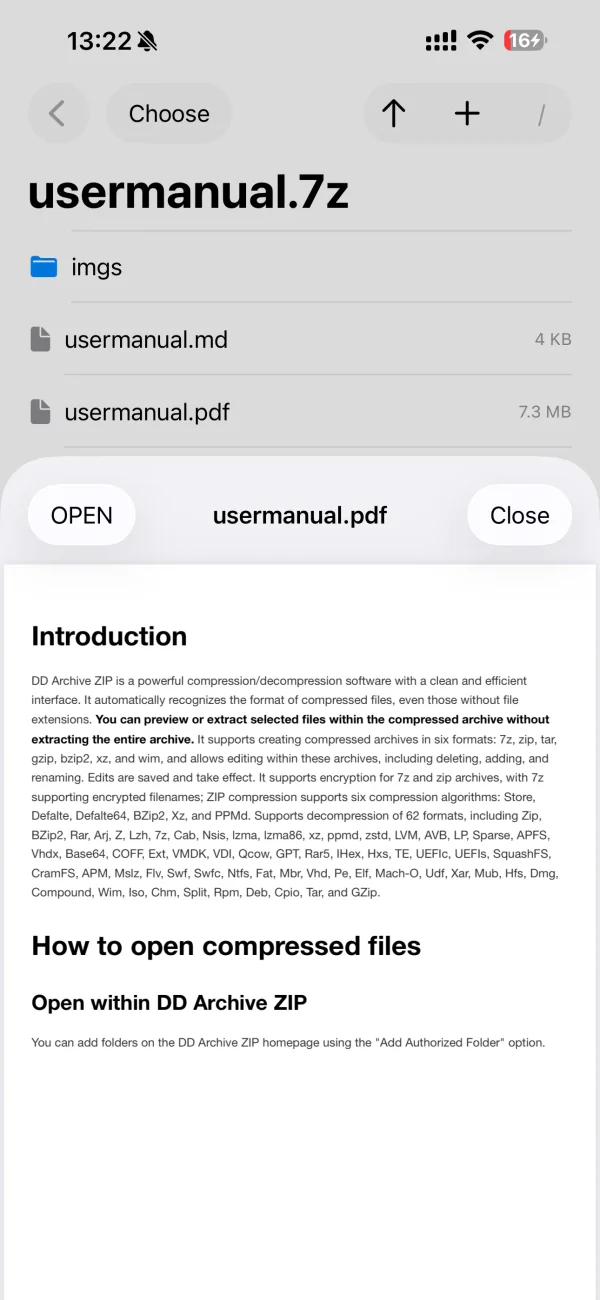
DD Archive ZIP is a powerful compression/decompression software with a clean and efficient interface. It automatically recognizes the format of compressed files, even those without file extensions. **You can preview or extract selected files within the compressed archive without extracting the entire archive.** It supports creating compressed archives in 12 formats: 7z, zip, tar, gzip, bzip2, xz, lz4, lz5, zst, br, liz, and allows editing within these archives, including deleting, adding, and renaming. Edits are saved and take effect. It supports encryption for 7z and zip archives, with 7z supporting encrypted filenames; ZIP compression supports six compression algorithms: Store, Defalte, Defalte64, BZip2, Xz, and PPMd. Supports decompression of 66 formats, including Zip, BZip2, Rar, Arj, Z, Lzh, 7z, Cab, Nsis, lzma, lzma86, xz, ppmd, zstd, lz4, lz5, liz, Lzip, LVM, AVB, LP, Sparse, APFS, Vhdx, Base64, COFF, Ext, VMDK, VDI, Qcow, GPT, Rar5, IHex, Hxs, TE, UEFIc, UEFIs, SquashFS, CramFS, APM, Mslz, Flv, Swf, Swfc, Ntfs, Fat, Mbr, Vhd, Pe, Elf, Mach-O, Udf, Xar, Mub, Hfs, Dmg, Compound, Wim, Iso, Chm, Split, Rpm, Deb, Cpio, Tar, and GZip.
* How to open compressed files
1. Open within DD Archive ZIP
You can add folders on the DD Archive ZIP homepage using the "Add Authorized Folder" option.
After adding, you can click on the corresponding folder to access the compressed file within and click to open it.
2. Open via External Sharing
When you receive a file in another app, you can choose to share it or open it with another application. In the "More" tab, find "DD Archive ZIP". The compressed file copied from an external share will be saved in "My Folders" on the main page.
3. File App Supports
selecting "Open With" from the File App
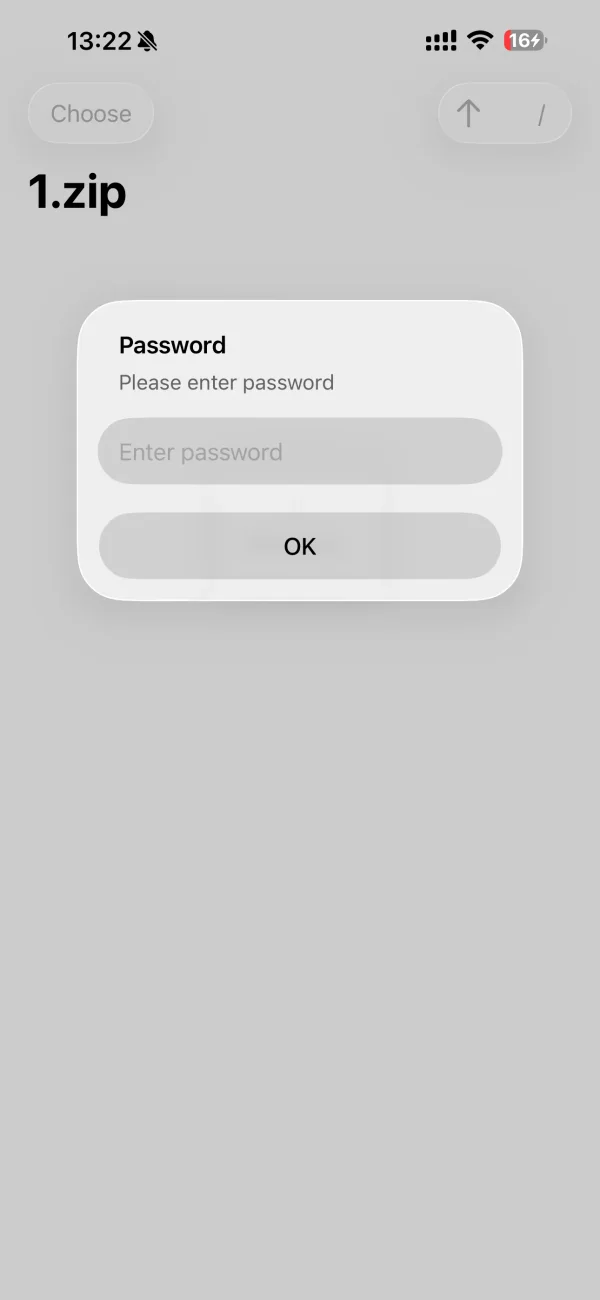
* Compressed files support passwords
* Open Permission Issues
If you receive a permission error, you need to add the directory containing the file as an authorized folder on the homepage first.
* Compressed File Preview
For PDF, TXT, and image formats, clicking on the compressed file will preview it directly.
Clicking on the corresponding file will perform an unzip preview.
Selecting "Open" will bring up a system dialog box.
For other formats, clicking on the compressed file will bring up a system dialog box to select another application for processing.
* File Unzipping
1. Single File
Simply click the desired file. A system dialog box will pop up; select "Save to File" or open it in another app.
Alternatively, use "Select" to select a file, then click the arrow "up" to choose the folder to extract to.
2. Multiple Files
Click the "Select" button in the upper left corner, select the files to extract, then click the arrow "up" to choose the folder to extract to.
If you haven't entered multi-select mode, clicking the arrow "up" will extract all files in the **current directory**. To extract the entire compressed file, click the "/" on the navigation bar to enter the root directory, then click the arrow "up" to choose the folder to extract to.
* Add New Files to the Compressed Archive
Click the "+" sign on the navigation bar to select the file or folder you want to add to the current directory of the compressed archive. If it's a folder, click to enter the folder and then click "Open" in the upper right corner to add the folder. If it's a file, simply select it and then click "Open".
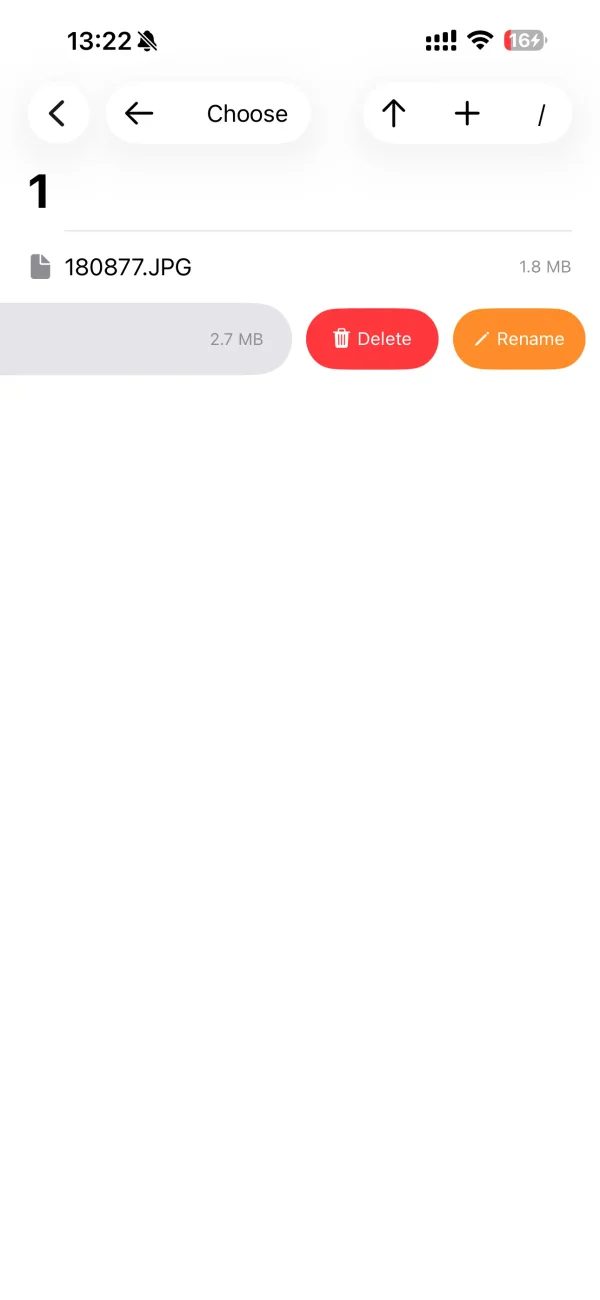
* Delete/Rename Files in a Compressed Package
Swipe left on the item you want to operate on to delete or rename it.
* Save the Compressed Package
After adding, deleting, or renaming a file, you need to click "Save" to update the compressed package.
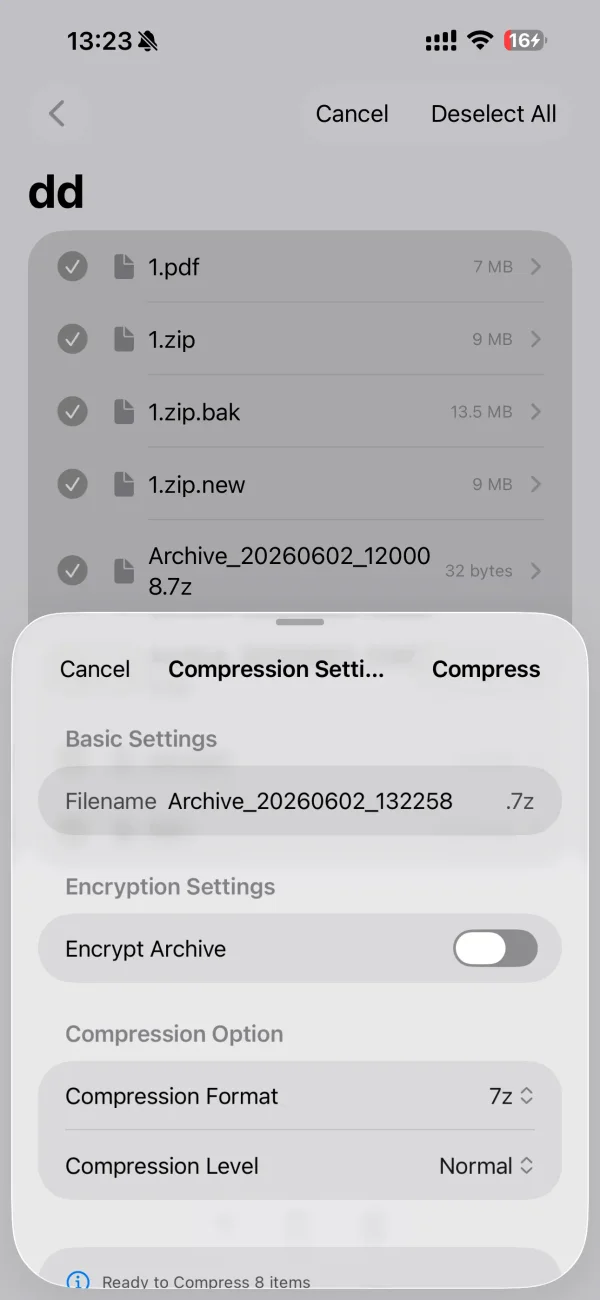
* Create a Compressed Package
Select the files you want to compress in the file browser, configure them according to the dialog box, and then click Compress.
Compression progress is displayed in real time.
* File Management
Supports general file operations, such as "delete, rename, open," etc. Use "swipe left" to display the menu.
Supports previewing images and PDFs.
What’s new
Version 1.6 · Aug 12, 2026
1. Fixed the issue where authorization for folder access became invalid after restarting the phone
2. Fixed the issue of multiple preview failures in lizard format
App privacy
What 海 赵 declares on the App Store about how this app handles data.
-
Data not collected
The developer does not collect any data from this app.
Privacy practices may vary, for example with the features you use or your age.
Information
- Seller
- 海 赵
- Category
- Utilities
- Version
- 1.6
- Updated
- Aug 12, 2026
- Released
- Jun 3, 2026
- Size
- 15.5 MB
- Requires
- iOS 16.0 or later
- Age rating
- 4+
- Price
- $4.99
- Languages
- English, Simplified Chinese
- Copyright
- © 2026 HaiZhao
You might also like
-
 RootooYour Pocket Print Assistant
-
 Maou ConsoleRPG Maker Games Player
-
 解压喵 – LZ4解压工具Utilities
-
 观天Utilities
-
 AirConnect离线聊天Utilities
-
 xZipPreview without extracting
-
 Slean: Cleaner & Pixel StretchPhoto & Video Compressor
-
 HD Wallpapers - Live VideoHD/4K Wallpapers,Video,Avatars
-
 RPG Pocket: RPG Maker PlayerMV/MZ JRPG Emulator & VN Games
-
 7zen - 7zip, rar openerNo ads. Just open your files.