Speedometer, Speed Limit Alert
+ Bike Computer + GPS tracker
Designed for iPhone, iPod touch
Free · In-app purchases
- Age rating4+
- CategoryNavigation
- DeveloperDmitriy Kharutskiy
- LanguagesEnglish+ 6 more
- Size26.0 MB
Links to the official App Store page
Download.org hosts no file of Speedometer, Speed Limit Alert. The button opens its official App Store page, published by Dmitriy Kharutskiy. Listing last checked on Nov 20, 2026.
Screenshots


About
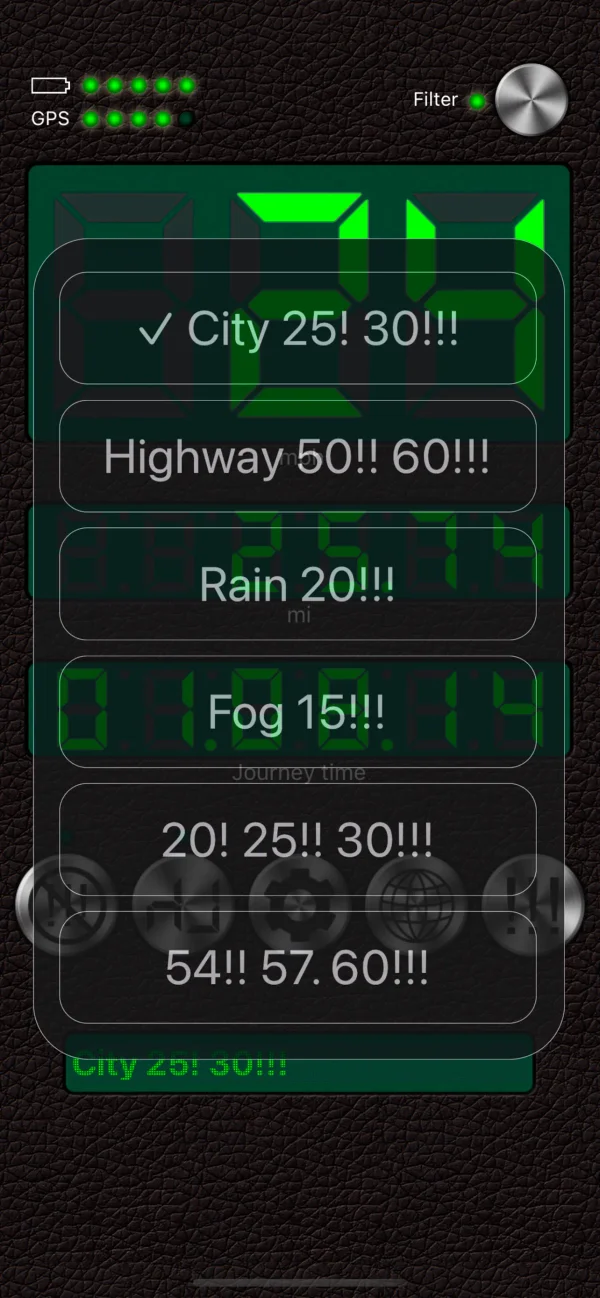
1. Step-by-step audio notifications once you have reached your required speeds.
2. Speed data filtering. Readings with the filter on are more inert than those with the filter off though. THE FILTER MUST BE ON WHEN CYCLING, JOGGING OR WALKING.
3. The G-meter. Get APPROXIMATE acceleration calculated based on your speed variation. Why use the GPS G-meter: no need to keep your iPhone in a fixed position or connect it to your vehicle’s computer system, which means speed readings can be taken discreetly, for example, during a test drive. Taking a number of readings compensates lesser accuracy. Acceleration is calculated only when the filter is off. Acceleration cannot be measured near tall buildings, in the mountains or woods.
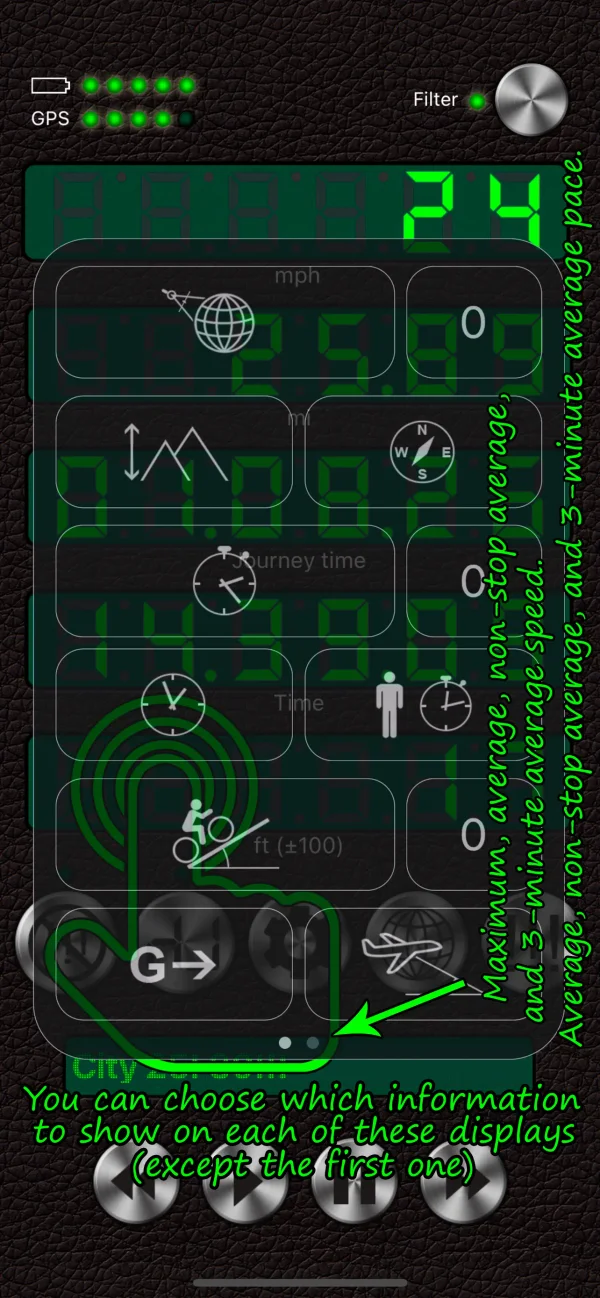
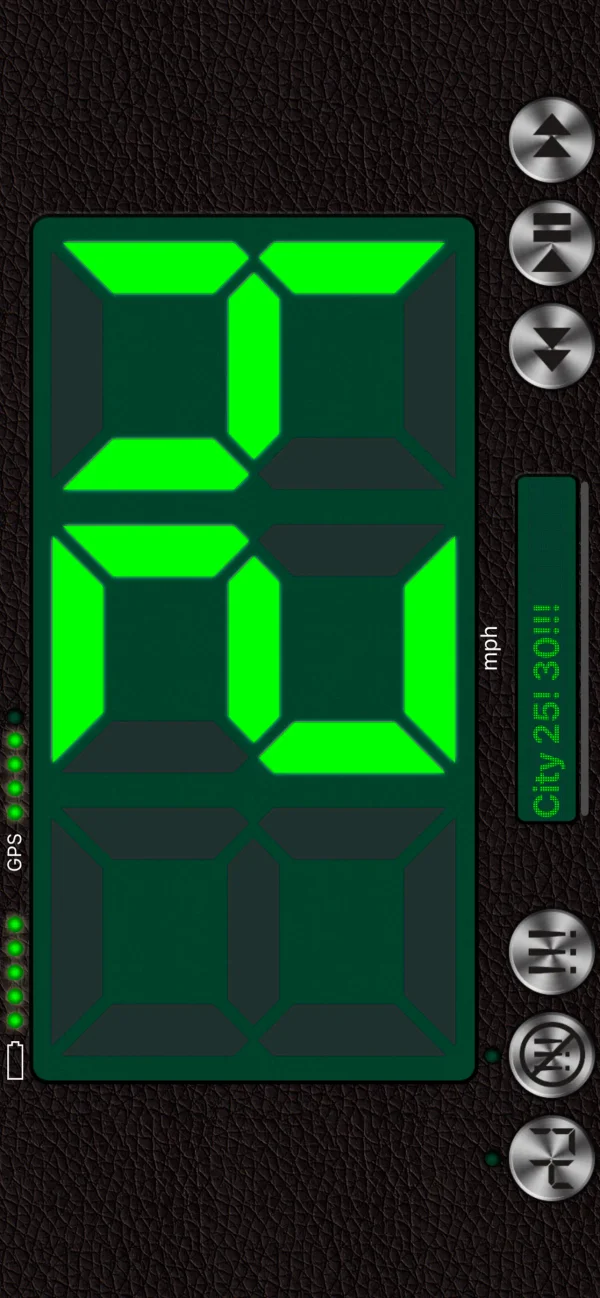
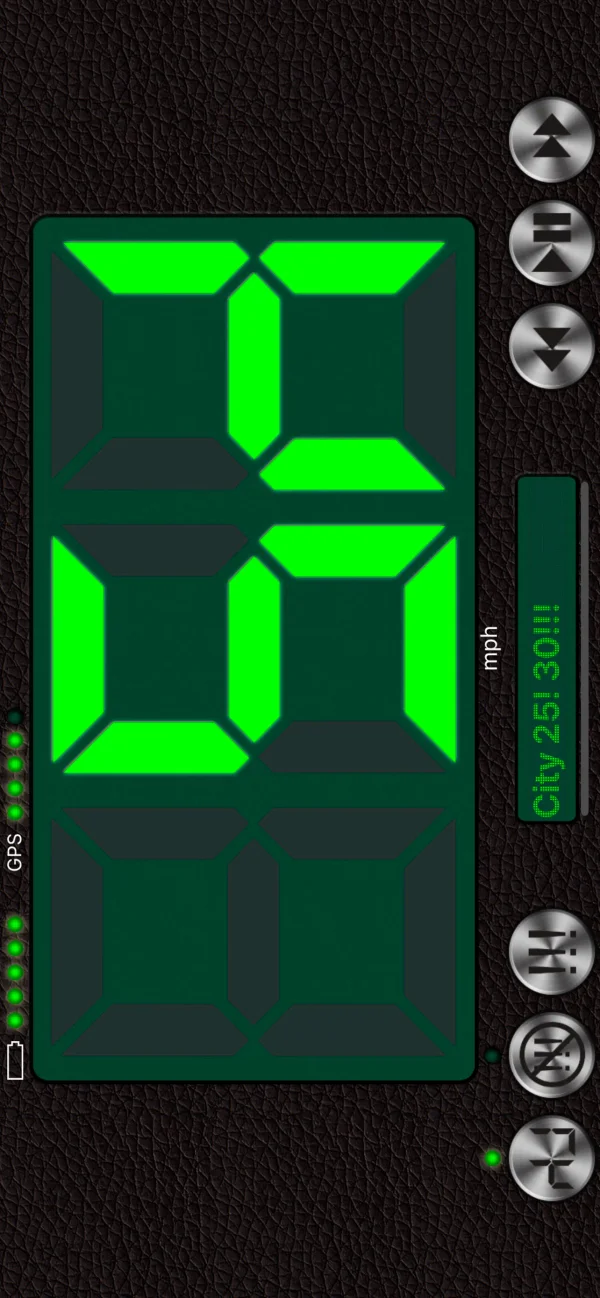
4. Large, well-lit digits
5. HUD (the speed is displayed in the windscreen reflection at night time or in cloudy weather)
6. Background mode. Continued use of GPS running in the background can dramatically decrease battery life.
7. Speed and acceleration graphs
8. Odometer
9. Altimeter
10. Time, journey duration, and current stop duration. The current stop duration will be reset after 20 seconds of motion.
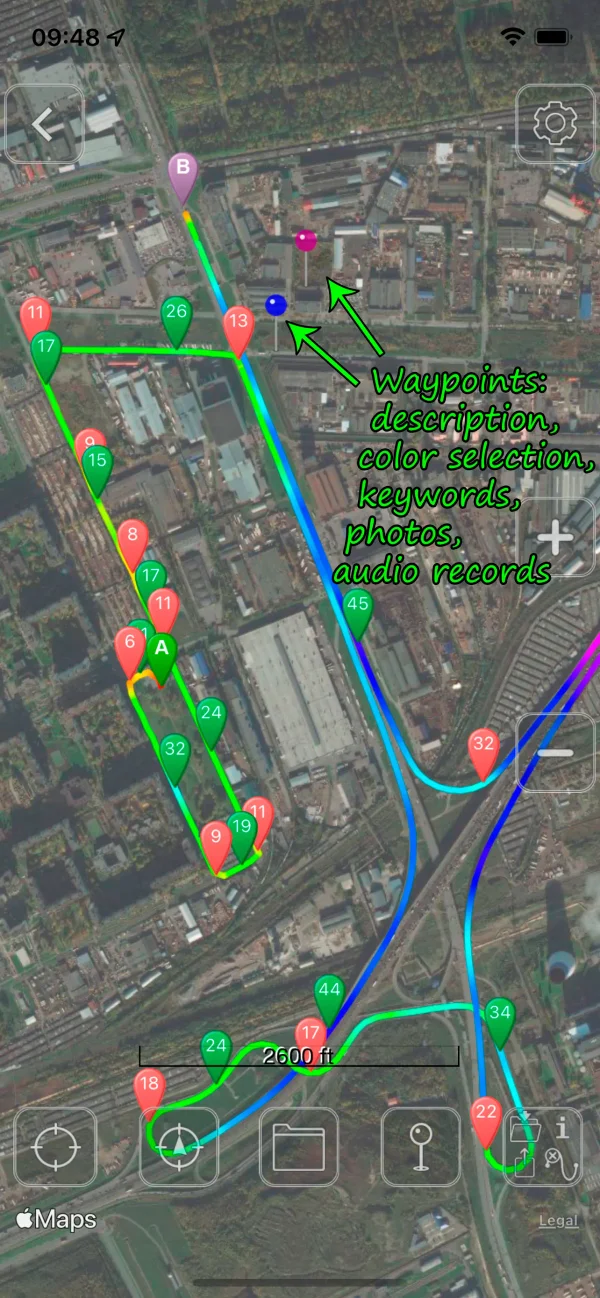
11. See tracks on the map
12. Save tracks
13. Compass
14. Angle of incline (inclinometer)
15. Aircraft descent/climb angle
16. Get detailed stats for any part of your journey
17. Export your journey to a KMZ or GPX file
18. Export track statistics table to a CSV file
19. Load and show your route (journey plan) on the map together with a track. To do this, create a route, using a special online service (such as GPX Editor - https://www.gpxeditor.co.uk/map, The online GPX file editor - https://gpx.studio/, Track drawing websites - https://wiki.openstreetmap.org/wiki/Track_drawing_websites) on your desktop, and export it as a GPX (KML, CSV) file. The file name must begin with "Route". Using iTunes, transfer the file into the app (OR use the "Files" app). Following this, you will be able to select your route at the bottom of your track list. Now you can easily travel following your route line, even without loading a map.
20. Export and import files via iTunes and email
21. Waypoints (description, color selection, keywords, photos, audio records)
22. A single waypoint database with a filter option
23. Music controls
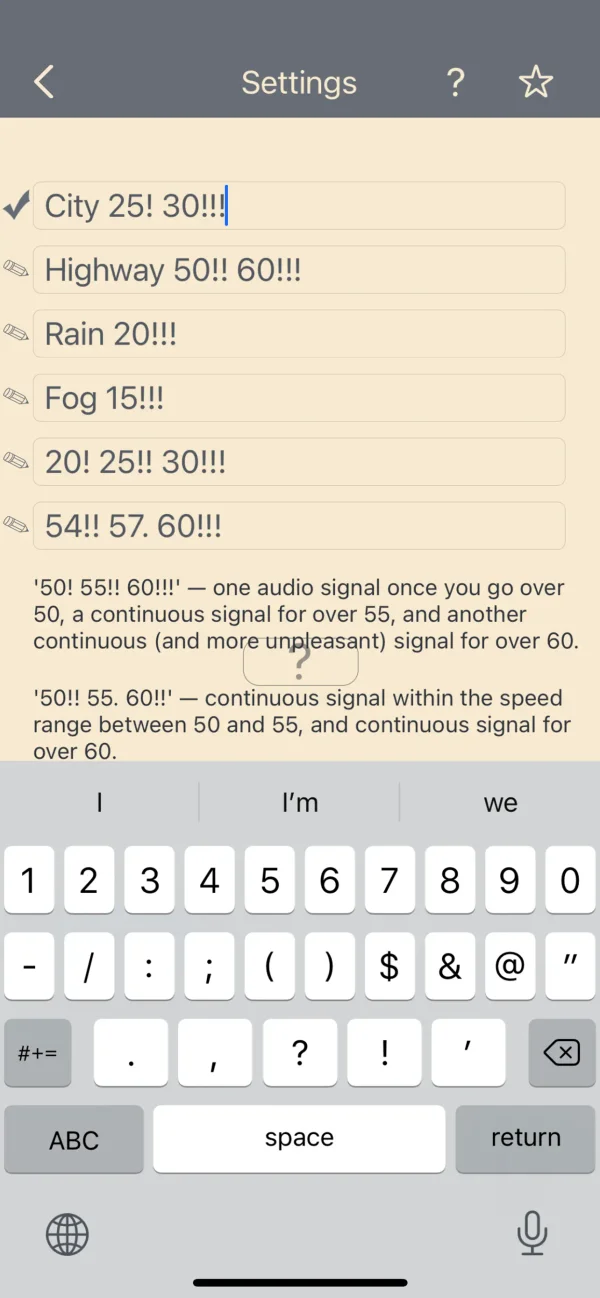
Audio alert settings:
• "60! 70!! 80!!!": One audio signal once you go over 60, a continuous signal for over 70, and another continuous (and more unpleasant) signal for over 80.
• "60! 70": Detailed cues, such as "60! 70!!".
• "50!! 55. 60!!": Continuous signal within the speed range between 50 and 55, and continuous signal for over 60.
• "60!!! 60.": One signal above 60.
• You can enter a comment at the beginning of the line, for example, "Highway 70!!!".
• Type in any word without numbers (for example, "OFF") and use if to turn off the speed control.
• You can upload your own WAV file with the name of the signal (for example, "!.wav" or "!!!.wav") to play your own sound. Connect your iPhone to a computer, then go to iTunes > iPhone > "File Sharing" > Apps. Or use the "Files" app. You will need to restart the app.
IMPORTANT!
1. When driving past tall buildings (or in the mountains or woods) with the filter off, the device may display false speed spikes (due to an unstable satellite signal). In this case, switching the filter on may be a better option.
2. Car speedometers often display a higher than actual speed, the difference sometimes reaching 10%. This is due to your wheels’ diameter. This is why at high speeds GPS speedometers can deliver better accuracy than your regular car speedometer. And the higher the speed, the more accurate your GPS speedometer is.
3. Please note that temporary false readings are possible with ANY GPS speedometer when you start using it.
4. Battery life (iPhone 5S, poor light outside, 100% => 20%):
Background mode (iPhone asleep): ~ 9 h
Speedometer (speed, distance): ~ 4 h
Track-enabled map: ~ 2 h 30 min
https://youtu.be/92TefSsz7gY
What’s new
Version 2.11.9 · Nov 19, 2026
• Bug fixes.
App privacy
What Dmitriy Kharutskiy declares on the App Store about how this app handles data.
-
Data not collected
The developer does not collect any data from this app.
Privacy practices may vary, for example with the features you use or your age.
Information
- Seller
- Dmitriy Kharutskiy
- Category
- Navigation
- Version
- 2.11.9
- Updated
- Nov 19, 2026
- Released
- Jul 28, 2014
- Size
- 26.0 MB
- Requires
- iOS 15.6 or later
- Age rating
- 4+
- Price
- Free
- In-app purchases
- Yes
- Languages
- English, French, German, Italian, Japanese, Russian, Spanish
- Copyright
- © 2014 Dmitriy Kharutskiy
You might also like
-
 GPS Speedmeter mph kmhSpeed Limit, Weather, HUD
-
 Speedometer ••Overspeed alert and cameras
-
 Speedmeter +Speed cams,speed limit display
-
 Speed Limit Camera - DetectorSpeedometer, Road Traffic Sign
-
 Speedometer GPS+Car and Bike speedometer
-
 GPS Speedometer: Trip TrackerCar & Bike Speed Tracker
-
 Speedometer ⁺Mph,kmh,knot Gps Speed Display
-
 GPS Speedometer HUD & OdometerTrack Speed, Distance & HUD
-
 ByeByeTicket - Pump BoosterClaim your gas rewards
-
 Offline Map: GPS Route TrackerHike, Drive & Trail Recorder