Time & Date Calculator Plus
Work Hours, Shifts & Breaks
Designed for iPhone, iPad
Free · In-app purchases
- Age rating4+
- CategoryUtilities
- DeveloperVerosocial Studio
- LanguagesEnglish
- Size11.6 MB
Links to the official App Store page
Download.org hosts no file of Time & Date Calculator Plus. The button opens its official App Store page, published by Verosocial Studio. Listing last checked on Nov 26, 2026.
Screenshots


About
Thanks for using Time & Date. If you're just getting started, download the app and try it on something you already have in front of you, like a shift to check, an invoice to finish, or a deadline to work back from.
Work hours, shifts and overtime
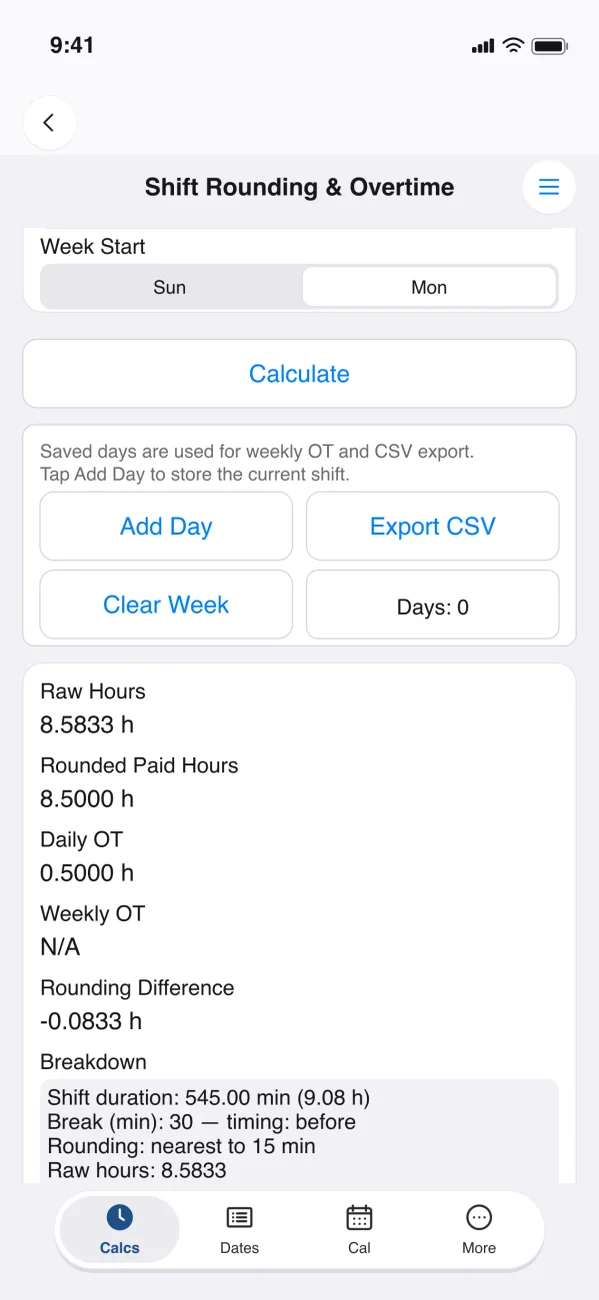
• Enter your clock-in and clock-out times, subtract an unpaid break, and see how long you worked.
• Compare raw hours with rounded paid hours using the rounding rule you choose. See what changed before you copy the total to a timesheet.
• Check daily overtime and optional weekly overtime against the thresholds you enter.
• Add shifts to a weekly list and export a CSV to open in a spreadsheet or share for payroll review.
Time and duration calculator
• Find how much time passed between two clock times in AM/PM or 24-hour format. Use the 24-hour calculator for shifts that finish after midnight.
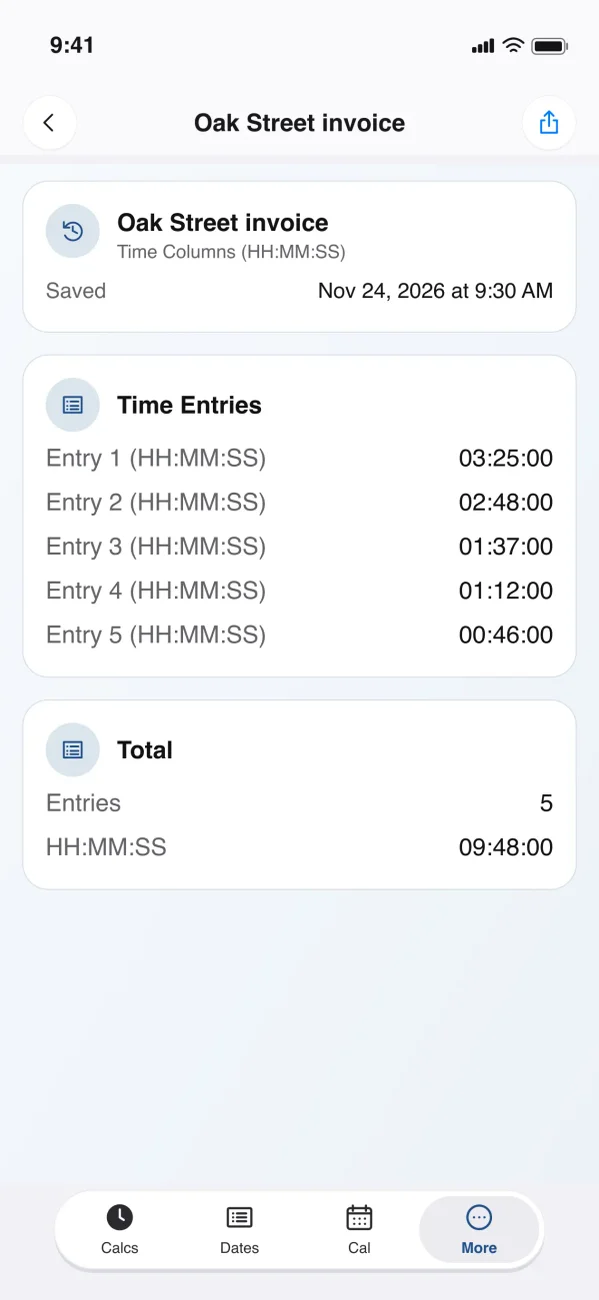
• Add or subtract a list of durations one row at a time. Choose hours and minutes, minutes and seconds, hours through seconds, or days through seconds.
• Compare time entries in a chart and share the chart as a PDF when someone needs to see how the total was built.
• Convert hours, minutes, seconds and decimal hours. Check that 7 hours and 45 minutes comes to 7.75 hours before putting it on an invoice.
• Multiply a 25-minute task by the number of times you need to do it, or divide a block of time into equal parts.
• Convert a meeting time to another time zone before you send the invite.
Dates, business days and deadlines
• See the difference between two dates in days, weeks, months, years or weekdays.
• Add or subtract an interval to find the date an appointment, renewal or follow-up lands on.
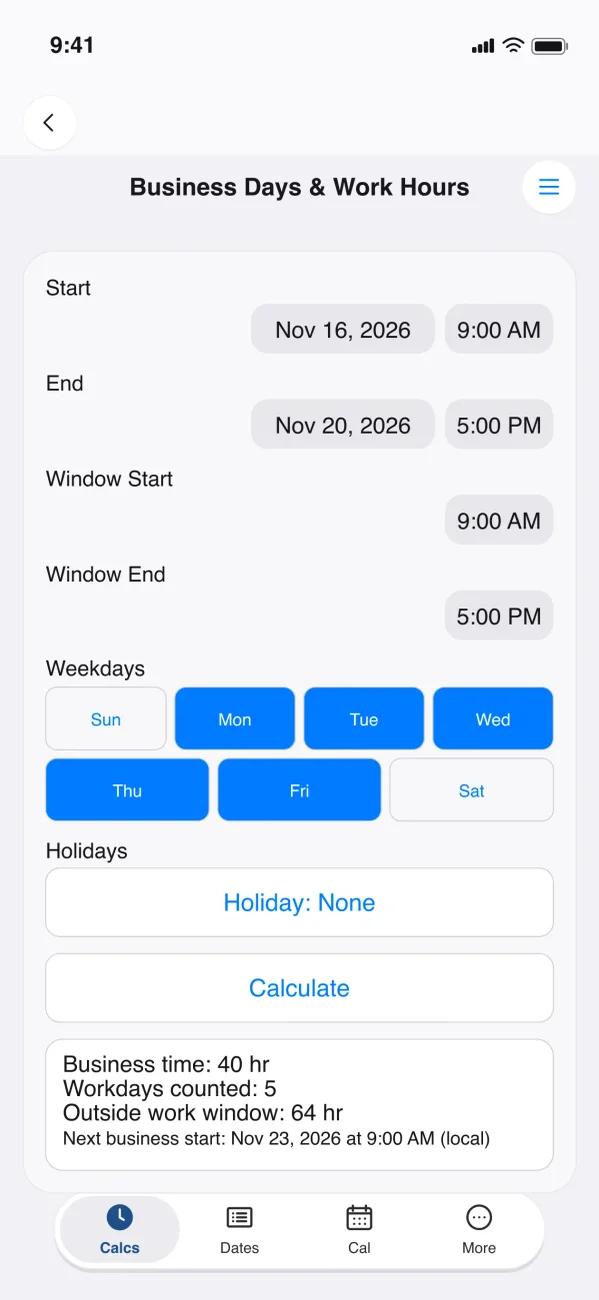
• Count business days and working hours using the days and hours you actually work. Skip U.S. federal holidays if they're days off for you.
• Work backward from a deadline with the Schedule Countdown Planner. Set the time for each step and leave a buffer if you need one.
• Save important dates with a title and optional tag. Search for them later or see them together in the year calendar.
Keep a result you can find again
• Add your regular tools to Favorites so you can get to them from the calculator list.
• Save a named copy of a calculation in History. Search by the name or calculator when you need to check the figures again.
• Export History as CSV for a spreadsheet, PDF for a readable copy, or JSON to transfer your saved records. Share individual results as text or PDF where supported.
• Use Backup & Data Transfer to move tracked dates and supported calculator entries separately from History.
More ways to use Time & Date
• Compare a series of dated time entries to see the intervals between them.
• Review flight block time, duty time and UTC references with the flight tools.
• Find the day number within a year or use the Julian date and calendar references.
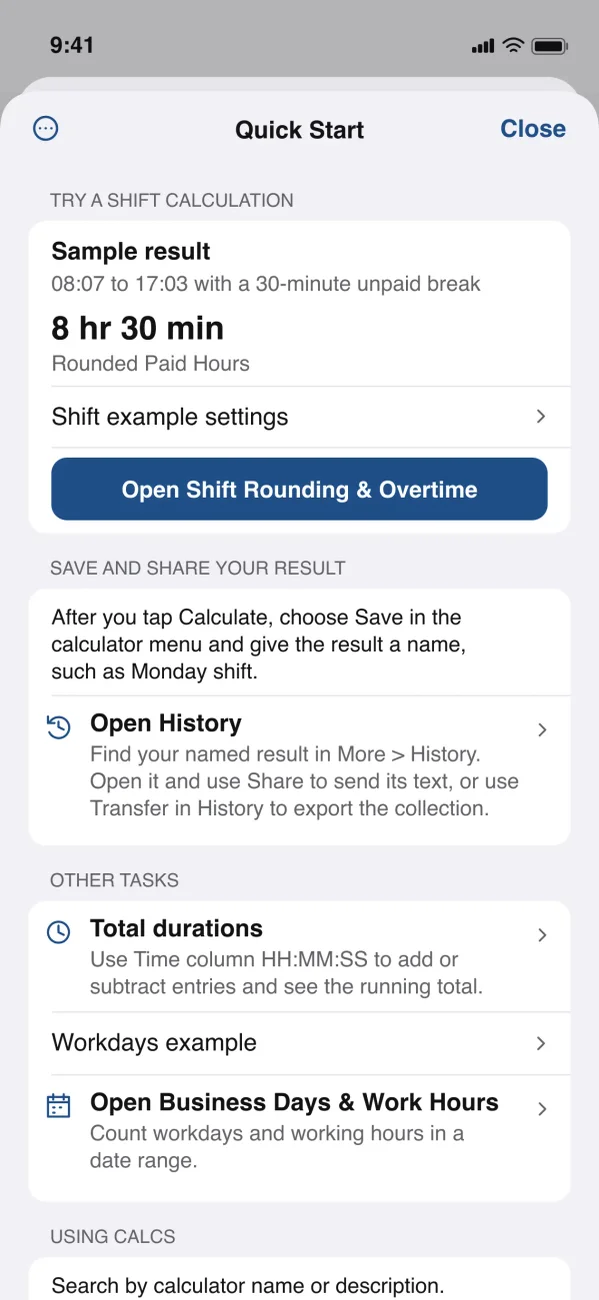
• Open Quick Start on iPhone or iPad for an example, or go straight to the calculator you need.
• On Apple Watch, add or split durations and check the difference between two clock times.
Try it free without ads
Start with any calculator on iPhone or iPad. Free access gives you up to three uses each day, shared across new calculations and new saves, for eight consecutive local dates. The date of your first counted use is day one. You can still open saved work and use supported exports after your free uses end.
Monthly Pro and Lifetime Pro both unlock unlimited calculations and saves. Monthly Pro renews automatically until canceled. Lifetime Pro is a one-time purchase. There are no ads on any plan.
For monthly subscriptions:
Monthly Pro is a 1-month auto-renewable subscription.
Terms of Use (EULA): https://www.apple.com/legal/internet-services/itunes/dev/stdeula/
Get Time & Date and start with the next total, date or shift you need to check.
What’s new
Version 49 · Nov 25, 2026
You know when a few minutes on a timesheet deserve a second look. Thanks for using Time & Date to check those details. This update makes it easier to get to the right calculator and choose when to save your work.
Get to the calculator you need
• Open Quick Start in Calcs and choose what you want to do. The guide opens that calculator for you. If you're checking a shift, start with Shift Rounding & Overtime. If you're planning around a deadline, try Business Days & Work Hours.
• Quick Start can take you to your last calculator, History, or Backup & Data Transfer. If you've hidden Quick Start, the clock arrow in Calcs reopens your last calculator when it isn't already in Favorites.
• If you have a set of favorite calculators, they're still easy to reach from Calcs. You can hide Quick Start and use the list as usual. To bring the guide back, open More, then Help.
Help you can use alongside the calculator
• The revised Help walks through jobs from the first entry to the result. For a shift, it explains where to enter an unpaid break and how to read the difference between raw hours and rounded paid hours.
• The business days example shows how to set your own working days and daily hours. The duration example shows when to offset a date and when to use a column to total several entries.
• Help also explains where to find a named History record and which file to choose when you want a spreadsheet, a PDF or a backup. Reading Help and worked examples leaves your free uses available.
Choose when to add a date
• A new date stays a draft until you tap Add Date. Take a moment to enter the title, tag and time, then save when you're ready. Close an unfinished draft to discard it without leaving a blank entry in Dates.
• You can still open and edit an existing date directly. Changes to a saved date continue to save automatically.
• If you reach a free limit while adding a date or naming a History record, choose Continue Free to return to the draft. Your entries stay there so you can choose when to try saving again.
What counts as a free use
• On Free, you get three uses per day for eight consecutive local dates beginning on the date of your first counted use. New calculations and successful saves of new records share that allowance.
• Reset in the Time Converter clears the fields without spending a use. Canceling a new date or a History save leaves the allowance available. A successful calculation stays on screen so you can read the result before moving on.
• When sharing or saving from Shift Rounding & Overtime, the breakdown comes from the last completed calculation. If you've changed the fields, calculate again before sharing the new figures.
See your choices when you reach a limit
• If an action needs Pro, the screen tells you which calculation or save reached the limit and whether another free day remains. Continue Free takes you back to your work.
• Both Pro options give you unlimited calculations and saves. Monthly Pro renews each month until canceled. Lifetime Pro is a one-time purchase. You can compare the prices shown for your App Store before deciding. If you're choosing between both plans, you can also see how many monthly payments would cost more than Lifetime.
• If you've already purchased Pro and need to recover access, use Restore Purchases on the Pro screen. If a purchase needs approval, the app tells you it's pending so you can go back to your work while you wait.
• Saved dates and History stay available after free uses end. You can still review a record you kept and use the supported sharing and export options.
Open Quick Start to try an example, or pick your usual calculator and carry on. Thanks again for making Time & Date part of your day.
App privacy
What Verosocial Studio declares on the App Store about how this app handles data.
-
Data not collected
The developer does not collect any data from this app.
Privacy practices may vary, for example with the features you use or your age.
Information
- Seller
- Verosocial Studio
- Category
- Utilities
- Version
- 49
- Updated
- Nov 25, 2026
- Released
- Jul 25, 2011
- Size
- 11.6 MB
- Requires
- iOS 17.6 or later
- Age rating
- 4+
- Price
- Free
- In-app purchases
- Yes
- Languages
- English
- Copyright
- © Copyright 2026 Verosocial Studio
You might also like
-
 File Crypt: Secure AES BrowserSecure File Vault and Viewer
-
 miruTaskTask tool
-
 Photo Compressor Resize ImageCompress Photos Offline
-
 TimeLyncCreative Interval Timer
-
 All in One Calculator - MathMultiply calculators, No Ads!
-
 Decibel Meter Plus ProSound Level, Noise & Reports
-
 Karta CockpitDashboard Speedometer HUD
-
 Inventarium: Home InventoryOffline inventory companion
-
 Focus Timer For Productivity ®Pomodoro task timer for work
-
 Convert Photo to PDF: PhotoPDFPictures to PDF Free & Fast