Counter Sheet
Multiple counters on 1 screen
Được thiết kế cho iPhone, iPad, Mac, iPod touch
Miễn phí · Mua hàng trong ứng dụng
- Độ tuổi4+
- Danh mụcKinh Doanh
- Nhà phát triểnmasaki individual
- Ngôn ngữTiếng Anh+ 1 ngôn ngữ khác
- Kích thước1,3 MB
Liên kết đến trang App Store chính thức
Download.org không lưu trữ tệp nào của Counter Sheet. Nút này mở trang ứng dụng trên App Store, nơi masaki individual phát hành ứng dụng. Trang được kiểm tra lần cuối: 15/11/2026.
Ảnh chụp màn hình


Giới thiệu
Nhà phát triển chưa cung cấp nội dung này bằng ngôn ngữ của bạn.
Application name: Counter Sheet
Main functions:
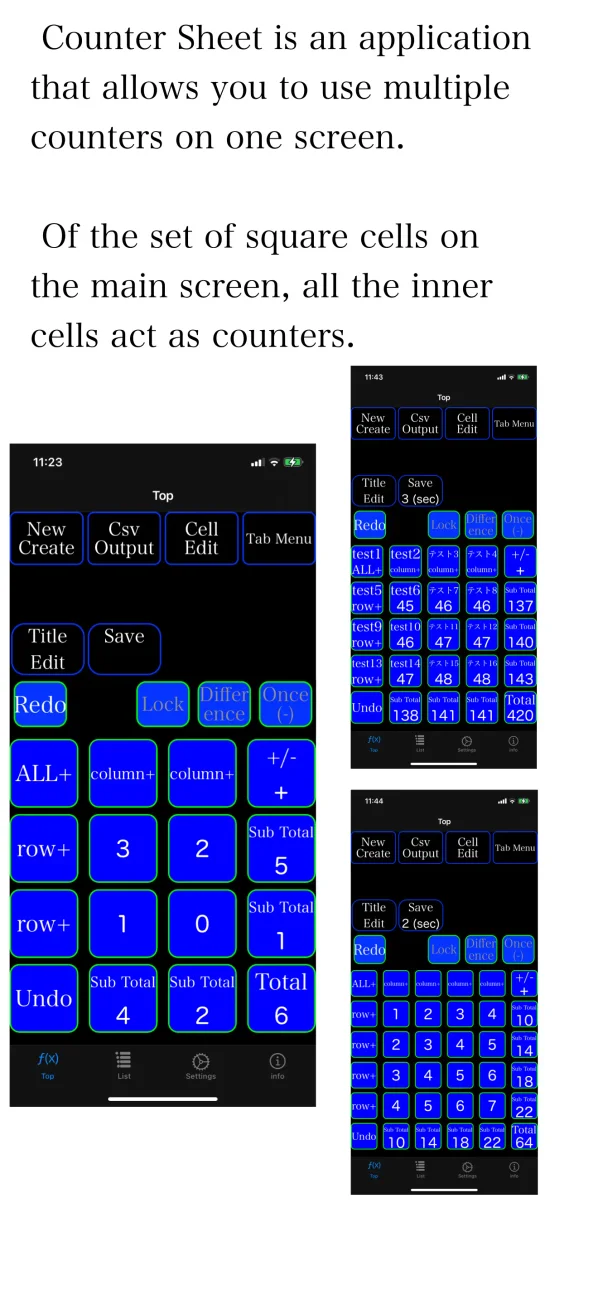
Multiple counters can be used on the same screen.
In addition, addition / subtraction can be performed at the same time in units such as columns and rows.
Furthermore, each count is automatically calculated as a small total and a total.
Please use it as a tool for collecting simple information.
(Important) In this app, there may be a sound to make a click sound. (Sound suppression possible)
(Important) This app does not assume repeated hits. In the case of high-speed keystroke, the processing may not catch up.
(Important) This app works on the assumption that you will use the iCloud service provided by Apple Inc. If iCloud cannot be used, the expected functions may not work.
how to use:
About the main screen (Top)
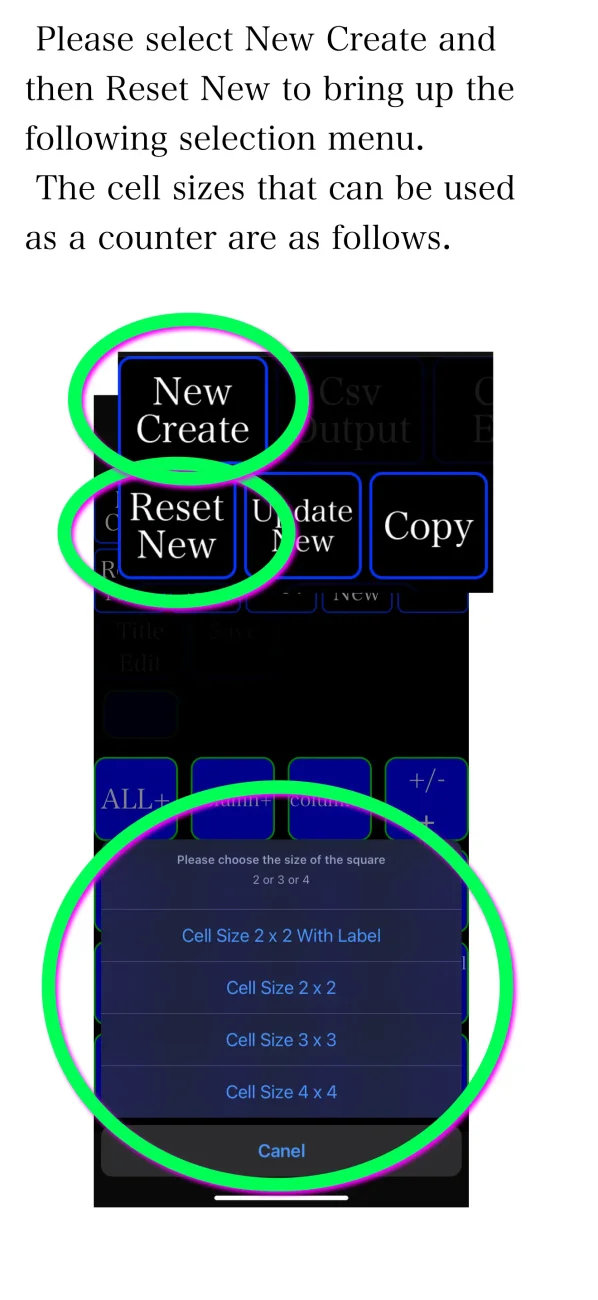
The cell sizes that can be used as a counter are as follows.
2 x 2 = 4 cells
3 x 3 = 9 cells
4 x 4 = 16 cells
Select New Create and then Reset New to bring up the selection menu above.
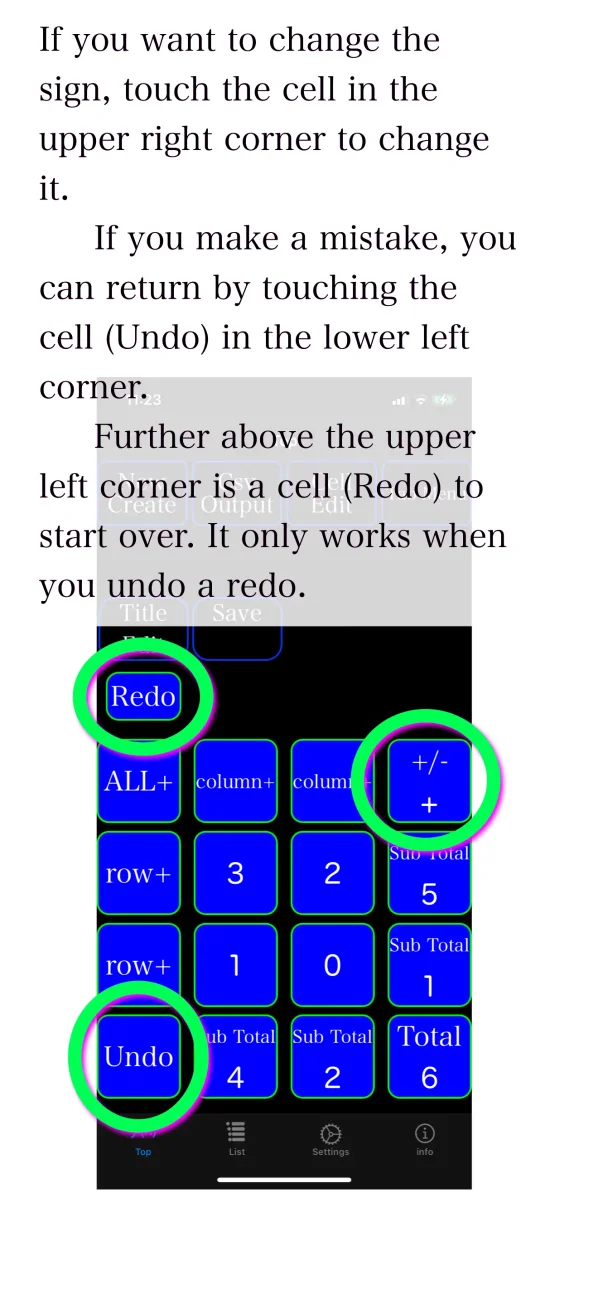
All the cells inside the cells on the top, bottom, left, and right sides function as counters.
One touch counts one.
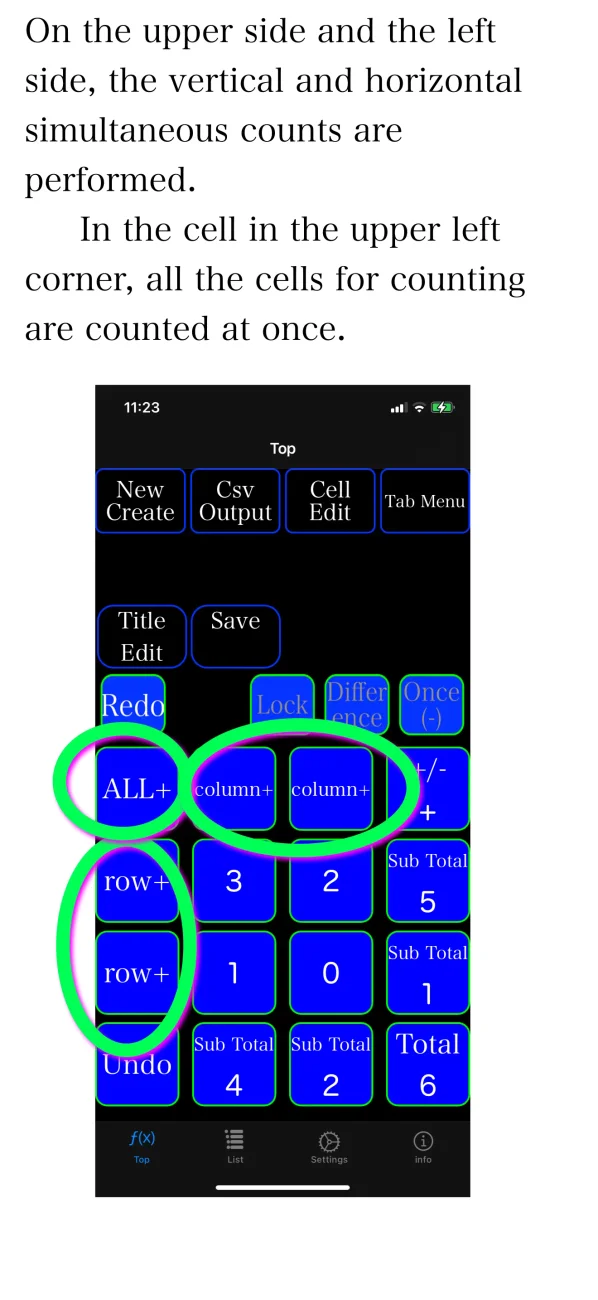
On the upper side and the left side, the vertical and horizontal simultaneous counts are performed.
In the cell in the upper left corner, all the cells for counting are counted at once.
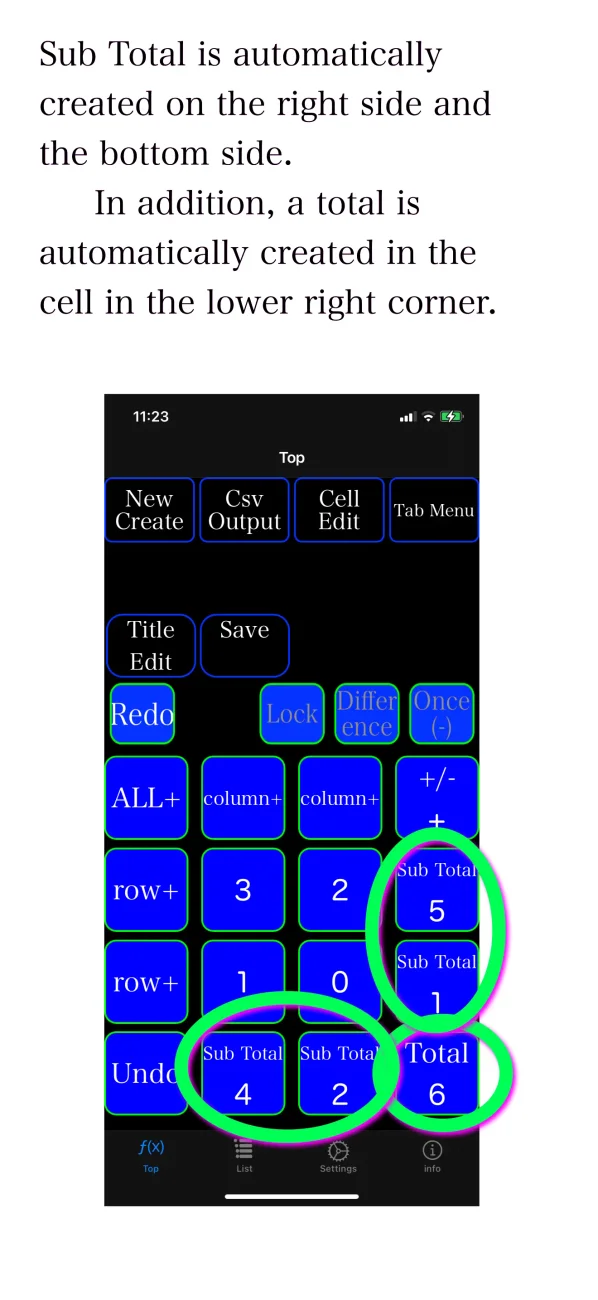
Sub Total is automatically created on the right side and the bottom side.
In addition, a total is automatically created in the cell in the lower right corner.
If you want to change the sign, touch the cell in the upper right corner to change it.
If you make a mistake, you can return by touching the cell (Undo) in the lower left corner.
Further above the upper left corner is a cell (Redo) to start over. It only works when you undo a redo.
The positive / negative sign (+/-) is also recorded when it is registered in the list. In the case of a new creation that does not inherit the information, it will be a positive sign (+).
Menu function:
The menu at the top of the main screen is as follows.
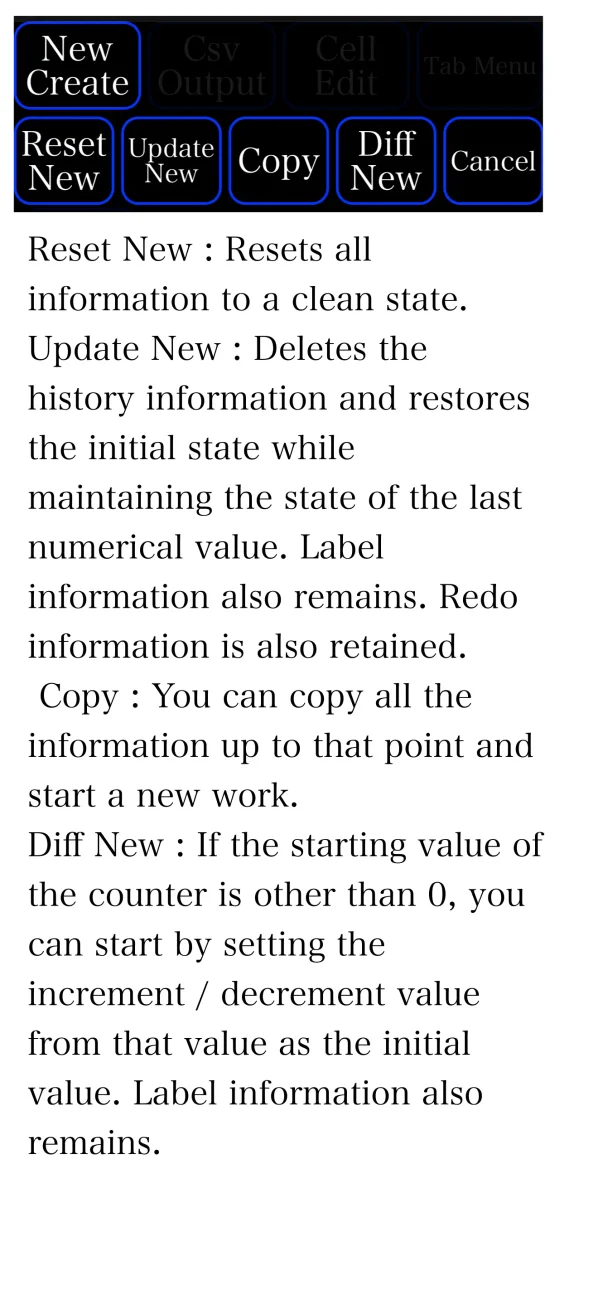
New Create
Reset New; Resets all information to a clean state.
Update New; Deletes the history information and restores the initial state while maintaining the state of the last numerical value. Label information also remains. Redo information also remains.
Copy New; You can copy all the information up to that point and start a new work.
Gap New; If the starting value of the Gap New counter is non-zero, you can start by setting the increment / decrement value from that value as the initial value. Label information also remains.
CSV Output (Csv Output)
Number only; Please use when you want to expand only the numerical value as a csv file.
Label only; Please use this when you want to expand only the label attached to the counter etc. as a csv file.
Pack; This is a pack of the above labels and numbers.
Cell Edit
Number Use this when you want to enter a number directly. When you touch the cell you want to change, the operation screen will appear at the top, so adjust the value and touch the last blinking cell. The entered value can be canceled in the correction cell (Undo).
Label
You can give each counter a name. You can also name the top and left sides.
Names cannot be set for the total value cell, upper right corner, lower left corner, and Redo cell.
Save
The save process is automatically executed when 7 seconds have passed since the count was executed and no input was made. You can also save manually until the automatic save. The countdown display starts 3 seconds before.
Since multiple counters can be handled like spreadsheet software at the same time, the following usages are possible.
Please let us know if there are other interesting or practical uses. It will be an issue for consideration of future development items.
Please check the information in the app for precautions.
Có gì mới
Phiên bản 5.0 · 20/12/2024
Function addition and function improvement
1) Supporting iOS 18.2 and iPadOS 18.2
Quyền riêng tư của ứng dụng
Những gì masaki individual khai báo trên App Store về cách ứng dụng này xử lý dữ liệu.
-
Dữ liệu không được thu thập
Nhà phát triển không thu thập bất kỳ dữ liệu nào từ ứng dụng này.
Phương thức đảm bảo quyền riêng tư có thể khác nhau, chẳng hạn như tuỳ theo các tính năng bạn sử dụng hoặc độ tuổi của bạn.
Thông tin
- Người bán
- Osamu Masaki
- Danh mục
- Kinh Doanh
- Phiên bản
- 5.0
- Cập nhật
- 20/12/2024
- Phát hành
- 20/02/2021
- Kích thước
- 1,3 MB
- Yêu cầu
- iOS 13.0 trở lên
- Độ tuổi
- 4+
- Giá
- Miễn phí
- Mua hàng trong ứng dụng
- Có
- Ngôn ngữ
- Tiếng Anh, Tiếng Nhật
- Bản quyền
- © Masaki application laboratory (Osamu Masaki) 2021-2026