Lectio Markdown / PDF Reader
Google Drive, iCloud, OneDrive
Được thiết kế cho iPhone, iPad
Miễn phí
- Độ tuổi4+
- Danh mụcSách
- Nhà phát triểncaps-rock
- Ngôn ngữTiếng Nhật+ 1 ngôn ngữ khác
- Kích thước19,6 MB
Liên kết đến trang App Store chính thức
Download.org không lưu trữ tệp nào của Lectio Markdown / PDF Reader. Nút này mở trang ứng dụng trên App Store, nơi caps-rock phát hành ứng dụng. Trang được kiểm tra lần cuối: 12/11/2026.
Ảnh chụp màn hình
Giới thiệu
Nhà phát triển chưa cung cấp nội dung này bằng ngôn ngữ của bạn.
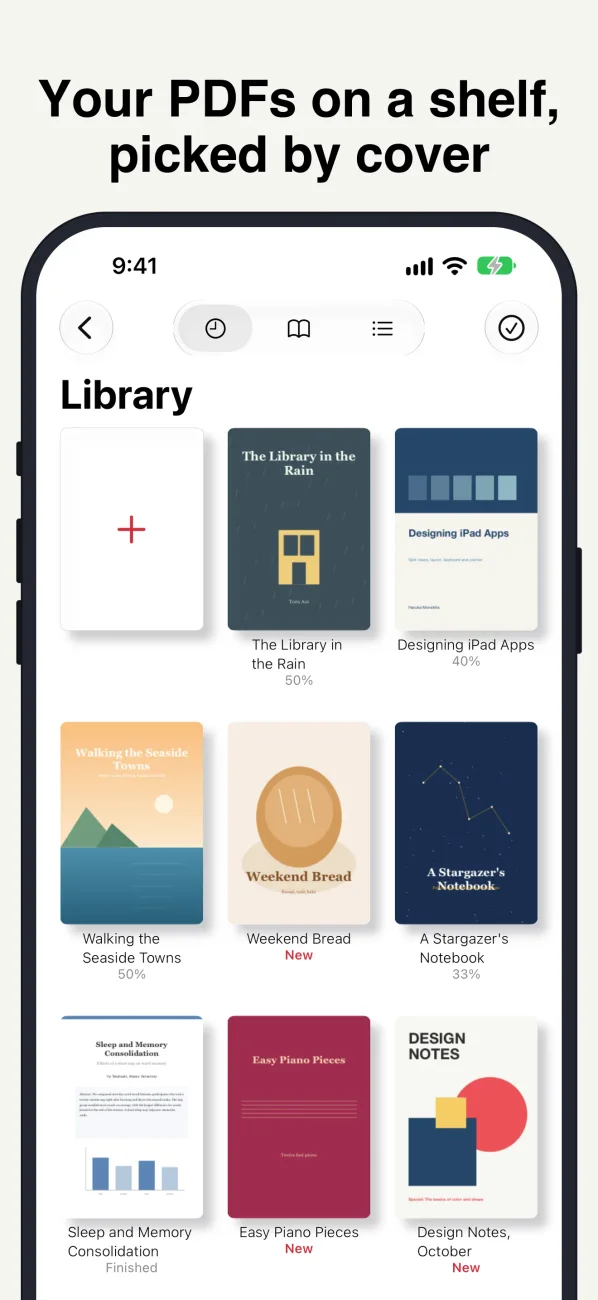
A bookshelf for your PDFs and Markdown files, on iPhone and iPad.
Bring in files from the cloud or the Files app, turn their pages in two-page spreads, and write on them with Apple Pencil.
Made for you if
• You want to read scanned books and comics in spreads, the way you read them on paper
• You read papers and documents and want to write notes on them with Apple Pencil
• You keep notes, AI chat logs or READMEs in Markdown and want to read them calmly, page by page
• Your PDFs are scattered across cloud services and you want them on one shelf
Collect: PDFs and Markdown on one shelf
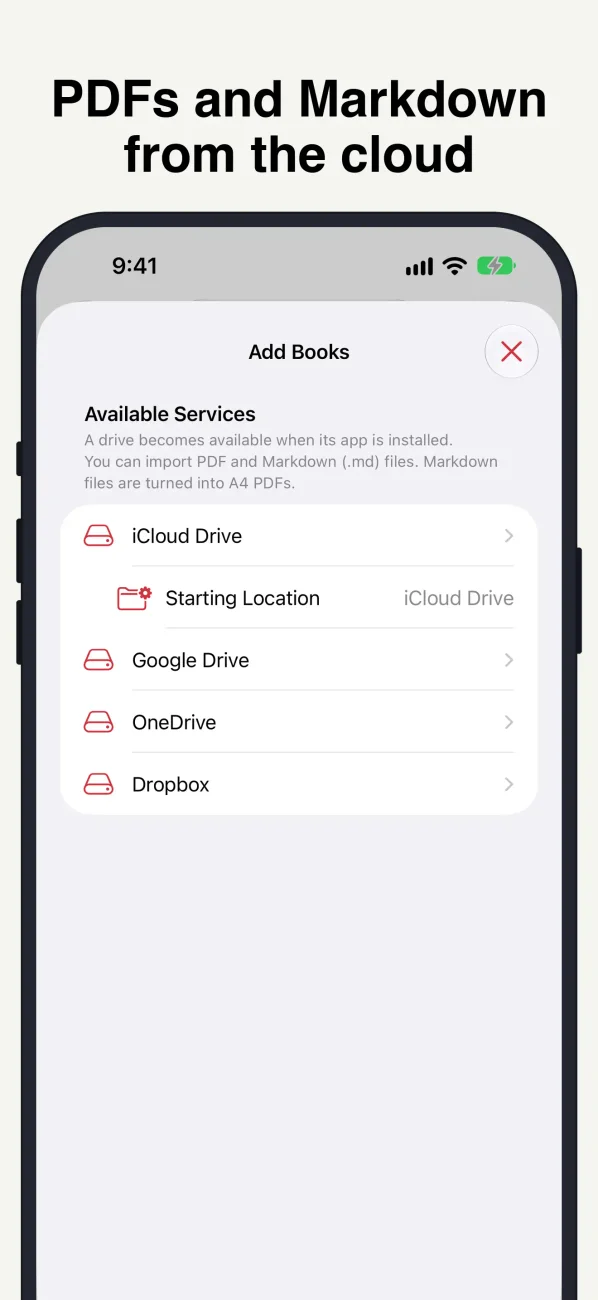
From "Add Books", bring in files from any place that appears in the Files app, such as iCloud Drive, Google Drive, OneDrive and Dropbox. You can also open Lectio from the share sheet in another app, or drag and drop files onto the shelf. A Markdown (.md) file becomes an A4 PDF with its headings, lists, tables and code laid out, and takes its place on the shelf. The same file is never added twice, and password-protected PDFs can be added too. Books are kept on your device, so you can read them without a connection. Lectio only reads your cloud files and never changes or deletes them.
Read: turn pages like a book
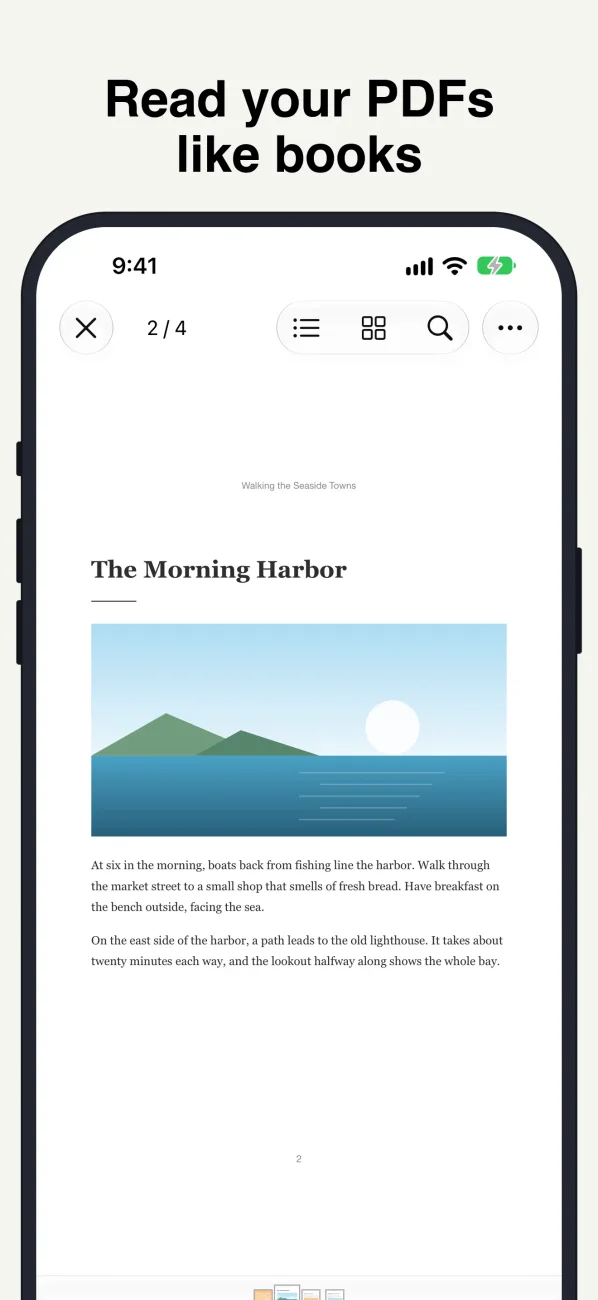
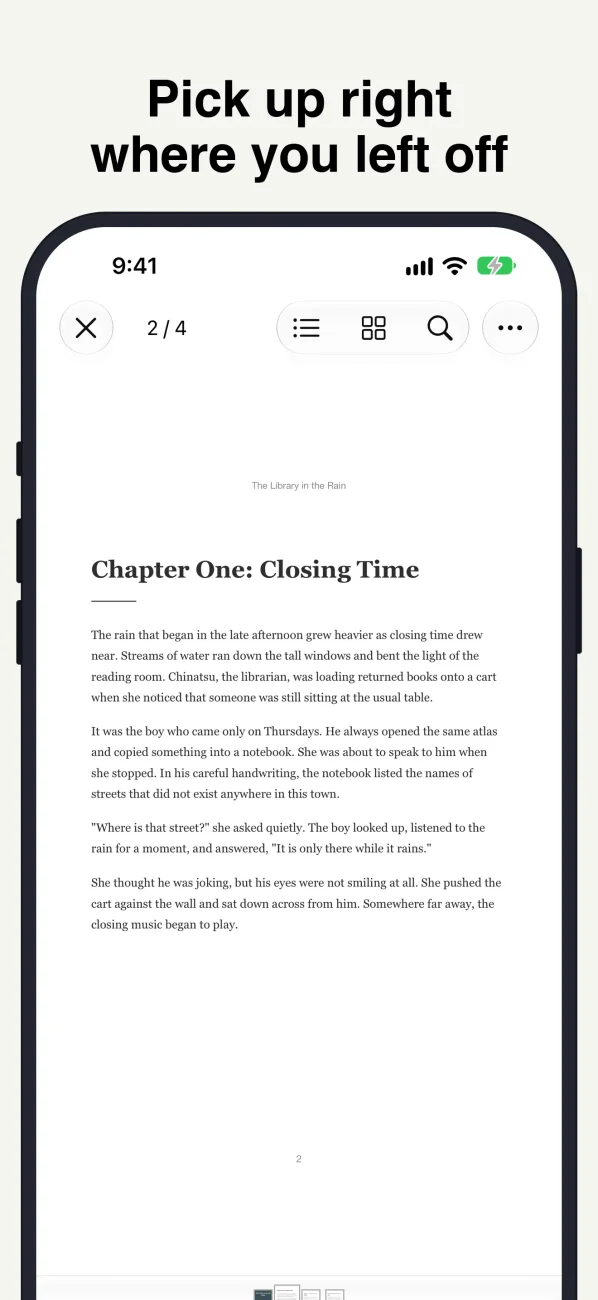
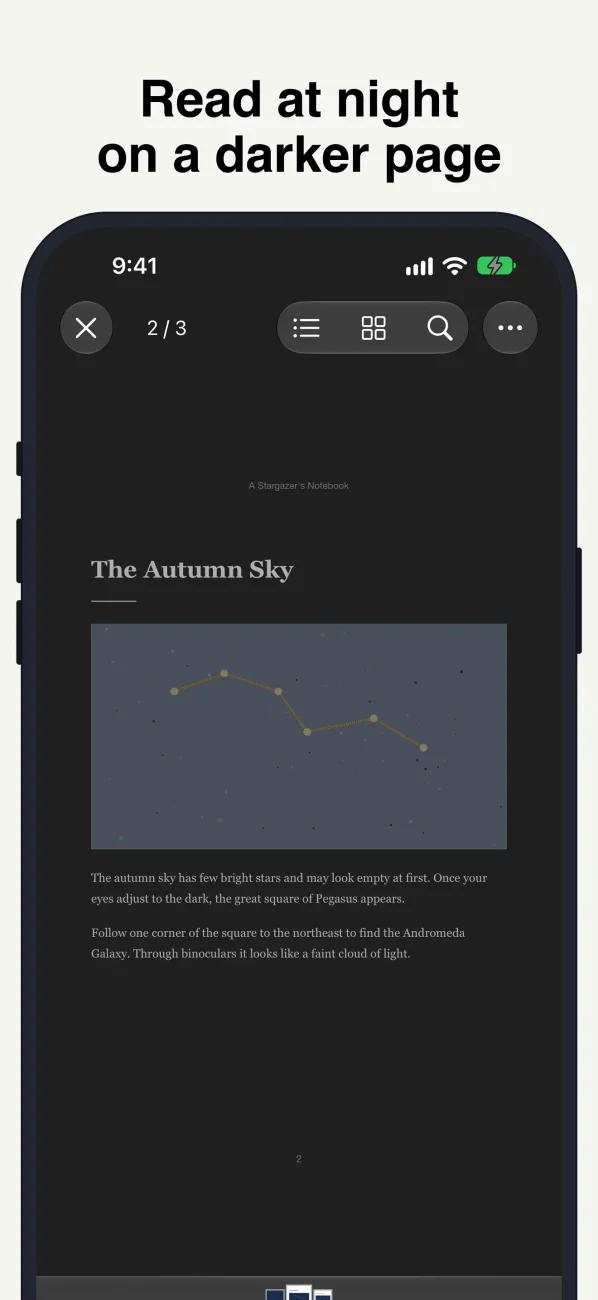
Each book remembers its layout (two-page, single page or vertical scroll) and its left or right binding. Right-bound books lay out their spreads from right to left, so comics and vertical text read in their natural direction. Swipe or press the arrow keys to turn the page, and tap the page to hide the buttons. Lectio remembers where you stopped, so the next time you open a book you carry on from there. Switch the page color to night or sepia, adjust the brightness, and keep the screen on while you read.
Write: Apple Pencil and four highlight colors
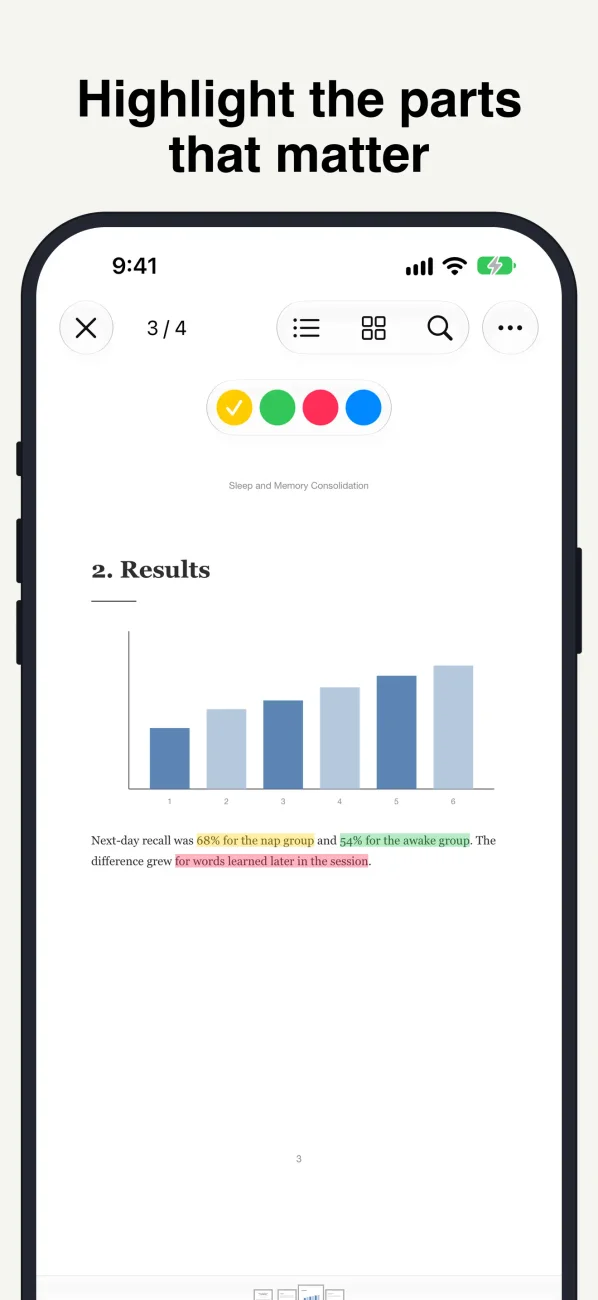
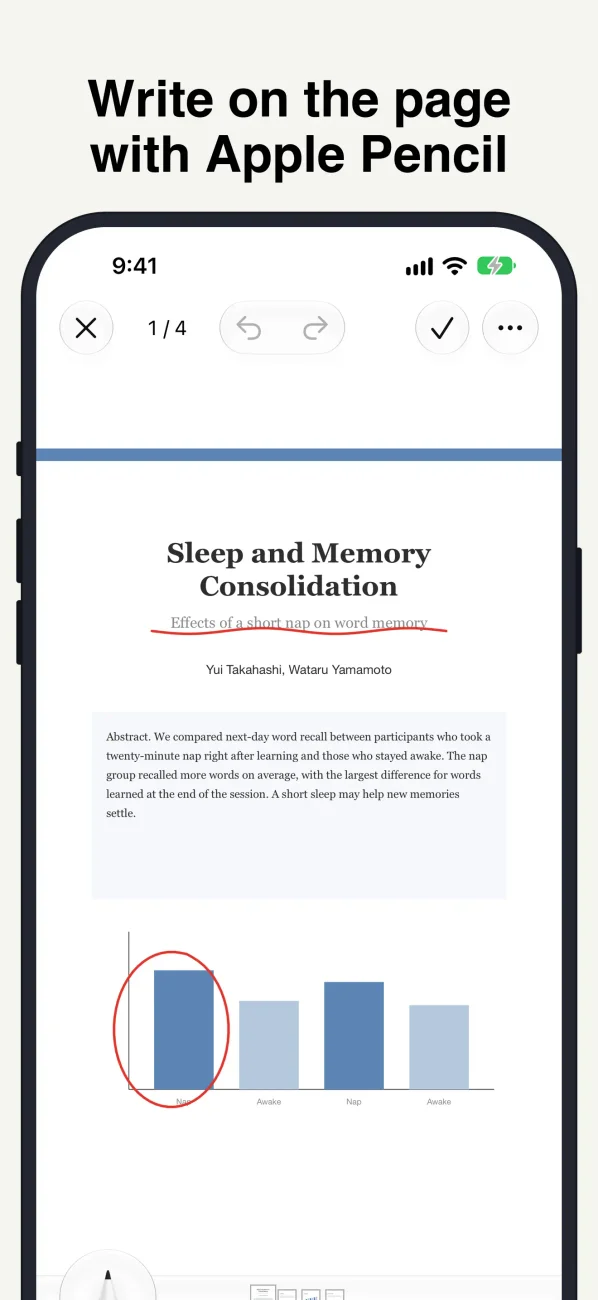
Turn on Handwriting in the toolbar and a tool palette appears. Write directly on the page with Apple Pencil or your finger, choose pens, colors and the eraser, and your writing stays with each page. Highlight text in yellow, green, pink or blue, and find your highlights again under Highlights in the sidebar. Press and hold text to copy it, look it up or search the book for it, and tap links on the page.
Find: contents, thumbnails and text search
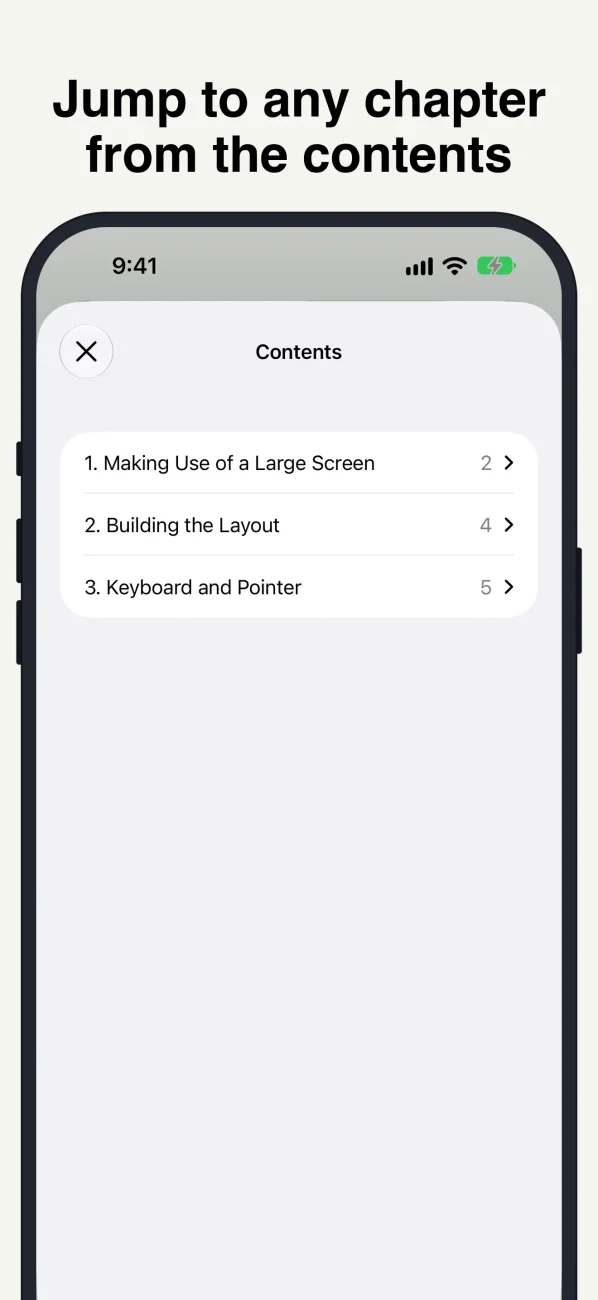
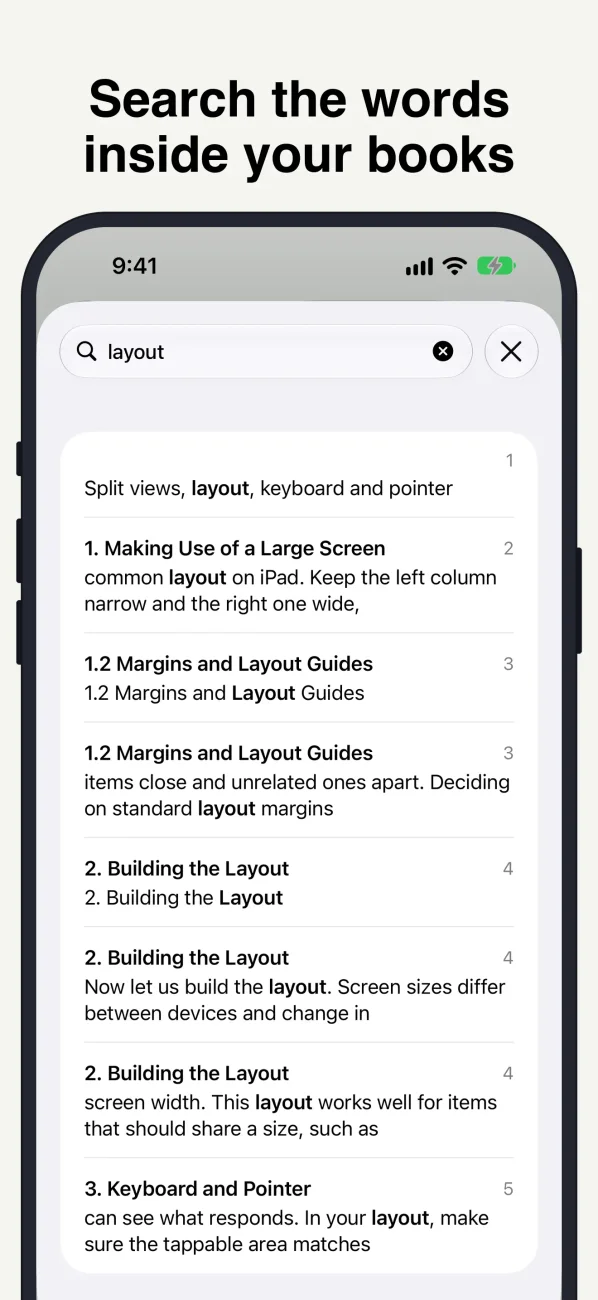
Jump to a chapter from the table of contents, or to any page from the thumbnail grid or by its page number. Search the text of a book and each match is highlighted in yellow. Books made from Markdown are searchable too. In the library, find books by name.
Organize: favorites, bookmarks and collections
Each cover shows how far you have read: New, a percentage, or Finished, and you can sort by Recently Read. See your favorite books, bookmarked pages and highlights in lists. A bookmark keeps the opening words of its page, so you know where you left it. Sort books into collections and arrange them in any order you like. Rename books, or select several to share them, add them to a collection or delete them in one go. Deleted books stay in Recently Deleted for 30 days, where you can bring them back.
Widget, Spotlight and Handoff
The Home Screen widget shows the books you read recently, and tapping one opens it where you left off. Search for books in Spotlight by name or by words in the text. With Handoff, pass the book and page you are reading to another iPhone or iPad that has the same PDF.
iPhone, iPad and iPhone Duo
Lectio supports iPhone Duo. Read on the outer display when it is closed, and in spreads on the large inner display when you open it. The buttons sit in the vertical bar along the edge, out of the way of the page.
Keyboard, remotes and VoiceOver
Press ⌘O to add books, ⌘F to search, ⌘B to bookmark and ⌘W to close. Pages turn with the arrow keys, so a Bluetooth keyboard or a page-turner remote that sends arrow keys works too. VoiceOver and Dark Mode are supported.
You can also share and print your books.
Start by tapping + in the library and add your first book.
Có gì mới
Phiên bản 1.1.1 · 19/10/2026
• Added Undo and Redo for handwriting. They appear next to the page number while Handwriting is on.
Quyền riêng tư của ứng dụng
Những gì caps-rock khai báo trên App Store về cách ứng dụng này xử lý dữ liệu.
-
Dữ liệu không được thu thập
Nhà phát triển không thu thập bất kỳ dữ liệu nào từ ứng dụng này.
Phương thức đảm bảo quyền riêng tư có thể khác nhau, chẳng hạn như tuỳ theo các tính năng bạn sử dụng hoặc độ tuổi của bạn.
Thông tin
- Người bán
- hideo endo
- Danh mục
- Sách
- Phiên bản
- 1.1.1
- Cập nhật
- 19/10/2026
- Phát hành
- 18/11/2021
- Kích thước
- 19,6 MB
- Yêu cầu
- iOS 27.0 trở lên
- Độ tuổi
- 4+
- Giá
- Miễn phí
- Ngôn ngữ
- Tiếng Nhật, Tiếng Anh
- Bản quyền
- © Caps Rock All Rights Reserved.