- Độ tuổi4+
- Danh mụcHiệu Suất
- Nhà phát triểnChristian Fries
- Ngôn ngữTiếng Anh+ 1 ngôn ngữ khác
- Kích thước2,9 MB
Liên kết đến trang App Store chính thức
Download.org không lưu trữ tệp nào của Timer with Sections. Nút này mở trang ứng dụng trên App Store, nơi Christian Fries phát hành ứng dụng. Trang được kiểm tra lần cuối: 23/11/2026.
Ảnh chụp màn hình
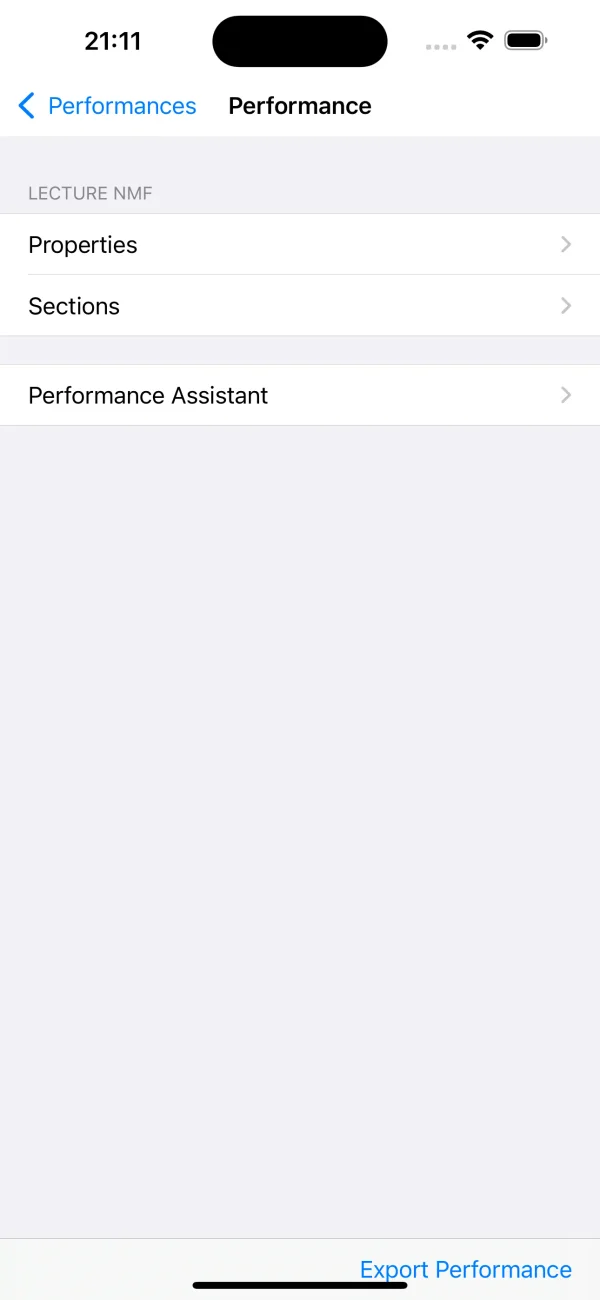

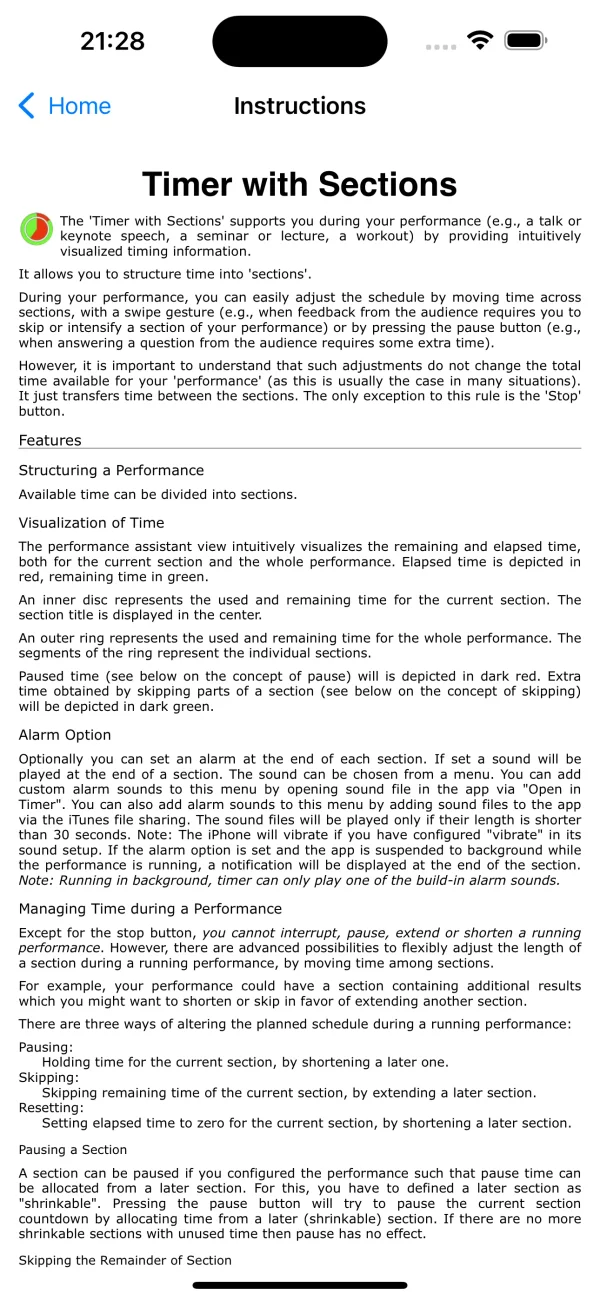
Giới thiệu
Nhà phát triển chưa cung cấp nội dung này bằng ngôn ngữ của bạn.
The 'Timer with Sections' supports you during your performance (e.g., a talk or keynote speech, a seminar or lecture, a workout) by providing intuitively visualized timing information. It allows you to structure time into 'sections'.
[ Demo video available at: http://tinyurl.com/iphonetimer ]
During your performance, you can easily adjust the schedule by moving time across sections, with a swipe gesture (e.g., when feedback from the audience requires you to skip or intensify a section of your performance) or by pressing the pause button (e.g., when answering a question from the audience requires some extra time).
Features:
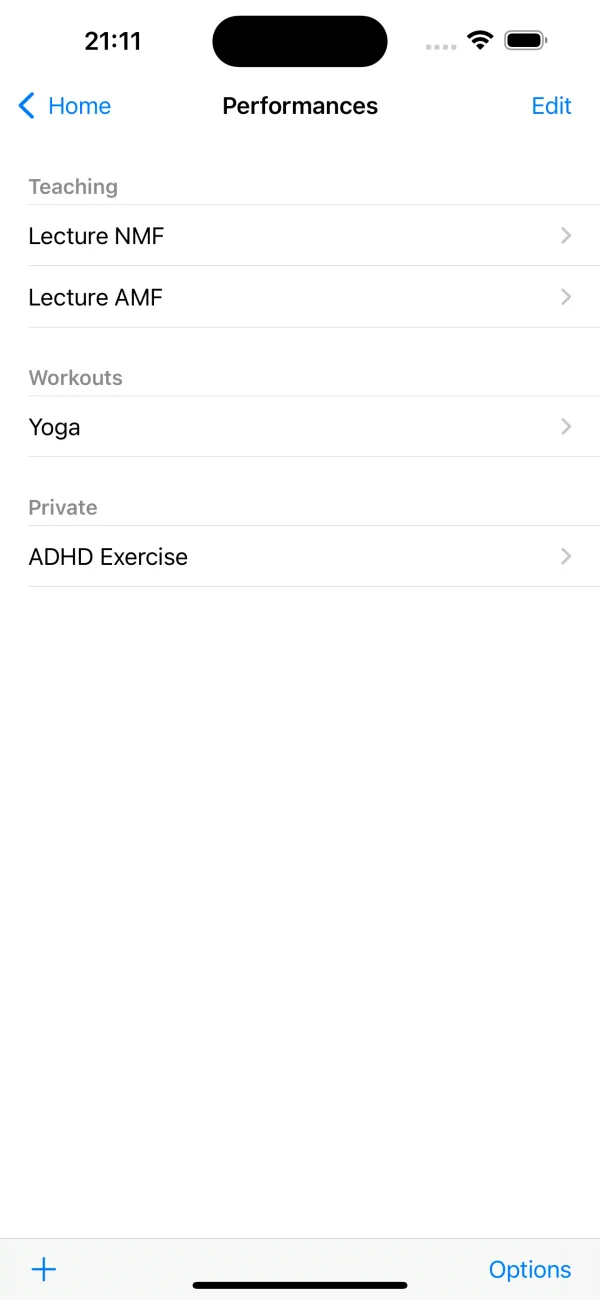
Structuring a Performance: Available time can be divided into sections.
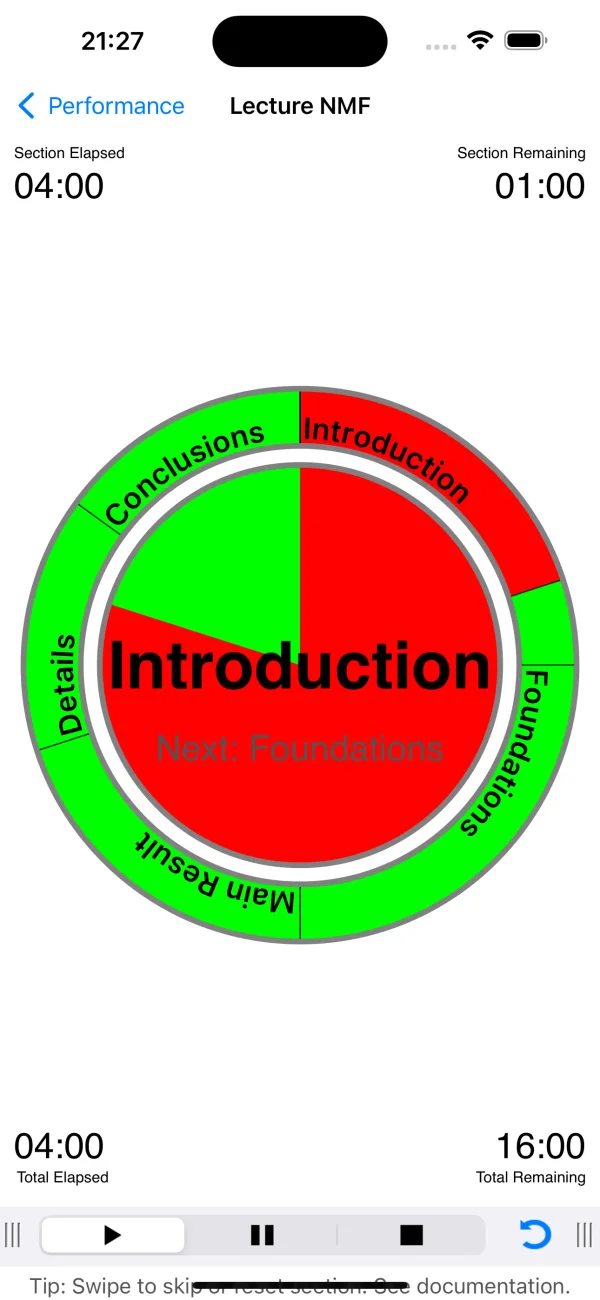
Visualization of Time: The performance assistant view intuitively visualizes the remaining and elapsed time, both for the current section and the whole performance. Elapsed time is depicted in red, remaining time in green. An inner disc represents the used and remaining time for the current section. The section title is displayed in the center. An outer ring represents the used and remaining time for the whole performance. The segments of the ring represent the individual sections. Paused time (see below on the concept of pause) will is depicted in dark red. Extra time obtained by skipping parts of a section (see below on the concept of skipping) will be depicted in dark green.
Alarm Option: Optionally, you can set an alarm at the end of each section. If set a short tick sound will signal the end of a section. Note: The iPhone will vibrate if you have configured "vibrate" in its sound setup.
Managing Time during a Performance: Except for the stop-button you cannot interrupt, pause, extend or shorten a running performance. However, there are advanced possibilities to flexibly adjust the length of a section during a running performance, by moving time among sections.
For example, your performance could have a section containing additional results which you might want to shorten or skip in favour of extending another section.
There are three ways of altering the planned schedule during a running performance:
* Pausing: Holding time for the current section, by shortening a later one.
* Skipping: Skipping remaining time of the current section, by extending a later section.
* Resetting: Setting elapsed time to zero for the current section, by shortening a later section.
Leaving the Application: If you leave the performance assistant view or even the application, then the timer continues to count down. If you return to the performance assistant view, it will recover its previous state, including the elapsed time. If the performance assistant view is interrupted by pressing the home button or an incoming call, then a running performance is automatically switched to 'pause'.
Logging a Finished Performance: Upon finishing a performance, you are asked if you like to log that performance. If you log the performance, then data as the actual time run or skipped is stored for each section. This allows you to analyse your performance and hence adjust and improve your schedule. A log of a performance can be viewed at any later time. It can be exported via email.
Tips:
Rehearsal: If you are creating a new performance, you should use Performance Assistant in a rehearsal. Then analysing your time requirements by checking the log file.
Buffer Time: Consider adding a shrinkable section with optional topics or just a general discussion sections towards the end of your performance such that it can serve as a buffer. Note that you can pause a section only if such a buffer exits.
On Apple Watch, follow your presentation using a circular section timer and
an outer ring showing the overall schedule. Send a presentation from the
paired iPhone by enabling “Sync with Apple Watch”. Control playback on either
device; changes are exchanged when connectivity permits.
Có gì mới
Phiên bản 9.2 · 21/11/2026
• Apple Watch support now includes watchOS 8 and Apple Watch Series 3.
• Sections marked with Alarm can now trigger haptic alerts on Apple Watch.
• Fixed a bug not allowing to submit a review.
Quyền riêng tư của ứng dụng
Những gì Christian Fries khai báo trên App Store về cách ứng dụng này xử lý dữ liệu.
-
Dữ liệu không được thu thập
Nhà phát triển không thu thập bất kỳ dữ liệu nào từ ứng dụng này.
Phương thức đảm bảo quyền riêng tư có thể khác nhau, chẳng hạn như tuỳ theo các tính năng bạn sử dụng hoặc độ tuổi của bạn.
Thông tin
- Người bán
- Christian Fries
- Danh mục
- Hiệu Suất
- Phiên bản
- 9.2
- Cập nhật
- 21/11/2026
- Phát hành
- 26/05/2009
- Kích thước
- 2,9 MB
- Yêu cầu
- iOS 15.0 trở lên
- Độ tuổi
- 4+
- Giá
- 59.000đ
- Ngôn ngữ
- Tiếng Anh, Tiếng Đức
- Bản quyền
- © 2009-2026 Christian Fries
Có thể bạn cũng thích
-
 Speaker Presentation TimerHiệu Suất
-
 TimerBar: Presentation TimerHiệu Suất
-
 PresiTimer: Presentation TimerHiệu Suất
-
 Roman CalculatorHiệu Suất
-
 PropeloHiệu Suất
-
 Break Timer - Disable AdsHiệu Suất
-
 Due Again: Recurring TasksHiệu Suất
-
 never1000Hiệu Suất
-
 Gemeinde KutzenhausenHiệu Suất
-
 MultipleTimers ProHiệu Suất