Tempus Aqua Android Watch Face
Rousseau Design Ltd- USK ab 0 JahrenAltersfreigabe
- Kunst & DesignKategorie
- 27.03.2026Aktualisiert
- 5,49 €Preis
Verlinkt auf den offiziellen Google Play-Eintrag von com.benrousseau.tempusaqua_blue_ben_rousseau. Zuletzt geprüft am 13.11.2026.
Über diese App
Automatische Übersetzung von Google. Originalsprache: Englisch (Vereinigte Staaten).
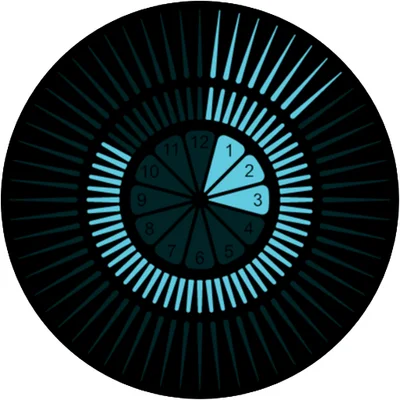
Tempus Aqua Smartwatch-Kunstwerk vom Lichtkünstler und Designer Ben Rousseau
Unser „Tempus Aqua Android Watch Face“ ist jetzt mit Wear OS by Google kompatibel und bietet Ihnen ein stilvolles und funktionales Zifferblatt für Ihre Smartwatch. Genießen Sie mit Tempus Watch ein nahtloses Erlebnis auf Ihrem Wear OS-Gerät.
Ein einzigartiges Tempus-Uhrenlichtmuster vom Designer Ben Rousseau. Ein Smartwatch-Kunstwerk, das die Zeit über 12 Stunden in Echtzeit darstellt und dabei ein sich ständig aufbauendes Lichtmuster in drei gleichmäßigen Anordnungen verwendet: 12 für die Stunden in der Mitte, 60 für die Minuten im mittleren Ring und 60 für die Sekunden am äußeren Ring.
Zeit neu gestaltet.
Jetzt herunterladen und die Zeit in einem neuen Licht erleben.
Geschützt durch die internationale Geschmacksmusterregistrierung Nr. DM/222085. Copyright Rousseau Design LTD. Mitglied von Acid – Anti Copying In Design.
Über: Ben Rousseau ist ein Lichtkünstler und Designer, der sich auf die Schaffung wunderschöner Erlebniskreationen konzentriert, die Licht und positive Energie in das Leben und die Umgebung der Menschen bringen.
www.benrousseau.com
www.tempustime.com
Videolink zum Herunterladen und Installieren des Tempus-Zifferblatts auf Ihrer Smartwatch:
https://youtu.be/O0SVGG0xw8Y?si=30M-HBwpqk9Jhv6L
Schritt-für-Schritt-Anleitung zur Installation des Tempus-Zifferblatts
Laden Sie die Tempus Companion-App herunter und öffnen Sie sie
Telefon: Laden Sie die Tempus Companion App aus dem Play Store herunter.
Uhr: Stellen Sie sicher, dass Ihre Smartwatch mit Ihrem Telefon verbunden ist und über eine Internetverbindung verfügt.
Aktivieren Sie Bluetooth auf beiden Geräten
Telefon: Stellen Sie sicher, dass Bluetooth aktiviert ist. Die App fordert Sie auf, sie zu aktivieren, sofern sie noch nicht aktiviert ist. Gewähren Sie der App alle erforderlichen Berechtigungen.
Uhr: Stellen Sie sicher, dass Bluetooth aktiviert ist und Ihre Smartwatch erkennbar ist.
Verbinden Sie Ihre Smartwatch mit der App
Telefon: Öffnen Sie die Tempus Companion App. Sie sehen eine Schaltfläche: „Verbinden“.
Telefon: Tippen Sie auf die Schaltfläche „Verbinden“. Die App sucht nach Bluetooth-Geräten in der Nähe.
Telefon: Wählen Sie Ihre Smartwatch aus der Liste der verfügbaren Geräte aus. Warten Sie, bis die Verbindung hergestellt ist. Sobald die Verbindung hergestellt ist, wird die Schaltfläche „Installieren“ angezeigt.
Starten Sie die Installation des Zifferblatts
Telefon: Tippen Sie auf die Schaltfläche „Installieren“. Dadurch wird die Play Store-Seite für das Tempus-Zifferblatt auf Ihrer Smartwatch geöffnet.
Ansehen: Auf Ihrer Smartwatch sehen Sie die Play Store-Seite des Tempus-Zifferblatts.
Kaufen Sie das Zifferblatt und laden Sie es herunter
Uhr: Klicken Sie auf die Preisschaltfläche, um das Zifferblatt zu kaufen.
Ansehen: Befolgen Sie die Anweisungen, um Ihren Kauf abzuschließen. Möglicherweise müssen Sie den Kauf auf Ihrem Telefon bestätigen, indem Sie den bereitgestellten Anweisungen folgen (öffnen Sie beispielsweise die Benachrichtigung im Google Play Store oder besuchen Sie g.co/continue auf Ihrem Telefon oder Browser).
Uhr: Sobald der Kauf abgeschlossen ist, beginnt der Download des Zifferblatts. Warten Sie, bis der Download abgeschlossen ist.
Wenden Sie das Zifferblatt an
Telefon: Öffnen Sie die Galaxy Wearable-App (laden Sie sie aus dem Play Store herunter, falls nicht verfügbar) und navigieren Sie zu „Zifferblätter“.
Telefon: Scrollen Sie nach unten zu „Heruntergeladene Zifferblätter“ und wählen Sie das Tempus-Zifferblatt aus, das Sie gerade gekauft haben.
Telefon: Es erscheint ein Fortschrittsbalken, der anzeigt, dass das Zifferblatt auf Ihre Smartwatch angewendet wird. Warten Sie, bis der Vorgang abgeschlossen ist.
Uhr: Das Tempus-Zifferblatt wird jetzt auf Ihrer Smartwatch angezeigt und angewendet.
Tipps zur Fehlerbehebung
Verbindungsprobleme: Stellen Sie sicher, dass sowohl Ihr Telefon als auch Ihre Smartwatch Bluetooth aktiviert haben und sich in unmittelbarer Nähe befinden.
Zahlungsprobleme: Befolgen Sie die Anweisungen sorgfältig, um den Kauf abzuschließen. Stellen Sie sicher, dass Sie im richtigen Google-Konto angemeldet sind.
Zifferblatt nicht sichtbar: Wenn das Zifferblatt nicht sofort angezeigt wird, versuchen Sie, Ihre Smartwatch neu zu starten und in der Galaxy Wearable-App nach dem heruntergeladenen Zifferblatt zu suchen.
Originaltext anzeigen
Our "Tempus Aqua Android Watch Face" is now compatible with Wear OS by Google, bringing you a stylish and functional watch face for your smartwatch. Enjoy a seamless experience on your Wear OS device with Tempus Watch.'
A unique Tempus timepiece light pattern by designer Ben Rousseau. A smart watch artwork that represents the time over 12 hours in real time using a constantly building pattern of light over 3 uniform arrangements with 12 for hours in centre, 60 for minutes in middle ring and 60 for the seconds on outer ring.
Time redesigned.
Download now and experience time in a new light.
Protected by international design registration No. DM/222085 Copyright Rousseau Design LTD. Member of Acid - Anti Copying In Design.
About: Ben Rousseau is a lighting artist and designer focused on creating beautiful experiential creations that bring light and positive energy into people’s lives and environments.
www.benrousseau.com
www.tempustime.com
Video link on how to download and install Tempus Watch face on your smartwatch:
https://youtu.be/O0SVGG0xw8Y?si=30M-HBwpqk9Jhv6L
Step-by-Step Guide to Install the Tempus Watch Face
Download and Open the Tempus Companion App
Phone: Download the Tempus Companion App from the Play Store.
Watch: Ensure your smartwatch is connected to your phone and has an internet connection.
Enable Bluetooth on Both Devices
Phone: Make sure Bluetooth is turned on. The app will prompt you to turn it on if it's not already enabled. Grant the app all required permissions.
Watch: Ensure Bluetooth is enabled and your smartwatch is discoverable.
Connect Your Smartwatch to the App
Phone: Open the Tempus Companion App. You will see a button: 'Connect'.
Phone: Tap on the 'Connect' button. The app will search for nearby Bluetooth devices.
Phone: Select your smartwatch from the list of available devices. Wait for the connection to be established. Once connected, a 'Install' button will become visible.
Initiate the Installation of the Watch Face
Phone: Tap on the 'Install' button. This will open the Play Store page for the Tempus watch face on your smartwatch.
Watch: On your smartwatch, you will see the Tempus watch face Play Store page.
Purchase and Download the Watch Face
Watch: Click on the price button to purchase the watch face.
Watch: Follow the prompts to complete your purchase. You may need to confirm the purchase on your phone by following the instructions provided (e.g., open the notification from Google Play Store or visit g.co/continue on your phone or browser).
Watch: Once the purchase is complete, the watch face will begin downloading. Wait for the download to finish.
Apply the Watch Face
Phone: Open the Galaxy Wearable app (download from the Play Store if not available) and navigate to 'Watch faces'.
Phone: Scroll down to 'Downloaded watch faces' and select the Tempus watch face you just purchased.
Phone: A progress bar will appear, indicating that the watch face is being applied to your smartwatch. Wait for the process to complete.
Watch: The Tempus watch face will now be visible and applied on your smartwatch.
Troubleshooting Tips
Connection Issues: Ensure both your phone and smartwatch have Bluetooth enabled and are in close proximity.
Payment Issues: Follow the instructions carefully for completing the purchase. Ensure you are logged into the correct Google account.
Watch Face Not Visible: If the watch face does not appear immediately, try restarting your smartwatch and checking the Galaxy Wearable app for the downloaded watch face.
Datensicherheit
Was Rousseau Design Ltd bei Google Play zu den Daten angibt, die diese App erfasst und weitergibt.
- Keine Daten werden mit Drittunternehmen oder -organisationen geteiltWeitere Informationen dazu, wie Entwickler Angaben zur Weitergabe von Daten machen
- Keine Daten erhobenWeitere Informationen dazu, wie Entwickler Angaben zur Datenerhebung machen
Kontakt zum Entwickler
- Websitebenrousseau.com
- E-Mailstudio@benrousseau.com
- Datenschutzerklärungfreeprivacypolicy.com
- AdressePlus X Innovation Hub Lewes Road BRIGHTON BN2 4GL United Kingdom
Informationen
- Angeboten von
- Rousseau Design Ltd
- Kategorie
- Kunst & Design
- Aktualisiert
- 27.03.2026
- Veröffentlicht
- 06.11.2023
- Altersfreigabe
- USK ab 0 Jahren
- Preis
- 5,49 €
- Paketname
- com.benrousseau.tempusaqua_blue_ben_rousseau