Quilt Pattern Creator
Entwickelt für iPhone, iPad, iPod touch
Kostenlos · In-App-Käufe
- Altersfreigabe4+
- KategorieGrafik und Design
- EntwicklerSand Castle Designs, Inc
- SprachenEnglisch
- Größe13,1 MB
Verlinkt auf die offizielle App Store-Seite
Download.org hostet keine Datei von Quilt Pattern Creator. Die Schaltfläche öffnet die App-Seite bei App Store, wo Sand Castle Designs, Inc die App veröffentlicht. Eintrag zuletzt geprüft am 12.11.2026.
Screenshots
Info
Der Entwickler hat diesen Text nicht in Ihrer Sprache bereitgestellt.
Create quilts using over 200 quilt blocks to select from. You can change the colors in the blocks to get the look you want.
Now you can create your own blocks to use in your quilts.
Comes with 3 free quilt patterns. Download is free. To activate creation is $2.99
Once activated, get started by doing the following:
To Create a Quilt
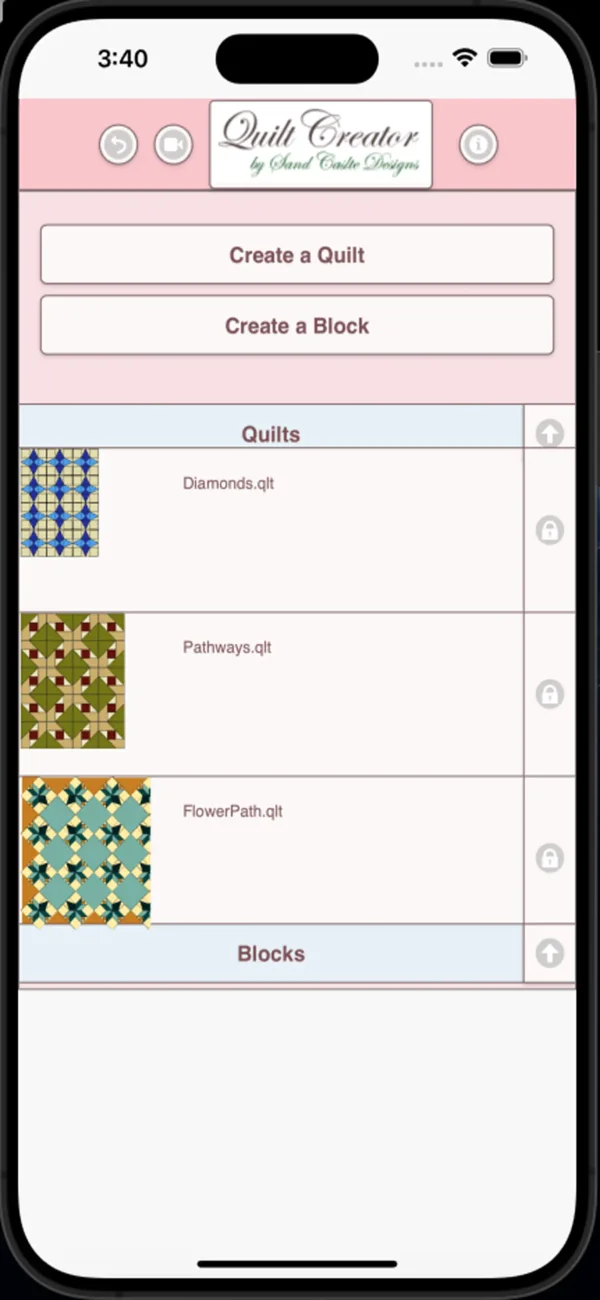
1. Select "Create a Quilt" button.
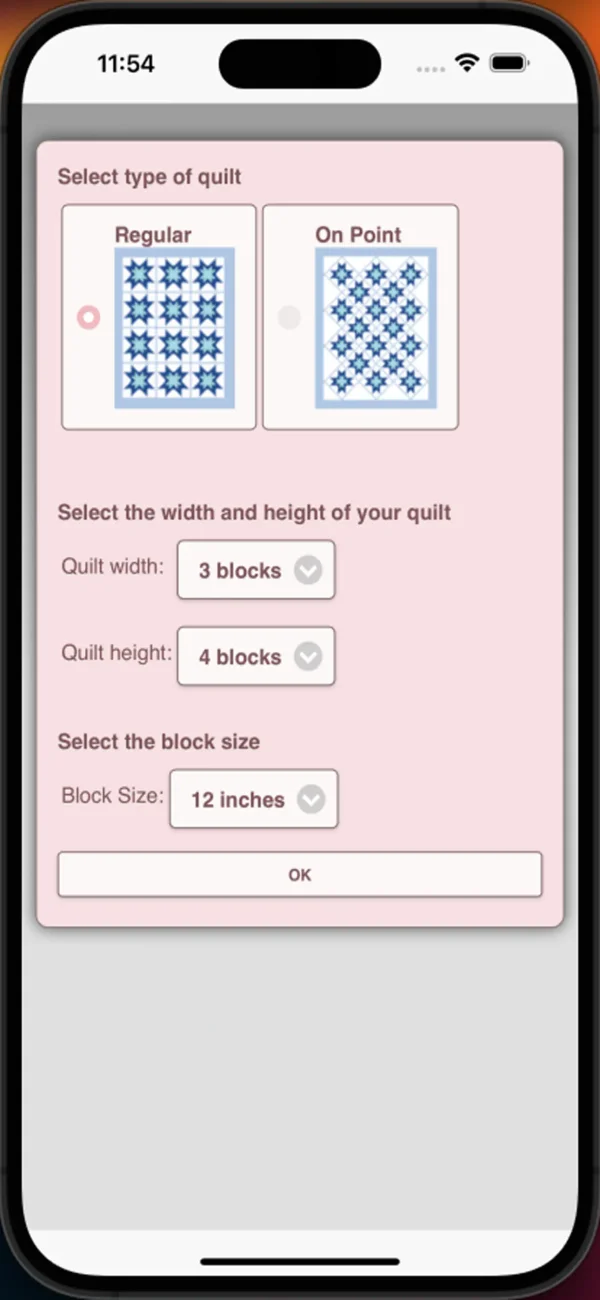
2. Enter the type of quilt (square or on point), and the quilt width and quilt height in blocks.
3. Select the Block Icon (forth icon in the tool bar)
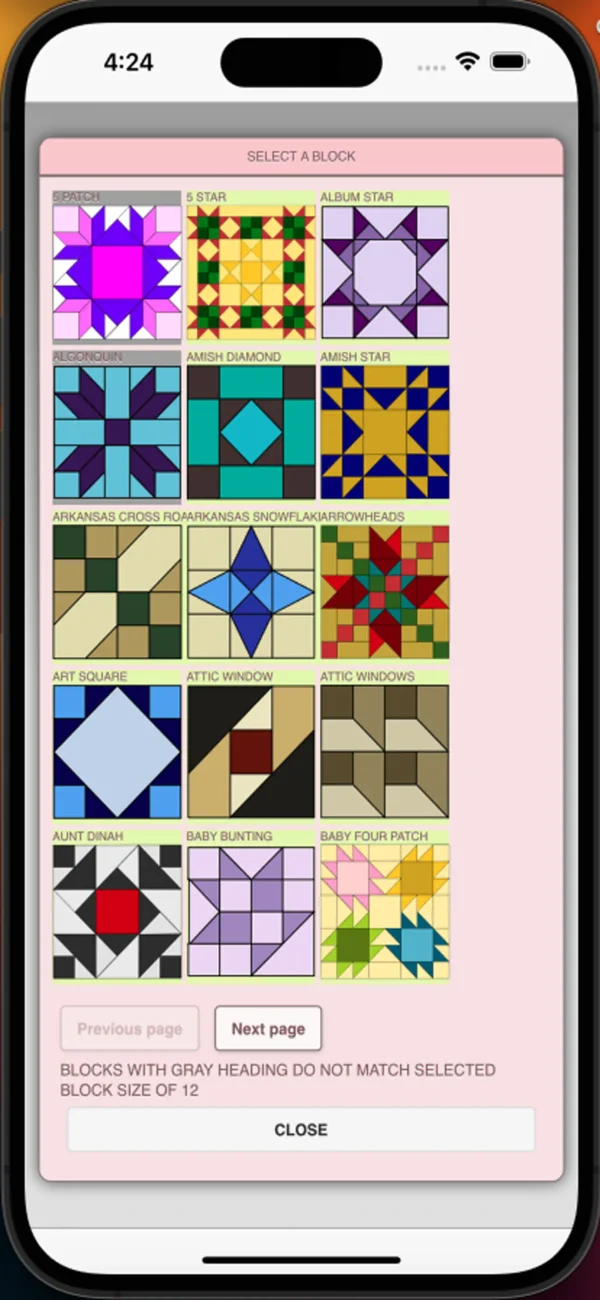
4. A huge selection of quilt blocks will appear.
5. Select the quilt blocks you want to place on your quilt.
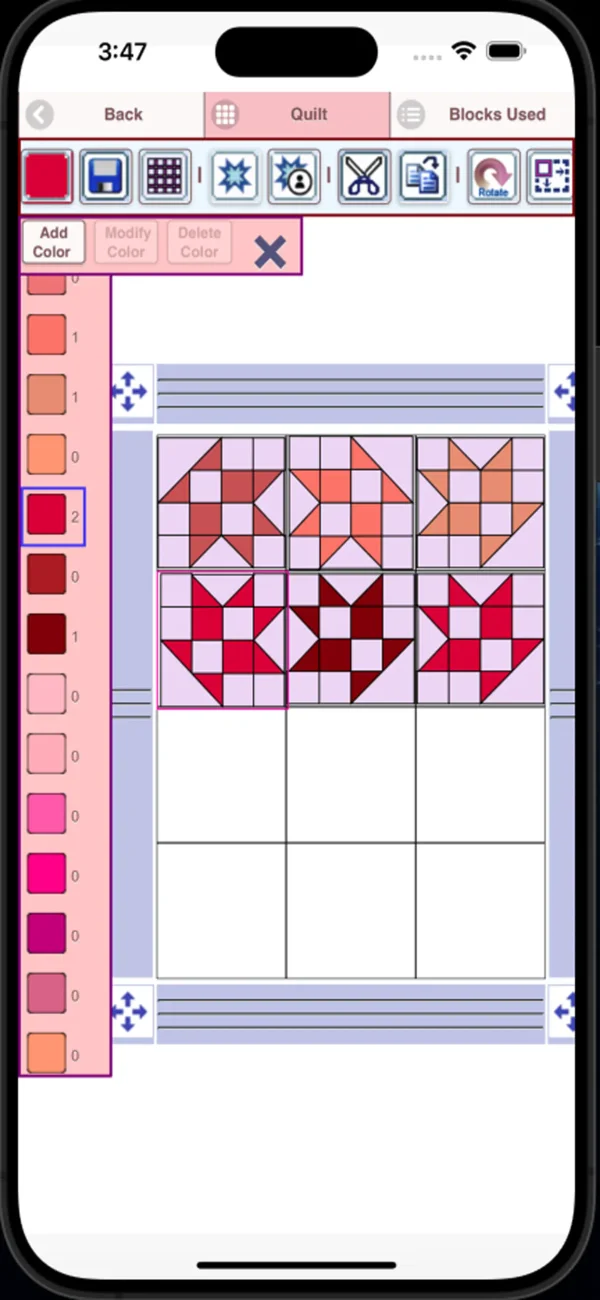
6. Select the Color Icon (first icon in the tool bar)
7. A huge selection of colors will appear
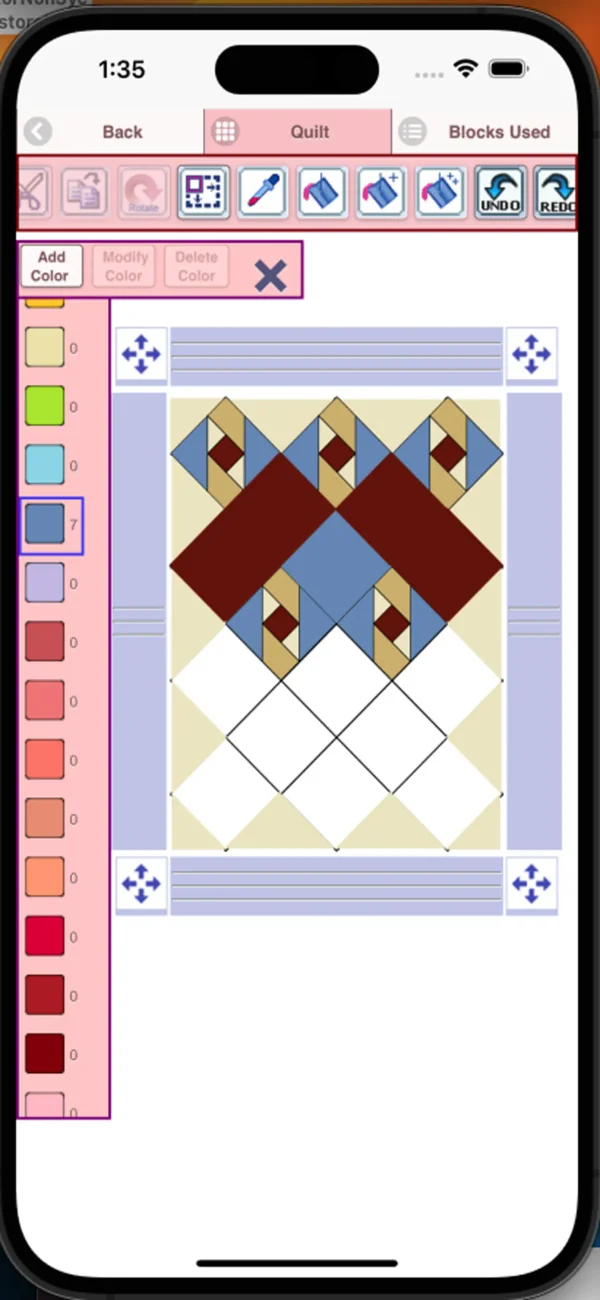
8. Select a color and select the Fill-All bucket icon with a double plus sign (11th icon in the tool bar)
9. Select on the quilt, all the blocks of the same kind will change color to the color you selected.
Buttons from left to right in the button bar:
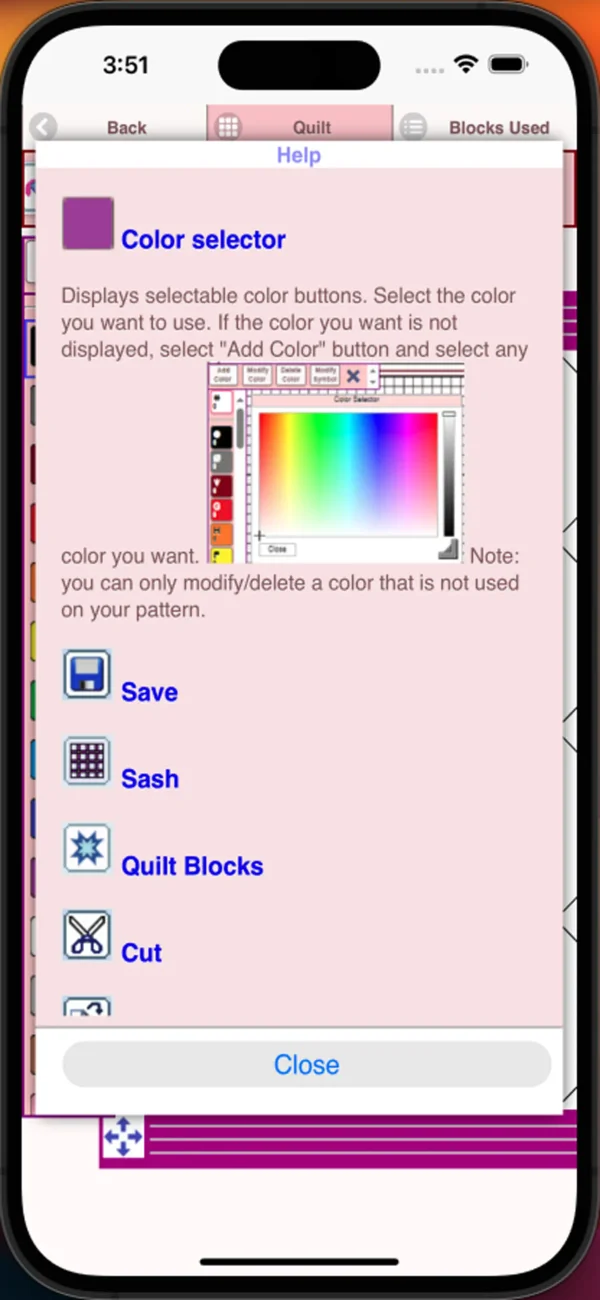
Color button - use to select any color
Save button - use to save your quilt pattern
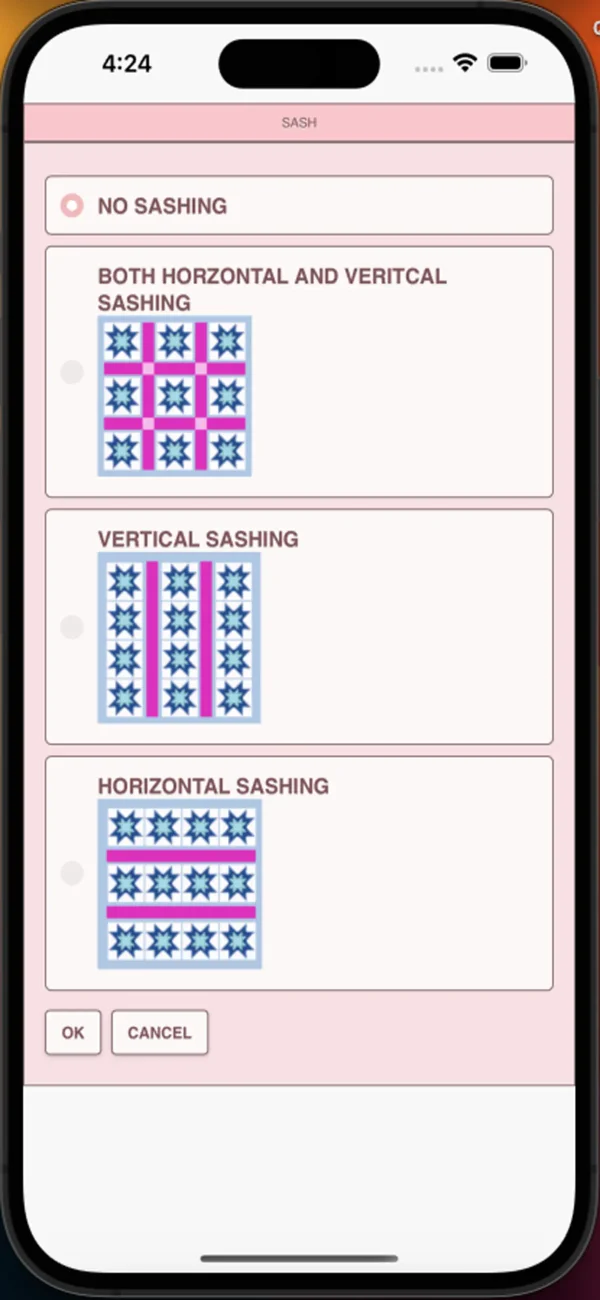
Sashing button - use it to add sashing around each quilt block (vertical, horizontal or both)
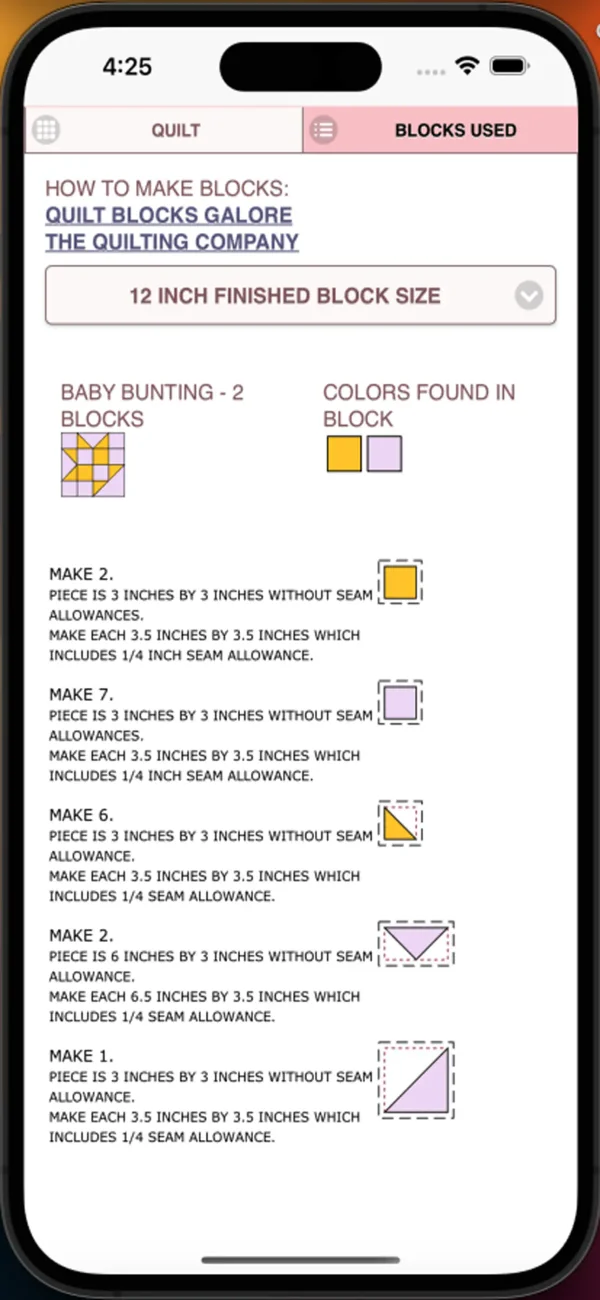
Quilt blocks button - use it to select different quilt blocks to your quilt
My Quilt Blocks button - displays all the blocks you have created
Cut button - select a block on your quilt and the cut icon to remove it
Copy button - select a block on your quilt and the copy icon to copy it and place it in another location on your quilt
Rotate button - select a quilt block and rotate icon to rotate that block
Resize quilt button - select to change the number of block rows and columns for your quilt
Dropper button - select a color from your quilt to use
Paint bucket button - use this when you want to change the color of one fabric in a single block
Paint bucket + button - use this when you want to change the fabric color in a single block
Paint bucket ++ button - use this when you want to change the fabric color in all blocks
Undo button - undo last things you did
Redo button - redo the things you undid
Zoom in button - zoom in on your quilt pattern
Zoom out button - zoom out on your quilt pattern
Print button
Share button - share a picture of your pattern using email, text etc.
Help button - help on how to use features of the app
To Create a Block
1. Select "Create a Block" button.
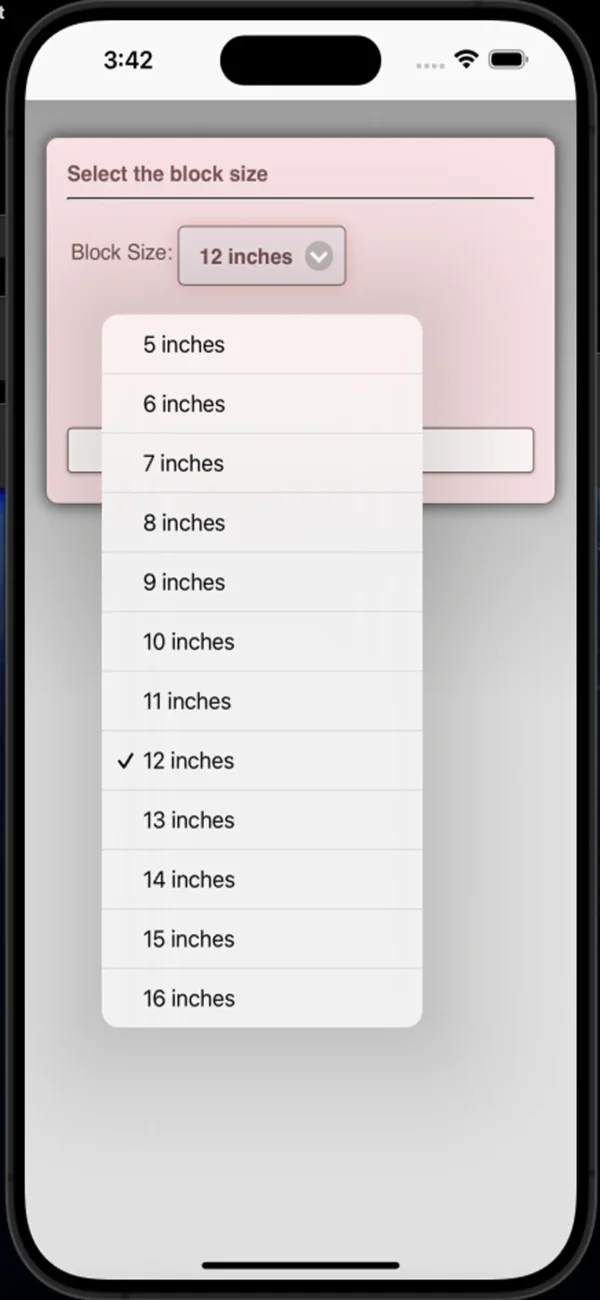
2. Select the size of the block you want to create (5-16 inches)
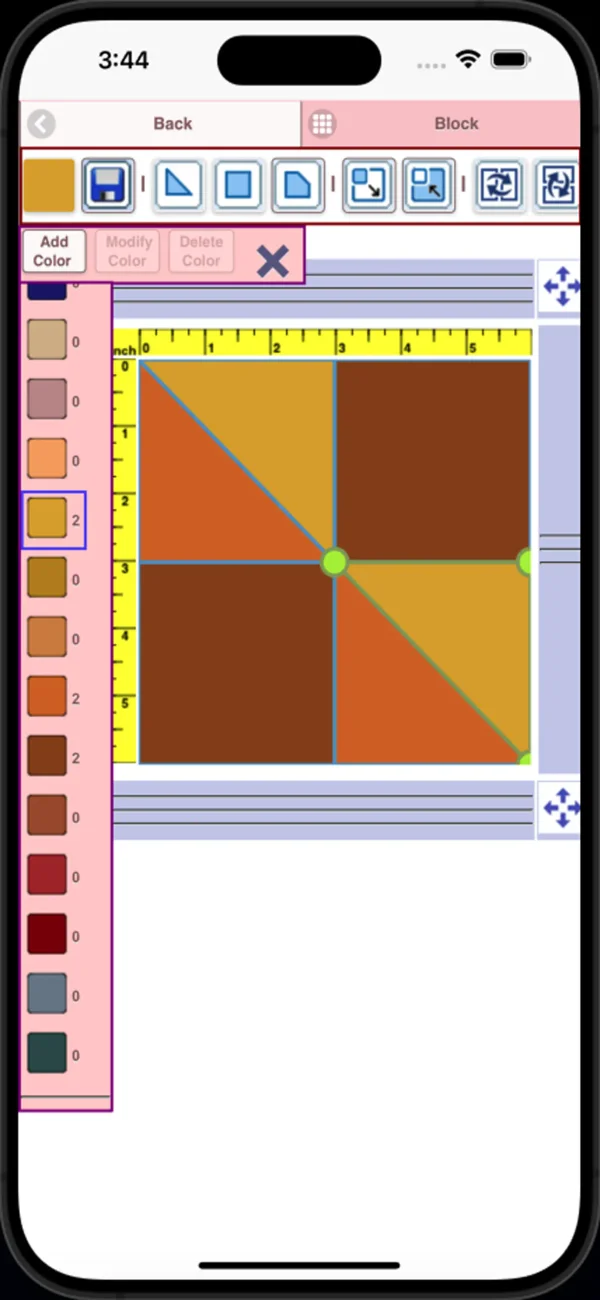
3. Now add shapes to your block. Shapes come in three sizes (3 sides, 4 sides and 5 sides)
4. Select the triangle to add a triangle shape to your block.
5. To change the shape just drag any of the green corner circles to where you want.
6. You can also flip, rotate and resize the shape using button in the button bar.
7. You can drag the shape to any location. Shapes snap into place.
8. Select the Color button (first button in the button bar to change the colors of your shapes)
Buttons from left to right in the button bar:
Color button - use to select a color for your fabric shapes in your block
Save button - use to save your block
Triangle shape button - add triangle fabric shapes to your block
Square shape button - add 4 sided shapes to your block
Pentagon shape button - add 5 sided shapes to your block
Resize shape larger button - select a shape and the resize larger button to make the shape a size larger
Resize shape smaller button - select a shape and the resize smaller button to make a shape a size smaller
Flip shape horizontal button - select a shape and the Flip horizontal button to flip the shape horizontally
Flip shape vertical button - select a shape and the Flip horizontal button to flip the shape vertically
Rotate shape button - select a shape and the Rotate button to rotate a shape
Dropper button - select a color from your block to use
Paint bucket button - use this when you want to change the color of fabrics in your block
Cut button - use to remove a shape from your block
Copy button - use to copy
Print button
Neue Funktionen
Version 11 · 10.08.2026
Minor fixes
App-Datenschutz
Was Sand Castle Designs, Inc im App Store zum Umgang dieser App mit Daten angibt.
-
Keine Daten erfasst
Der Entwickler erfasst keine Daten von dieser App.
Die Datenschutzpraktiken können variieren, zum Beispiel je nach den von Ihnen verwendeten Funktionen oder Ihrem Alter.
Informationen
- Anbieter
- Sand Castle Designs, Inc
- Kategorie
- Grafik und Design
- Version
- 11
- Aktualisiert
- 10.08.2026
- Veröffentlicht
- 03.05.2023
- Größe
- 13,1 MB
- Erfordert
- iOS 15.6 oder neuer
- Altersfreigabe
- 4+
- Preis
- Kostenlos
- In-App-Käufe
- Ja
- Sprachen
- Englisch
- Copyright
- © Sand Castle Designs, Inc.
Das könnte Ihnen auch gefallen
-
 QuiltPopGrafik und Design
-
 Embroidery Design DoodlerGrafik und Design
-
 DartSide Pattern DraftingGrafik und Design
-
 Ditto PatternsGrafik und Design
-
 Graph Paper ProGrafik und Design
-
 PatternDraw by FashionaryGrafik und Design
-
 Brother ArtspiraGrafik und Design
-
 Cutting StudioGrafik und Design
-
 AI Design Studio SpaceGrafik und Design
-
 Design Maker for Craft Space Grafik und Design