- Altersfreigabe4+
- KategorieProduktivität
- EntwicklerSaw Daniel
- SprachenEnglisch
- Größe56,8 MB
Task Connect - Todo List ist bei App Store derzeit möglicherweise nicht verfügbar
Bei unserer letzten Prüfung war der Store-Eintrag nicht erreichbar. Der Link führt weiterhin zur offiziellen App Store-Seite.
Screenshots
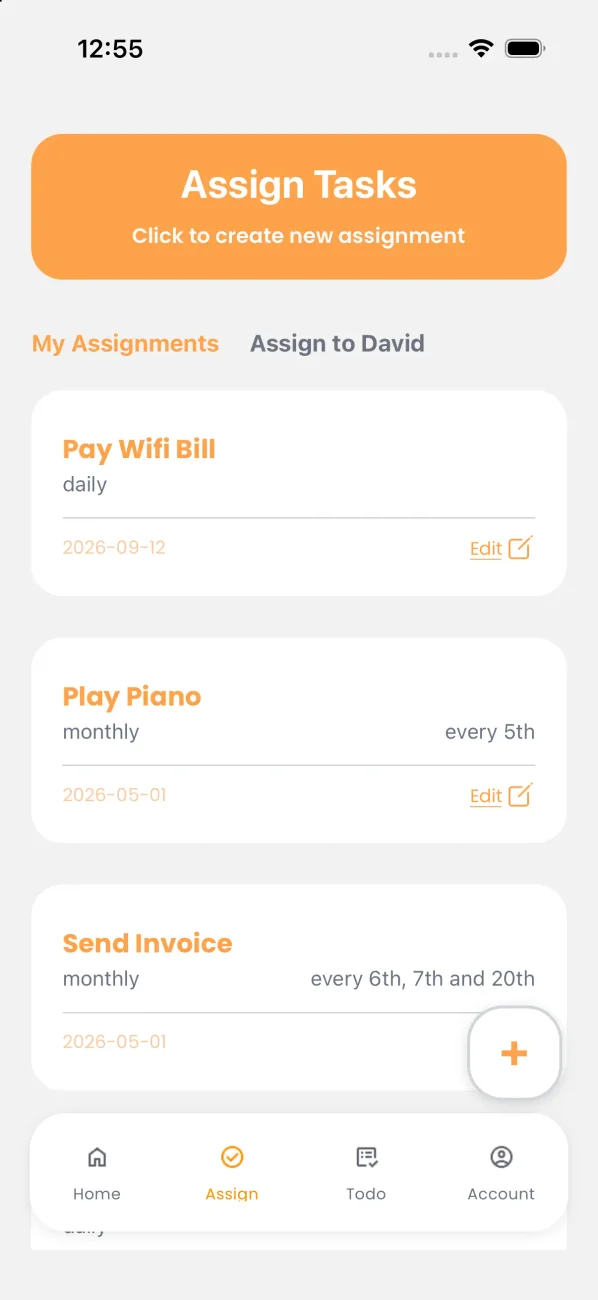
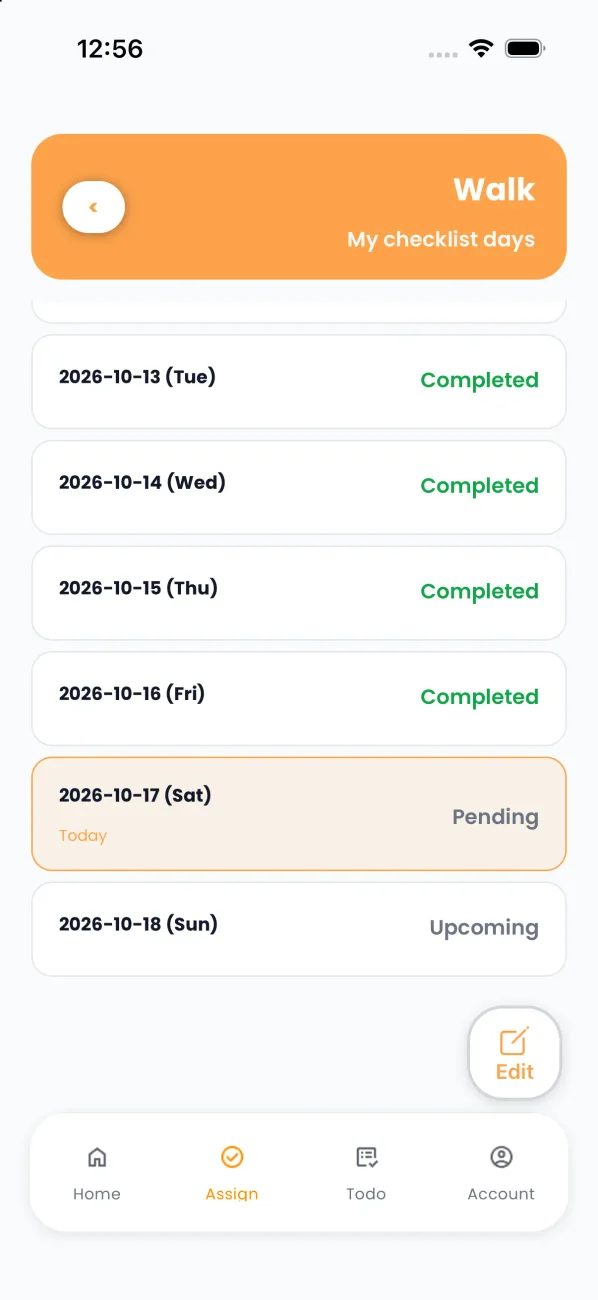
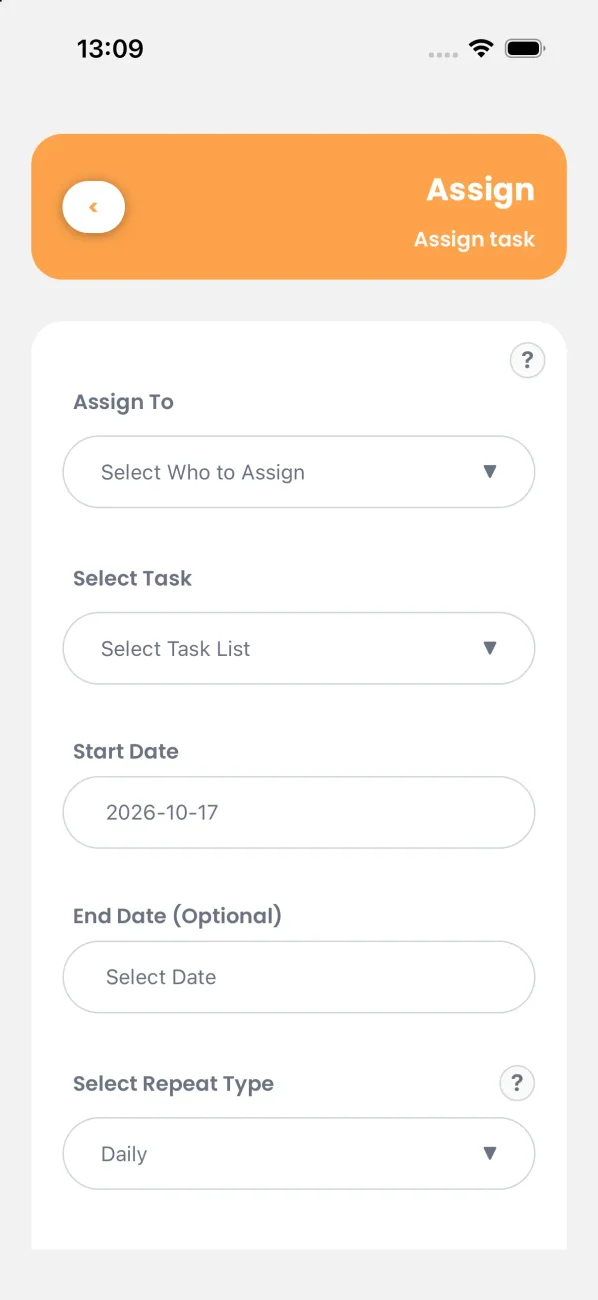

Info
Der Entwickler hat diesen Text nicht in Ihrer Sprache bereitgestellt.
Task Connect is a simple family to-do app. Create a task once, schedule it for yourself or a child, and check it off when the day comes.
It is for parents and guardians who want a clearer chore routine — and for anyone who just wants a personal daily, weekly, or monthly list. You can use it on your own. Child accounts are optional.
HOW IT WORKS
1. Create a Todo
Give it a name, such as “Make the bed”, “Pack the school bag”, or “Read for 20 minutes”. You can add a short note if you like. Save it once and reuse it whenever you need.
2. Assign it
Choose who it is for — yourself, or a child, if you have added a child account. Pick a start date. Add an end date if the routine should stop, or leave the end date empty so it keeps going. Then choose how often it repeats.
3. Check it off
On Home, pick a day on the calendar and open that day’s list. Tap a task when it is done. Tap again if you need to undo. That only marks that one day — the original Todo and the schedule stay as they are.
SCHEDULES THAT MATCH REAL LIFE
• Daily — the task appears every day.
• Weekly, chosen weekdays — for example every Monday, Wednesday, and Friday.
• Weekly, any days this week — for example “do this 3 days this week”, on whichever days actually work.
• Monthly, chosen dates — for example the 5th and the 12th every month.
• Monthly, chosen weekdays — the same weekdays each month.
• Monthly, any days this month — for example “do this 4 days this month”, on any days you choose.
When a week or month quota is finished, leftover “still to do” items for that period go away. Finished items stay visible. A new week starts on Sunday. A new month follows the calendar month.
If you do not set an end date, upcoming days continue to appear over time, so you do not have to recreate the same routine every week.
HOME AND THE CALENDAR
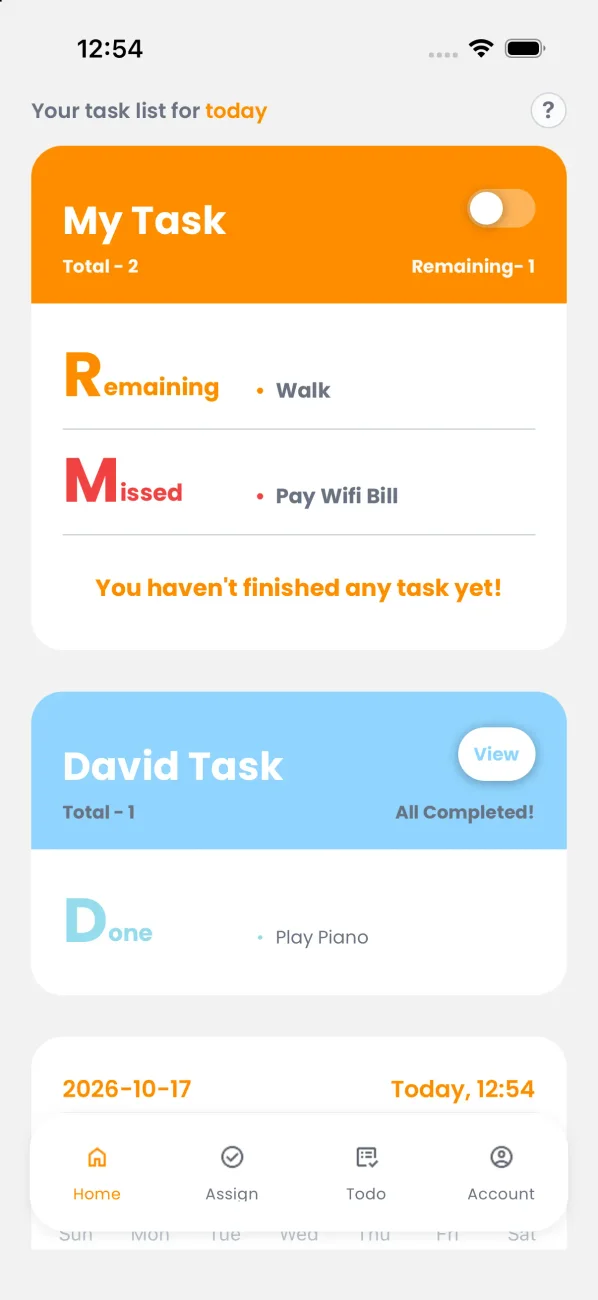
Parents see their own tasks and a card for each child who has something that day. Each card shows how many are done and how many are still remaining. Tap a card to open the full list for that day.
On the calendar:
• Orange — the day you selected
• Light orange — every task that day is done
• Grey — some tasks are still remaining
• No colour — nothing scheduled that day
Upcoming future tasks are not shown on the calendar. Tap a date to see that day’s list.
CHILD ACCOUNTS
From Account, you can add a child with a name, a login username, and a password. Email and date of birth are optional.
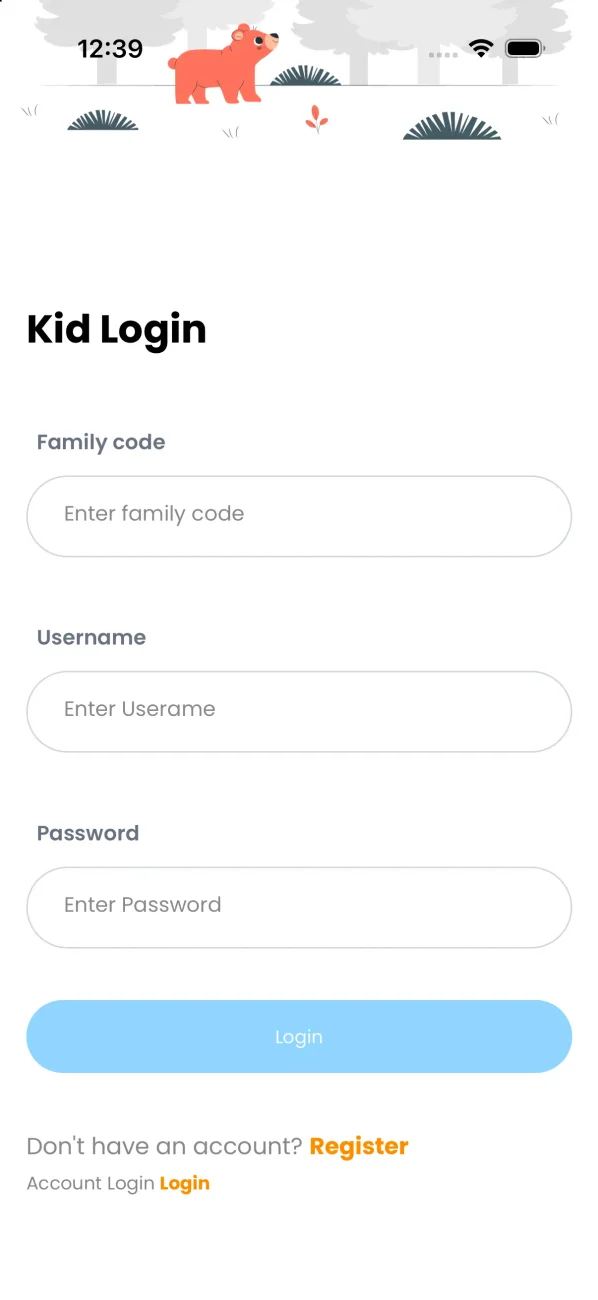
Children log in on a separate Kid Login screen with that username and password — not with the parent email. They only see their own tasks. They can mark today’s items done, see their schedule, and update their profile. They cannot create or change the family routine.
When a child finishes every task for today, a congratulations message appears.
You can pause a schedule when life gets busy, or end it when it is no longer needed. Opening an assignment shows a timeline of past, today, and upcoming days.
REMINDERS AND HELP
If tasks are still remaining, Task Connect can remind you at 12:00, 20:00, and 23:00. You can turn notifications on in System Settings.
Need a walkthrough? On Home, tap the "?" button. While you are assigning a task, help is there for Repeat Type and Repeat Mode too.
If the internet drops, you can still view recently saved lists. Marking a task done needs a connection.
SIGN IN
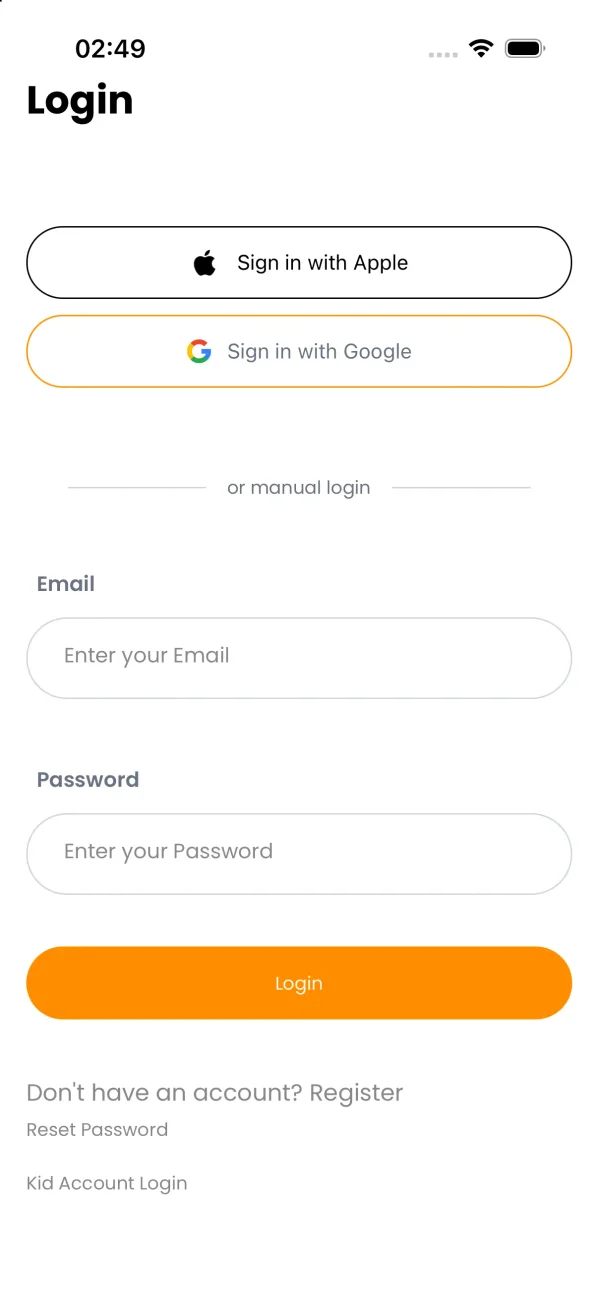
• Parent: email and password, or Google. New accounts are confirmed by email.
• Child: username and password created by the parent.
Storyset designs illustrations used in this app.
App-Datenschutz
Was Saw Daniel im App Store zum Umgang dieser App mit Daten angibt.
-
Mit Ihnen verknüpfte Daten
Können erfasst und mit Ihrer Identität verknüpft werden.
- Kontaktinformationen
- Benutzerinhalte
- Kennungen
- Diagnose
Die Datenschutzpraktiken können variieren, zum Beispiel je nach den von Ihnen verwendeten Funktionen oder Ihrem Alter.
Informationen
- Anbieter
- Saw Daniel
- Kategorie
- Produktivität
- Version
- 1.0
- Aktualisiert
- 06.11.2026
- Veröffentlicht
- 06.11.2026
- Größe
- 56,8 MB
- Erfordert
- iOS 16.4 oder neuer
- Altersfreigabe
- 4+
- Sprachen
- Englisch
- Copyright
- © 2026 STUDIOnine5. All rights reserved.