Cross Stitch Pattern Creator
Diseñada para iPhone, iPad, iPod touch
Gratis · Compras en la aplicación
- Clasificación por edad4+
- CategoríaDiseño gráfico
- DesarrolladorSand Castle Designs, Inc
- IdiomasInglés
- Tamaño17,3 MB
Enlaza a la página oficial de App Store
Download.org no aloja ningún archivo de Cross Stitch Pattern Creator. El botón abre la página de la aplicación en App Store, donde la publica Sand Castle Designs, Inc. Ficha comprobada por última vez el 14/11/2026.
Capturas de pantalla

Acerca de
El desarrollador no ha proporcionado este texto en tu idioma.
Cross Stitch Pattern Creator
No ads ever.
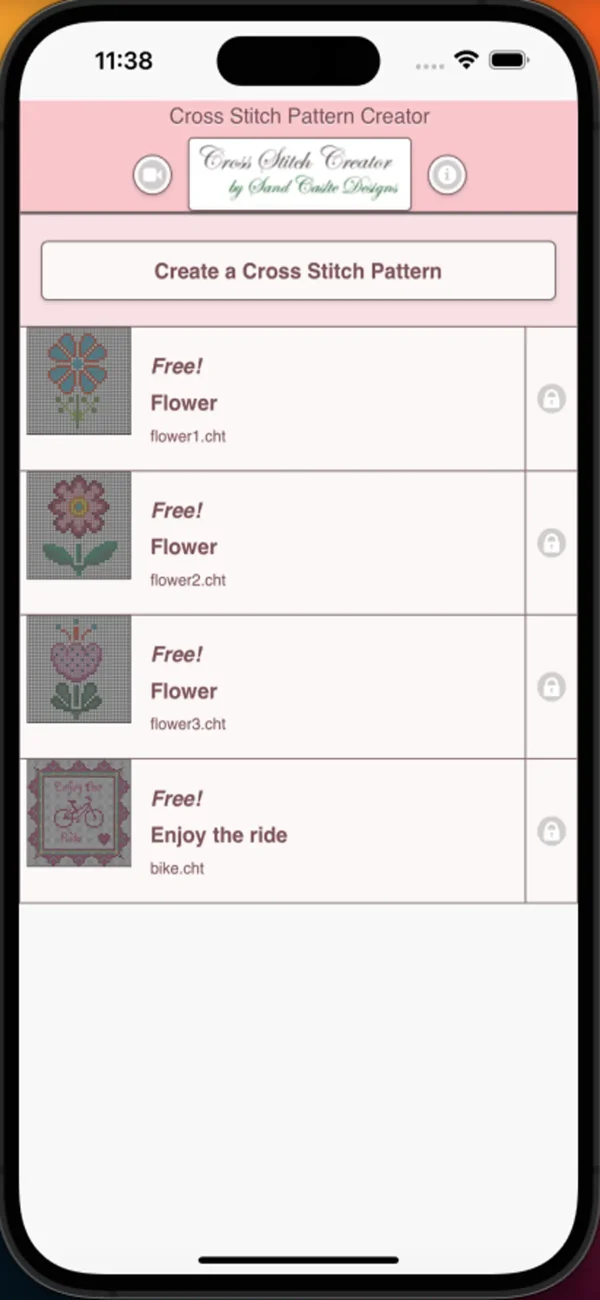
Comes with 4 sample cross stitch patterns. Download is free. To activate is $2.99.
Create your own cross stitch patterns using Cross Stitch Pattern Creator
Highly recommended to use a tablet because of cross stitch pattern size.
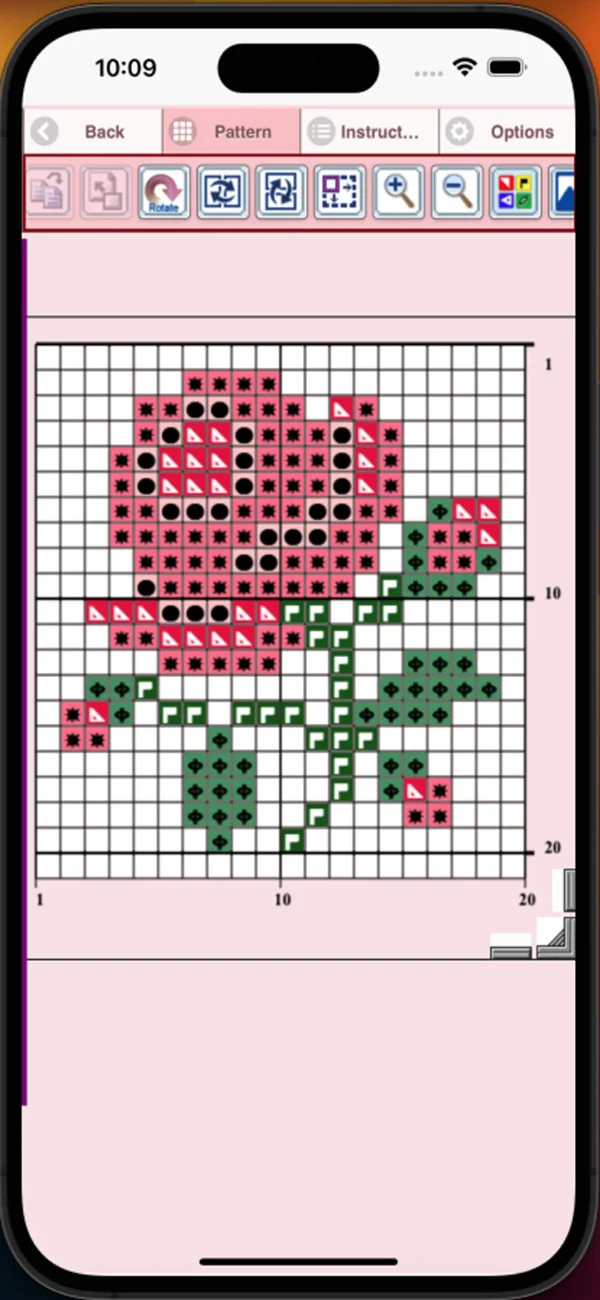
To create cross stitch patterns, select Create a Cross Stitch Pattern button.
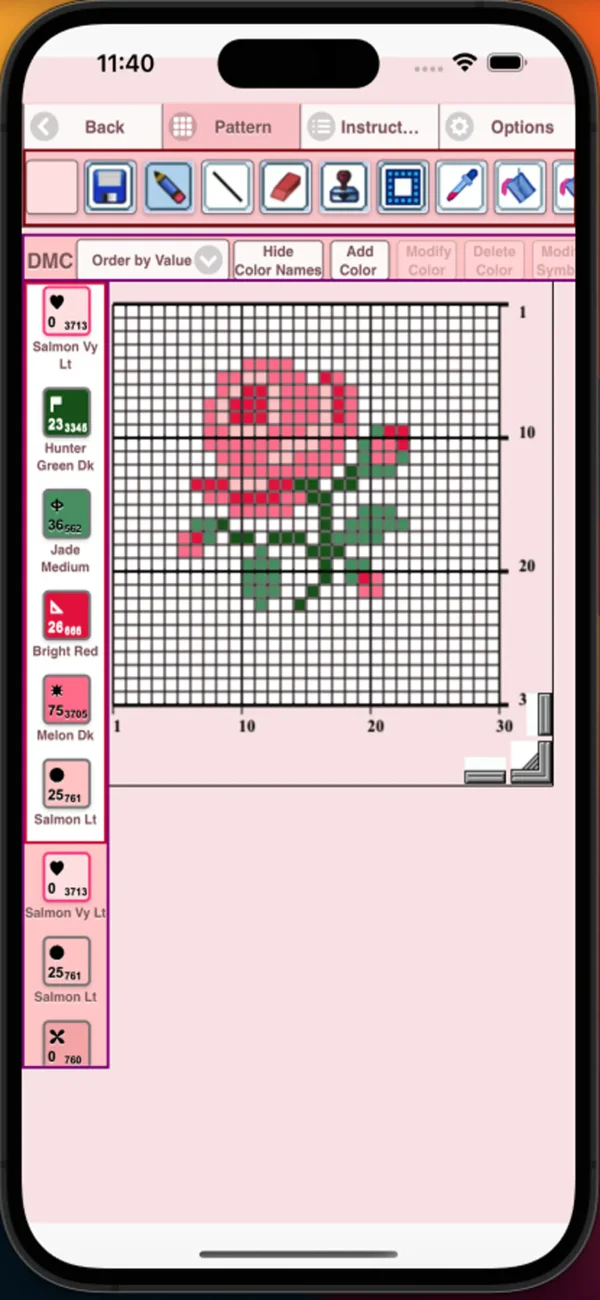
The Cross Stitch Pattern Editor will appear. Fill in the squares with DMS floss colors.
You can even add your own colors if you want.
To get started - Use the pencil to fill in squares to your cross stitch pattern. Use the Eraser to clear filled squares from your cross stitch pattern.
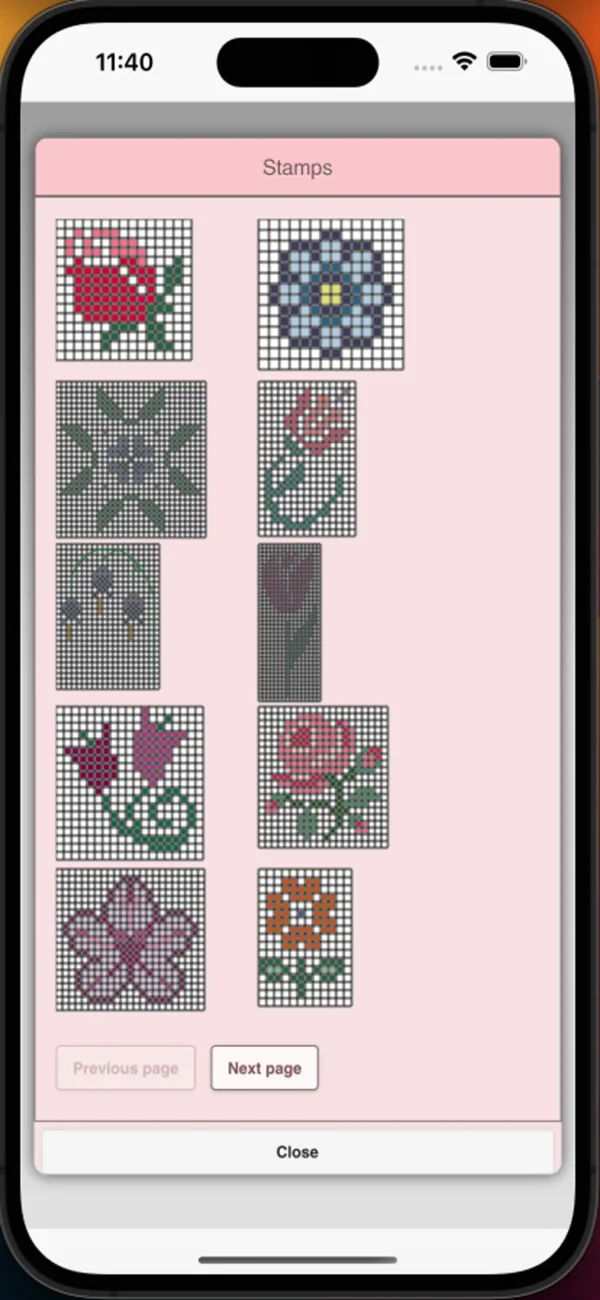
You also can select from over 80 stamps and borders to apply to your cross stitch pattern.
Buttons from left to right in the button bar are:
DMC Floss Color button - use to select the floss color you want to use
Save - button to save your pattern
Pencil - button to fill in squares on your cross stitch pattern
Eraser - use to erase filled squares and backstitch lines from your pattern
Backstitch - First select the color button to select the color for the backstitch. Now select Backstitch button to add backstitch lines on your cross stitch pattern
Backstitch move - Select a backstitch and drag it to a new location
Backstitch move stitch end - Select a backstitch. Blue boxes will appear over each end of the backstitch. Now move either end to new location.
Stamps - selectable little stamps (little cross stitch designs) to add to your cross stitch pattern
Borders - selectable borders to add to your pattern. Borders automatically wrap around your cross stitch pattern.
Dropper - lets you extract a color from your pattern and add more of that color to your cross stitch pattern
Bucket - use to fill selected area with the current selected color
Bucket+ - used to replace a color with the currently selected color
Undo - undo each last change you made to the pattern
Redo - redo each changes you undid
Selection box - select the area of the pattern to cut/copy/rotate/flip
Cut- First select the "Selection box" button to select an area of the pattern. Now select the cut button to remove select area of your cross stitch pattern
Copy - First select the "Selection box" button to select an area of the pattern. Now select the copy button to copy the selected area of your cross stitch pattern to the clipboard.
Paste - Paste copied area to your cross stitch pattern. Now drag the pasted box to the location you want.
Rotate - rotated selected area of the pattern or whole pattern
Flip right/left - flip selected area of the pattern or whole pattern
Flip top/bottom - flip selected area of your cross stitch pattern or whole pattern
Zoom in - magnify the pattern
Zoom out - minify the pattern
Symbols - displays a unique symbol on each color to indicate it's color value
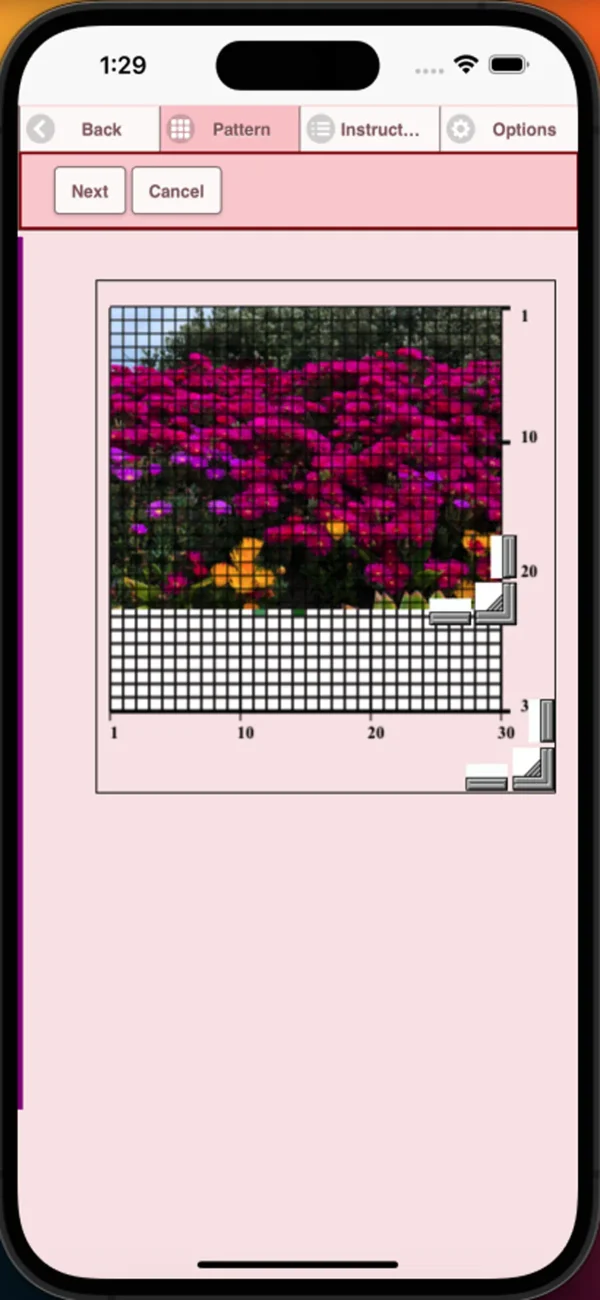
Picture - select a picture from your device and convert to a pattern
Print pattern - select to print your pattern
Social media - use social media to share your pattern (email, text etc.)
Resize bars - resize bars are display at the bottom right corner of your pattern. Drag them to resize your cross stitch pattern
Option settings - change the grid color, change fill style from Solid to X's,
select not to display the row/column counter.
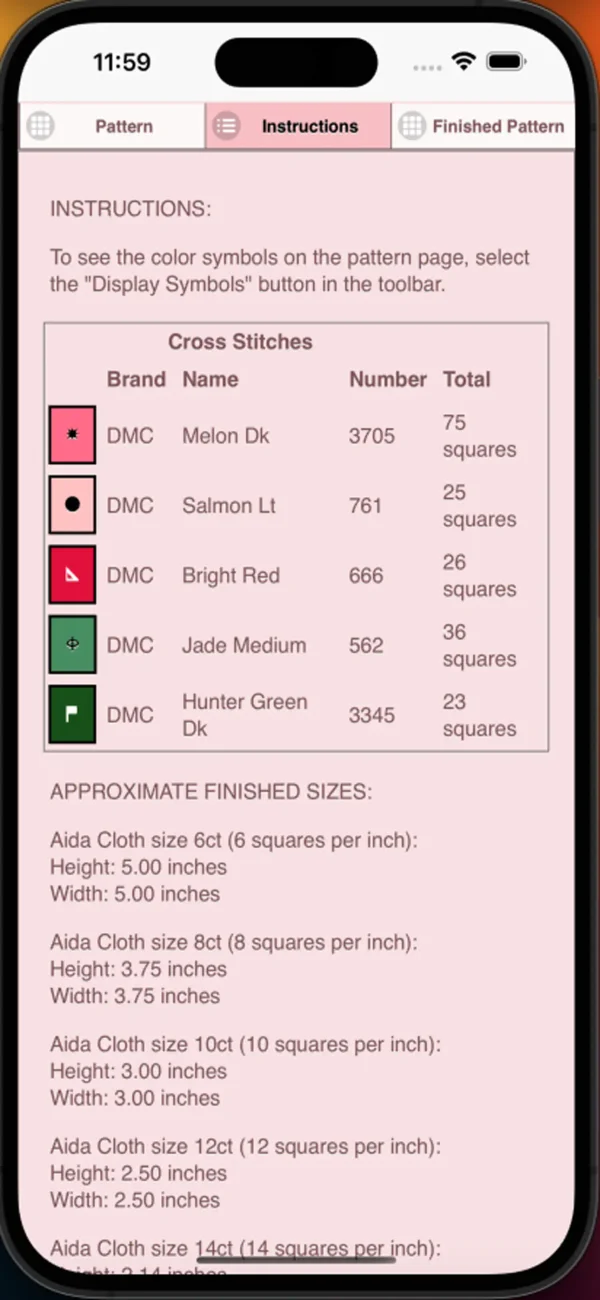
Instruction page - displays the DMC colors used and finished sizes for
different Aida Cloth sizes
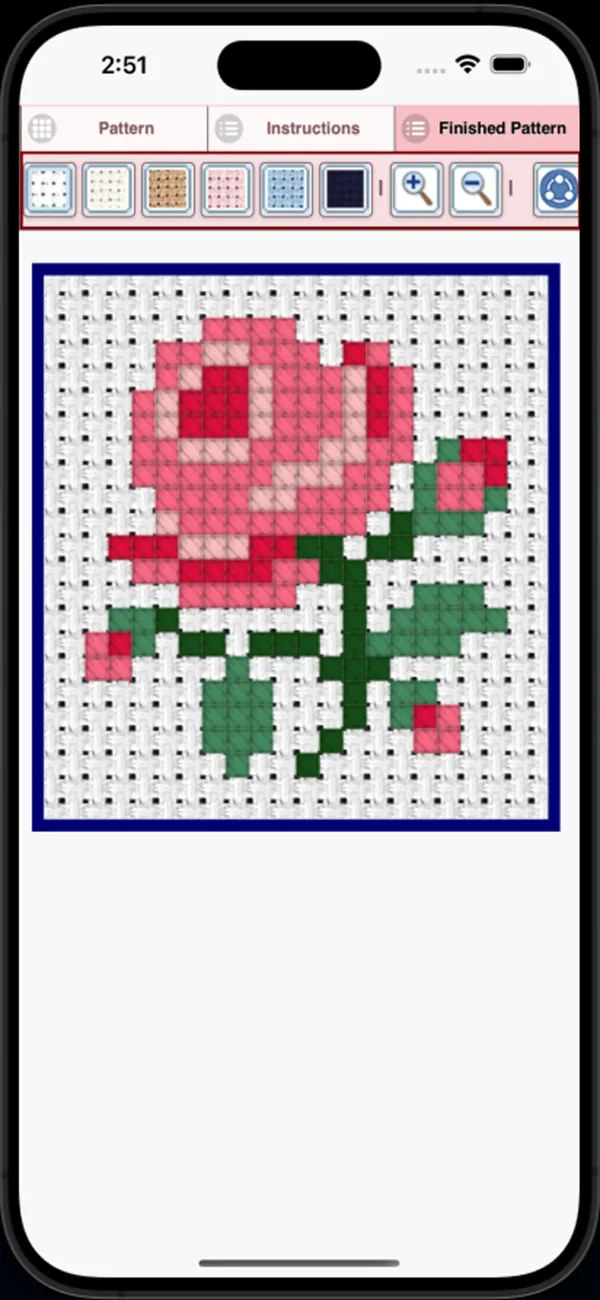
Finished Product page - displays what your pattern looks like after cross
stitched. You can also change the fabric color.
Novedades
Versión 10 · 9/7/2026
Minor fixes
Privacidad de la aplicación
Lo que Sand Castle Designs, Inc declara en App Store sobre cómo esta aplicación gestiona los datos.
-
No se recopilan datos
El desarrollador no recopila ningún dato de esta aplicación.
Las prácticas de privacidad pueden variar, por ejemplo, según las funciones que uses o tu edad.
Información
- Vendedor
- Sand Castle Designs, Inc
- Categoría
- Diseño gráfico
- Versión
- 10
- Actualizado
- 9/7/2026
- Publicado
- 18/1/2024
- Tamaño
- 17,3 MB
- Requiere
- iOS 13.0 o posterior
- Clasificación por edad
- 4+
- Precio
- Gratis
- Compras en la aplicación
- Sí
- Idiomas
- Inglés
- Copyright
- © Sand Castle Designs, Inc.
Quizá también te guste
-
 Stitcher Pixel ArtDiseño gráfico
-
 StitchHub: Punto de cruzCreador de patrones y gráficos
-
 Punto de Cruz: Foto a PatrónFotos a patrones y PDF
-
 mobistitchDiseño gráfico
-
 StitchSketchDiseño gráfico
-
 BeadsDesignDiseño gráfico
-
 StitchALot StudioDiseño gráfico
-
 StitchSketchEx mobileDiseño gráfico
-
 PixelPencil - Pixel art editorDiseño gráfico
-
 Friendship Bracelet DesignerDiseño gráfico