- Clasificación por edad4+
- CategoríaProductividad
- DesarrolladorTapclicks Inc.
- IdiomasInglés
- Tamaño29,7 MB
Enlaza a la página oficial de App Store
Download.org no aloja ningún archivo de TapOrders. El botón abre la página de la aplicación en App Store, donde la publica Tapclicks Inc. Ficha comprobada por última vez el 12/11/2026.
Capturas de pantalla
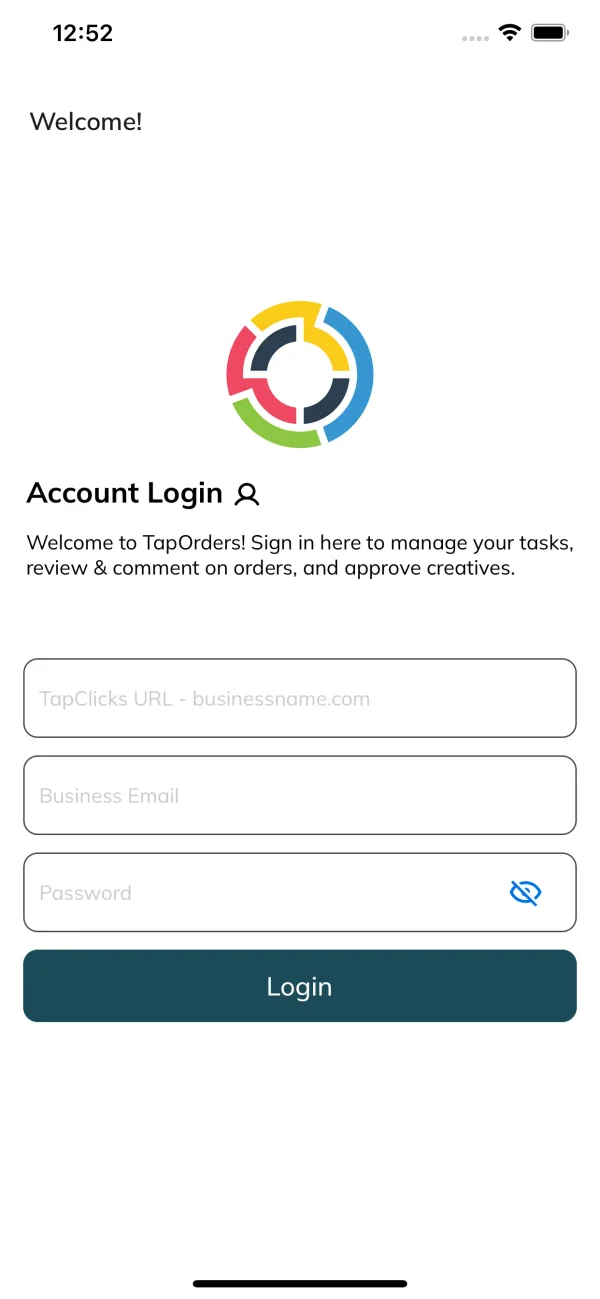


Acerca de
El desarrollador no ha proporcionado este texto en tu idioma.
The Orders mobile app has a lot of the same functionality that you’re used to in the desktop version of Orders & Workflow.
On the My Tasks page, you can see all tasks that are currently assigned to you. You can toggle to the “Completed” tab to see tasks you have completed in the past. Once you tap on a Task, you will see more details pertinent to the task, including a task form (if applicable) to fill out required information to complete the task. There is also a Comments tab, which will display any Comments that have been made on the entity (Order, Line Item, or Flight) that the task is tied to.
You can complete the task using the “Mark as complete” button, or you may be prompted to navigate to the browser version of Orders & Workflow to complete the task. This is dependent on whether the task has a task form, and whether that task form has unsupported fields.
The Orders page will show you all Open (not Completed or Canceled) Orders that you have access to. You can toggle to the "Archived" tab, which will show you any Orders you have access to that are in "Complete" or "Canceled" status.
Once you tap on an Order, you’ll see additional details regarding this Order, including a high-level view of any Line Items (if applicable). The Line Item IDs can be tapped, and will open the browser version of Orders & Workflow.
You can then click on “View Form Details”, which will bring you to the Form Details page, where you can view all the Order form information, separated by Form Section. There is also a Comments tab, which will display any Comments that have been made on this Order.
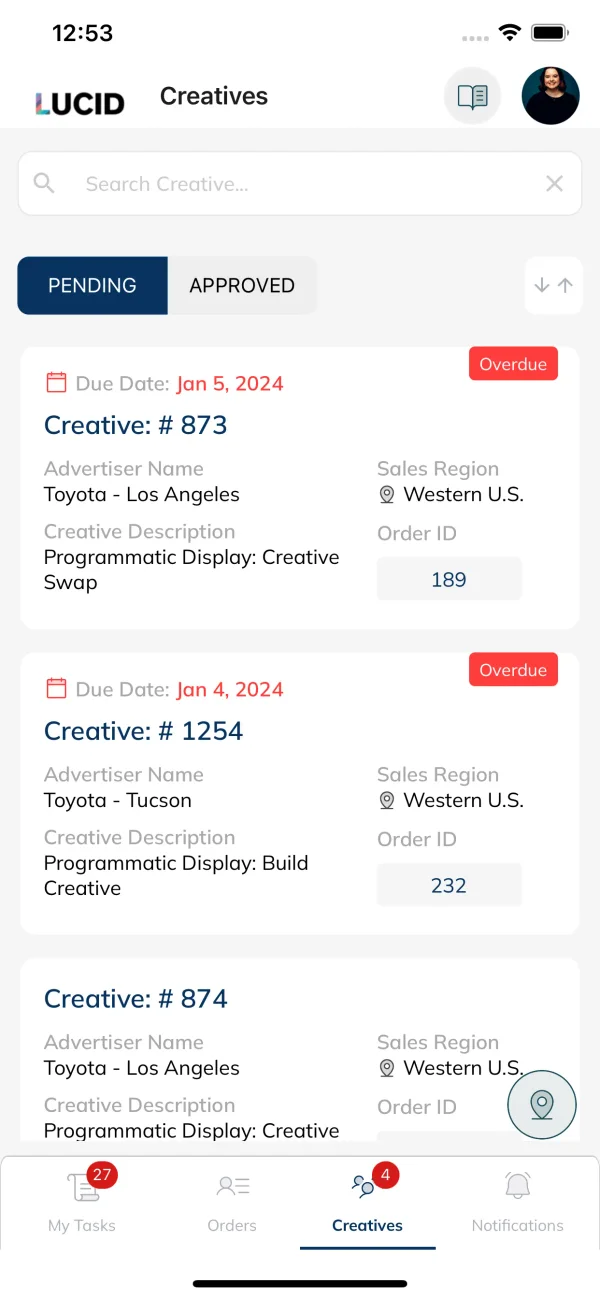
The Creatives page shows you Tasks that have been specifically marked as Creative-related tasks.
Once you tap on a Creative, you’ll be able to preview any creative files that have been uploaded to the entity (Order, Line Item, or Flight) that the creative task is tied to. You can then “Share” by tapping the arrow icon, which will then prompt you with the standard sharing options on your device.
There is also a Comments tab, which will display any Comments that have been made on the entity (Order, Line Item, or Flight) that the creative task is tied to.
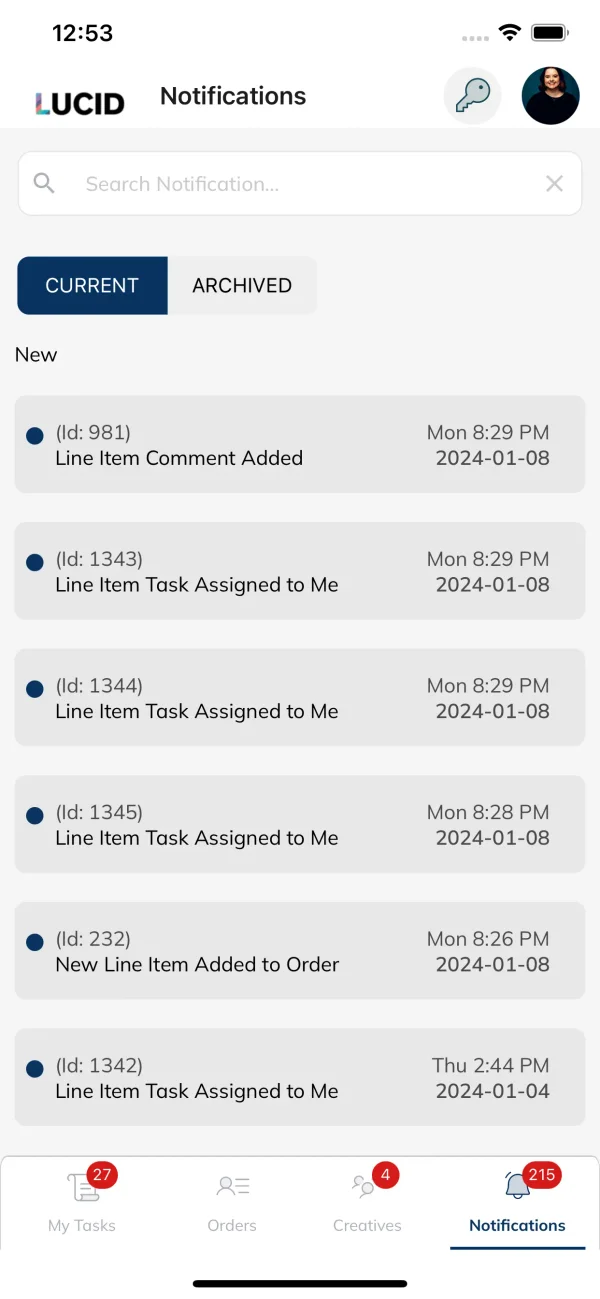
The Notifications tab displays all notifications that you have received regarding Orders & Workflow.
Tapping on a notification will mark it as “Read”, remove the orange “Unread” icon and highlight, and move it below any other unread notifications.
Any Task, Order or Comment related notifications will navigate to the appropriate page in the mobile app. Any Line Item or Flight related notifications will navigate to the browser version of Orders & Workflow.
Novedades
Versión 2.21.7 · 21/10/2025
Minor fixes
Privacidad de la aplicación
Lo que Tapclicks Inc. declara en App Store sobre cómo esta aplicación gestiona los datos.
-
No se recopilan datos
El desarrollador no recopila ningún dato de esta aplicación.
Las prácticas de privacidad pueden variar, por ejemplo, según las funciones que uses o tu edad.
Información
- Vendedor
- TapClicks, Inc.
- Categoría
- Productividad
- Versión
- 2.21.7
- Actualizado
- 21/10/2025
- Publicado
- 14/9/2023
- Tamaño
- 29,7 MB
- Requiere
- iOS 12.4 o posterior
- Clasificación por edad
- 4+
- Precio
- Gratis
- Idiomas
- Inglés
- Copyright
- © 2023 TapClicks
Quizá también te guste
-
 Customer Follow-upProductividad
-
 PiploProductividad
-
 Cally QProductividad
-
 Kinesis ELDProductividad
-
 Rapid InvoicesProductividad
-
 Planificador Diario de LlamadaAnalizar el Valor de Contactos
-
 AI Insight: contents, chatbotProductividad
-
 KanbannProductividad
-
 Dayleaf: Planificador y DiarioAgenda, Calendario y Metas
-
 Calda - Journal CalendarProductividad