- 対象年齢4+
- カテゴリ仕事効率化
- 開発元Tapclicks Inc.
- 言語英語
- サイズ29.7 MB
App Storeの公式ページにリンクしています
Download.orgはTapOrdersのファイルを一切ホストしていません。ボタンを押すと、Tapclicks Inc.が公開しているApp Storeのアプリページが開きます。ページの最終確認:2026/11/12。
スクリーンショット


概要
開発元はこのテキストをお使いの言語で提供していません。
The Orders mobile app has a lot of the same functionality that you’re used to in the desktop version of Orders & Workflow.
On the My Tasks page, you can see all tasks that are currently assigned to you. You can toggle to the “Completed” tab to see tasks you have completed in the past. Once you tap on a Task, you will see more details pertinent to the task, including a task form (if applicable) to fill out required information to complete the task. There is also a Comments tab, which will display any Comments that have been made on the entity (Order, Line Item, or Flight) that the task is tied to.
You can complete the task using the “Mark as complete” button, or you may be prompted to navigate to the browser version of Orders & Workflow to complete the task. This is dependent on whether the task has a task form, and whether that task form has unsupported fields.
The Orders page will show you all Open (not Completed or Canceled) Orders that you have access to. You can toggle to the "Archived" tab, which will show you any Orders you have access to that are in "Complete" or "Canceled" status.
Once you tap on an Order, you’ll see additional details regarding this Order, including a high-level view of any Line Items (if applicable). The Line Item IDs can be tapped, and will open the browser version of Orders & Workflow.
You can then click on “View Form Details”, which will bring you to the Form Details page, where you can view all the Order form information, separated by Form Section. There is also a Comments tab, which will display any Comments that have been made on this Order.
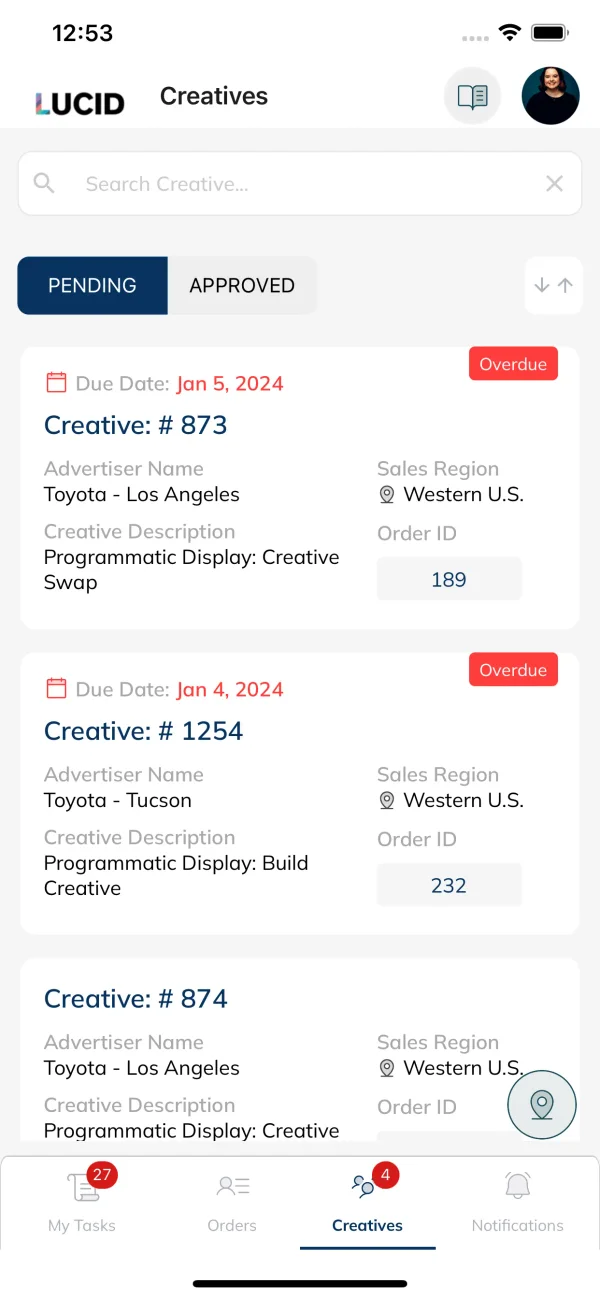
The Creatives page shows you Tasks that have been specifically marked as Creative-related tasks.
Once you tap on a Creative, you’ll be able to preview any creative files that have been uploaded to the entity (Order, Line Item, or Flight) that the creative task is tied to. You can then “Share” by tapping the arrow icon, which will then prompt you with the standard sharing options on your device.
There is also a Comments tab, which will display any Comments that have been made on the entity (Order, Line Item, or Flight) that the creative task is tied to.
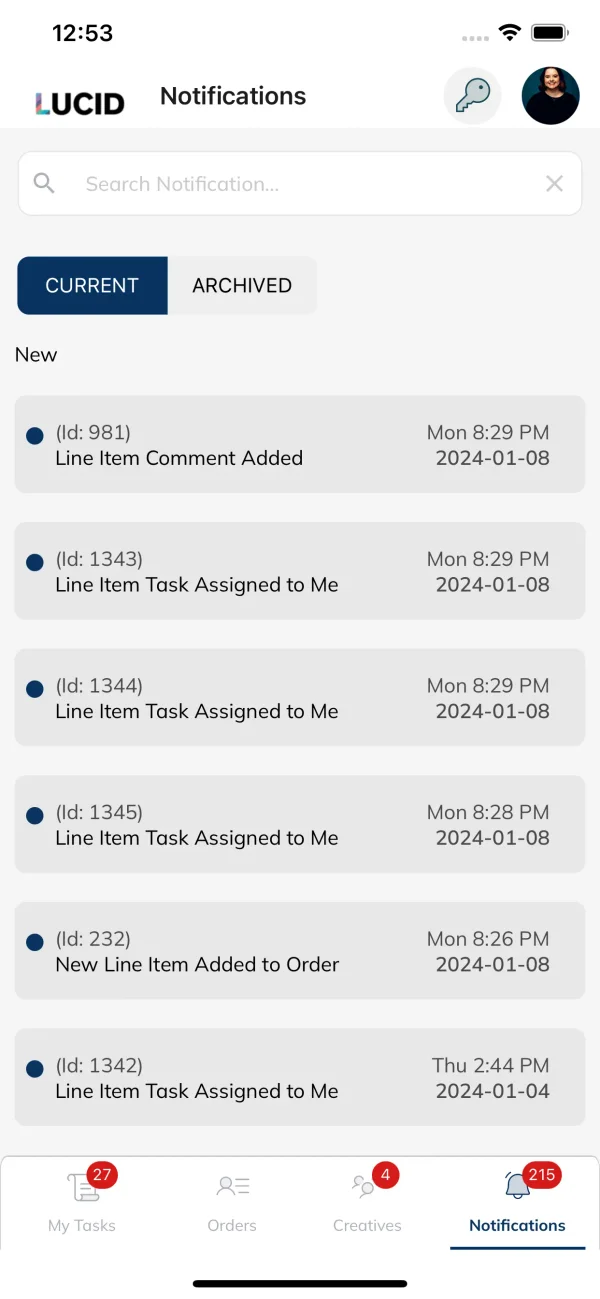
The Notifications tab displays all notifications that you have received regarding Orders & Workflow.
Tapping on a notification will mark it as “Read”, remove the orange “Unread” icon and highlight, and move it below any other unread notifications.
Any Task, Order or Comment related notifications will navigate to the appropriate page in the mobile app. Any Line Item or Flight related notifications will navigate to the browser version of Orders & Workflow.
新機能
バージョン 2.21.7 · 2025/10/21
Minor fixes
アプリのプライバシー
このアプリのデータの取り扱いについて、Tapclicks Inc.がApp Storeで申告している内容です。
-
データの収集なし
開発元はこのアプリからデータを収集しません。
プライバシーの取り扱いは、ご利用の機能やお客様の年齢などに応じて異なる場合があります。
情報
- 販売元
- TapClicks, Inc.
- カテゴリ
- 仕事効率化
- バージョン
- 2.21.7
- 更新日
- 2025/10/21
- リリース
- 2023/9/14
- サイズ
- 29.7 MB
- 必要条件
- iOS 12.4以降
- 対象年齢
- 4+
- 価格
- 無料
- 言語
- 英語
- 著作権
- © 2023 TapClicks