- Classification d’âge4+
- CatégorieUtilitaires
- DéveloppeurMaiji Saito
- LanguesJaponais
- Taille703,0 Ko
Renvoie vers la page App Store officielle
Download.org n’héberge aucun fichier de SMB Server - ファイル共有. Le bouton ouvre la page de l’application sur App Store, où Maiji Saito la publie. Fiche vérifiée pour la dernière fois le 14/11/2026.
Captures d’écran

À propos
Le développeur n’a pas fourni ce texte dans votre langue.
SMB Server turns your iPhone into an SMB (file sharing) server. From a Mac or Windows PC on the same Wi-Fi network, you can open your iPhone's Documents folder directly and copy, move, or delete files. No
cables and no cloud required.
[Great for]
• Getting photos, documents, and music from your computer onto your iPhone without a cable
• Quickly pulling files off your iPhone onto your computer
• Moving files around at home without the cloud or an account
• Handling files the familiar way, from Finder on Mac or File Explorer on Windows
[Key Features]
• File server supporting SMB2 (connect from Mac, Windows, Linux, and other SMB clients)
• Start or stop the server with one tap
• Bonjour support: appears automatically in the Network list in Mac Finder
• Shows the IP address, port, and connection address (smb://...) you need, right on screen
• Guest access, or set a password to restrict who can connect
• Read-only mode (blocks writing and deleting from the computer)
• Automatically start the server when the app launches
• Keeps the screen from auto-locking while the server is running, so connections don't drop
• View a log of connections, disconnections, and file operations
• Shows the free space available in the shared folder
• Open the same Documents folder from the Files app, too
• Built-in guide for connecting, plus troubleshooting tips
[How to Use]
1. Open the app, tap "Agree and Start", then tap "Start"
(If asked to allow access to the local network, choose "Allow")
2. Enter the address shown on screen on your computer (YOUR_IP = the IP address shown in the app)
• Mac: In Finder, choose Go, then Connect to Server, and enter smb://YOUR_IP:4455/Documents
• Windows: Enter \\YOUR_IP@4455\Documents in the File Explorer address bar
• Other SMB clients, such as Linux, can connect too
3. Sign in as a guest, or with the password you set
Only this app's Documents folder is shared. The share name is fixed as "Documents".
[Can't Connect?]
• Make sure your iPhone and computer are on the same Wi-Fi network
• Keep the app's screen open on your iPhone
• Include the share name (/Documents) and the port number (4455) in the address
• Mac Finder keeps a window in its failed state after a sign-in failure. Close the Finder window, then choose "Connect to Server" again. If it still won't connect, delete the old password in Keychain Access
[Privacy]
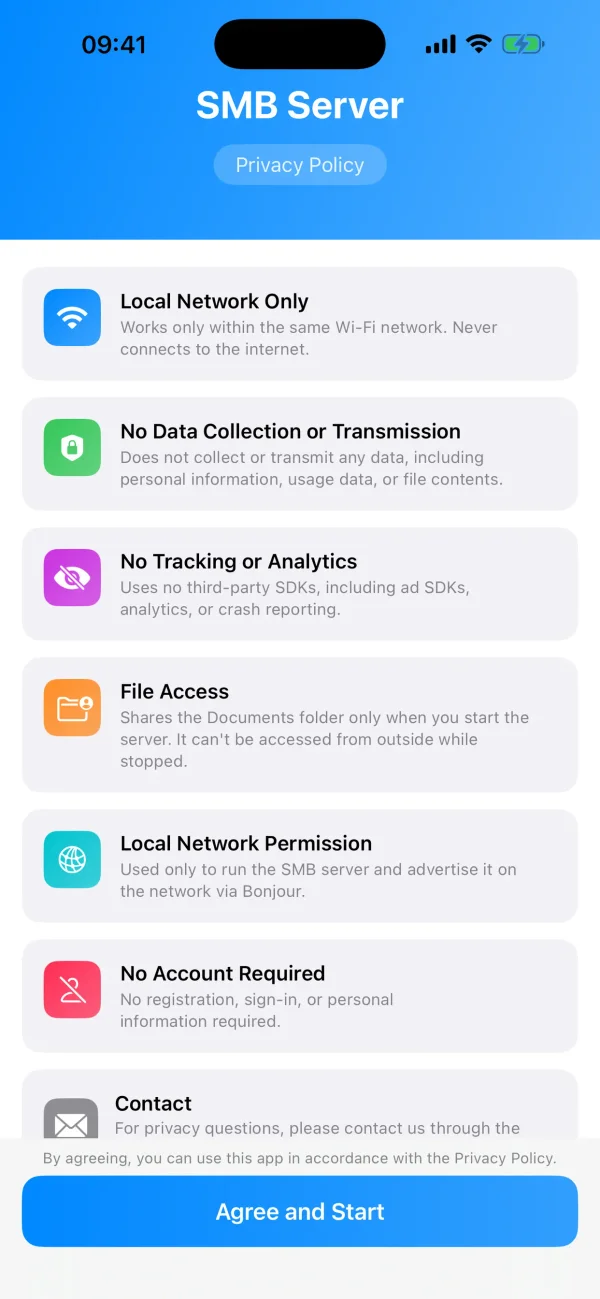
• Never connects to the internet. Works only within your local network (Wi-Fi)
• Does not collect or transmit personal information, usage data, or file contents
• Uses no third-party SDKs of any kind, including ads, analytics, or crash reporting
• No account registration or sign-in required
• Your Documents folder is shared only while the server is running. When stopped, it cannot be accessed from outside
[Notes]
• The server runs only while the app's screen is open. Closing the app disconnects all connections
• The SMB port number is 4455 (the standard port 445 is not available due to iOS restrictions). You need to specify the port when connecting
• With guest access, anyone on the same network can connect. Use it on a trusted network, or set a password
Nouveautés
Version 1.4 · 22/09/2026
Improved SMB compatibility and stability.
- Fixed files and folders not being deleted from some SMB clients (e.g. Linux smbclient / cifs).
- Fixed the share list not appearing in some clients.
- Fixed folder contents not displaying correctly in some clients.
- Minor internal fixes.
Confidentialité de l’application
Ce que Maiji Saito déclare sur l’App Store au sujet du traitement des données par cette application.
-
Données non collectées
Le développeur ne collecte aucune donnée à partir de cette application.
Les pratiques en matière de confidentialité peuvent varier, notamment en fonction des fonctionnalités que vous utilisez ou de votre âge.
Informations
- Vendeur
- Maiji Saito
- Catégorie
- Utilitaires
- Version
- 1.4
- Mis à jour
- 22/09/2026
- Publié
- 25/02/2026
- Taille
- 703,0 Ko
- Nécessite
- iOS 15.6 ou version ultérieure
- Classification d’âge
- 4+
- Prix
- Gratuit
- Langues
- Japonais
- Copyright
- © premium_maiji
Vous aimerez peut-être aussi
-
 Easy FTP&SMB ClientUtilitaires
-
 Everdisk: Envoyer FichiersImages, vidéos et musique
-
 PocketServer: Folder SharingUtilitaires
-
 SmbDAVUtilitaires
-
 Zwind - Serveur WebDAVSMB/NAS,RSS,WebMedia/WebDAV
-
 GoFTP ServerUtilitaires
-
 FTPManager - FTP & SFTP ClientGérer, Transférer & Lire des
-
 FTP Client - FTP Server FilesUtilitaires
-
 NextinUtilitaires
-
 KaringUtilitaires