
In/Out Board
Easy to use In / Out board!
Designed for iPhone, iPad, iPod touch
Free · In-app purchases
- Age rating4+
- CategoryProductivity
- DeveloperKei Suefuji
- LanguagesEnglish+ 10 more
- Size21.8 MB
Links to the official App Store page
Download.org hosts no file of In/Out Board. The button opens its official App Store page, published by Kei Suefuji. Listing last checked on Nov 21, 2026.
Screenshots


About
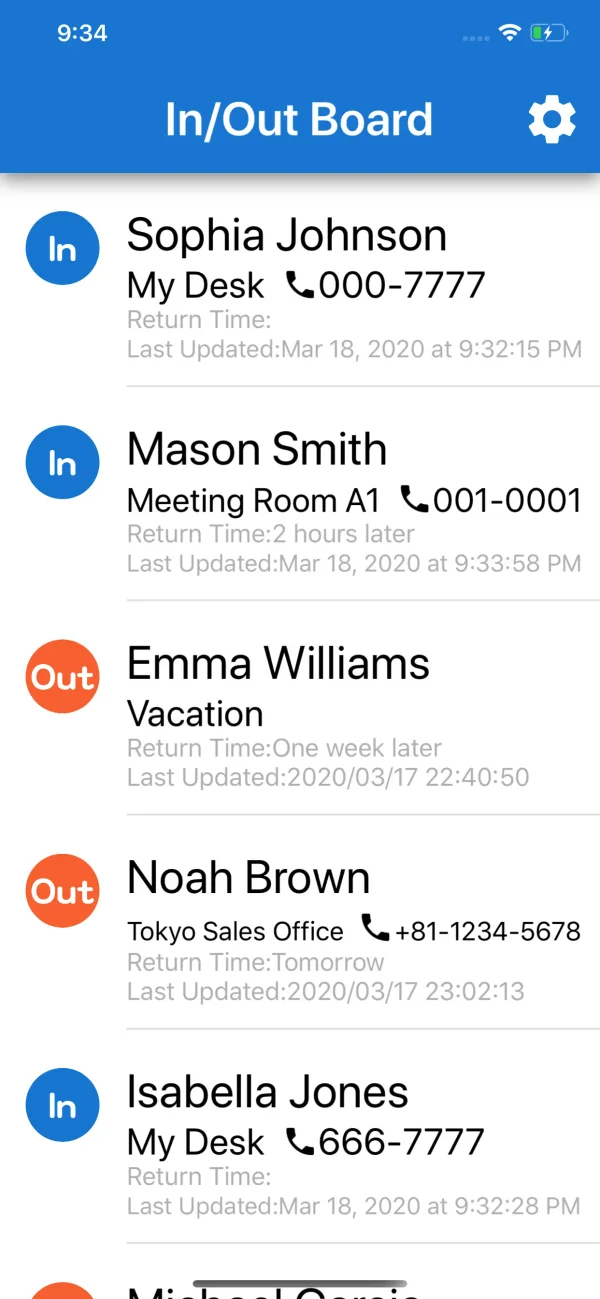
The In/Out Board is an app that shares the status of team members. For example, you can share situations such as working at your desk, going out, or on vacation. In / Out Board, which is often used in offices, is now an app. Please use it to check the status and destination of members when working in the office, work from home or telework!
You can change your location from anywhere, and the data is updated immediately via the network, so you can always share the latest status of members. The location is self-reported without using the GPS location information, so there is no over monitoring.
[How to use]
1. First, create an account to use this application. To create an account, you need to register your email address and password. After registration, you will receive a confirmation email. Tap the link in the email text to complete the registration. In this app, the registered email address and password are used in common by members of the workplace.
2. Your registration is completed and you will start using it when you sign in!
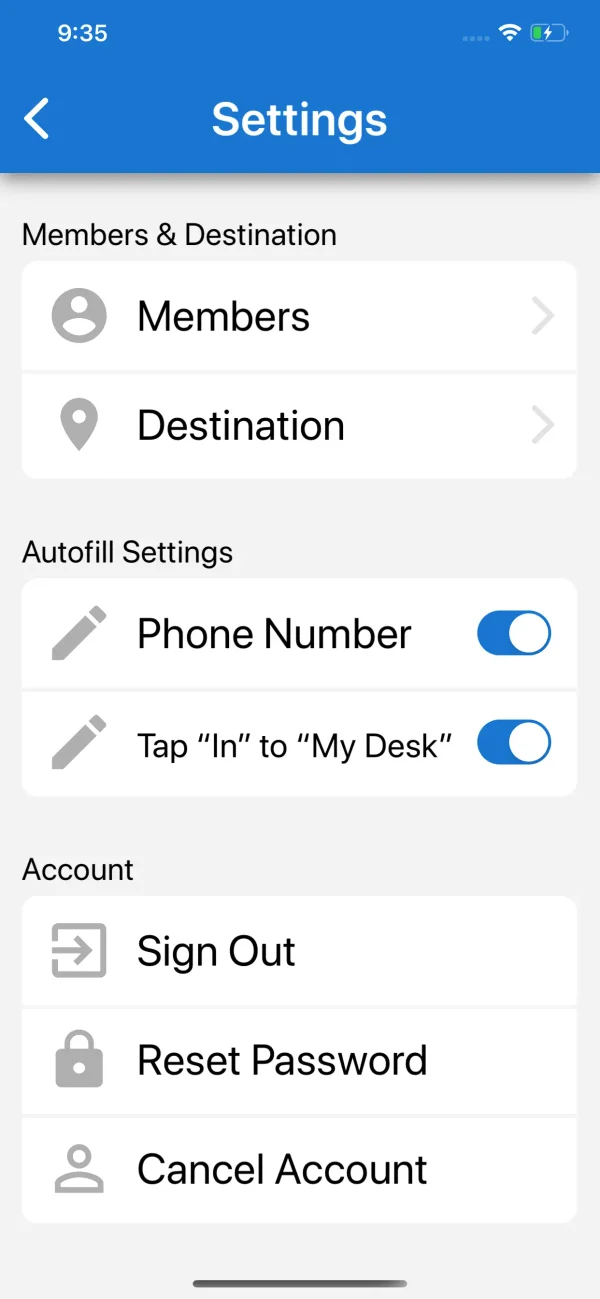
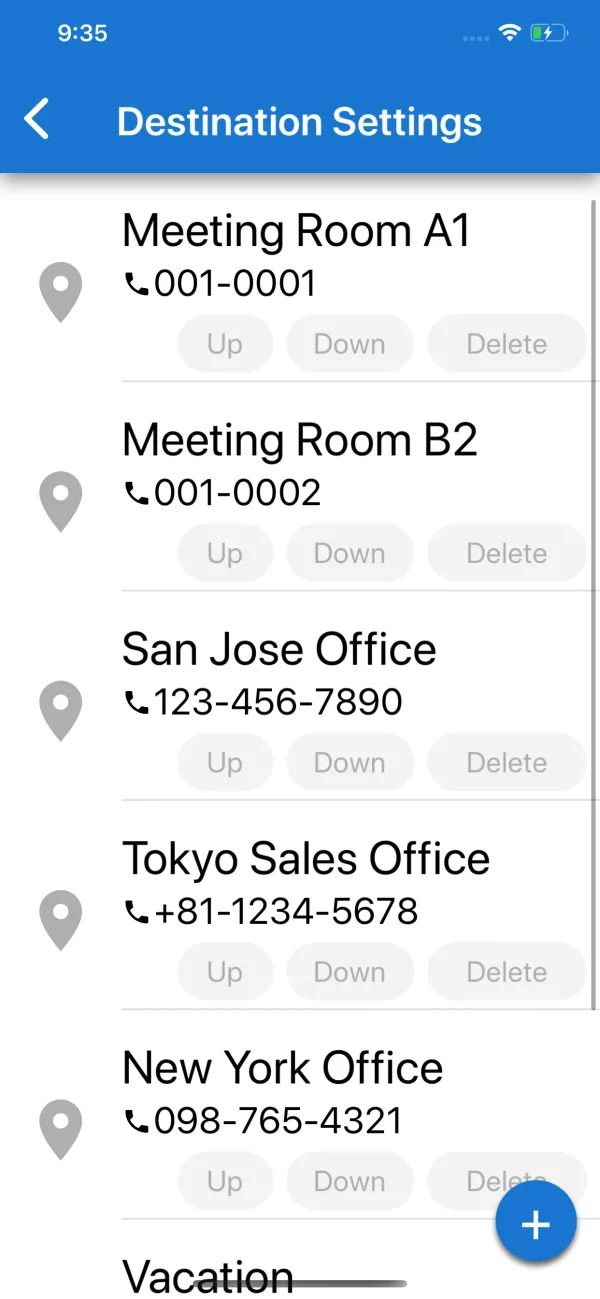
3. Register the member and destination from the settings. If you register the member's phone number, that phone number will be displayed when you select "My Desk".
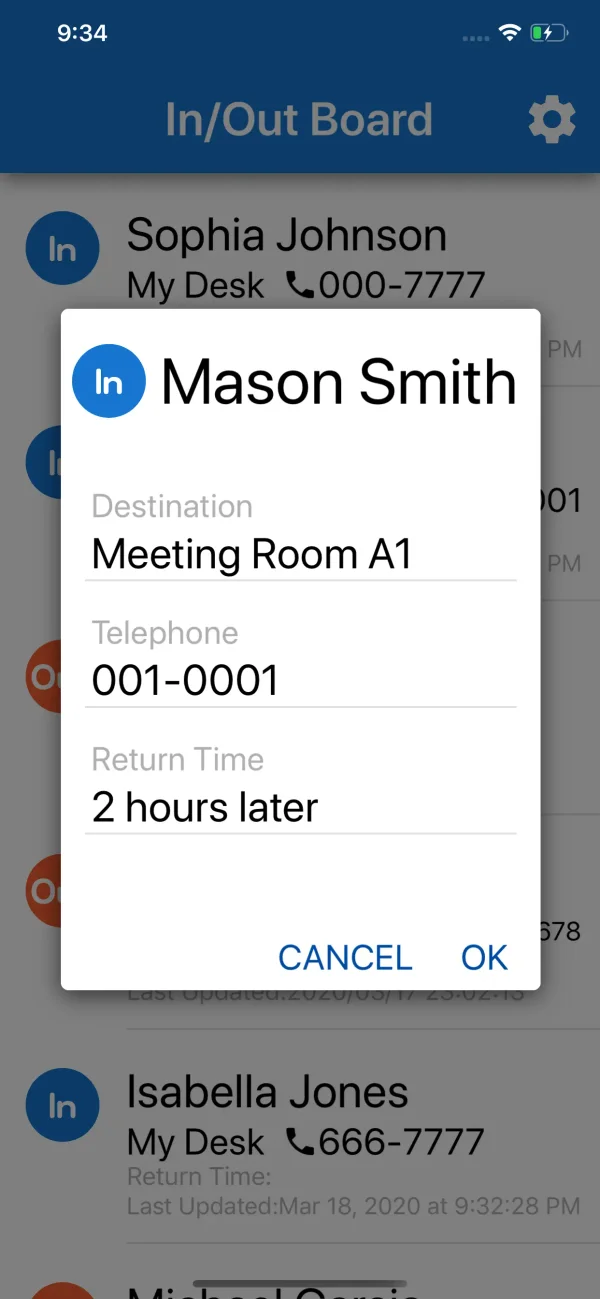
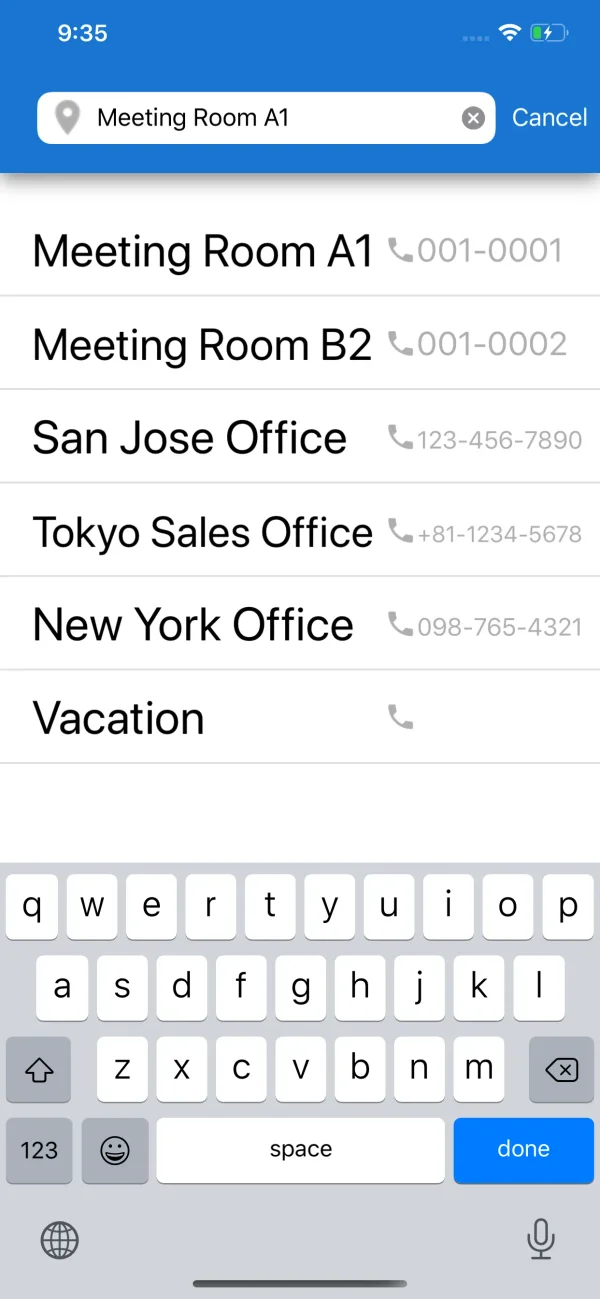
4. On the In/Out Board screen, double-tap the person name to display the destination, phone number, and return date / time edit screen. Tap each item to start typing. On the input screen, the items registered in the settings are displayed at the bottom. The item will be reflected as soon as you select it.
5. Tap the “In” button to switch to “Out” and display the edit screen. Tap the "Out" button to switch to "In" and display "My Desk". Use it when you want to change the display immediately. If you do not want to be automatically enrolled with "In", turn off the auto-fill settings item. Similarly, if you turn off the automatic entry of phone numbers, the phone number will not be automatically entered even if you select a destination.
In addition, this application is provided by in-app purchase. After you complete the billing process, you will be able to create an account.
----------------------
Terms of Use and Privacy Policy:https://akikibai-labolatory.jimdofree.com/privacy-policy-in-out-board/
What’s new
Version 2.4.0 · Nov 11, 2026
This is an update to improve security.
App privacy
What Kei Suefuji declares on the App Store about how this app handles data.
-
Data used to track you
May be used to track you across apps and websites owned by other companies.
- Identifiers
- Usage data
-
Data not linked to you
May be collected but is not linked to your identity.
- Identifiers
- Usage data
- Diagnostics
Privacy practices may vary, for example with the features you use or your age.
Information
- Seller
- Kei Suefuji
- Category
- Productivity
- Version
- 2.4.0
- Updated
- Nov 11, 2026
- Released
- Mar 27, 2020
- Size
- 21.8 MB
- Requires
- iOS 15.6 or later
- Age rating
- 4+
- Price
- Free
- In-app purchases
- Yes
- Languages
- English, French, German, Italian, Japanese, Korean, Portuguese, Russian, Simplified Chinese, Spanish, Traditional Chinese
- Copyright
- © 2020 Akikibai-Laboratory
You might also like
-
 Check-In Check-OutProductivity
-
 Simple In/OutThe most accurate in/out board
-
 Cytracom MobileProductivity
-
 TJM -Hire Wildland FireFighterRoster, Incident & Resources
-
 Wildix Collaboration MobileProductivity
-
 Quickpass Self-ServeCyberQP
-
 ArcGIS Field MapsProductivity
-
 Meeting OwlHybrid Technology
-
 BluebeamField app for PDF workflows
-
 Vonage Business CommunicationsProductivity