- Age rating4+
- CategoryBusiness
- DeveloperFr. Sauter AG
- LanguagesEnglish
- Size69.1 MB
Links to the official App Store page
Download.org hosts no file of Modulo 6. The button opens its official App Store page, published by Fr. Sauter AG. Listing last checked on Nov 12, 2026.
Screenshots
About
The SAUTER modulo 6 commissioning app provides technicians with direct access to the settings of modulo 6 devices via their built-in Bluetooth interface. It supports both the verification of existing installations and the initial setup of new stations directly from a mobile device.
Establishing a connection
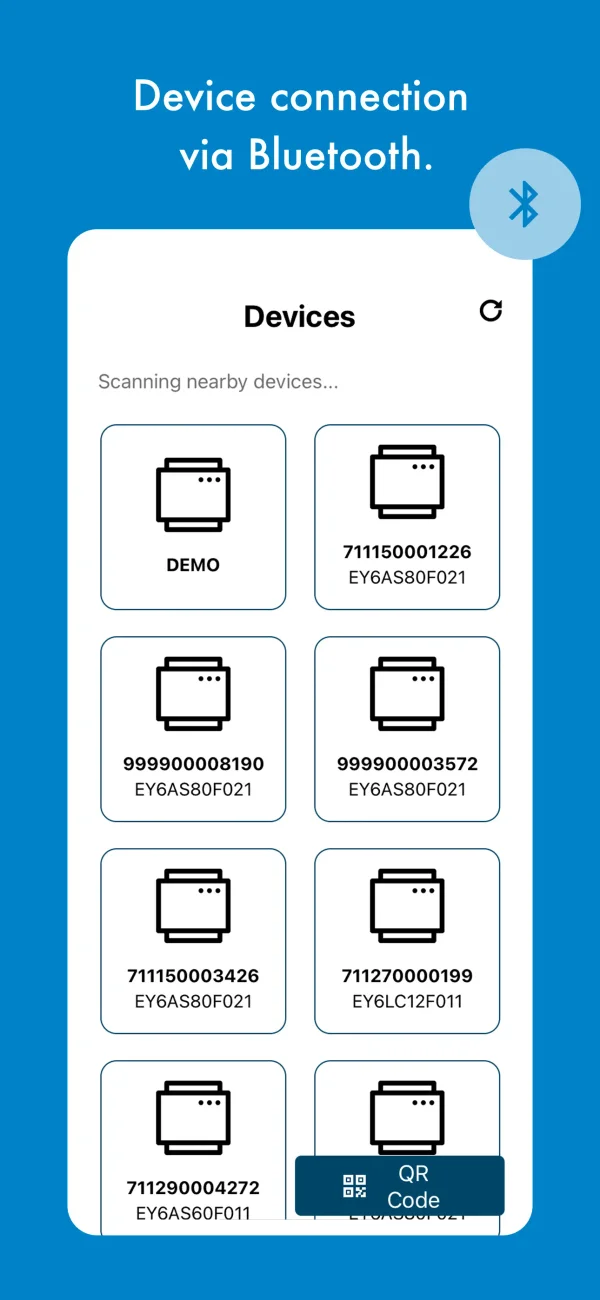
Devices can be connected in two ways:
- By scanning a QR code on the device.
- By selecting the device from a list of nearby Bluetooth Low Energy (BLE 4.0) devices detected by the mobile device.
Once a connection is established, the user logs in using authorised credentials to access the device's configuration.
Configuration Overview
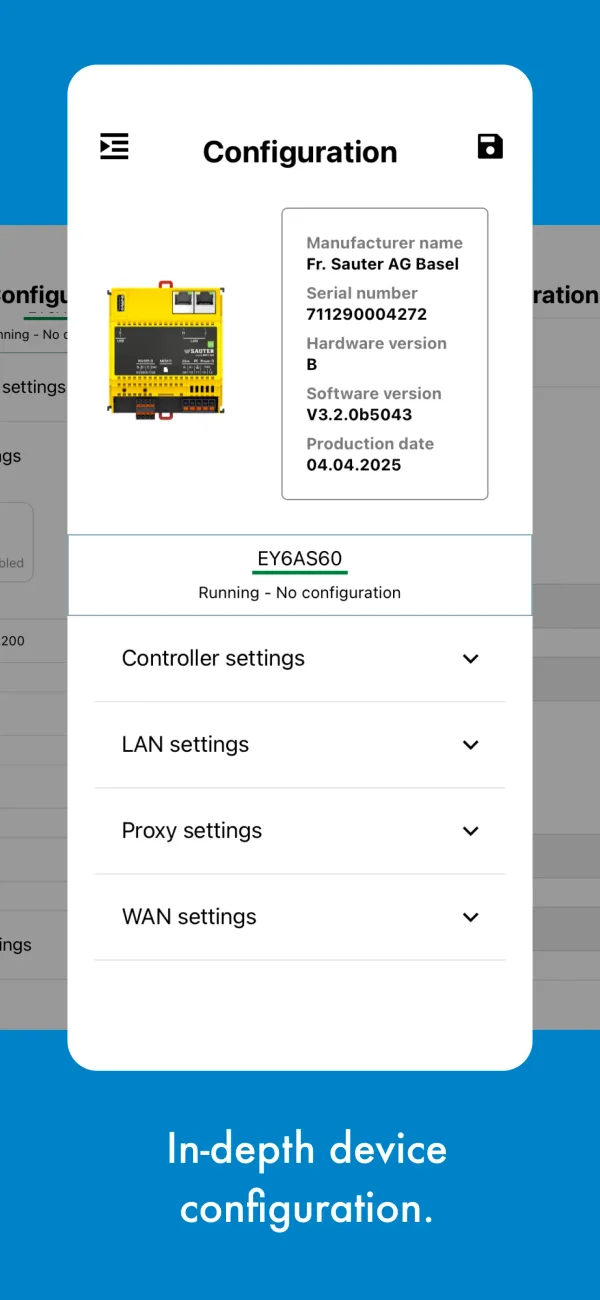
After login, the app displays the current status of the connected station and its modules. A picture oft he device and basic information like serial number or firmware version are shown on top. Configuration sections are shown below in a stacked format and can be individually expanded. The following parameters can be viewed and modified by authorised users:
- Controller settings: LED blink control, BACnet DOI, Port and Network number, system status, location, firewall status
- LAN settings: DHCP setting, IP address, subnet mask, gateway, DNS
- WAN settings (if available): DHCP setting, IP address, subnet mask, gateway, DNS
- Proxy settings: activation, proxy IP and port, authentication (username and password)
Changes are stored to the station using the save button in the upper-right corner.
Navigation and Module View
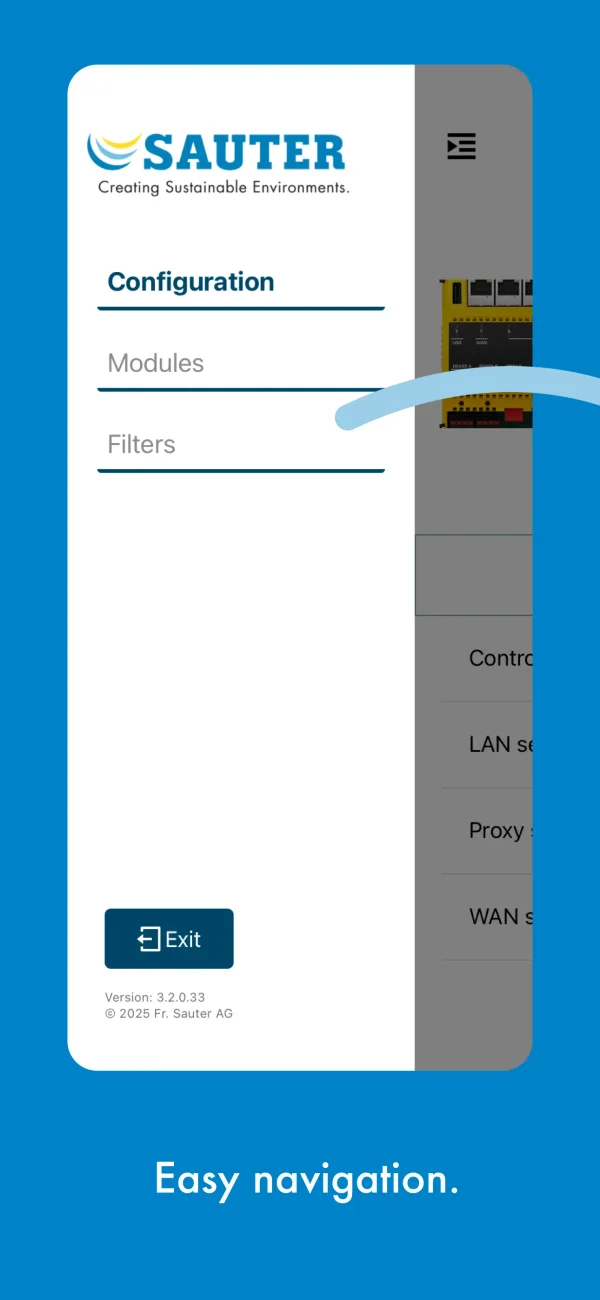
The navigation menu (accessible via the hamburger icon in the upper-left corner) allows users to:
- Switch between the configuration, module, and filter views
- Disconnect from the device
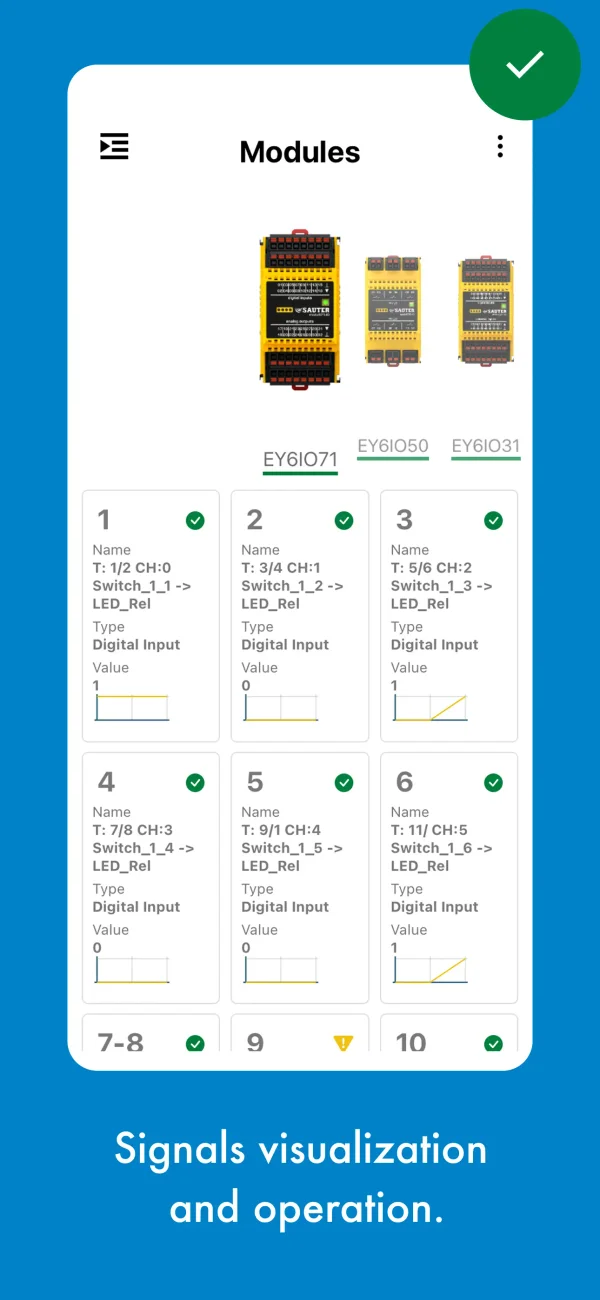
In the Modules view, all modules connected to the controller are graphically displayed. Users can swipe to browse modules and tap to view their channels. Channels are shown in either a tiled or list format, switchable via a button in the upper-right corner.
The colour scheme indicates the status of each channel:
- Green: normal operation
- Other colours: alarm states or overridden outputs
Each channel can be selected to view detailed, channel-specific information. Output signals can be overridden. A live chart is also available in this view for real-time data monitoring.
Channel Filtering
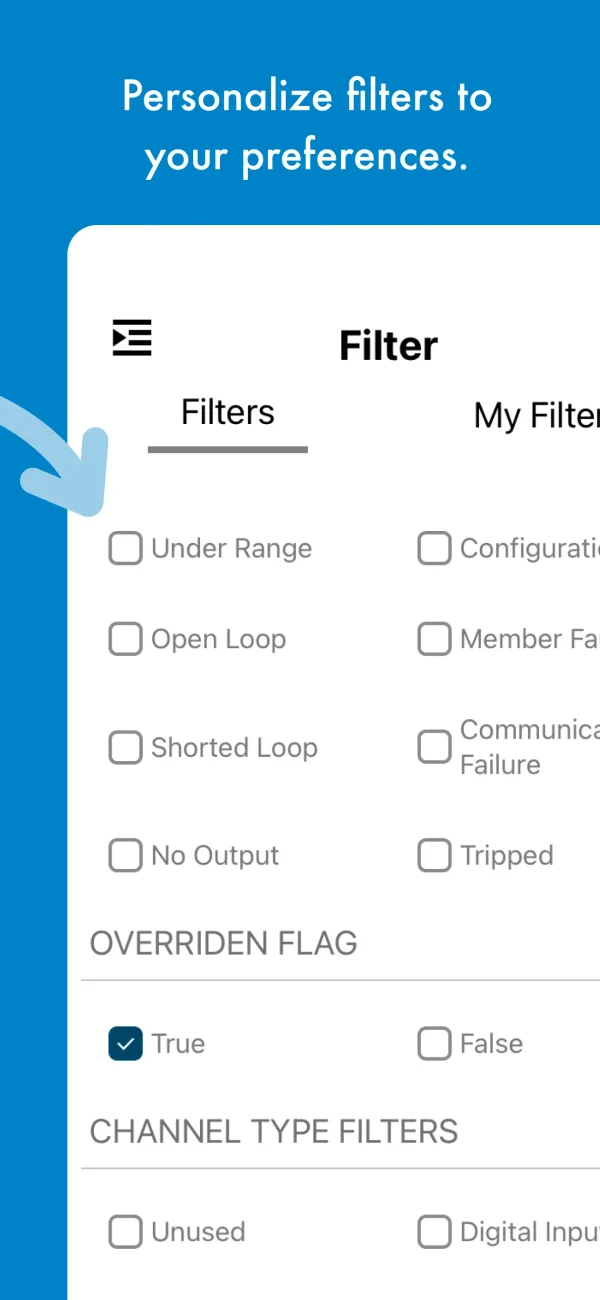
The app includes a filtering function to help users quickly locate specific channels. Filters can be applied based on:
- Module type (e.g. EY6IO**)
- BACnet reliability status
- Overridden flag
- Channel type (DI, CI, DO, Relay, AI: 0–10V, AI: NI1000, AO: 0–10V, etc.)
Custom filters can be saved locally on the device for future use.
What’s new
Version 3.3.0 · Feb 5, 2026
This release contains multiple improvements and bugfixes, as well as the support for the FW v3.3.x.
App privacy
What Fr. Sauter AG declares on the App Store about how this app handles data.
-
Data not linked to you
May be collected but is not linked to your identity.
- Usage data
- Diagnostics
Privacy practices may vary, for example with the features you use or your age.
Information
- Seller
- Fr. Sauter AG
- Category
- Business
- Version
- 3.3.0
- Updated
- Feb 5, 2026
- Released
- Aug 30, 2019
- Size
- 69.1 MB
- Requires
- iOS 15.1 or later
- Age rating
- 4+
- Price
- Free
- Languages
- English
- Copyright
- © 2026 Fr. Sauter AG