- 対象年齢4+
- カテゴリビジネス
- 開発元Fr. Sauter AG
- 言語英語
- サイズ69.1 MB
App Storeの公式ページにリンクしています
Download.orgはModulo 6のファイルを一切ホストしていません。ボタンを押すと、Fr. Sauter AGが公開しているApp Storeのアプリページが開きます。ページの最終確認:2026/11/12。
スクリーンショット
概要
開発元はこのテキストをお使いの言語で提供していません。
The SAUTER modulo 6 commissioning app provides technicians with direct access to the settings of modulo 6 devices via their built-in Bluetooth interface. It supports both the verification of existing installations and the initial setup of new stations directly from a mobile device.
Establishing a connection
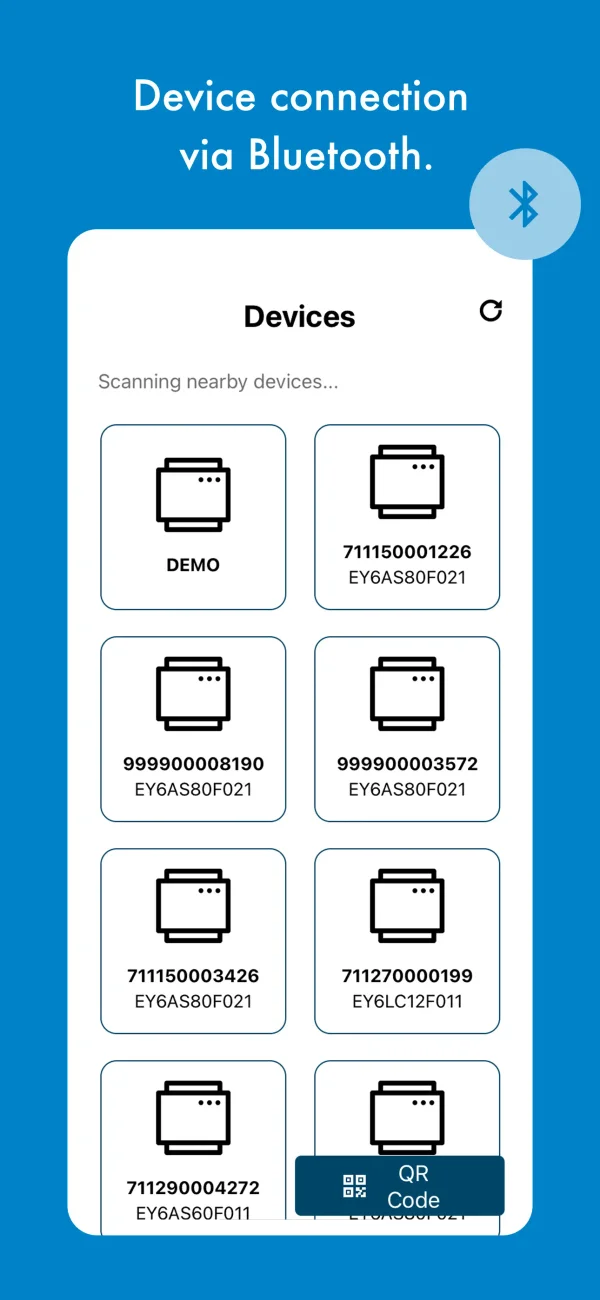
Devices can be connected in two ways:
- By scanning a QR code on the device.
- By selecting the device from a list of nearby Bluetooth Low Energy (BLE 4.0) devices detected by the mobile device.
Once a connection is established, the user logs in using authorised credentials to access the device's configuration.
Configuration Overview
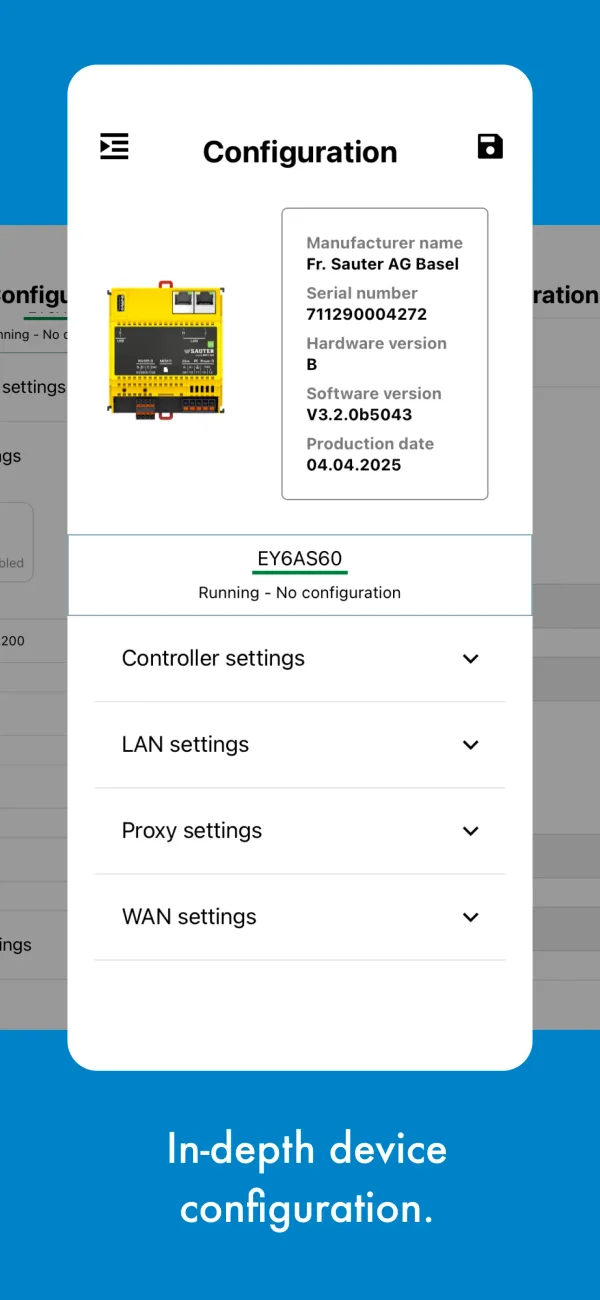
After login, the app displays the current status of the connected station and its modules. A picture oft he device and basic information like serial number or firmware version are shown on top. Configuration sections are shown below in a stacked format and can be individually expanded. The following parameters can be viewed and modified by authorised users:
- Controller settings: LED blink control, BACnet DOI, Port and Network number, system status, location, firewall status
- LAN settings: DHCP setting, IP address, subnet mask, gateway, DNS
- WAN settings (if available): DHCP setting, IP address, subnet mask, gateway, DNS
- Proxy settings: activation, proxy IP and port, authentication (username and password)
Changes are stored to the station using the save button in the upper-right corner.
Navigation and Module View
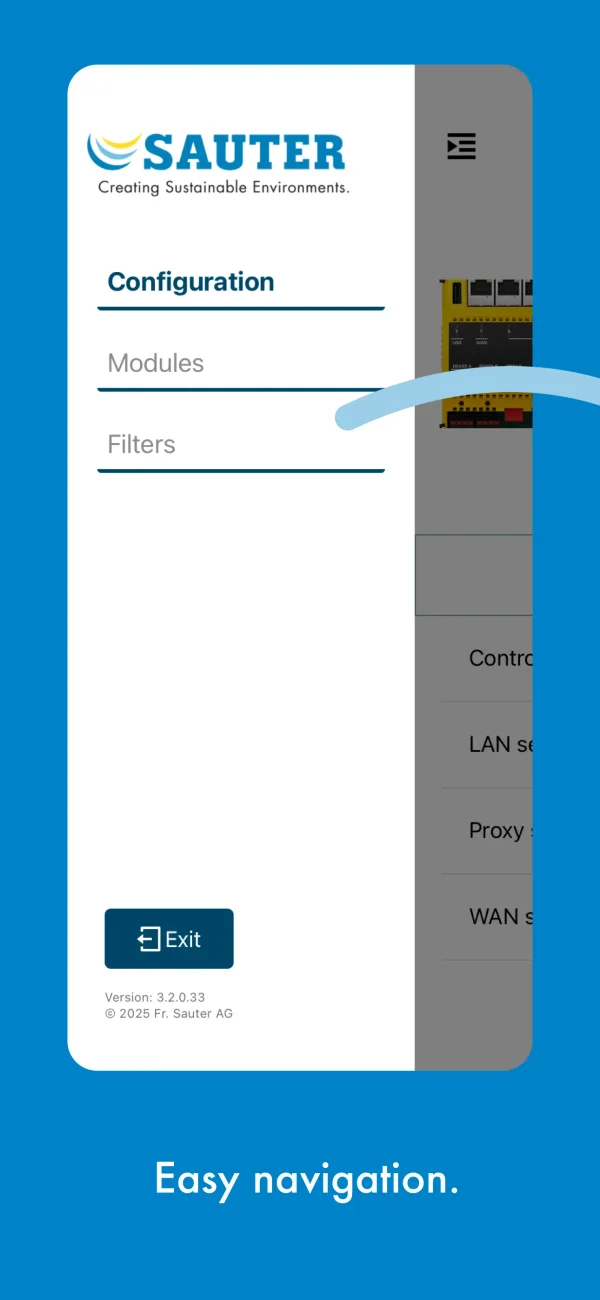
The navigation menu (accessible via the hamburger icon in the upper-left corner) allows users to:
- Switch between the configuration, module, and filter views
- Disconnect from the device
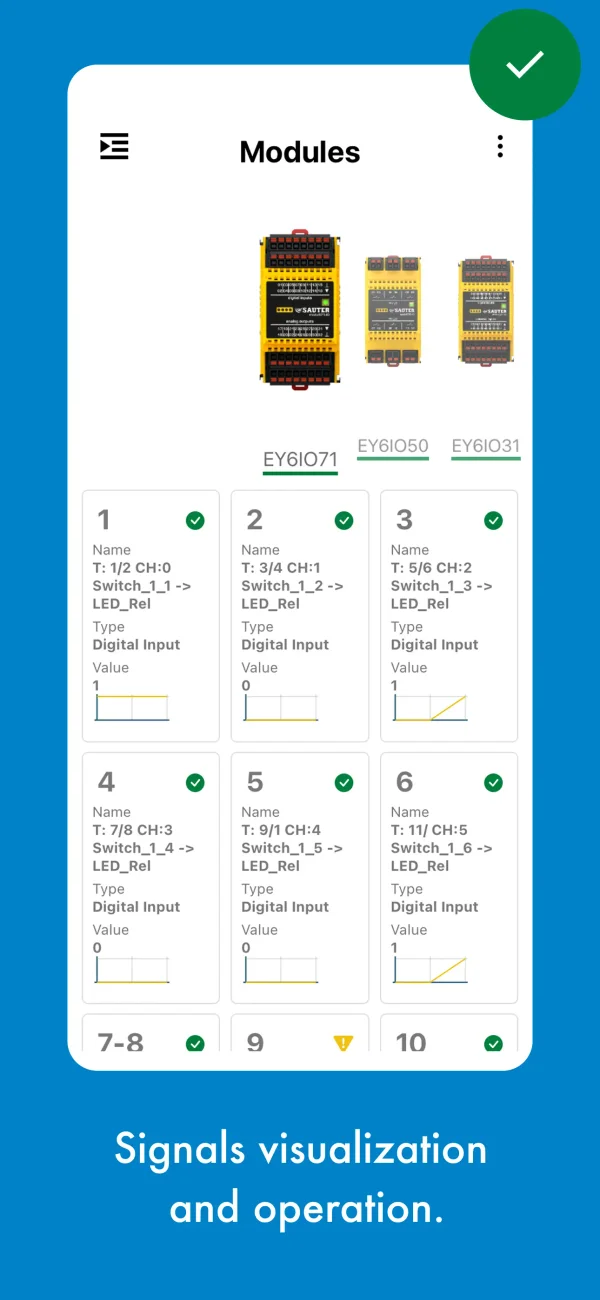
In the Modules view, all modules connected to the controller are graphically displayed. Users can swipe to browse modules and tap to view their channels. Channels are shown in either a tiled or list format, switchable via a button in the upper-right corner.
The colour scheme indicates the status of each channel:
- Green: normal operation
- Other colours: alarm states or overridden outputs
Each channel can be selected to view detailed, channel-specific information. Output signals can be overridden. A live chart is also available in this view for real-time data monitoring.
Channel Filtering
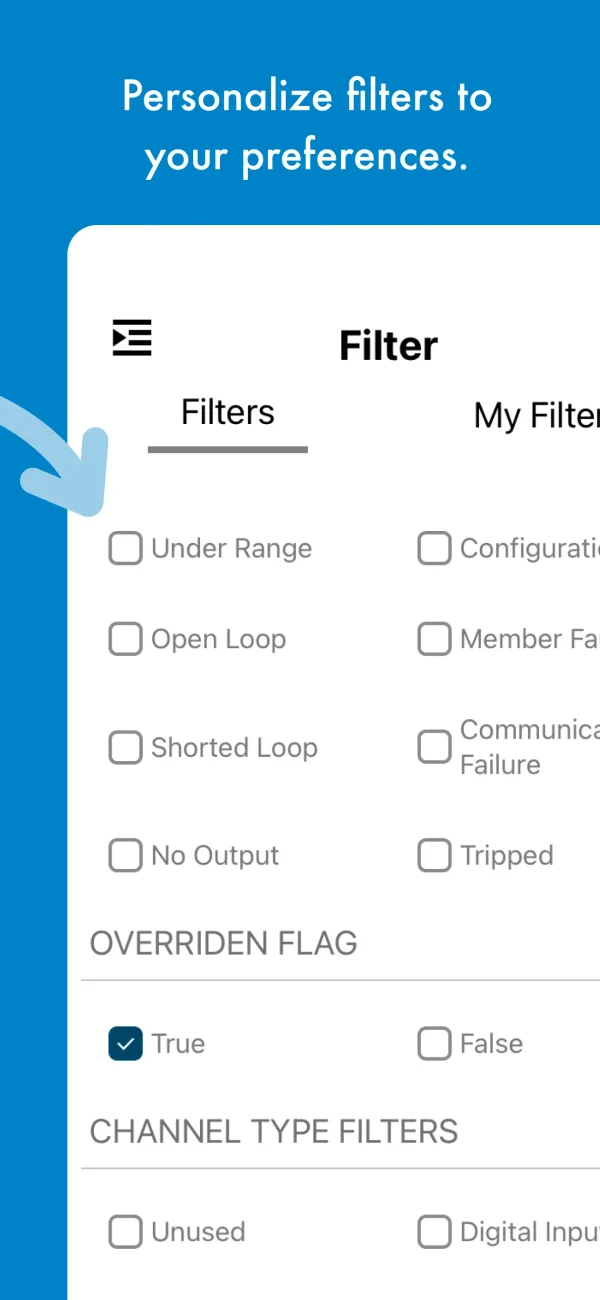
The app includes a filtering function to help users quickly locate specific channels. Filters can be applied based on:
- Module type (e.g. EY6IO**)
- BACnet reliability status
- Overridden flag
- Channel type (DI, CI, DO, Relay, AI: 0–10V, AI: NI1000, AO: 0–10V, etc.)
Custom filters can be saved locally on the device for future use.
新機能
バージョン 3.3.0 · 2026/2/5
This release contains multiple improvements and bugfixes, as well as the support for the FW v3.3.x.
アプリのプライバシー
このアプリのデータの取り扱いについて、Fr. Sauter AGがApp Storeで申告している内容です。
-
ユーザーに関連付けられないデータ
収集される場合がありますが、ユーザーの識別情報には関連付けられません。
- 使用状況データ
- 診断
プライバシーの取り扱いは、ご利用の機能やお客様の年齢などに応じて異なる場合があります。
情報
- 販売元
- Fr. Sauter AG
- カテゴリ
- ビジネス
- バージョン
- 3.3.0
- 更新日
- 2026/2/5
- リリース
- 2019/8/30
- サイズ
- 69.1 MB
- 必要条件
- iOS 15.1以降
- 対象年齢
- 4+
- 価格
- 無料
- 言語
- 英語
- 著作権
- © 2026 Fr. Sauter AG