
- Age rating4+
- CategoryUtilities
- DeveloperDong Yeong Kim
- LanguagesEnglish+ 1 more
- Size20.7 MB
Links to the official App Store page
Download.org hosts no file of QlipKeyboard. The button opens its official App Store page, published by Dong Yeong Kim. Listing last checked on Nov 23, 2026.
Screenshots
About
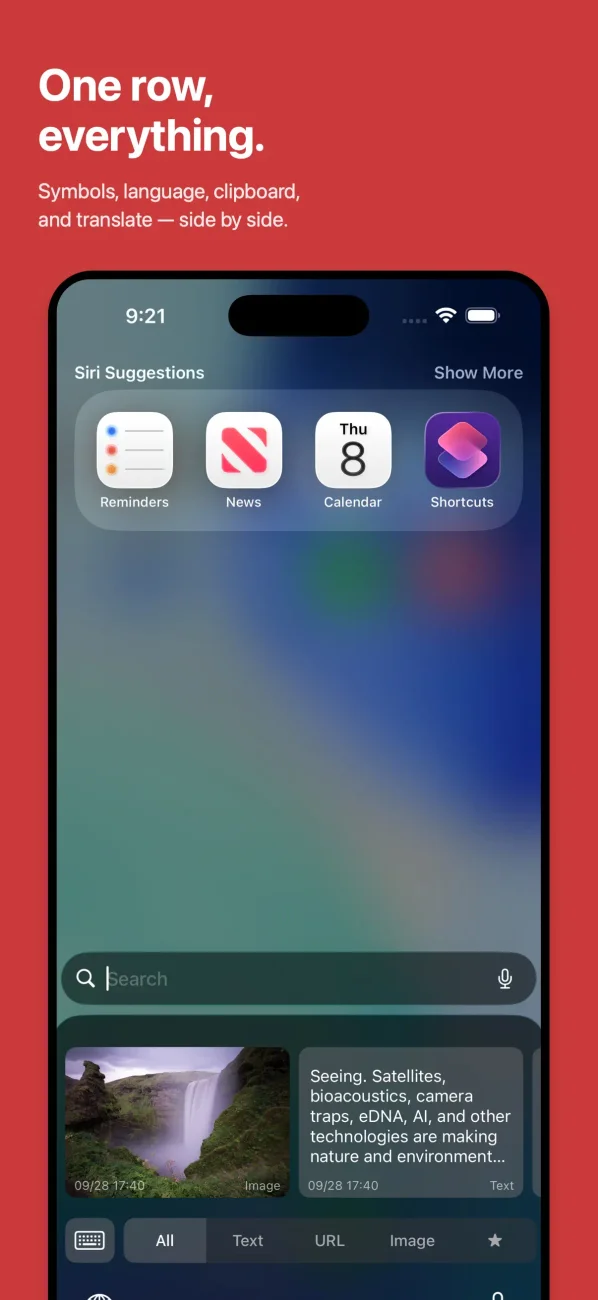
QlipKeyboard brings a keyboard, a clipboard, and translation together in one app.
Stop copying and pasting the same things over and over. What you copied recently sits right above the keyboard, ready to reuse with a single tap.
• Copy once, paste anywhere
Turn on clipboard history, and the text, links, and images you copy are saved on your device and available straight from the keyboard. Press and hold the 123 key to browse what you saved and paste it.
• Translate without leaving the keyboard
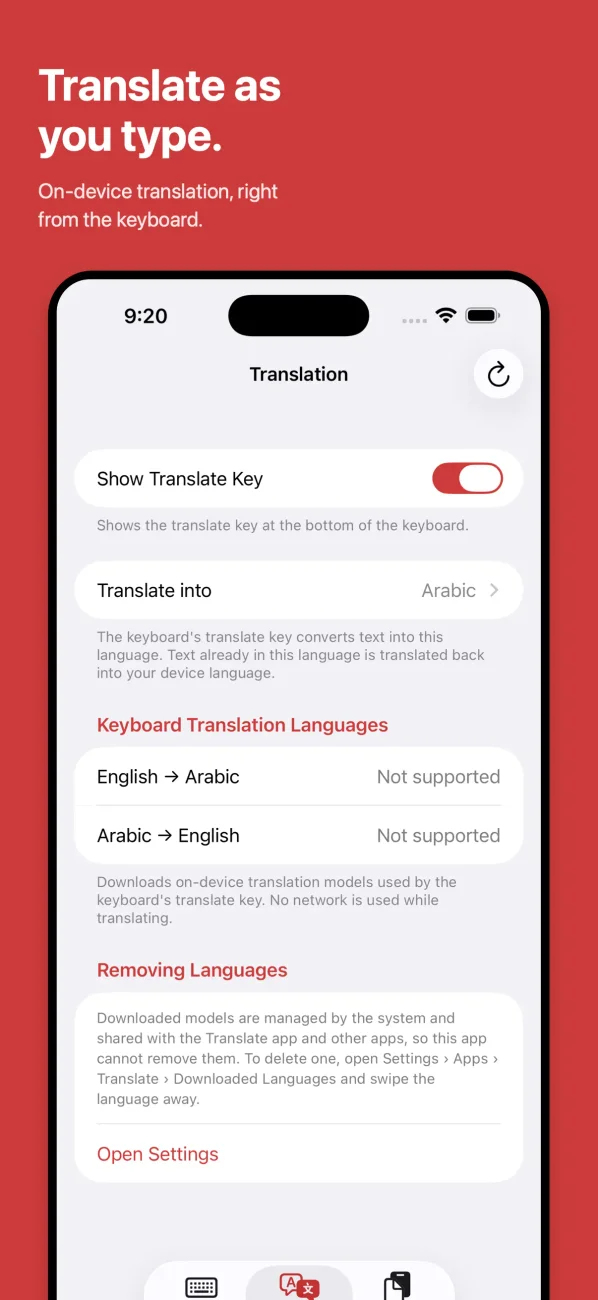
Tap the translate key and the sentence you just typed turns into the language you picked. Select text first and only that part is translated. No more jumping between apps to copy and paste.
Translation runs on your device, so it works without an internet connection, and what you type never leaves it. Pick your language in the Translation tab and download the ones you need ahead of time. Text already written in that language is translated back into your device language.
• Keep what you use often
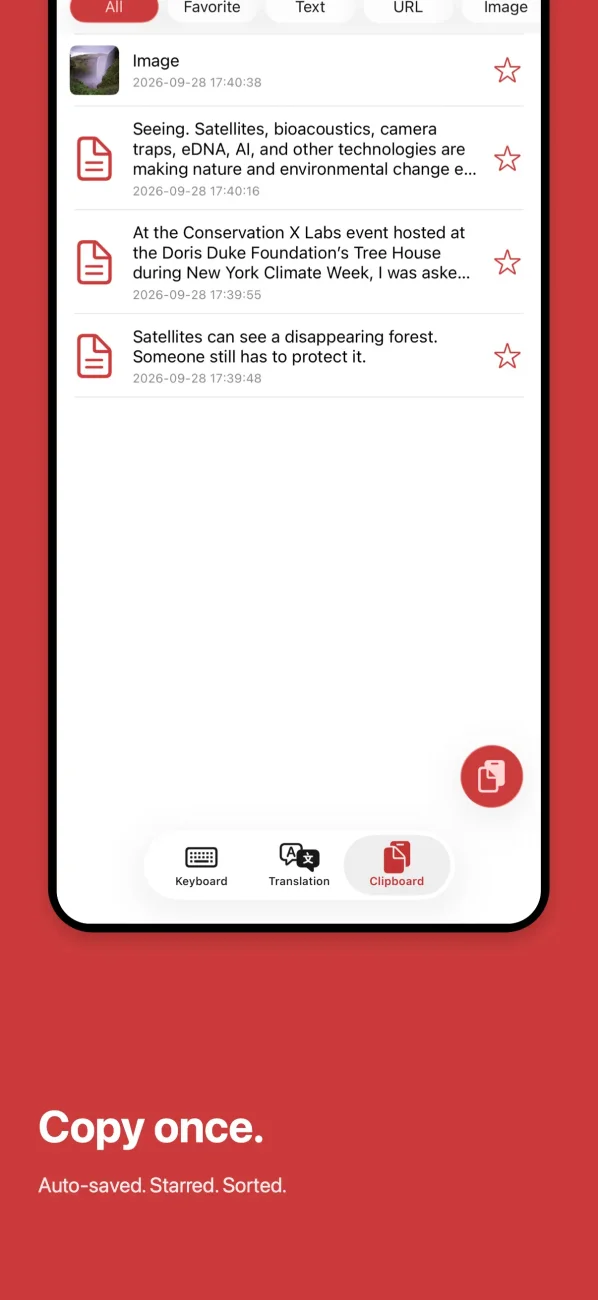
Pin email addresses, bios, and go-to replies as favorites. Favorites are never removed, even when the history limit kicks in.
• Text, links, and images
Everything you copy is sorted by type automatically, so it is easy to find what you need. Images can be pasted straight from the keyboard too. Copy the address of an image and the picture itself is saved instead of the link — you can turn that off in settings.
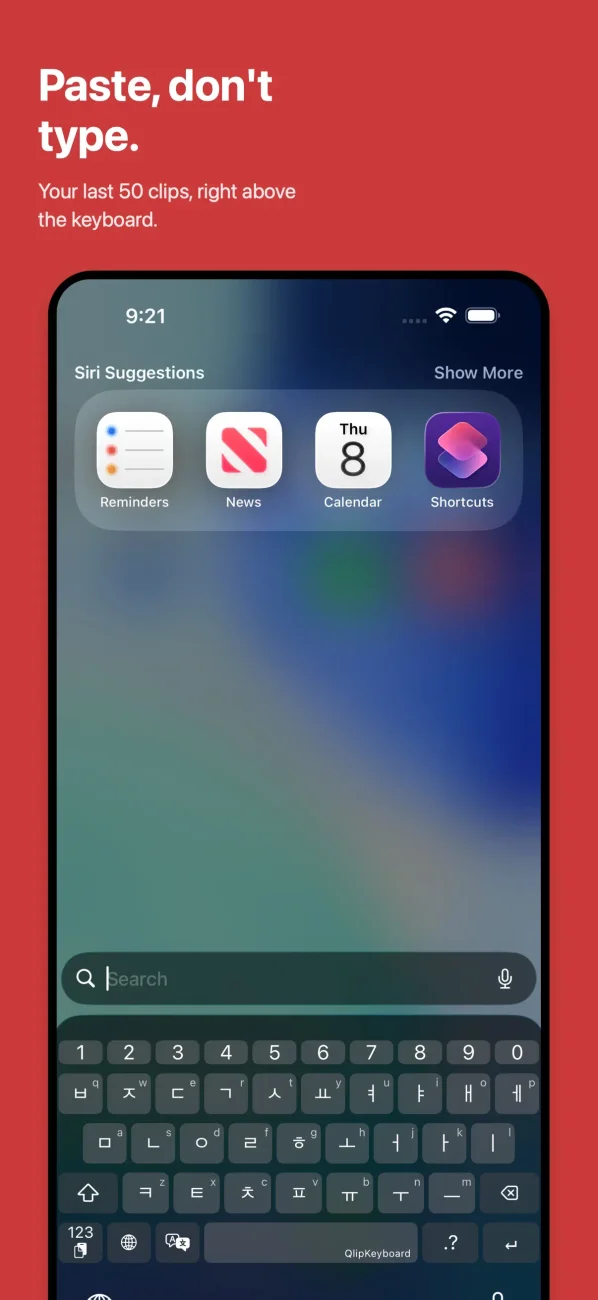
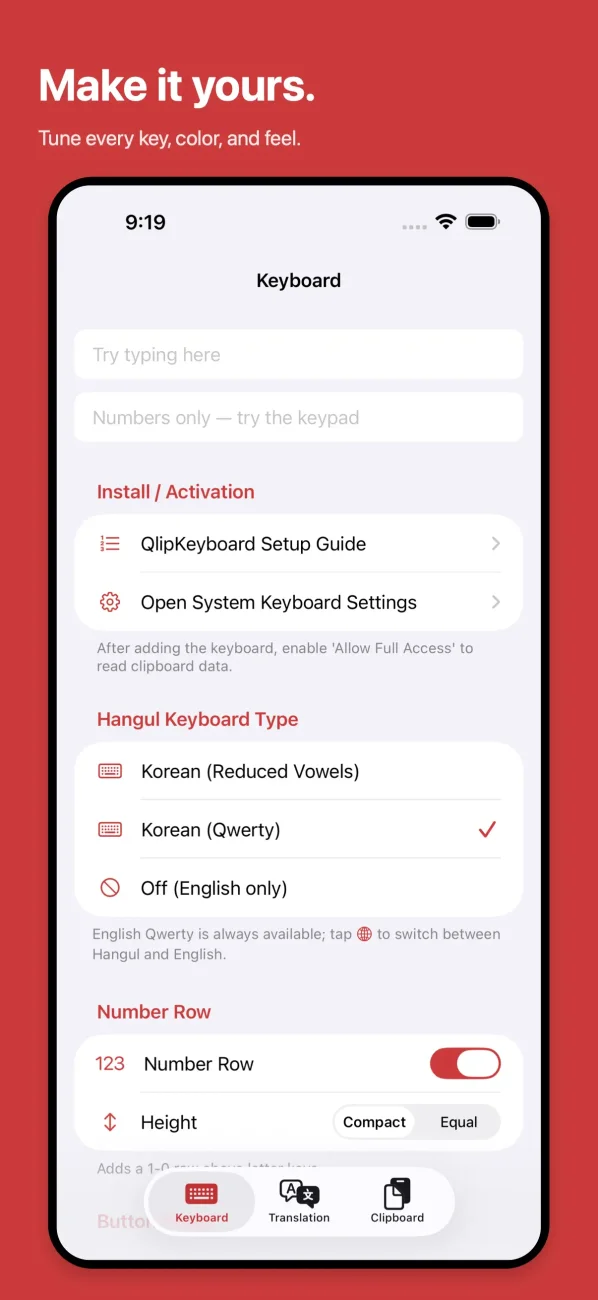
• Two Korean layouts, plus English
- Korean (Reduced Vowels)
- Korean Qwerty — standard two-set layout
- English Qwerty
Tap the globe key to switch languages instantly. In fields that only take numbers, the keyboard switches to a number pad on its own.
• Press and hold for more
Hold the 123 key to open the clipboard keyboard. Hold the space bar to turn on trackpad mode and move the cursor. Symbols and clipboard features are always a long press away.
• Built for iPhone Duo
The keyboard lays itself out for both the folded and the unfolded display.
• A split keyboard on wide screens
On the iPhone Duo's unfolded display and on iPad, the keyboard splits left and right so you can type comfortably with both thumbs. Turn it on or off in settings. In split mode the number pad appears on both halves.
• Make it your own
Choose your own colors for key backgrounds, text, functional keys, the clipboard panel, and clipboard cards. Adjust the keyboard height and haptic feedback to match how you type — haptics come with five strength levels and a choice of vibration feel. The 123, language, and translate keys along the bottom can be reordered however you like.
• Private by default
All clipboard data stays on your device.
Clipboard contents are never uploaded to a server, shared, or analyzed.
Translation also happens on your device. Sentences you translate are never sent to a server, and it works with no network connection.
QlipKeyboard does not use cloud sync and never sends clipboard data off your device.
You can clear your clipboard history at any time.
• About Full Access
Full Access is required for the keyboard to provide clipboard history.
It is used only to read clipboard items and save them on your device, and no clipboard data is ever sent off your device.
Tip: In Settings → Apps → QlipKeyboard, set "Paste from Other Apps" to "Allow" and clipboard history will be saved more reliably.
What’s new
Version 2.1.4 · Nov 13, 2026
• Key press sound
Keys now click just like the iOS keyboard, with different sounds for letters, delete and function keys. You can turn it off in settings, and it stays quiet in silent mode.
• Choose how tense consonants are typed on Qwerty
On the Hangul Qwerty layout, you can choose whether pressing the same consonant twice enters its tense form. Turn it off to type tense consonants only with Shift.
App privacy
What Dong Yeong Kim declares on the App Store about how this app handles data.
-
Data not collected
The developer does not collect any data from this app.
Privacy practices may vary, for example with the features you use or your age.
Information
- Seller
- Dong Yeong Kim
- Category
- Utilities
- Version
- 2.1.4
- Updated
- Nov 13, 2026
- Released
- Jun 15, 2026
- Size
- 20.7 MB
- Requires
- iOS 26.0 or later
- Age rating
- 4+
- Price
- Free
- Languages
- English, Korean
- Copyright
- © XELPINE 2026.
You might also like
-
 또각또각 - 한글 키보드Utilities
-
 TapTillerYour personal command deck
-
 PhotoMove BridgeUtilities
-
 NeverCleanerCleaner Mobile Web in Safari
-
 Everything KeyboardThemes, fonts, emoji, grammar
-
 BLE2MQTTBLE to MQTT Gateway
-
 PasteEasyClipboard Management Tool
-
 Copy This: Save Your ClipboardPrivate, quick clip history
-
 Alienwave KeyboardTranslate as you type
-
 linkstr: share & save mediashare, catalog, watch, save