
- Age rating4+
- CategoryProductivity
- DeveloperShota Ogino
- LanguagesEnglish+ 1 more
- Size6.2 MB
Links to the official App Store page
Download.org hosts no file of Swipad. The button opens its official App Store page, published by Shota Ogino. Listing last checked on Nov 16, 2026.
Screenshots



About
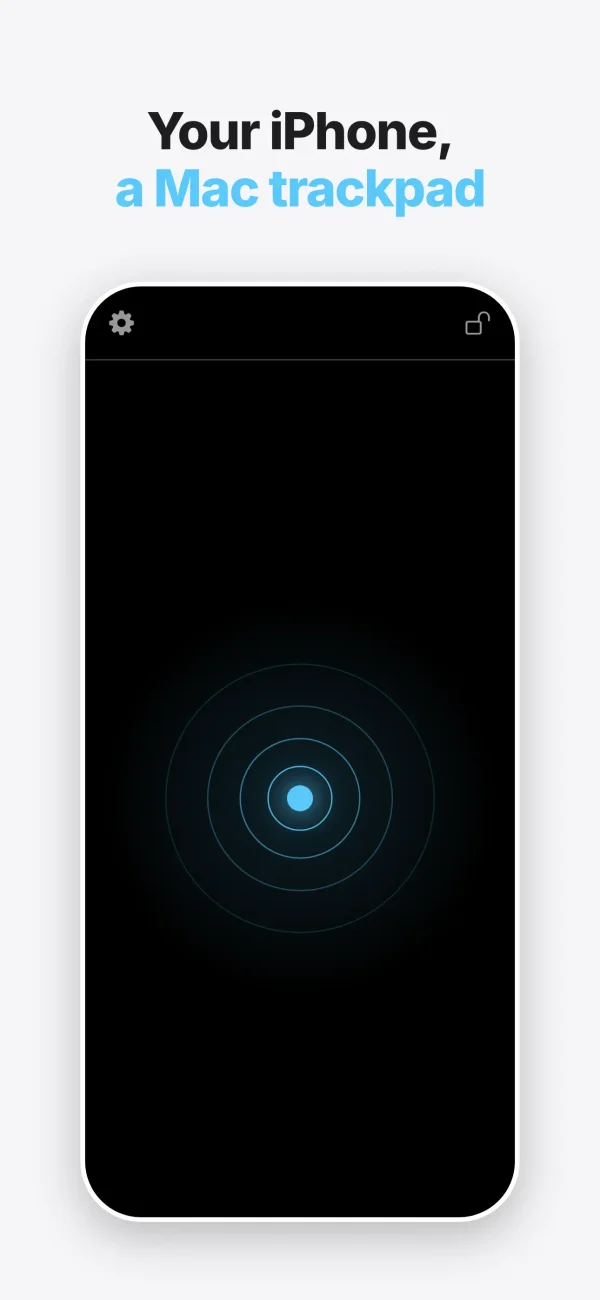
Swipad turns your iPhone into a wireless trackpad for your Mac.
It works with the free Swipad for Mac app, which you download from swipad.app.
【Highlights】
■ Low latency
A custom protocol sends cursor input to your Mac instantly. Use it over Wi-Fi, or plug in a cable for an even steadier connection.
■ Encrypted, direct connection
Input between your iPhone and Mac is encrypted with the Noise Protocol (ChaCha20-Poly1305, the same cipher WireGuard uses) and travels directly over your local network or a cable. No accounts, no telemetry.
■ MITM-resistant pairing
On first pairing, iPhone shows a 6-digit code that you type into the Mac. This prevents anyone else on your network from impersonating either device.
■ Taptic Engine haptics
Clicks feel like a real Mac trackpad — Taptic Engine reproduces the satisfying mechanical click sensation.
■ Native gestures
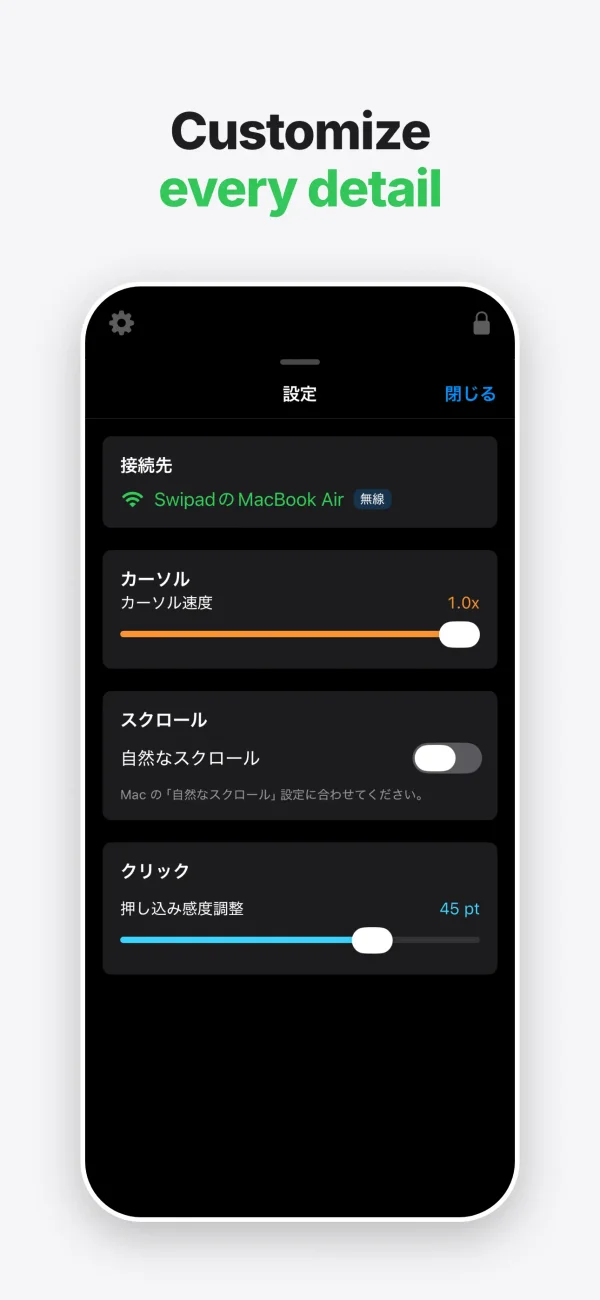
One finger to move the cursor, tap to click, two-finger scroll, two-finger tap to right-click, pinch to zoom (Pro). Uses gestures macOS already understands.
【Swipad Pro (in-app purchase)】
Cursor movement, clicking and two-finger scrolling are free.
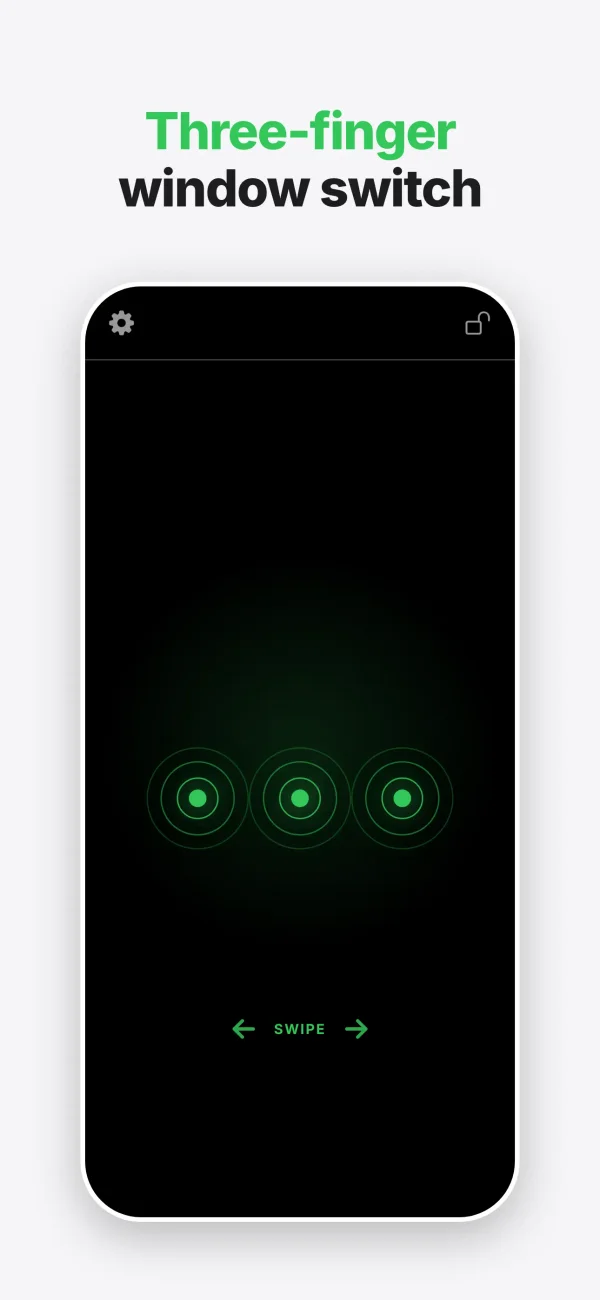
Three-finger swipes (Mission Control / App Exposé / switching Spaces) and pinch to zoom require Swipad Pro (one-time purchase, ¥1,000 in Japan).
- Try Pro free for 7 days ("7-day Trial", a free in-app purchase)
- You are never charged automatically when the trial ends — buy Swipad Pro only if you want to keep it
【Requirements】
- iPhone: iOS 16.0 or later
- Mac (receiver): macOS 13.0 (Ventura) or later
- Both devices on the same Wi-Fi (or the Mac connected to Personal Hotspot on your iPhone)
- Once paired, a Mac can also connect over a Lightning or USB-C cable (Swipad for Mac 1.0.3 or later)
- Pinch to zoom requires Swipad for Mac 1.0.4 or later
【Setup】
1. Install this app on your iPhone
2. Download the free Mac receiver app from swipad.app
3. Launch the Mac receiver and grant macOS Accessibility permission
4. The app finds your Mac on the same network automatically — type the 6-digit code shown on your iPhone into the Mac
5. Your iPhone is now a trackpad
【Privacy】
Swipad does not collect personal information. Traffic between your iPhone and Mac never goes through an external server. The Mac app asks GitHub for the latest release to tell you when an update is available. Full policy: https://swipad.app/privacy/
【Support】
Issues / feature requests: swipad.contact@gmail.com
What’s new
Version 1.3.1 · Oct 9, 2026
■ Easier first-time setup
- The setup steps now appear in English on iPhones set to English
- Try Pro (three-finger gestures and pinch to zoom) free for 7 days right from the setup screen
- If no Mac turns up for a while, the app tells you what to check
- The setup screen now mentions that a USB cable works too
App privacy
What Shota Ogino declares on the App Store about how this app handles data.
-
Data not collected
The developer does not collect any data from this app.
Privacy practices may vary, for example with the features you use or your age.
Information
- Seller
- Shota Ogino
- Category
- Productivity
- Version
- 1.3.1
- Updated
- Oct 9, 2026
- Released
- Oct 21, 2026
- Size
- 6.2 MB
- Requires
- iOS 16.0 or later
- Age rating
- 4+
- Price
- Free
- In-app purchases
- Yes
- Languages
- English, Japanese
- Copyright
- © 2026 Shota Ogino
You might also like
-
 Remote TrackpadControl PC with Your Phone
-
 ScanatEasy AI spatial precision
-
 DuoBook: Pocket MacTurn iPhone Duo into a Mac
-
 チョイリマProductivity
-
 TypeDrawYour new Notebook
-
 AntiSocial: Block Social MediaScreen time control to focus
-
 TimePod: Pomodoro Time TrackerWork & Study Logs and Reports
-
 Aitemasu mobileScheduling for Google Calendar
-
 Avica Remote DesktopRemote access from anywhere
-
 Reflect NotesNote-taking sprinkled with AI