Taskbar (Donate Version)
Braden Farmer- 3 歳以上対象年齢
- ツールカテゴリ
- 2024/10/2更新日
- ¥220価格
com.farmerbb.taskbar.paidのGoogle Play公式ページにリンクしています。最終確認:2026/11/14。
スクリーンショット
このアプリについて
Googleによる英語 (アメリカ合衆国)からの自動翻訳です。
PCスタイルのスタートメニューと最近のアプリランチャー。Android10デスクトップモードをサポートしています。
寄付バージョンにアップグレードして、タスクバーの開発をサポートしてください!寄付バージョンは無料バージョンと同じであり、あなたの好みは自動的に転送されます。よろしくお願いします!
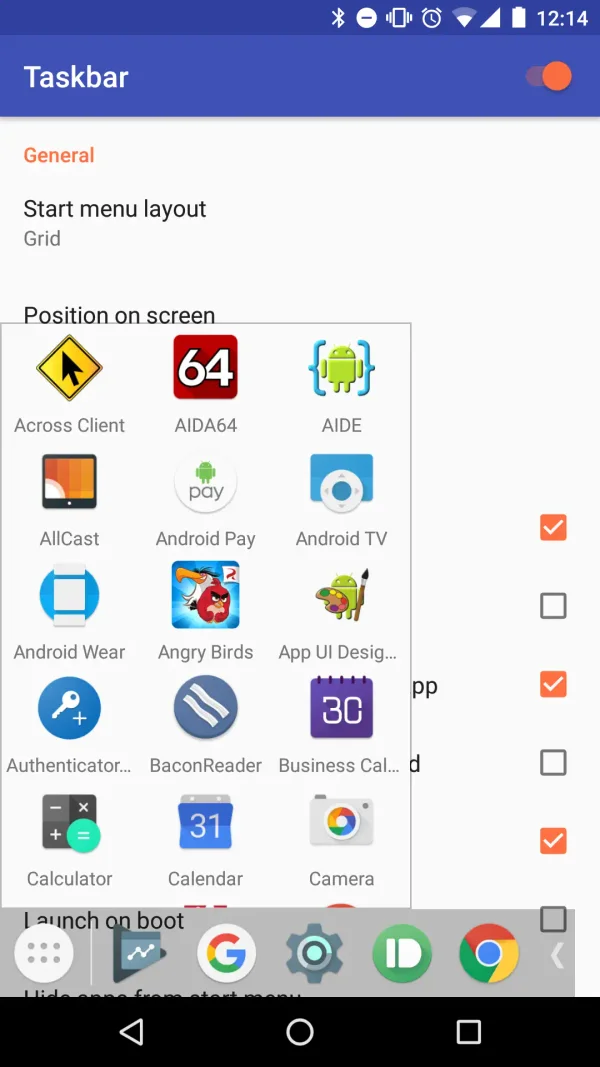
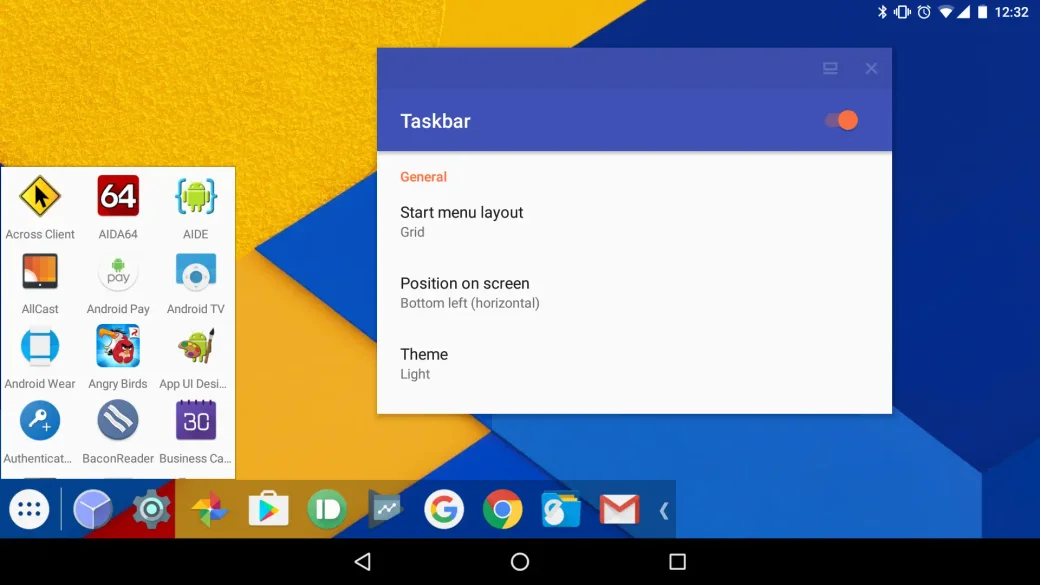
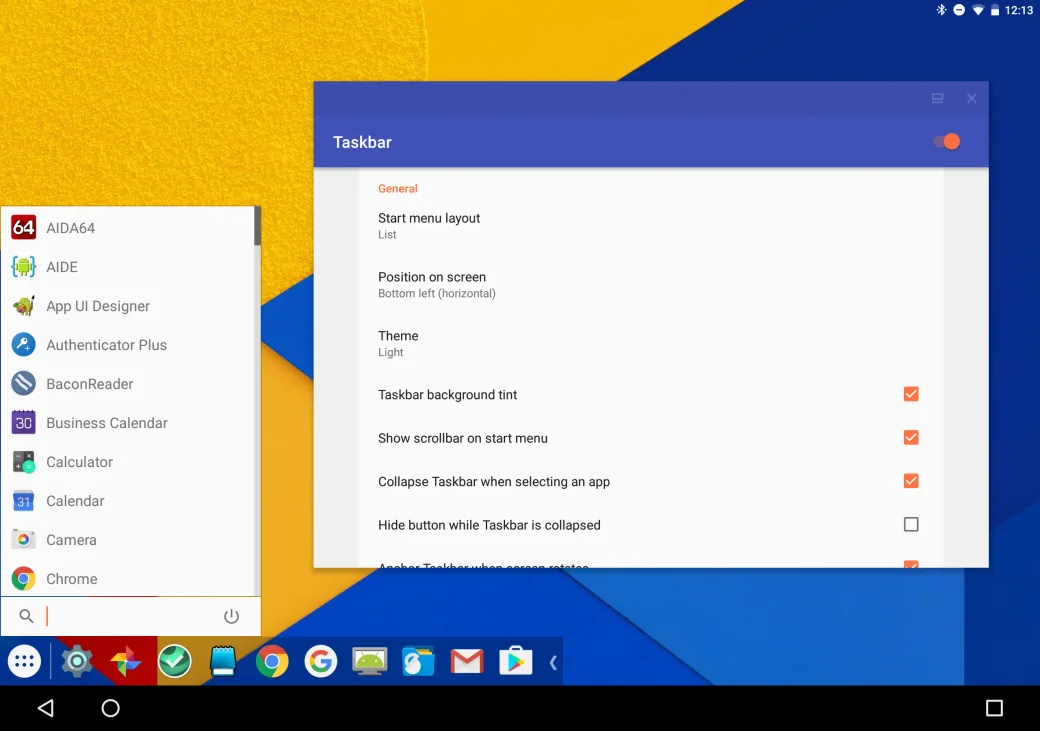
タスクバーは、いつでもアクセスできる画面の上部にスタートメニューと最近のアプリトレイを配置し、生産性を向上させ、Androidタブレット(または電話)を実際のマルチタスクマシンに変えます!
タスクバーはAndroid10のデスクトップモードをサポートしているため、互換性のあるデバイスを外部ディスプレイに接続し、サイズ変更可能なウィンドウでアプリを実行して、PCのようなエクスペリエンスを実現できます。 Android 7.0以降を実行しているデバイスでは、タスクバーは外部ディスプレイなしで自由形式のウィンドウでアプリを起動することもできます。ルートは必要ありません! (手順については以下を参照してください)
タスクバーはAndroidTV(サイドロード)とChrome OSでもサポートされています-タスクバーをChromebookのセカンダリAndroidアプリランチャーとして使用するか、Nvidia ShieldをAndroid搭載PCに変えてください!
機能:
&ブル;スタートメニュー-デバイスにインストールされているすべてのアプリケーションを表示し、リストまたはグリッドとして構成可能
&ブル;最近のアプリトレイ-最近使用したアプリが表示され、アプリを簡単に切り替えることができます
&ブル;折りたたみ可能で非表示-必要なときに表示し、不要なときに非表示にします
&ブル;多くの異なる構成オプション-タスクバーを好きなようにカスタマイズします
&ブル;お気に入りのアプリを固定するか、見たくないアプリをブロックします
&ブル;キーボードとマウスを念頭に置いて設計
&ブル; 100%無料、オープンソース、広告なし
デスクトップモード(Android 10以降、外部ディスプレイが必要)
タスクバーは、Android10の組み込みデスクトップモード機能をサポートしています。互換性のあるAndroid10 +デバイスを外部ディスプレイに接続し、サイズ変更可能なウィンドウでアプリを実行できます。タスクバーのインターフェースは外部ディスプレイで実行され、既存のランチャーは引き続き携帯電話で実行されます。
デスクトップモードには、USB-HDMIアダプター(またはラップドック)、およびビデオ出力をサポートする互換性のあるデバイスが必要です。さらに、特定の設定では、adbを介して特別な権限を付与する必要があります。
開始するには、タスクバーアプリを開き、[デスクトップモード]をクリックします。次に、チェックボックスをオンにするだけで、アプリがセットアッププロセスをガイドします。詳細については、画面の右上隅にある(?)アイコンをクリックしてください。
フリーフォームウィンドウモード(Android 7.0以降、外部ディスプレイは不要)
タスクバーを使用すると、Android7.0以降のデバイスのフリーフォームフローティングウィンドウでアプリを起動できます。ルートアクセスは必要ありませんが、Android 8.0、8.1、および9デバイスでは、初期セットアップ中にadbシェルコマンドを実行する必要があります。
次の手順に従って、フリーフォームモードでアプリを起動するようにデバイスを構成します。
1.タスクバーアプリ内の[フリーフォームウィンドウのサポート]チェックボックスをオンにします
2.ポップアップに表示される指示に従って、デバイスで適切な設定を有効にします(1回限りのセットアップ)
3.デバイスの最近のアプリのページに移動し、最近のアプリをすべてクリアします
4.タスクバーを起動し、アプリを選択してフリーフォームウィンドウで起動します
詳細と詳細な手順については、タスクバーアプリ内の[ヘルプとフリーフォームモードの手順]をクリックしてください。
アクセシビリティサービスの開示
タスクバーにはオプションのユーザー補助サービスが含まれており、戻る、ホーム、最近、電源などのシステムボタンを押すアクションを実行したり、通知トレイを表示したりするために有効にできます。
アクセシビリティサービスは、上記のアクションを実行するためにのみ使用され、他の目的には使用されません。タスクバーは、ユーザー補助サービスを使用してデータ収集を実行することはありません(実際、タスクバーは必要なインターネット許可を宣言していないため、いかなる容量でもインターネットにアクセスできません)。
原文を表示
Support the development of Taskbar by upgrading to the Donate Version! The Donate Version is identical to the free version and your preferences will automatically transfer over. Your support is greatly appreciated!
Taskbar puts a start menu and recent apps tray on top of your screen that's accessible at any time, increasing your productivity and turning your Android tablet (or phone) into a real multitasking machine!
Taskbar supports Android 10's Desktop Mode, allowing you to connect your compatible device to an external display and run apps in resizable windows, for a PC-like experience! On devices running Android 7.0+, Taskbar can also launch apps in freeform windows without an external display. No root required! (see below for instructions)
Taskbar is also supported on Android TV (sideloaded) and Chrome OS - use Taskbar as a secondary Android app launcher on your Chromebook, or turn your Nvidia Shield into an Android-powered PC!
Features:
• Start menu - shows you all applications installed on the device, configurable as a list or as a grid
• Recent apps tray - shows your most recently used apps and lets you easily switch between them
• Collapsible and hideable - show it when you need it, hide it when you don't
• Many different configuration options - customize Taskbar however you want
• Pin favorite apps or block the ones you don't want to see
• Designed with keyboard and mouse in mind
• 100% free, open source, and no ads
Desktop mode (Android 10+, requires external display)
Taskbar supports Android 10's built-in desktop mode functionality. You can connect your compatible Android 10+ device to an external display and run apps in resizable windows, with Taskbar's interface running on your external display and your existing launcher still running on your phone.
Desktop mode requires a USB-to-HDMI adapter (or a lapdock), and a compatible device that supports video output. Additionally, certain settings require granting a special permission via adb.
To get started, open up the Taskbar app and click "Desktop mode". Then, just tick the checkbox and the app will guide you through the setup process. For more information, click the (?) icon in the upper-right hand corner of the screen.
Freeform window mode (Android 7.0+, no external display required)
Taskbar lets you launch apps in freeform floating windows on Android 7.0+ devices. No root access is required, although Android 8.0, 8.1, and 9 devices require an adb shell command to be run during initial setup.
Simply follow these steps to configure your device for launching apps in freeform mode:
1. Check the box for "Freeform window support" inside the Taskbar app
2. Follow the directions that appear in the pop-up to enable the proper settings on your device (one-time setup)
3. Go to your device's recent apps page and clear all recent apps
4. Start Taskbar, then select an app to launch it in a freeform window
For more information and detailed instructions, click "Help & instructions for freeform mode" inside the Taskbar app.
Accessibility service disclosure
Taskbar includes an optional accessibility service, which can be enabled in order to perform system button press actions such as back, home, recents, and power, as well as displaying the notification tray.
The accessibility service is used only to perform the above actions, and for no other purpose. Taskbar does not use accessibility services to perform any data collection whatsoever (in fact, Taskbar cannot access the Internet in any capacity as it does not declare the required Internet permission).
データ セーフティ
このアプリが収集・共有するデータについて、Braden FarmerがGoogle Playで申告している内容です。
- 第三者と共有されるデータはありません詳しくは、デベロッパーが共有を申告する方法についての説明をご覧ください
- データは収集されません詳しくは、デベロッパーが収集を申告する方法についての説明をご覧ください
新機能
バージョン 6.2.2 · 2024/10/2
New in 6.2.2:
• Fix crash occurring when favorite app tiles are selected
New in 6.2.1:
• Maintenance release targeting the latest versions of Android
• Various bug fixes and crash fixes
• Updated German translation
開発元の連絡先
- ウェブサイトgithub.com
- メールfarmerbb+taskbardonate@gmail.com
- プライバシーポリシーgithub.com
- 住所2036 N Elderberry Dr Saratoga Springs, UT 84045-3874 United States
情報
- 提供元
- Braden Farmer
- カテゴリ
- ツール
- バージョン
- 6.2.2
- 更新日
- 2024/10/2
- リリース
- 2016/9/18
- 必要条件
- Android 5.0以降
- 対象年齢
- 3 歳以上
- 価格
- ¥220
- パッケージ名
- com.farmerbb.taskbar.paid