Digital Clock Widget
MaizeContains ads
- EveryoneAge rating
- ToolsCategory
- Nov 22, 2026Updated
- FreePrice
Links to the official Google Play listing of com.maize.digitalClock. Last checked on Nov 23, 2026.
Screenshots
About this app
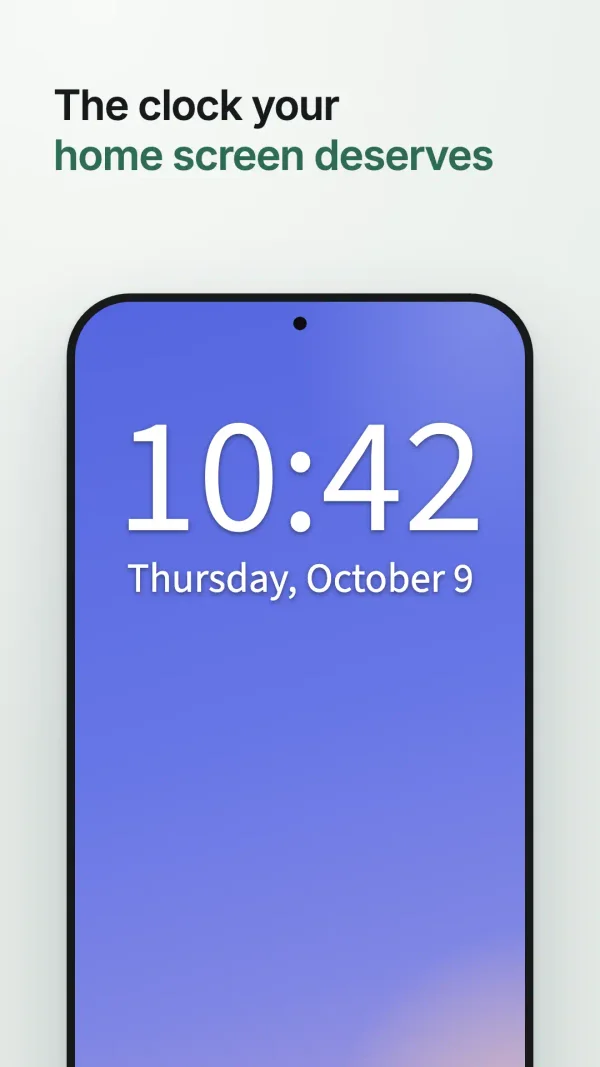
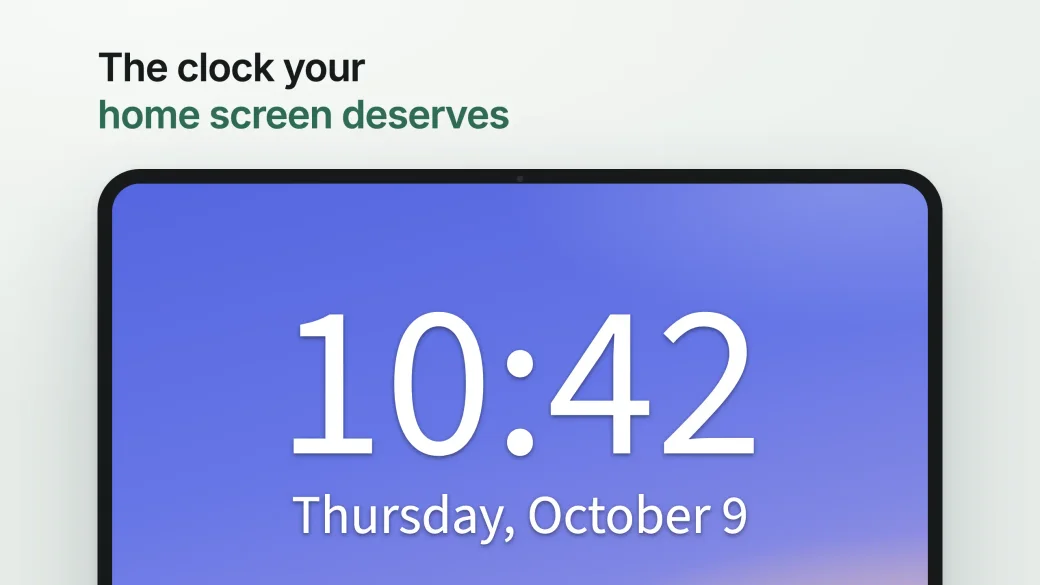
Time and date on your Android home screen. Select fonts and adjust text size.
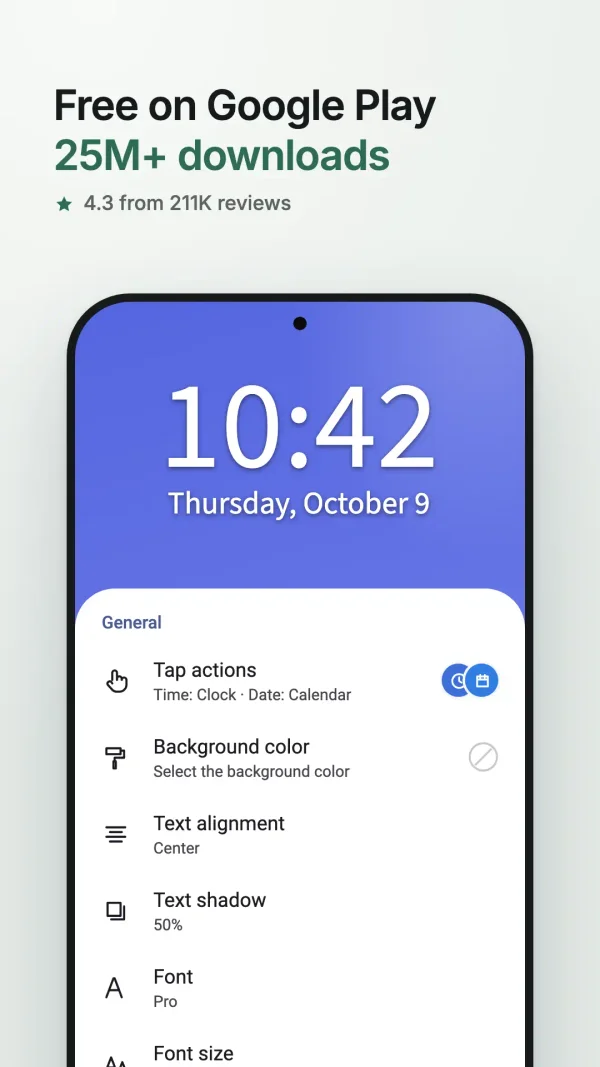
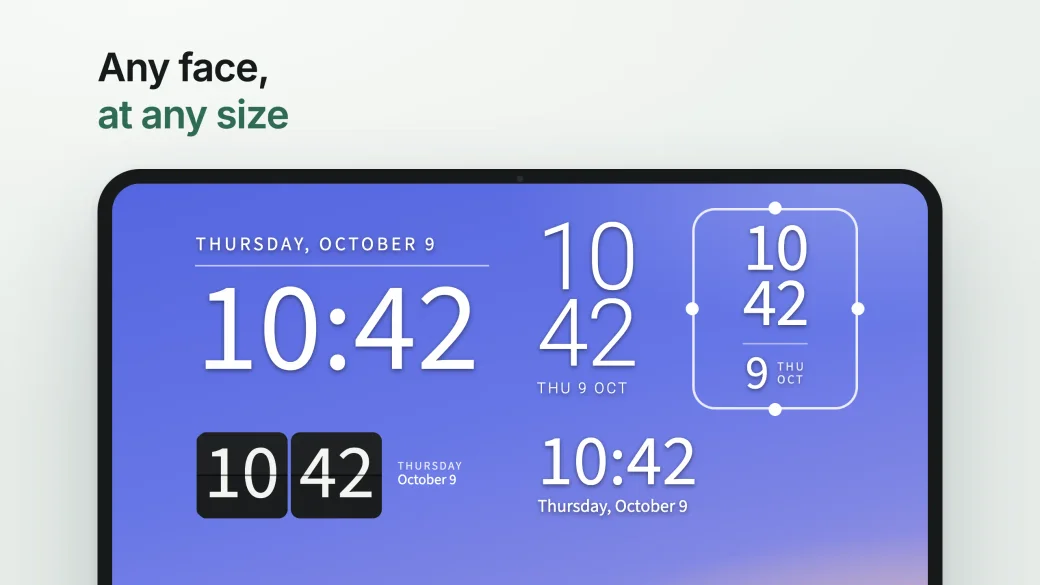
Digital Clock Widget puts the time and date on your Android home screen. Select a clock face, choose your fonts, and adjust the size and style to fit the way you use your phone.
Make the clock easy to read
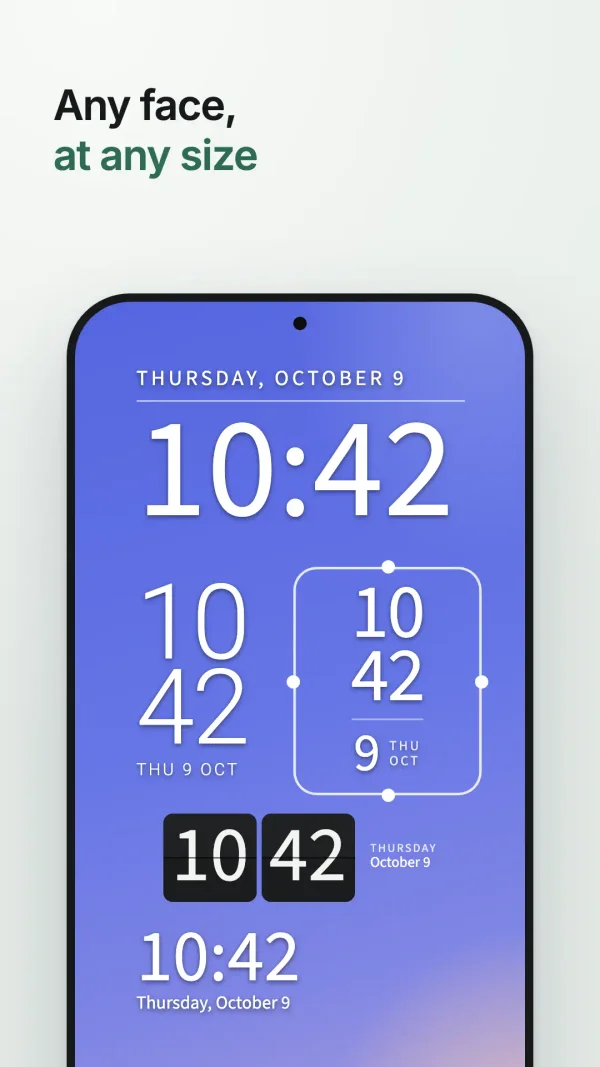
• Choose a digital clock face with large numbers, a compact display, or a stacked layout.
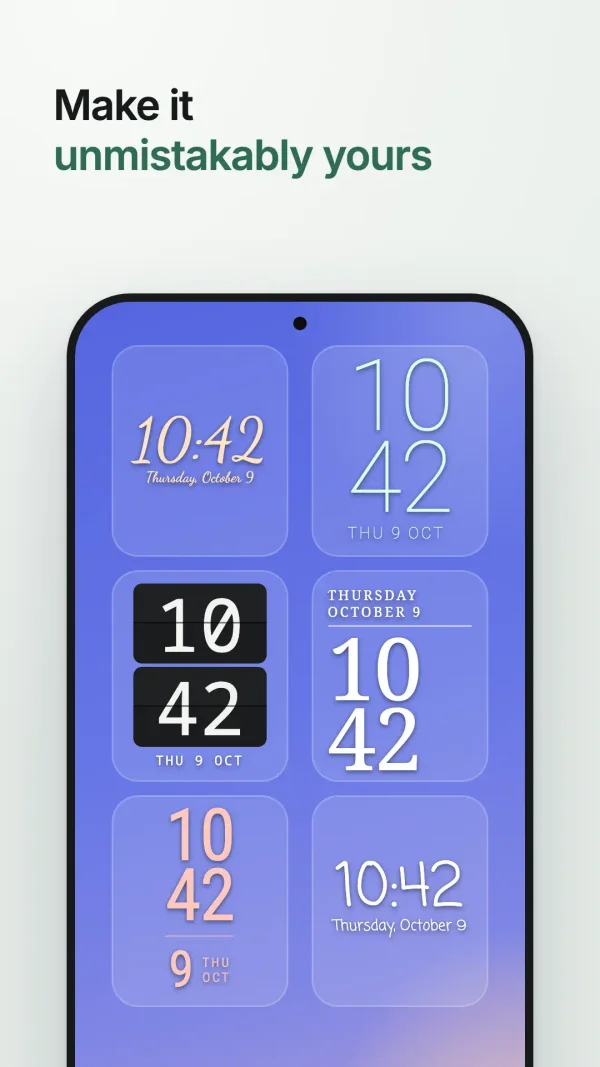
• Select fonts for the time and date, adjust text size, and align the display with your other home screen widgets.
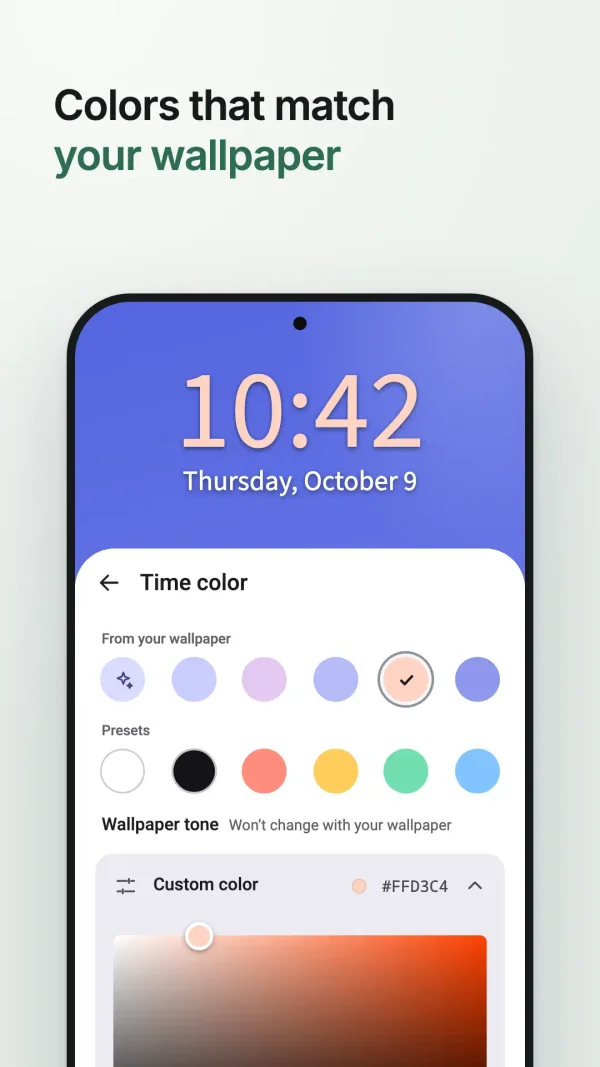
• Pick colors for the time, date, and background. Use a transparent background to keep your wallpaper visible, or choose a solid color for contrast.
• Preview changes while you customize the widget so you can see how the clock will look before you return to your home screen.
Choose what your clock shows
• Display the time in 12-hour or 24-hour format and choose a date format that suits you.
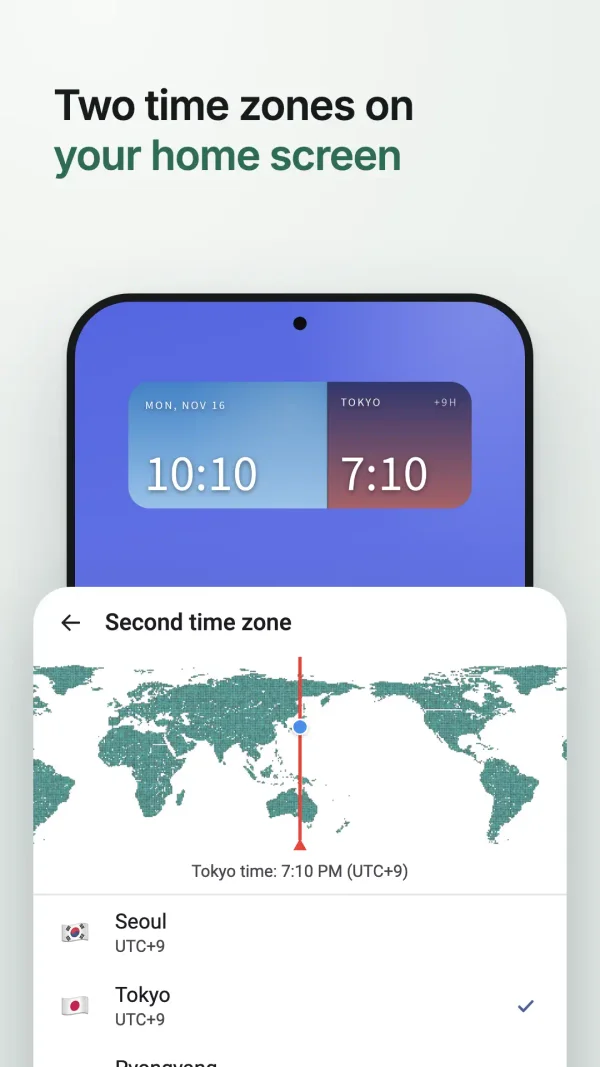
• Follow your phone’s local time or select a different time zone for a widget. Add a separate clock for a city where family, friends, or teammates live.
• Show the next alarm or calendar event on supported clock faces. These options let you check what’s coming up from your home screen.
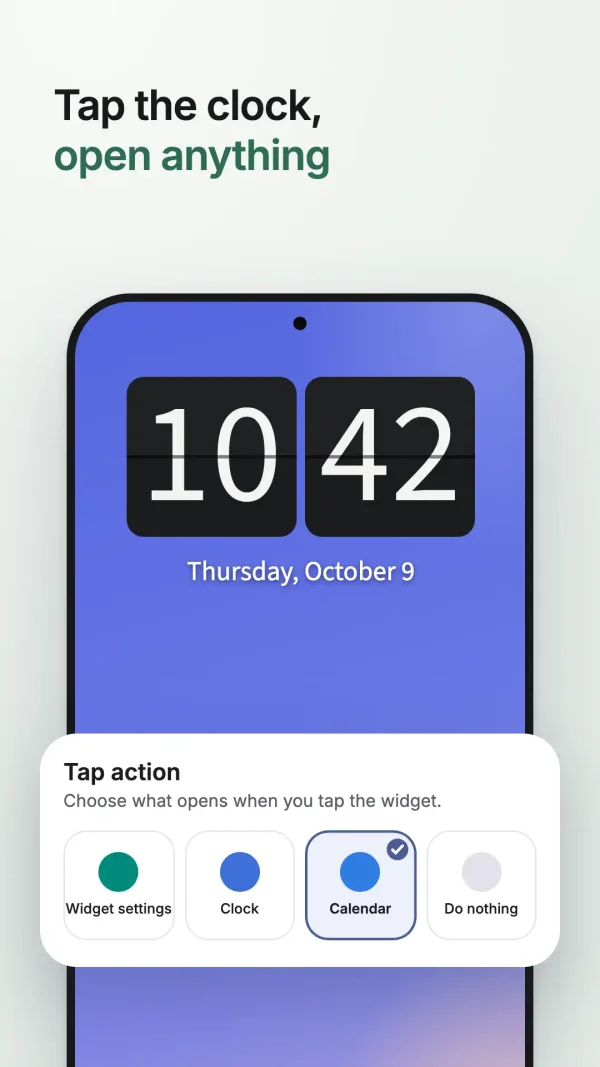
• Select a tap action so you can open a clock, calendar, or other app from the widget.
Add an alternate calendar date
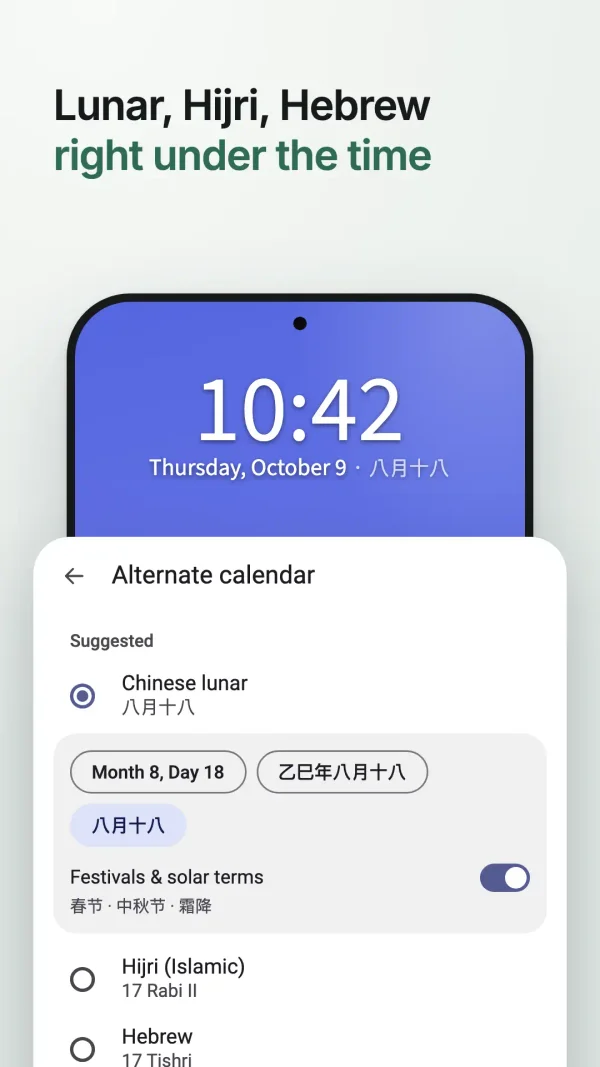
• Show a second calendar date alongside your usual date on the widget.
• Choose Chinese, Korean, or Vietnamese lunar calendars; Hijri (Islamic), Hebrew, Persian, Hindu (Vikram Samvat), Indian national (Saka), Ethiopian, Coptic, Thai Buddhist, Japanese era, or Minguo (Taiwan).
• Show festivals, special days, or solar terms for supported calendars. For Hijri dates, adjust the date by up to two days to match your community.
Add and resize your widget
1. Touch and hold an empty space on your Android home screen and open the Widgets menu.
2. Find Digital Clock Widget, then add a clock face to your home screen.
3. Open the settings to choose the time format, date, fonts, colors, and background.
4. Touch and hold the widget again to resize it. Use a larger size for big numbers or keep it compact to leave space for app shortcuts.
Make room for the information you check most. Pair a large clock with a simple date display, use a smaller clock next to your most-used apps, or add a second clock with a different time zone on another screen. The same settings let you adjust each widget to suit its space.
For help adding or resizing a widget on Samsung Galaxy and Google Pixel, visit hhmm.app/support.
Data safety
What Maize declares on Google Play about the data this app collects and shares.
- No data shared with third partiesLearn more about how developers declare sharing
- No data collectedLearn more about how developers declare collection
- Data is encrypted in transit
What’s new
Version 6.6.1 · Nov 22, 2026
- Add missing Russian translations
- New support center page for users to find solutions for widget issues
- Fix Picasso clock face alignment
Developer contact
- Websitehhmm.app
- Emailapps@ezi.am
- Privacy policyezi.am
- Address161 N 4TH St APT 4A Brooklyn, NY 11211-3280 United States
Information
- Offered by
- Maize
- Category
- Tools
- Version
- 6.6.1
- Updated
- Nov 22, 2026
- Requires
- Android 7.0 or later
- Age rating
- Everyone
- Price
- Free
- Package name
- com.maize.digitalClock
Similar apps
-
 Wallpapers 4K
Personalization
-
 Live Wallpapers, 4K Wallpapers
Personalization
-
 Weather Forecast
Weather
-
 Flip Clock: World Clock
Productivity
-
 Square Home Launcher - Tile UI
Personalization
-
 Clock Phone 16, Alarm & Timer
Tools
-
 Calendar Widget: Month/Agenda
Productivity
-
 MyICON - Icon Changer, Themes
Personalization
-
 True Edge: Edge Lighting & AOD
Personalization
-
 Weather Wallpaper : VR & Radar
Weather
-
 Pix Wallpapers
Personalization
-
 Sunrise and Sunset Times
Tools