Tempus Red Android Watch Face
Rousseau Design Ltd- PEGI 3Classification d’âge
- PersonnalisationCatégorie
- 27/03/2026Mis à jour
- 5,49 €Prix
Renvoie vers la fiche Google Play officielle de com.benrousseau.tempus_red. Dernière vérification le 13/11/2026.
À propos de cette application
Traduction automatique par Google. Langue d’origine : Anglais (États-Unis).
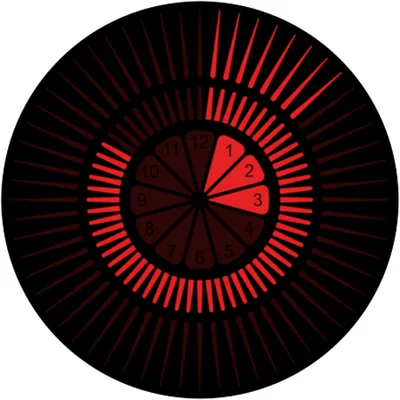
Illustration de la montre intelligente Tempus Red par l'artiste lumière et designer Ben Rousseau
Notre « cadran de montre Android Tempus Red » est désormais compatible avec Wear OS de Google, vous offrant un cadran de montre élégant et fonctionnel pour votre montre intelligente. Profitez d'une expérience transparente sur votre appareil Wear OS avec Tempus Watch.
Un motif lumineux unique pour montre Tempus du designer Ben Rousseau. Une illustration de montre intelligente qui représente l'heure sur 12 heures en temps réel en utilisant un motif de lumière en constante construction sur 3 arrangements uniformes avec 12 pour les heures au centre, 60 pour les minutes dans l'anneau central et 60 pour les secondes sur l'anneau extérieur.
Le temps repensé.
Téléchargez maintenant et vivez le temps sous un nouveau jour.
Protégé par l'enregistrement international du dessin n° DM/222085 Copyright Rousseau Design LTD. Membre d'Acid - Anti Copying In Design.
À propos : Ben Rousseau est un artiste et designer d'éclairage qui se concentre sur la création de belles créations expérientielles qui apportent de la lumière et de l'énergie positive dans la vie et l'environnement des gens.
www.benrousseau.com
www.tempustime.com
Lien vidéo expliquant comment télécharger et installer le cadran Tempus Watch sur votre montre intelligente :
https://youtu.be/O0SVGG0xw8Y?si=30M-HBwpqk9Jhv6L
Guide étape par étape pour installer le cadran de la montre Tempus
Téléchargez et ouvrez l'application Tempus Companion
Téléphone : téléchargez l'application Tempus Companion depuis le Play Store.
Montre : assurez-vous que votre montre intelligente est connectée à votre téléphone et dispose d'une connexion Internet.
Activer Bluetooth sur les deux appareils
Téléphone : assurez-vous que le Bluetooth est activé. L'application vous demandera de l'activer si elle n'est pas déjà activée. Accordez à l'application toutes les autorisations requises.
Montre : assurez-vous que le Bluetooth est activé et que votre montre intelligente est détectable.
Connectez votre montre intelligente à l'application
Téléphone : ouvrez l'application Tempus Companion. Vous verrez un bouton : « Connecter ».
Téléphone : appuyez sur le bouton « Connecter ». L'application recherchera les appareils Bluetooth à proximité.
Téléphone : sélectionnez votre montre intelligente dans la liste des appareils disponibles. Attendez que la connexion soit établie. Une fois connecté, un bouton « Installer » deviendra visible.
Lancer l'installation du cadran de la montre
Téléphone : appuyez sur le bouton « Installer ». Cela ouvrira la page Play Store du cadran Tempus sur votre montre intelligente.
Regarder : sur votre montre intelligente, vous verrez la page Play Store du cadran de la montre Tempus.
Achetez et téléchargez le cadran de la montre
Montre : cliquez sur le bouton de prix pour acheter le cadran de la montre.
Regarder : suivez les instructions pour finaliser votre achat. Vous devrez peut-être confirmer l'achat sur votre téléphone en suivant les instructions fournies (par exemple, ouvrez la notification du Google Play Store ou visitez g.co/continue sur votre téléphone ou votre navigateur).
Montre : Une fois l’achat terminé, le téléchargement du cadran de la montre commencera. Attendez la fin du téléchargement.
Appliquer le cadran de la montre
Téléphone : ouvrez l'application Galaxy Wearable (téléchargez-la depuis le Play Store si elle n'est pas disponible) et accédez à « Cadrans de montre ».
Téléphone : faites défiler jusqu'à « Cadrans de montre téléchargés » et sélectionnez le cadran de montre Tempus que vous venez d'acheter.
Téléphone : une barre de progression apparaîtra, indiquant que le cadran de la montre est appliqué à votre montre intelligente. Attendez la fin du processus.
Montre : le cadran de la montre Tempus sera désormais visible et appliqué sur votre montre intelligente.
Des conseils de dépannage
Problèmes de connexion : assurez-vous que votre téléphone et votre montre intelligente sont dotés du Bluetooth et qu'ils se trouvent à proximité.
Problèmes de paiement : suivez attentivement les instructions pour finaliser l'achat. Assurez-vous que vous êtes connecté au bon compte Google.
Cadran de montre non visible : si le cadran de la montre n'apparaît pas immédiatement, essayez de redémarrer votre montre intelligente et de vérifier dans l'application Galaxy Wearable le cadran de la montre téléchargé.
Afficher le texte d’origine
Our "Tempus Red Android watch face" is now compatible with Wear OS by Google, bringing you a stylish and functional watch face for your smartwatch. Enjoy a seamless experience on your Wear OS device with Tempus Watch.'
A unique Tempus timepiece light pattern by designer Ben Rousseau. A smart watch artwork that represents the time over 12 hours in real time using a constantly building pattern of light over 3 uniform arrangements with 12 for hours in centre, 60 for minutes in middle ring and 60 for seconds on outer ring.
Time redesigned.
Download now and experience time in a new light.
Protected by international design registration No. DM/222085 Copyright Rousseau Design LTD. Member of Acid - Anti Copying In Design.
About: Ben Rousseau is a lighting artist and designer focused on creating beautiful experiential creations that bring light and positive energy into people’s lives and environments.
www.benrousseau.com
www.tempustime.com
Video link on how to download and install Tempus Watch face on your smartwatch:
https://youtu.be/O0SVGG0xw8Y?si=30M-HBwpqk9Jhv6L
Step-by-Step Guide to Install the Tempus Watch Face
Download and Open the Tempus Companion App
Phone: Download the Tempus Companion App from the Play Store.
Watch: Ensure your smartwatch is connected to your phone and has an internet connection.
Enable Bluetooth on Both Devices
Phone: Make sure Bluetooth is turned on. The app will prompt you to turn it on if it's not already enabled. Grant the app all required permissions.
Watch: Ensure Bluetooth is enabled and your smartwatch is discoverable.
Connect Your Smartwatch to the App
Phone: Open the Tempus Companion App. You will see a button: 'Connect'.
Phone: Tap on the 'Connect' button. The app will search for nearby Bluetooth devices.
Phone: Select your smartwatch from the list of available devices. Wait for the connection to be established. Once connected, a 'Install' button will become visible.
Initiate the Installation of the Watch Face
Phone: Tap on the 'Install' button. This will open the Play Store page for the Tempus watch face on your smartwatch.
Watch: On your smartwatch, you will see the Tempus watch face Play Store page.
Purchase and Download the Watch Face
Watch: Click on the price button to purchase the watch face.
Watch: Follow the prompts to complete your purchase. You may need to confirm the purchase on your phone by following the instructions provided (e.g., open the notification from Google Play Store or visit g.co/continue on your phone or browser).
Watch: Once the purchase is complete, the watch face will begin downloading. Wait for the download to finish.
Apply the Watch Face
Phone: Open the Galaxy Wearable app (download from the Play Store if not available) and navigate to 'Watch faces'.
Phone: Scroll down to 'Downloaded watch faces' and select the Tempus watch face you just purchased.
Phone: A progress bar will appear, indicating that the watch face is being applied to your smartwatch. Wait for the process to complete.
Watch: The Tempus watch face will now be visible and applied on your smartwatch.
Troubleshooting Tips
Connection Issues: Ensure both your phone and smartwatch have Bluetooth enabled and are in close proximity.
Payment Issues: Follow the instructions carefully for completing the purchase. Ensure you are logged into the correct Google account.
Watch Face Not Visible: If the watch face does not appear immediately, try restarting your smartwatch and checking the Galaxy Wearable app for the downloaded watch face.
Sécurité des données
Ce que Rousseau Design Ltd déclare sur Google Play au sujet des données que cette application collecte et partage.
- Aucune donnée partagée avec des tiersEn savoir plus sur la manière dont les développeurs déclarent le partage
- Aucune donnée collectéeEn savoir plus sur la manière dont les développeurs déclarent la collecte
Coordonnées du développeur
- Site webbenrousseau.com
- E-mailstudio@benrousseau.com
- Politique de confidentialitéfreeprivacypolicy.com
- AdressePlus X Innovation Hub Lewes Road BRIGHTON BN2 4GL United Kingdom
Informations
- Proposée par
- Rousseau Design Ltd
- Catégorie
- Personnalisation
- Mis à jour
- 27/03/2026
- Publié
- 23/10/2023
- Classification d’âge
- PEGI 3
- Prix
- 5,49 €
- Nom du package
- com.benrousseau.tempus_red