- Age rating4+
- CategoryUtilities
- DeveloperArtem Tverdohleb
- LanguagesEnglish
- Size123.4 MB
Links to the official App Store page
Download.org hosts no file of MillClock. The button opens its official App Store page, published by Artem Tverdohleb. Listing last checked on Nov 15, 2026.
Screenshots


About
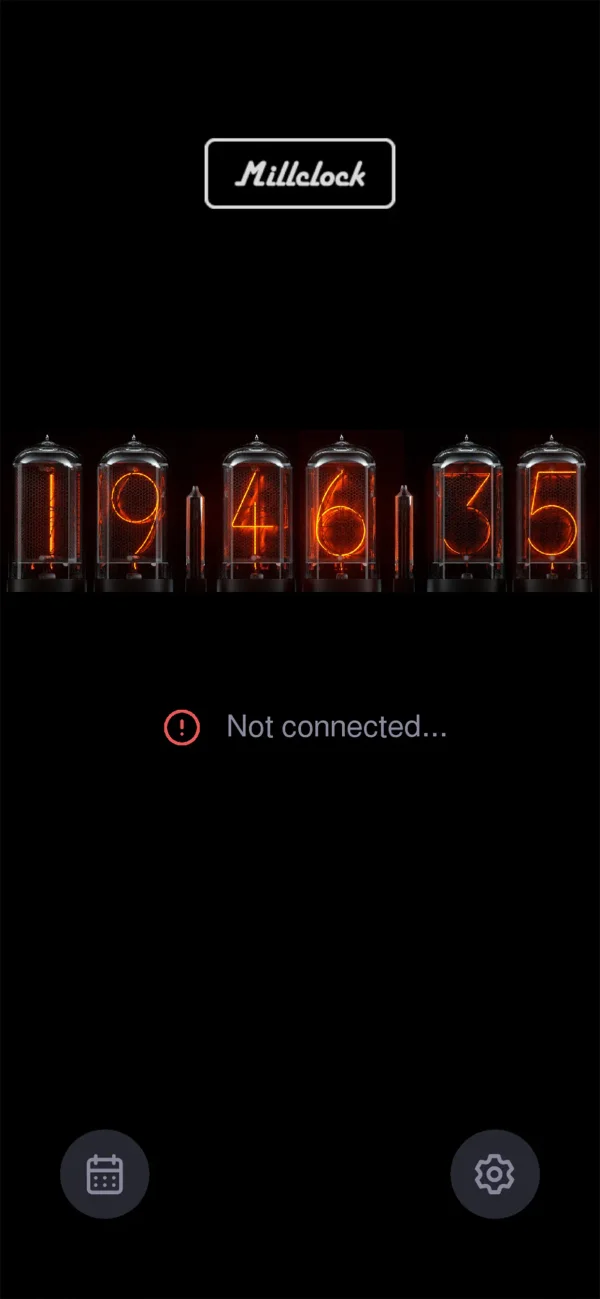
Set the vast array of your clock’s functions via phone
Set these functions and make the owner of a historical clock and a cutting edge functional decor for home and office.
Synchronize time of your Nixie clock with the 4 time reference websites or
Synchronize time of your Nixie clock with the time on your phone
Correct time accuracy manually
Alarm clock
Date auto display
Signal every hour. You can hear the strikes of every hour, shut them down at night, and set their duration.
Smooth/Abrupt transition of digits – beautiful effects of time and date display.
Blinks of Separation colons
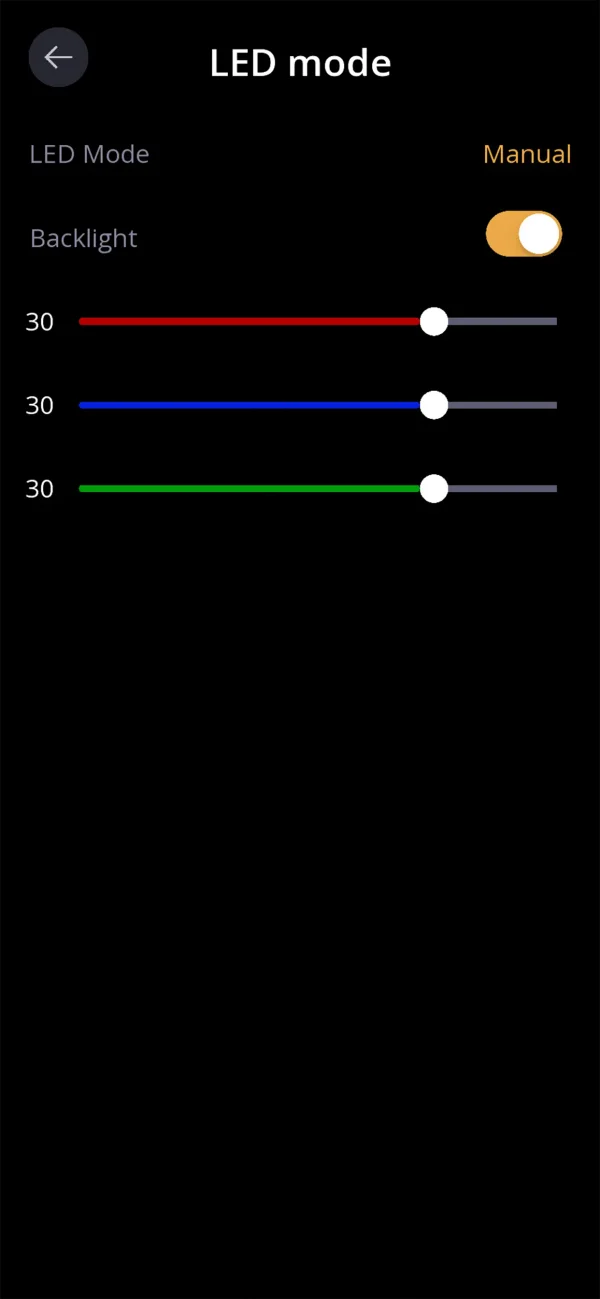
Turn on/off Backlight
Slider for Backlight LED colours
Auto switch to summer/winter time
12/24 hour format
How to set the exact time on your Nixie clock via phone
The main reason why Nixie clock owners connect their clocks to the Internet is to synchronize with the time reference websites. Or they synchronize the clock’s time with their phone’s time. The procedure is quite standard and simple.
1. Enter Wi-Fi mode on the clock.
Push the right button (underlighting) on your Nixie clock and hold it for at least 4 seconds. Or you can push the grid key (#) on your Nixie clock Remote control.
2. Connect to Wi-Fi.
When the LEDs go off download this application, enter the Wi-Fi point of access SSID and password in the application window.
3. Connect your phone to your Nixie clock.
Enter the clock’s SSID and password. By default, the device name is "Millclock_V6" the password is "ML123456". Then, press the “Connect” button. If the connection is successful, the testing LED on the PCB will light steadily. Your Nixie clock receives exact time signals from the 4 websites that are filled in by default. The exact time will appear on your clock.
4. Or synchronize your Nixie clock with your phone’s time.
After the Wi-Fi connection is established, press the “Sync time with phone” button in the application window. Your phone’s time will appear on your clock.
What’s new?
Setting your nixie clock via this version of application is very transparent and simple. It covers all main and superfluous tray of advanced settings. In case, you need help you are welcome to refer to our professional on-line support service.
What’s new
Version 1.1.16 · May 24, 2025
Fix small bugs
App privacy
What Artem Tverdohleb declares on the App Store about how this app handles data.
-
Data not collected
The developer does not collect any data from this app.
Privacy practices may vary, for example with the features you use or your age.
Information
- Seller
- Artem Tverdohleb
- Category
- Utilities
- Version
- 1.1.16
- Updated
- May 24, 2025
- Released
- Jan 31, 2019
- Size
- 123.4 MB
- Requires
- iOS 14.0 or later
- Age rating
- 4+
- Price
- Free
- Languages
- English
- Copyright
- © Artem Tverdohleb
You might also like
-
 NixiTubeClockVintage Glow Digital Clock
-
 Custom Digital ClockCustomizable digital clock
-
 Flip Clock 3D : Study TimeA nice clock
-
 Hacker Clock - Green MatrixA clock for hackers and geeks
-
 Atomic Clock: Exact TimeExact time with atomic clocks
-
 IPSTubeShow your style
-
 Desktop Flip ClockAlarm Clock,Timer, World Clock
-
 Alarm Clock - Wake Up Easily!Utilities
-
 Clock SecondsLargest Clock with seconds
-
 Big Red ClockTime Made for Humans