Compass
Gamma Play広告を含む
- 3 歳以上対象年齢
- ツールカテゴリ
- 2025/8/21更新日
- 無料価格
com.gamma.compassのGoogle Play公式ページにリンクしています。最終確認:2026/11/20。
スクリーンショット
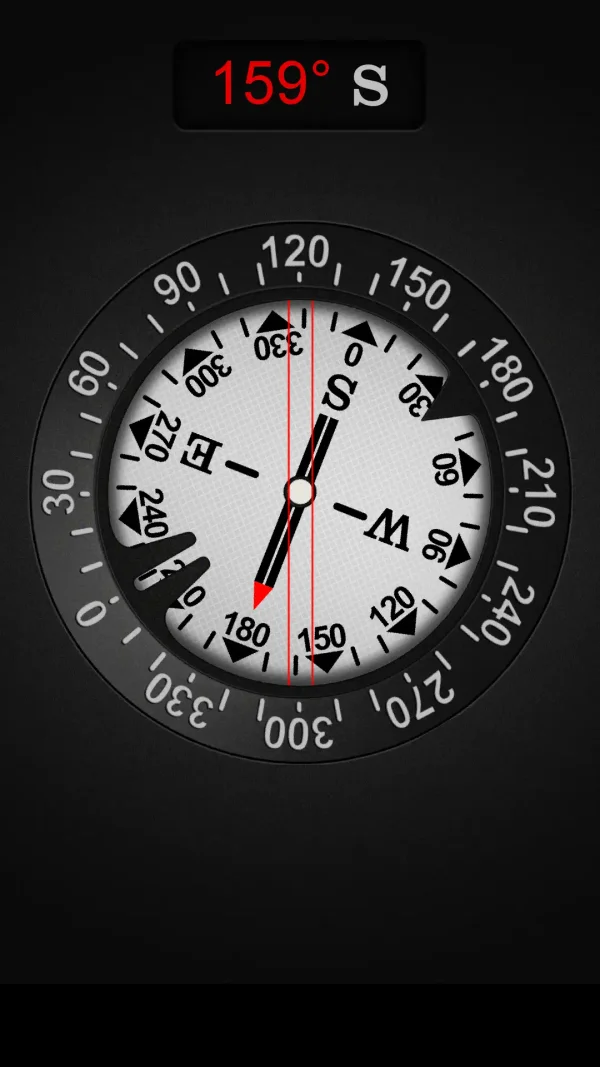
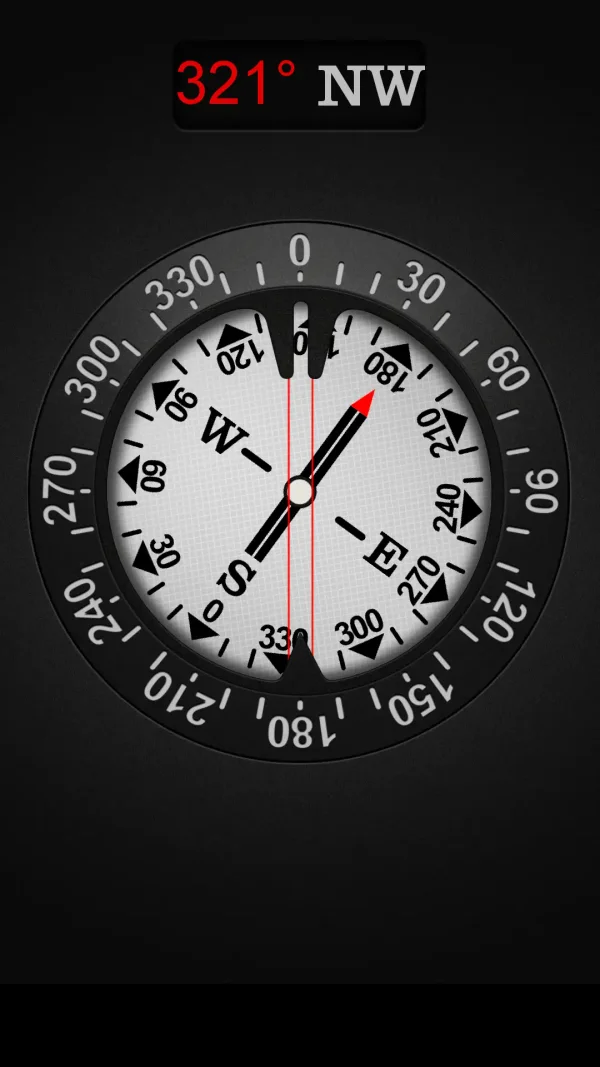
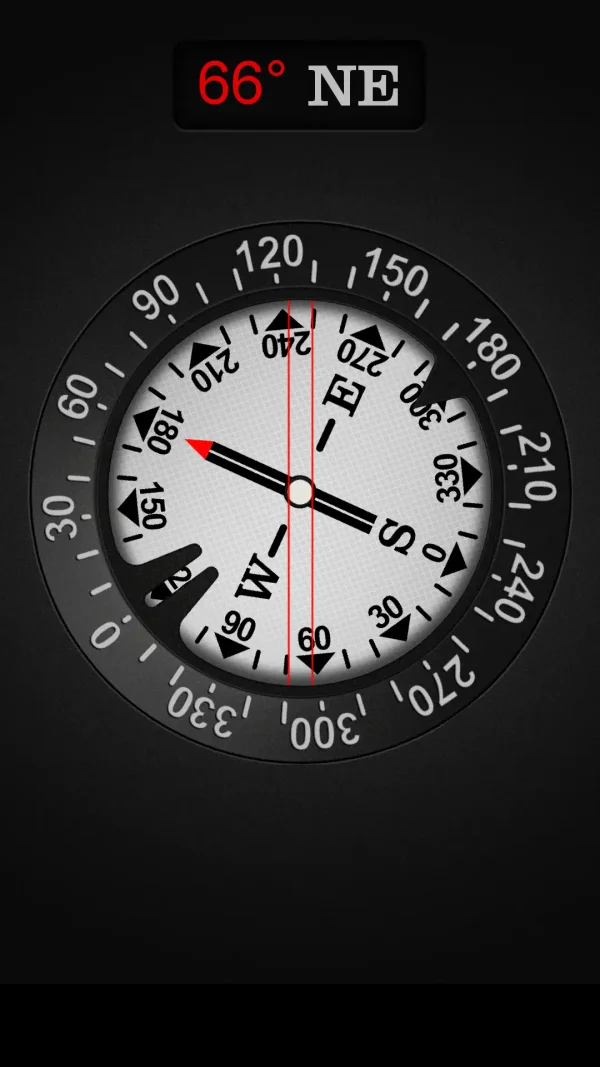
このアプリについて
Googleによる英語 (アメリカ合衆国)からの自動翻訳です。
、精密正確&不可欠。あなたがそれを必要とするとき、あなたはそれをどこにする必要があります。今すぐ入手!
コンパスはないがほとんどすべてのAndroidがインストールされている必要があり、最も重要なアプリの一つです。コンパスは、Google Playで最も正確なコンパスアプリです。コンパスアプリがあなたのポケットにコンパスです。あなたが迷子時に未知の領域に移動したりするために、キャンプ旅行でそれを使用してください。それは便利かもしれないときにあなたが知っていることはありません。それも、1日あなたの人生を救うかもしれません!
コンパスを使用するのは簡単です。本物のコンパスのようにそれを使用しています。コンパスアプリはちょうど示す度、北、南、東と西を超えています。私は、ユーザーの心の経験、大量かつ読みやすいデザインとコンパスを設計しました。コンパスはまた、あなたがより簡単に、プロのナビゲーションのためのベゼルを回転させることによって、あなたの方向を設定することができます。
使い方?
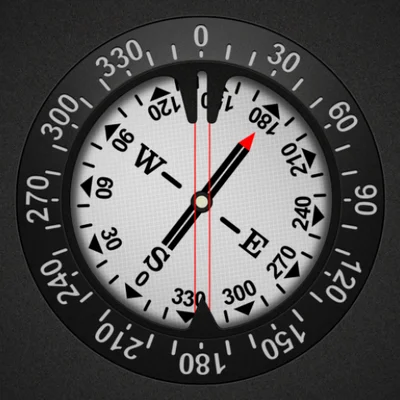
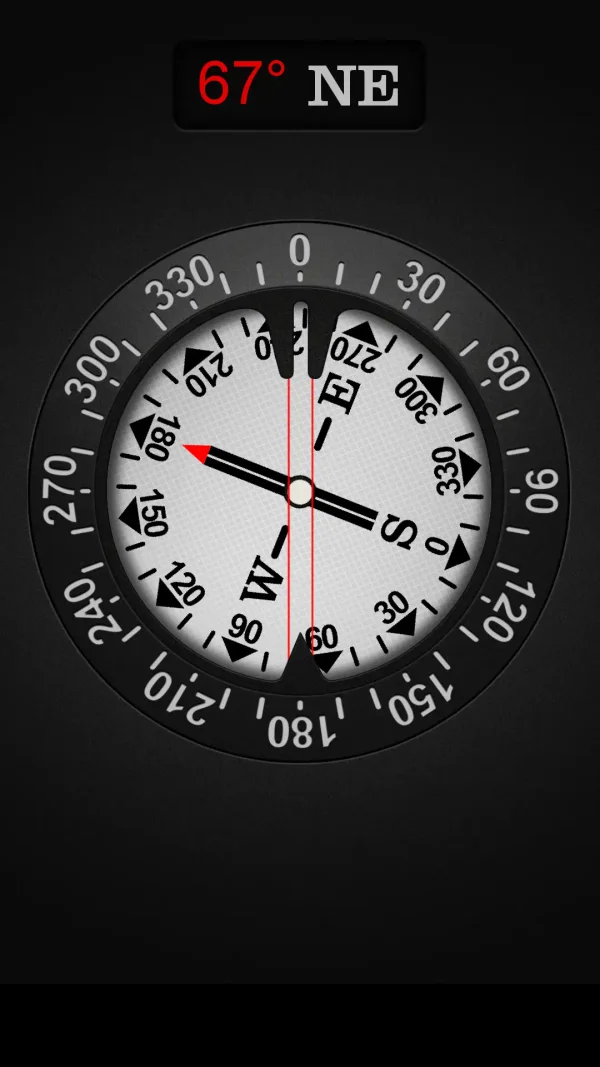
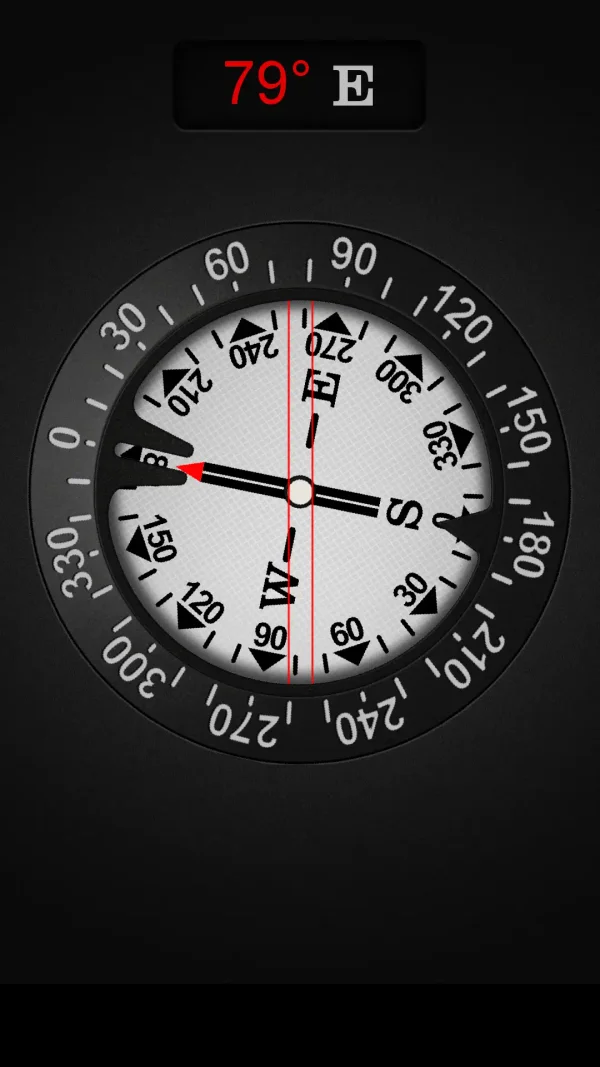
まず、第一コンパス専門用語の少しをカバーする必要があります。移動し、常に北を指すコンパスの一部がカードと呼ばれている(N、Sと、E、Wは示され、その上に一連の数字で面取りエッジ)。ベゼルと呼ばれるコンパスの縁、周りの可動リングがあります。コンパスの上部に赤の二重線は、不器用なラインと呼ばれ、最終的には、多くの場合、(それは本当のコンパスの側にあるように)、サイドウィンドウと命名されたコンパス上記の小さなウィンドウがあります。
サイドウィンドウのナビゲーションは簡単にできませんでした。あなたが行きたい場所であなたのコンパスの上に不器用なラインを指します。あなたは正しい道を進んでいるように今、限り、あなたはあなたが行っている方向を指し不器用なラインとあなたの前にあなたのコンパスを平らに保持するように、あなたはいつものように長い間、あなたのウィンドウに同じ番号が表示されるはずです。あなたは別の番号が表示された場合は、同じ番号が表示されるまで、電源を入れます。
サイドウィンドウの方法の欠点は、あなたの番号を覚えておく必要があるということです。
ベゼルにナビゲートすることは、本質的にサイドウィンドウを使用した場合と同じ動作しますが、あなたのベゼルがあなたのために番号を記憶しています。あなたが行うすべては、あなたが行きたい場所にあなたのコンパスの上に不器用なラインをポイントして、カードが落ち着くと移動を停止するまで待ちます。ベゼル(ベゼルの数ゼロによるノッチ右)の端にある二重の三角形は、カード上の北の矢印をブラケティングされるまで、その後、あなたのベゼルを回します。あなたは正しい道を進んでいるように今、限り、あなたはあなたが行っている方向を指し不器用なラインとあなたの前にあなたのコンパスを平らに保持するように、あなたはいつものように長い間、ノッチ内部北の矢印が表示されるはずです。ない場合は、ノッチ内部北の矢印が表示されるまで、電源を入れます。
あなたは正しくベゼルを調整した場合、サイドウィンドウ内の数字は不器用なラインの先端にあなた真向かいにも数であることに注意してください。ノッチが北の矢印を括弧書きまで、反時計回りにベゼルを回し言い換えれば、ベゼル上の120は不器用なラインの遠端であろう。このコンパスを保持し、不器用なラインの方向に行っていた場合、あなたは120の見出しになるだろうカードに、サイドウィンドウに表示数が120であることに注意してください。
今、あなたは所望の方向に移動する方法を学びましたはずです。しかし、どのように戻って得るのですか?止まれ!あなたはベゼルの観点で考えている場合は、北の矢印がノッチに、しかし正確に全体のノッチからだ単一の三角形にない直面するまで、単に回します。あなたが来た今、あなたは戻って指摘しています。
あなたのコンパスを使用しての本当にトリッキーな部分は数字が何を意味するかを学習し、どのようにベゼルを調整するためにされていません。最も一般的な間違いは、あなたのコンパスは、フラット保持していない、と実際にあなたの不器用なラインが向いている方向に進んでいません。
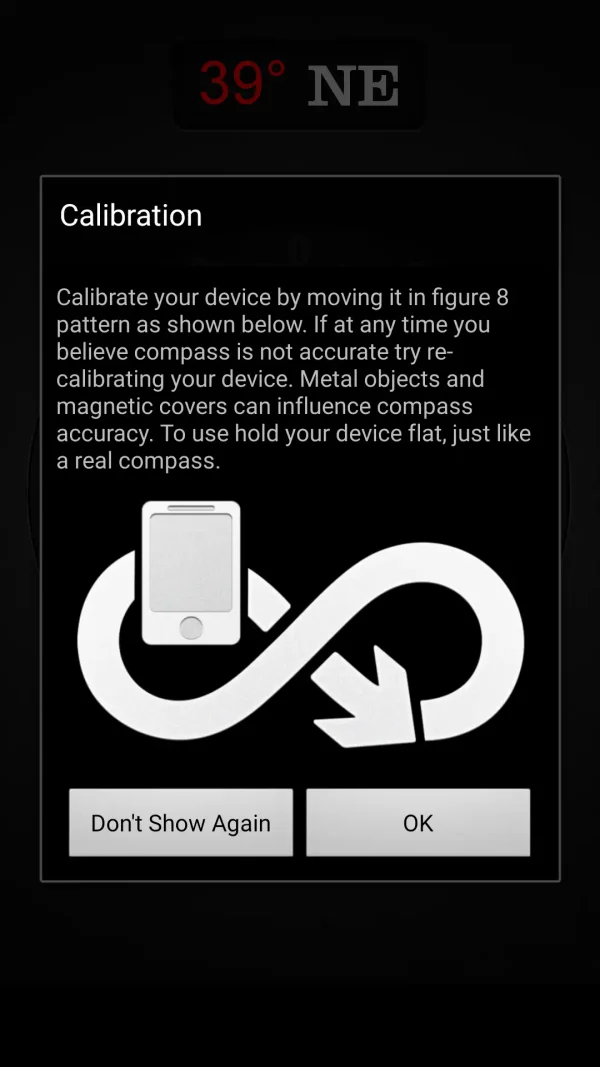
大型鉄鋼のオブジェクトは、それが間違った方向にポイントさせる、あなたのAndroidデバイスでの磁気センサに影響を与えることができます。これを偏差と呼ばれています。あなたはこれが起こっている疑いがある場合は、単に物体から離れる数フィートを移動し、問題は自動的に修正する必要があります。
Facebook上で私たちのように►:https://www.facebook.com/gammaplay/
►Twitterでフォローする:https://twitter.com/GammaPlay
原文を表示
Compass is one of the most if not the most essential app every Android should have installed. Compass is the most precise compass app on Google Play. Compass app is compass in your pocket. Use it on camping trips, to navigate in unknown territory or when you get lost. You never know when it might come handy. It might even save your life one day!
Compass is easy to use; just use it like a real compass. Compass app is more than just showing degrees and north, south, east and west. I have designed Compass with user experience in mind, large numbers and easy to read design. Compass also allows you to set your directions by rotating the bezel for easier and professional navigation.
How to use?
First we’ll need to cover a little bit of compass jargon first. The part of Compass that moves and always points north is called the card (with N,S,E, and W indicated, and a beveled edge with a series of numbers on it). There is a movable ring around the edge of the compass, called the bezel. A red double line across the top of the compass is called the lubber line, and finally, there is a little window above the compass which is often named as side-window (as it is on the side of a real compass).
Side-window navigation couldn’t be simpler. You point the lubber line on top of your compass at where you want to go. Now as long as you hold your compass flat in front of you with the lubber line pointing in the direction you’re going, you should always see the same number in your window as long as you’re going the right way. If you see a different number, turn until you see the same number.
The downside of the side window method is that you need to remember your number.
Navigating with bezel works essentially the same as using the side window, but your bezel remembers your number for you. All you do is, point the lubber line on top of your compass at where you want to go, and then wait until the card settles down and stops moving. Then turn your bezel until the double triangle on the edge of the bezel (the notch right by the number zero on the bezel) is bracketing the north arrow on the card. Now as long as you hold your compass flat in front of you with the lubber line pointing in the direction you’re going, you should always see the north arrow inside the notch, as long as you’re going the right way. If not, turn until you see the north arrow inside the notch.
Notice that if you’ve adjusted the bezel correctly, the number in the side window is also the number directly across from you at the front end of the lubber line. In other words, if you turned the bezel counterclockwise until the notch bracketed the north arrow, the 120 on the bezel would be at the far end of the lubber line. Notice that on the card, the number showing in the side window is 120. If you were holding this compass and going in the direction of the lubber line, you’d be on a heading of 120.
Now you should have learned how to go to desired direction. But how do you get back? Easy! If you’re thinking in terms of the bezel, simply turn until the north arrow faces not to the notch, but to the single triangle that’s exactly across from the notch. Now you’re pointed back where you came.
The really tricky part of using your compass isn’t learning what the numbers mean and how to adjust the bezel. The most common mistakes are not holding your compass flat, and not actually going in the direction your lubber line is pointing.
Large iron and steel objects can influence the magnetic sensor in your Android device, causing it to point in the wrong direction. This is called deviation. If you suspect this is happening, simply move away from the object several feet and the problem should correct itself.
► Like us on Facebook: https://www.facebook.com/gammaplay/
► Follow us on Twitter: https://twitter.com/GammaPlay
データ セーフティ
このアプリが収集・共有するデータについて、Gamma PlayがGoogle Playで申告している内容です。
- 第三者と共有されるデータはありません詳しくは、デベロッパーが共有を申告する方法についての説明をご覧ください
- このアプリは以下の種類のデータを収集することがありますアプリのアクティビティ、アプリの情報、パフォーマンス、デバイスまたはその他の ID
- データは送信中に暗号化されます
- データを削除するようリクエストできます
新機能
バージョン 1.37 · 2025/8/21
Thanks for using Compass! We bring updates to Google Play regularly to constantly improve speed, reliability, performance and fix bugs.
開発元の連絡先
- ウェブサイトgammaplay.com
- メールgammaplay.com@gmail.com
- プライバシーポリシーgammaplay.com
- 住所Rm 1203 12/F China Hong Kong City Twr 3 33 Canton Rd 尖沙咀 九龍 Hong Kong
情報
- 提供元
- Gamma Play
- カテゴリ
- ツール
- バージョン
- 1.37
- 更新日
- 2025/8/21
- リリース
- 2015/2/16
- 必要条件
- Android 6.0以降
- 対象年齢
- 3 歳以上
- 価格
- 無料
- パッケージ名
- com.gamma.compass