Compass
Gamma PlayReklam içerir
- PEGI 3Yaş sınırı
- AraçlarKategori
- 21.08.2025Güncellendi
- ÜcretsizFiyat
com.gamma.compass için resmi Google Play sayfasına bağlanır. Son kontrol: 20.11.2026.
Ekran görüntüleri
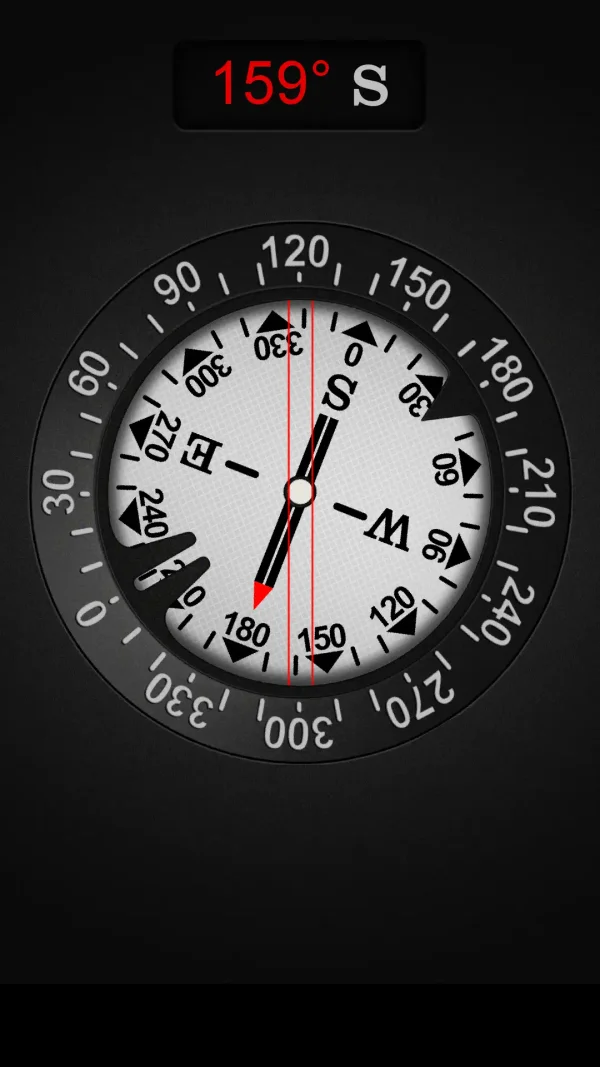
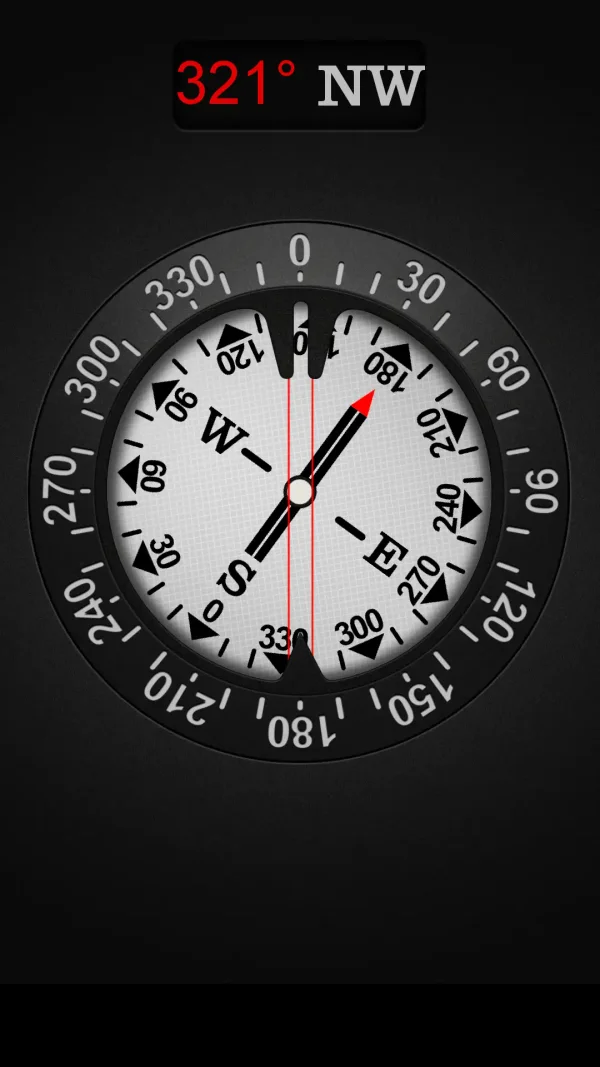
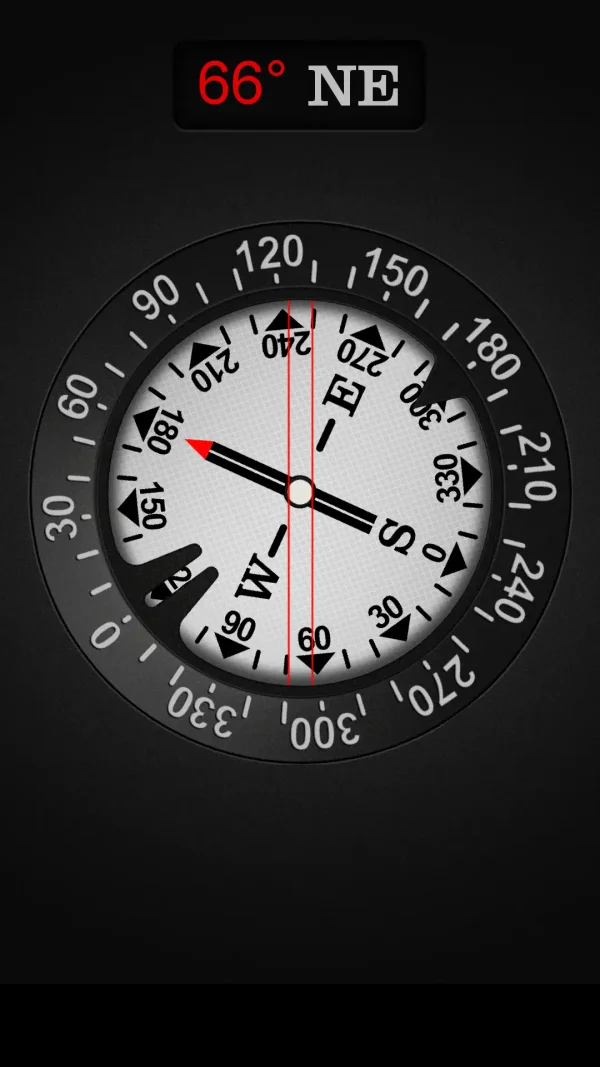
Bu uygulama hakkında
Google tarafından otomatik çeviri. Orijinal dil: İngilizce (Amerika Birleşik Devletleri).
Hassas, doğru ve gerekli. İhtiyacınız olduğunda, bunu nerede gerekir. ŞİMDİ alın!
Pusula en değilse her Android yüklü olması gereken en temel uygulamalarından biridir. Pusula Google Play'de en hassas pusula uygulaması. Pusula uygulaması cebinizde pusula. kaybolmak zaman bilinmeyen topraklarında dolaşmak ya da, kamp gezileri kullanın. kullanışlı gelebilir asla bilemezsiniz. Hatta hayat bir gün kurtarabilir!
Pusula kullanımı kolaydır; tıpkı gerçek bir pusula gibi kullanabilirsiniz. Pusula uygulaması sadece gösteren derece ve kuzey, güney, doğu ve batı daha fazladır. Ben kullanıcı akılda deneyimi, büyük sayılar ve tasarım okumak için kolay Compass tasarladık. Pusula da kolay ve profesyonel navigasyon için çerçeveyi döndürerek senin yön ayarlamanızı sağlar.
Nasıl kullanılır?
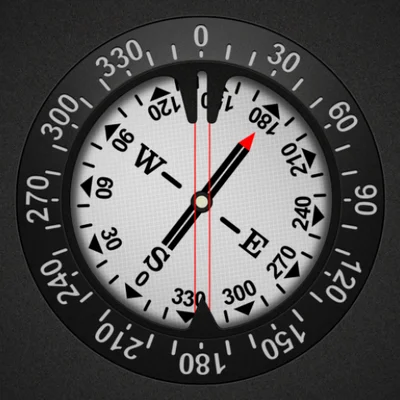
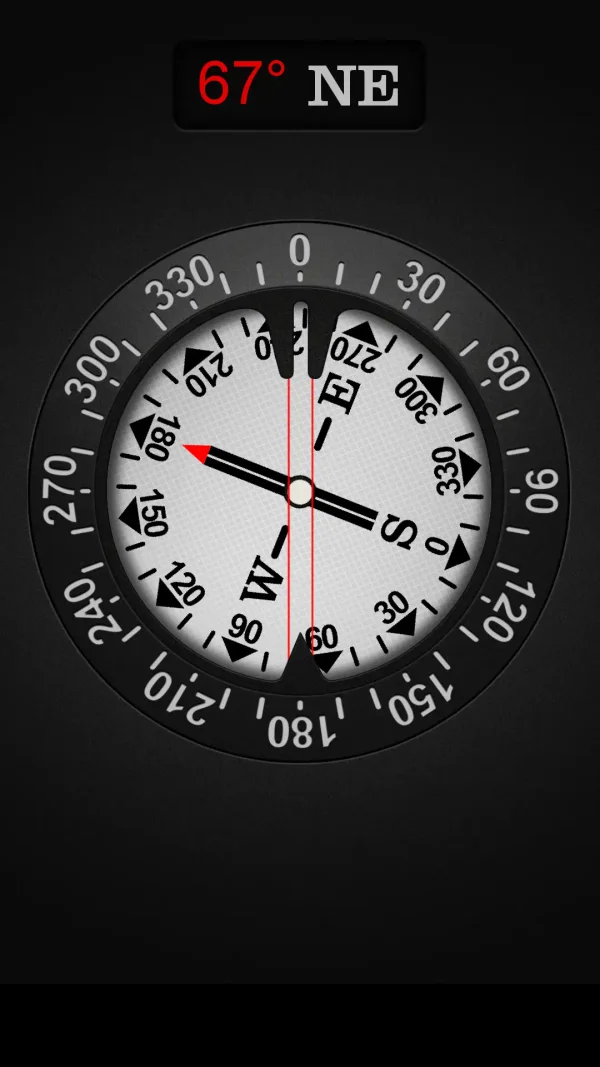
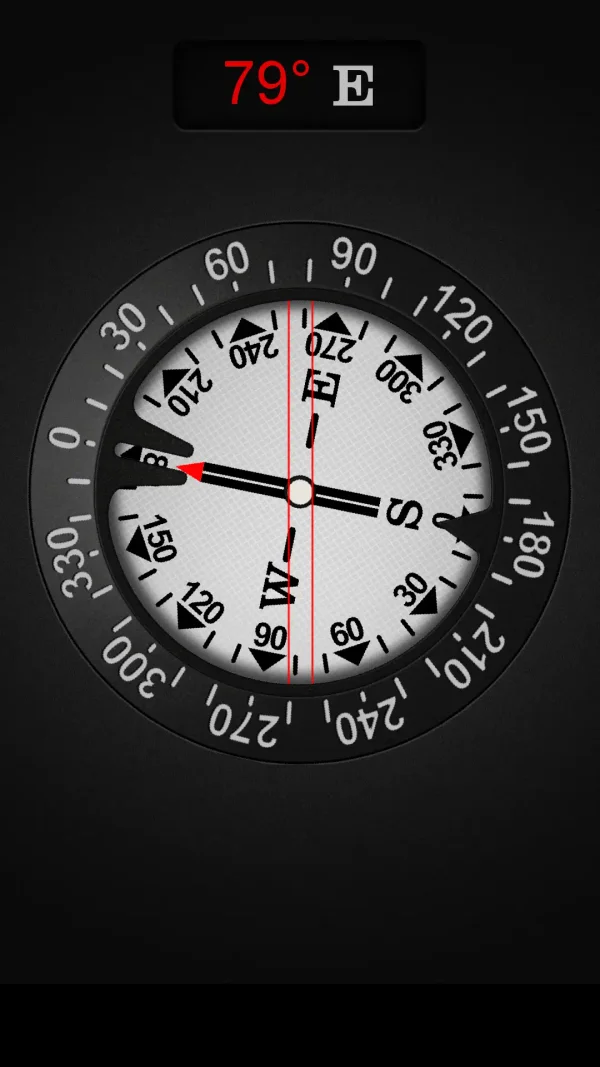
Öncelikle ilk pusula jargon biraz kapsayacak gerekir. hareket ve her zaman kuzey kart denir işaret Pusula kısmı (N, S, E ve W ile gösterilir, ve bunun üzerine bir dizi sayı ile bir eğimli kenar). çerçeve denilen pusula kenarında, etrafında hareketli bir halka vardır. pusulanın üst kısmında kırmızı çift hat lubber hattı denir ve nihayet, sık sık (gerçek bir pusula tarafında olduğu gibi) yan pencere olarak adlandırılan pusula üzerinde küçük bir pencere var.
Yan pencere navigasyon kolay olamazdı. Sen gitmek istediğiniz yere adresinden pusulanın üstünde lubber hattını işaret etmektedir. Eğer doğru yolu gidiyoruz şimdi sürece sen gidiyoruz yöne bakacak lubber hattı ile önünüzde sizin pusula düz tutun olduğu gibi, her zaman sürece penceresinde aynı numarayı görmelisiniz. Eğer farklı bir numara görürseniz aynı numarayı görene kadar, çevirin.
yan pencere yönteminin dezavantajı size numarasını hatırlamak için ihtiyaç vardır.
Çerçevenin ile gezinme esasen yan penceresini kullanarak aynı şekilde çalışır, ancak çerçeve sizin için numaranızı hatırlar. sen yaptığın, gitmek istediğiniz yere adresinden pusulanın üstünde lubber hattını gelin ve kart yerleşir ve durana kadar bekleyin. Sonra çerçevenin (çerçeve üzerindeki sayı sıfıra çentik hakkı) kenarında çift üçgenin kadar çerçeveyi açmak kartta kuzey okunu paranteze almaktadır. Eğer doğru yolu gidiyoruz şimdi sürece sen gidiyoruz yöne bakacak lubber hattı ile önünüzde sizin pusula düz tutun da, her zaman olduğu gibi uzun, çentik içinde kuzey okunu görmelisiniz. Eğer değilse çentik içinde kuzey oku görene kadar, çevirin.
doğru çerçeveyi ayarlanmış ettiyseniz, yan pencere sayısını lubber hattının ön ucundaki sizden karşısında da sayı olduğuna dikkat edin. çentik kuzey okunu dizelenmiş kadar saat yönünün tersine çerçeveyi döndü Başka bir deyişle, çerçevenin 120 lubber hattının ucunda olacaktır. Bu pusula tutarak ve lubber hattı yönünde gittiğini kartta, yan pencerede gösteren sayı 120 olduğuna dikkat edin, size 120 bir başlığı olurdum.
Şimdi istediğiniz yöne gitmek için nasıl öğrenmiş olmalıydım. Ama nasıl geri alabilirim? Kolay! Eğer Çerçevenin açısından düşünüyorsanız, sadece kuzey oku çentik değil yüzleri kadar çevirin, ancak çentik tam karşısında tek üçgeni. Eğer nereden geldiğini Şimdi geri çekti ediyoruz.
pusula kullanarak gerçekten zor parça numaraları ne anlama geldiğini öğrenmek ve nasıl çerçevesini ayarlamak için değil. En çok yapılan hatalar için pusula düz tutarak değil, ve aslında lubber hat işaret ediyor yönde gitmiyor.
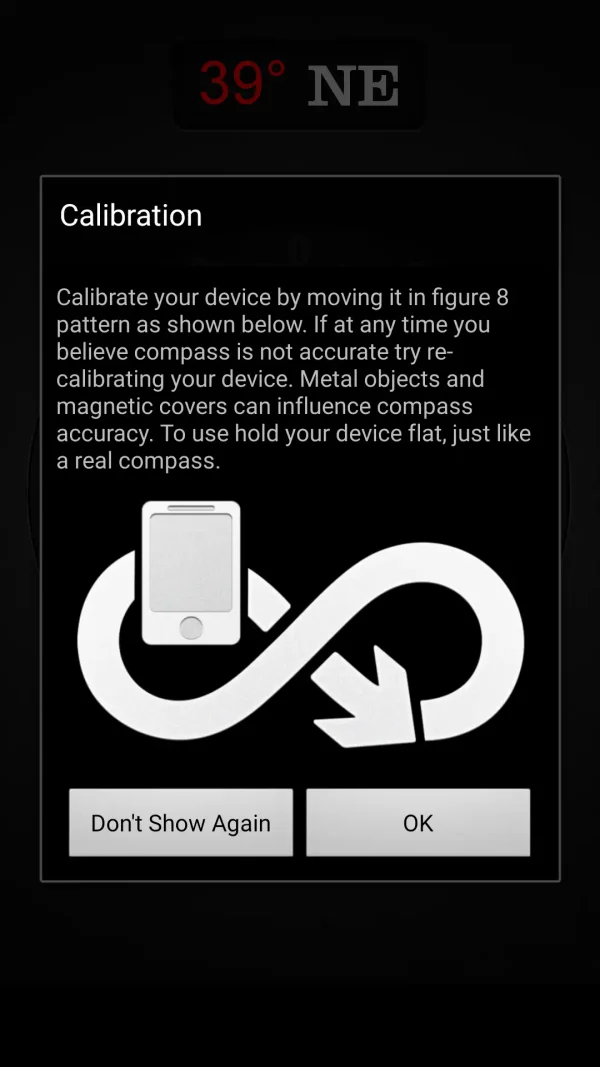
Büyük demir ve çelik nesneleri yanlış yöne işaret etmeye neden Android cihazınızda manyetik sensör etkileyebilir. Bu sapma olarak adlandırılır. Eğer oluyor bu şüpheleniyorsanız, sadece uzak nesne birkaç ayakları hareket ve sorun kendini düzeltmesi gerekir.
► Facebook bizi İstersiniz: https://www.facebook.com/gammaplay/
► Twitter'da bizi takip edin: https://twitter.com/GammaPlay
Orijinal metni göster
Compass is one of the most if not the most essential app every Android should have installed. Compass is the most precise compass app on Google Play. Compass app is compass in your pocket. Use it on camping trips, to navigate in unknown territory or when you get lost. You never know when it might come handy. It might even save your life one day!
Compass is easy to use; just use it like a real compass. Compass app is more than just showing degrees and north, south, east and west. I have designed Compass with user experience in mind, large numbers and easy to read design. Compass also allows you to set your directions by rotating the bezel for easier and professional navigation.
How to use?
First we’ll need to cover a little bit of compass jargon first. The part of Compass that moves and always points north is called the card (with N,S,E, and W indicated, and a beveled edge with a series of numbers on it). There is a movable ring around the edge of the compass, called the bezel. A red double line across the top of the compass is called the lubber line, and finally, there is a little window above the compass which is often named as side-window (as it is on the side of a real compass).
Side-window navigation couldn’t be simpler. You point the lubber line on top of your compass at where you want to go. Now as long as you hold your compass flat in front of you with the lubber line pointing in the direction you’re going, you should always see the same number in your window as long as you’re going the right way. If you see a different number, turn until you see the same number.
The downside of the side window method is that you need to remember your number.
Navigating with bezel works essentially the same as using the side window, but your bezel remembers your number for you. All you do is, point the lubber line on top of your compass at where you want to go, and then wait until the card settles down and stops moving. Then turn your bezel until the double triangle on the edge of the bezel (the notch right by the number zero on the bezel) is bracketing the north arrow on the card. Now as long as you hold your compass flat in front of you with the lubber line pointing in the direction you’re going, you should always see the north arrow inside the notch, as long as you’re going the right way. If not, turn until you see the north arrow inside the notch.
Notice that if you’ve adjusted the bezel correctly, the number in the side window is also the number directly across from you at the front end of the lubber line. In other words, if you turned the bezel counterclockwise until the notch bracketed the north arrow, the 120 on the bezel would be at the far end of the lubber line. Notice that on the card, the number showing in the side window is 120. If you were holding this compass and going in the direction of the lubber line, you’d be on a heading of 120.
Now you should have learned how to go to desired direction. But how do you get back? Easy! If you’re thinking in terms of the bezel, simply turn until the north arrow faces not to the notch, but to the single triangle that’s exactly across from the notch. Now you’re pointed back where you came.
The really tricky part of using your compass isn’t learning what the numbers mean and how to adjust the bezel. The most common mistakes are not holding your compass flat, and not actually going in the direction your lubber line is pointing.
Large iron and steel objects can influence the magnetic sensor in your Android device, causing it to point in the wrong direction. This is called deviation. If you suspect this is happening, simply move away from the object several feet and the problem should correct itself.
► Like us on Facebook: https://www.facebook.com/gammaplay/
► Follow us on Twitter: https://twitter.com/GammaPlay
Veri güvenliği
Bu uygulamanın topladığı ve paylaştığı veriler hakkında Gamma Play tarafından Google Play üzerinde yapılan beyan.
- Üçüncü taraflarla veri paylaşımı yokGeliştiricilerin, veri paylaşımını nasıl beyan ettikleri hakkında daha fazla bilgi edinin
- Bu uygulamanın toplayabileceği veri türleriUygulama etkinliği, Uygulama bilgileri ve performansı ve Cihaz veya diğer kimlikler
- Veriler, aktarım sırasında şifreleniyor
- Verilerin silinmesini talep edebilirsiniz
Yenilikler
Sürüm 1.37 · 21.08.2025
Thanks for using Compass! We bring updates to Google Play regularly to constantly improve speed, reliability, performance and fix bugs.
Geliştirici iletişim bilgileri
- Web sitesigammaplay.com
- E-postagammaplay.com@gmail.com
- Gizlilik politikasıgammaplay.com
- AdresRm 1203 12/F China Hong Kong City Twr 3 33 Canton Rd 尖沙咀 九龍 Hong Kong
Bilgiler
- Sunan
- Gamma Play
- Kategori
- Araçlar
- Sürüm
- 1.37
- Güncellendi
- 21.08.2025
- Yayın tarihi
- 16.02.2015
- Gereksinim
- Android 6.0 veya sonrası
- Yaş sınırı
- PEGI 3
- Fiyat
- Ücretsiz
- Paket adı
- com.gamma.compass