
- 対象年齢4+
- カテゴリグラフィック/デザイン
- 開発元Sergei Komarov
- 言語英語
- サイズ103.8 MB
App Storeの公式ページにリンクしています
Download.orgはPaintstorm Studioのファイルを一切ホストしていません。ボタンを押すと、Sergei Komarovが公開しているApp Storeのアプリページが開きます。ページの最終確認:2026/11/23。
スクリーンショット
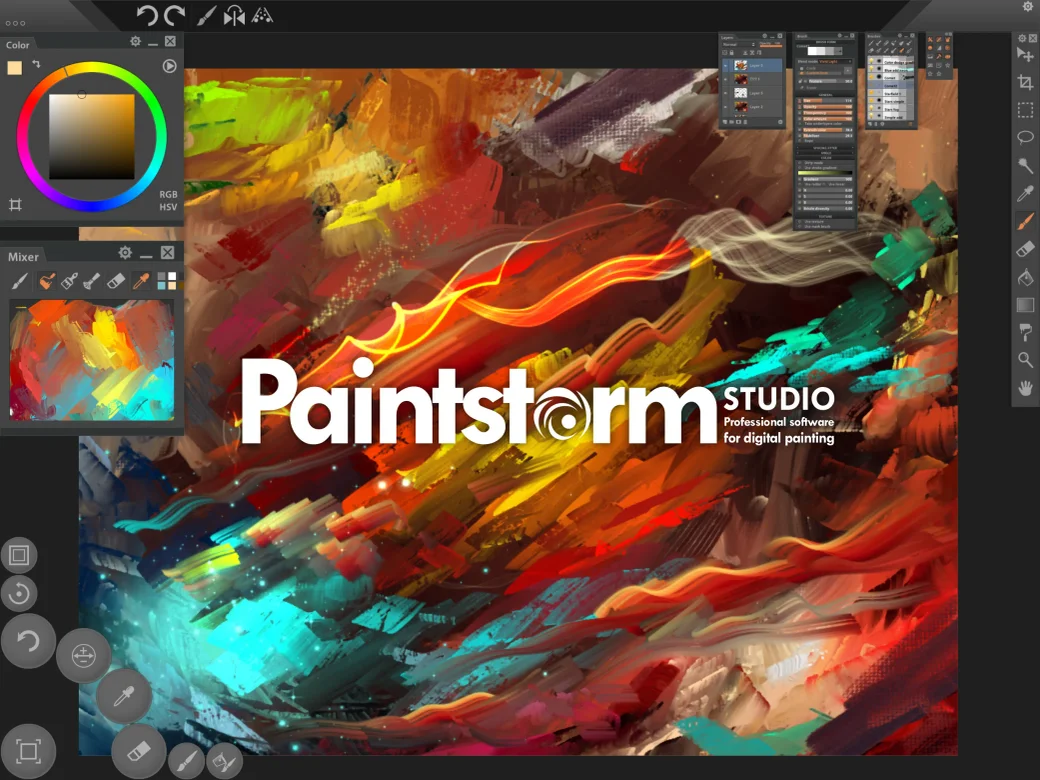

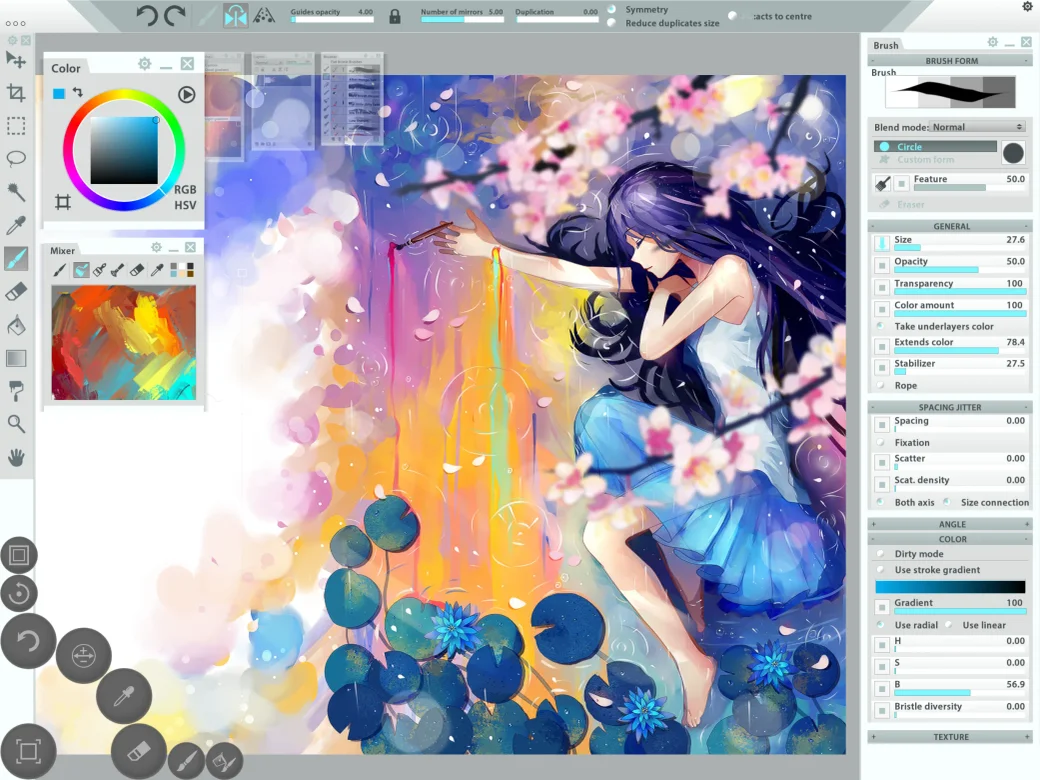

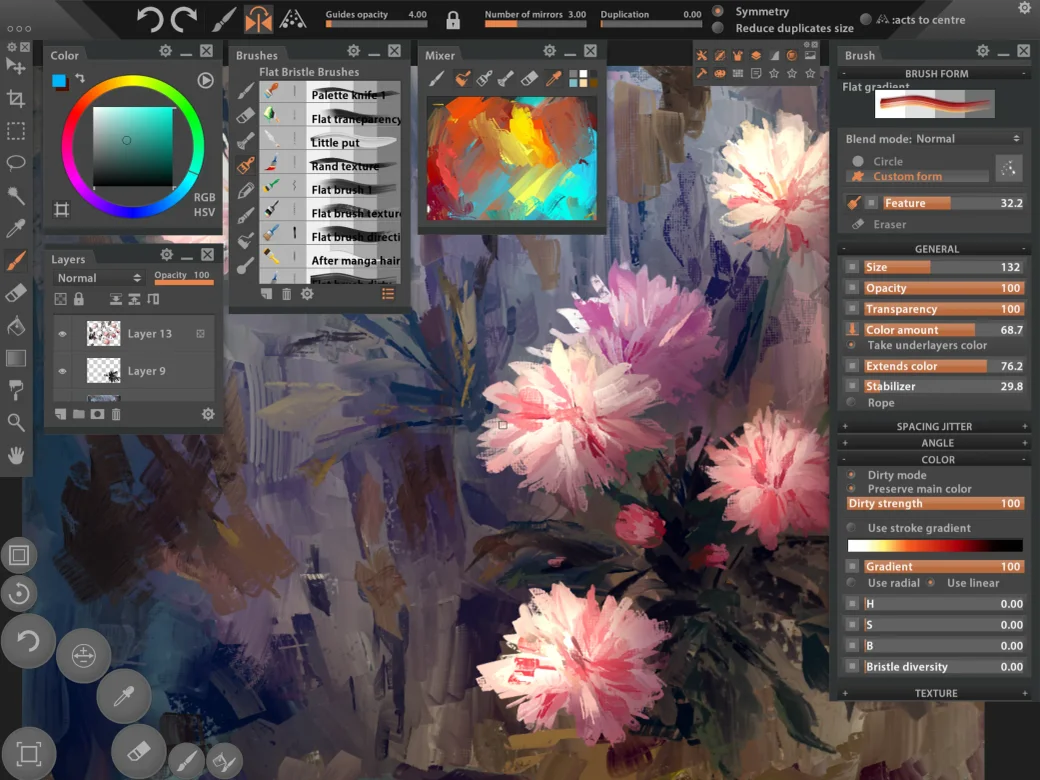
概要
Paintstorm Studioは、単にスケッチの時だけではなく、あらゆる創作活動において、難易度、ジャンル、そして技法を問わず役立ってくれる、アーティストにとってかけがえのないアプリです。Paintstorm StudioはApple Pencilの可能性を最大限に引き出し、あなたを絵画における新たな境地に導いてくれます。本格的な創作活動ができるペイントソフトが、ここまで手頃で携帯生に優れていたことは未だかつてありません。
Paintstorm Studio最大の特徴は、ブラシの種類が充実している事です。あなたが自分のスタイルに合わせてブラシの調整を素早く簡単にできるよう、私たちは全力を尽くしました。
私たちの目的は直感的で分かりやすく、機能に優れ、デジタルペイントのプロセスを新しいレベルに引き上げるとともに、そのプロセスを最大限に快適なものにしてくれるアプリの制作でした。
iPadのためのPaintstorm Studioは、Mac版と完全に類似したものです。その意味するところは、私たちが文字通りすべての機能を慎重且つ丁寧に移植し、iPadの素晴らしいパネルのジェスチャーに対応させたという事にあります。
主要機能
信じられないほどに可能性を秘めたブラシ調整
あらゆる種類の油彩筆
ストローク補正(太さの均一化だけでなく、あらゆるブラシ設定に対応した補正
ブラシ設定と遠近の統合。
ダイナミックインターフェイス(個々のパネルのグローバルスケール、色、透明度やサイズを変更する機能)
お気に入りのコントローラー、ツール、ボタンや筆などを個々のカスタムパネルに集約することができます
デュアルブラシ
下のレイヤーの色を混ぜ合わせる機能
良質なストロークスタビライザー
ミラー(シンメトリー)機能
豊富な標準ツール(投げ縄機能、魔法の杖、トリミング、塗りつぶし、グラデーション、クローニング、パースガイド、レイヤーを切り替えながらの作業、柔軟なトランスフォーメーション機能などなど)
充実した色調補正機能(トーンカーブ、グラデーションマップ、HSB、HSL、RGB、部分的な色調補正など)
PSD、ABRファイル形式に対応
Apple Pencilにフル対応(筆圧、傾斜、手の向き)
新機能
バージョン 3.00 · 2026/11/20
- Improved PSS saving reliability. The previous file is replaced only after the new version has been written successfully. Auto-recovery copies are saved losslessly, even when JPEG compression is selected for normal saves.
- Added "Selection → Create Colors From Selection...". Select the area of your image you want to use for the palette. In the dialog, choose "Current layer" or "Merged visible layers" as the source, set the number of colors with the "Colors" slider, and enter a folder name. The preview updates as you adjust the settings. Click "Create" to add the palette to a new folder in the "Color Library" panel, which opens automatically.
- Added the "View → Brush Size Presets" panel for switching between saved brush sizes. Click a preset to apply its size to the current brush. Shift-click a preset to store the current brush size in it. Double tap the panel to add or delete presets. Drag presets to reorder them. The panel can be resized to a single row.
- Added "Layer → Create Sprite Sheet...", also available by right-clicking in the Layers panel. Select the raster layers to use as frames, then open the command and set "Rows", "Columns", "Cell size" or "Canvas size", and "Padding". You can enable "All visible layers" and use "Reverse order" to change the frame order. The dialog includes a grid preview. The sprite sheet is created in a new document with a transparent background.
- Added HEX color display and editing to the "Color wheel" panel. Click the gear icon in the panel header and enable "Show HEX". To enter a color, double-click the code next to the wheel, enter a value in #RRGGBB format.
- Added "Filters → Motion Blur". Use "Strength" to set the blur length and "Angle" to set its direction. Enable "Preview" to see the result before applying the filter.
- Added "Remove White Fringe" to the Filters menu to remove light halos along the edges of objects with transparency. Fixed a crash when applying the filter to a selected area. Feathered selection edges are now respected.
- Added HSL mode and a preview to "Selection → Color range". A preview has also been added to "Filters → Luma To Alpha".
- The width and height of a rectangular selection are now displayed in pixels next to the cursor while you create it.
- When using "Crop", press the assigned hotkey for "Select rect tool" to turn the current crop frame into a selection.
- Increased the maximum number of open documents to 20.
- The scroll position in the Layers panel is now remembered separately for each open document.
- Added "File → Options → Performance → Maximum layers". This setting lets you increase the limit from 300 to 1000 layers per document. Restart Paintstorm to apply the change.
- Merging a folder into a single layer now preserves the folder name.
- Changes made with the text color button in the top panel are now previewed immediately on the canvas.
- Added a button to link width and height in "Image → Canvas resize" so you can resize the canvas while preserving its proportions.
- Added support for opening and saving WebP and TIFF files. Choose the format in "File → Save As". WebP is saved losslessly and supports transparency.
- PNG and JPEG exports now include image dimensions and resolution in DPI in the file metadata.
- Updated the interface translations
アプリのプライバシー
このアプリのデータの取り扱いについて、Sergei KomarovがApp Storeで申告している内容です。
-
データの収集なし
開発元はこのアプリからデータを収集しません。
プライバシーの取り扱いは、ご利用の機能やお客様の年齢などに応じて異なる場合があります。
情報
- 販売元
- Sergei Komarov
- カテゴリ
- グラフィック/デザイン
- バージョン
- 3.00
- 更新日
- 2026/11/20
- リリース
- 2016/1/29
- サイズ
- 103.8 MB
- 必要条件
- iOS 13.1以降
- 対象年齢
- 4+
- 価格
- ¥2,000
- 言語
- 英語
- 著作権
- © 2026 Paintstorm Studio Developers team
こちらもおすすめ
-
 Realistic Paint StudioDrawing, Watercolor, Oil paint
-
 Uniform - 3D Editorグラフィック/デザイン
-
 SketchClub: お絵描き&ペイント毎日のお絵描きチャレンジ
-
 Zen Brush 3美しい禅アートを自由に描こう
-
 iOrnament Pro – art, fun, calmCreate geometry art & mandalas
-
 Brushesグラフィック/デザイン
-
 HuePaintグラフィック/デザイン
-
 FocalPaintグラフィック/デザイン
-
 WowPaintグラフィック/デザイン
-
 Vesica Studio: Sacred Geometryグラフィック/デザイン