- Độ tuổi4+
- Danh mụcTiện Ích
- Nhà phát triểnSpeaqr Technologies S.L
- Ngôn ngữTiếng Tây Ban Nha+ 10 ngôn ngữ khác
- Kích thước5,3 MB
Speaqr hiện có thể không có trên App Store
Ở lần kiểm tra gần nhất, chúng tôi không truy cập được trang trên cửa hàng. Liên kết vẫn dẫn đến trang App Store chính thức.
Ảnh chụp màn hình

Giới thiệu
Nhà phát triển chưa cung cấp nội dung này bằng ngôn ngữ của bạn.
Speaqr is a tool that allows communicating in up to 8 different languages through a personal room or a virtual conference (Google Meet, Zoom, Teams) using Artificial Intelligence.
With minimum information (e-mail, name/alias and language), Speaqr offers you a multilingual room. Once in the room, both you and your guests will be able to speak in the language of your preference; the tool will distribute messages (voice-to-voice) in the language in which each participant configured his/her terminal.
In addition, if you have an important meeting in a language that is not your own, Speaqr can also connect to Google Meet, Zoom or Teams as your interpreter. Once you are in the call, everything that is said will be translated into the language that you have configured.
How do I start using it?
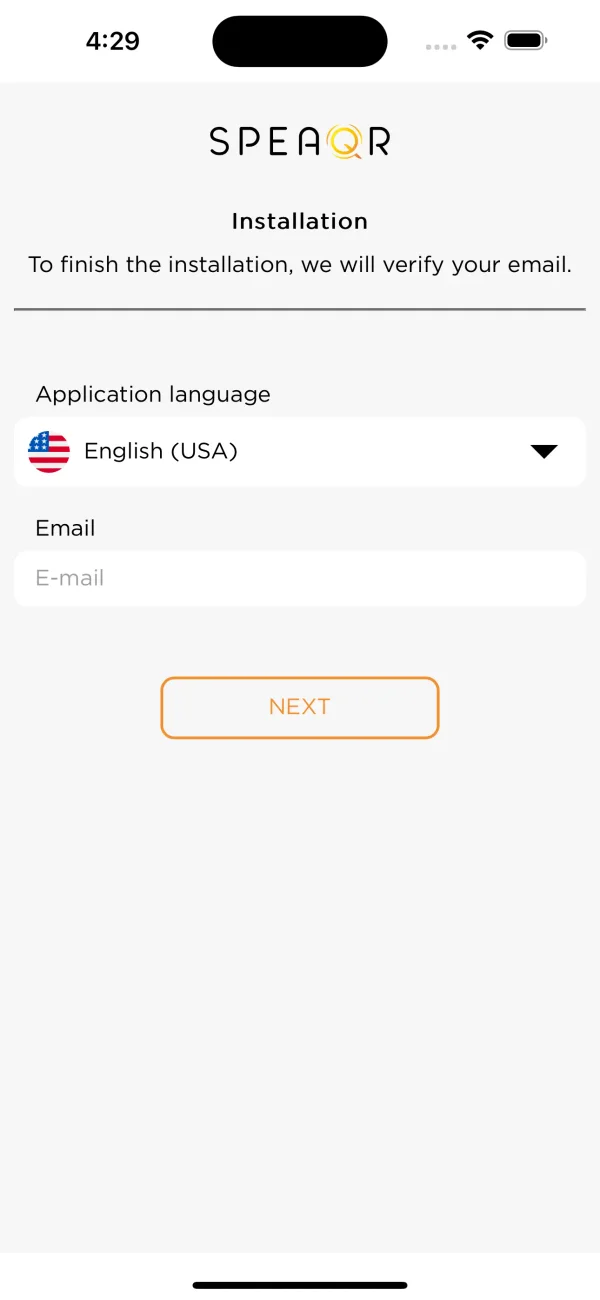
To register with Speaqr, simply choose your language, insert your e-mail and verify it. To do so, we will send you a confirmation e-mail where you will only need to click on the "Verify e-mail" button.
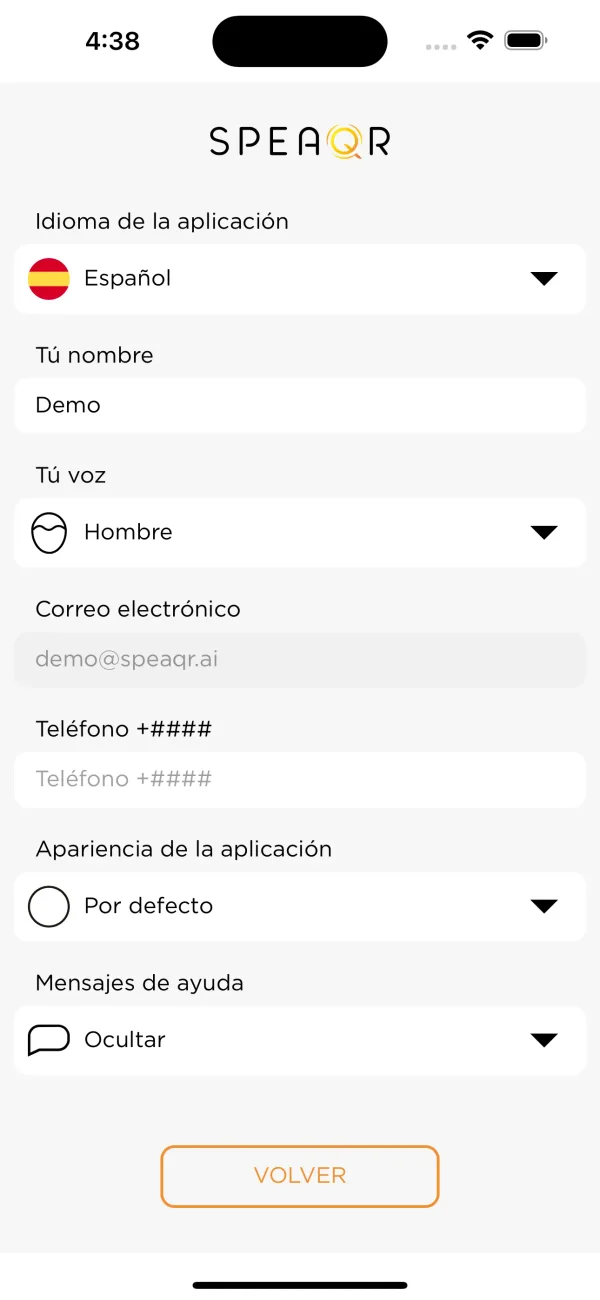
Once verified, Speaqr will request you some basic configuration data to operate:
- Native language
- Name or alias
- Voice preference
And that is all! You already have your Speaqr room available!
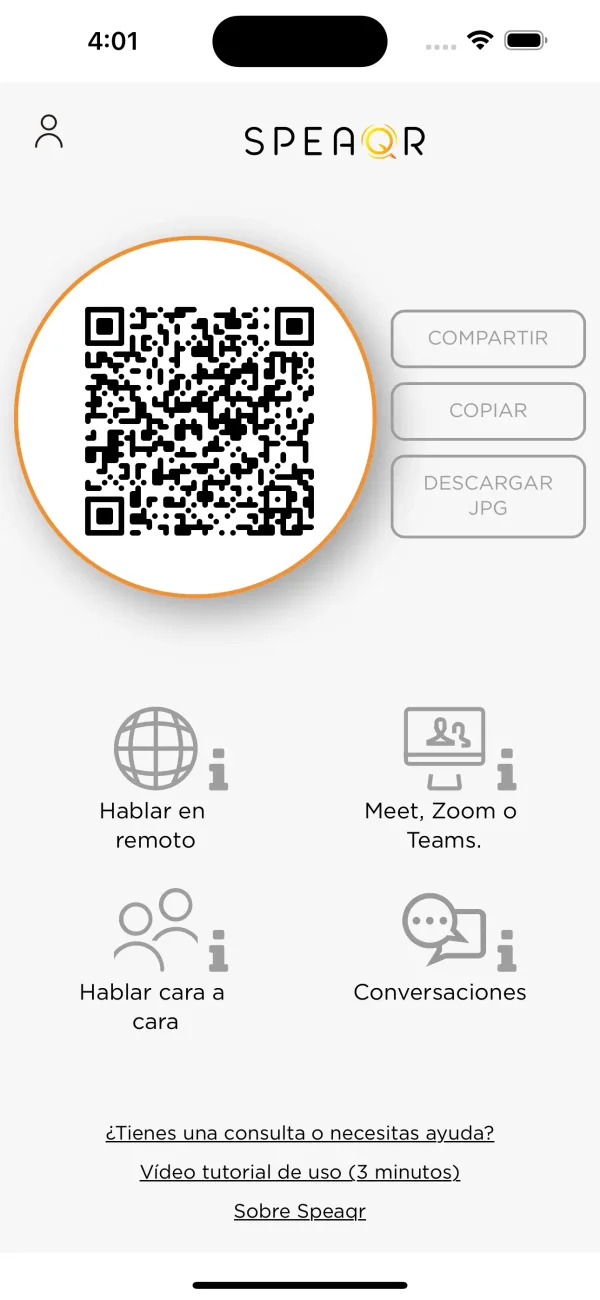
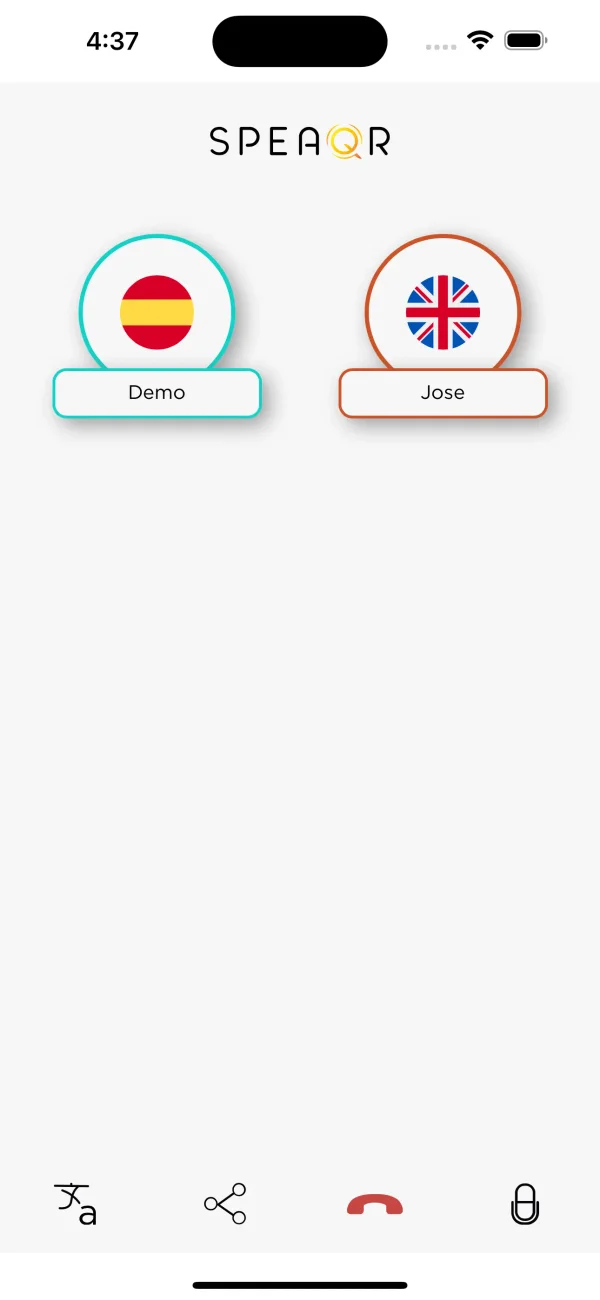
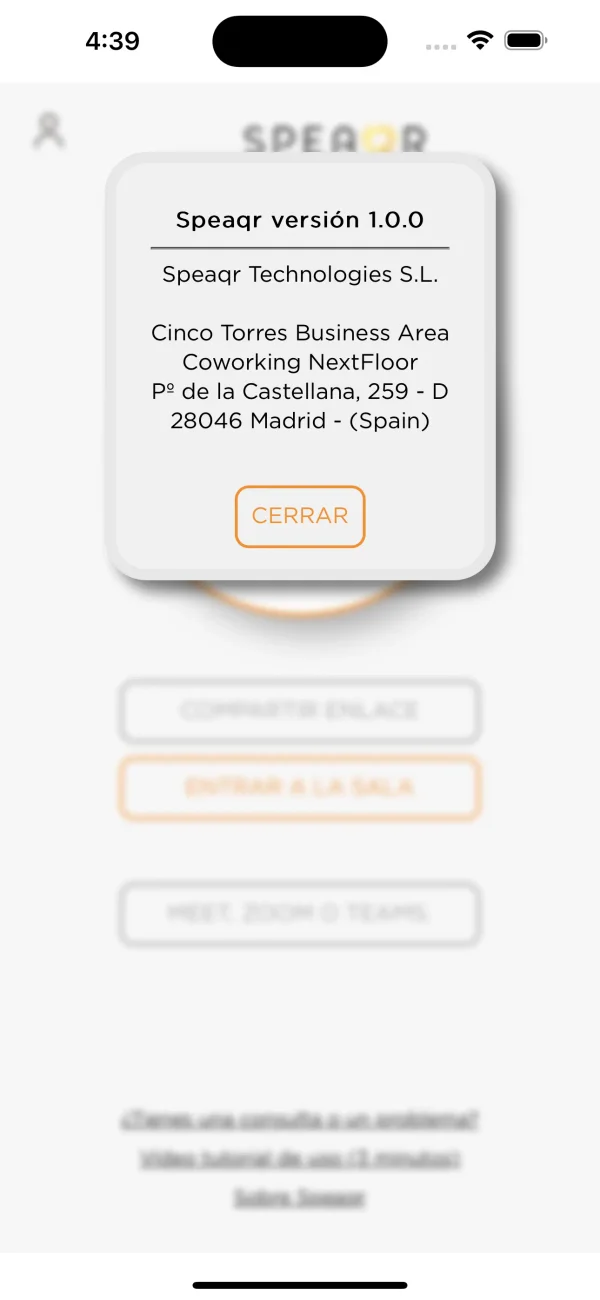
In the main screen, you will find the following items:
- QR code: the device scanning the code will be invited to the room.
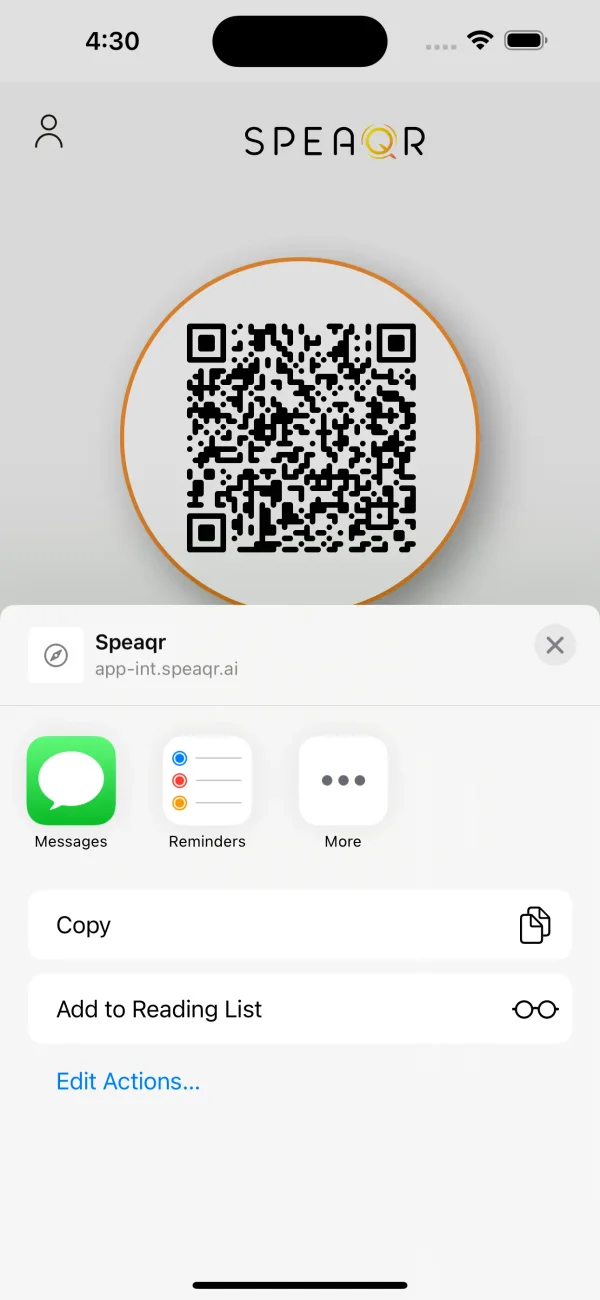
- “Share link” button: it allows giving access to your room as you prefer (WhatsApp, Gmail, message, etc.)
- “Enter room” button: you will enter your multilingual room.
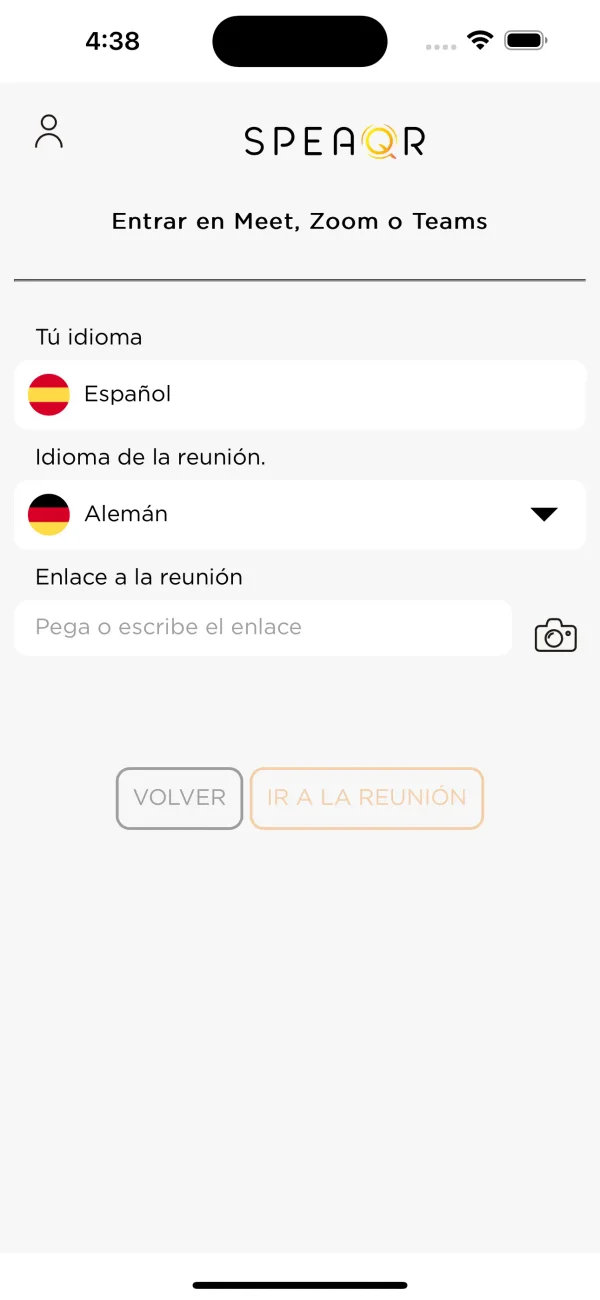
- “Meet, Zoom or Teams” button: it allows connecting through Speaqr to a virtual meeting.
- User icon: by clicking the icon on the upper left part, you may access your data and configuration.
- Links of interest: at the bottom of the screen, you may read the tutorial or contact us for any concern.
How do I start a conversation in the room?
To begin with, you need to share the link with the person you want to speak to. The person must fill in his/her data and request your access, waiting until you open the room and accept the request.
If you do not have the room open, you may do so by clicking “Enter room”. Once inside, you will see the pending request and, by accepting it, your guest will be able to enter and communicate with you.
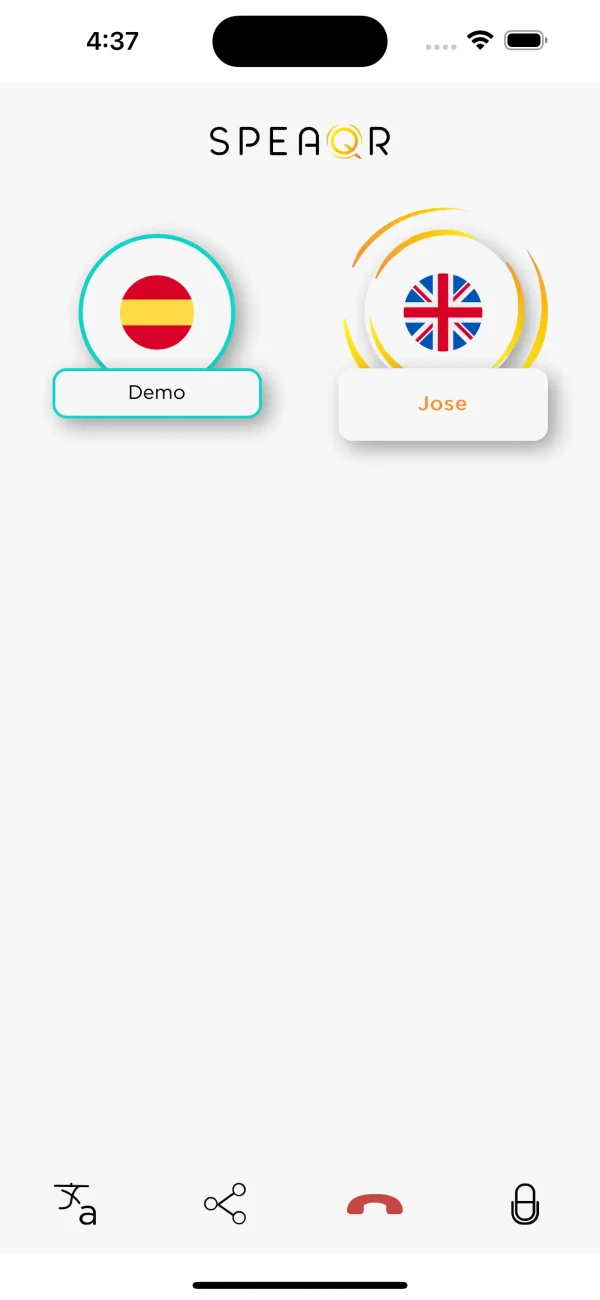
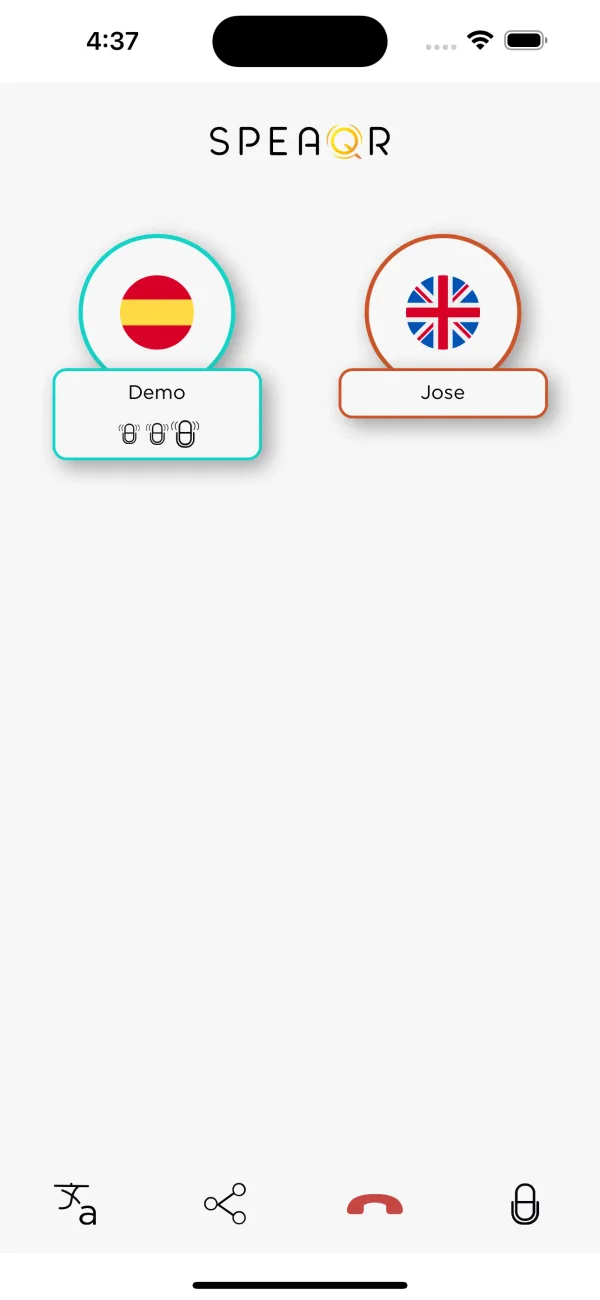
Check the following available controls at the bottom of the screen (from left to right):
- Transcription button: apart from listening to your guests, you may read what they say.
- Share button: if someone is missing or you want to add a member “on the go”, you may send the access link again by clicking this button.
- Hang up button: if you are the room owner, the conversation will end for all members (when closing the room); otherwise, if you are a guest, you just leave the conversation.
- Microphone button: this allows controlling the status of your microphone (on/off).
With all this, you only have to speak to let Speaqr do the magic.
How do I connect to a meeting?
By clicking the “Meet, Zoom or Teams” button and providing an access link, your virtual interpreter will connect automatically to the meeting. (You can also scan the link)
Inside the meeting (Meet, Zoom or Teams), your interpreter must be accepted by meeting organisers.
Once accepted, your interpreter will capture meeting audio and translate it in real time; therefore, you should disable your microphone at the meeting (Meet, Zoom o Teams) to avoid any language interference.
Once you finish, just click on the “hang up” button in your device and your virtual interpreter will leave the meeting.
Now you can start enjoying Speaqr!
Có gì mới
Phiên bản 1.6.3 · 25/09/2024
Store images update
Quyền riêng tư của ứng dụng
Những gì Speaqr Technologies S.L khai báo trên App Store về cách ứng dụng này xử lý dữ liệu.
-
Dữ liệu không liên kết với bạn
Có thể được thu thập nhưng không liên kết với danh tính của bạn.
- Thông tin liên hệ
- Nội dung của người dùng
Phương thức đảm bảo quyền riêng tư có thể khác nhau, chẳng hạn như tuỳ theo các tính năng bạn sử dụng hoặc độ tuổi của bạn.
Thông tin
- Người bán
- SPEAQR TECHNOLOGIES SL.
- Danh mục
- Tiện Ích
- Phiên bản
- 1.6.3
- Cập nhật
- 25/09/2024
- Phát hành
- 25/04/2024
- Kích thước
- 5,3 MB
- Yêu cầu
- iOS 16.4 trở lên
- Độ tuổi
- 4+
- Ngôn ngữ
- Tiếng Tây Ban Nha, Tiếng Đức, Tiếng Trung Giản thể, Tiếng Pháp, Hindi, Tiếng Anh, Tiếng Ý, Tiếng Nhật, Tiếng Bồ Đào Nha, Tiếng Nga, Tiếng Ả Rập
- Bản quyền
- © 2024 Speaqr Technologies S.L