TeamViewer QuickSupport
TeamViewer- EveryoneAge rating
- ProductivityCategory
- Oct 26, 2026Updated
- FreePrice
Links to the official Google Play listing of com.teamviewer.quicksupport.market. Last checked on Nov 20, 2026.

Screenshots



About this app
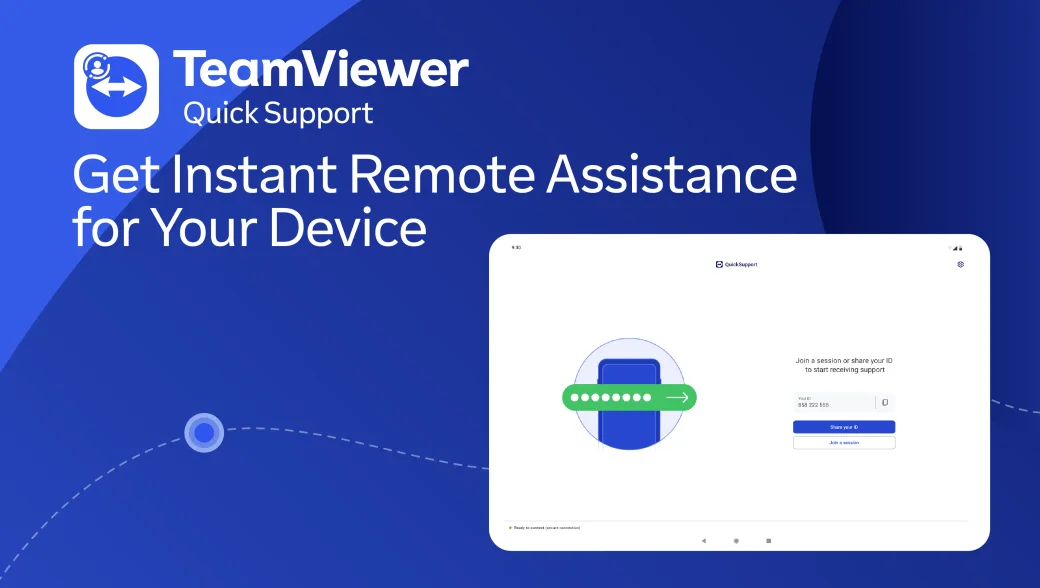
Get instant remote assistance for your device
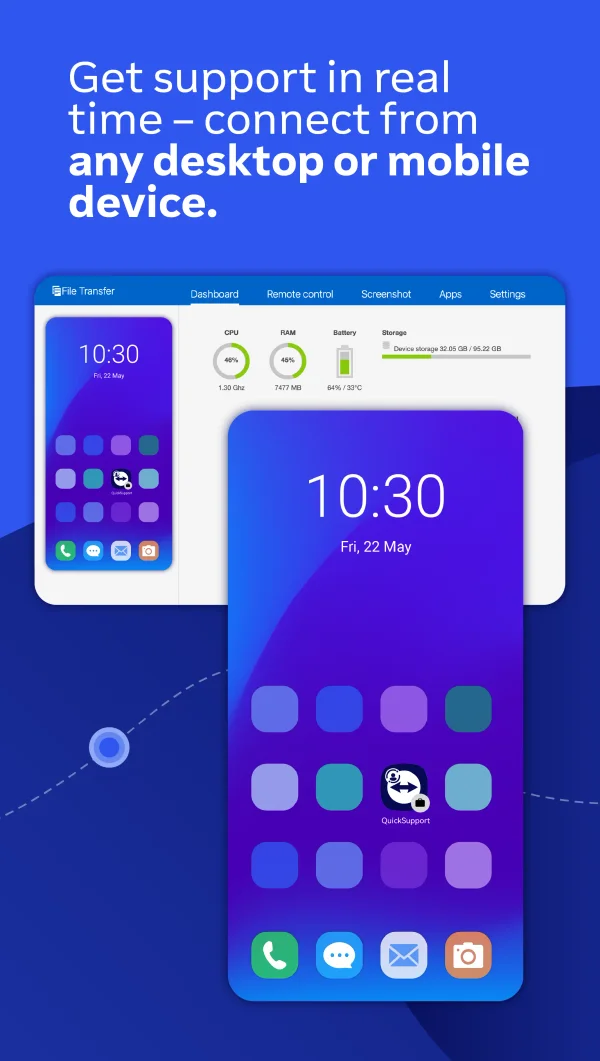
The QuickSupport app by TeamViewer allows you to get instant IT support for your mobile, tablet, Chromebook or Android TV.
In just a few easy steps, QuickSupport enables your trusted remote partner to connect to your device to:
• provide IT support
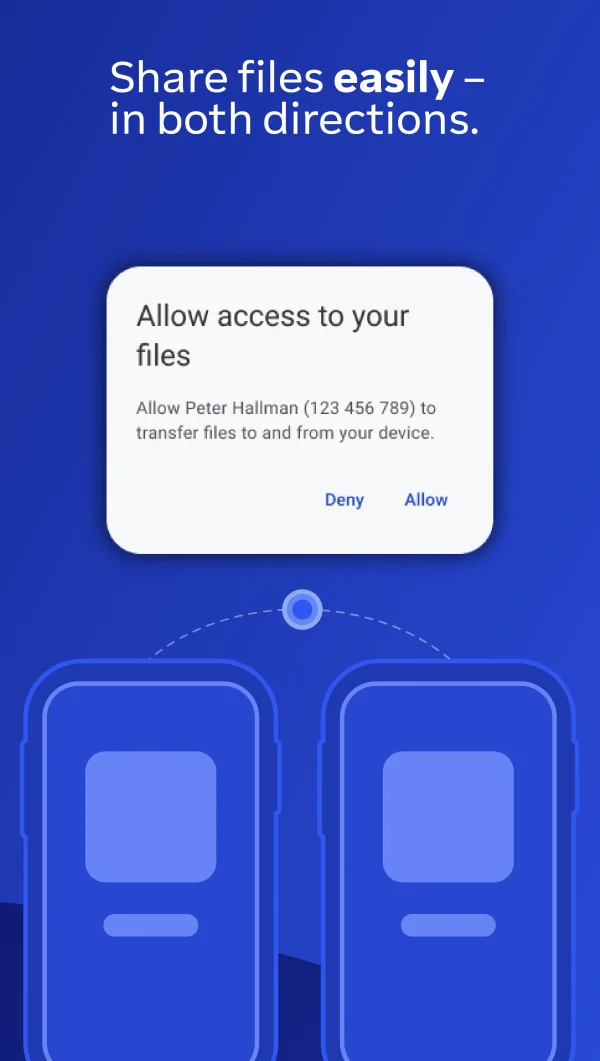
• transfer files back and forth
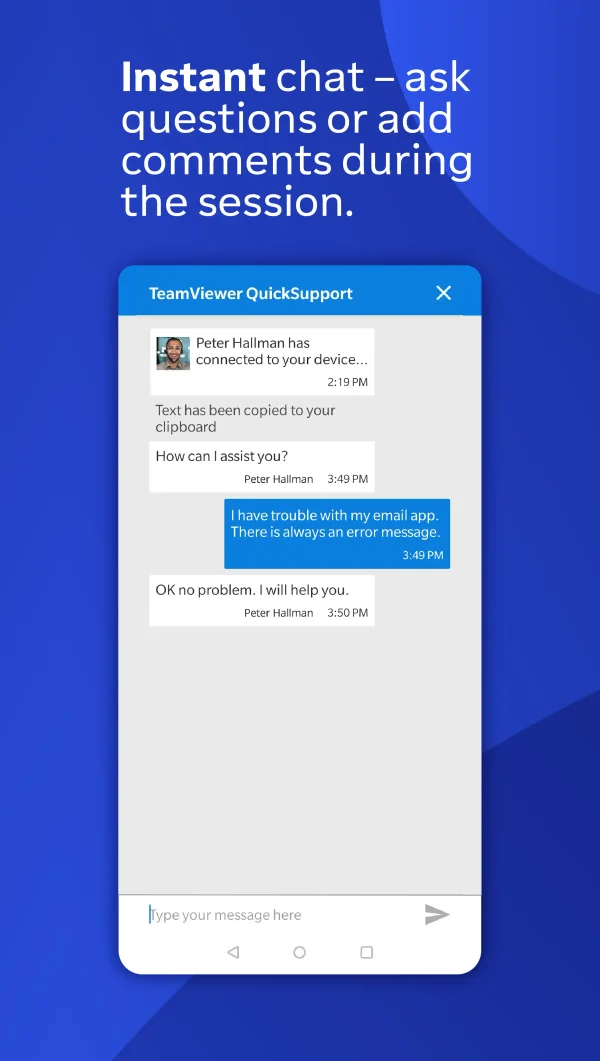
• communicate with you via chat
• view device information
• adjust WIFI settings, and much more.
It can receive connection requests from any device (desktop, web browser or mobile).
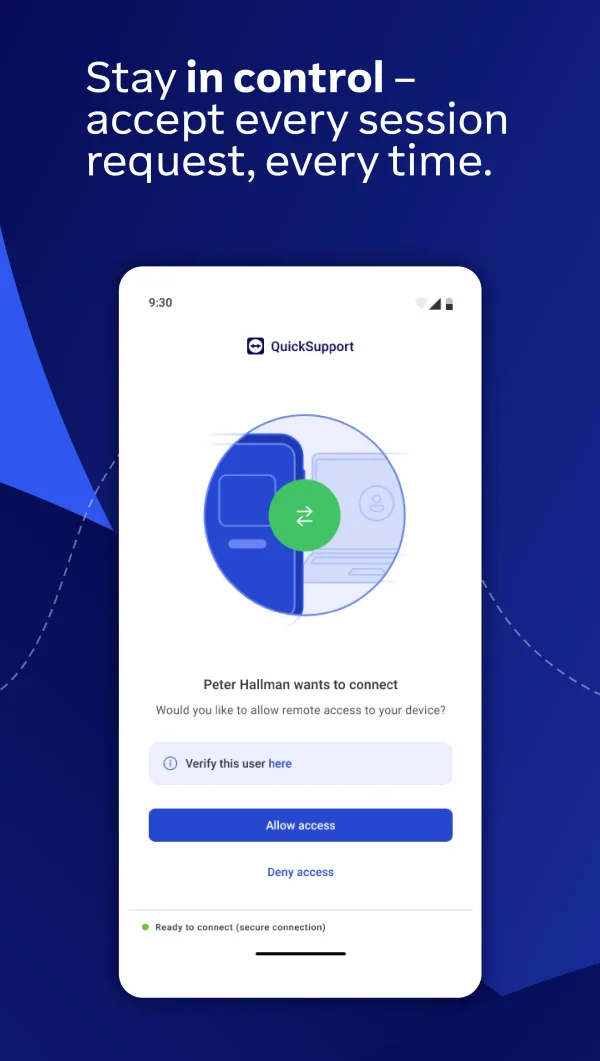
TeamViewer applies the highest security standards to your connections, ensuring you are always in control of granting access to your device and establishing or ending sessions.
To establish a connection to your device, you need to do the following:
1. Open the app on your screen. Connections can't be established if the app is running in the background.
2. Share your ID with your partner or enter a code into the ‘Join Session’ box.
3. Accept the connection request every time. Without your explicit permission, the connection can’t be established.
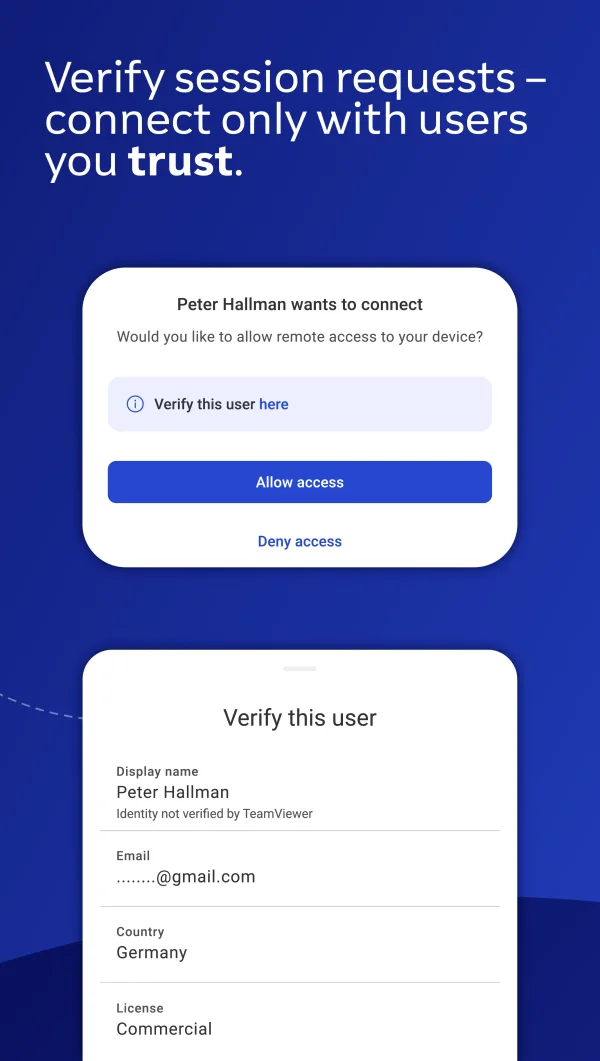
Connect only with users you trust. The app will provide you with user details, such as name, email, country, and license type, so you can verify the identity before granting access to your device.
QuickSupport is available to install on any device and model, including Samsung, Nokia, Sony, Honeywell, Zebra, Asus, Lenovo, HTC, LG, ZTE, Huawei, Alcatel, One Touch, TLC and many more.
Key features include:
• Trusted connections (user account verification)
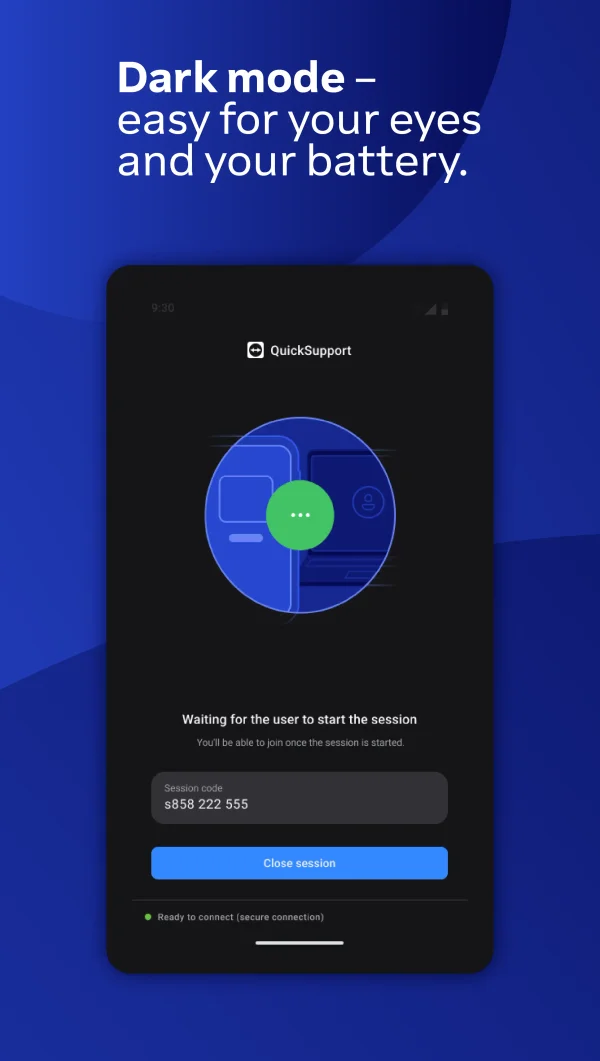
• Session codes for fast connections
• Dark mode
• Screen rotation
• Remote control
• Chat
• View device information
• File transfer
• App list (Start/Uninstall apps)
• Push and pull Wi-Fi settings
• View system diagnostic information
• Real-time screenshot of the device
• Store confidential information into the device clipboard
• Secured connection with 256 Bit AES Session Encoding.
Quick startup guide:
1. Your session partner will send you a personal link to the QuickSupport application. Clicking the link will start the app download.
2. Open the QuickSupport app on your device.
3. You will see a prompt to join a session created by your remote partner.
4. When you accept the connection, the remote session will begin.
Data safety
What TeamViewer declares on Google Play about the data this app collects and shares.
- No data shared with third partiesLearn more about how developers declare sharing
- This app may collect these data typesPersonal info, App activity, and Device or other IDs
- Data is encrypted in transit
- You can request that data be deleted
What’s new
Version 15.83.285 · Oct 26, 2026
- Fixed a bug that caused font colors to display incorrectly in Dark Mode.
- Minor fixes and Improvements.
Developer contact
- Websiteteamviewer.com
- Emailservice@teamviewer.com
- Privacy policyteamviewer.com
- AddressBahnhofsplatz 2 73033 Göppingen Germany
Information
- Offered by
- TeamViewer
- Category
- Productivity
- Version
- 15.83.285
- Updated
- Oct 26, 2026
- Released
- Jul 9, 2013
- Requires
- Android 7.0 or later
- Age rating
- Everyone
- Price
- Free
- Package name
- com.teamviewer.quicksupport.market
Similar apps
-
 AirDroid: File & Remote Access
Tools
-
 Smart Transfer: File Sharing
Tools
-
 AnyDesk Remote Desktop
Business
-
 Smart Connect
Productivity
-
 Send files to TV
Tools
-
 Microsoft Intune
Business
-
 Windows App
Business
-
 AlfredCamera Home Security app
House & Home
-
 FX File Explorer
Business
-
 MERCUSYS
Tools
-
 IP Camera Viewer
House & Home
-
 Link to Windows
Productivity