TV Remote-TV assistant
TCL Group- USK ab 0 JahrenAltersfreigabe
- ToolsKategorie
- 08.12.2017Aktualisiert
- KostenlosPreis
Verlinkt auf den offiziellen Google Play-Eintrag von com.tcl.tvremotenew. Zuletzt geprüft am 27.11.2026.
Screenshots





Über diese App
Automatische Übersetzung von Google. Originalsprache: Englisch (Vereinigte Staaten).
Medienfreigabe (Foto, Musik, Video) & TV-Fernbedienung & QRCode Smart Connect
Zentrieren um das Smart TV als Kern, erkennt sie die Vernetzung und Interoperabilität zwischen TV, Handy und Pad, die Interaktivität von Multimedia, Fernbedienung, und anderen Funktionen. Multi-Panel-Interaktion enthält „Transfer Datei“, „Video-on-Demand“, „Remote Control“, „Interactive Games“, und andere Anwendungen. Multi-Screen-Interaktion + Cloud-Entertainment: verwenden Handys aus der Ferne das TV für Medien auf dem großen Bildschirm und beobachten On-Demand-HD-Video und Spiele Aktive Spiel teilen. Transfer File: nach Handy / Pad eine Verbindung mit dem Fernseher herstellt, können Sie Bilder, Videos und Musik im Handy / Pad an den Fernseher für die Wiedergabe senden.
Ausführliche Schritte:
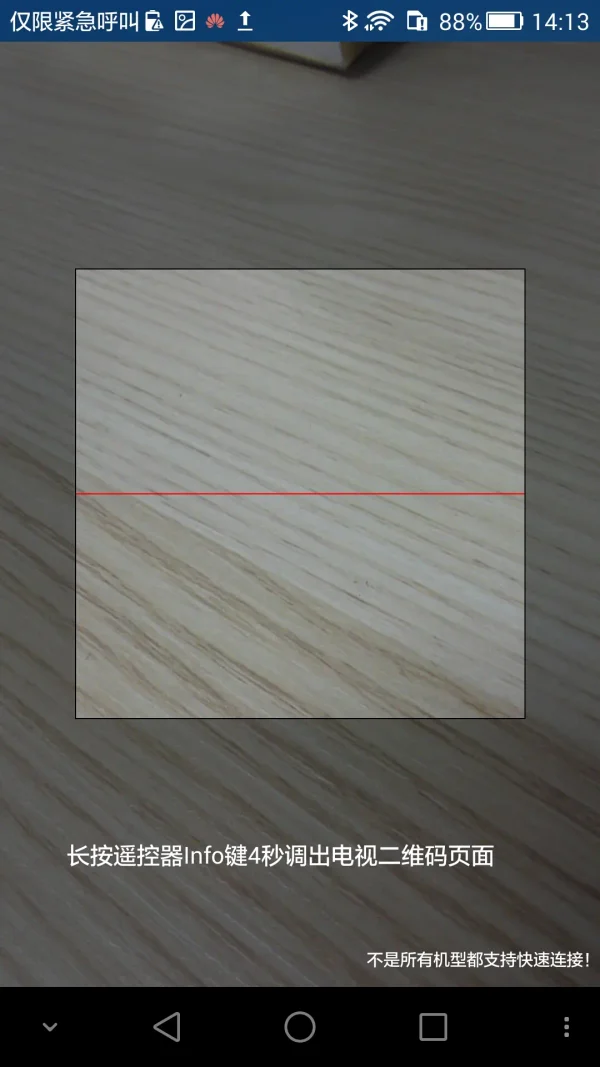
1. Führen Sie Multi-Panel-Interactive-Funktion auf dem Handy / Pad, und stellen Sie eine drahtlose Verbindung zwischen dem Mobiltelefon / Pad und dem Fernsehgerät.
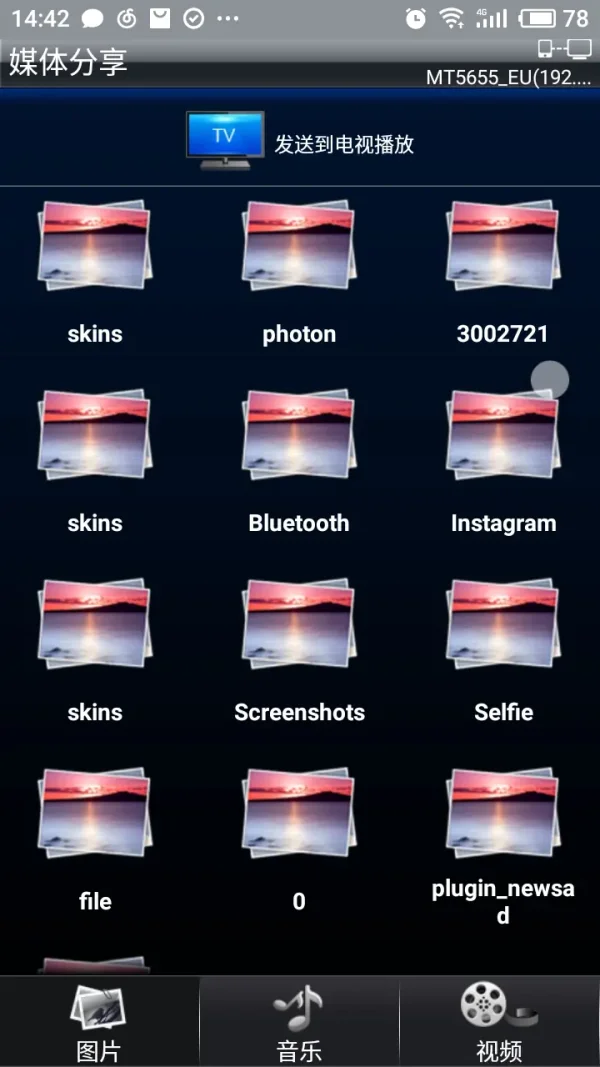
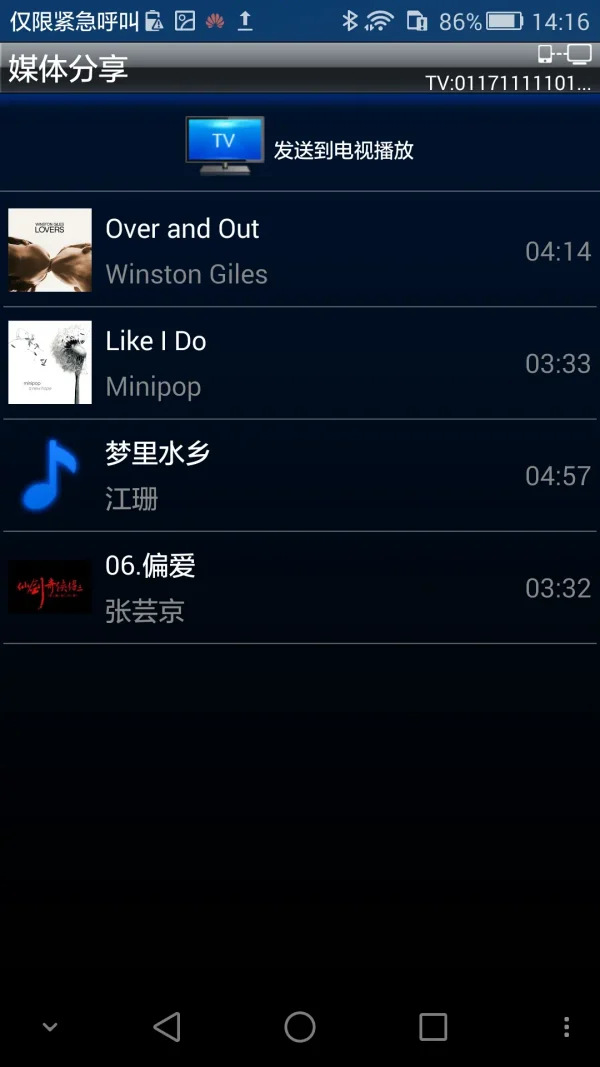
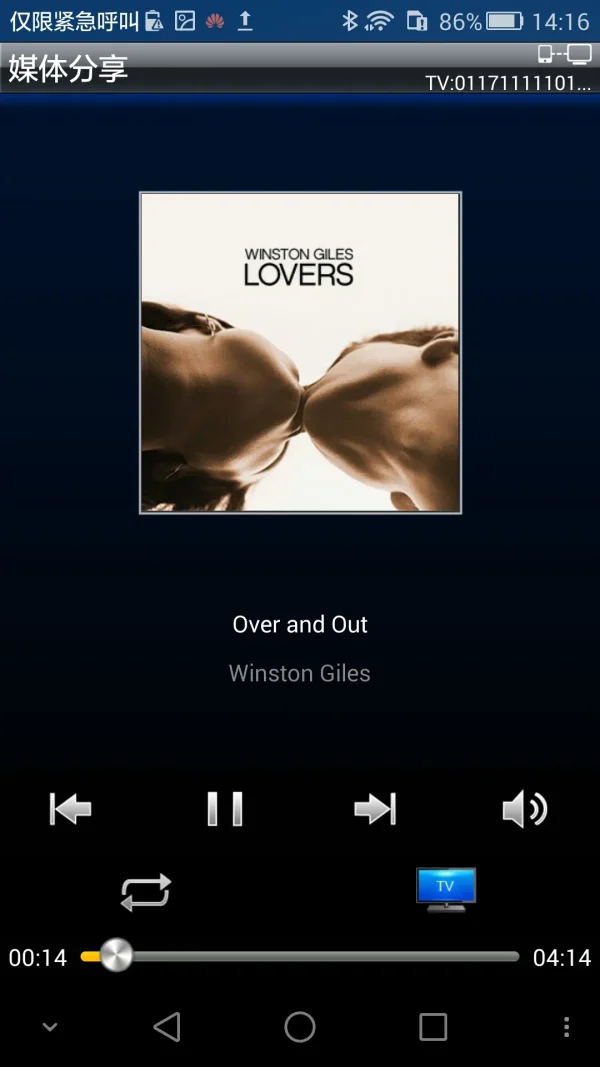
2. „Transfer File“ Funktion auf dem Handy / Pad können Sie Bilder / Videos / Musik-Ordner oder Dateien durchsuchen Mit einem Klick. Durch lange einen Ordner oder eine Datei drücken, und an dem unteren Rand der Seite ziehen, können Sie die Mediendatei TV für die Wiedergabe senden. Oder während der Wiedergabe, klicken Sie auf „Senden an TV für Wiedergabe“ auf der Spielkonsole.
Video-on-Demand: nach Handy / Pad eine Verbindung mit dem Fernseher herstellt, können Sie Internet-Video im Handy / Pad an den Fernseher für die Wiedergabe senden. Ausführliche Schritte:
1. Führen Sie Multi-Panel-Interactive-Funktion auf dem Handy / Pad, und stellen Sie eine drahtlose Verbindung zwischen dem Mobiltelefon / Pad und dem Fernsehgerät.
2. Klicken Sie auf „Video-On-Demand“ auf dem Mobiltelefon / Pad. Klicken Sie auf ein Video und wählen Sie „Senden an TV für Wiedergabe“. Oder während der Wiedergabe, klicken Sie auf „Senden an TV für Wiedergabe“ auf der Spielkonsole.
Interaktive Spiele: zur Zeit drei HD-interaktive Spiele werden unterstützt. Sie sind Motorboot, 3D-Balance Ball und Boxen. Nach dem Handy / Pad eine Verbindung mit dem Fernseher herstellt, können Sie das Mobiltelefon / Pad verwenden, um das TV zu steuern, um ein Spiel zu spielen.
Ausführliche Schritte:
1. Führen Sie Multi-Panel-Interactive-Funktion auf dem Handy / Pad, und stellen Sie eine drahtlose Verbindung zwischen dem Mobiltelefon / Pad und dem Fernsehgerät.
2. „Interaktive Spiele“ -Funktion auf dem Handy / Pad Mit einem Klick können Sie das Handy / Pad verwenden, um ein Spiel auf dem Fernseher zu steuern. Sie fertig sind, den Inhalt zu lesen, um das Symbol entspricht.
Originaltext anzeigen
Centering around the Smart TV as the core, it realizes the interconnectivity and interoperability among TV, mobile phone and Pad, the interactivity of multimedia, remote control, and other functions. Multi-panel interaction contains “Transfer File”, “Video-on-Demand”, “Remote Control”, “Interactive Games”, and other applications. Multi-screen Interaction + Cloud Entertainment: use mobile phone to remotely control the TV for sharing media on the large screen, watching on-demand HD video, and playing Active Game. Transfer File: after mobile phone/Pad establishes a connection with the TV, you can send pictures, videos and music in the mobile phone/Pad to the TV for playback.
Detailed Steps:
1. Run Multi-panel Interactive feature on the mobile phone/Pad, and establish wireless connection between the mobile phone/Pad and the TV.
2. By clicking “Transfer File” feature on the mobile phone/Pad, you can browse pictures/videos/music folders or files. By long pressing a folder or file, and dragging it to the bottom of the page, you can send the media file to TV for playback. Or, during playback, click “Send to TV for Playback” on the play console.
Video-on-Demand: after mobile phone/Pad establishes a connection with the TV, you can send Internet video in the mobile phone/Pad to the TV for playback. Detailed Steps:
1. Run Multi-panel Interactive feature on the mobile phone/Pad, and establish wireless connection between the mobile phone/Pad and the TV.
2. Click “Video-On-Demand” on the mobile phone/Pad. Click a video and select “Send to TV for Playback”. Or, during playback, click “Send to TV for Playback” on the play console.
Interactive Games: currently three HD interactive games are supported. They are Motorboat, 3D Balance Ball, and Boxing. After the mobile phone/Pad establishes a connection with the TV, you can use the mobile phone/Pad to control the TV to play a game.
Detailed Steps:
1. Run Multi-panel Interactive feature on the mobile phone/Pad, and establish wireless connection between the mobile phone/Pad and the TV.
2. By clicking “Interactive Games” feature on the mobile phone/Pad, you can use the mobile phone/Pad to control a game on the TV. You have finished reading the contents corresponding to the icon.
Datensicherheit
Was TCL Group bei Google Play zu den Daten angibt, die diese App erfasst und weitergibt.
- Keine Daten werden mit Drittunternehmen oder -organisationen geteiltWeitere Informationen dazu, wie Entwickler Angaben zur Weitergabe von Daten machen
- Keine Daten erhobenWeitere Informationen dazu, wie Entwickler Angaben zur Datenerhebung machen
Neue Funktionen
Version 1.0.0 · 08.12.2017
Fix some bugs.
Kontakt zum Entwickler
- Websitehuan.tv
- E-Mailfusz@ffalcon.cn
- Datenschutzerklärungomedia.my7v.com
- Adresse中国 广东省深圳市 前海深港合作区南山街道临海大道59号海运中心主塔楼1409号-14103 邮政编码: 518052
Informationen
- Angeboten von
- TCL Group
- Kategorie
- Tools
- Version
- 1.0.0
- Aktualisiert
- 08.12.2017
- Veröffentlicht
- 23.01.2019
- Erfordert
- Android 2.2 oder höher
- Altersfreigabe
- USK ab 0 Jahren
- Preis
- Kostenlos
- Paketname
- com.tcl.tvremotenew