TV Remote-TV assistant
TCL Group- Rating 3+Batasan usia
- Alat Kategori
- 8/12/2017Diperbarui
- GratisHarga
Tertaut ke halaman resmi com.tcl.tvremotenew di Google Play. Terakhir diperiksa pada 27/11/2026.
Tangkapan layar





Tentang aplikasi ini
Terjemahan otomatis oleh Google. Bahasa asli: Inggris (Amerika Serikat).
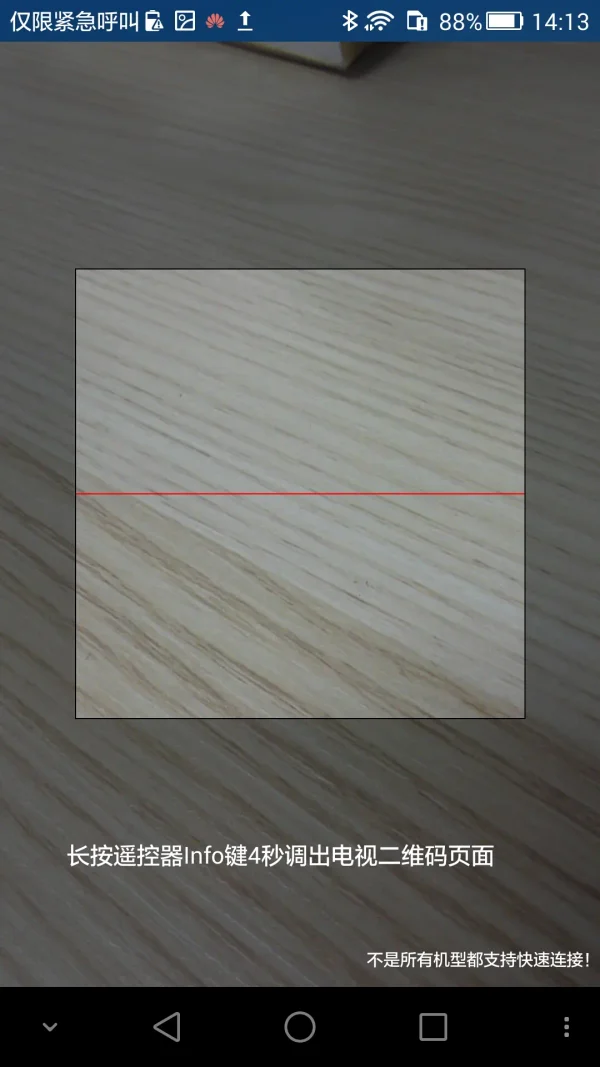
media berbagi (Foto, Musik, Video) & TV Remote Control & QRCode Cerdas Connect
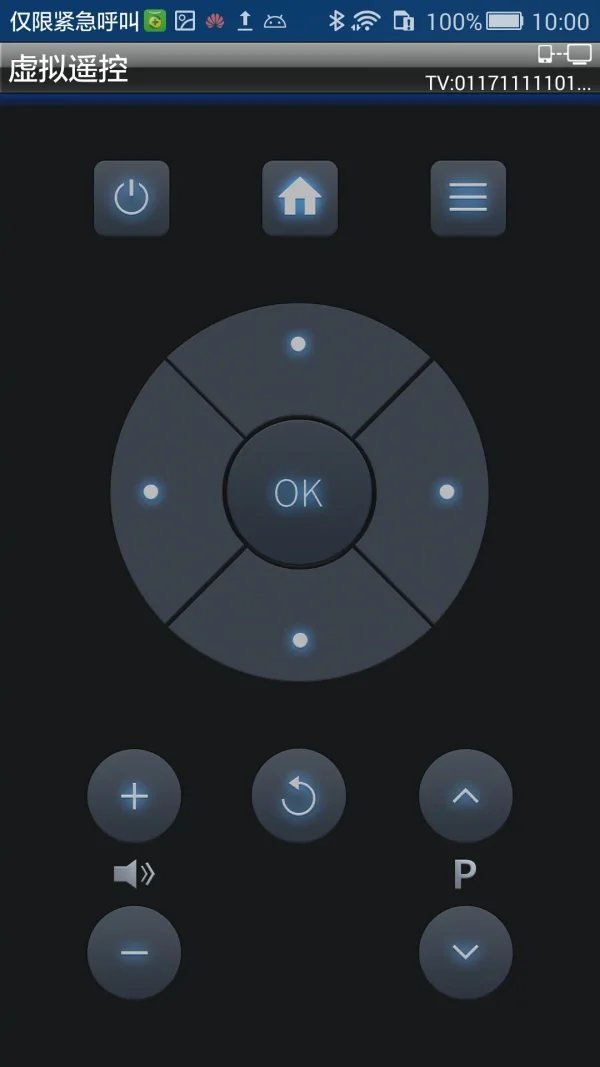
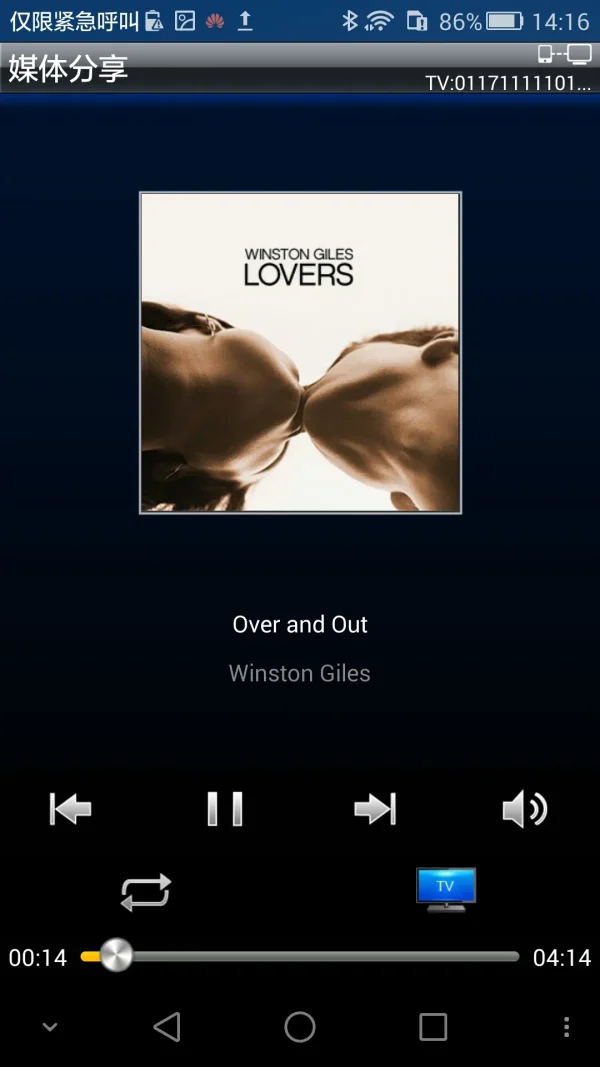
Berpusat di sekitar Smart TV sebagai inti, itu menyadari interkonektivitas dan interoperabilitas antara TV, ponsel dan Pad, interaktivitas multimedia, remote control, dan fungsi lainnya. interaksi multi-panel berisi “File Transfer”, “Video-on-Demand”, “Remote Control”, “Game Interaktif”, dan aplikasi lainnya. Multi-layar Interaksi + Cloud Entertainment: menggunakan ponsel untuk kontrol jarak jauh TV untuk berbagi media pada layar besar, menonton video HD on-demand, dan bermain permainan aktif. Transfer File: setelah ponsel / Pad menetapkan koneksi dengan TV, Anda dapat mengirim gambar, video dan musik di ponsel / Pad ke TV untuk pemutaran.
Langkah-langkah rinci:
Fitur 1. Jalankan Multi-panel Interaktif pada ponsel / Pad, dan membangun koneksi nirkabel antara ponsel / Pad dan TV.
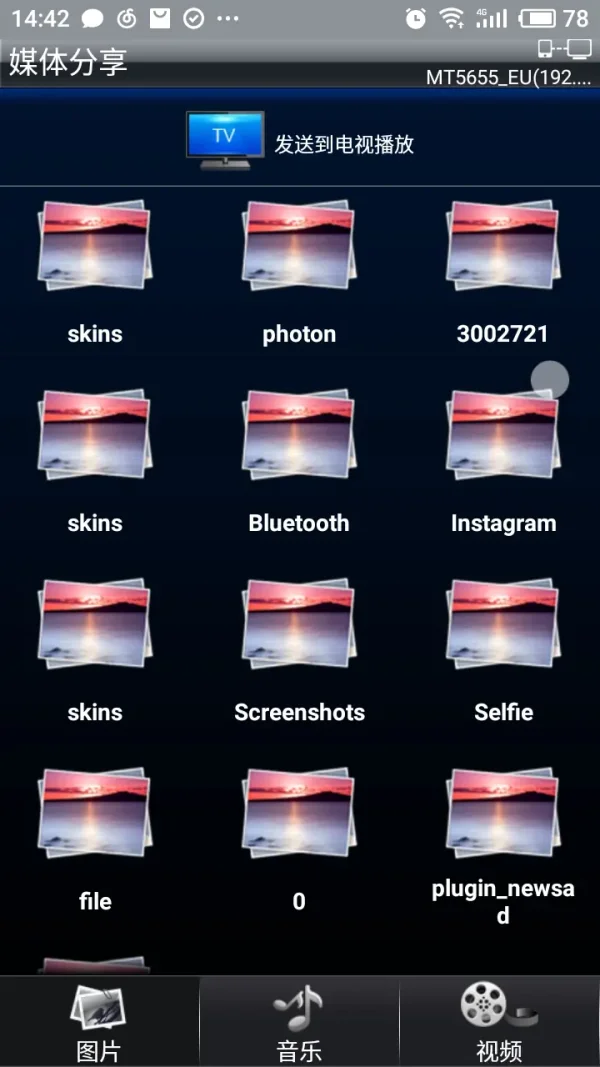
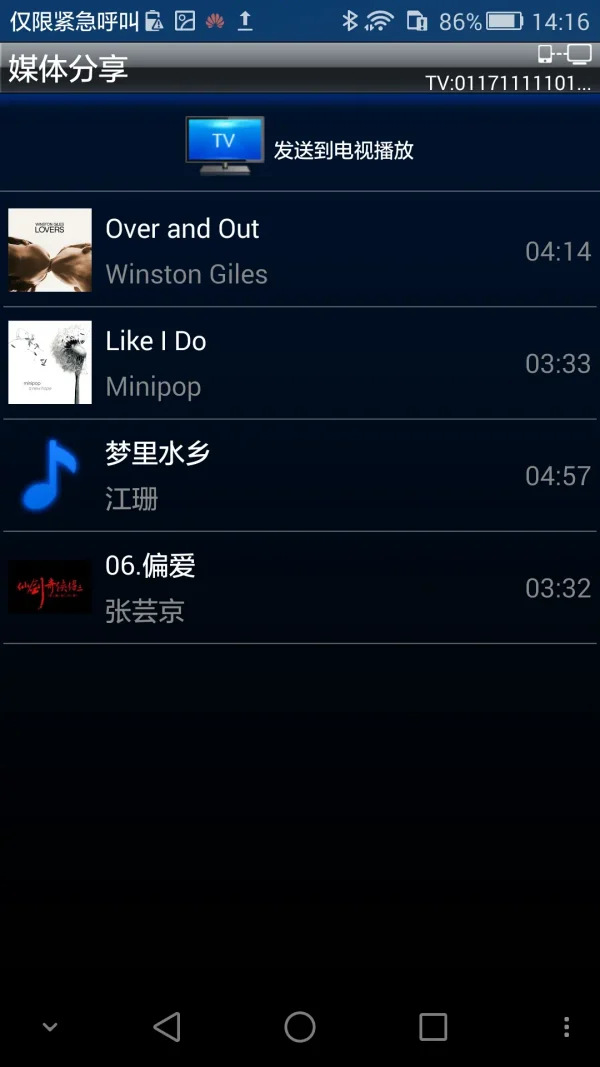
2. Dengan mengklik “File Transfer” fitur pada / Pad, Anda dapat menelusuri gambar / video folder ponsel / musik atau file. Dengan panjang menekan folder atau file, dan menyeretnya ke bawah halaman, Anda dapat mengirim file media ke TV untuk pemutaran. Atau, selama pemutaran, klik “Kirim ke TV untuk Playback” pada konsol permainan.
Video-on-Demand: setelah ponsel / Pad menetapkan koneksi dengan TV, Anda dapat mengirim video Internet di ponsel / Pad ke TV untuk pemutaran. Langkah-langkah rinci:
Fitur 1. Jalankan Multi-panel Interaktif pada ponsel / Pad, dan membangun koneksi nirkabel antara ponsel / Pad dan TV.
2. Klik “Video-On-Demand” pada ponsel / Pad. Klik video dan pilih “Kirim ke TV untuk Playback”. Atau, selama pemutaran, klik “Kirim ke TV untuk Playback” pada konsol permainan.
Permainan Interaktif: Saat ini ada tiga permainan interaktif HD yang didukung. Mereka adalah perahu motor, 3D Balance Ball, dan Tinju. Setelah ponsel / Pad menetapkan koneksi dengan TV, Anda dapat menggunakan ponsel / Pad untuk mengendalikan TV untuk bermain game.
Langkah-langkah rinci:
Fitur 1. Jalankan Multi-panel Interaktif pada ponsel / Pad, dan membangun koneksi nirkabel antara ponsel / Pad dan TV.
2. Dengan mengklik “Permainan Interaktif” fitur pada ponsel / Pad, Anda dapat menggunakan ponsel / Pad untuk mengendalikan permainan di TV. Anda telah selesai membaca isi sesuai dengan ikon.
Tampilkan teks asli
Centering around the Smart TV as the core, it realizes the interconnectivity and interoperability among TV, mobile phone and Pad, the interactivity of multimedia, remote control, and other functions. Multi-panel interaction contains “Transfer File”, “Video-on-Demand”, “Remote Control”, “Interactive Games”, and other applications. Multi-screen Interaction + Cloud Entertainment: use mobile phone to remotely control the TV for sharing media on the large screen, watching on-demand HD video, and playing Active Game. Transfer File: after mobile phone/Pad establishes a connection with the TV, you can send pictures, videos and music in the mobile phone/Pad to the TV for playback.
Detailed Steps:
1. Run Multi-panel Interactive feature on the mobile phone/Pad, and establish wireless connection between the mobile phone/Pad and the TV.
2. By clicking “Transfer File” feature on the mobile phone/Pad, you can browse pictures/videos/music folders or files. By long pressing a folder or file, and dragging it to the bottom of the page, you can send the media file to TV for playback. Or, during playback, click “Send to TV for Playback” on the play console.
Video-on-Demand: after mobile phone/Pad establishes a connection with the TV, you can send Internet video in the mobile phone/Pad to the TV for playback. Detailed Steps:
1. Run Multi-panel Interactive feature on the mobile phone/Pad, and establish wireless connection between the mobile phone/Pad and the TV.
2. Click “Video-On-Demand” on the mobile phone/Pad. Click a video and select “Send to TV for Playback”. Or, during playback, click “Send to TV for Playback” on the play console.
Interactive Games: currently three HD interactive games are supported. They are Motorboat, 3D Balance Ball, and Boxing. After the mobile phone/Pad establishes a connection with the TV, you can use the mobile phone/Pad to control the TV to play a game.
Detailed Steps:
1. Run Multi-panel Interactive feature on the mobile phone/Pad, and establish wireless connection between the mobile phone/Pad and the TV.
2. By clicking “Interactive Games” feature on the mobile phone/Pad, you can use the mobile phone/Pad to control a game on the TV. You have finished reading the contents corresponding to the icon.
Keamanan data
Yang dinyatakan TCL Group di Google Play tentang data yang dikumpulkan dan dibagikan aplikasi ini.
- Tidak ada data yang dibagikan kepada pihak ketigaPelajari lebih lanjut cara developer menyatakan pembagian data
- Tidak ada data yang dikumpulkanPelajari lebih lanjut cara developer menyatakan pengumpulan data
Yang baru
Versi 1.0.0 · 8/12/2017
Fix some bugs.
Kontak pengembang
- Situs webhuan.tv
- Emailfusz@ffalcon.cn
- Kebijakan Privasiomedia.my7v.com
- Alamat中国 广东省深圳市 前海深港合作区南山街道临海大道59号海运中心主塔楼1409号-14103 邮政编码: 518052
Informasi
- Ditawarkan oleh
- TCL Group
- Kategori
- Alat
- Versi
- 1.0.0
- Diperbarui
- 8/12/2017
- Dirilis
- 23/1/2019
- Memerlukan
- Android 2.2 atau yang lebih baru
- Batasan usia
- Rating 3+
- Harga
- Gratis
- Nama paket
- com.tcl.tvremotenew