
Freelook Head Tracker
Head tracking for games
Diseñada para iPhone, iPad, iPod touch
Compras en la aplicación
- Clasificación por edad4+
- CategoríaSimulación
- DesarrolladorJung Son
- IdiomasInglés
- Tamaño26,0 MB
Es posible que Freelook Head Tracker no esté disponible en App Store en este momento
No se pudo acceder a la ficha de la tienda en nuestra última comprobación. El enlace sigue llevando a la página oficial de App Store.
Capturas de pantalla


Acerca de
El desarrollador no ha proporcionado este texto en tu idioma.
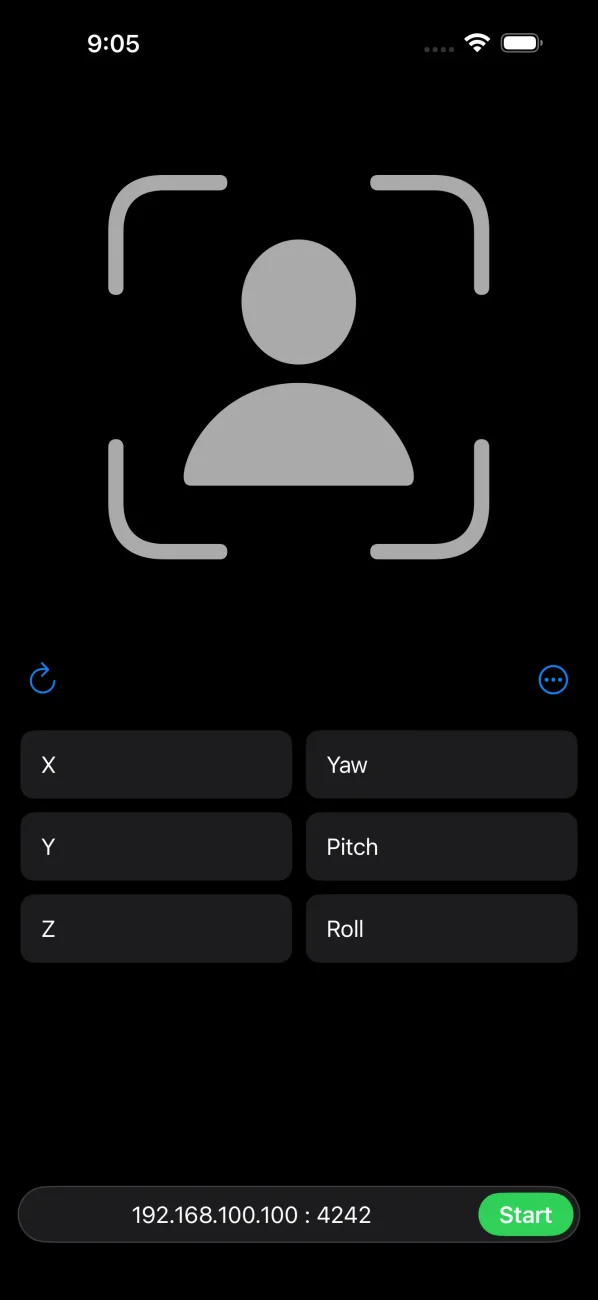
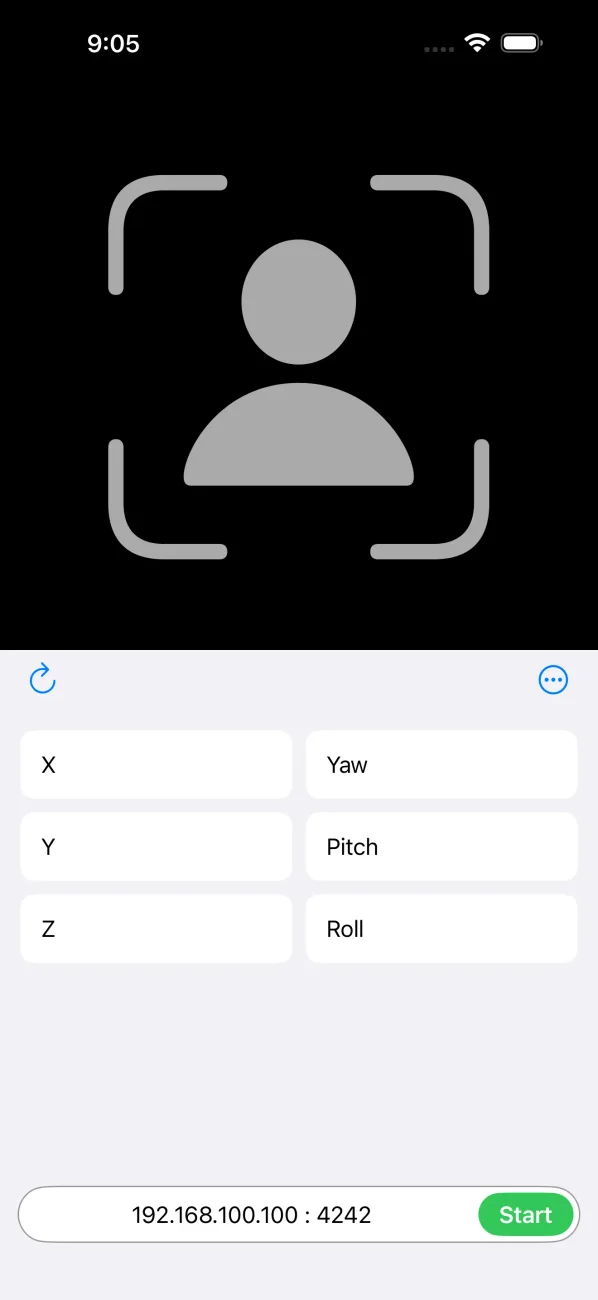
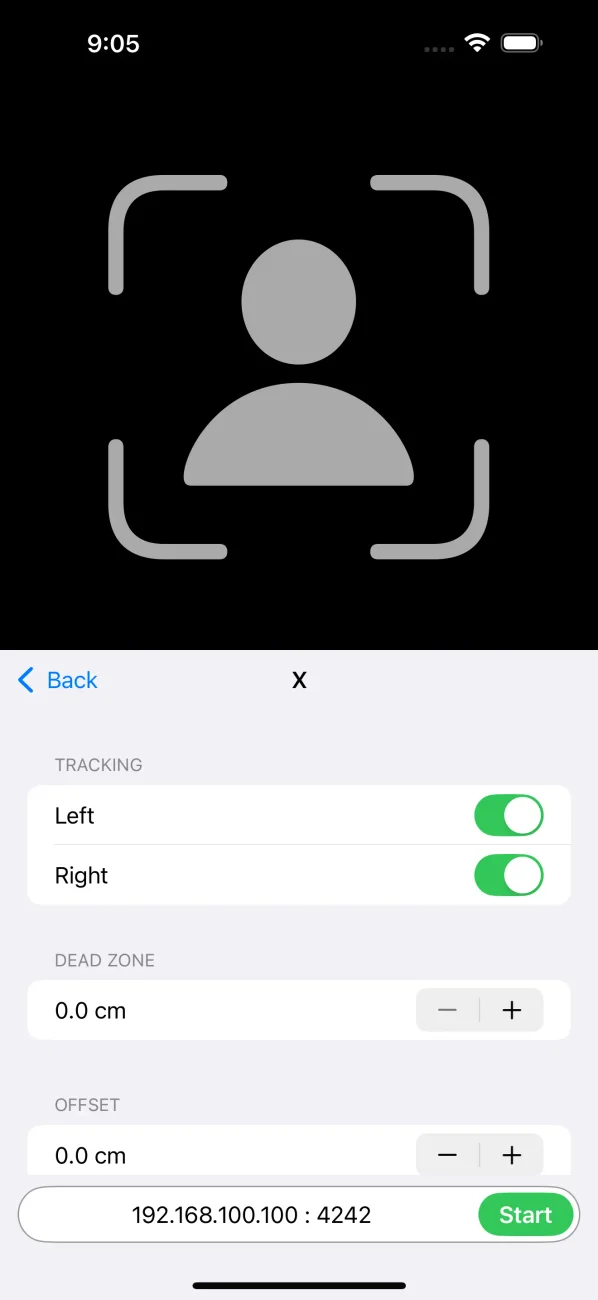
Freelook head tracker is a head tracking app for games and simulation software. It works with Opentrack desktop software to allow you to control the free look camera of your sim games hands-free.
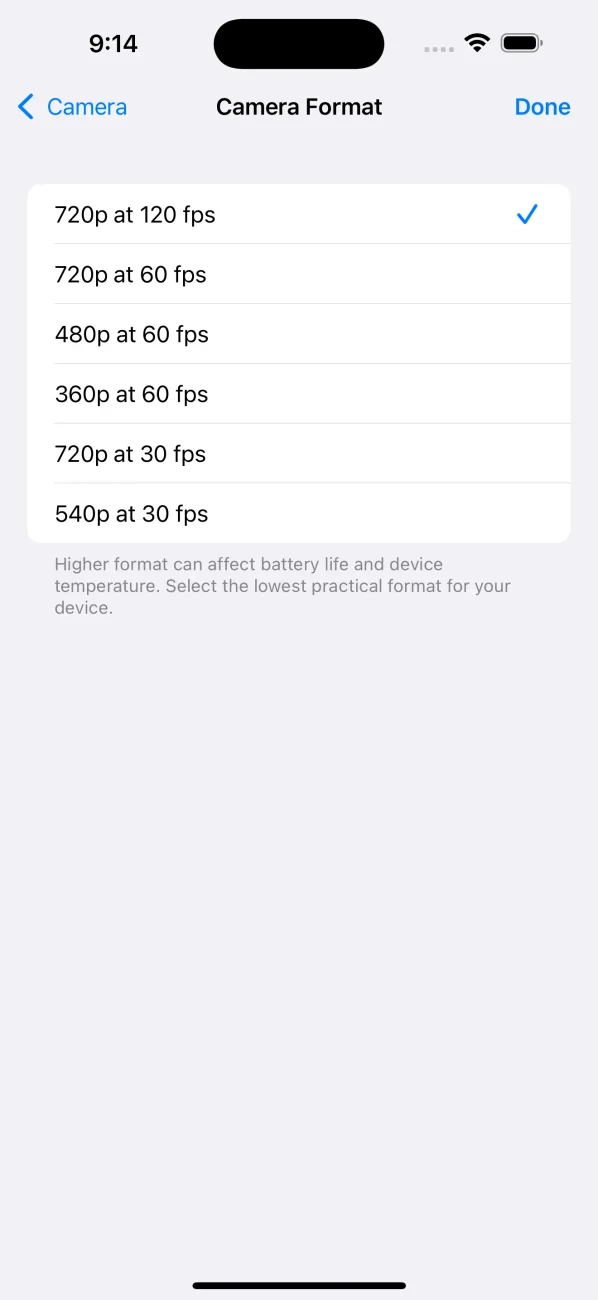
Freelook will work on all iOS devices with a front facing camera running iOS12 or later. It supports 120fps, USB connection, keyboard shortcuts, dark mode, gestures and more. You can use it for free with ads and if you like it, upgrade to pro version without ads (pro version requires iOS15 or later).
Opentrack Setup
1. Download, install and run Opentrack software on your PC. Opentrack is a free software dedicated to tracking user’s head movements and relaying the information to games and flight simulation software. For the latest downloads visit https://github.com/opentrack/opentrack/releases.
2. Under Input select UDP over network. Click on the settings icon next it and remember the Port number (default is 4242). You will need to enter this value in the app.
3. Under Output select freetrack 2.0 Enhanced.
4. Under Filter select Accela. Accela works great out of the box. If you use any other filter, you may need to adjust its settings.
5. Click Mapping and adjust mapping properties to your liking.
6. If you intend to use the app’s built-in Center feature, click Options and under Shortcuts uncheck Center at startup.
7. Click Start to start receiving inputs.
PC (Windows) Setup
1. On the taskbar, right click on the network icon and select Open Network & Internet Settings.
2. Under Advanced Network Settings, click Windows Firewall.
3. Click Advanced Settings to open Windows Defender Firewall with Advanced Security.
4. Click Inbound Rules option on the left pane.
5. Click New Rule… on the right pane.
6. Under Rule Type select Program and click Next.
7. Select This Program path.
8. Browse to Opentrack exe file location. It is normally located at “C:\Program Files (x86)\Opentrack\opentrack.exe”.
9. Select Allow the connection.
10. Click Next, do not change any option here and click Next again.
11. Specify a name for this rule.
12. Click Finish.
13. On the taskbar, click on the network icon.
14. Find the network you’re connected to and click Properties.
15. Under Properties, look for your IP address listed next to IPv4 address. You will need to enter this value into the app.
16. You can also find your IP address using Command Prompt. Type ipconfig then press the Enter key.
App Setup
1. Run the app.
2. If iOS shows an alert requesting camera access, click OK to grant permission.
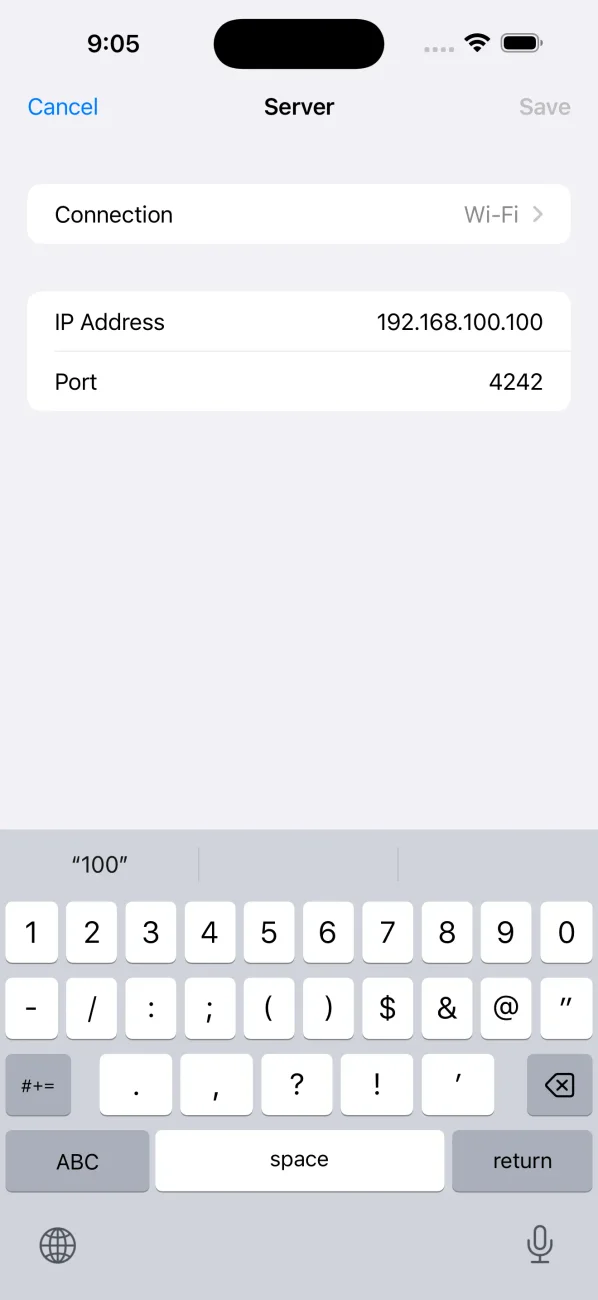
3. Click 192.168.100.100 : 4242 next to the Start button and enter IP address and Port number from Opentrack/PC (Windows) Setup.
4. With Opentrack running, click Start.
5. If iOS shows an alert requesting local network access, click OK to grant permission. If the Start button did not change to Stop, click Start again.
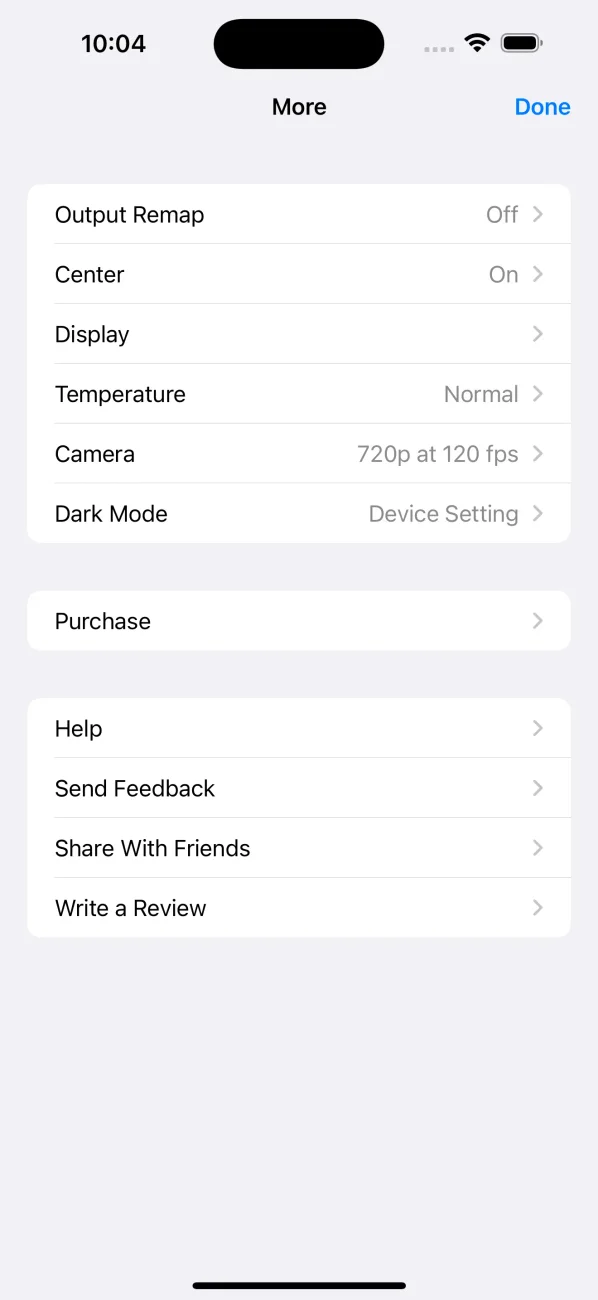
6. If you intend to use Opentrack’s Center feature, click More and turn off Center.
Novedades
Versión 1.2.2 · 5/11/2024
This version added in app purchase to remove ads.
Privacidad de la aplicación
Lo que Jung Son declara en App Store sobre cómo esta aplicación gestiona los datos.
-
Datos usados para rastrearte
Pueden usarse para rastrearte en aplicaciones y sitios web propiedad de otras empresas.
- Ubicación
- Identificadores
- Datos de uso
- Diagnóstico
-
Datos vinculados a ti
Pueden recopilarse y vincularse a tu identidad.
- Ubicación
- Identificadores
- Datos de uso
- Diagnóstico
-
Datos no vinculados a ti
Pueden recopilarse, pero no se vinculan a tu identidad.
- Diagnóstico
Las prácticas de privacidad pueden variar, por ejemplo, según las funciones que uses o tu edad.
Información
- Vendedor
- Jung Son
- Categoría
- Simulación
- Versión
- 1.2.2
- Actualizado
- 5/11/2024
- Publicado
- 30/5/2021
- Tamaño
- 26,0 MB
- Requiere
- iOS 12.0 o posterior
- Clasificación por edad
- 4+
- Compras en la aplicación
- Sí
- Idiomas
- Inglés
- Copyright
- © 2021 Jung Son
Quizá también te guste
-
 Race Dashboards SimracingDatos de telemetría sim games
-
 Red Flag Sim: Avión de combateSimulador de vuelo militar
-
 FeelFPV TinyWhoopSimulación
-
 Moonlight Game StreamingJuegos
-
 FeelFPVSimulación
-
 Aerofly FS GlobalSimulador de vuelo
-
 Engine SimulatorSimulación
-
 Armed Air Force One - Jets SimCombat Airplane Dogfight Fight
-
 RFS - Real Flight SimulatorAirplane Pilot & Flying Sim
-
 EA RacenetCarreras