
working hours commuting time
Diseñada para iPhone, iPad
Compras en la aplicación
- Clasificación por edad17+
- CategoríaEconomía y empresa
- DesarrolladorYUTAKA IZUMIYAMA
- IdiomasJaponés+ 1 más
- Tamaño7,3 MB
Es posible que working hours commuting time no esté disponible en App Store en este momento
No se pudo acceder a la ficha de la tienda en nuestra última comprobación. El enlace sigue llevando a la página oficial de App Store.
Capturas de pantalla

Acerca de
El desarrollador no ha proporcionado este texto en tu idioma.
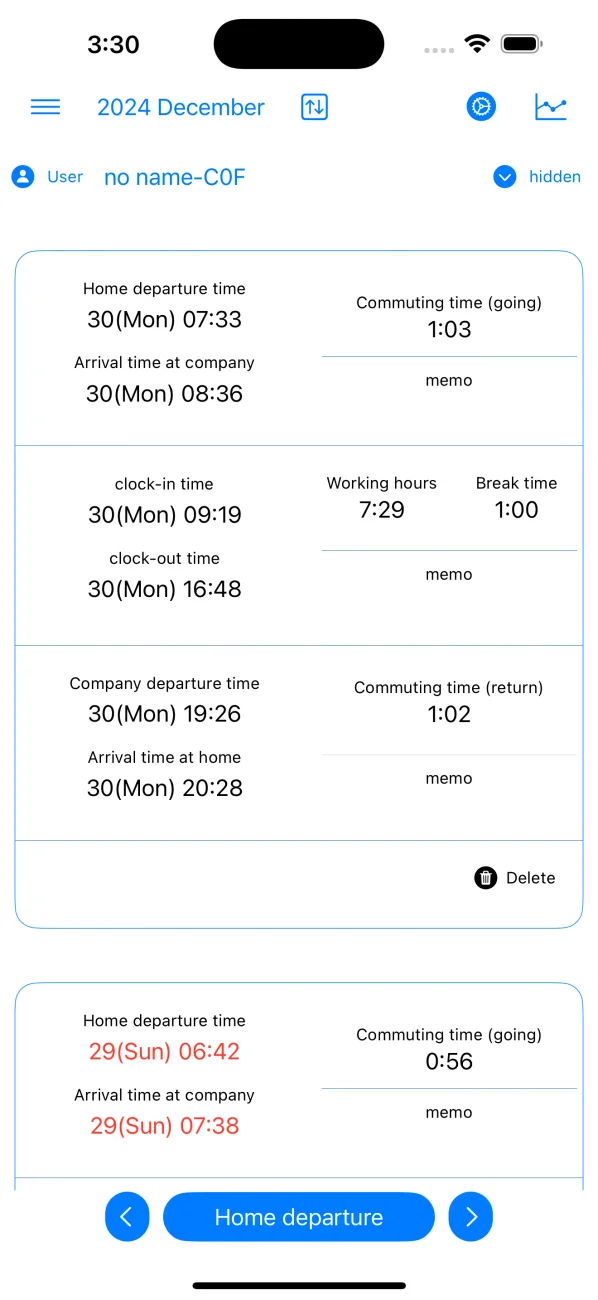
Press “home departure “ button to record the date and time of departure from home.
The date and time of arrival at work can be recorded by pressing and holding "Record date and time Press and hold” on the table.
Commuting time (going) is calculated and displayed based on the date and time you leave home and the date and time you arrive at company.
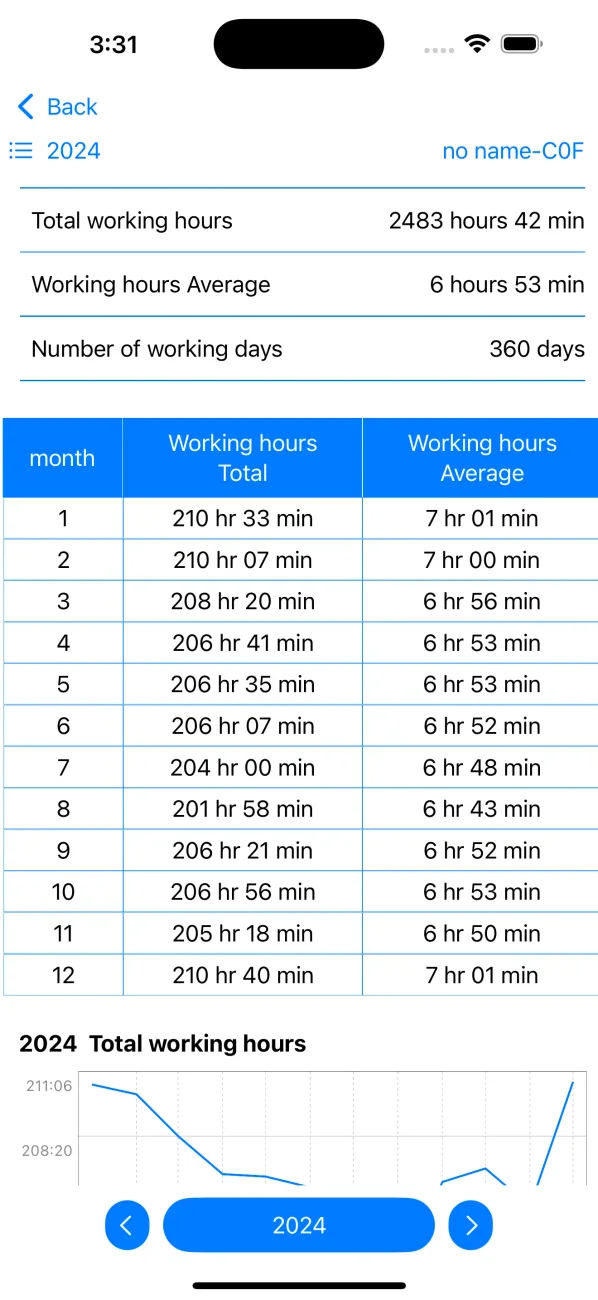
Working hours are calculated and displayed based on the date and time you start work, the date and time you finish work, and break times.
Commuting time (return) is calculated and displayed based on the date and time you leave company and the date and time you arrive at home.
・Record the date and time you left home
1. Tap the " Home de”parture button.
If you press and hold/long tap, steps 2/3 will be skipped
and the current date and time will be set.
2. Select the date and tap "Next".
3. Select the time and tap OK.
・To record the date and time of arrival at company
1. Tap the "Record date and time press and hold” button in the date and time of arrival at company in the table.
If you long press/long tap, steps 2/3 will be skipped
and the current date and time will be set.
2. Select the date and tap "Next".
3. Select the time and tap "OK".
To record the clock-in date and time , the clock-out date and time , the date and time you leave company, and the date and time you arrive home, follow the same procedure as above.
▼ Sorting order
You can change the sort order of the table by tapping the arrows (↓↑) to the left of the year and month.
▼ Commuting time and working time
Commuting time (going) is calculated and displayed based on the date and time of departure from home and the date and time of arrival at company.
Working time is calculated and displayed based on the clock - in date and time , the clock-out date and time , and the break time.
Commuting time (return) is calculated and displayed based on the date and time of departure from work and the date and time of arrival at home.
▼Enter meal content
1. Tap “memo” in the table.
2. Enter memo and tap OK.
▼Delete a record
1. Tap the trash can in the table.
2. Tap the red delete button.
▼Dark mode (top left menu)
Select dark mode ON/OFF from the menu on the top left
Press Dark Mode to switch to a screen display with a color scheme based on black.
If you press Light mode, the screen will be displayed in the normal white color.
▼If you want to delete all records
Delete all data from the top left menu
You can delete all records below.
・Delete all recorded data (eaten time, subjects, users)
・Delete all recorded data on iCloud
▼Display charts
1. Press the line chart button at the top.
2. Click the displayed chart from the menu below.
Monthly graph
Commuting time - working time chart
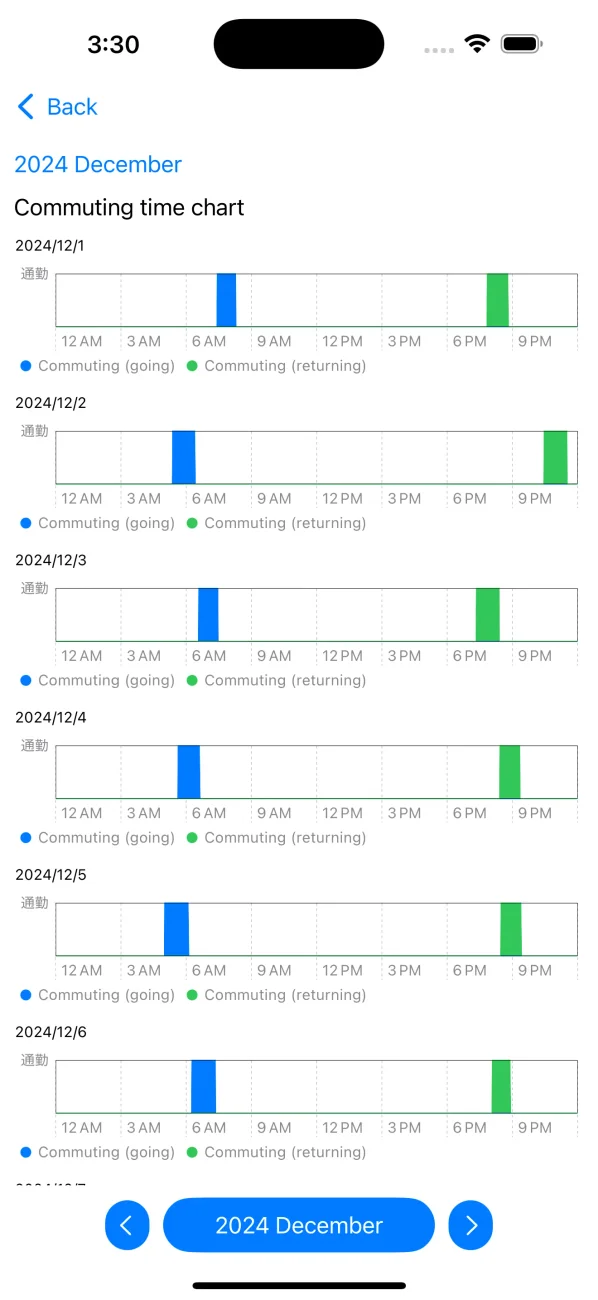
Commuting time chart
Working hours charts
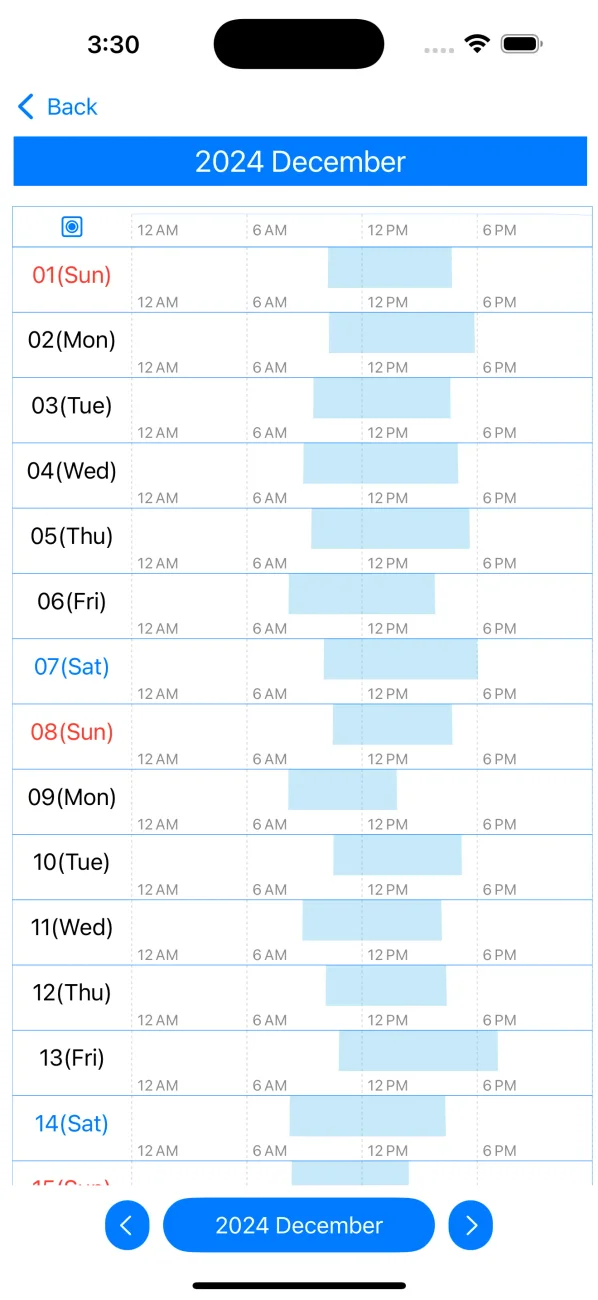
Working hours rhythm chart
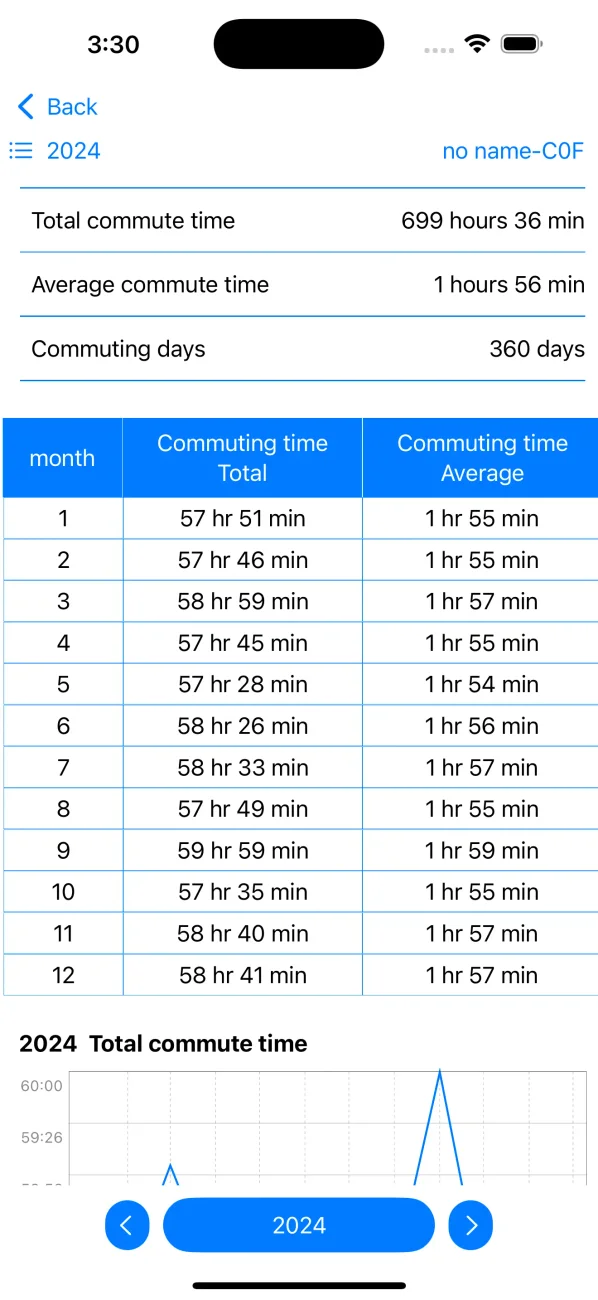
Commuting time Annual total/average/chart
Working hours Annual total/average/chart
Full period chart
▼Add user
1. Press the line menu button at the top
2. Press add user
3. Enter your username and press OK.
▼Edit username
1. Press the line menu button at the top
2. Press user edit and delete
3. Press the username from the list.
4. Edit the user name on the edit screen and press OK.
▼Delete username
1. Press the line menu button at the top
2. Press user edit and delete
3. Swipe the username you want to delete from the list from the left and press Delete.
・Model change data migration
For users with the same Apple ID
Because records are stored in iCloud
View the same recording on a new iPhone/iPad
【Terms of Use】
This app complies with the Apple Standard Terms of Use (EULA).
Please refer to the link below for details:
https://www.apple.com/legal/internet-services/itunes/dev/stdeula/
Novedades
Versión 26.9.8 · 26/9/2026
Change app screen
Privacidad de la aplicación
Lo que YUTAKA IZUMIYAMA declara en App Store sobre cómo esta aplicación gestiona los datos.
-
Datos usados para rastrearte
Pueden usarse para rastrearte en aplicaciones y sitios web propiedad de otras empresas.
- Ubicación
- Identificadores
- Datos de uso
- Diagnóstico
-
Datos vinculados a ti
Pueden recopilarse y vincularse a tu identidad.
- Ubicación
- Identificadores
- Datos de uso
- Diagnóstico
Las prácticas de privacidad pueden variar, por ejemplo, según las funciones que uses o tu edad.
Información
- Vendedor
- YUTAKA IZUMIYAMA
- Categoría
- Economía y empresa
- Versión
- 26.9.8
- Actualizado
- 26/9/2026
- Publicado
- 15/7/2025
- Tamaño
- 7,3 MB
- Requiere
- iOS 18.6 o posterior
- Clasificación por edad
- 17+
- Compras en la aplicación
- Sí
- Idiomas
- Japonés, Inglés
- Copyright
- © 2025 Yutaka Izumiyama
Quizá también te guste
-
 DAKOKU - 携帯型労働時間記録システムEconomía y empresa
-
 Hatara KirokuEconomía y empresa
-
 Currículum FácilCrea tu currículum fácil
-
 Bucket List - Simple ReorderProductividad
-
 履歴書 InstantEconomía y empresa
-
 営業記録アプリ - SalesFlow CloudProductividad
-
 飲んでも、増やせる貯金Finanzas
-
 出発到着記録Productividad
-
 WorkLog ~勤怠管理アプリ~Economía y empresa
-
 Compass - 営業開拓管理Economía y empresa