working hours commuting time
Được thiết kế cho iPhone, iPad
Miễn phí · Mua hàng trong ứng dụng
- Độ tuổi17+
- Danh mụcKinh Doanh
- Nhà phát triểnYUTAKA IZUMIYAMA
- Ngôn ngữTiếng Nhật+ 1 ngôn ngữ khác
- Kích thước7,3 MB
Liên kết đến trang App Store chính thức
Download.org không lưu trữ tệp nào của working hours commuting time. Nút này mở trang ứng dụng trên App Store, nơi YUTAKA IZUMIYAMA phát hành ứng dụng. Trang được kiểm tra lần cuối: 12/11/2026.
Ảnh chụp màn hình

Giới thiệu
Nhà phát triển chưa cung cấp nội dung này bằng ngôn ngữ của bạn.
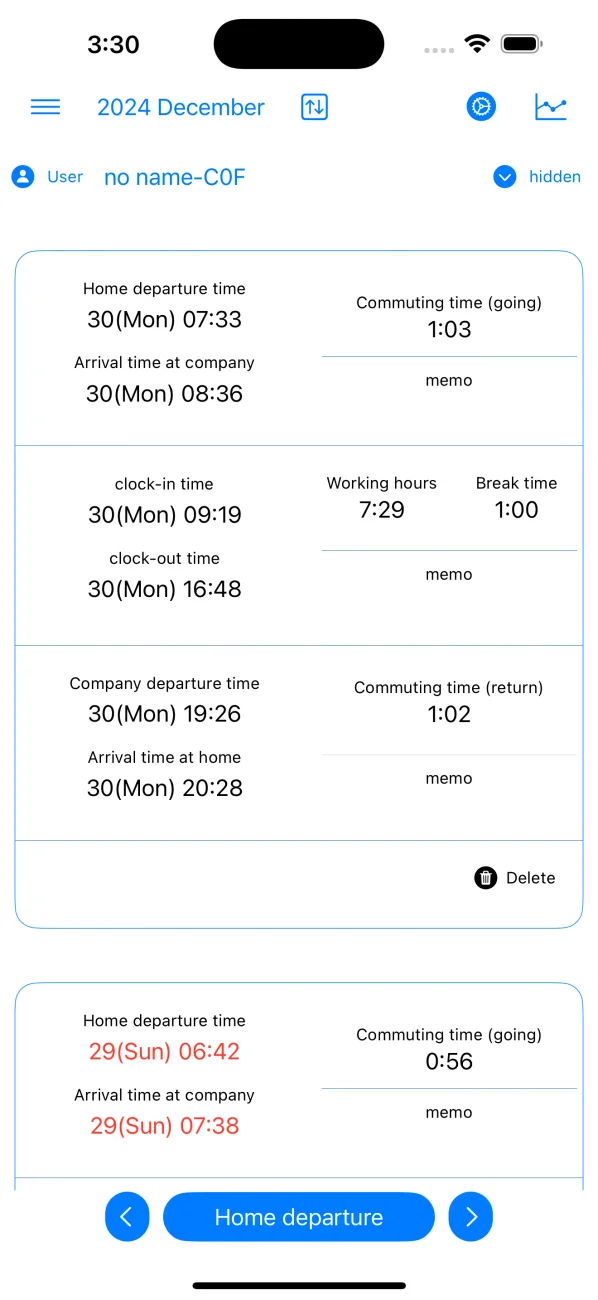
Press “home departure “ button to record the date and time of departure from home.
The date and time of arrival at work can be recorded by pressing and holding "Record date and time Press and hold” on the table.
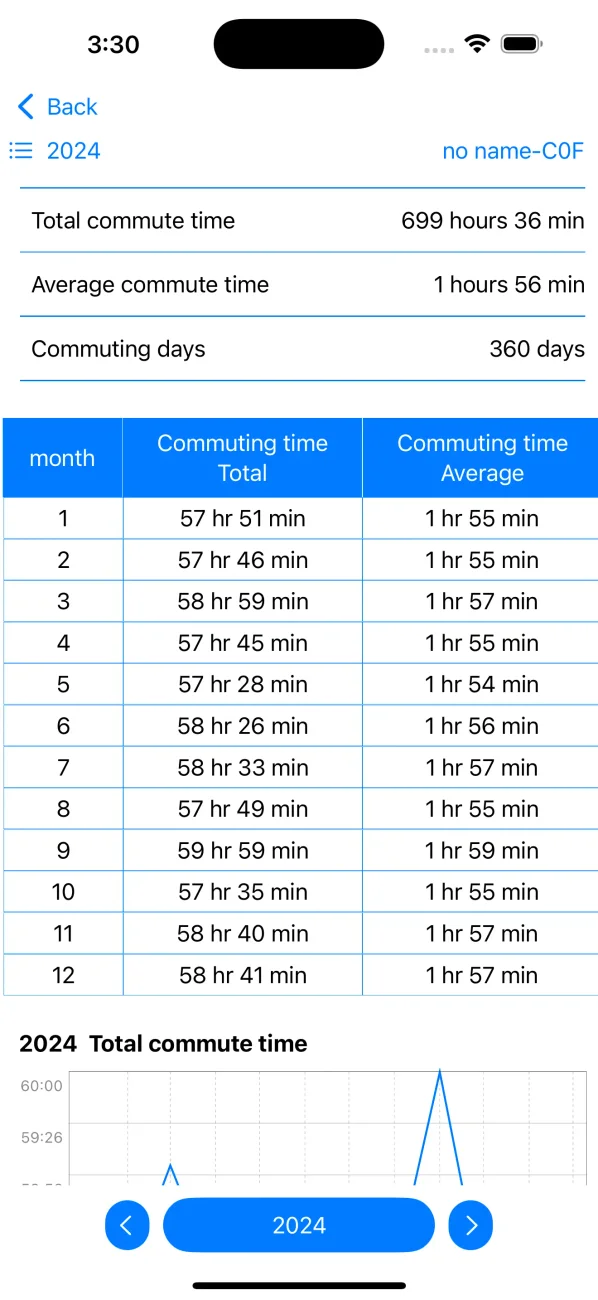
Commuting time (going) is calculated and displayed based on the date and time you leave home and the date and time you arrive at company.
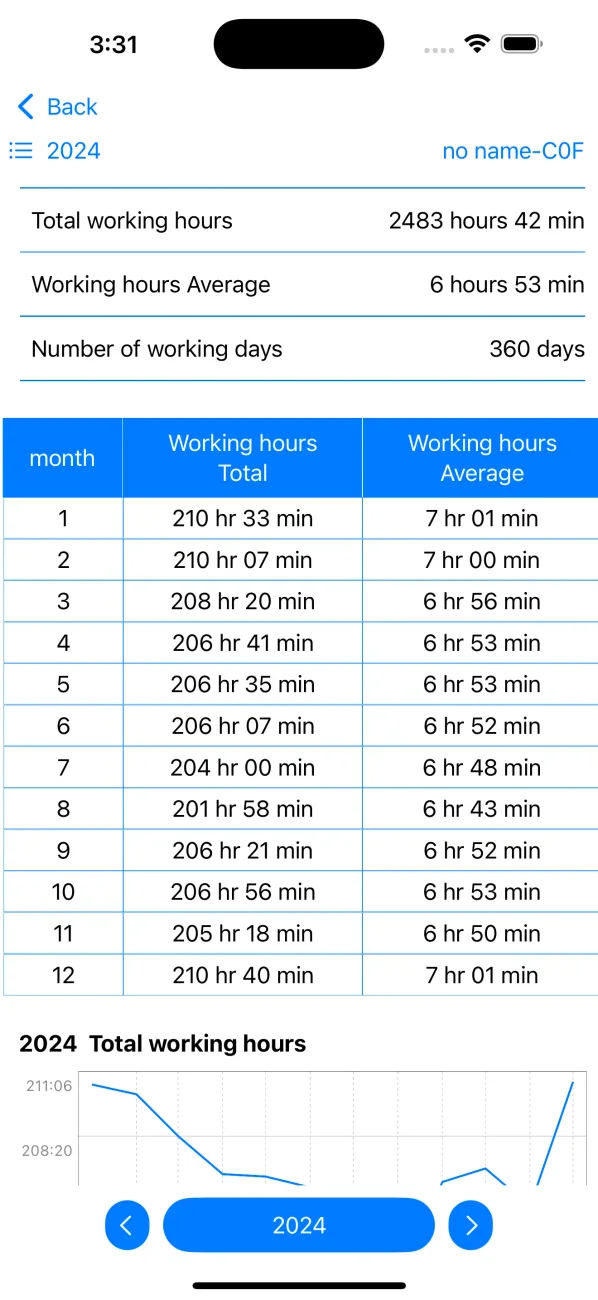
Working hours are calculated and displayed based on the date and time you start work, the date and time you finish work, and break times.
Commuting time (return) is calculated and displayed based on the date and time you leave company and the date and time you arrive at home.
・Record the date and time you left home
1. Tap the " Home de”parture button.
If you press and hold/long tap, steps 2/3 will be skipped
and the current date and time will be set.
2. Select the date and tap "Next".
3. Select the time and tap OK.
・To record the date and time of arrival at company
1. Tap the "Record date and time press and hold” button in the date and time of arrival at company in the table.
If you long press/long tap, steps 2/3 will be skipped
and the current date and time will be set.
2. Select the date and tap "Next".
3. Select the time and tap "OK".
To record the clock-in date and time , the clock-out date and time , the date and time you leave company, and the date and time you arrive home, follow the same procedure as above.
▼ Sorting order
You can change the sort order of the table by tapping the arrows (↓↑) to the left of the year and month.
▼ Commuting time and working time
Commuting time (going) is calculated and displayed based on the date and time of departure from home and the date and time of arrival at company.
Working time is calculated and displayed based on the clock - in date and time , the clock-out date and time , and the break time.
Commuting time (return) is calculated and displayed based on the date and time of departure from work and the date and time of arrival at home.
▼Enter meal content
1. Tap “memo” in the table.
2. Enter memo and tap OK.
▼Delete a record
1. Tap the trash can in the table.
2. Tap the red delete button.
▼Dark mode (top left menu)
Select dark mode ON/OFF from the menu on the top left
Press Dark Mode to switch to a screen display with a color scheme based on black.
If you press Light mode, the screen will be displayed in the normal white color.
▼If you want to delete all records
Delete all data from the top left menu
You can delete all records below.
・Delete all recorded data (eaten time, subjects, users)
・Delete all recorded data on iCloud
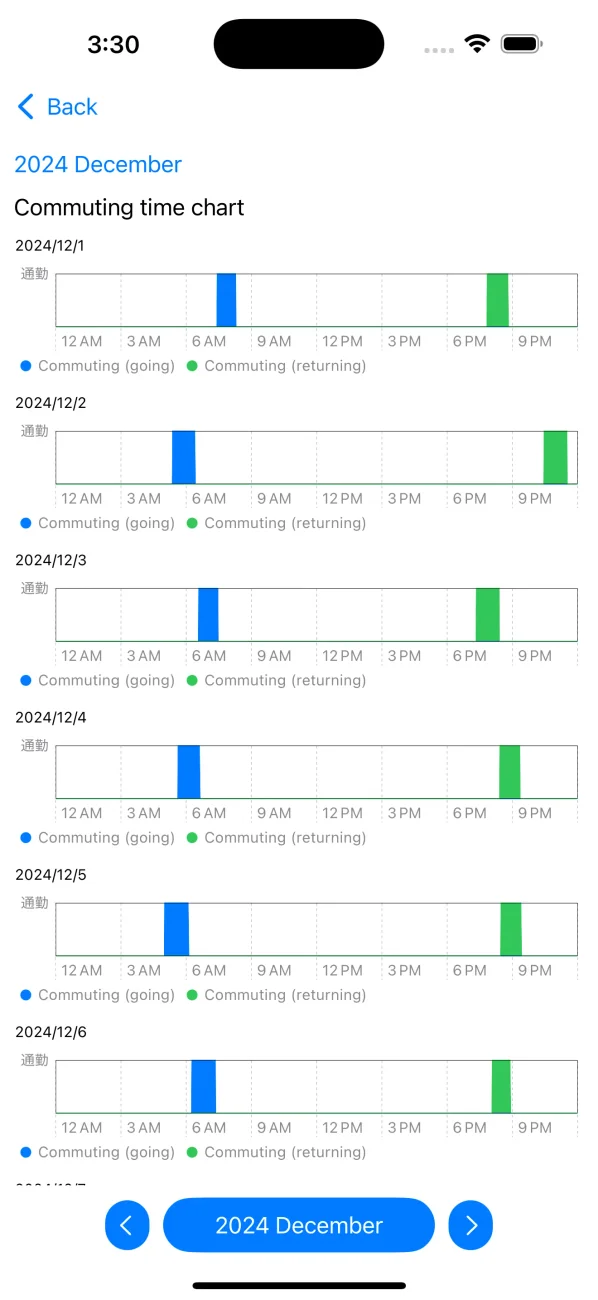
▼Display charts
1. Press the line chart button at the top.
2. Click the displayed chart from the menu below.
Monthly graph
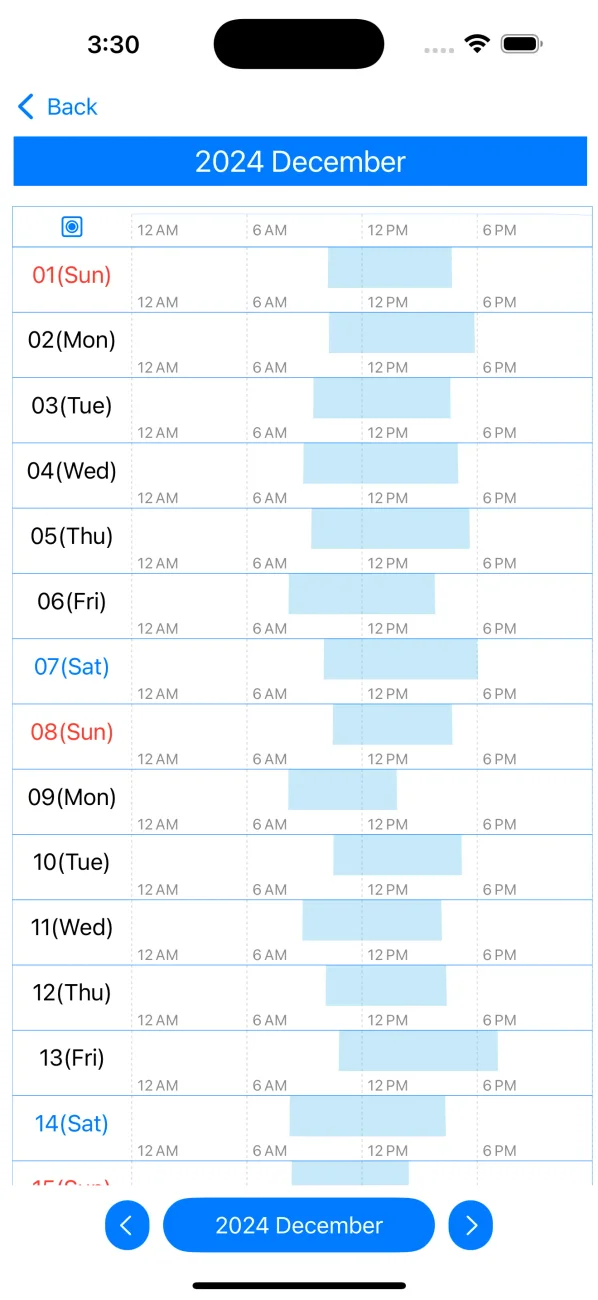
Commuting time - working time chart
Commuting time chart
Working hours charts
Working hours rhythm chart
Commuting time Annual total/average/chart
Working hours Annual total/average/chart
Full period chart
▼Add user
1. Press the line menu button at the top
2. Press add user
3. Enter your username and press OK.
▼Edit username
1. Press the line menu button at the top
2. Press user edit and delete
3. Press the username from the list.
4. Edit the user name on the edit screen and press OK.
▼Delete username
1. Press the line menu button at the top
2. Press user edit and delete
3. Swipe the username you want to delete from the list from the left and press Delete.
・Model change data migration
For users with the same Apple ID
Because records are stored in iCloud
View the same recording on a new iPhone/iPad
【Terms of Use】
This app complies with the Apple Standard Terms of Use (EULA).
Please refer to the link below for details:
https://www.apple.com/legal/internet-services/itunes/dev/stdeula/
Có gì mới
Phiên bản 26.9.8 · 26/09/2026
Change app screen
Quyền riêng tư của ứng dụng
Những gì YUTAKA IZUMIYAMA khai báo trên App Store về cách ứng dụng này xử lý dữ liệu.
-
Dữ liệu được sử dụng để theo dõi bạn
Có thể được sử dụng để theo dõi bạn trên các ứng dụng và trang web do công ty khác sở hữu.
- Vị trí
- Mã định danh
- Dữ liệu sử dụng
- Chẩn đoán
-
Dữ liệu liên kết với bạn
Có thể được thu thập và liên kết với danh tính của bạn.
- Vị trí
- Mã định danh
- Dữ liệu sử dụng
- Chẩn đoán
Phương thức đảm bảo quyền riêng tư có thể khác nhau, chẳng hạn như tuỳ theo các tính năng bạn sử dụng hoặc độ tuổi của bạn.
Thông tin
- Người bán
- YUTAKA IZUMIYAMA
- Danh mục
- Kinh Doanh
- Phiên bản
- 26.9.8
- Cập nhật
- 26/09/2026
- Phát hành
- 15/07/2025
- Kích thước
- 7,3 MB
- Yêu cầu
- iOS 18.6 trở lên
- Độ tuổi
- 17+
- Giá
- Miễn phí
- Mua hàng trong ứng dụng
- Có
- Ngôn ngữ
- Tiếng Nhật, Tiếng Anh
- Bản quyền
- © 2025 Yutaka Izumiyama