
- Age rating17+
- CategoryBusiness
- DeveloperYUTAKA IZUMIYAMA
- LanguagesJapanese+ 1 more
- Size7.3 MB
Links to the official App Store page
Download.org hosts no file of working hours commuting time. The button opens its official App Store page, published by YUTAKA IZUMIYAMA. Listing last checked on Nov 12, 2026.
Screenshots

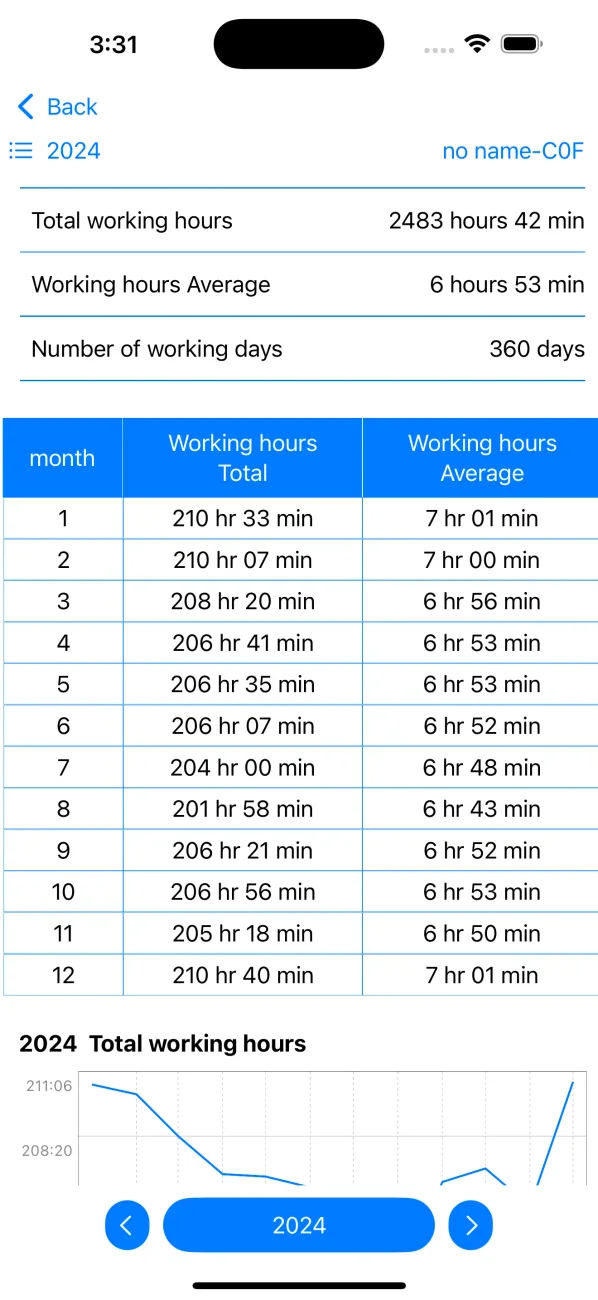
About
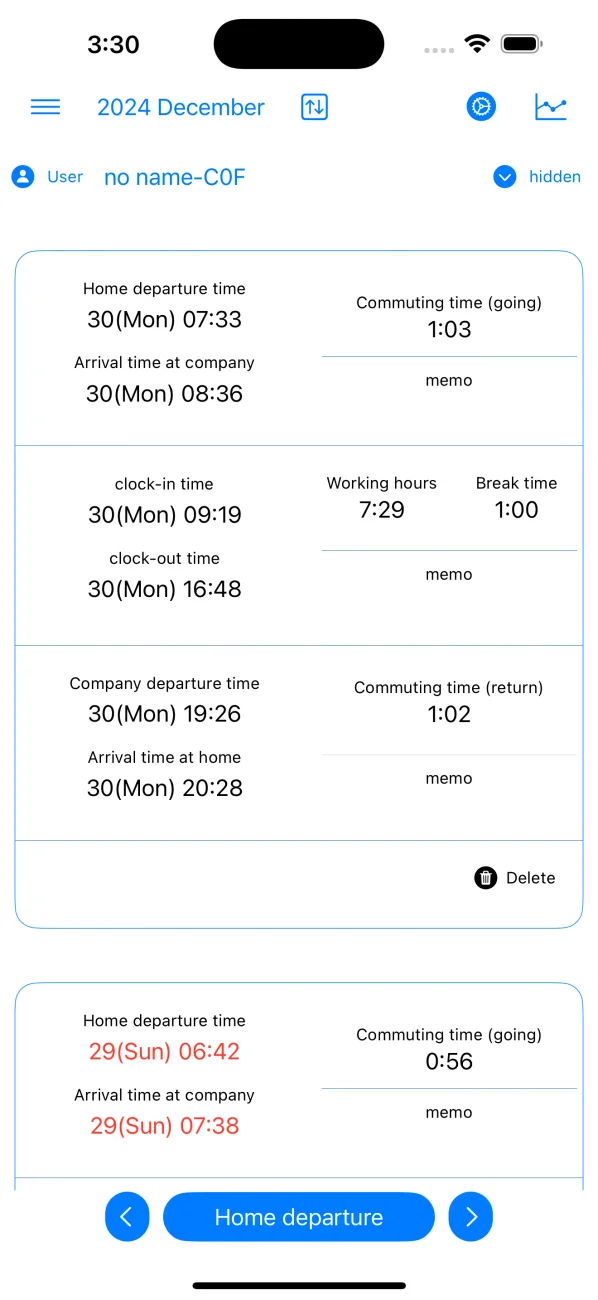
Press “home departure “ button to record the date and time of departure from home.
The date and time of arrival at work can be recorded by pressing and holding "Record date and time Press and hold” on the table.
Commuting time (going) is calculated and displayed based on the date and time you leave home and the date and time you arrive at company.
Working hours are calculated and displayed based on the date and time you start work, the date and time you finish work, and break times.
Commuting time (return) is calculated and displayed based on the date and time you leave company and the date and time you arrive at home.
・Record the date and time you left home
1. Tap the " Home de”parture button.
If you press and hold/long tap, steps 2/3 will be skipped
and the current date and time will be set.
2. Select the date and tap "Next".
3. Select the time and tap OK.
・To record the date and time of arrival at company
1. Tap the "Record date and time press and hold” button in the date and time of arrival at company in the table.
If you long press/long tap, steps 2/3 will be skipped
and the current date and time will be set.
2. Select the date and tap "Next".
3. Select the time and tap "OK".
To record the clock-in date and time , the clock-out date and time , the date and time you leave company, and the date and time you arrive home, follow the same procedure as above.
▼ Sorting order
You can change the sort order of the table by tapping the arrows (↓↑) to the left of the year and month.
▼ Commuting time and working time
Commuting time (going) is calculated and displayed based on the date and time of departure from home and the date and time of arrival at company.
Working time is calculated and displayed based on the clock - in date and time , the clock-out date and time , and the break time.
Commuting time (return) is calculated and displayed based on the date and time of departure from work and the date and time of arrival at home.
▼Enter meal content
1. Tap “memo” in the table.
2. Enter memo and tap OK.
▼Delete a record
1. Tap the trash can in the table.
2. Tap the red delete button.
▼Dark mode (top left menu)
Select dark mode ON/OFF from the menu on the top left
Press Dark Mode to switch to a screen display with a color scheme based on black.
If you press Light mode, the screen will be displayed in the normal white color.
▼If you want to delete all records
Delete all data from the top left menu
You can delete all records below.
・Delete all recorded data (eaten time, subjects, users)
・Delete all recorded data on iCloud
▼Display charts
1. Press the line chart button at the top.
2. Click the displayed chart from the menu below.
Monthly graph
Commuting time - working time chart
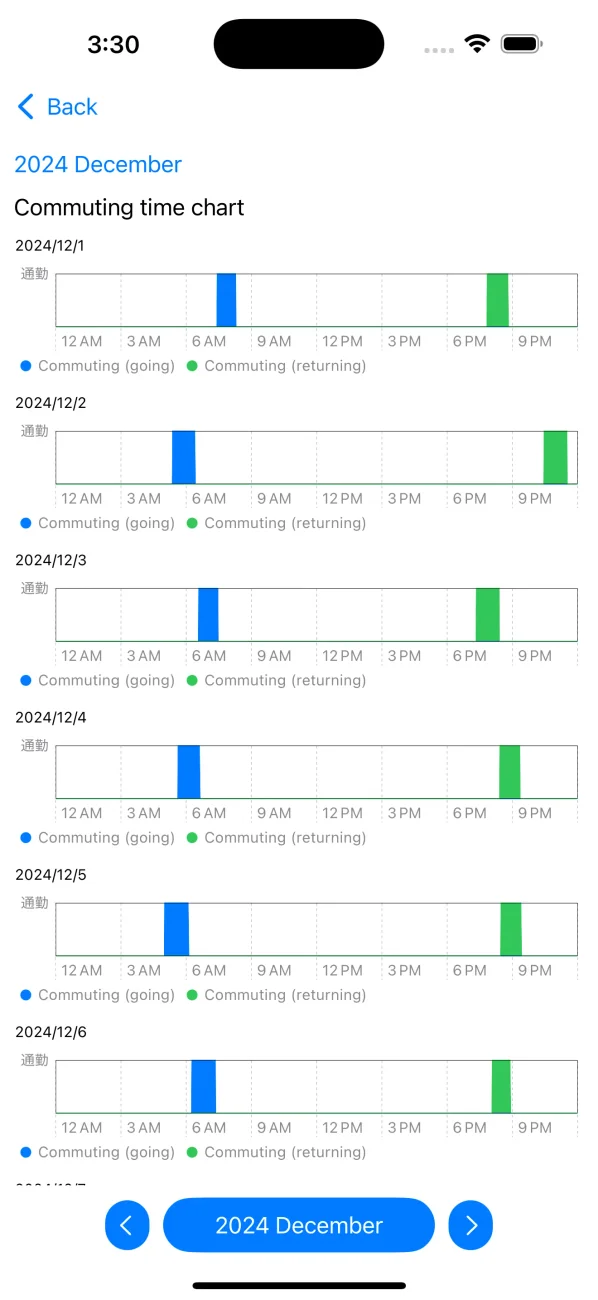
Commuting time chart
Working hours charts
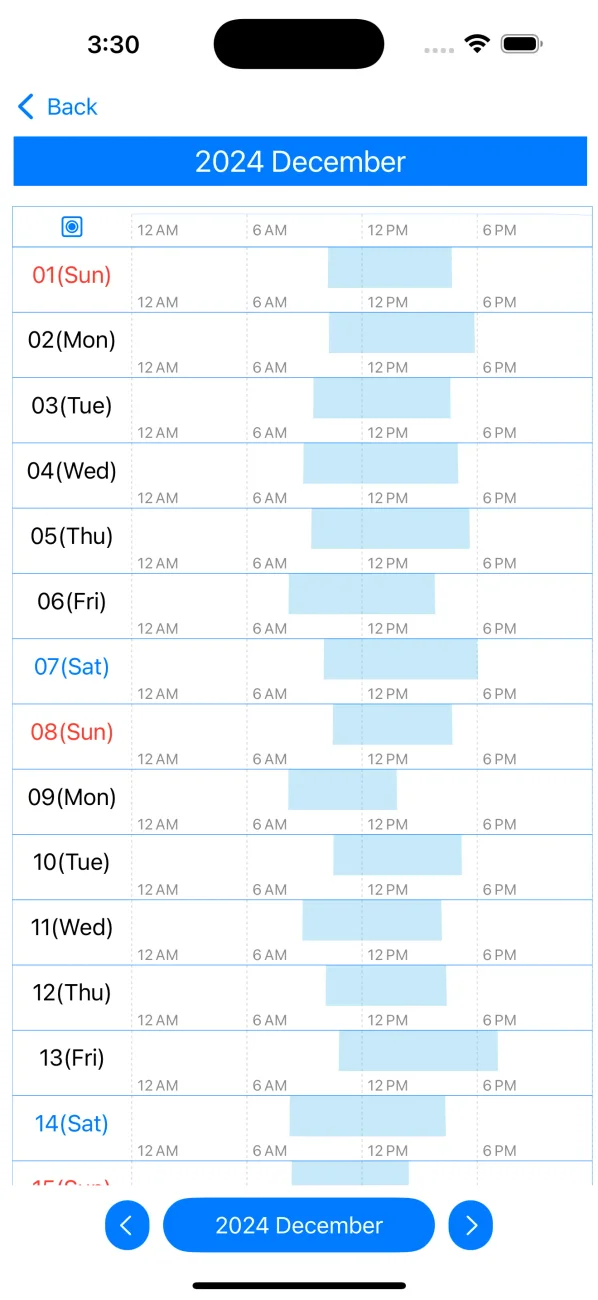
Working hours rhythm chart
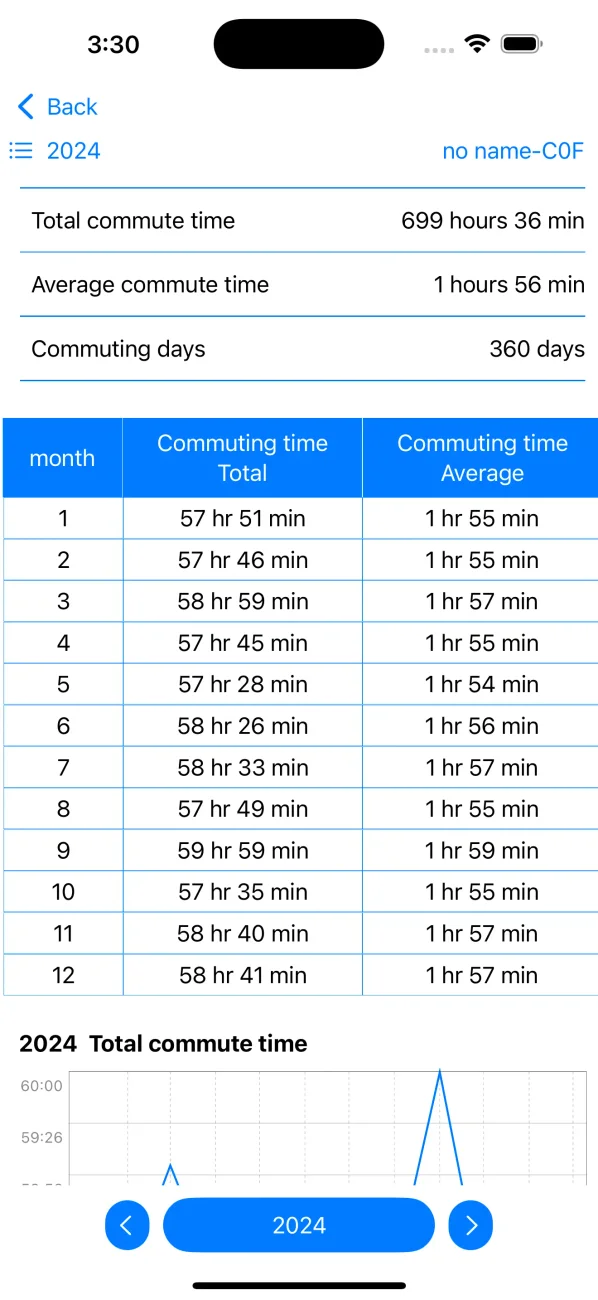
Commuting time Annual total/average/chart
Working hours Annual total/average/chart
Full period chart
▼Add user
1. Press the line menu button at the top
2. Press add user
3. Enter your username and press OK.
▼Edit username
1. Press the line menu button at the top
2. Press user edit and delete
3. Press the username from the list.
4. Edit the user name on the edit screen and press OK.
▼Delete username
1. Press the line menu button at the top
2. Press user edit and delete
3. Swipe the username you want to delete from the list from the left and press Delete.
・Model change data migration
For users with the same Apple ID
Because records are stored in iCloud
View the same recording on a new iPhone/iPad
【Terms of Use】
This app complies with the Apple Standard Terms of Use (EULA).
Please refer to the link below for details:
https://www.apple.com/legal/internet-services/itunes/dev/stdeula/
What’s new
Version 26.9.8 · Sep 26, 2026
Change app screen
App privacy
What YUTAKA IZUMIYAMA declares on the App Store about how this app handles data.
-
Data used to track you
May be used to track you across apps and websites owned by other companies.
- Location
- Identifiers
- Usage data
- Diagnostics
-
Data linked to you
May be collected and linked to your identity.
- Location
- Identifiers
- Usage data
- Diagnostics
Privacy practices may vary, for example with the features you use or your age.
Information
- Seller
- YUTAKA IZUMIYAMA
- Category
- Business
- Version
- 26.9.8
- Updated
- Sep 26, 2026
- Released
- Jul 15, 2025
- Size
- 7.3 MB
- Requires
- iOS 18.6 or later
- Age rating
- 17+
- In-app purchases
- Yes
- Languages
- Japanese, English
- Copyright
- © 2025 Yutaka Izumiyama
You might also like
-
 DAKOKU - 携帯型労働時間記録システムBusiness
-
 Hatara KirokuYour side of the timecard
-
 # Simple ResumeCreate Resumes & CVs Easily
-
 Bucket List - Simple ReorderVisual goal tracker app
-
 履歴書 InstantJapanese résumé maker (履歴書)
-
 営業記録アプリ - SalesFlow CloudProductivity
-
 飲んでも、増やせる貯金Finance
-
 出発到着記録Productivity
-
 WorkLog ~勤怠管理アプリ~Business
-
 Compass - 営業開拓管理Business