HUD Digital Animated
WatchBase- PEGI 3Classification d’âge
- PersonnalisationCatégorie
- 28/10/2026Mis à jour
- 1,79 €Prix
Renvoie vers la fiche Google Play officielle de wb.hud.digital. Dernière vérification le 14/11/2026.
Captures d’écran




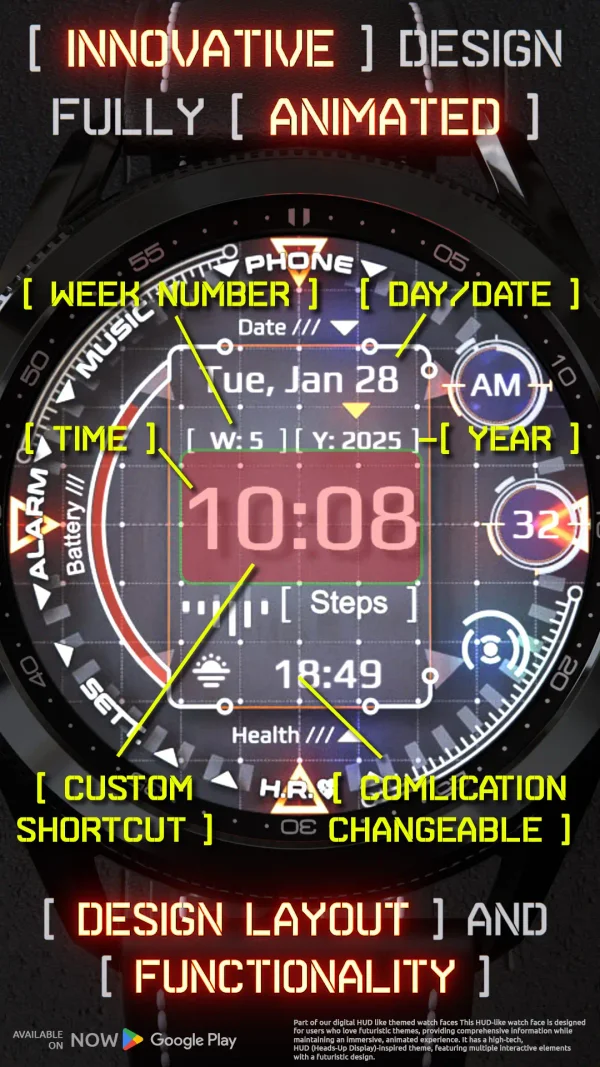
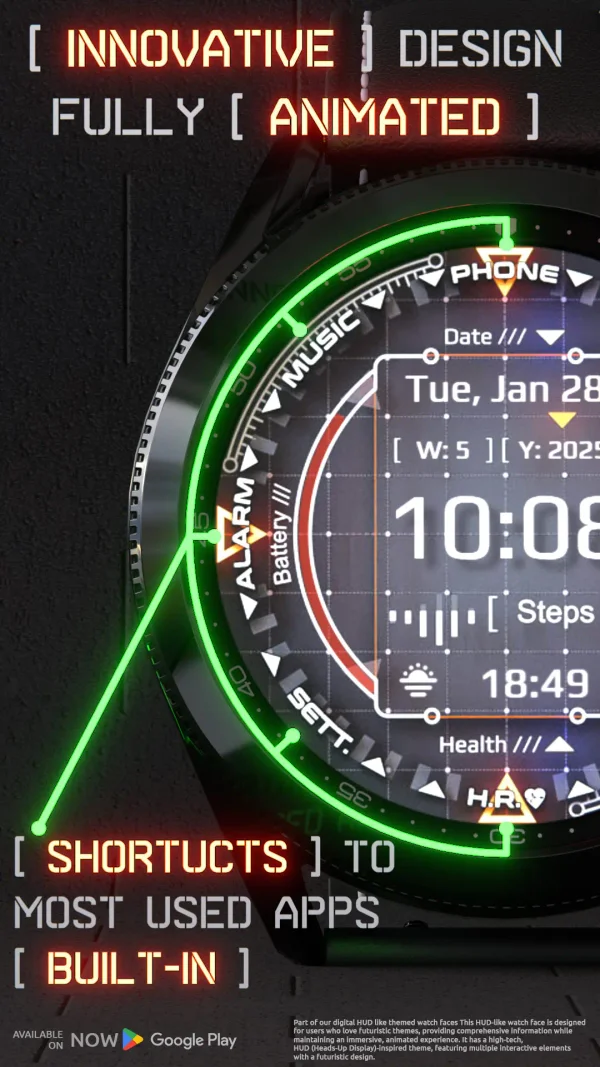

À propos de cette application
Traduction automatique par Google. Langue d’origine : Anglais (États-Unis).
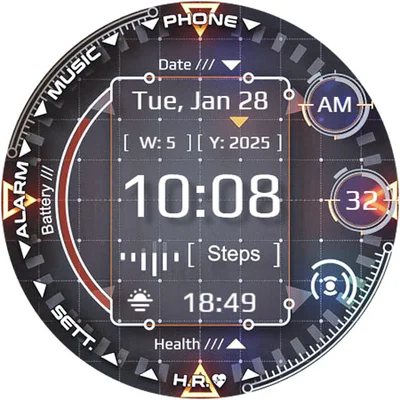
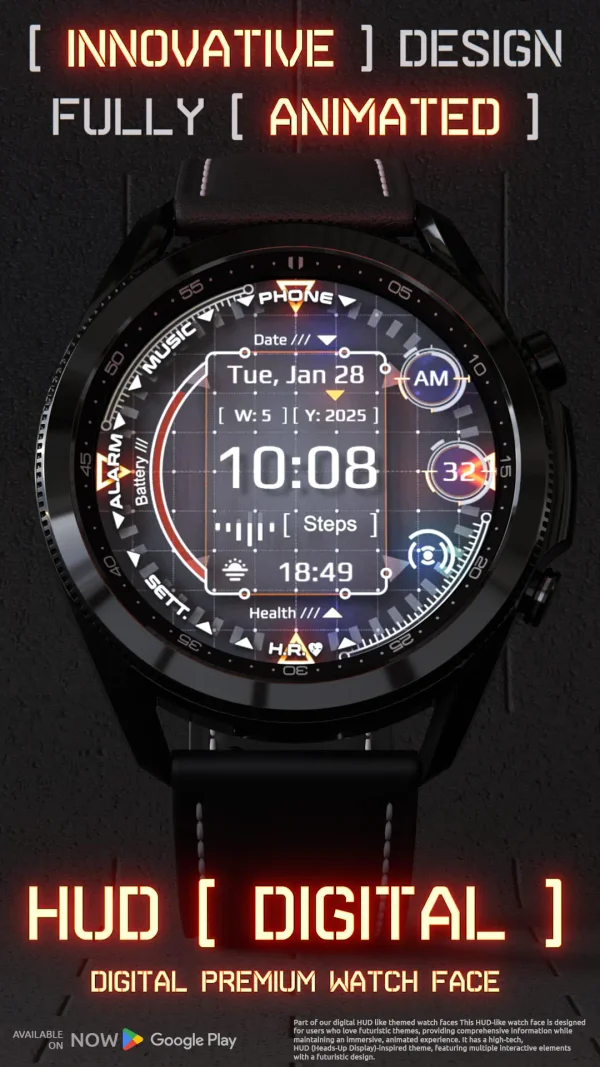
Futuriste et animé, ce cadran de montre est spécialement conçu pour impressionner !
Démarquez-vous avec ce cadran de montre futuriste et animé unique sur le thème du HUD pour Wear OS
REMARQUE : Veuillez lire la section Comment faire et la section d'installation et consulter les images !!!
ⓘ Caractéristiques :
- Entièrement ANIMÉ pour une expérience dynamique.
- Thème futuriste de style HUD.
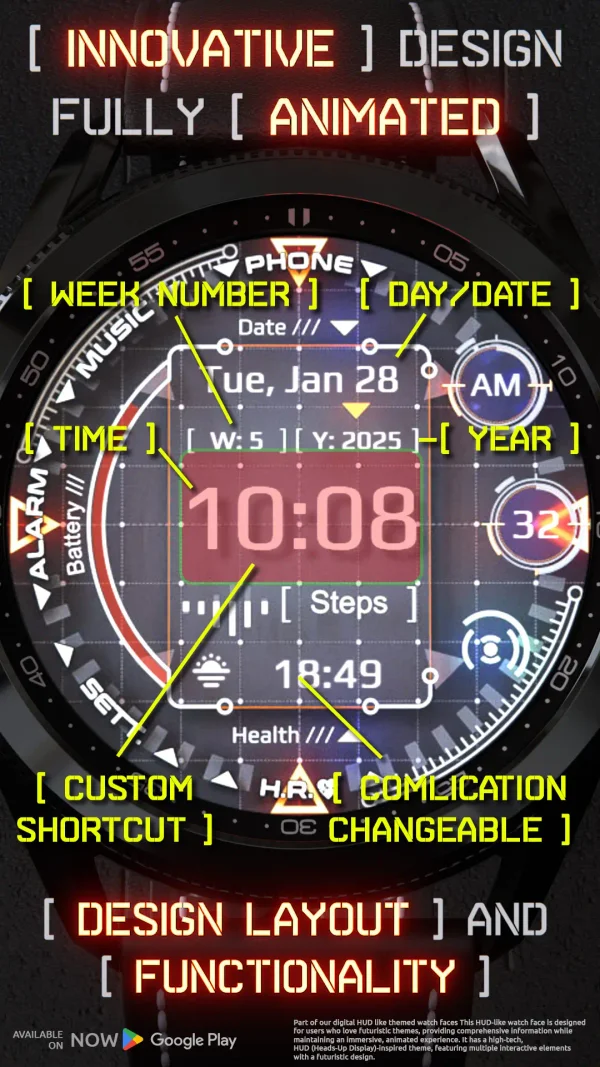
- Jour, Date.
- Indicateur de batterie.
- Indicateur du numéro de semaine.
-Indicateur AM/PM.
- Indicateur des secondes pour la précision.
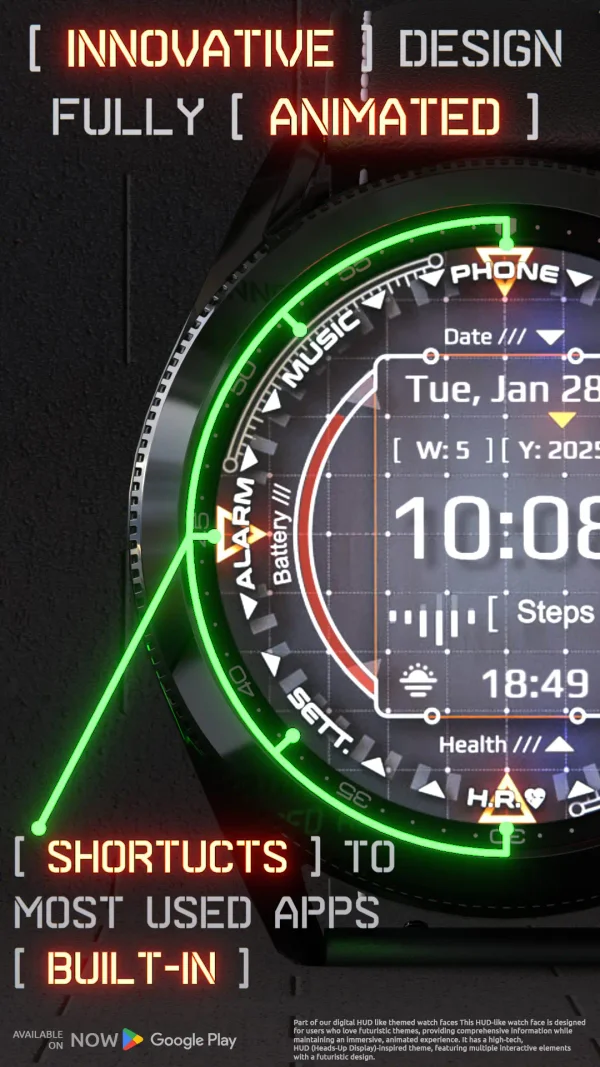
- 5 Raccourcis prédéfinis pour un accès rapide !
- 2 complications modifiables pour la personnalisation.*
- 5 thèmes de couleurs adaptés à votre style.
ⓘ Comment :
- Pour personnaliser le cadran de votre montre, touchez et maintenez l'écran, puis appuyez sur « Personnaliser ».
* Il y a 2 complications disponibles sur ce cadran de montre :
1. Le premier est situé en bas de l’écran rectangulaire et est réglé par défaut sur Sunset/Sunrise.
2. La seconde est superposée à l'heure numérique et n'affiche ni texte ni icône. Il est conçu pour servir de raccourci. Par défaut, il est défini sur la complication Raccourci.
Pour changer la deuxième complication :
Appuyez sur l'heure numérique et sélectionnez une application. Vous pouvez également utiliser le menu de personnalisation pour choisir n'importe quelle application, qui fonctionnera ensuite comme un raccourci pour l'ouvrir.
Ne manquez pas nos meilleurs cadrans RÉALISTES :
ILLUMINATEUR numérique - https://play.google.com/store/apps/details?id=wb.illuminator.digital
Milirary ZULU Tactique - https://play.google.com/store/apps/details?id=wb.military.zulu
Rally-X R.T. Delta - https://play.google.com/store/apps/details?id=we.rallyx.delta
Moon Master PRO - https://play.google.com/store/apps/details?id=wb.moon.master
Tourbillon Aigue-marine - https://play.google.com/store/apps/details?id=wb.tourbillon.aquamarine
LUNA BENEDICTA - https://play.google.com/store/apps/details?id=wb.luna.benedicta
Harmony GT Premium - https://play.google.com/store/apps/details?id=wb.harmony.gt
VOYAGER WorldTimer - https://play.google.com/store/apps/details?id=wb.voyager.automatic
Maître analogique - https://play.google.com/store/apps/details?id=wb.analog.master
ⓘInstallation
Comment installer : https://watchbase.store/static/ai/
Après l'installation : https://watchbase.store/static/ai/ai.html
* Le cadran de la montre Luna Benedicta est présenté dans « Comment installer » et « Après l'installation ». Le même processus d'installation est valable pour tous nos cadrans de montre.
Si vous rencontrez des problèmes pour installer le cadran de la montre, veuillez noter que nous n'avons aucun contrôle sur le processus d'installation ou sur tout autre processus Google Play/Watch. Le problème le plus courant auquel les gens sont confrontés est qu’après avoir acheté le cadran de la montre et l’avoir installé, ils ne peuvent plus le voir/le trouver.
Afin d'appliquer le cadran de la montre après l'avoir installé, touchez et maintenez sur l'écran principal (le cadran de votre montre actuel) le balayage vers la gauche pour le rechercher. Si vous ne le voyez pas, appuyez sur le signe « + » à la fin (ajoutez un cadran de montre) et trouvez-y notre cadran de montre.
Nous utilisons une application compagnon pour le téléphone pour faciliter le processus d'installation. Si vous achetez notre cadran de montre, appuyez sur le bouton d'installation (sur l'application du téléphone), vous devez vérifier votre montre.. un écran apparaîtra avec le cadran de la montre.. appuyez à nouveau sur installer et attendez la fin de l'installation. Si vous avez déjà acheté le cadran de la montre et qu'il vous demande toujours de l'acheter à nouveau sur la montre, ne vous inquiétez pas, vous ne serez pas facturé deux fois. Il s'agit d'un problème de synchronisation courant, attendez un peu ou essayez de redémarrer votre montre.
Une autre solution pour installer le cadran de la montre est d'essayer de l'installer depuis un navigateur, connecté avec votre compte (compte Google Play que vous utilisez sur la montre).
ⓘ Remarque : si vous rencontrez des problèmes lors de l'installation, veuillez vous référer à notre guide complet ou contacter notre équipe d'assistance pour obtenir de l'aide. Nous sommes là pour garantir que votre expérience avec nos cadrans de montre soit fluide et agréable.
REJOIGNEZ WatchBase.
Groupe Facebook (groupe de cadrans généraux) :
https://www.facebook.com/groups/1170256566402887/
Facebook :
https://www.facebook.com/WatchBase
Instagram :
https://www.instagram.com/watch.base/
ABONNEZ-VOUS à notre chaîne YouTube :
https://www.youtube.com/c/WATCHBASE?sub_confirmation=1
https://www.youtube.com/c/WATCHBASE
Afficher le texte d’origine
Stand out with this uniquely animated, futuristic HUD-themed watch face for Wear OS
NOTE: Please read the how to section and installation section and check out the images !!!
ⓘ Features:
- Fully ANIMATED for a dynamic experience.
- Futuristic HUD-style theme.
- Day, Date.
- Battery Indicator.
- Week number indactor.
- AM/PM Indicator.
- Seconds Indicator for precision.
- 5 Predefined Shortcuts for quick access!
- 2 Changeable Complications for customization.*
- 5 Color Themes to suit your style.
ⓘ How to:
- To customize your watch face, touch and hold the screen, then tap "Customize."
* There are 2 complications available on this watch face:
1. The first is located at the bottom of the rectangular display and is set to Sunset/Sunrise by default.
2. The second is overlaid on the digital time and does not display text or an icon. It’s designed to act as a shortcut. By default, it is set to the Shortcut complication.
To change the second complication:
Tap on the digital time and select an app. Alternatively, use the customization menu to choose any app, which will then function as a shortcut to open it.
Don't miss out our top REALISTIC watch faces:
ILLUMINATOR Digital - https://play.google.com/store/apps/details?id=wb.illuminator.digital
Milirary ZULU Tactical - https://play.google.com/store/apps/details?id=wb.military.zulu
Rally-X R.T. Delta - https://play.google.com/store/apps/details?id=we.rallyx.delta
Moon Master PRO - https://play.google.com/store/apps/details?id=wb.moon.master
Tourbillon Aquamarine - https://play.google.com/store/apps/details?id=wb.tourbillon.aquamarine
LUNA BENEDICTA - https://play.google.com/store/apps/details?id=wb.luna.benedicta
Harmony GT Premium - https://play.google.com/store/apps/details?id=wb.harmony.gt
VOYAGER WorldTimer - https://play.google.com/store/apps/details?id=wb.voyager.automatic
Analog Master - https://play.google.com/store/apps/details?id=wb.analog.master
ⓘ Installation
How to install: https://watchbase.store/static/ai/
After installation: https://watchbase.store/static/ai/ai.html
* Luna Benedicta watch face shown in "How to install" and "After installation". The same installation process is valid for all of our watch faces.
If you have any issues installing the watch face, please note that we have no control over the installation process or any other Google Play / Watch processes. The most common issue that people face is after they buy the watch face and install it, they can't see/find it.
In order to apply the watch face after you install it, touch and hold on the main screen (your current watch face) the swipe left to look for it. If you can't see it, tap on the " + " sign at the end (add a watch face) and find our watch face there.
We use a companion app for the phone to make the installation process easier. If you buy our watch face, tap on the install button (on the phone app) you must check your watch.. a screen will appear with the watch face.. tap install again and wait for the installation to finish. If you already bought the watch face and it still asks you to buy it again on the watch, don't worry you will not be charged twice. This is a common synchronization issue, just wait a little or try to restart your watch.
Another solution for installing the watch face is to try to install it from a browser, logged with your account (google play account that you use on the watch).
ⓘ Note: If you encounter any issues during installation, please refer to our comprehensive guide or contact our support team for assistance. We're here to ensure your experience with our watch faces is seamless and enjoyable.
JOIN WatchBase.
Facebook group (General watch faces group):
https://www.facebook.com/groups/1170256566402887/
Facebook page:
https://www.facebook.com/WatchBase
Instagram:
https://www.instagram.com/watch.base/
SUBSCRIBE to our YouTube channel:
https://www.youtube.com/c/WATCHBASE?sub_confirmation=1
https://www.youtube.com/c/WATCHBASE
Sécurité des données
Ce que WatchBase déclare sur Google Play au sujet des données que cette application collecte et partage.
- Aucune donnée partagée avec des tiersEn savoir plus sur la manière dont les développeurs déclarent le partage
- Aucune donnée collectéeEn savoir plus sur la manière dont les développeurs déclarent la collecte
Coordonnées du développeur
- E-mailsupport@belvek.com
- Politique de confidentialitéwatchbase.store
- Adresse6 Prof. Georgi Bradistilov str./blvd. 1700 Sofia Bulgaria
Informations
- Proposée par
- WatchBase
- Catégorie
- Personnalisation
- Mis à jour
- 28/10/2026
- Publié
- 16/01/2025
- Classification d’âge
- PEGI 3
- Prix
- 1,79 €
- Nom du package
- wb.hud.digital