
notototo
Note,pdf markup
Designed for iPhone, iPad, iPod touch
Free · In-app purchases
- Age rating4+
- CategoryProductivity
- DeveloperYASUNAGA SOFT, K.K
- LanguagesEnglish+ 1 more
- Size83.3 MB
Links to the official App Store page
Download.org hosts no file of notototo. The button opens its official App Store page, published by YASUNAGA SOFT, K.K. Listing last checked on Nov 18, 2026.
Screenshots





About
You can load a pdf and annotate and markup with Apple Pencil or your finger.
If you connect to the server, you can also collaborate with everyone. It can also be used for drawing that supports layers and brushes.
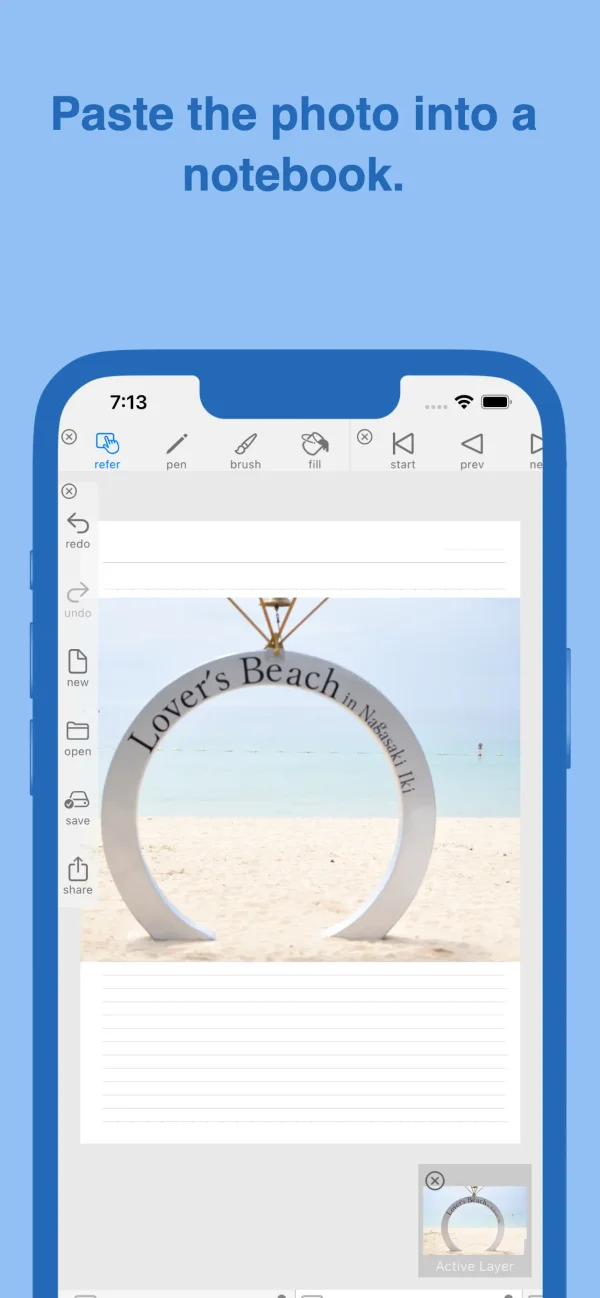
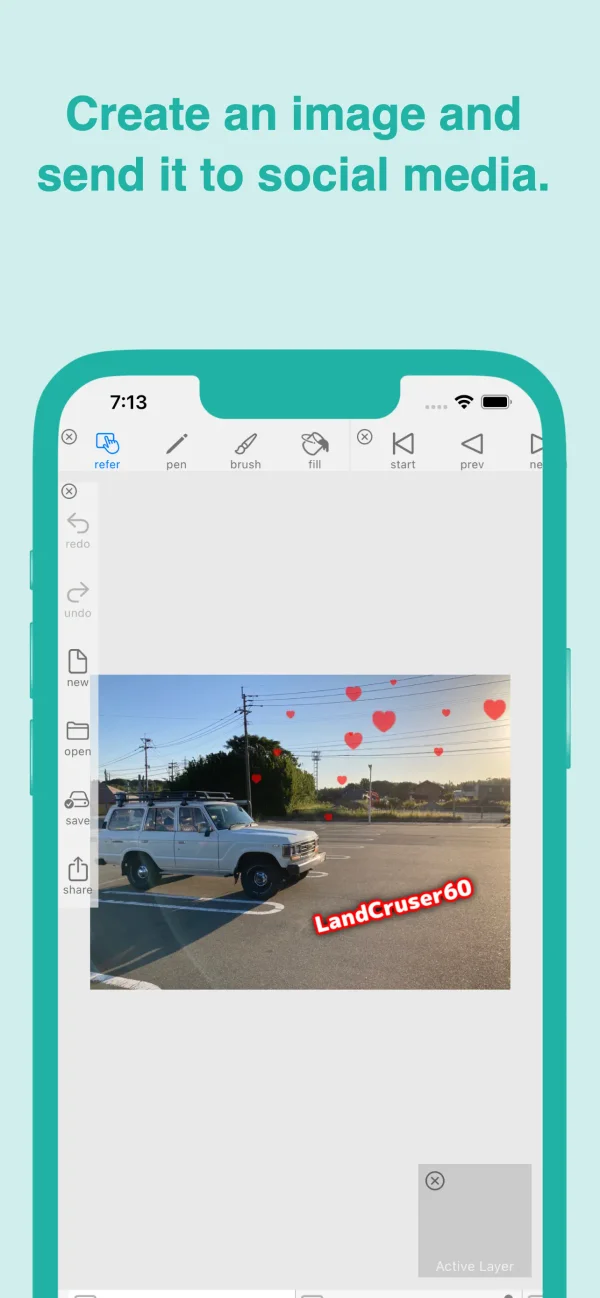
Add text and images to photos and send them to social media!
○○○○○○○○○○○○○○○○○○○○ Function description ○○○○○○○○○○○○○○○○○○○○○
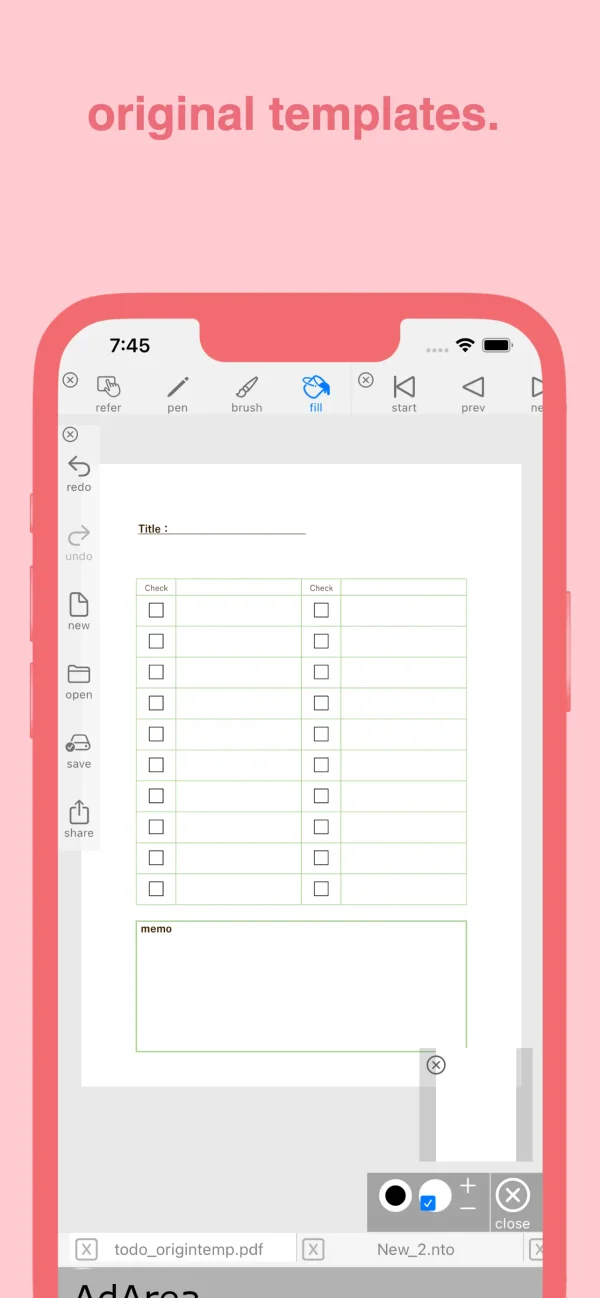
~~~~~~~~~~~~Main Screen~~~~~~~~~~~~
1. Tools menu
Menus for operating various tools
2. File menu
Menus for operating files such as saving, loading, and creating new files
3. Page menu
Menus for moving, adding, deleting and rotating pages
4. Layer area
Show the currently active layer. notototo creates images by layering images on top of each other. The layer selected hereafter is defined as the "active layer". Most of the operations in the tool menu are performed on the active layer. Display layer menu by touch.
5. Submenu
Submenus for various tools
6. Tab Tray Menu
Area for managing loaded files on the tab tray
7. Paper area
Paper for viewing and editing
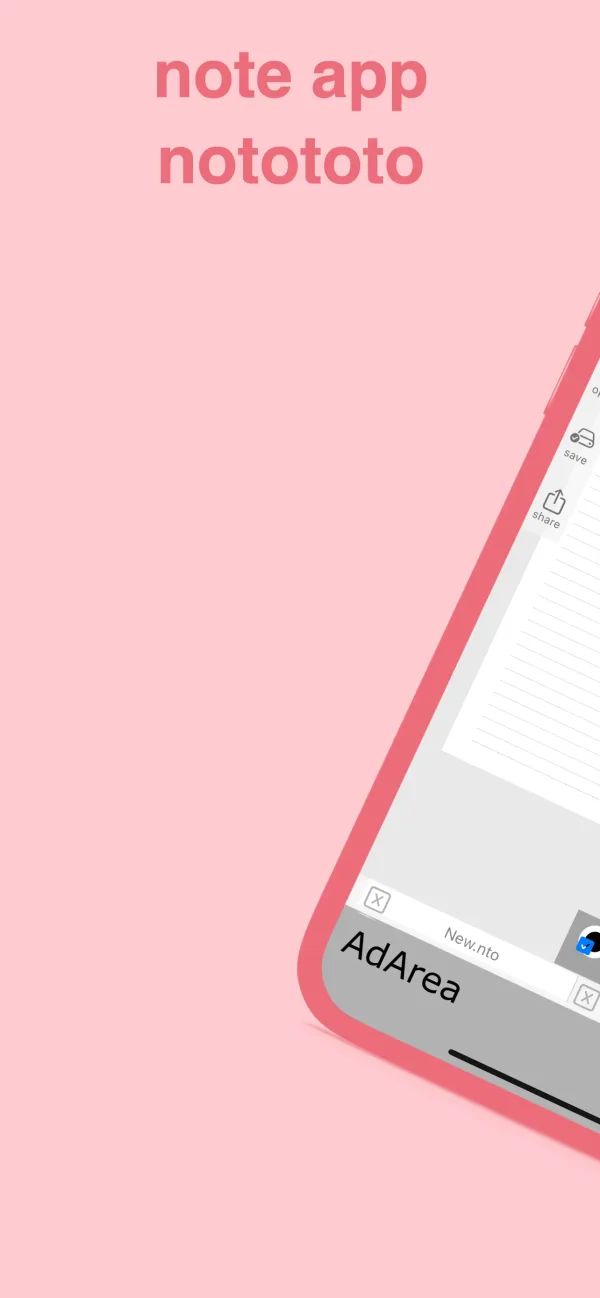
8. Advertising area
Area for displaying advertisements. Premium plans are hidden.
-----------Tools menu-----------
・refer
Ability to move, enlarge, and reduce paper
・pen
draw a line on the active layer
・brush
Draw a line with an image on the active layer
・fill
Fill active layer with color
・image
paste image
・text
paste text
・eraser
Delete image in active layer
・outline
Add a line to the image in the active layer
・shadow
cast a shadow
・ocr
Read the characters in the active layer and convert them to text
・crop
Crop and output images when printing, sharing, or saving
・layer
Open the layer screen and operate the layer
・move
move active layer
・camera
Start the camera and paste the captured image
・setting
Open settings screen
・label
Show or hide button labels
・help
Open help screen
-----------File menu-----------
・redo
redo work
・undo
undo the work
・new
create a new file
・open
load the file
・save
save the file
・share
Share features of various apps.
With this function, you can upload images to SNS, print them, and send them by mail.
-----------page menu-----------
・start
go to first page
・prev
Go to previous page
・next
Go to next page
・end
Go to last page
・SelectBox
Tap to move to any page
・add
Added page. The page size depends on the original page size. It is also possible to add files selected from the file manager.
・delete
delete page
・rotate page
change page orientation
-----------Layer-----------
with a tapOpen the layer screen and operate the layer
・Rename layer
・Change layer opacity
・Change Layer Visibility
・Swap layers by drag and drop
・add
add layer
・group
add group
・copy
copy layer
・join
Merge layers
・delete
delete layer
-----------Tab tray Menu-----------
・Opened files are lined up in the tab tray. Since the maximum file size is fixed, it is necessary to save and delete when the maximum size is exceeded.
・Active file selection on tap
・Delete by tapping the × button
・Edited tabs are marked with ●
~~~~~~~~~~~~File Management Screen~~~~~~~~~~~~
1. Display menu
Menus that determine the display method
2. File name area
View, edit, and manipulate file names. nto files can be saved while maintaining the layer state.
3. Drive area
Connected drive letter area. Double tap to connect to drive.
4. File list area
The area where the file list is displayed. Double tap the folder to display the contents of the folder. In the file open mode, double tap to read the file.
5. pass area
Current folder path. Tap the path to display the contents of the folder
6. File operation menu
Various file operation menus
manual page ↓
https://www.notototo.com/manual/notototoManual/en/index.html
~~~~~
・Ads will be displayed
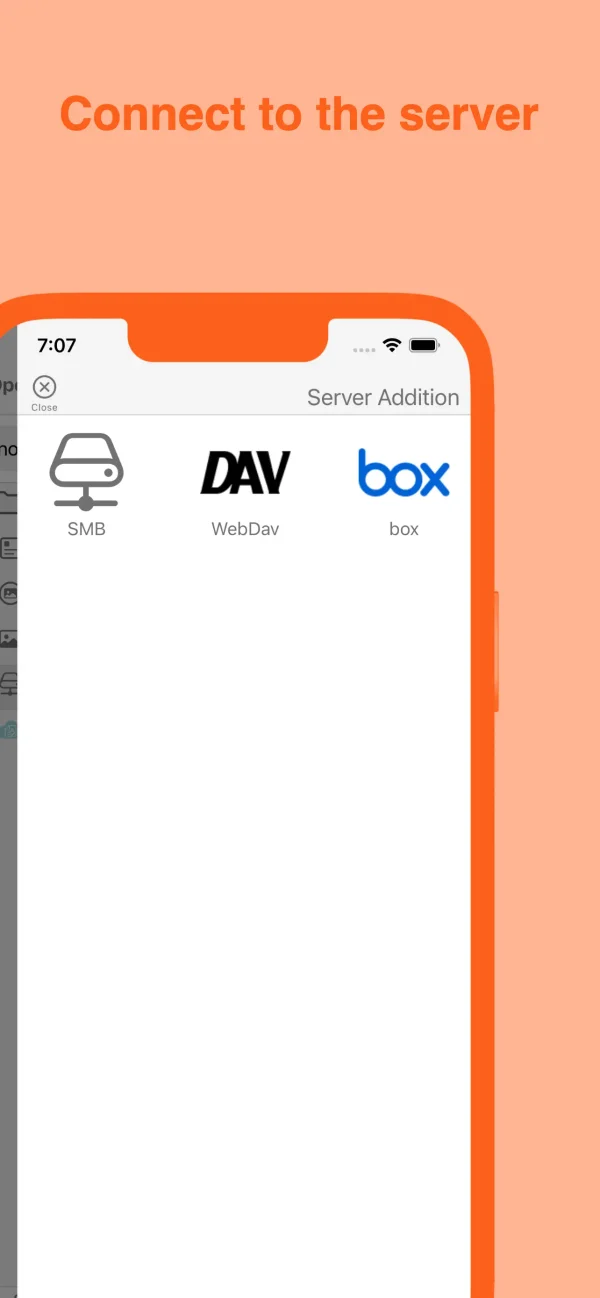
If you want to hide ads, please purchase a premium plan. If you purchase a premium plan, you will be able to hide ads, connect to the box cloud, and download images from the notototo cloud.
・A premium plan is required to connect to the box cloud.
~~~~~
Terms of Use : https://www.apple.com/legal/internet-services/itunes/dev/stdeula/
What’s new
Version 2.0.0 · May 1, 2026
Updated for compatibility with the latest iOS / iPadOS (iOS 26).
No functional changes in this release.
App privacy
What YASUNAGA SOFT, K.K declares on the App Store about how this app handles data.
-
Data used to track you
May be used to track you across apps and websites owned by other companies.
- Location
- Identifiers
- Usage data
- Diagnostics
-
Data linked to you
May be collected and linked to your identity.
- Location
- Identifiers
- Usage data
- Diagnostics
-
Data not linked to you
May be collected but is not linked to your identity.
- Diagnostics
Privacy practices may vary, for example with the features you use or your age.
Information
- Seller
- YASUNAGA SOFT, K.K
- Category
- Productivity
- Version
- 2.0.0
- Updated
- May 1, 2026
- Released
- Feb 15, 2022
- Size
- 83.3 MB
- Requires
- iOS 15.0 or later
- Age rating
- 4+
- Price
- Free
- In-app purchases
- Yes
- Languages
- English, Japanese
- Copyright
- © 2022 YASUNAGASOFT, K.K
You might also like
-
 Notator | Annotate DocumentsTaking notes, annotating PDFs
-
 NoteWorkSync regardless of device type
-
 Reader's BenchPDF & ePub reader, notes
-
 MXTNotePDF reader, notes, arXiv
-
 AxNote: Note TakingSketches, text & images
-
 StoneNote - Video Study NotesHandwrite while watching
-
 Simple Notes Daily PlannerReminders: Journal & Stickers
-
 PaintNotesInfinite canvas & good notes
-
 CanvasNoteThe ultimate note-taking app
-
 NoteEase-Recording Made EasySticky notes, Hand-drawn notes