deVStudio
UserLAnd Technologies- 3 歳以上対象年齢
- ツールカテゴリ
- 2026/11/17更新日
- ¥290価格
tech.ula.devstudioのGoogle Play公式ページにリンクしています。最終確認:2026/11/19。

スクリーンショット
このアプリについて
Googleによる英語 (アメリカ合衆国)からの自動翻訳です。
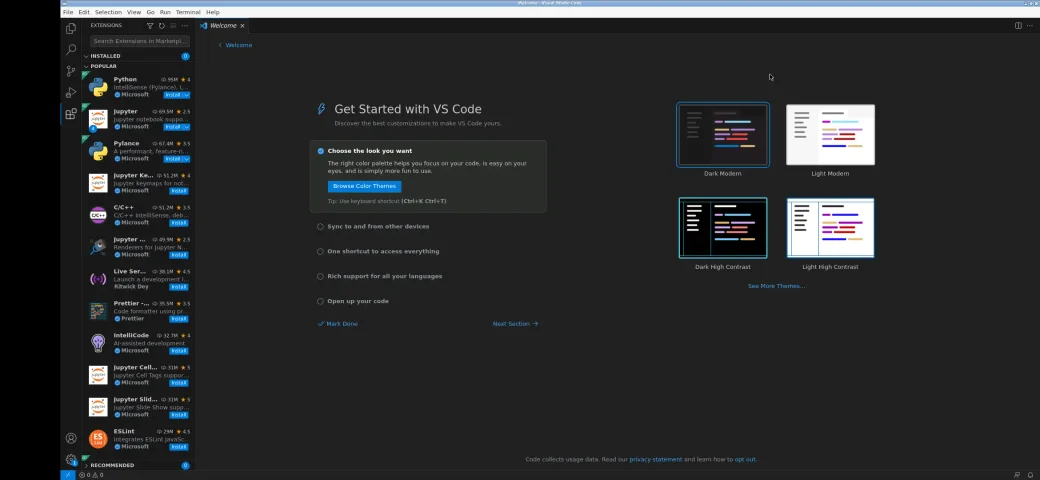
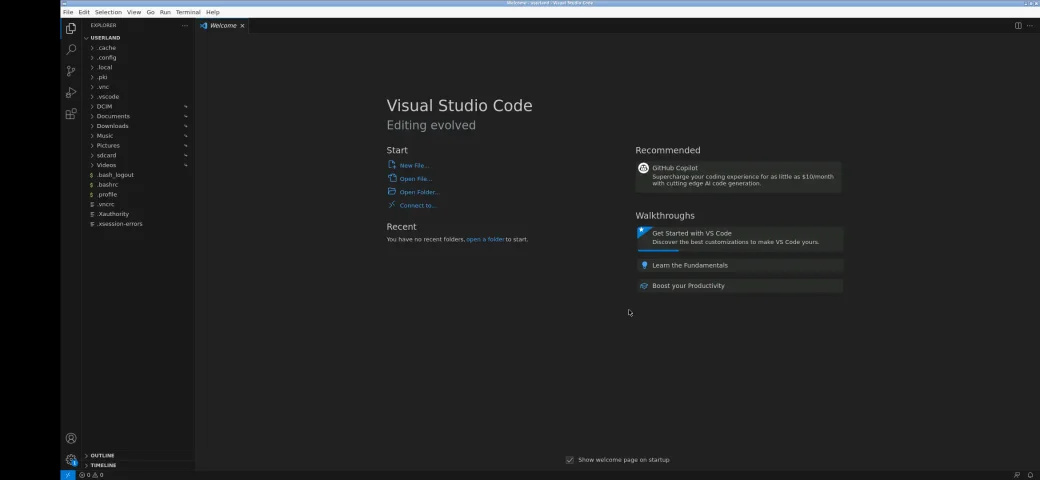
deVStudio - Android 上で Visual Studio コードを実行します
これは、お使いのデバイス上でVisual Studio Code(VS Code)を実際に動作させるためのものです。フル機能で、プロフェッショナルなサポートも受けられます。特に、Linuxデスクトップ版のVisual Studio Codeが動作します。
注:これは現在、非常に最小限のインストールです。そのため、必要に応じてパッケージや拡張機能を追加する必要があります。
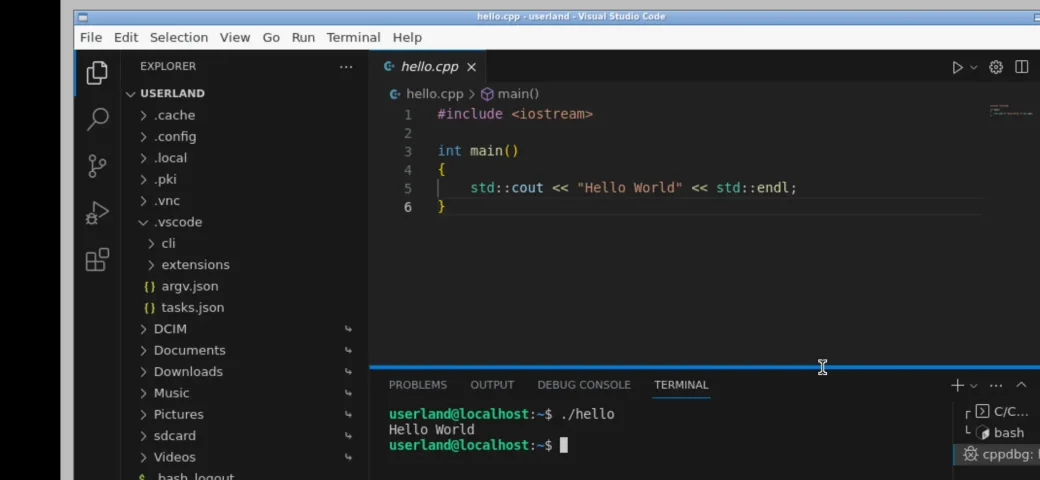
例えば、C++開発を行う場合は、以下の手順を実行します。
1) ターミナルで、`sudo apt install build-essential gdb` を実行します。
2) VS Codeで、C++拡張機能をインストールします。
3) さあ、開発を始めましょう。
特定の開発フローに対応したバージョンは、今後追加される予定です。
Visual Studio Codeについて:
Visual Studio Code(VS Codeとも呼ばれます)は、Microsoftが開発したソースコードエディタです。デバッグ、構文ハイライト、インテリジェントなコード補完、スニペット、コードリファクタリング、組み込みGitなどの機能を備えています。ユーザーは、テーマ、キーボードショートカット、設定を変更したり、機能を追加する拡張機能をインストールしたりできます。
詳細はこちらをご覧ください:https://code.visualstudio.com/
このdeVStudio Androidアプリの使い方:
グラフィカルインターフェースを使用する場合は、通常通りVS Codeを操作してください。ただし、Androidインターフェース特有の操作方法がいくつかあります。
* 指1本でタップすると左クリックになります。
* 指1本でスライドするとマウスカーソルを移動できます。
* ピンチ操作でズームイン/ズームアウトできます。
* 長押ししてから指1本でスライドするとパン操作ができます(ズームイン時に便利です)。
* 指2本で上下にスライドするとスクロールできます。
* キーボードを表示するには、画面をタップしてアイコンを表示させ、キーボードアイコンをクリックします。
* 右クリックに相当する操作を行うには、指2本でタップします。
* デスクトップの拡大縮小設定を変更するには、Androidサービスの通知を探し、設定をクリックします。設定を変更した後は、アプリを停止して再起動する必要があります。
タブレットとスタイラスペンを使えば操作は簡単ですが、スマートフォンや指でも操作可能です。
Androidの他の場所にあるファイルにアクセスするには、ホームディレクトリ(/home/userland)にドキュメントやピクチャなどの場所への便利なリンクが多数用意されています。ファイルのインポートやエクスポートは不要です。
このアプリの料金を支払いたくない、または支払えない場合は、必要なパッケージなどをすべてインストールすることで、UserLAndアプリ経由でVS Codeを実行できます。
このアプリはVS Code開発チームによって作成されたものではありません。Linux版VS CodeをAndroid上で動作させるためのアプリケーションです。
原文を表示
This is really runs Visual Studio Code ( vscode ) on your device. It is full featured and professionally supported. This runs the Linux desktop edition of Visual Studio Code specifically.
Note: This is currently a very minimal install. So you have to add some packages and extensions based on your need.
For example if you wanted to do C++ development you would do the following:
1) in the termal: sudo apt install build-essential gdb
2) in vscode: install the C++ extension
3) have fun
Versions already setup for certain development flows will be added in the future.
About Visual Studio Code:
Visual Studio Code, also commonly referred to as VS Code, is a source-code editor made by Microsoft. Features include support for debugging, syntax highlighting, intelligent code completion, snippets, code refactoring, and embedded Git. Users can change the theme, keyboard shortcuts, preferences, and install extensions that add functionality.
You can read more about it here: https://code.visualstudio.com/
How to use this deVStudio Android app:
When using the graphical interface, use vscode just like normal. But here are some specifics to the Android interface.
* Tap with one figure to left click.
* Move mouse by sliding around one finger.
* Pinch to zoom.
* Press and hold and then slide one finger to pan (useful when zoomed in).
* Slide two fingers up and down to scroll.
* If you want to bring up a keyboard, tap on the screen to get a set of icons to appear and then click the keyboard icon.
* If you want to do the equivalent to a right click, tap with two fingers.
* If you want to change the desktop scaling, find the service android notification and click the settings. You have to stop and restart the app after changing this settings for it to take effect.
This is all easier to do on a tablet and with a stylus, but it can be done on a phone or using your finger as well.
To access files from the rest of Android, there are many useful links in your home directory (/home/userland) to places like your Documents, Pictures, etc. No need to import or export files.
If you don't want to, or cannot pay the cost of this app, you can run vscode via the UserLAnd app by installing all the necessary packages etc.
This app is not created by the vscode development team. Instead it is a application that allows the Linux version to run on Android.
データ セーフティ
このアプリが収集・共有するデータについて、UserLAnd TechnologiesがGoogle Playで申告している内容です。
- 第三者と共有されるデータはありません詳しくは、デベロッパーが共有を申告する方法についての説明をご覧ください
- データは収集されません詳しくは、デベロッパーが収集を申告する方法についての説明をご覧ください
新機能
バージョン 26.11.17 · 2026/11/17
Your app's Linux system is now built fresh from our new image pipeline, with up-to-date packages and a faster, more reliable download. Opening files in your phone's shared storage no longer fails the first time, and more programs run correctly. Already installed? Your existing setup is kept; reinstall to get the new system.
開発元の連絡先
- ウェブサイトuserland.tech
- メールsupport@userland.tech
- プライバシーポリシーuserland.tech
- 住所10258 SW 67th Ave Portland, OR 97223 United States
情報
- 提供元
- UserLAnd Technologies
- カテゴリ
- ツール
- バージョン
- 26.11.17
- 更新日
- 2026/11/17
- リリース
- 2023/8/29
- 必要条件
- Android 7.0以降
- 対象年齢
- 3 歳以上
- 価格
- ¥290
- パッケージ名
- tech.ula.devstudio