Smartwatch, Widget & Wallpaper
Watch Faces by GPhoenix & Pixie Wacche広告を含む
- 3 歳以上対象年齢
- カスタマイズカテゴリ
- 2026/11/7更新日
- 無料価格
com.gphoenix.clockwidgetwallpaperのGoogle Play公式ページにリンクしています。最終確認:2026/11/19。
このアプリについて
Googleによる英語 (アメリカ合衆国)からの自動翻訳です。
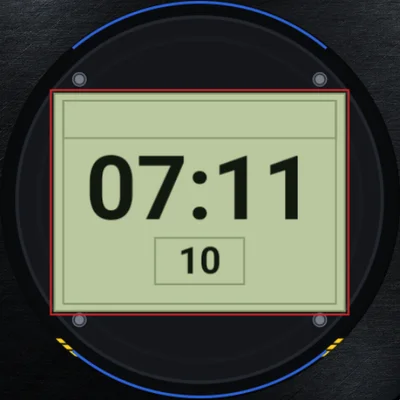
未来的なメカHUDとスポーティなタクティカルウォッチフェイスをライブ壁紙とウィジェットに。
SmartWatch、Widget、Live Wallpaperアプリは、ハイテクメカHUDコックピットやタフなタクティカルウォッチフェイスデザインをスマートフォンとWear OSスマートウォッチにもたらします!厳選されたSFタクティカルダイヤル、カスタマイズ可能なネオングローエフェクト、伝説的なアニメHUDや象徴的なアウトドアウォッチからインスピレーションを得たミリタリーメカテーマなど、豊富なデザインからお選びいただけます。
🌟 主な機能:
•⏱️ 厳選されたウォッチフェイスコレクション
•📱 1つのアプリで4つの表示モード:
i. ライブ壁紙:ホーム画面とロック画面に、1秒間隔で滑らかに表示されるリアルタイムクロック。
ii. フローティングオーバーレイウィジェット:あらゆるアプリの上に常に表示されるインタラクティブなウォッチウィジェット。画面上のどこにでもドラッグ可能!
iii.
ホーム画面アプリウィジェット:リアルタイム更新に対応したネイティブAndroidホーム画面ウィジェット(2x2 / サイズ変更可能)。
iv.
Wear OSスマートウォッチ同期:接続されたWear OSウォッチと設定を瞬時に同期。
•🎨 高度なメカニックカスタマイズエンジン:
◦背景オプション:10種類のハンガーグラデーションプリセットから選択するか、ギャラリー/カメラからカスタム写真をインポートできます。パレット抽出により、アクセントカラーが自動的に選択されます。
◦微調整スライダー:スケールサイズ(40%~160%)、回転軸(-180°~+180°)、X/Y座標、HUDアクセントカラー、メインの針/文字盤の色を調整できます。
◦テレメトリー切り替え:デジタル秒/秒針、日付表示、曜日、24時間表示(ミリタリー形式)、ELネオン発光を切り替えられます。
🛠️ アプリの使い方
A. ウォッチデザインの選択とカスタマイズ
1. アプリを開き、「ウォッチにインストール」をタップしてウォッチフェイスをインストールします。
B. ライブ壁紙として設定
1. ウォッチフェイスをカスタマイズまたは選択すると、壁紙の設定が自動的に更新されます。
2. 画面下部の「壁紙を有効にする [固定モード]」ボタンをタップします。
3. Androidシステムプレビューで「壁紙を設定」をタップして、ホーム画面またはホーム画面とロック画面に壁紙を適用します。
C. フローティングオーバーレイウィジェットの使用(他のアプリの上に表示)
1. メイン画面右上の「フローティングウォッチウィジェット」ボタンをタップします。
2. プロンプトが表示されたら、「他のアプリの上に表示(オーバーレイ)」の権限を付与します。
3. フローティングウォッチフェイスが画面に表示されます。
◦ドラッグ&移動:ウォッチフェイスを長押しして、画面上の任意の場所に移動します。
◦クイックコントロール:フローティングウォッチフェイスを一度タップすると、コントロールバッジが表示されます。
▪⚙(歯車)をタップしてアプリ設定に戻ります。
▪×(閉じる)をタップしてフローティングウィジェットを停止します。
D. ホーム画面アプリウィジェットの追加
1. スマートフォンのホーム画面を開きます。
2. ホーム画面の空いている場所を長押しし、「ウィジェット」を選択します。
3. 画面を下にスクロールして、「スマートウォッチ」「ウィジェット」「壁紙」を探します。
4. 時計ウィジェットを長押しし、ホーム画面にドラッグして、お好みのサイズに調整します。選択したスタイルが自動的に反映され、リアルタイムで更新されます。
E. Wear OSスマートウォッチとの同期
1. Wear OSスマートウォッチがBluetoothでスマートフォンに接続されていることを確認します。
2. アプリの上部バナーを確認してください。「接続済み:[デバイス名]」と表示されます。
3. 選択したスタイルやカスタム設定は、Wear OSウォッチフェイスにも自動的に同期されます。
原文を表示
SmartWatch, Widget and Live Wallpaper brings high-tech mecha HUD cockpits and rugged tactical watch face designs to your mobile phone and Wear OS smartwatch! Choose from a curated gallery of sci-fi tactical dials, customizable neon glow effects, and military mecha themes inspired by legendary anime HUDs and iconic outdoor watches.
🌟 Key Features:
•⏱️ Curated Watch Face Collection
•📱 4 Display Modes in 1 App:
i. Live Wallpaper: Smooth 1-second real-time clock rendering on your Home and Lock Screens.
ii. Floating Overlay Widget: Interactive watch widget that stays on top of any app. Drag anywhere on screen!
iii.
Home Screen App Widget: Native Android home screen widgets (2x2 / resizable) with live updates.
iv.
Wear OS Smartwatch Sync: Instant configuration sync with connected Wear OS watches.
•🎨 Deep Mecha Customization Engine:
◦Background Options: Select from 10 hangar gradient presets or import custom photos from your Gallery/Camera. Auto-picks matching accent colors via Palette extraction.
◦Fine Control Sliders: Adjust scale size (40%–160%), rotation axis (-180° to +180°), X/Y positioning, HUD accent color, and primary hand/dial colors.
◦Telemetry Toggles: Toggle digital seconds/second hand, date readout, day of the week, 24-hour military format, and EL neon glow.
🛠️ Instructions: How to Use the App
A. Selecting & Customizing a Watch Design
1.Open the app and tap "Install on Watch" to install the watch face.
B. Setting as Live Wallpaper
1.Customizing or selecting any watch face automatically updates your wallpaper preference.
2.Tap the "ENGAGE WALLPAPER [FIX MODE]" button at the bottom of the screen.
3.Tap "Set Wallpaper" in the Android system preview to apply it to your Home
Screen or Home & Lock Screen.
C. Using the Floating Overlay Widget (Stays On Top of Other Apps)
1.Tap the "FLOATING WATCH WIDGET" button at the top right of the main screen.
2.Grant the Display over other apps (Overlay) permission if prompted.
3.The floating watch face will appear on your screen:
◦Drag & Move: Touch and hold the watch face to move it anywhere on your screen.
◦Quick Controls: Tap the floating watch face once to reveal the control badges:
▪Tap ⚙ (Gear) to return to app settings.
▪Tap × (Close) to stop the floating widget.
D. Adding the Home Screen App Widget
1.Go to your phone's Home Screen.
2.Long-press an empty space on the home screen and select Widgets.
3.Scroll down to find SmartWatch, Widget and Wallpaper.
4.
Touch and hold the Clock Widget, drag it to your home screen, and resize it as desired. It will automatically reflect your selected style and updates in real-time!
E. Syncing with a Wear OS Smartwatch
1.Ensure your Wear OS smartwatch is connected to your mobile phone via Bluetooth.
2.Check the top banner in the app: it will highlight "WATCH CONNECTED: [Device Name]".
3.Any style or custom setting you select will automatically sync over to your Wear OS watch face companion!
データ セーフティ
このアプリが収集・共有するデータについて、Watch Faces by GPhoenix & Pixie WaccheがGoogle Playで申告している内容です。
- 第三者と共有されるデータはありません詳しくは、デベロッパーが共有を申告する方法についての説明をご覧ください
- データは収集されません詳しくは、デベロッパーが収集を申告する方法についての説明をご覧ください
開発元の連絡先
- ウェブサイトe25af12fd.app-ads-txt.com
- メールpixiewacche@gmail.com
- プライバシーポリシーgphoenixapps.online
- 住所DGP Compound, Sitio 4, Bagumbayan, Sta. Cruz 4009 Philippines
情報
- 提供元
- Watch Faces by GPhoenix & Pixie Wacche
- カテゴリ
- カスタマイズ
- 更新日
- 2026/11/7
- リリース
- 2026/10/30
- 対象年齢
- 3 歳以上
- 価格
- 無料
- パッケージ名
- com.gphoenix.clockwidgetwallpaper