Microsoft Authenticator
Microsoft Corporation- EveryoneAge rating
- BusinessCategory
- Nov 16, 2026Updated
- FreePrice
Links to the official Google Play listing of com.azure.authenticator. Last checked on Nov 18, 2026.

Screenshots
About this app
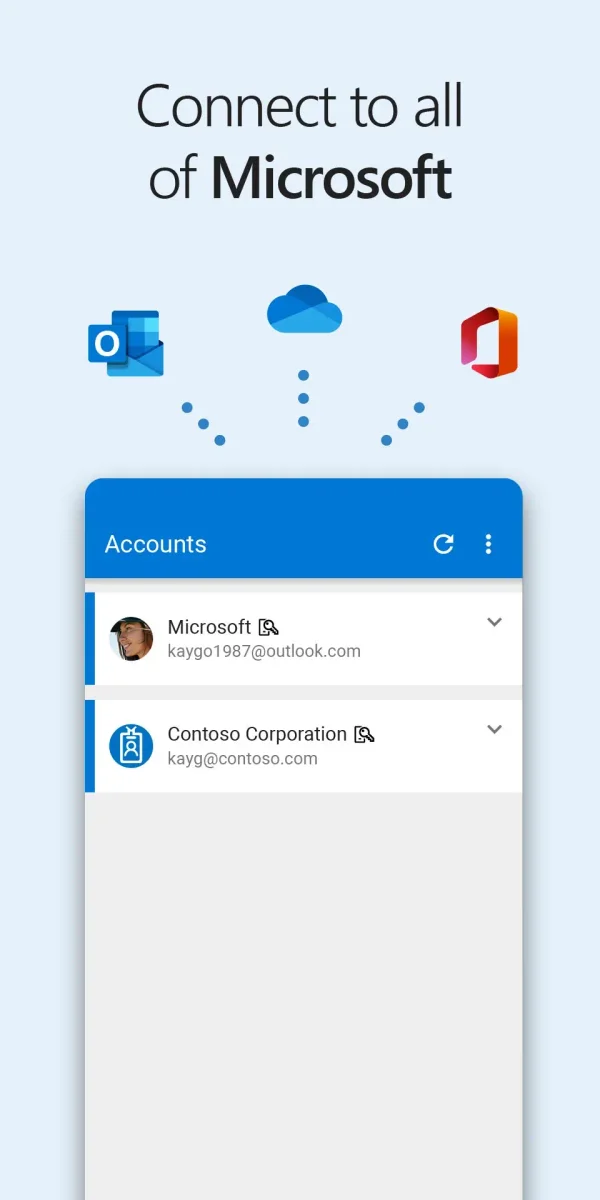
No more passwords, easier sign-in, and greater protection for your accounts.
Use Microsoft Authenticator for easy, secure sign-ins for all your online accounts using multi-factor authentication or passwordless. You also have additional account management options for your Microsoft personal, work or school accounts.
Getting started with multi-factor authentication
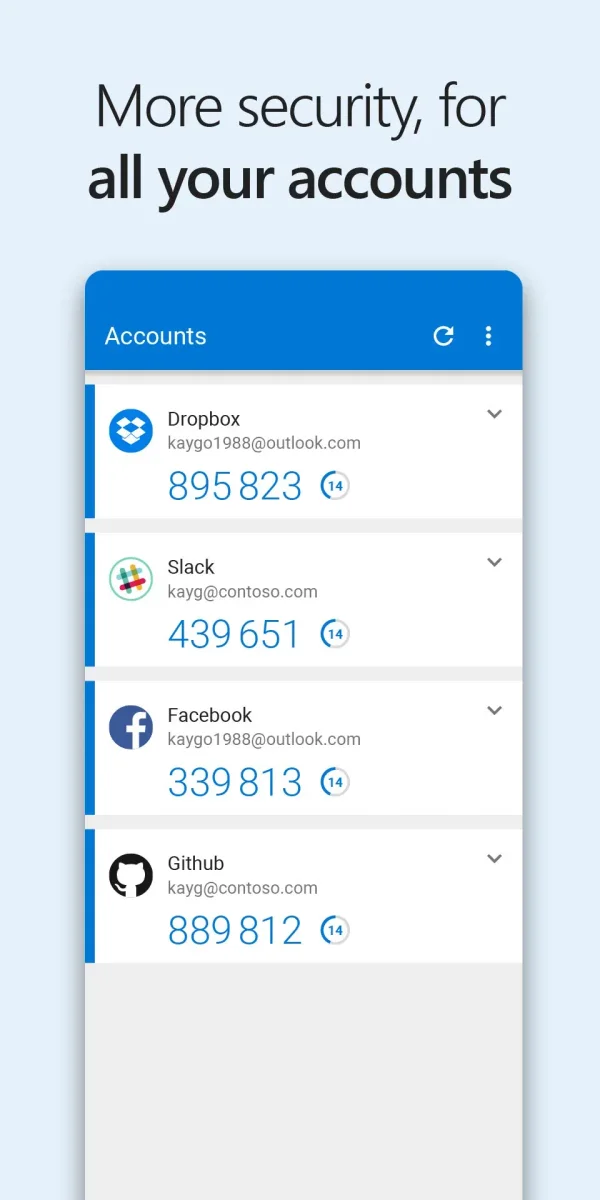
Multi factor authentication (MFA) or two factor authentication (2FA) provides a second layer of security. When logging in with multi-factor authentication, you’ll enter your password, and then you’ll be asked for an additional way to prove it’s really you. Either approve the notification sent to the Microsoft Authenticator, or enter the one-time password (OTP) generated by the app. The one-time passwords (OTP codes) have a 30 second timer counting down. This timer is so you never have to use the same time-based one-time password (TOTP) twice and you don’t have to remember the number. The one-time password (OTP) doesn’t require you to be connected to a network, and it won’t drain your battery. You can add multiple accounts to your app, including non-Microsoft accounts like Facebook, Amazon, Dropbox, Google, LinkedIn, GitHub, and more.
Getting started with passwordless
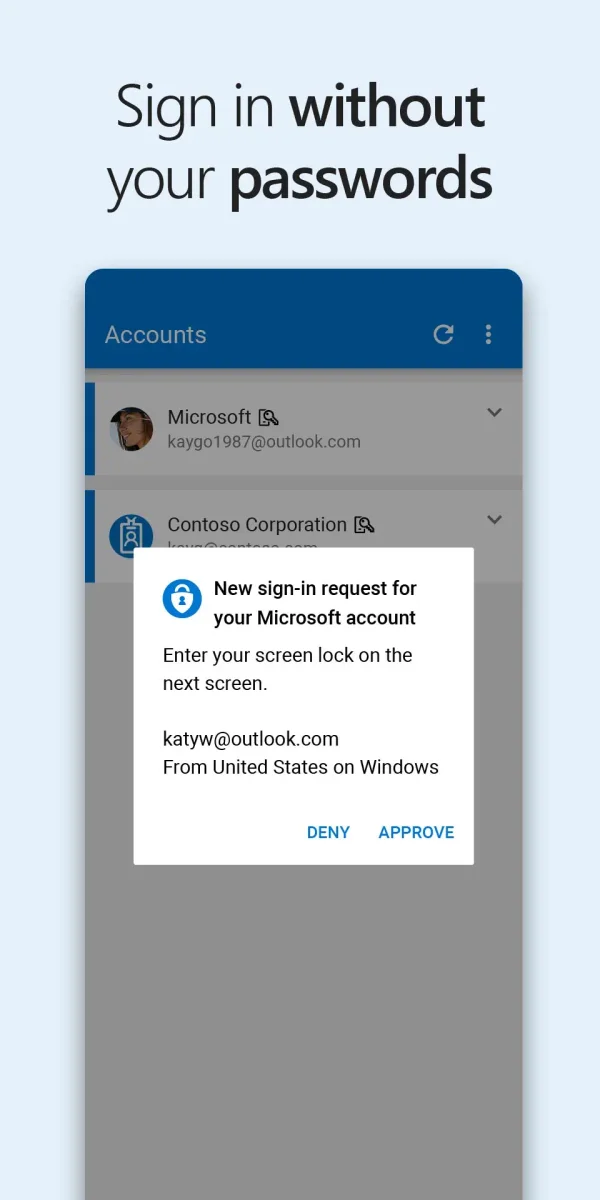
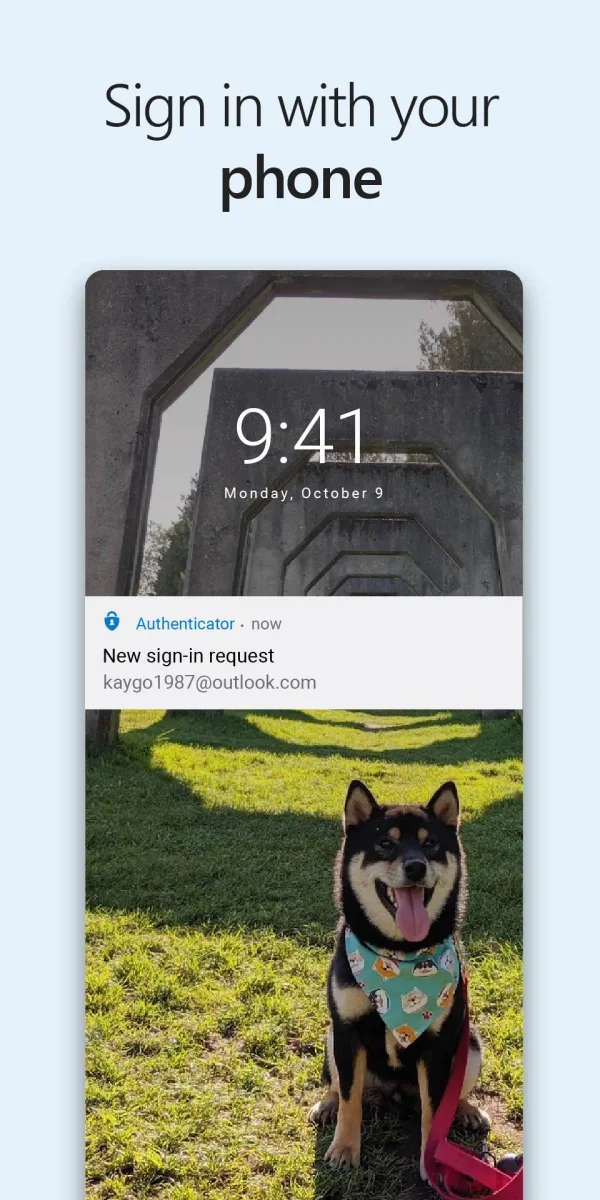
Use your phone, not your password, to log into your Microsoft account. Just enter your username, then approve the notification sent to your phone. Your fingerprint, face ID, or PIN will provide a second layer of security in this two-step verification process. After you’ve signed in with two factor authentication (2FA), you’ll have access to all your Microsoft products and services, such as Outlook, OneDrive, Office, and more.
Microsoft personal, work or school accounts
Sometimes your work or school might ask you to install the Microsoft Authenticator when accessing certain files, emails, or apps. You will need to register your device to your organization through the app and add your work or school account. Microsoft Authenticator also supports cert-based authentication by issuing a certificate on your device. This will let your organization know that the sign-in request is coming from a trusted device and help you seamlessly and securely access additional Microsoft apps and services without needing to log into each. Because Microsoft Authenticator supports single sign-on, once you have proven your identity once, you will not need to log in again to other Microsoft apps on your device.
Optional Access Permissions
Microsoft Authenticator includes the following optional access permissions. All these require user consent. If you choose to not grant these optional access permissions, you can still use Microsoft Authenticator for other services that do not require such permission. For more information see https://aka.ms/authappfaq
Location: Sometimes your organization wants to know your location before allowing you to access certain resources. The app will request this permission only if your organization has a policy requiring location.
Camera: Used to scan QR codes when you add a work, school, or non-Microsoft account.
Read the contents of your storage: This permission is only used when you report a technical problem through the app settings. Some information from your storage is collected to diagnose the issue.
Data safety
What Microsoft Corporation declares on Google Play about the data this app collects and shares.
- This app may share these data types with third partiesLocation and App activity
- This app may collect these data typesLocation
- Data is encrypted in transit
- You can request that data be deleted
Developer contact
- Websitemsdn.microsoft.com
- Emailnoreply@microsoft.com
- Privacy policygo.microsoft.com
- Address1 Microsoft Way Redmond, WA 98052 United States
Information
- Offered by
- Microsoft Corporation
- Category
- Business
- Version
- 6.2611.7348
- Updated
- Nov 16, 2026
- Released
- Jan 13, 2015
- Requires
- Android 8.0 or later
- Age rating
- Everyone
- Price
- Free
- Package name
- com.azure.authenticator
Similar apps
-
 Microsoft Outlook
Productivity
-
 Google Authenticator
Tools
-
 Microsoft OneDrive
Productivity
-
 Personal Safety
Tools
-
 Microsoft Edge
Communication
-
 Microsoft Launcher
Personalization
-
 Microsoft Planner
Productivity
-
 Yahoo Mail – Organised Email
Communication
-
 Email - Fast & Secure Mail
Productivity
-
 Samsung Email
Productivity
-
 Microsoft Copilot
Productivity
-
 Gmail
Communication