
- Clasificación por edad4+
- CategoríaUtilidades
- DesarrolladorNoriaki Murao
- IdiomasInglés
- Tamaño7,3 MB
Es posible que sqft AR no esté disponible en App Store en este momento
No se pudo acceder a la ficha de la tienda en nuestra última comprobación. El enlace sigue llevando a la página oficial de App Store.
Capturas de pantalla

Acerca de
El desarrollador no ha proporcionado este texto en tu idioma.
**Measure Spaces with Augmented Reality**
Measure floor and wall areas, check distances, visualize furniture placement, and see whether objects fit your space—all using your iPhone's camera.
sqftAR is a practical AR measurement tool for painting, pressure washing, landscaping, renovation, DIY projects, house hunting, and home planning.
Whether you're a contractor estimating an area or a homeowner planning your next project, sqftAR helps you visualize and measure spaces with ease.
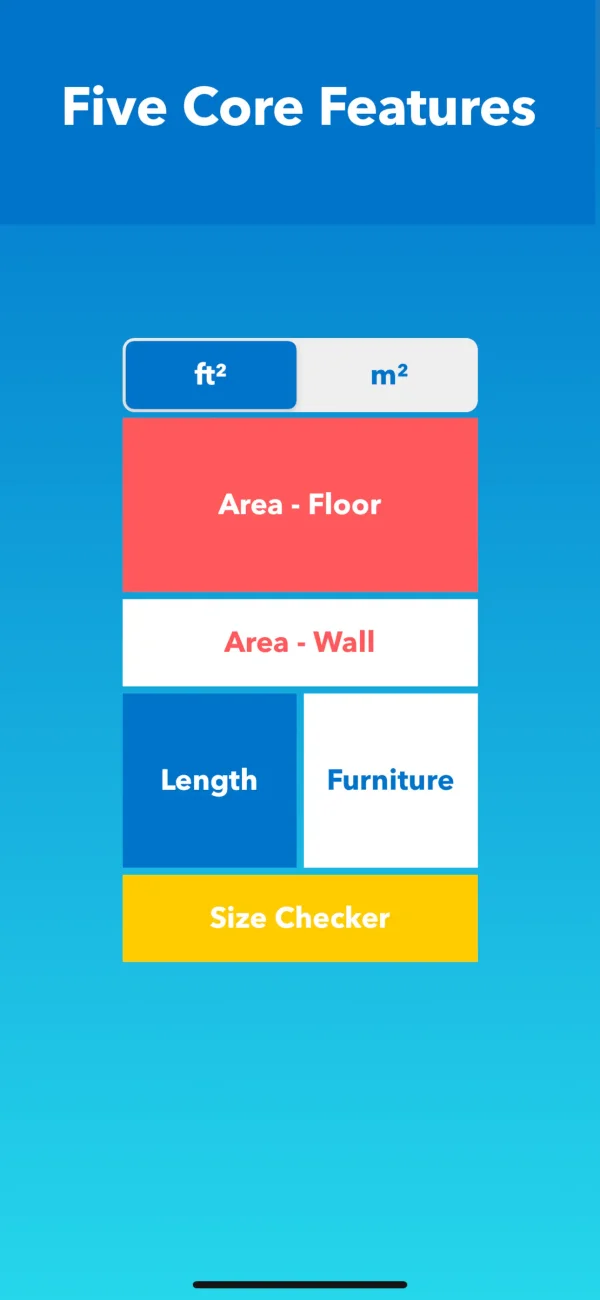
**FIVE CORE FEATURES**
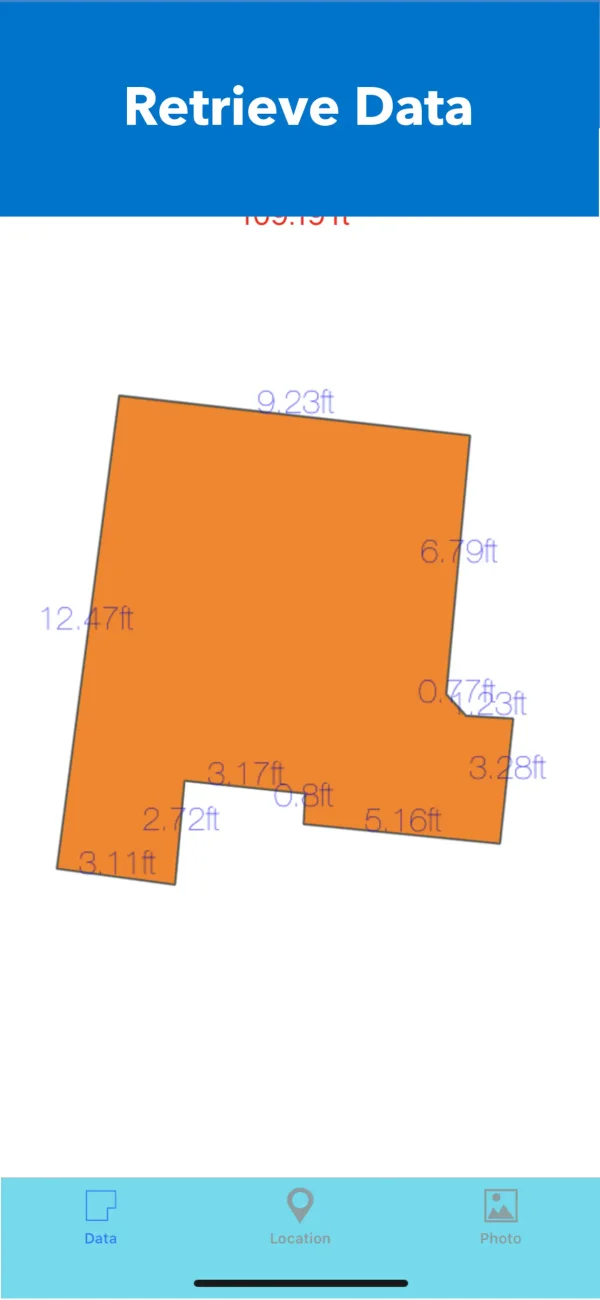
**1. Area – Floor**
Measure floor areas in square feet (ft²) or square meters (m²). Mark the corners of a floor to calculate its area. Save measurements with notes and review them later.
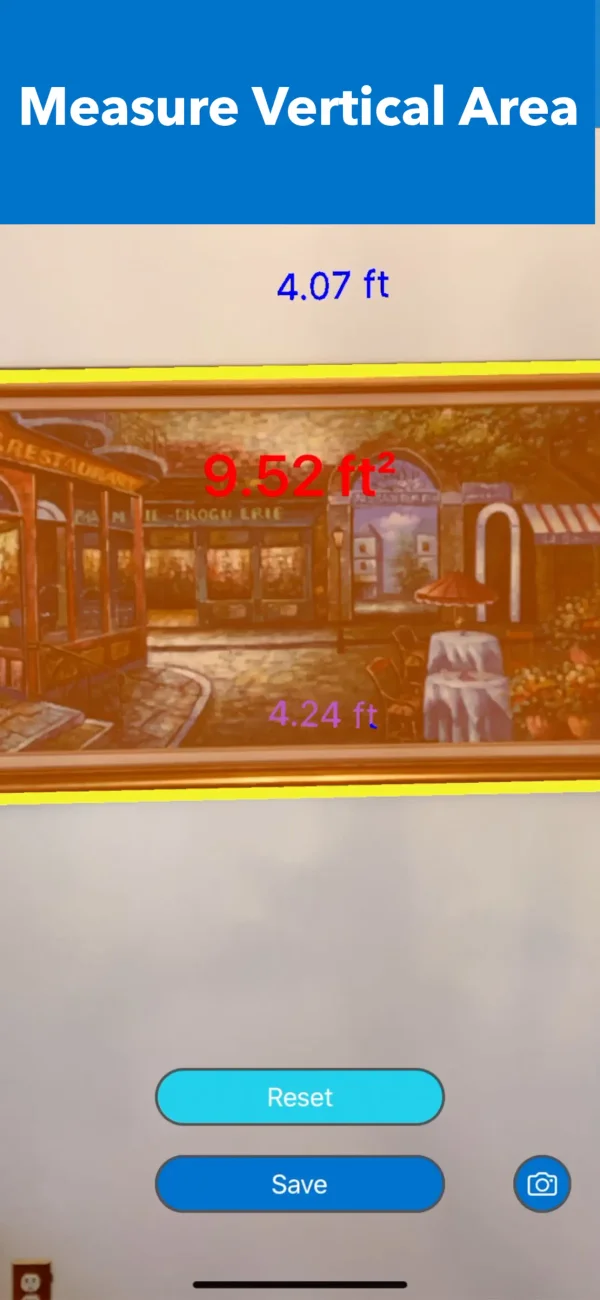
**2. Area – Wall**
Measure wall areas in ft² or m². Useful for painting, cleaning, renovation, and other home improvement projects.
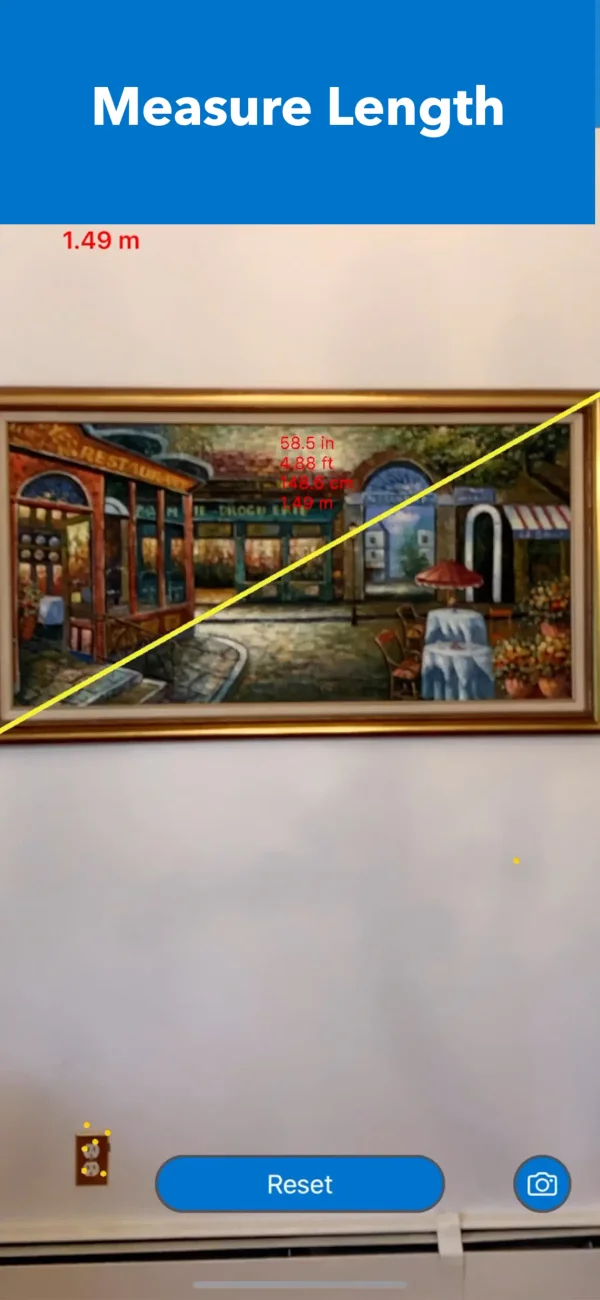
**3. Length**
Measure the distance between two points using augmented reality.
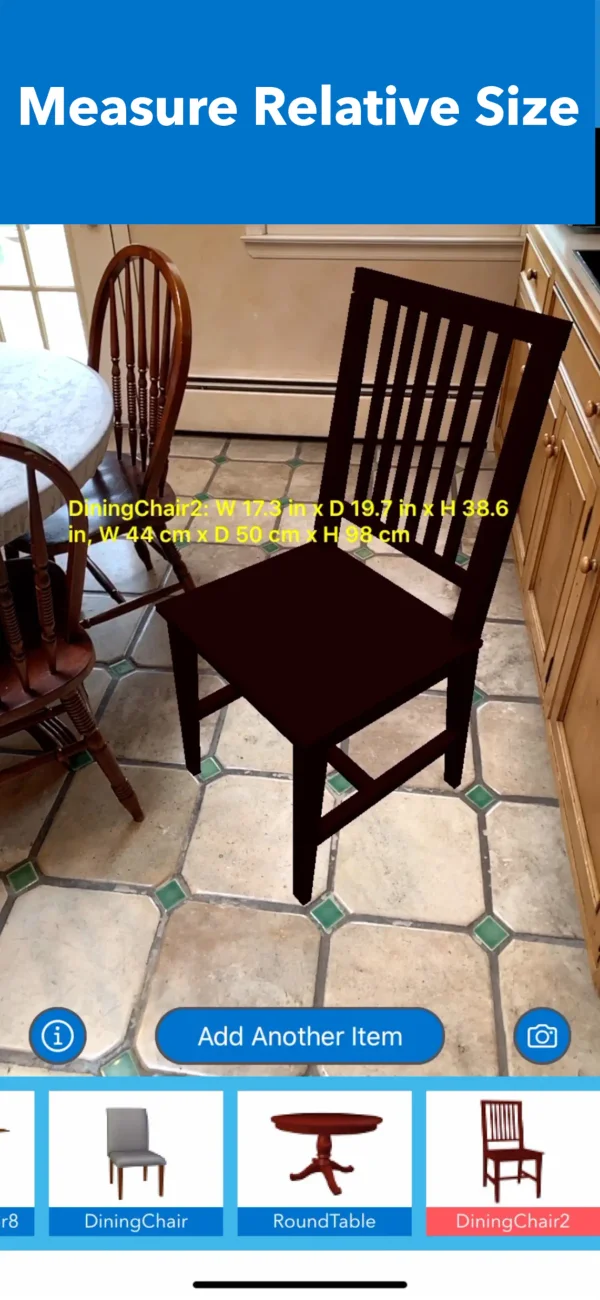
**4. Furniture**
Place standard-sized virtual furniture in your surroundings to visualize how furniture fits and compare its size with the available space.
**5. Size Checker**
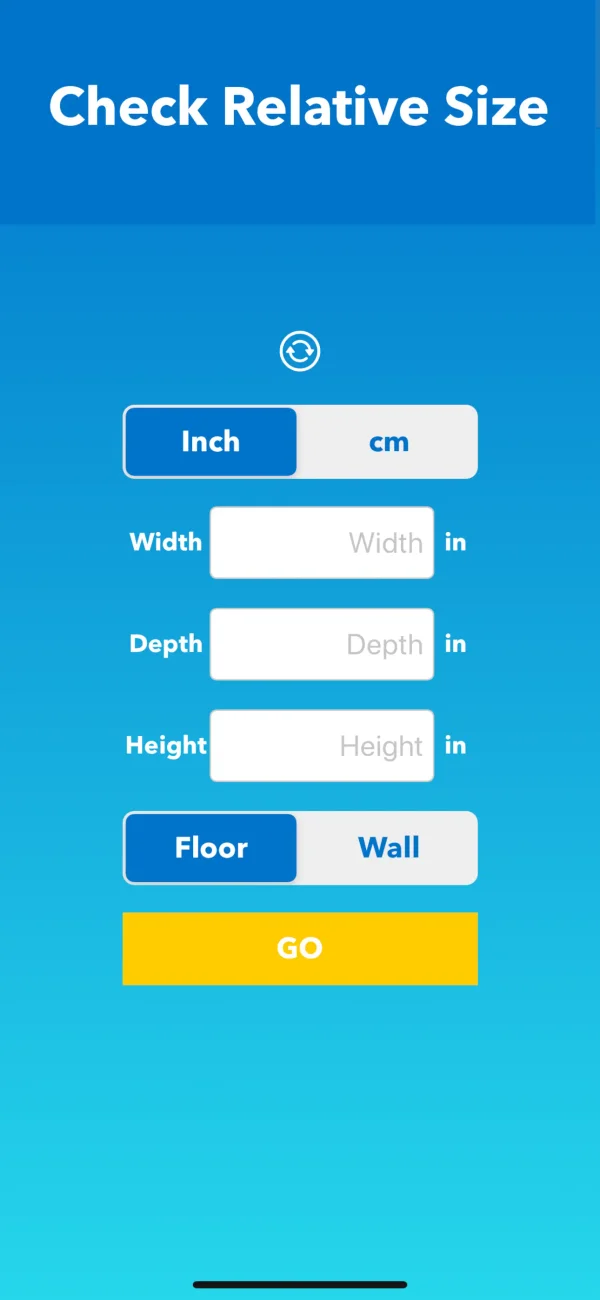
Enter an object's width, depth, and height to create a virtual 3D box. Place it in your surroundings to see how its dimensions compare with the available space.
**HOW TO USE**
**1. Area – Floor or Wall**
- Select your preferred measurement unit (ft² or m²).
- Tap "Area – Floor" or "Area – Wall" on the main menu.
- Move your iPhone slowly to scan the surrounding area.
- Find a flat floor or wall surface and wait for the blue square to appear.
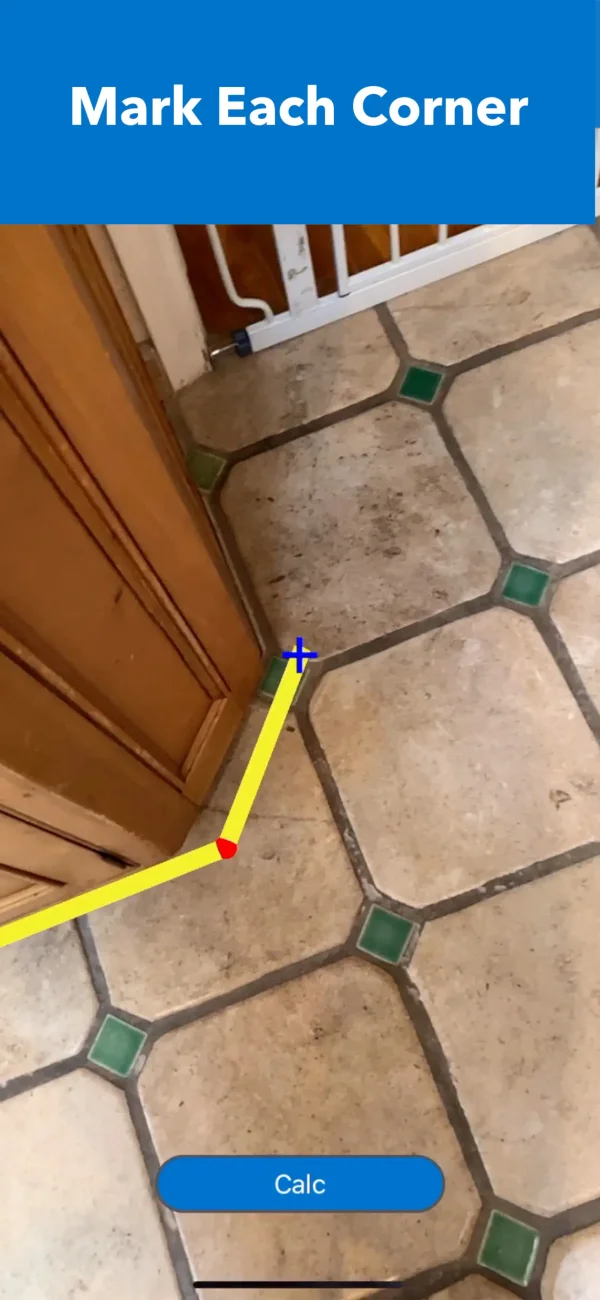
- Position the "+" pointer at the first corner.
- Tap the screen to mark the corner with a red sphere.
- Move clockwise or counterclockwise to the next corner and tap again.
- Continue marking each corner. Do not mark the starting point twice.
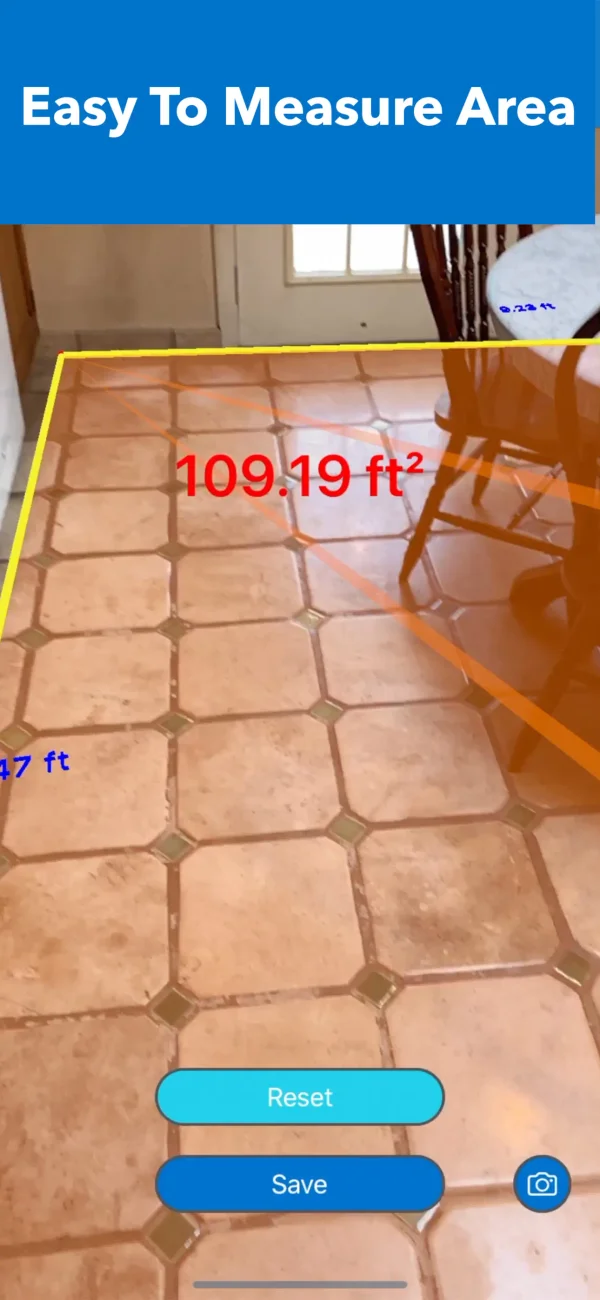
- Tap "Calc" to calculate the area.
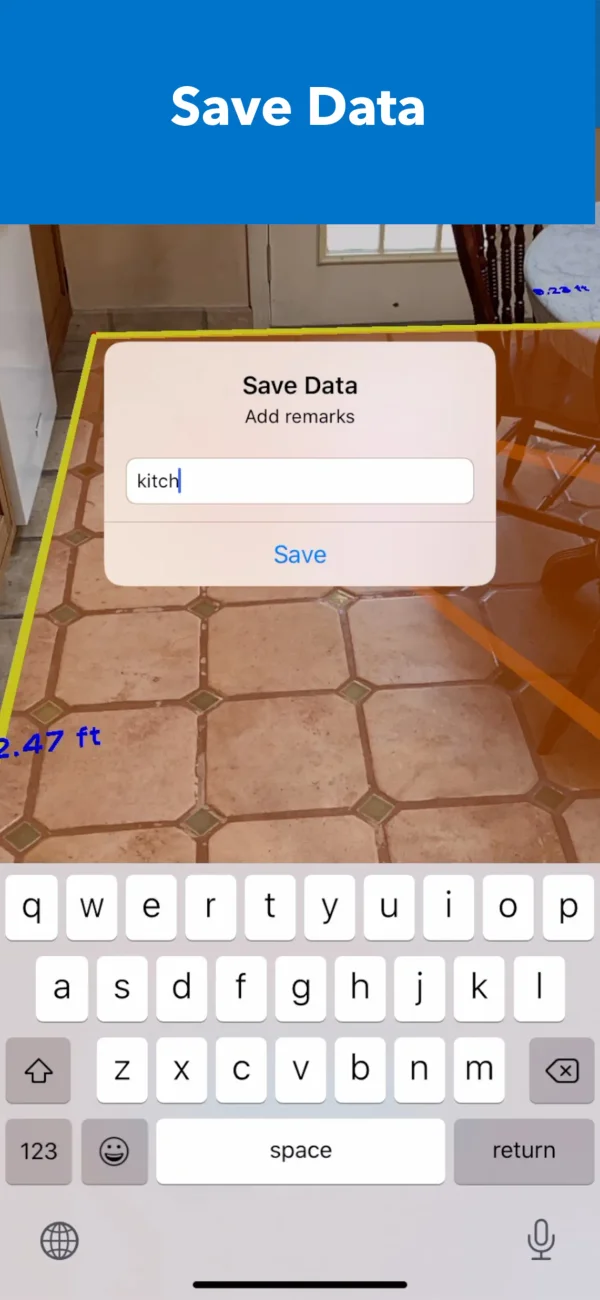
- To save the measurement, tap "Save," enter a note, and confirm.
- Tap "Camera" to take a photo.
- To access saved measurements, tap the file icon in the upper-right corner of the main menu.
- Search your saved measurements to find specific records.
- Tap a saved record to view its location and photo, if available.
- To delete a record, swipe left on the corresponding row.
Note: Occasionally, the orange AR-shaded area may extend beyond the outline or overlap. This visual effect does not affect the app's area calculation.
**2. Length**
- Tap "Length" on the main menu.
- Move your iPhone slowly to scan the surrounding area.
- Wait for yellow dots to appear on the target surface.
- Position the "+" pointer at the starting point.
- Tap the screen to mark the point with a red sphere.
- Move to the endpoint and position the pointer.
- Tap again to display the measured distance.
- To start a new measurement, tap "Reset."
- Tap "Camera" to take a photo.
**3. Furniture**
- Tap "Furniture" on the main menu.
- Scan the surrounding area until the blue square appears on a flat floor surface.
- Select a furniture item from the list.
- Tap the screen to place the virtual furniture.
- To rotate an item, touch it and slide your finger.
- To move an item, long-press it and drag.
- Tap "Add Another Item" to place additional furniture.
- Tap "Info" to show or hide furniture dimensions.
- Tap "Camera" to take a photo.
Virtual furniture uses standard or typical dimensions to help you visualize the relative size of a space.
**4. Size Checker**
- Select your preferred measurement unit.
- Enter the width, depth, and height of the object.
- Select the surface on which to place the virtual box.
- Tap "GO."
- Move your iPhone to scan the surrounding area.
- Wait for the blue square to appear on a suitable flat surface.
- Tap the screen to place the virtual box.
Use this feature to visualize an object's dimensions before purchasing or placing it in your space.
**IMPORTANT NOTES**
AR measurements are estimates and may vary with lighting, surfaces, and device movement. Verify measurements with professional tools when precision is required.
Novedades
Versión 1.8 · 25/10/2026
- Added search functionality to quickly find saved area measurements.
- Minor improvements and bug fixes.
Privacidad de la aplicación
Lo que Noriaki Murao declara en App Store sobre cómo esta aplicación gestiona los datos.
-
Datos usados para rastrearte
Pueden usarse para rastrearte en aplicaciones y sitios web propiedad de otras empresas.
- Ubicación
- Identificadores
- Datos de uso
-
Datos no vinculados a ti
Pueden recopilarse, pero no se vinculan a tu identidad.
- Ubicación
- Identificadores
- Datos de uso
- Diagnóstico
Las prácticas de privacidad pueden variar, por ejemplo, según las funciones que uses o tu edad.
Información
- Vendedor
- Noriaki Murao
- Categoría
- Utilidades
- Versión
- 1.8
- Actualizado
- 25/10/2026
- Publicado
- 8/6/2018
- Tamaño
- 7,3 MB
- Requiere
- iOS 13.0 o posterior
- Clasificación por edad
- 4+
- Idiomas
- Inglés
- Copyright
- © 2026 The New Life Enterprise, LLC
Quizá también te guste
-
 Áreas de figuras geometricasCalcular, geometría, convertir
-
 CamToPlan - medir distancias3D medidor & realidad virtual
-
 Room Scanner: medición de áreaMedición eficiente y precisa
-
 Medir Planos Casas y MedidasCinta Métrica AR y Medidor 3D
-
 Square Footage Calculator:AreoUtilidades
-
 Calculator areaUtilidades
-
 MoasureLa aplicación Moasure
-
 Calculadora de Paisajismoby Inch Calculator
-
 Tile Calculator, Flooring calcUtilidades
-
 Material Estimator CalculatorUtilidades