
- Classification d’âge4+
- CatégorieUtilitaires
- DéveloppeurNoriaki Murao
- LanguesAnglais
- Taille7,3 Mo
sqft AR n’est peut-être pas disponible sur App Store pour le moment
La fiche de la boutique était inaccessible lors de notre dernière vérification. Le lien mène toujours à la page App Store officielle.
Captures d’écran

À propos
Le développeur n’a pas fourni ce texte dans votre langue.
**Measure Spaces with Augmented Reality**
Measure floor and wall areas, check distances, visualize furniture placement, and see whether objects fit your space—all using your iPhone's camera.
sqftAR is a practical AR measurement tool for painting, pressure washing, landscaping, renovation, DIY projects, house hunting, and home planning.
Whether you're a contractor estimating an area or a homeowner planning your next project, sqftAR helps you visualize and measure spaces with ease.
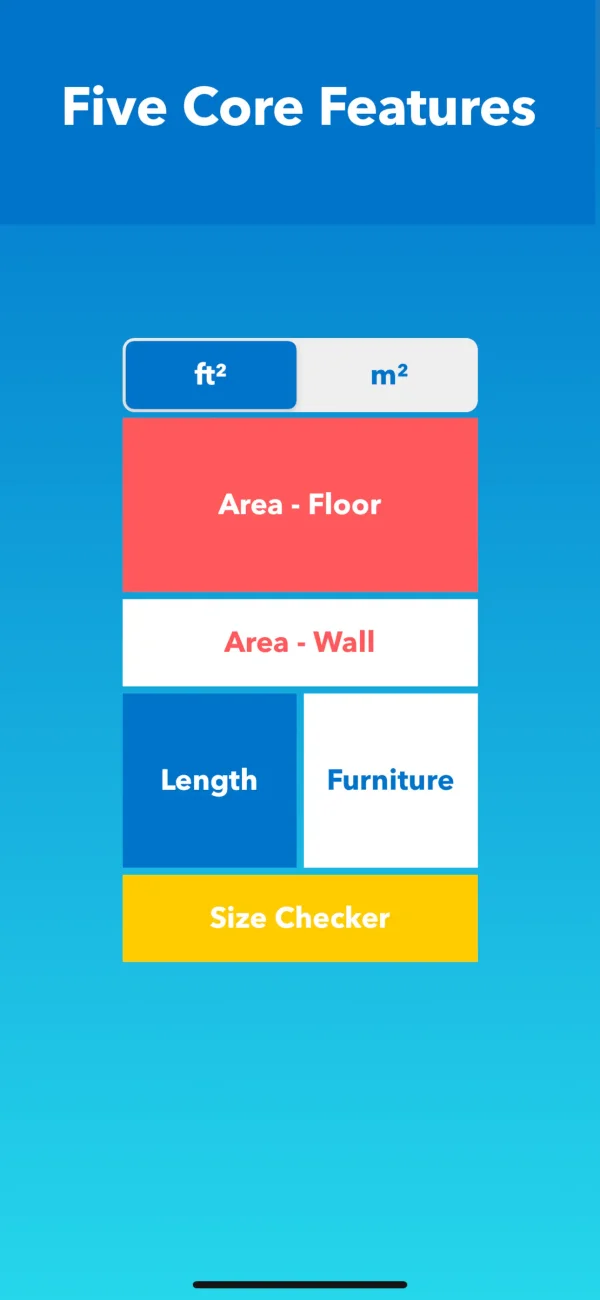
**FIVE CORE FEATURES**
**1. Area – Floor**
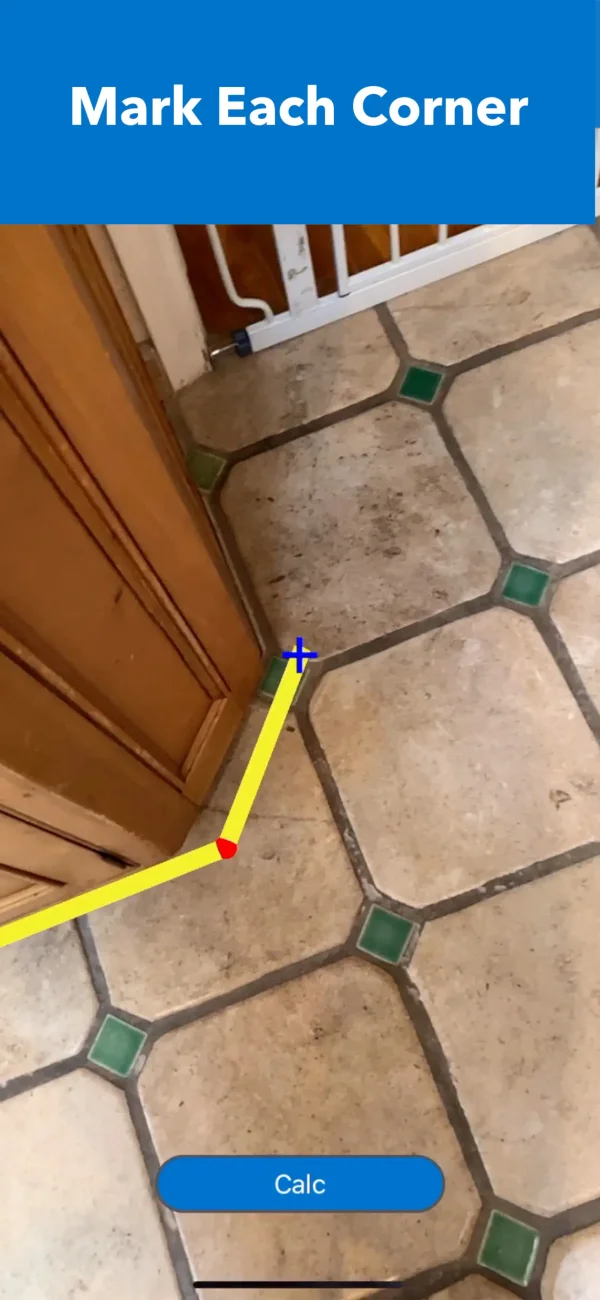
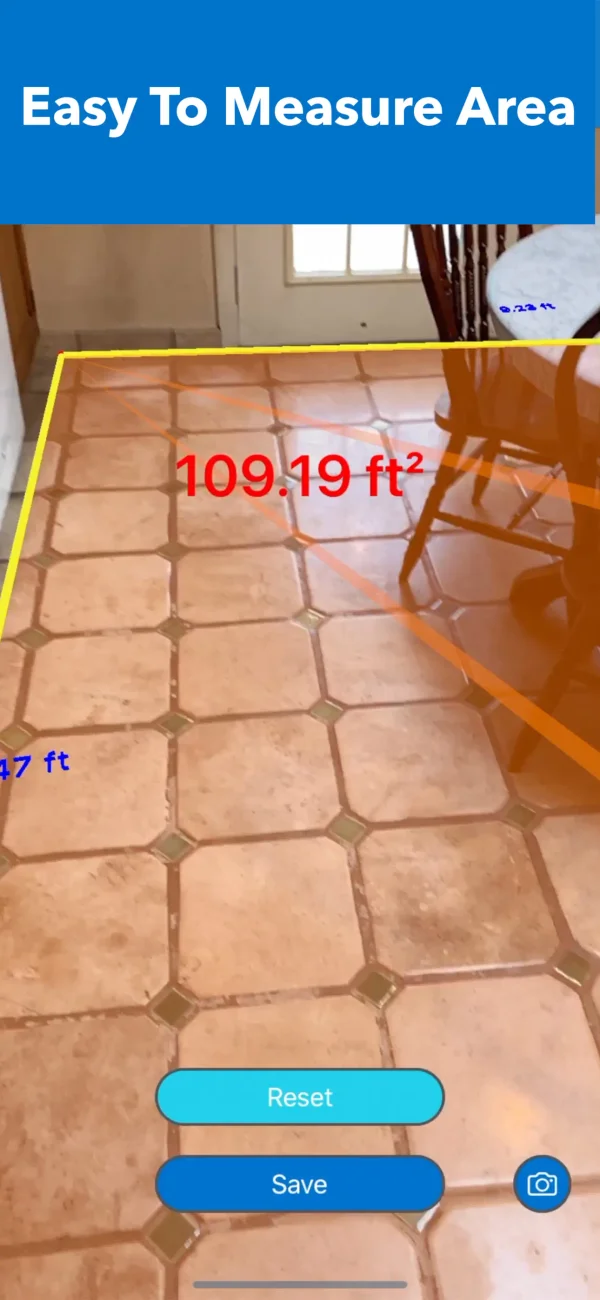
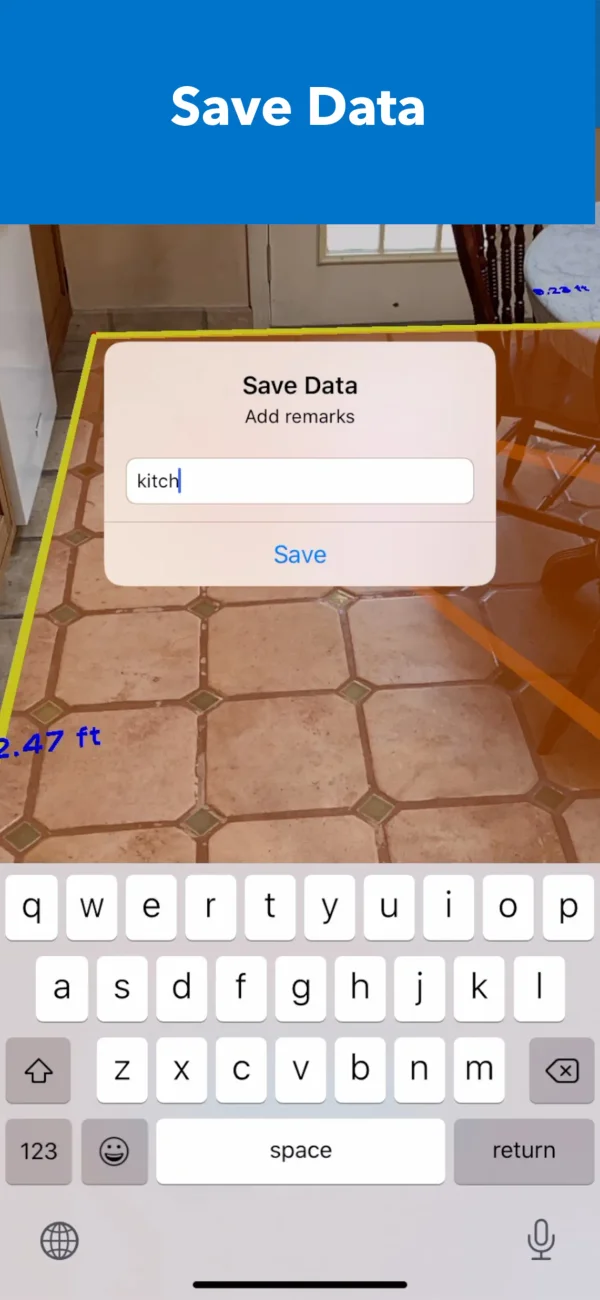
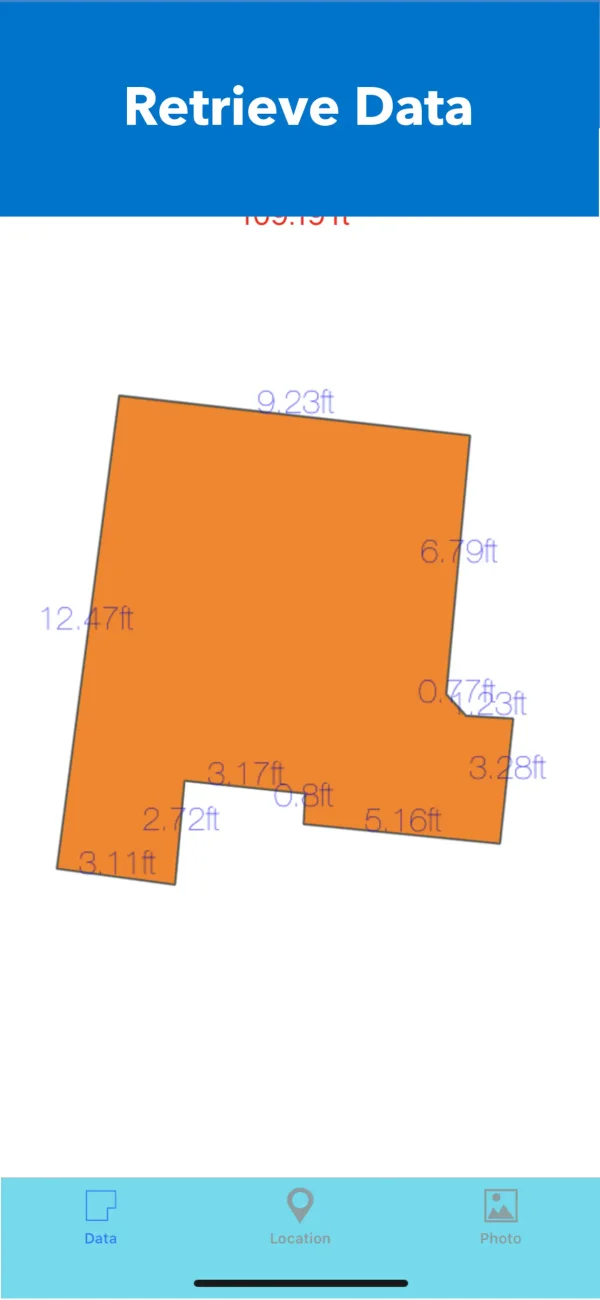
Measure floor areas in square feet (ft²) or square meters (m²). Mark the corners of a floor to calculate its area. Save measurements with notes and review them later.
**2. Area – Wall**
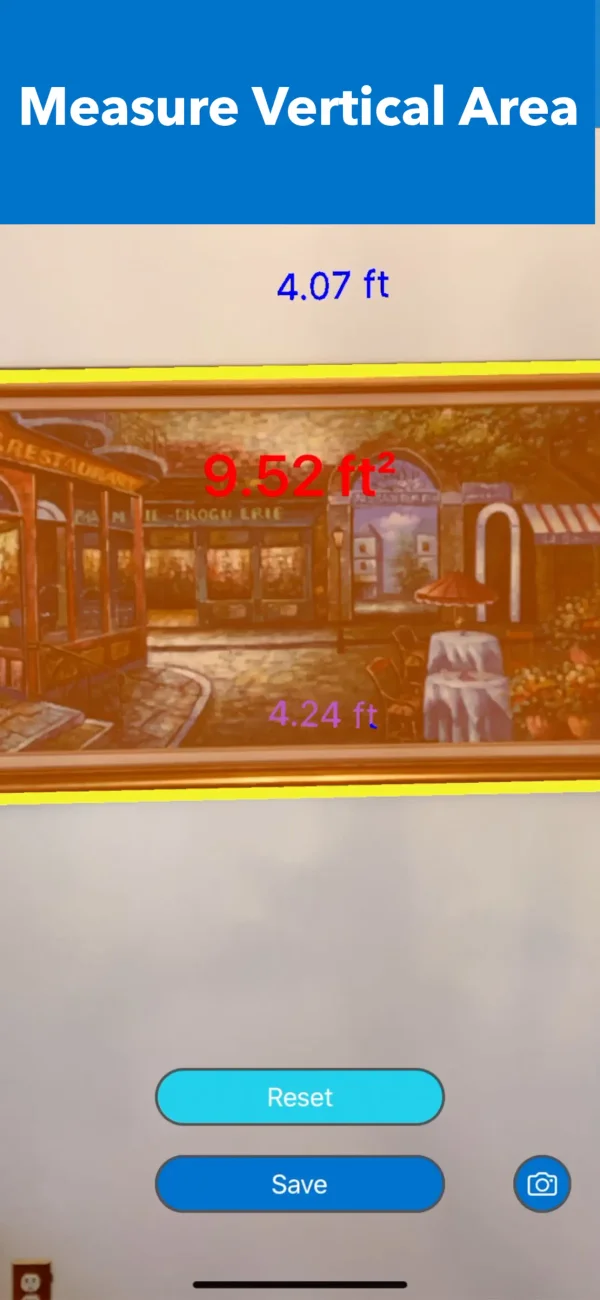
Measure wall areas in ft² or m². Useful for painting, cleaning, renovation, and other home improvement projects.
**3. Length**
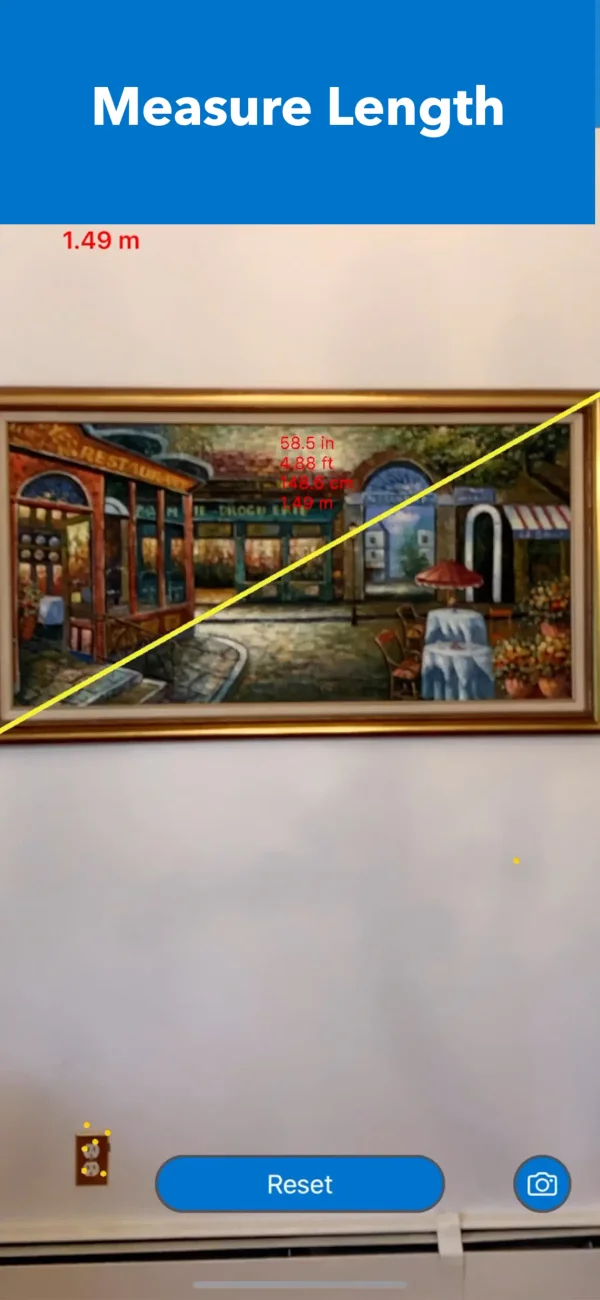
Measure the distance between two points using augmented reality.
**4. Furniture**
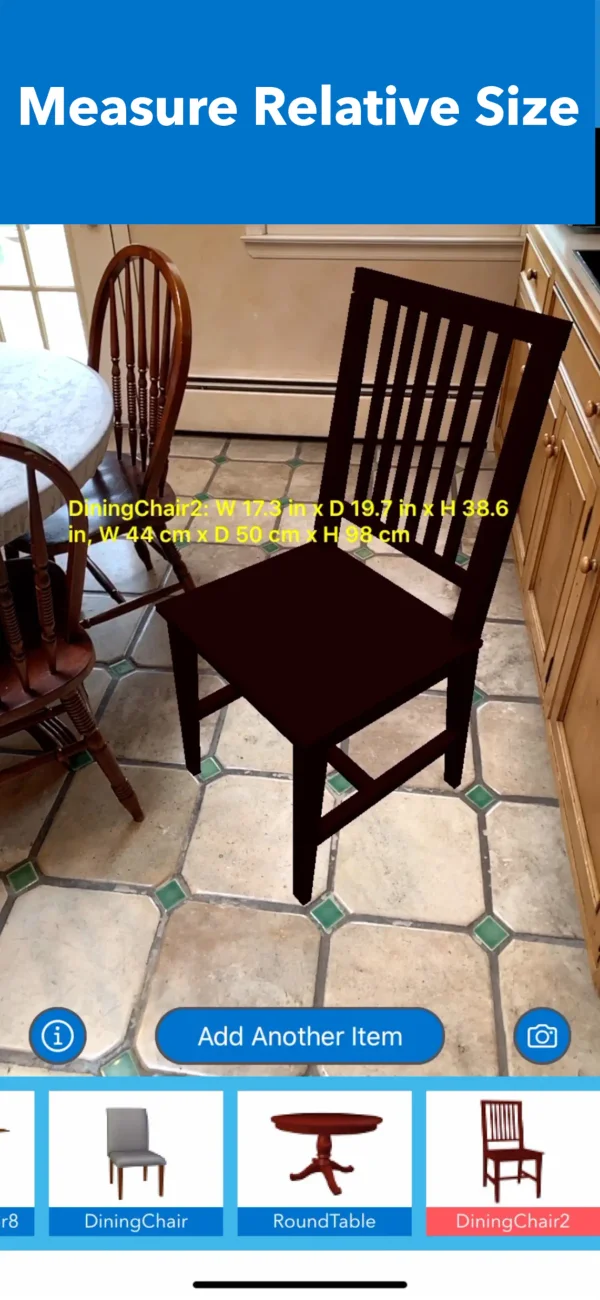
Place standard-sized virtual furniture in your surroundings to visualize how furniture fits and compare its size with the available space.
**5. Size Checker**
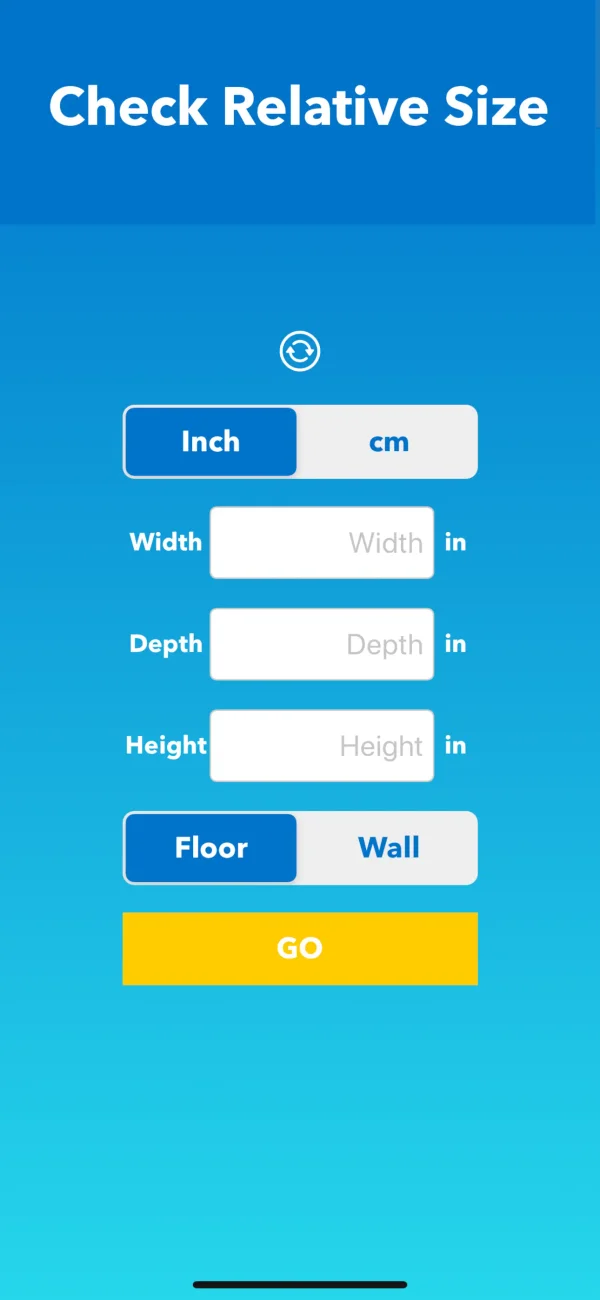
Enter an object's width, depth, and height to create a virtual 3D box. Place it in your surroundings to see how its dimensions compare with the available space.
**HOW TO USE**
**1. Area – Floor or Wall**
- Select your preferred measurement unit (ft² or m²).
- Tap "Area – Floor" or "Area – Wall" on the main menu.
- Move your iPhone slowly to scan the surrounding area.
- Find a flat floor or wall surface and wait for the blue square to appear.
- Position the "+" pointer at the first corner.
- Tap the screen to mark the corner with a red sphere.
- Move clockwise or counterclockwise to the next corner and tap again.
- Continue marking each corner. Do not mark the starting point twice.
- Tap "Calc" to calculate the area.
- To save the measurement, tap "Save," enter a note, and confirm.
- Tap "Camera" to take a photo.
- To access saved measurements, tap the file icon in the upper-right corner of the main menu.
- Search your saved measurements to find specific records.
- Tap a saved record to view its location and photo, if available.
- To delete a record, swipe left on the corresponding row.
Note: Occasionally, the orange AR-shaded area may extend beyond the outline or overlap. This visual effect does not affect the app's area calculation.
**2. Length**
- Tap "Length" on the main menu.
- Move your iPhone slowly to scan the surrounding area.
- Wait for yellow dots to appear on the target surface.
- Position the "+" pointer at the starting point.
- Tap the screen to mark the point with a red sphere.
- Move to the endpoint and position the pointer.
- Tap again to display the measured distance.
- To start a new measurement, tap "Reset."
- Tap "Camera" to take a photo.
**3. Furniture**
- Tap "Furniture" on the main menu.
- Scan the surrounding area until the blue square appears on a flat floor surface.
- Select a furniture item from the list.
- Tap the screen to place the virtual furniture.
- To rotate an item, touch it and slide your finger.
- To move an item, long-press it and drag.
- Tap "Add Another Item" to place additional furniture.
- Tap "Info" to show or hide furniture dimensions.
- Tap "Camera" to take a photo.
Virtual furniture uses standard or typical dimensions to help you visualize the relative size of a space.
**4. Size Checker**
- Select your preferred measurement unit.
- Enter the width, depth, and height of the object.
- Select the surface on which to place the virtual box.
- Tap "GO."
- Move your iPhone to scan the surrounding area.
- Wait for the blue square to appear on a suitable flat surface.
- Tap the screen to place the virtual box.
Use this feature to visualize an object's dimensions before purchasing or placing it in your space.
**IMPORTANT NOTES**
AR measurements are estimates and may vary with lighting, surfaces, and device movement. Verify measurements with professional tools when precision is required.
Nouveautés
Version 1.8 · 25/10/2026
- Added search functionality to quickly find saved area measurements.
- Minor improvements and bug fixes.
Confidentialité de l’application
Ce que Noriaki Murao déclare sur l’App Store au sujet du traitement des données par cette application.
-
Données utilisées pour vous suivre
Peuvent être utilisées pour vous suivre sur des applications et des sites web appartenant à d’autres sociétés.
- Emplacement
- Identifiants
- Données d’utilisation
-
Données n’établissant aucun lien avec vous
Peuvent être collectées, mais ne sont pas liées à votre identité.
- Emplacement
- Identifiants
- Données d’utilisation
- Diagnostic
Les pratiques en matière de confidentialité peuvent varier, notamment en fonction des fonctionnalités que vous utilisez ou de votre âge.
Informations
- Vendeur
- Noriaki Murao
- Catégorie
- Utilitaires
- Version
- 1.8
- Mis à jour
- 25/10/2026
- Publié
- 08/06/2018
- Taille
- 7,3 Mo
- Nécessite
- iOS 13.0 ou version ultérieure
- Classification d’âge
- 4+
- Langues
- Anglais
- Copyright
- © 2026 The New Life Enterprise, LLC
Vous aimerez peut-être aussi
-
 Calcul de surface + CoûtAire, géométrie, convertir,...
-
 CamToPlan - Mesure Plan MaisonRegle 3D & Realite virtuelle
-
 Room Scanner - Chambre ScanMesure précise et efficace
-
 Plan Maison 3d - Mesure MetreMesurer Distance & Appartement
-
 Square Footage Calculator:AreoUtilitaires
-
 Calculator areaUtilitaires
-
 MoasureL'application pour Moasure
-
 Landscaping Calculator Plusby Inch Calculator
-
 Tile Calculator, Flooring calcUtilitaires
-
 Material Estimator CalculatorUtilitaires