
sqft AR
AR Floor & Wall Measurement
Được thiết kế cho iPhone, iPad, iPod touch
Miễn phí
- Độ tuổi4+
- Danh mụcTiện Ích
- Nhà phát triểnNoriaki Murao
- Ngôn ngữTiếng Anh
- Kích thước7,3 MB
Liên kết đến trang App Store chính thức
Download.org không lưu trữ tệp nào của sqft AR. Nút này mở trang ứng dụng trên App Store, nơi Noriaki Murao phát hành ứng dụng. Trang được kiểm tra lần cuối: 27/11/2026.
Ảnh chụp màn hình

Giới thiệu
Nhà phát triển chưa cung cấp nội dung này bằng ngôn ngữ của bạn.
**Measure Spaces with Augmented Reality**
Measure floor and wall areas, check distances, visualize furniture placement, and see whether objects fit your space—all using your iPhone's camera.
sqftAR is a practical AR measurement tool for painting, pressure washing, landscaping, renovation, DIY projects, house hunting, and home planning.
Whether you're a contractor estimating an area or a homeowner planning your next project, sqftAR helps you visualize and measure spaces with ease.
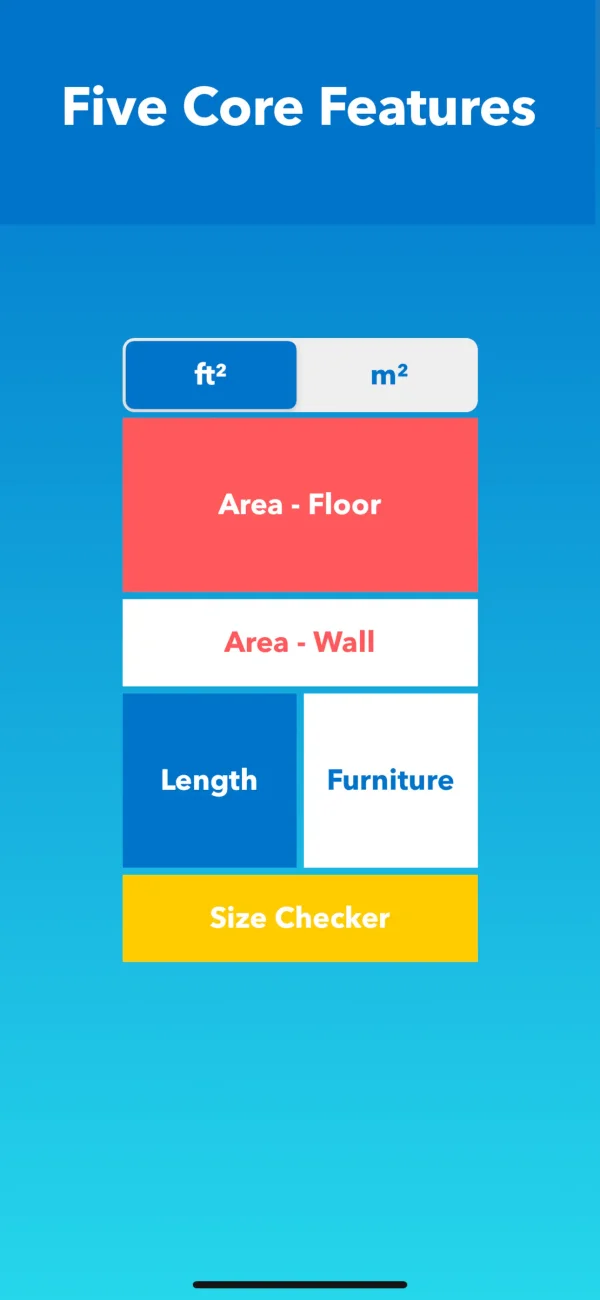
**FIVE CORE FEATURES**
**1. Area – Floor**
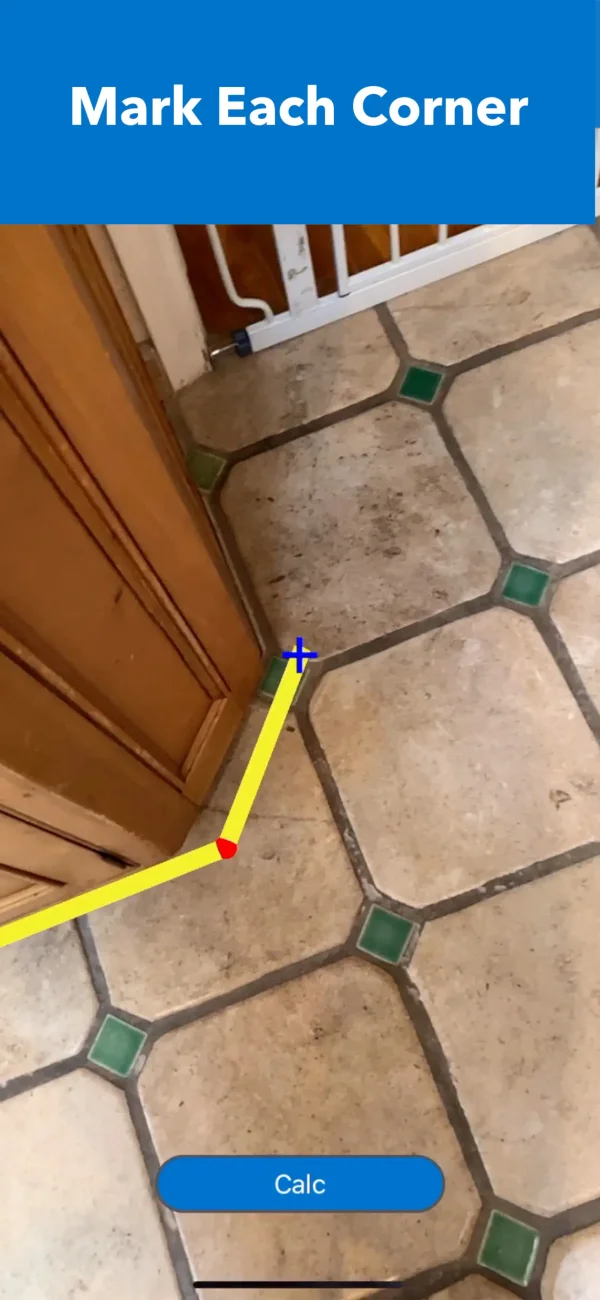
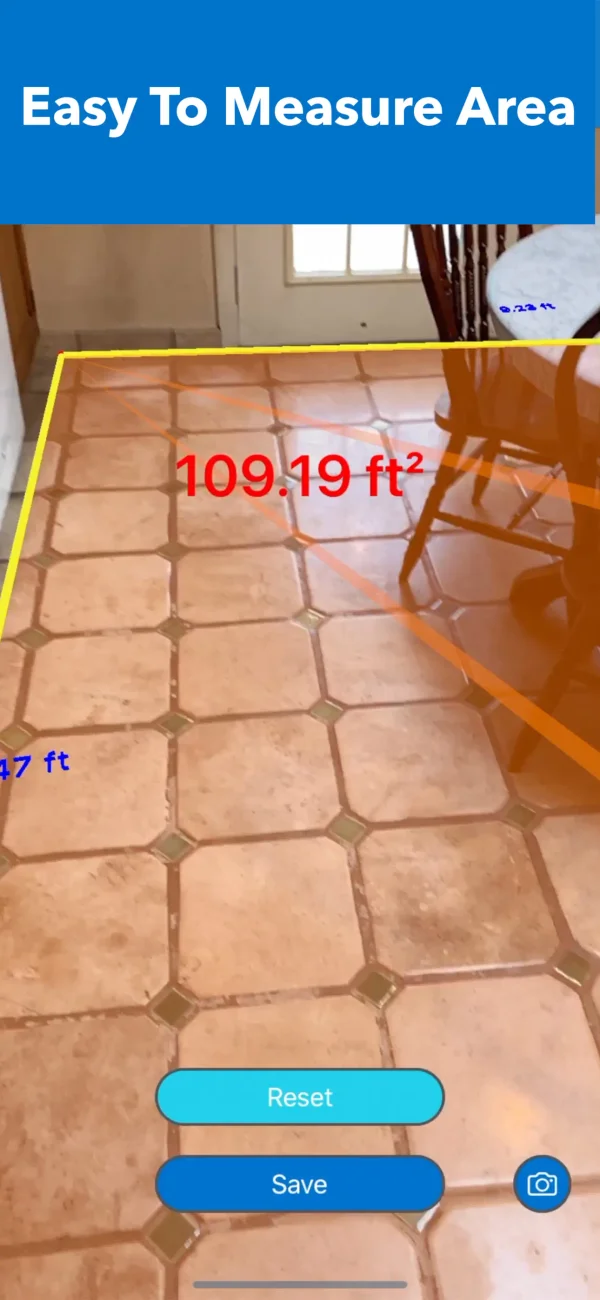
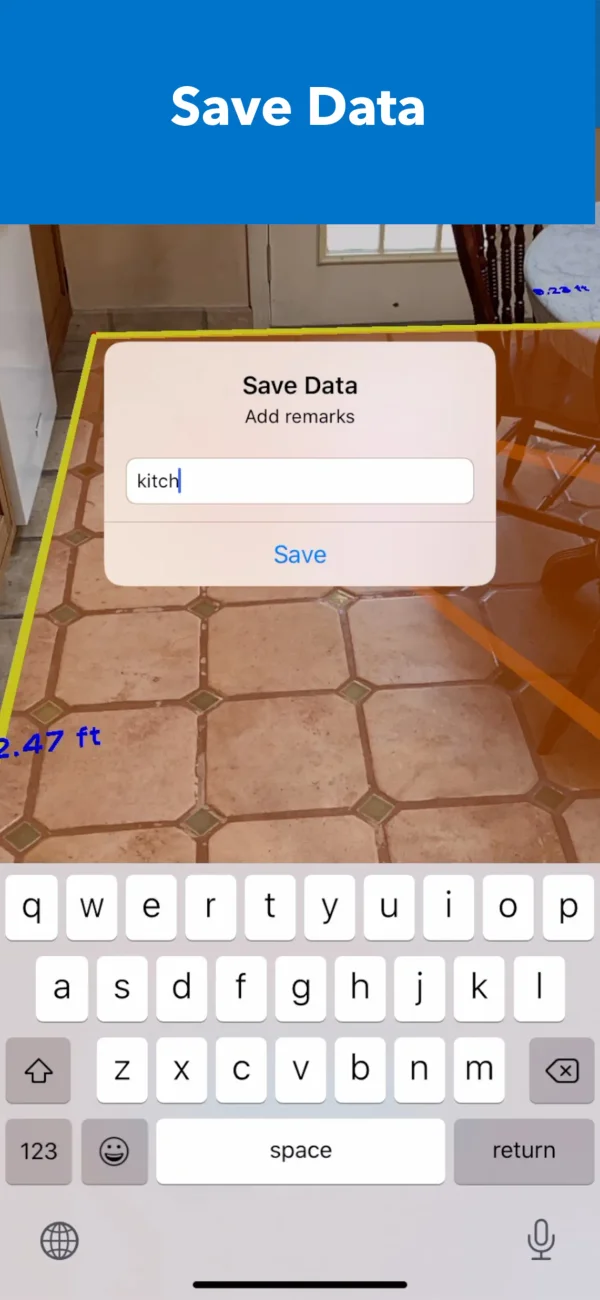
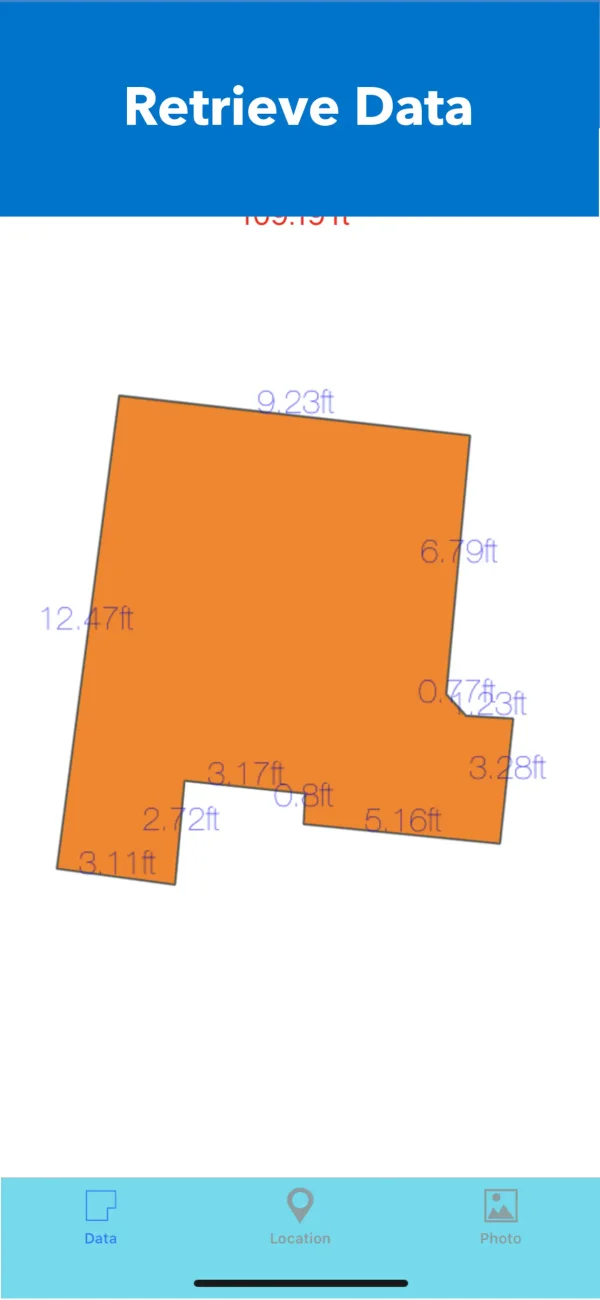
Measure floor areas in square feet (ft²) or square meters (m²). Mark the corners of a floor to calculate its area. Save measurements with notes and review them later.
**2. Area – Wall**
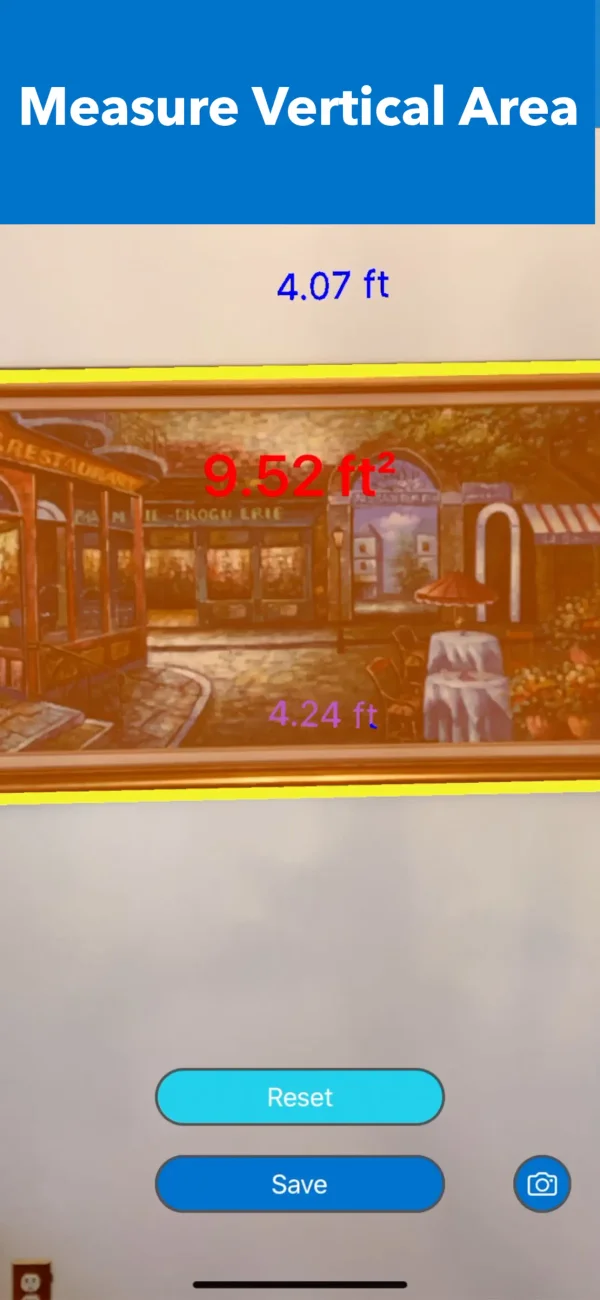
Measure wall areas in ft² or m². Useful for painting, cleaning, renovation, and other home improvement projects.
**3. Length**
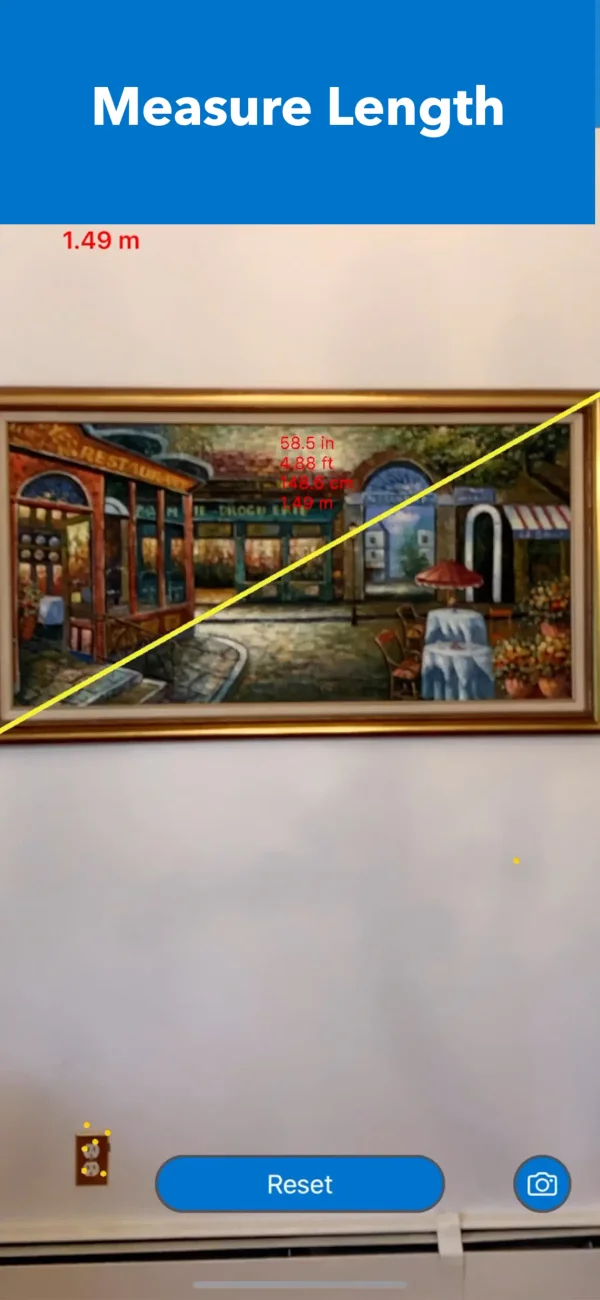
Measure the distance between two points using augmented reality.
**4. Furniture**
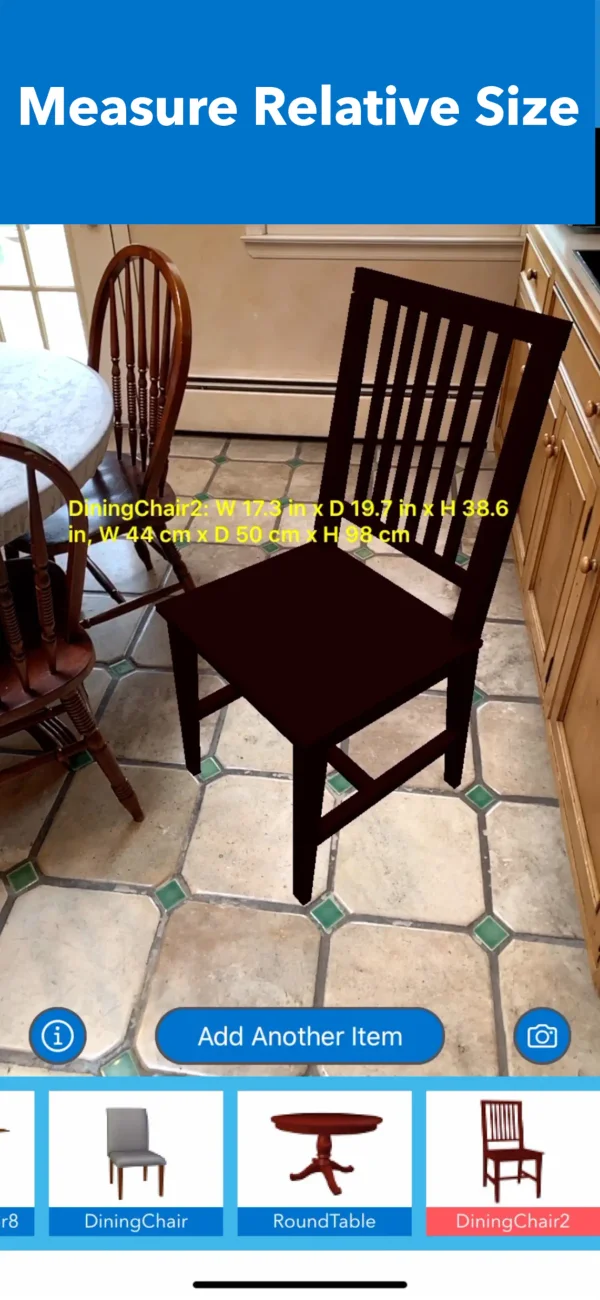
Place standard-sized virtual furniture in your surroundings to visualize how furniture fits and compare its size with the available space.
**5. Size Checker**
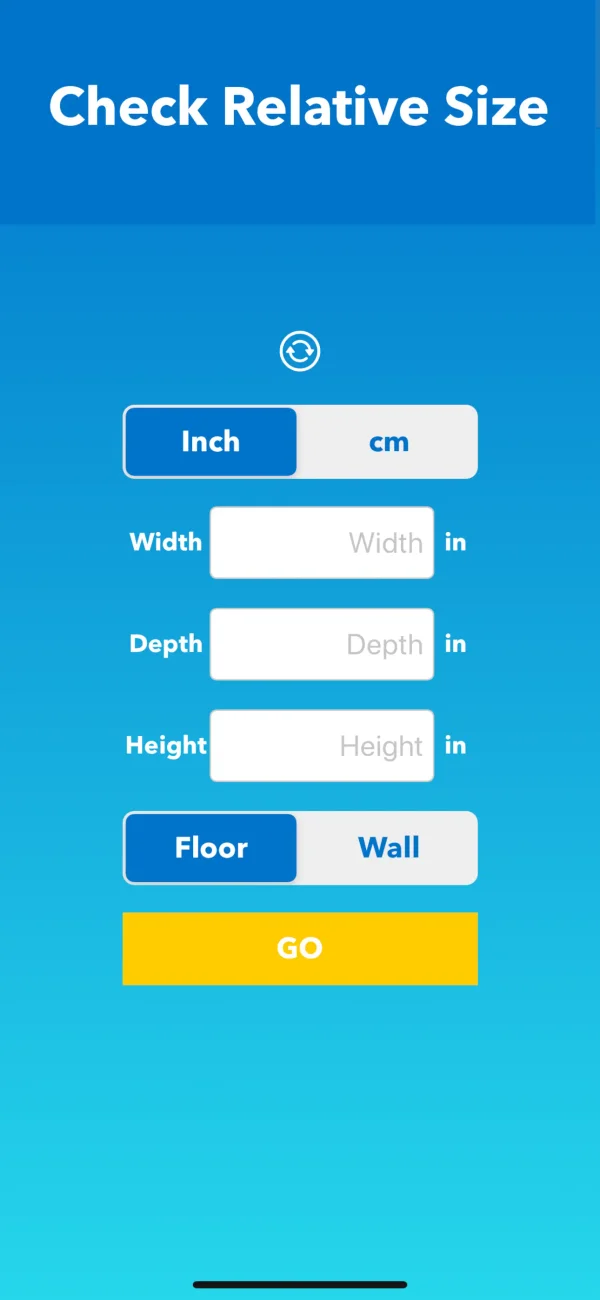
Enter an object's width, depth, and height to create a virtual 3D box. Place it in your surroundings to see how its dimensions compare with the available space.
**HOW TO USE**
**1. Area – Floor or Wall**
- Select your preferred measurement unit (ft² or m²).
- Tap "Area – Floor" or "Area – Wall" on the main menu.
- Move your iPhone slowly to scan the surrounding area.
- Find a flat floor or wall surface and wait for the blue square to appear.
- Position the "+" pointer at the first corner.
- Tap the screen to mark the corner with a red sphere.
- Move clockwise or counterclockwise to the next corner and tap again.
- Continue marking each corner. Do not mark the starting point twice.
- Tap "Calc" to calculate the area.
- To save the measurement, tap "Save," enter a note, and confirm.
- Tap "Camera" to take a photo.
- To access saved measurements, tap the file icon in the upper-right corner of the main menu.
- Search your saved measurements to find specific records.
- Tap a saved record to view its location and photo, if available.
- To delete a record, swipe left on the corresponding row.
Note: Occasionally, the orange AR-shaded area may extend beyond the outline or overlap. This visual effect does not affect the app's area calculation.
**2. Length**
- Tap "Length" on the main menu.
- Move your iPhone slowly to scan the surrounding area.
- Wait for yellow dots to appear on the target surface.
- Position the "+" pointer at the starting point.
- Tap the screen to mark the point with a red sphere.
- Move to the endpoint and position the pointer.
- Tap again to display the measured distance.
- To start a new measurement, tap "Reset."
- Tap "Camera" to take a photo.
**3. Furniture**
- Tap "Furniture" on the main menu.
- Scan the surrounding area until the blue square appears on a flat floor surface.
- Select a furniture item from the list.
- Tap the screen to place the virtual furniture.
- To rotate an item, touch it and slide your finger.
- To move an item, long-press it and drag.
- Tap "Add Another Item" to place additional furniture.
- Tap "Info" to show or hide furniture dimensions.
- Tap "Camera" to take a photo.
Virtual furniture uses standard or typical dimensions to help you visualize the relative size of a space.
**4. Size Checker**
- Select your preferred measurement unit.
- Enter the width, depth, and height of the object.
- Select the surface on which to place the virtual box.
- Tap "GO."
- Move your iPhone to scan the surrounding area.
- Wait for the blue square to appear on a suitable flat surface.
- Tap the screen to place the virtual box.
Use this feature to visualize an object's dimensions before purchasing or placing it in your space.
**IMPORTANT NOTES**
AR measurements are estimates and may vary with lighting, surfaces, and device movement. Verify measurements with professional tools when precision is required.
Có gì mới
Phiên bản 1.8 · 25/10/2026
- Added search functionality to quickly find saved area measurements.
- Minor improvements and bug fixes.
Quyền riêng tư của ứng dụng
Những gì Noriaki Murao khai báo trên App Store về cách ứng dụng này xử lý dữ liệu.
-
Dữ liệu được sử dụng để theo dõi bạn
Có thể được sử dụng để theo dõi bạn trên các ứng dụng và trang web do công ty khác sở hữu.
- Vị trí
- Mã định danh
- Dữ liệu sử dụng
-
Dữ liệu không liên kết với bạn
Có thể được thu thập nhưng không liên kết với danh tính của bạn.
- Vị trí
- Mã định danh
- Dữ liệu sử dụng
- Chẩn đoán
Phương thức đảm bảo quyền riêng tư có thể khác nhau, chẳng hạn như tuỳ theo các tính năng bạn sử dụng hoặc độ tuổi của bạn.
Thông tin
- Người bán
- Noriaki Murao
- Danh mục
- Tiện Ích
- Phiên bản
- 1.8
- Cập nhật
- 25/10/2026
- Phát hành
- 08/06/2018
- Kích thước
- 7,3 MB
- Yêu cầu
- iOS 13.0 trở lên
- Độ tuổi
- 4+
- Giá
- Miễn phí
- Ngôn ngữ
- Tiếng Anh
- Bản quyền
- © 2026 The New Life Enterprise, LLC
Có thể bạn cũng thích
-
 Tính diện tích, phí xây dựngHình học, đất, nhà, phòng,...
-
 CamToPlan - đo khoảng cách 3DPlan in augmented reality
-
 Room Scanner - Easy Measure RmTiện Ích
-
 Thước Đo Chiều Dài AR CameraKhoảng Cách, Diện Tích Đất
-
 Square Footage Calculator:AreoTiện Ích
-
 Calculator areaTiện Ích
-
 MoasureTiện Ích
-
 Landscaping Calculator PlusTiện Ích
-
 Tile Calculator, Flooring calcTiện Ích
-
 Material Estimator CalculatorTiện Ích