
sqft AR
AR Floor & Wall Measurement
Dirancang untuk iPhone, iPad, iPod touch
Gratis
- Batasan usia4+
- KategoriKegunaan
- PengembangNoriaki Murao
- BahasaInggris
- Ukuran7,3 MB
Tertaut ke halaman resmi App Store
Download.org tidak menyimpan file sqft AR apa pun. Tombol ini membuka halaman aplikasi di App Store, tempat Noriaki Murao menerbitkannya. Halaman terakhir diperiksa pada 20/11/2026.
Tangkapan layar

Tentang
Pengembang belum menyediakan teks ini dalam bahasa Anda.
**Measure Spaces with Augmented Reality**
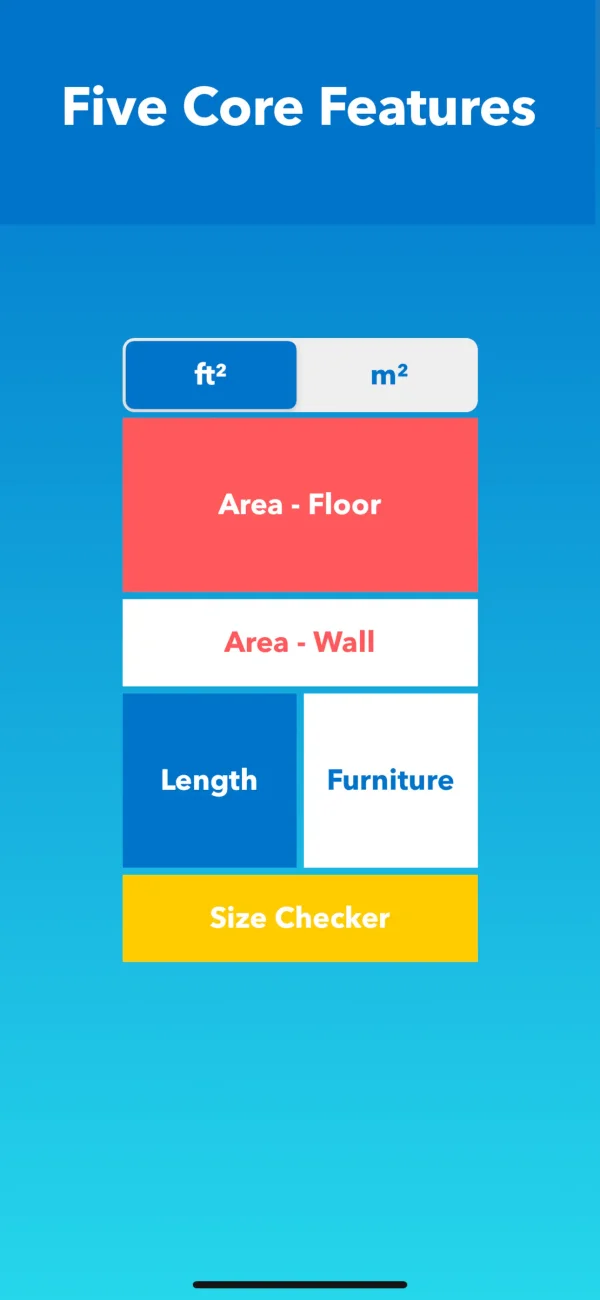
Measure floor and wall areas, check distances, visualize furniture placement, and see whether objects fit your space—all using your iPhone's camera.
sqftAR is a practical AR measurement tool for painting, pressure washing, landscaping, renovation, DIY projects, house hunting, and home planning.
Whether you're a contractor estimating an area or a homeowner planning your next project, sqftAR helps you visualize and measure spaces with ease.
**FIVE CORE FEATURES**
**1. Area – Floor**
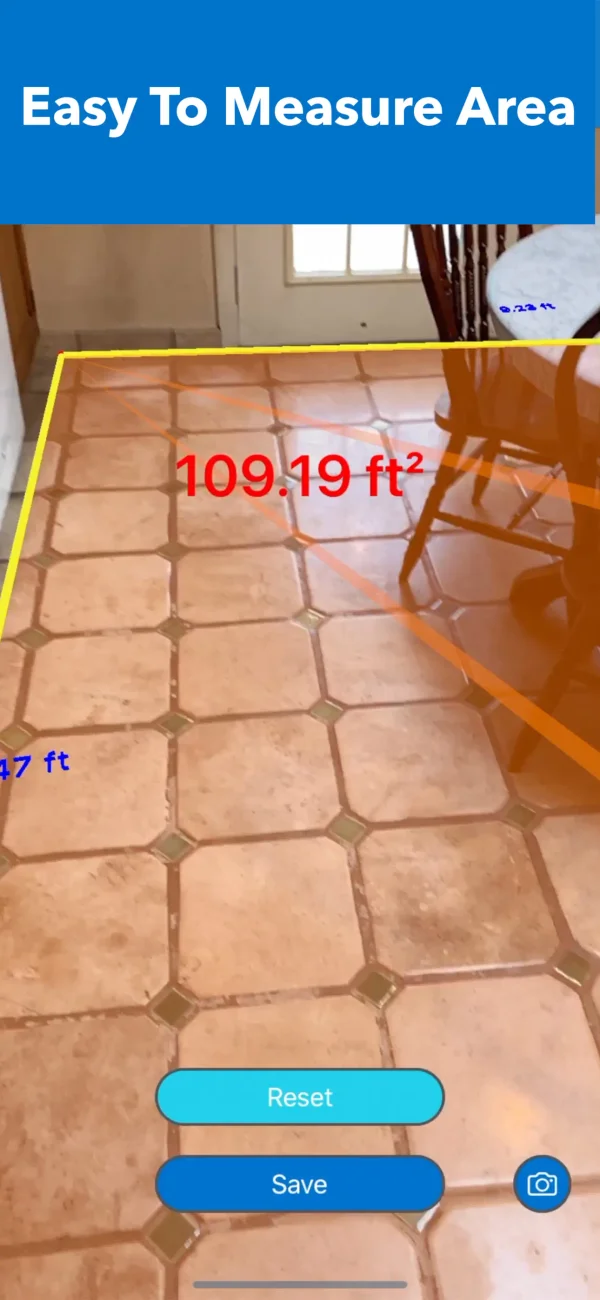
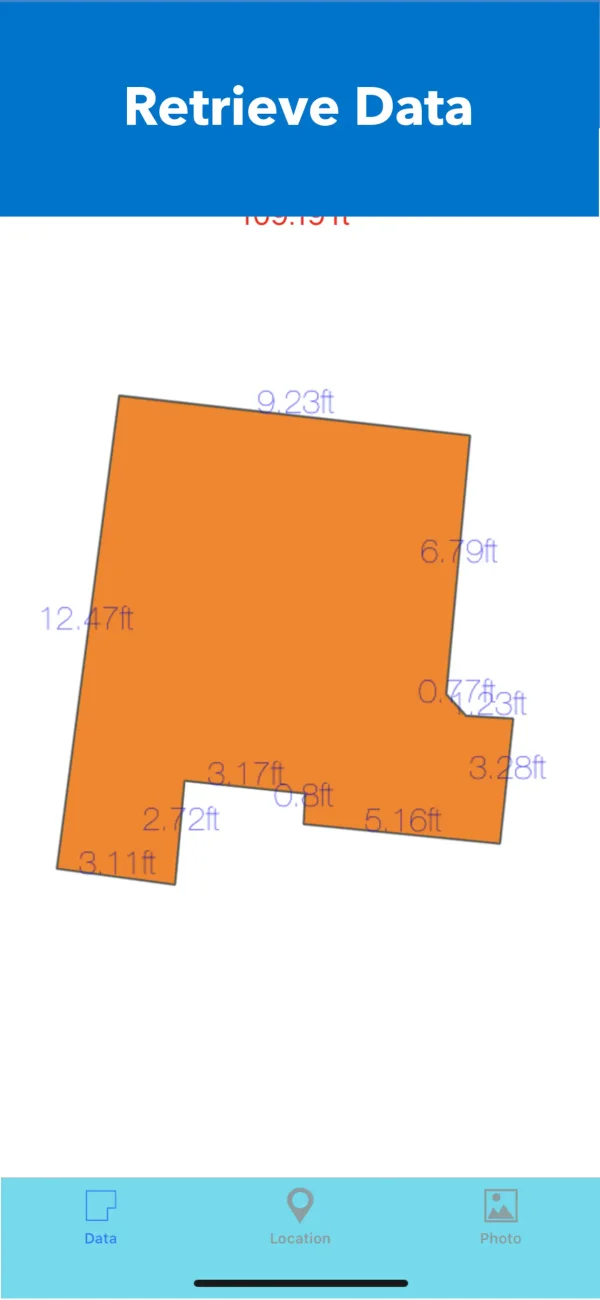
Measure floor areas in square feet (ft²) or square meters (m²). Mark the corners of a floor to calculate its area. Save measurements with notes and review them later.
**2. Area – Wall**
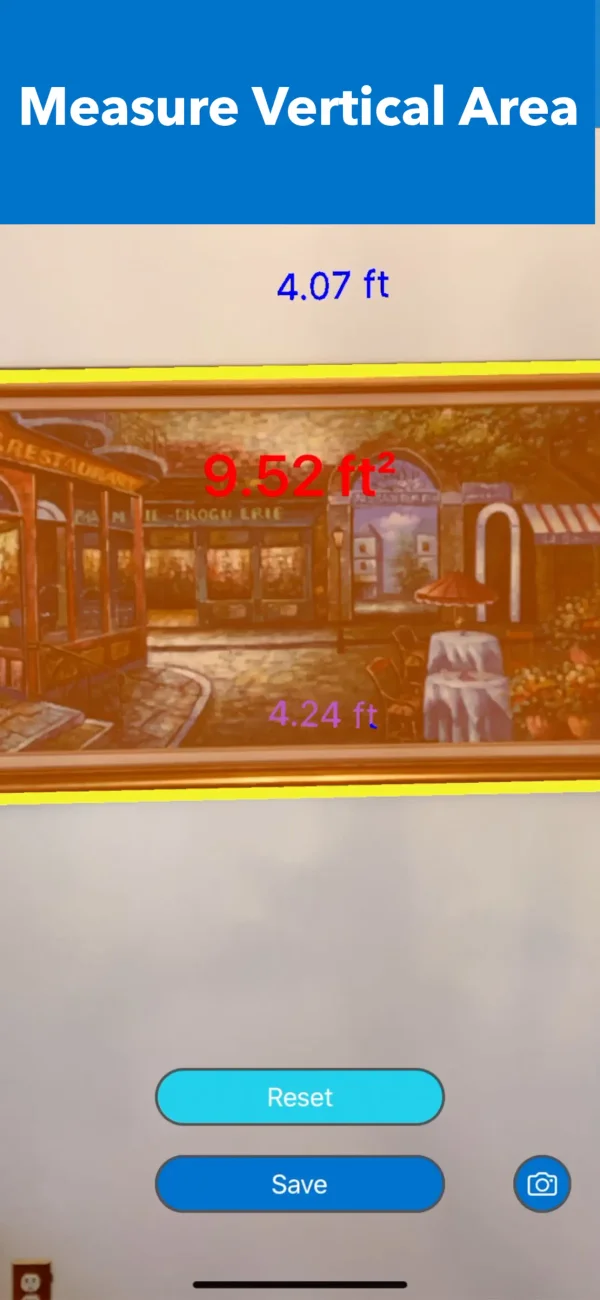
Measure wall areas in ft² or m². Useful for painting, cleaning, renovation, and other home improvement projects.
**3. Length**
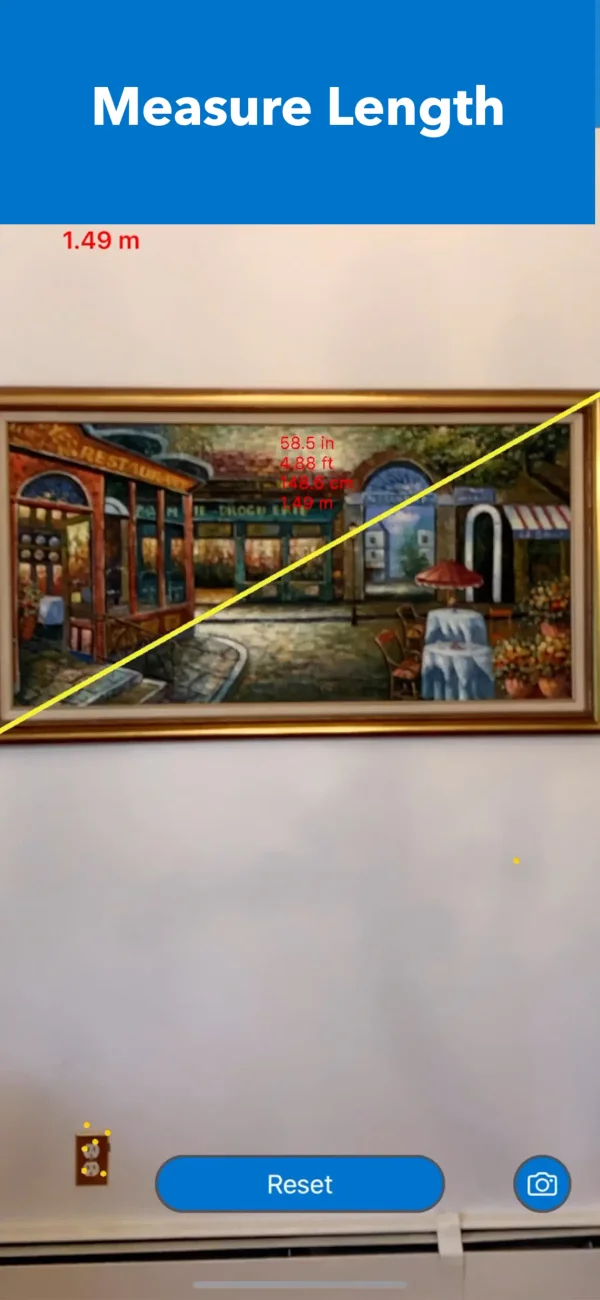
Measure the distance between two points using augmented reality.
**4. Furniture**
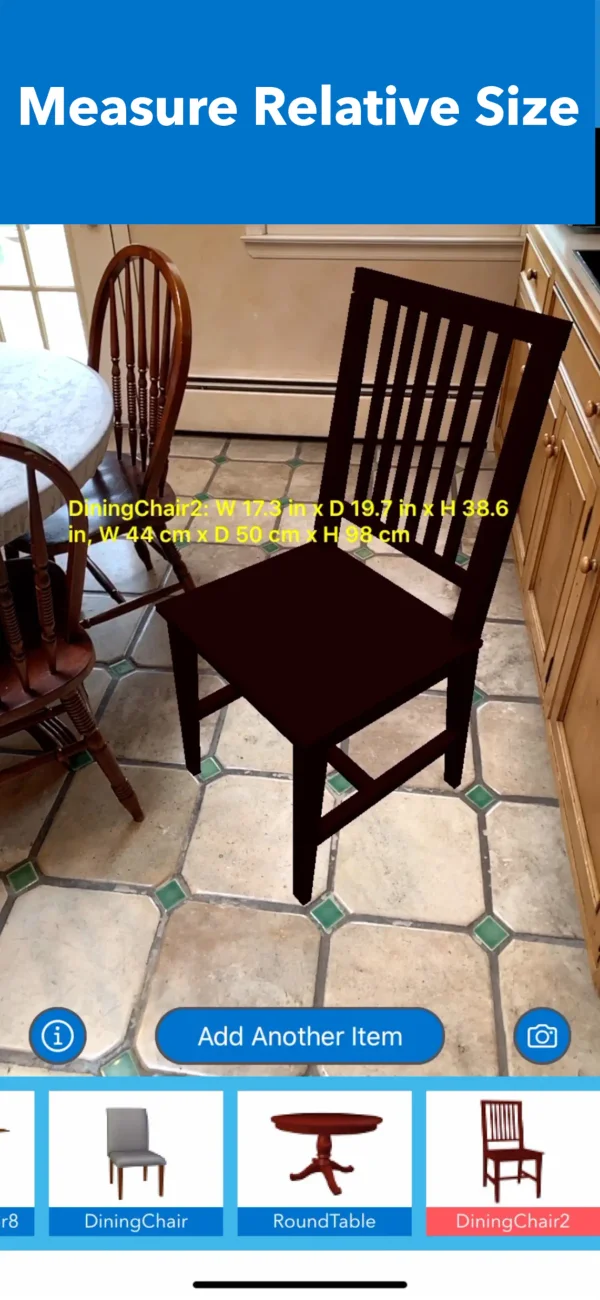
Place standard-sized virtual furniture in your surroundings to visualize how furniture fits and compare its size with the available space.
**5. Size Checker**
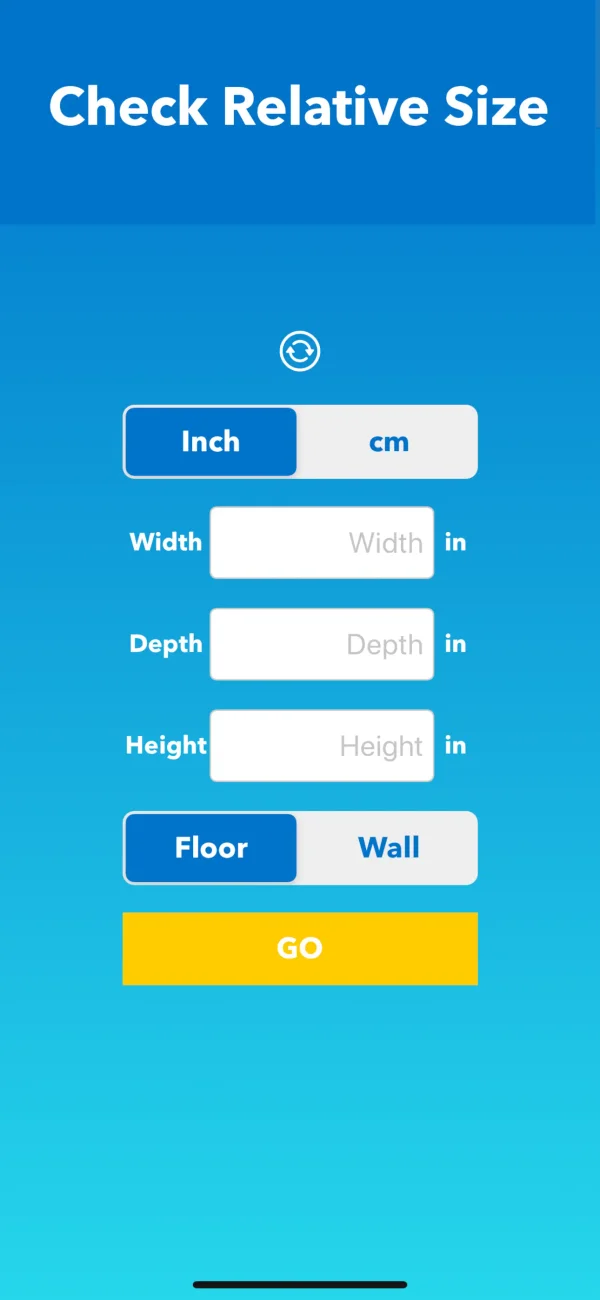
Enter an object's width, depth, and height to create a virtual 3D box. Place it in your surroundings to see how its dimensions compare with the available space.
**HOW TO USE**
**1. Area – Floor or Wall**
- Select your preferred measurement unit (ft² or m²).
- Tap "Area – Floor" or "Area – Wall" on the main menu.
- Move your iPhone slowly to scan the surrounding area.
- Find a flat floor or wall surface and wait for the blue square to appear.
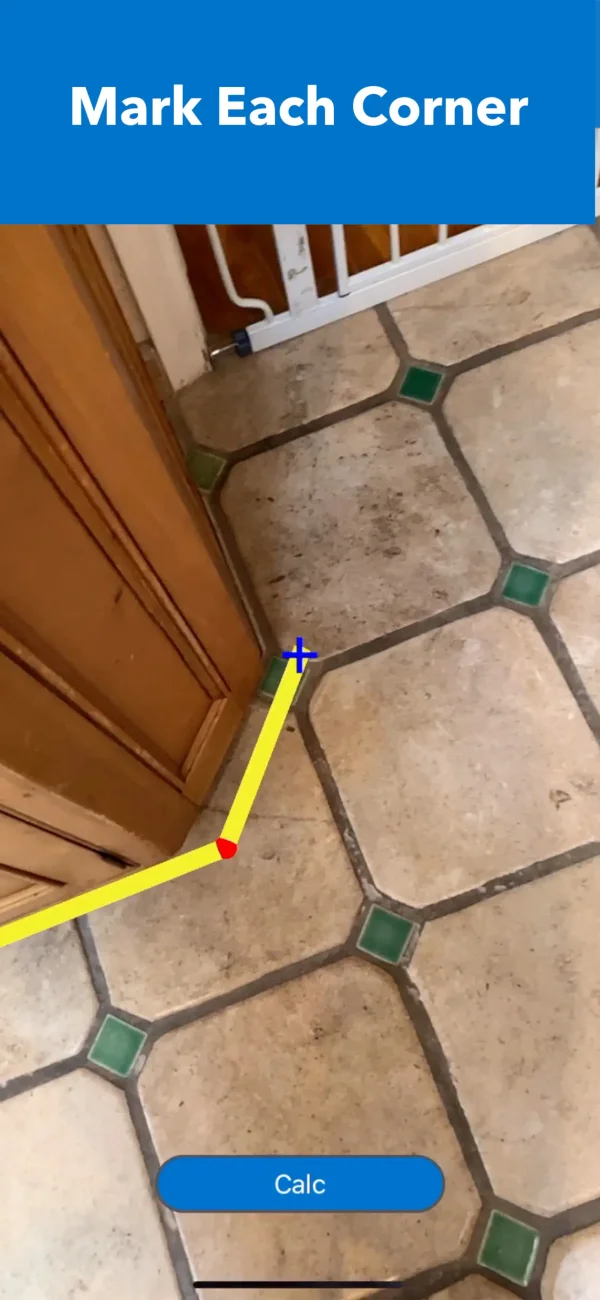
- Position the "+" pointer at the first corner.
- Tap the screen to mark the corner with a red sphere.
- Move clockwise or counterclockwise to the next corner and tap again.
- Continue marking each corner. Do not mark the starting point twice.
- Tap "Calc" to calculate the area.
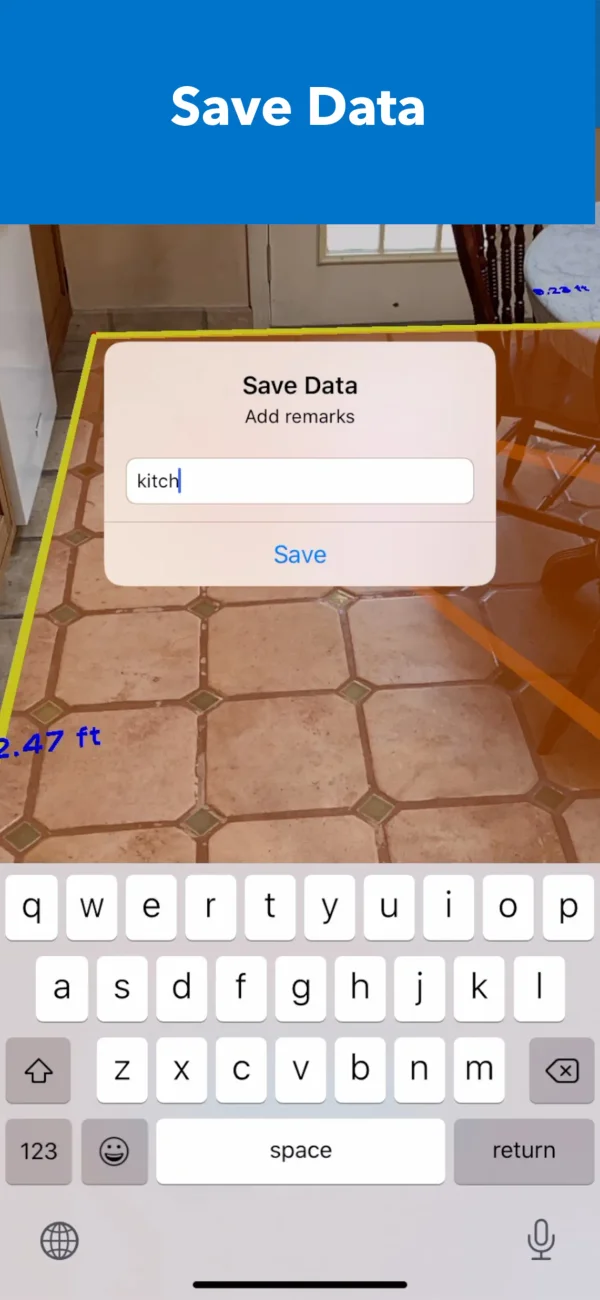
- To save the measurement, tap "Save," enter a note, and confirm.
- Tap "Camera" to take a photo.
- To access saved measurements, tap the file icon in the upper-right corner of the main menu.
- Search your saved measurements to find specific records.
- Tap a saved record to view its location and photo, if available.
- To delete a record, swipe left on the corresponding row.
Note: Occasionally, the orange AR-shaded area may extend beyond the outline or overlap. This visual effect does not affect the app's area calculation.
**2. Length**
- Tap "Length" on the main menu.
- Move your iPhone slowly to scan the surrounding area.
- Wait for yellow dots to appear on the target surface.
- Position the "+" pointer at the starting point.
- Tap the screen to mark the point with a red sphere.
- Move to the endpoint and position the pointer.
- Tap again to display the measured distance.
- To start a new measurement, tap "Reset."
- Tap "Camera" to take a photo.
**3. Furniture**
- Tap "Furniture" on the main menu.
- Scan the surrounding area until the blue square appears on a flat floor surface.
- Select a furniture item from the list.
- Tap the screen to place the virtual furniture.
- To rotate an item, touch it and slide your finger.
- To move an item, long-press it and drag.
- Tap "Add Another Item" to place additional furniture.
- Tap "Info" to show or hide furniture dimensions.
- Tap "Camera" to take a photo.
Virtual furniture uses standard or typical dimensions to help you visualize the relative size of a space.
**4. Size Checker**
- Select your preferred measurement unit.
- Enter the width, depth, and height of the object.
- Select the surface on which to place the virtual box.
- Tap "GO."
- Move your iPhone to scan the surrounding area.
- Wait for the blue square to appear on a suitable flat surface.
- Tap the screen to place the virtual box.
Use this feature to visualize an object's dimensions before purchasing or placing it in your space.
**IMPORTANT NOTES**
AR measurements are estimates and may vary with lighting, surfaces, and device movement. Verify measurements with professional tools when precision is required.
Yang baru
Versi 1.8 · 25/10/2026
- Added search functionality to quickly find saved area measurements.
- Minor improvements and bug fixes.
Privasi aplikasi
Yang dinyatakan Noriaki Murao di App Store tentang cara aplikasi ini menangani data.
-
Data yang digunakan untuk melacak Anda
Dapat digunakan untuk melacak Anda di aplikasi dan situs web milik perusahaan lain.
- Lokasi
- Pengenal
- Data penggunaan
-
Data yang tidak ditautkan dengan Anda
Dapat dikumpulkan, tetapi tidak ditautkan dengan identitas Anda.
- Lokasi
- Pengenal
- Data penggunaan
- Diagnostik
Praktik privasi dapat bervariasi, misalnya berdasarkan fitur yang Anda gunakan atau usia Anda.
Informasi
- Penjual
- Noriaki Murao
- Kategori
- Kegunaan
- Versi
- 1.8
- Diperbarui
- 25/10/2026
- Dirilis
- 8/6/2018
- Ukuran
- 7,3 MB
- Memerlukan
- iOS 13.0 atau yang lebih baru
- Batasan usia
- 4+
- Harga
- Gratis
- Bahasa
- Inggris
- Hak cipta
- © 2026 The New Life Enterprise, LLC
Mungkin Anda juga suka
-
 Square Meters Calculator, CostKalkulator Luas - Geometri
-
 CamToPlan - Pengukuran JarakDenah di augmented reality 3D
-
 Room Scanner - Easy Measure RmKegunaan
-
 AR Alat Ukur dengan Kamera 3DPengukur Tinggi Badan, Jarak
-
 Square Footage Calculator:AreoKegunaan
-
 Calculator areaKegunaan
-
 MoasureKegunaan
-
 Landscaping Calculator PlusKegunaan
-
 Tile Calculator, Flooring calcKegunaan
-
 Material Estimator CalculatorKegunaan