- Age rating4+
- CategoryUtilities
- DeveloperRsupport
- LanguagesEnglish+ 4 more
- Size207.3 MB
Links to the official App Store page
Download.org hosts no file of RemoteView. The button opens its official App Store page, published by Rsupport. Listing last checked on Nov 20, 2026.
Screenshots



About
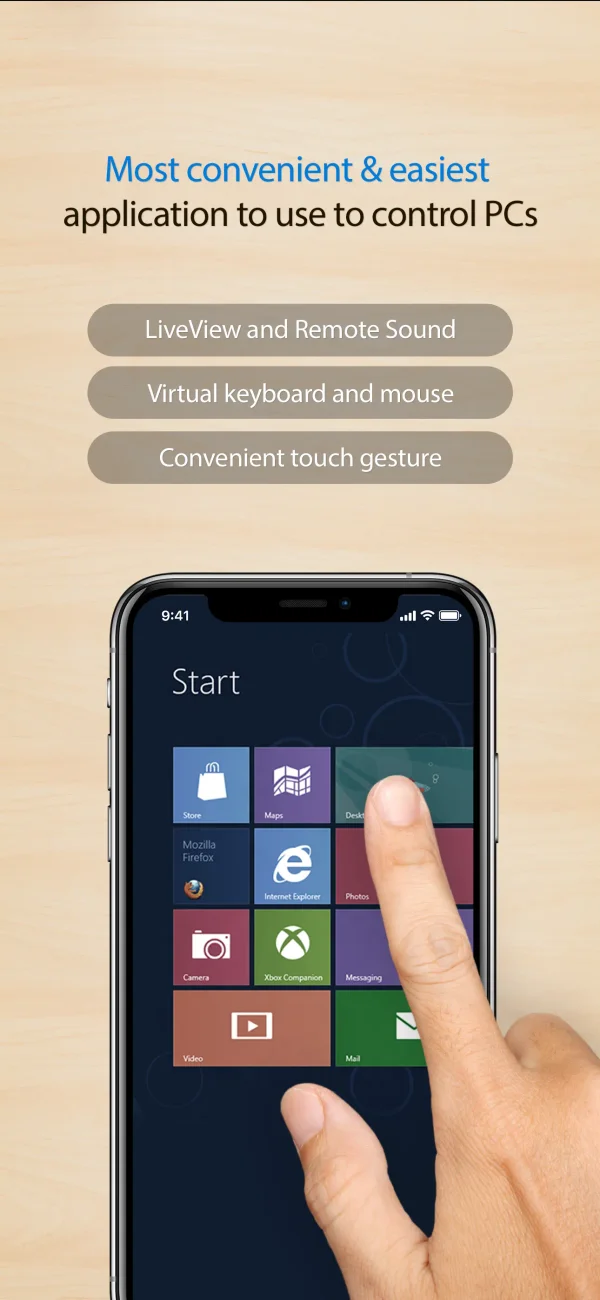
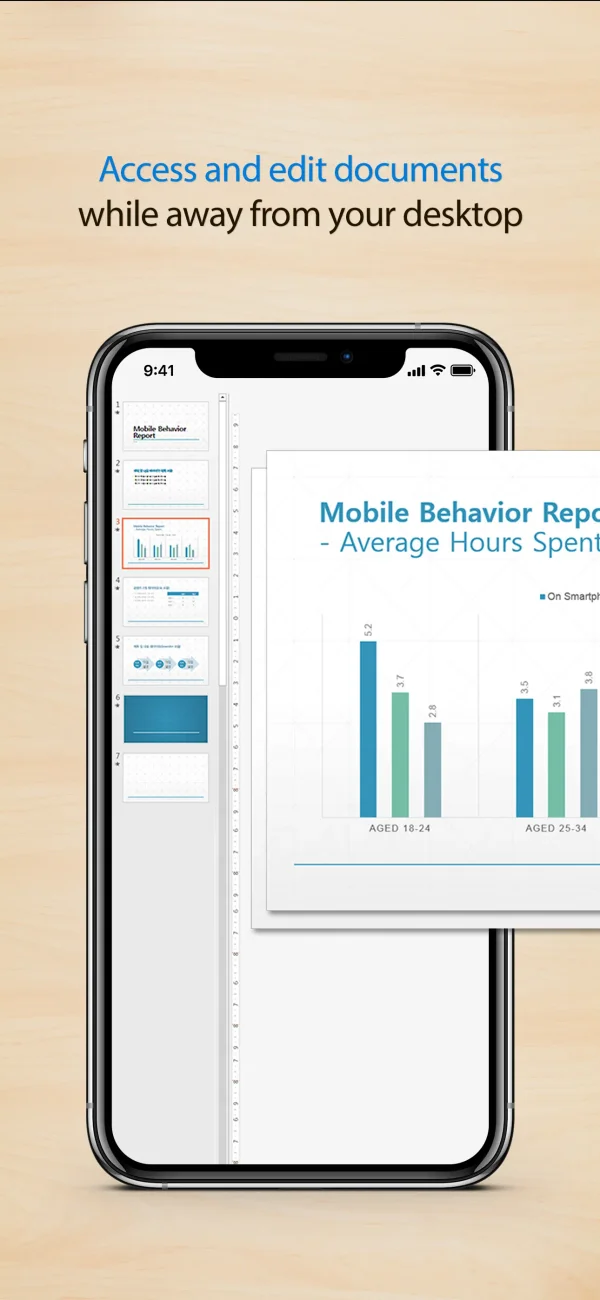
RemoteView is a service from RSupport that lets you remotely control computers located either at home, at the office, or anywhere else as long as there is live Internet connection. All you have to do is this: (1) Install an agent on a computer you want to access remotely; (2) Install a RemoteView App on your iPhone or iPad. Voila! You’re ready to start! You can use all the resource-heavy applications that usually require a full-on computer, from the convenience of a smartphone or a tablet by using RemoteView. That’s it!
[Special Features]
- Faster remote control speed and connection stability delivered by the patented VRVD technology.
- Works under multiple network environments: Dynamic IP; DHCP, Private IP, Private and corporate firewalls.
- Ease of Use: Assume control over a remote mouse and keyboard from mobile devices; Multi Touch, Scroll and Zoom are all supported.
- Language Input: Any language input method available on the remote computer will be supported.
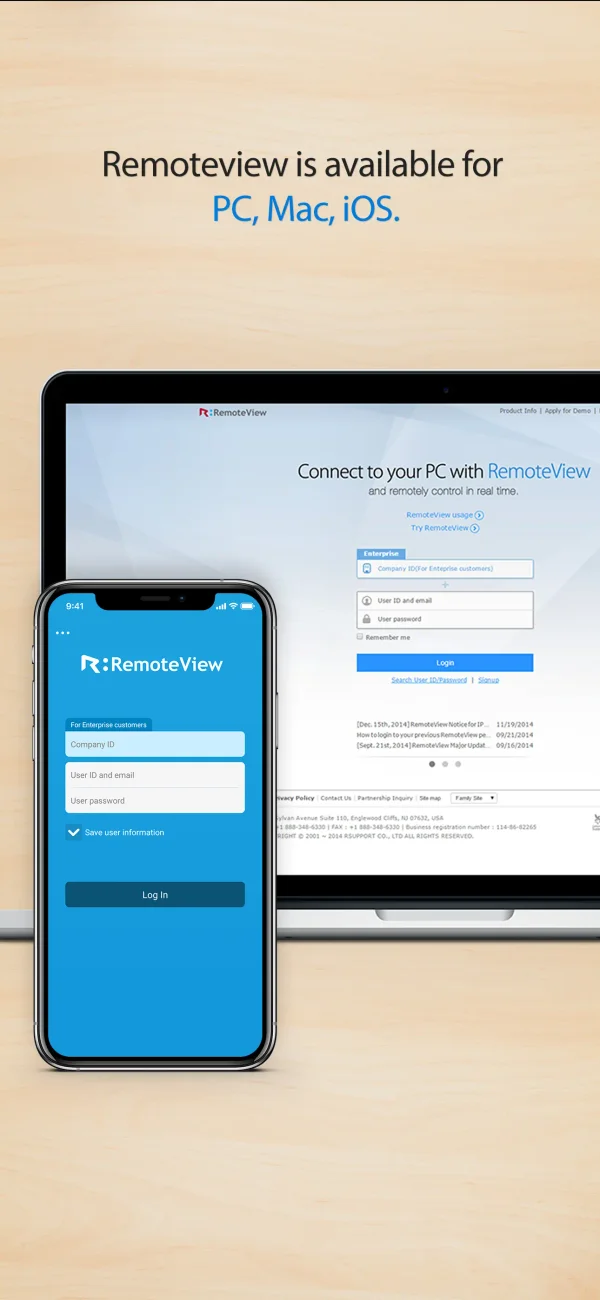
- Common UX: You can use RemoteView from an iOS device (iPhone/iPad) as well as PC seamlessly.
- Virtual Environments Supported: Hyper-V; VMware; Virtual PC; Citrix Xen -- All supported.
- Other Notable Features: Multi Monitor Support; Screen Lock Out; Remote Power On/Off via Intel vPro Chipset.
- You can manage power of a turned off PC which has Wake On LAN based technology.
[Rview Application Areas]
- When you want to recreate an office IT work environment.
- When you want to work at your office PC from home.
- When you want to access your files located at home from your office
- When you want to save files onto your PC from different places as you are on the move.
- When you have to have immediate access into your servers located inside a secure and hard to access places like the IDC.
- When you have a “One-to-Many” asset management needs.
[How To]
- Agent Installation Process
1. Go to RemoteView website on the PC you want to remote control.
2. In the RemoteView website, enter your ID and password to log in.
3. On the “Remote PC Manage My” screen click “Add PC” or “Install” button.
4. Installation will begin after setting Remote PC access ID and password.
- Remote Control a Computer from a smart device
1. Download RemoteView app on the App Store and launch it.
2. Enter RemoteView web ID and password to log
3. Select remote PC you want to remote control.
4. Enter Remote PC access ID and password to log in.
5. Remote control your remote PC
What’s new
Version 8.6.30005 · Nov 19, 2026
- Enhanced app security.
App privacy
What Rsupport declares on the App Store about how this app handles data.
-
Data not linked to you
May be collected but is not linked to your identity.
- User content
- Identifiers
- Diagnostics
Privacy practices may vary, for example with the features you use or your age.
Information
- Seller
- RSupport
- Category
- Utilities
- Version
- 8.6.30005
- Updated
- Nov 19, 2026
- Released
- Sep 14, 2010
- Size
- 207.3 MB
- Requires
- iOS 16.0 or later
- Age rating
- 4+
- Price
- Free
- Languages
- English, Japanese, Korean, Simplified Chinese, Traditional Chinese
- Copyright
- © Copyright(C) 2001 ~ 2026 RSUPPORT CO., LTD. All rights reserved.
You might also like
-
 Remote.ItNetworking without hardware
-
 DameWare MobileUtilities
-
 AirDroid BusinessUtilities
-
 Remote Desktop ManagerRemote Connection Management
-
 Royal TSi LitePowerful Connection Management
-
 FullControl: Remote for MacRemote for Mac
-
 HopToDeskRemote access and control
-
 Alpemix Remote Desktop ControlUtilities
-
 EasyOTAUtilities
-
 Screens 5: VNC Remote DesktopFast & Secure Computer Access