
Table Memo
Memo of spread sheet form
Designed for iPhone, iPod touch
Free · In-app purchases
- Age rating4+
- CategoryBusiness
- DeveloperRYOICHI KAWAHARA
- LanguagesEnglish+ 1 more
- Size5.2 MB
Links to the official App Store page
Download.org hosts no file of Table Memo. The button opens its official App Store page, published by RYOICHI KAWAHARA. Listing last checked on Nov 23, 2026.
Screenshots

About
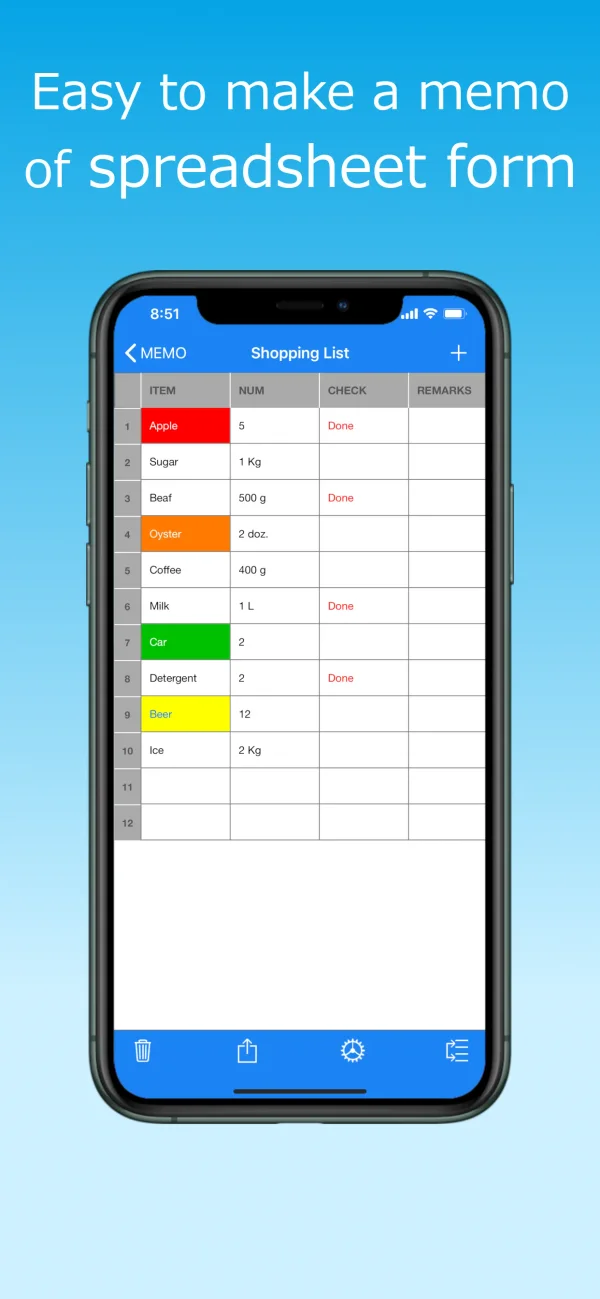
Table Memo is simple memo app of spreadsheet form.
Each memo has a header of several columns, and has rows of memo.
You can add/delete columns, edit each item name, add/delete/copy/move rows of memo.
Created/edited memo can be sent by mail as CSV (with values encapsulated in double quotes) formatted data (UTF-8 encoding).
You can also use Table Memo app as simple CSV (with values encapsulated in double quotes) viewer(use iOS mail app).
How to use:
1. Create Memo
At memo list view (first view of this app), tap add('+') button, and input the memo title.
By tapping Edit button, you can edit memo name, delete memo, and reorder list.
2. Edit Memo data
Select the created memo, and open memo table view.
Tap each cell you want edit, and edit the data.
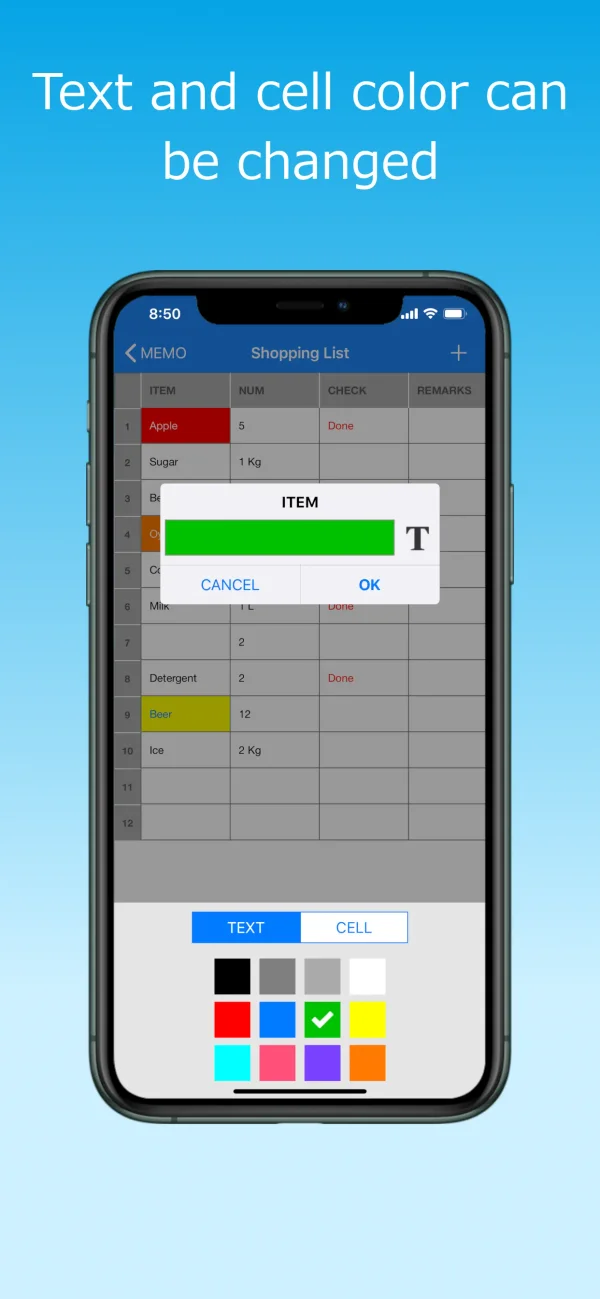
If color mode is on, text and cell color also can be changed.
To add new row, tap add('+') button.
To copy or delete row, tap the row number of left side and select operation.
By double tapping a cell, the entire contents of the cell is displayed, so you can check and copy the contents.
At the bottom of memo table view, there are four buttons, 1) trash button, 2) action button, 3) table settings button, 4) reorder button, from left to right.
1) trash button
You can delete current opened memo.
2) action button
Current opened memo can be duplicated, or can be sent by mail as CSV formatted data.
3) table setting button
Table settings view will open (see below).
4) reorder button
By tapping this button (the reorder button changes to the edit button), memo table becomes the reorder mode, and you can reorder rows by dragging each row.
To back to edit mode, tap the edit button.
3. Table Settings
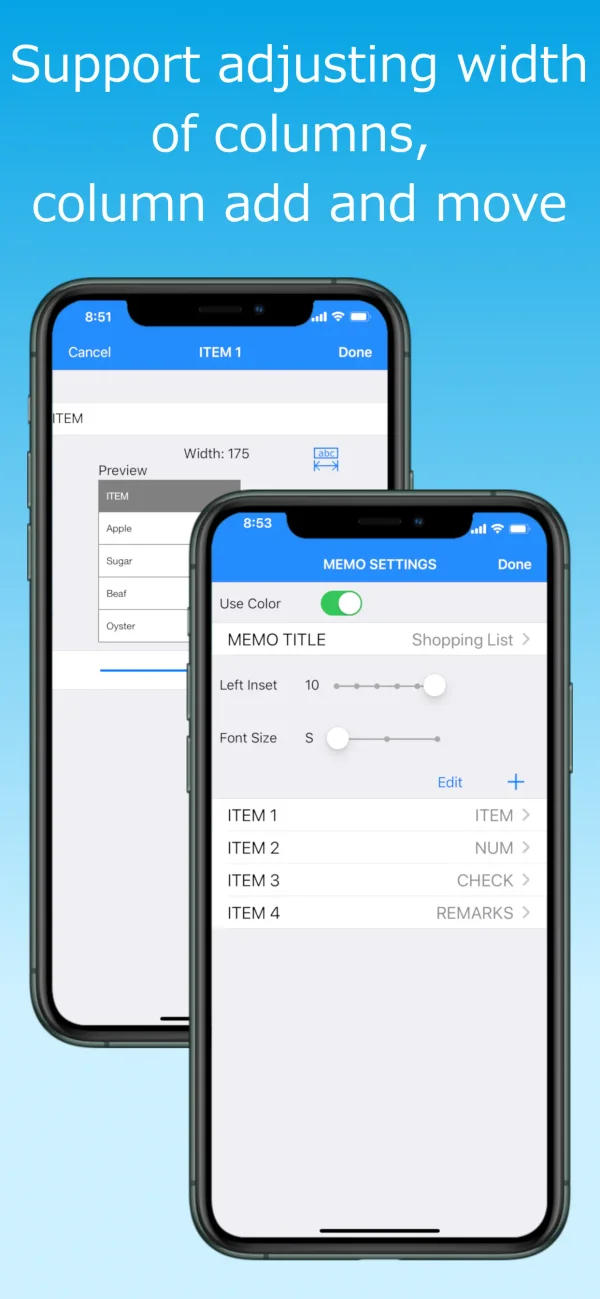
1) Use Color switch
If set ON, text and cell color becomes changeable.
[[CAUTION]] If set OFF after using color, all color data will clear.
2) MEMO TITLE section
Select memo title and edit the title.
3) Left Inset setting
You can adjust the space on the left side of the cell.
4) Font Size setting
You can change the font size of the table.
5) Columns section
To add new column, tap add('+') button.
To delete column or reorder columns, tap Edit button.
By selecting each ITEM of columns, column edit view will open (see below).
4. Column edit
1) ITEM name section
You can edit item name.
2) Column width section
You can change column width by slider.
By tapping the adjust button, the column width will be set to the width of existing data.
*You can also open this view by long press of header item at memo table view.
5. Settings
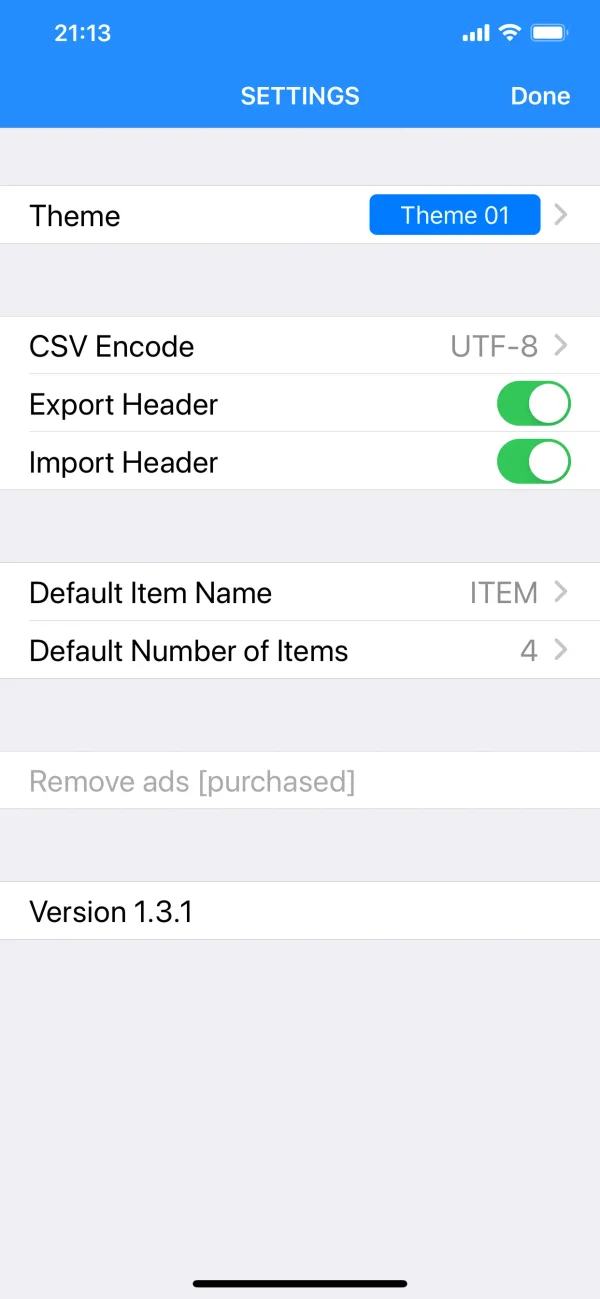
Tapping settings button at memo list view, SETTINGS view will open.
You can change settings below:
1) THEME of this app
2) settings of CSV export/import
- encoding of CSV data
- export header
- import 1st row as header
3) default column name and default number of columns.
What’s new
Version 1.3.6 · Jun 4, 2025
Fix a bug that memo not being opened when there were too many columns
App privacy
What RYOICHI KAWAHARA declares on the App Store about how this app handles data.
-
Data used to track you
May be used to track you across apps and websites owned by other companies.
- Identifiers
- Usage data
-
Data not linked to you
May be collected but is not linked to your identity.
- Identifiers
- Usage data
Privacy practices may vary, for example with the features you use or your age.
Information
- Seller
- RYOICHI KAWAHARA
- Category
- Business
- Version
- 1.3.6
- Updated
- Jun 4, 2025
- Released
- Jan 15, 2014
- Size
- 5.2 MB
- Requires
- iOS 14.0 or later
- Age rating
- 4+
- Price
- Free
- In-app purchases
- Yes
- Languages
- English, Japanese
- Copyright
- © 2014 PUDDING-TABLE
You might also like
-
 Table Maker, Spreadsheet NotesSpreadsheet Notes, Gantt Chart
-
 Table Notes Spreadsheet makerSpreadsheet style notebook
-
 SunTable-Spreadsheet view&editTable maker
-
 Table Notes Spreadsheet ExcelSheets Excel Lio alternative
-
 AddNotesCalculate total automatically
-
 The Spreadsheet App - SheetsExcel Editor, Tables & Scan
-
 24-Hour Weekly Schedule Notes24-Hour 7-Day Time Management
-
 Spreadsheet - SheetletCharts, Tables & Sheets
-
 iSpreadsheet™ : Office SheetsSpreadsheet with Excel Formula
-
 Utility SpreadsheetNumber Crunching Made Easy