- Age rating4+
- CategoryUtilities
- DeveloperHyun Sik Choi
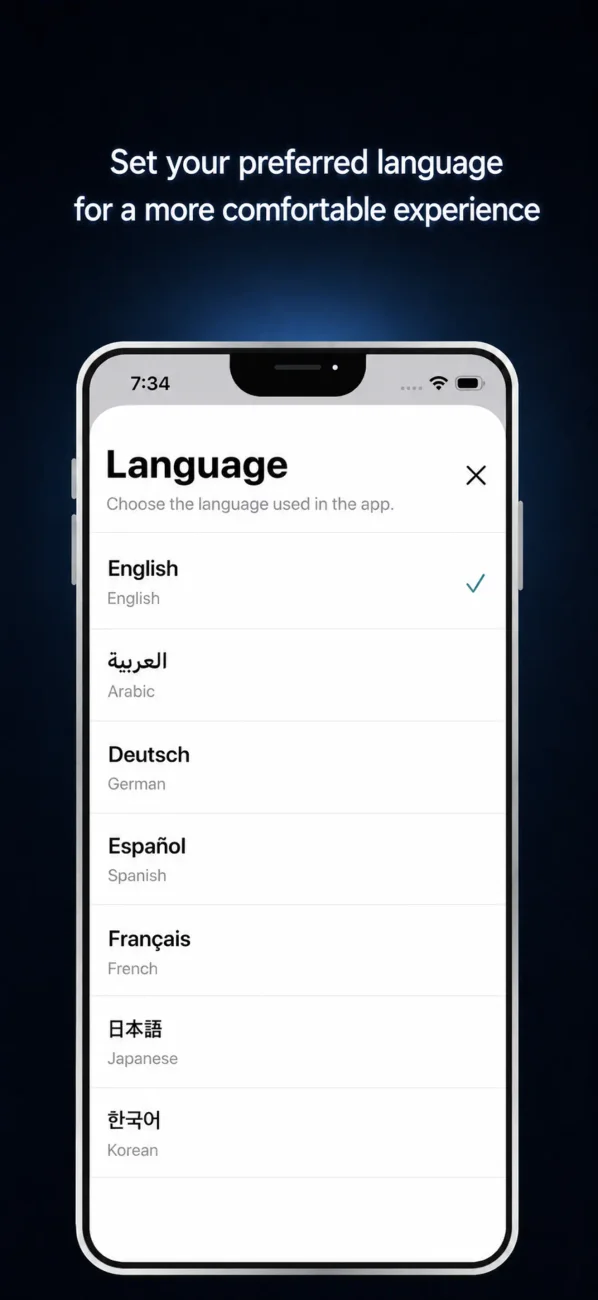
- LanguagesEnglish+ 6 more
- Size19.1 MB
Links to the official App Store page
Download.org hosts no file of ViewSide Link. The button opens its official App Store page, published by Hyun Sik Choi. Listing last checked on Nov 14, 2026.
Screenshots
About
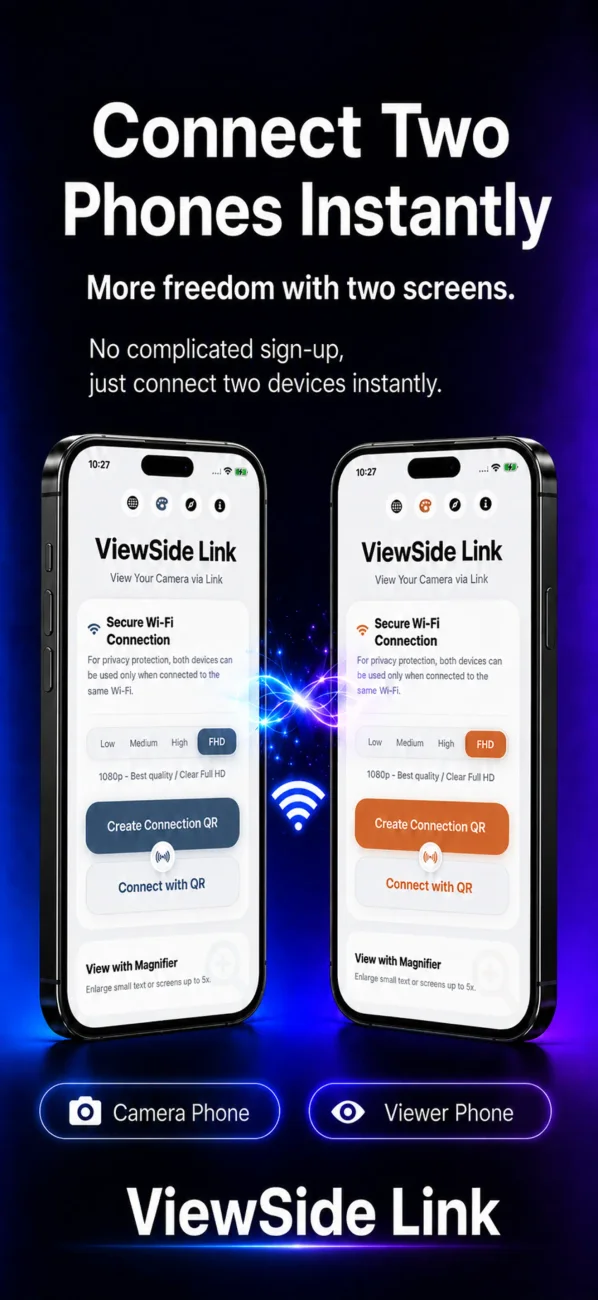
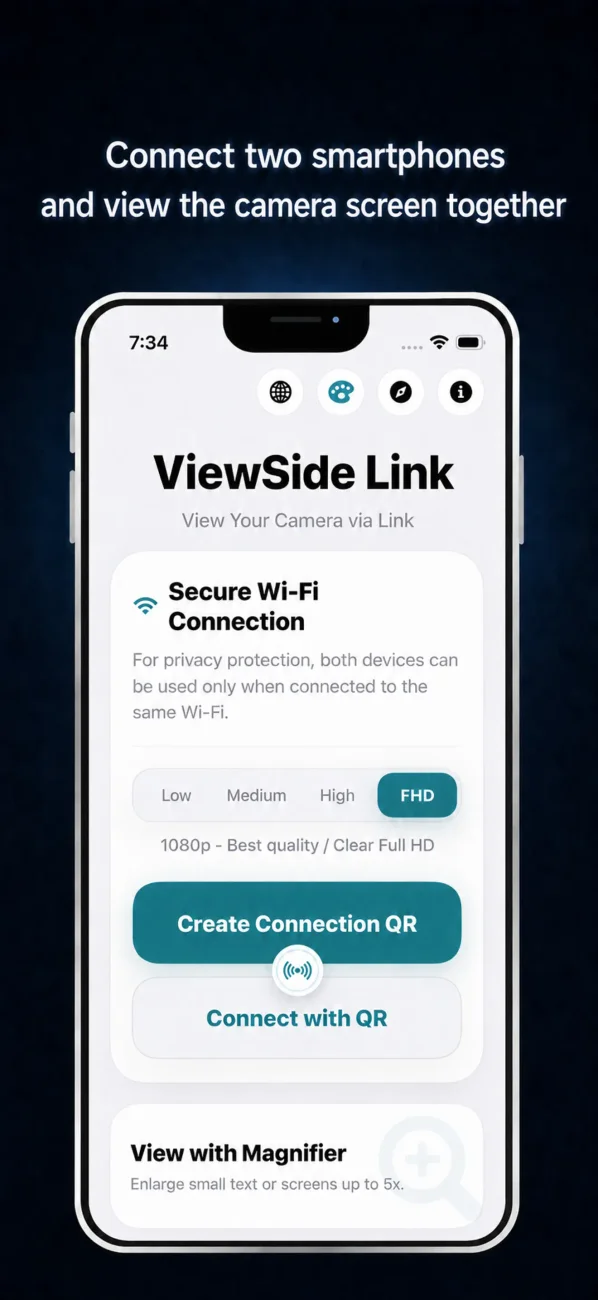
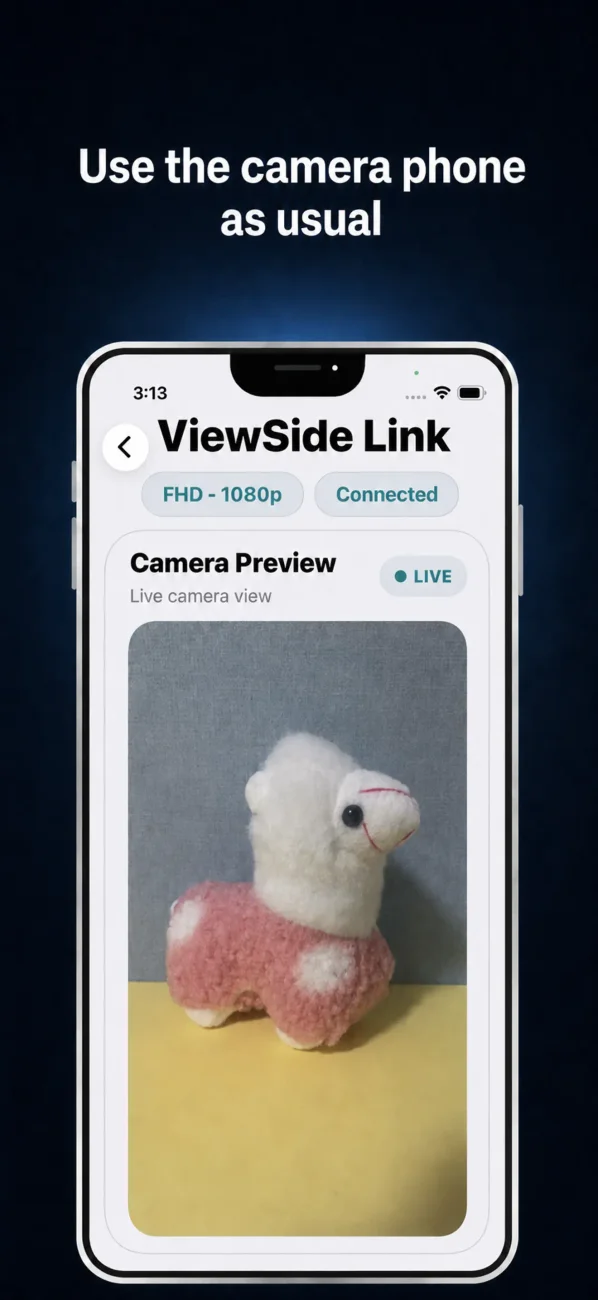
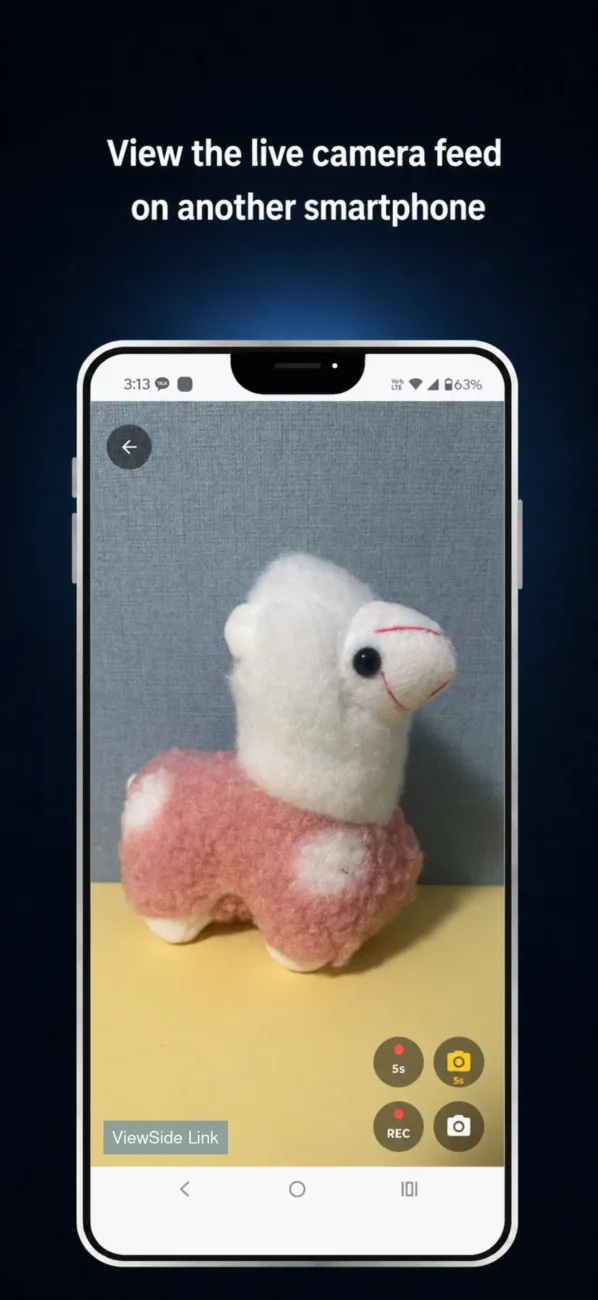
ViewSide Link is an app that connects two smartphones, allowing you to view live video from one phone's camera or transfer files between devices.
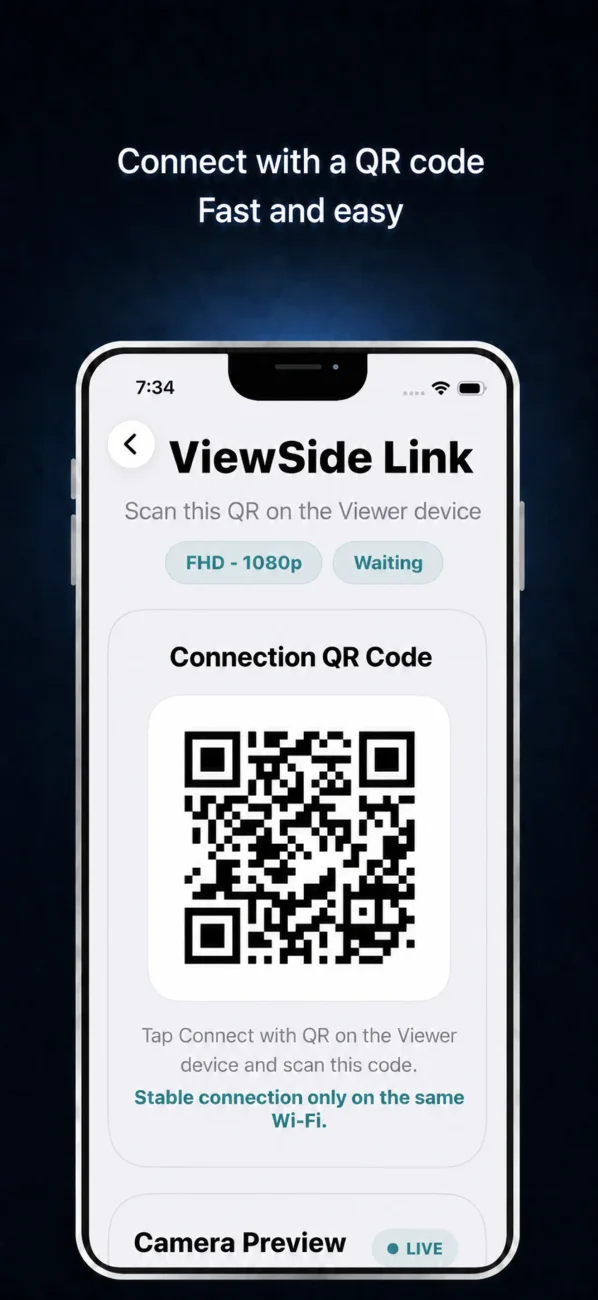
No registration or login is required. Simply connect using a QR code. Video and files are transferred directly between the two devices.
Try connecting and using ViewSide Link with any combination of iPhone and Android devices.
https://morerak.kr/link
-----------------
Notice
-----------------
Starting with version 1.2.1, the roles for video connection QR codes have changed. The phone that generates the QR code now becomes the Viewer, while the phone that scans the QR code becomes the Camera.
If you are using an older version, please update both devices to the latest version to ensure a smooth connection.
-----------------
Video Streaming
-----------------
On the phone you want to use to watch the video, tap "Generate Connection QR · Viewer".
On the phone you want to use as the camera, tap "Connect via QR · Camera" and scan the code to start capturing video immediately. You can then watch the live video on the phone that generated the QR code.
-----------------
File Transfer
-----------------
Photos and videos captured through the app are saved on the phone used as the camera.
To transfer saved photos or videos, open "File Transfer" on the home screen, select the files you want to send, and tap "Generate QR to Send".
On the receiving phone, tap "Scan QR · Receive" to scan the code, then tap "Receive" to start the transfer.
-----------------
Magnifier
-----------------
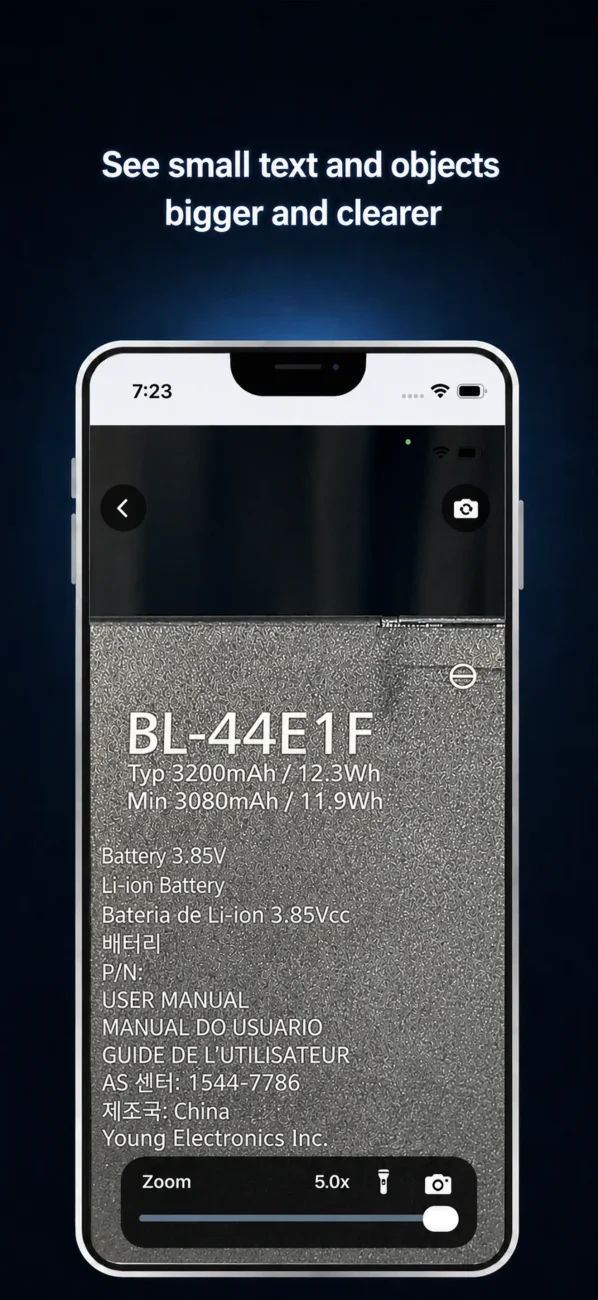
Open the Magnifier from the home screen to enlarge small text or fine details.
You can also freeze the screen, recognize text, and copy it.
-----------------
Settings
-----------------
Choose whether to use Wi-Fi only or allow mobile data connections.
Set the photo capture timer, the number of consecutive shots, and the interval between shots.
For video recording, you can set the delay before recording starts and the recording duration.
Select your preferred default video quality when launching the app, and customize or disable the watermark.
What’s new
Version 1.2.1 · Nov 12, 2026
• The QR code connection process has changed. The phone that creates the QR code acts as the viewer, and the phone that scans it becomes the camera.
• You can now take photos and record videos directly on the phone used as the camera.
• Send saved photos and videos to a connected device using a QR code.
• Added guide lines and on-screen drawing for live video, along with pause and motion detection features.
• Set the photo timer and recording duration in Settings. For interval shooting, choose the number of photos and set the interval in seconds.
• Change the watermark text or turn the watermark off.
• Choose whether to use Wi-Fi only or allow mobile data in Network Settings.
App privacy
What Hyun Sik Choi declares on the App Store about how this app handles data.
-
Data not linked to you
May be collected but is not linked to your identity.
- Other data
Privacy practices may vary, for example with the features you use or your age.
Information
- Seller
- Hyun Sik Choi
- Category
- Utilities
- Version
- 1.2.1
- Updated
- Nov 12, 2026
- Released
- Jul 20, 2026
- Size
- 19.1 MB
- Requires
- iOS 16.6 or later
- Age rating
- 4+
- Languages
- English, Arabic, French, German, Japanese, Korean, Spanish
- Copyright
- © 2026 Hyunsik Choi
You might also like
-
 Boreal NFC: Tag WriterRead, edit & batch NDEF
-
 ClauseCheck - Contract DiffLocal. Private. One-time.
-
 BPaaS Image RulerMeasure your Images!
-
 Shrimpminder: Posture AlertsFix slouching & back pain.
-
 Boat Buddy - Nautical GuideBoat GPS, tides & logbook
-
 StreamTester: RTSP HLS PlayerVideo Stream Test, IP Cam View
-
 ClipCreeper for SafariWatch Social Videos in Safari
-
 Netsight - WiFi ToolsWiFi Scanner & IP Analyzer
-
 TV Remote Control: UniRemoteSmart TVs, Touchpad & Keyboard
-
 Nenrin – Same Day, Every Year365 files, a lifetime of days